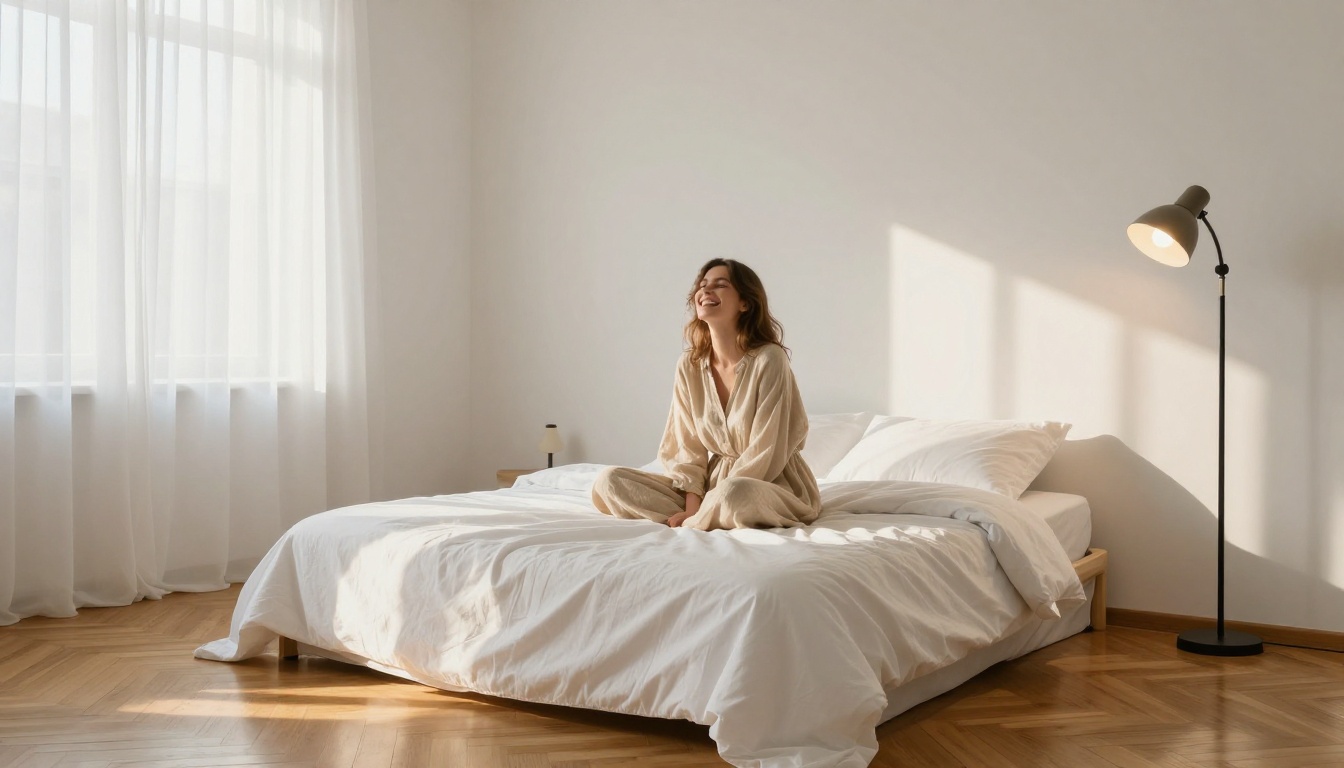
You don't need to rent a photography studio, buy a ring light, or hire a professional to get portraits that look like they came from a high-end shoot. AI image generation has reached a point where anyone with a good prompt and the right model can produce studio-quality portraits with seamless backgrounds, perfect lighting, and razor-sharp detail, all from a laptop at home. This article walks you through the entire process: choosing the right AI model, writing prompts that produce photorealistic results, using your actual home setup as a supplement, and polishing your output to print-ready quality.
What "Studio Quality" Actually Means
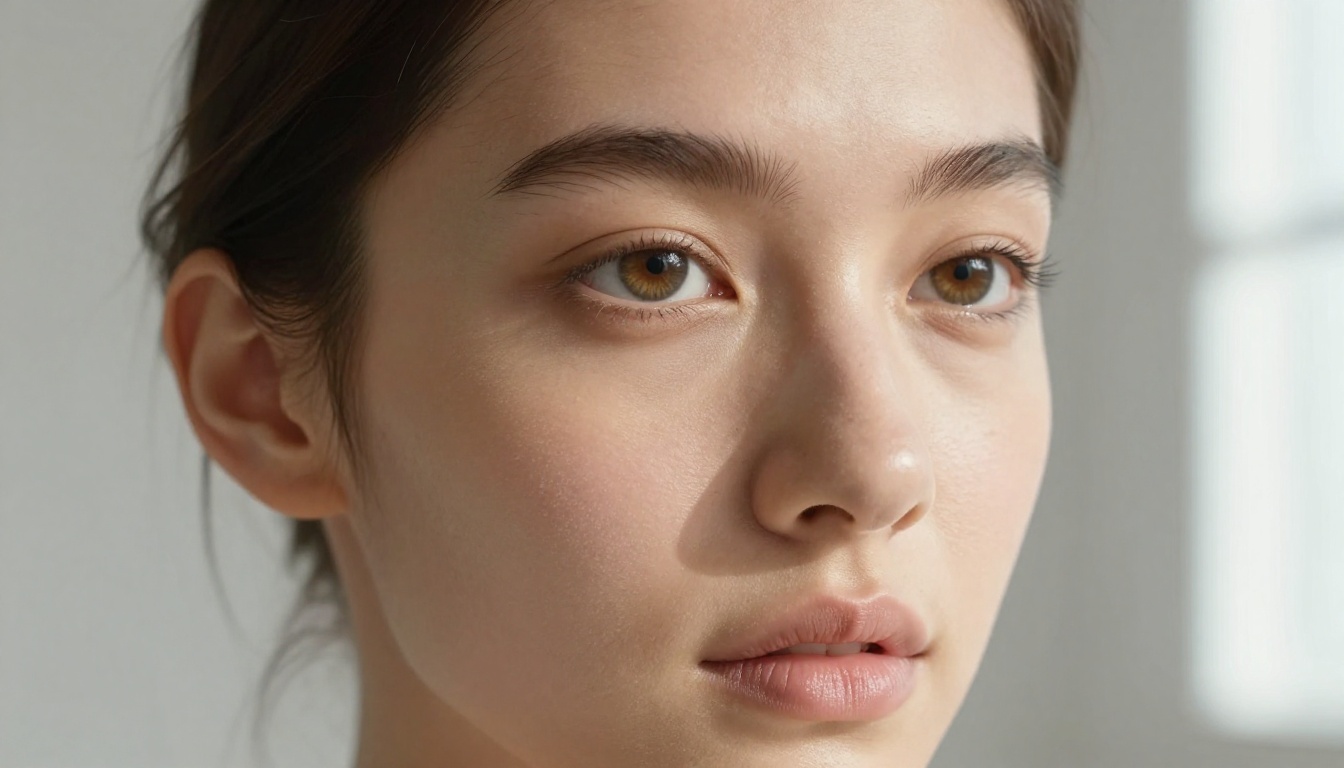
Most people associate studio photos with expensive gear. But the real definition is simpler: consistent, controlled lighting, a clean background, and a sharp subject. That's it. Professional photographers spend thousands of dollars to control those three elements. AI models replicate all three in a single generation step.
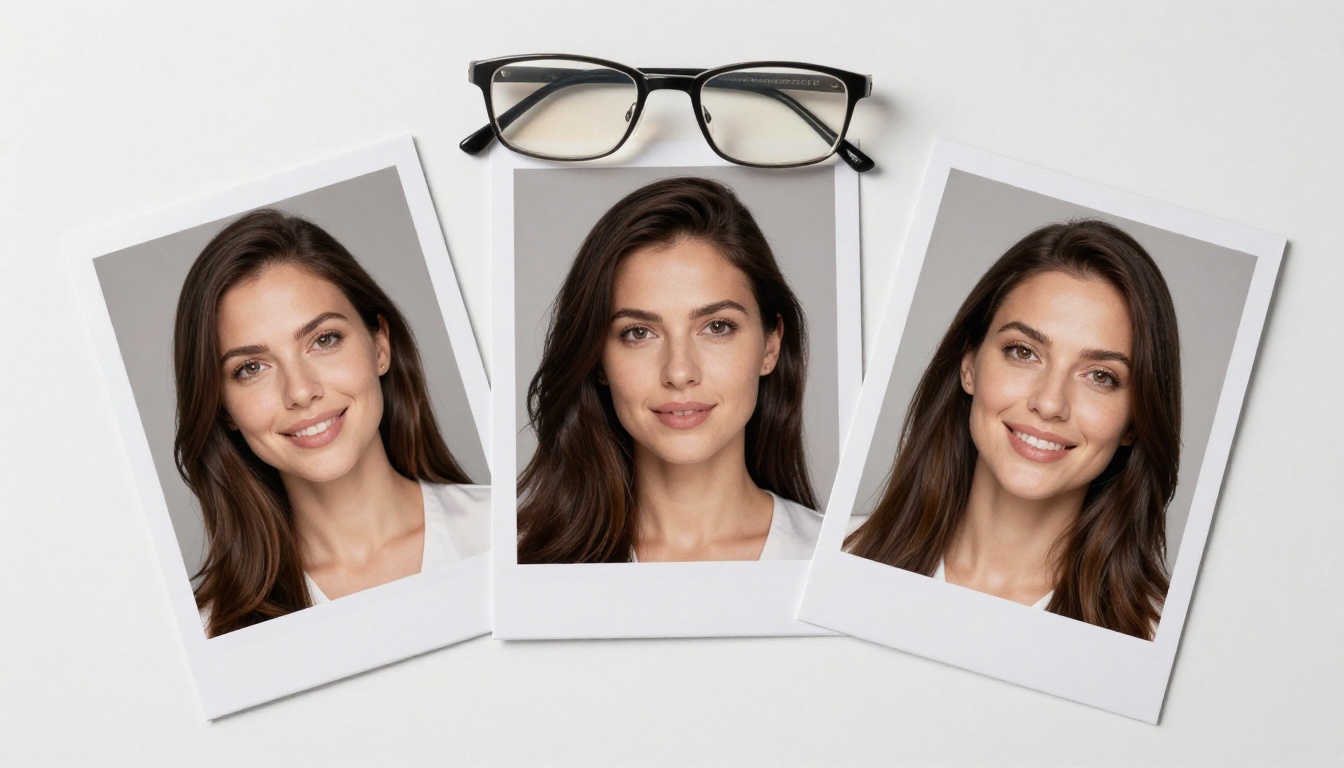
The Three Pillars of a Studio Photo
Every great studio portrait is built on three things:
- Lighting: Soft, directional light that sculpts the face without harsh shadows. Rembrandt patterns, butterfly lighting, and split lighting are the classic setups.
- Background: A seamless, distraction-free backdrop, typically white, gray, or black, that makes the subject pop.
- Sharpness: Crisp focus on the face (especially the eyes) with a naturally blurred background that creates depth.
AI models trained on millions of professional photographs have absorbed all three of these patterns. When you write a prompt that specifies these elements, the model draws on that training to reproduce them with photorealistic accuracy.
Why AI Can Replicate All Three
Modern text-to-image models don't just generate images from scratch. They've learned the statistical relationship between words like "Rembrandt lighting", "85mm f/1.8", and "seamless white backdrop" and what those actually look like in a photograph. The result is that a well-written prompt produces an output that a viewer will instinctively read as a professional studio photo, even if no studio was involved.
💡 Tip: The more specific your prompt, the more professional the result. Vague prompts like "portrait of a woman" produce inconsistent results. Specific prompts that describe lens, lighting direction, background texture, and clothing produce images that look like they came from a $5,000 shoot.
Choosing the Right AI Model for Portraits
Not all AI image models handle portraits equally. Some are optimized for speed, others for maximum photorealism, and others for ultra-high resolution output. Here's how the top models on PicassoIA compare for studio portrait work.
| Model | Best For | Resolution | Speed |
|---|
| Flux Dev | Maximum photorealism | 1MP (multiple ratios) | Medium |
| Flux Schnell | Fast iteration, batch testing | 1MP | Very fast (4 steps) |
| Seedream 3 | Print-ready 2K output | Up to 2048px | Medium |
Flux Dev for Maximum Realism
Flux Dev is a 12-billion parameter model that produces some of the most photorealistic portrait outputs available in any AI image generator. It supports image-to-image editing, which means you can upload a photo of yourself or a subject and redirect it with a prompt to simulate professional studio lighting and backgrounds.
For studio portrait work, set the guidance scale between 3.0 and 3.5 and use 28 to 50 inference steps. The higher the step count, the more detail the model renders into skin texture, hair strands, and fabric weave.
Flux Schnell When Speed Matters
Flux Schnell is built for rapid iteration. It generates a finished 1-megapixel image in under 5 seconds using just 4 denoising steps. If you're testing multiple prompt variations to find the right lighting angle or backdrop tone, Schnell lets you cycle through 10 ideas in the time it takes another model to finish one.
On PicassoIA, Flux Schnell has no credit caps. You can run unlimited generations, test every prompt variation you want, and only switch to Flux Dev when you've dialed in the shot you're going for.
Seedream 3 for High-Resolution Output
If you need to print your AI studio portrait, Seedream 3 outputs at native 2048px on the longest side with no post-generation upscaling required at that base level. It's the right choice when you're producing a headshot for a press kit, a LinkedIn banner, or a printed portfolio.
Set size to "big" and choose your aspect ratio before generating. The model handles portrait (3:4, 9:16), square, and widescreen (16:9, 21:9) ratios with equal quality.
How to Write Prompts That Look Like a Photographer Took Them
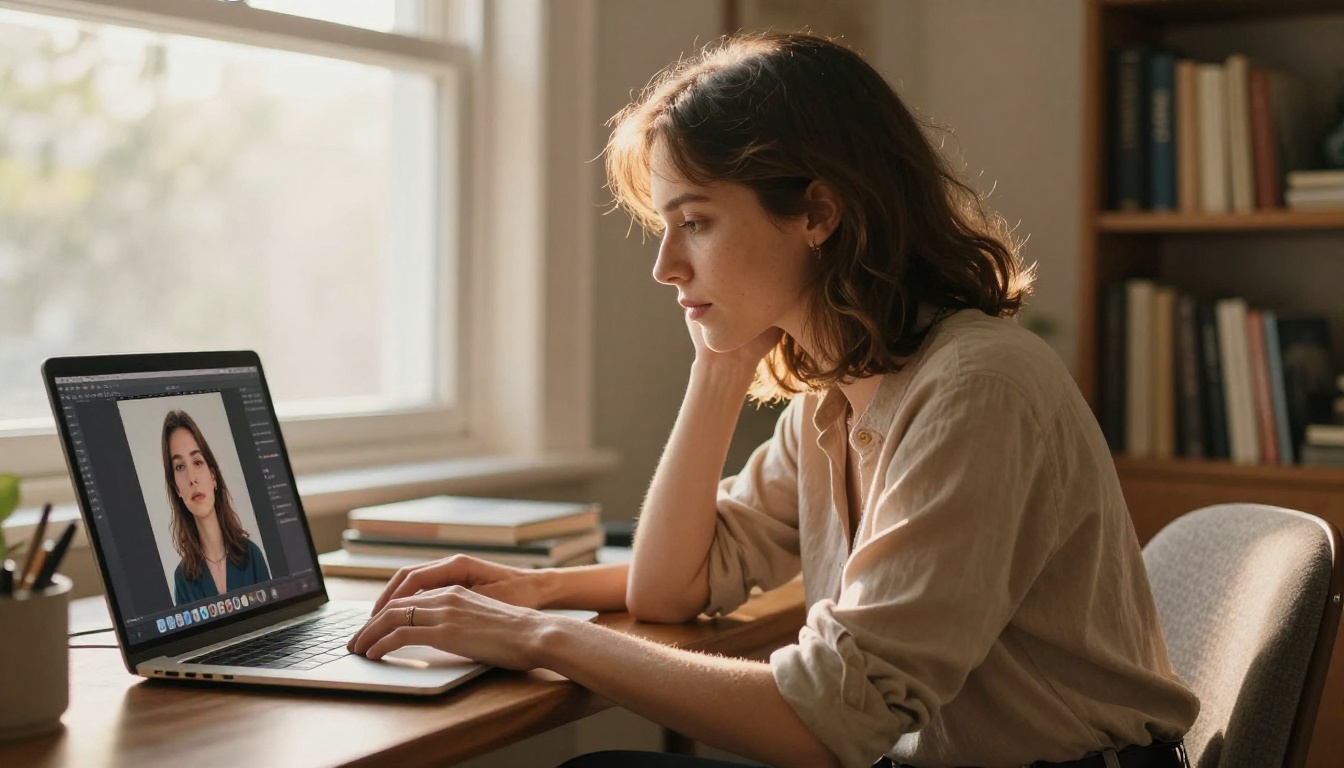
The prompt is your camera, your lighting setup, and your art direction note all rolled into one. Getting it right is the single biggest factor in whether your AI studio photo looks like it came from a $200 iPhone snapshot or a $2,000 professional shoot.
The Anatomy of a Great Portrait Prompt
Every strong portrait prompt has five components:
- Subject description: Age, gender, hair, expression, clothing. Be specific.
- Lighting setup: Name the pattern (Rembrandt, butterfly, split) and the light source (large softbox, diffused window, ring light).
- Background: Color, texture, distance from subject.
- Camera specs: Focal length (85mm is the classic portrait length), aperture (f/1.4 to f/2.8 for bokeh), and position (eye-level, low angle, three-quarter).
- Rendering style: Kodak Portra 400 film grain, 8K RAW photography, photorealistic, shallow depth of field.
Lighting Descriptors That Actually Work
Certain lighting descriptors consistently produce professional-looking results across Flux Dev, Flux Schnell, and Seedream 3:
- "Rembrandt lighting": Creates a small triangle of light on the shadow-side cheek. Dramatic and flattering.
- "butterfly lighting": Light positioned directly above the subject, casting a butterfly-shaped shadow under the nose. Classic for beauty and glamour.
- "split lighting": Half the face in light, half in shadow. Strong and editorial.
- "volumetric morning light from the left": Produces warm, directional rays that look like natural window light.
- "diffused overcast studio strobe": Soft, even, no harsh shadows. Perfect for clean headshots.
5 Ready-to-Use Prompt Templates
Below are five prompts you can paste directly into any model on PicassoIA:
1. Clean Headshot (White Background)
Professional headshot of a 30-year-old woman with brown hair tied back, wearing a navy blazer, butterfly lighting from a large white softbox above, seamless white backdrop, eye-level shot, 85mm f/2.0, skin texture visible, natural makeup, Kodak Portra 400, 8K RAW photography, photorealistic --ar 3:4
2. Dramatic Editorial (Dark Background)
Editorial portrait of a young man with short cropped hair and defined jawline, wearing a black turtleneck, Rembrandt lighting from left with a silver reflector filling shadows from right, seamless charcoal gray backdrop, three-quarter angle, 50mm f/1.4, film grain, photorealistic 8K RAW photography --ar 16:9
3. Warm Lifestyle (Window Light)
Lifestyle portrait of a woman in her 30s laughing naturally, golden hour window light from the right creating a warm rim light on her hair, out-of-focus cream interior background, 85mm f/1.8, shallow depth of field, Kodak Portra 400 warm tones, photorealistic, 8K --ar 3:4
4. Corporate Professional (Gray Background)
Corporate headshot of a man in his 40s with salt-and-pepper hair, wearing a charcoal suit and white shirt, diffused overhead studio strobe, seamless medium gray backdrop, direct eye contact, eye-level shot, 90mm f/2.8, sharp focus on eyes, professional expression, photorealistic 8K RAW photography --ar 1:1
5. Fashion Portrait (Seamless Black)
High-fashion portrait of a tall woman in her 20s with high cheekbones, wearing a structured off-white blazer, split lighting with blue gel from left and warm main light from right, seamless black background, low-angle shot looking up, 35mm lens, photorealistic editorial fashion photography, film grain, 8K --ar 9:16
💡 Tip: Add the camera spec last in the prompt. Models tend to weight the final tokens heavily, so ending on "photorealistic 8K RAW photography" consistently reinforces the realistic rendering direction.
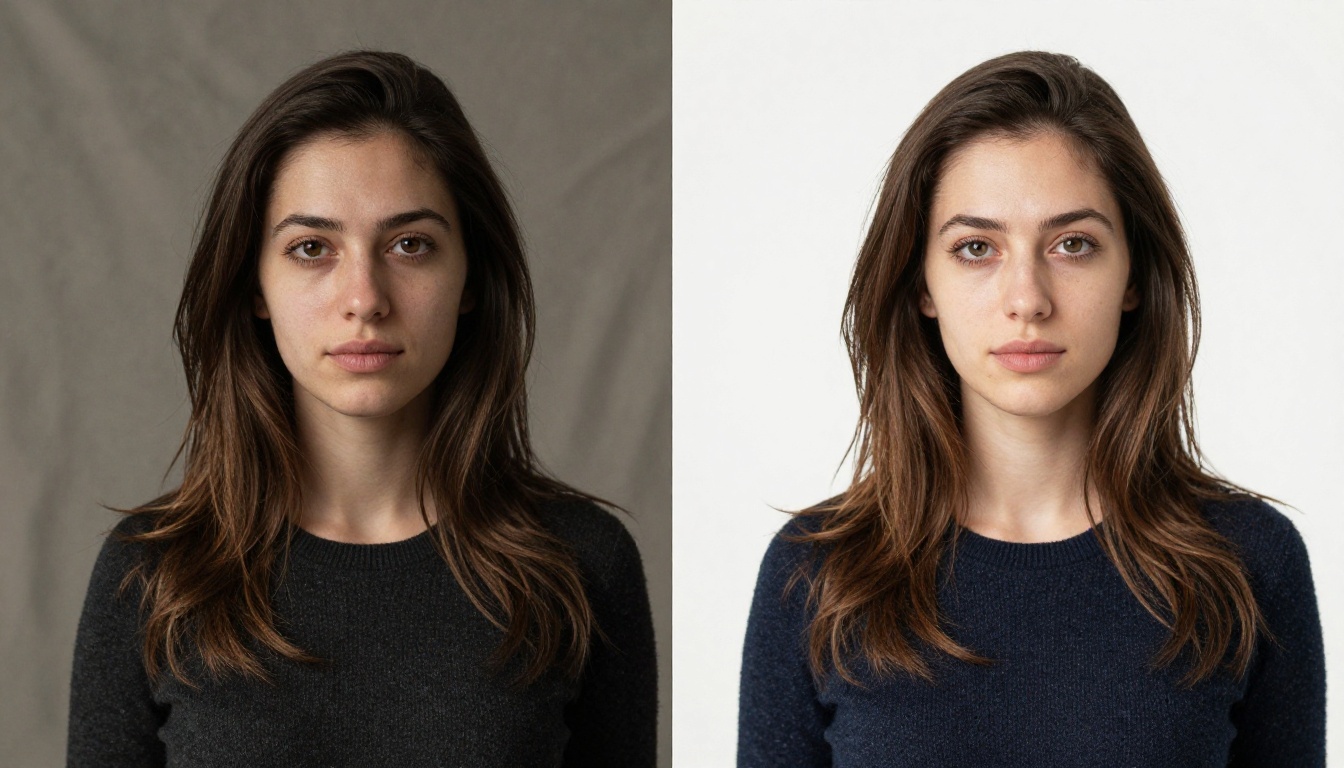
Setting Up a Real Home Studio (Optional but Powerful)
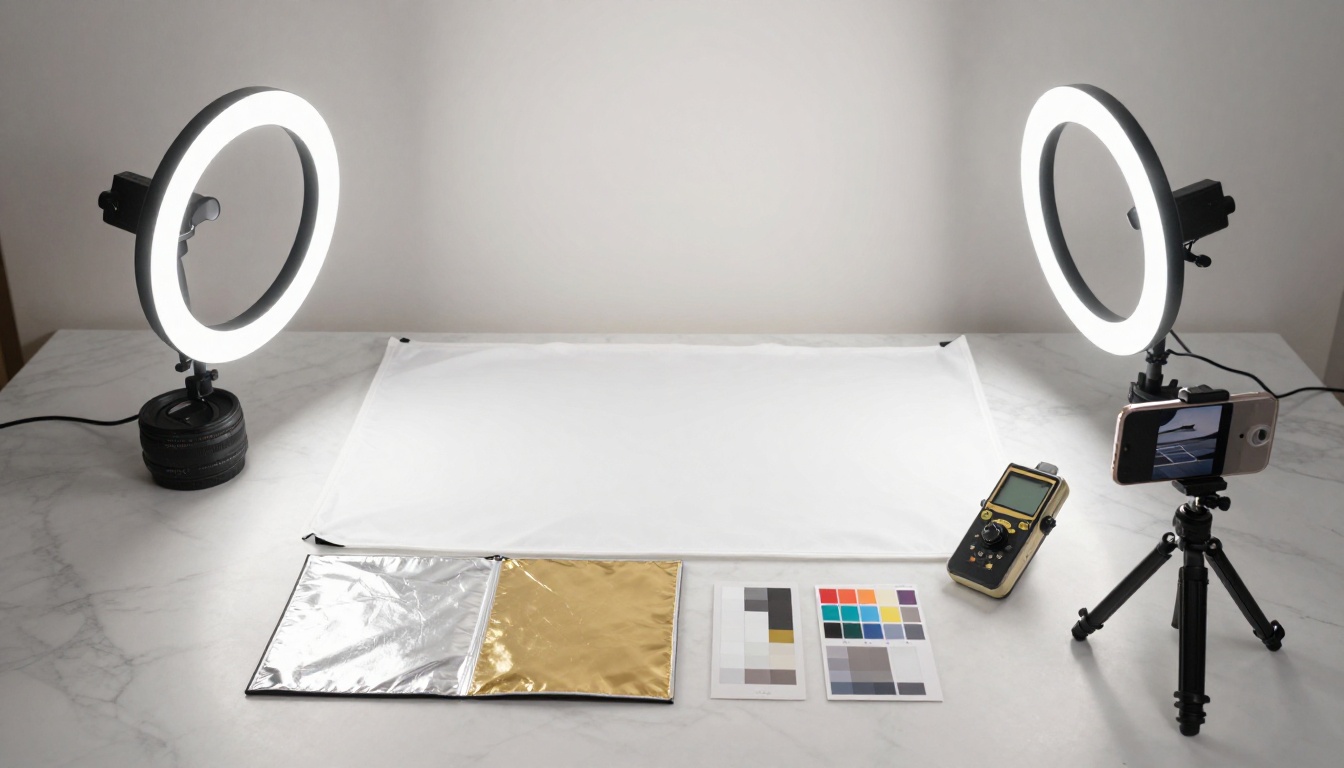
You don't need a studio to get AI-quality photos. But if you want to shoot real photos of yourself and then polish them with AI tools, a minimal home setup goes a long way.
The Minimal Setup
The absolute minimum you need to produce a usable portrait at home:
| Item | Budget Option | What It Does |
|---|
| Backdrop | White bedsheet or wall | Clean background |
| Light | Large window or ring light | Soft directional light |
| Camera | Smartphone (portrait mode) | Sharp subject |
| Tripod | $20 phone tripod | Stability and framing |
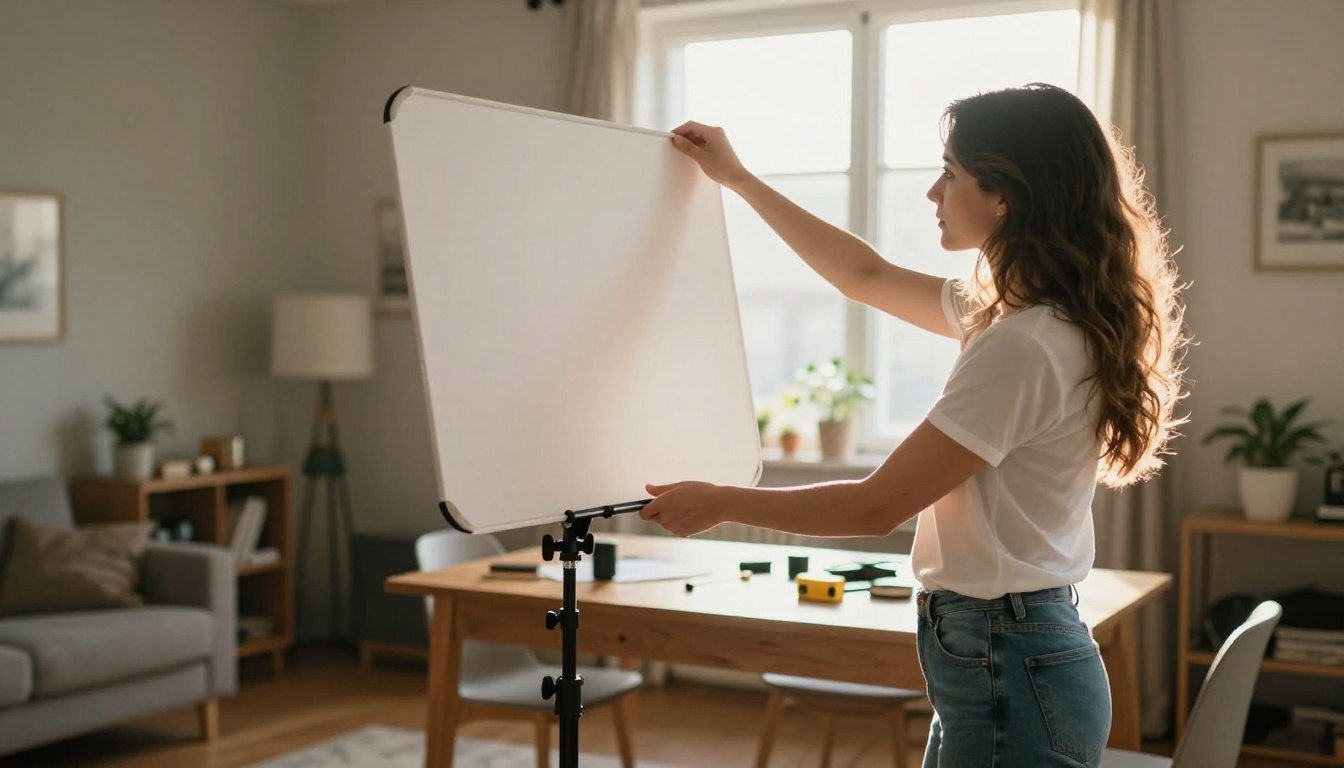
| Reflector | White foam board | Fill shadows on dark side |
For under $50, you can create a setup that produces a shootable portrait. AI tools then handle everything the setup can't, including removing imperfect backgrounds, correcting lighting inconsistencies, and upscaling the image to print quality.
Using Natural Light Correctly
The best free studio light you have is a large window on an overcast day. Here's how to use it:
- Position your subject at a 45-degree angle to the window. This creates soft directional light that sculpts the face.
- Hang a sheer white curtain if the light is direct sunlight. This diffuses it into a soft, even source.
- Place a white foam board on the shadow side of the face (opposite the window). This bounces light back and fills harsh shadows.
- Shoot between 9am and 11am or 3pm and 5pm for the most flattering natural light color temperature.
Once you've taken the photo, you run it through AI tools to handle the rest.
How to Use Flux Dev on PicassoIA
Flux Dev is the best starting point for photorealistic studio portrait generation on PicassoIA. Here's exactly how to use it.
Step 1: Open the model page
Go to Flux Dev on PicassoIA. No account is required to generate. The interface loads in your browser with the prompt box at the top.
Step 2: Choose your aspect ratio
For headshots and portraits, select 3:4 or 4:5. For banner-style studio shots, use 16:9. For social media posts, use 1:1 or 9:16.
Step 3: Write your prompt
Use one of the templates from the previous section as your starting point. Modify the subject description to match what you're going for. A 70-word prompt will consistently outperform a 10-word prompt.
Step 4: Set the parameters
- Go Fast: Keep enabled for quick previews. Disable for final output where you want maximum sharpness.
- Inference Steps: Set to 28 for drafts, 50 for finals.
- Guidance: 3.0 to 3.5 is the sweet spot for portraits. Above 4.0 can produce overly sharp, artificial-looking skin.
Step 5: Generate and compare
Run the same prompt 3 to 5 times. Each run produces a different composition. Pick the frame with the most flattering angle and best lighting reproduction. Then download as PNG at quality 100.
💡 Tip: If you're using Flux Dev's image-to-image mode, set prompt strength to 0.6 to 0.75. Lower values preserve more of your original photo while shifting the lighting and background. Values above 0.8 basically regenerate the image from scratch.
Removing Backgrounds and Replacing Them with Studio Looks
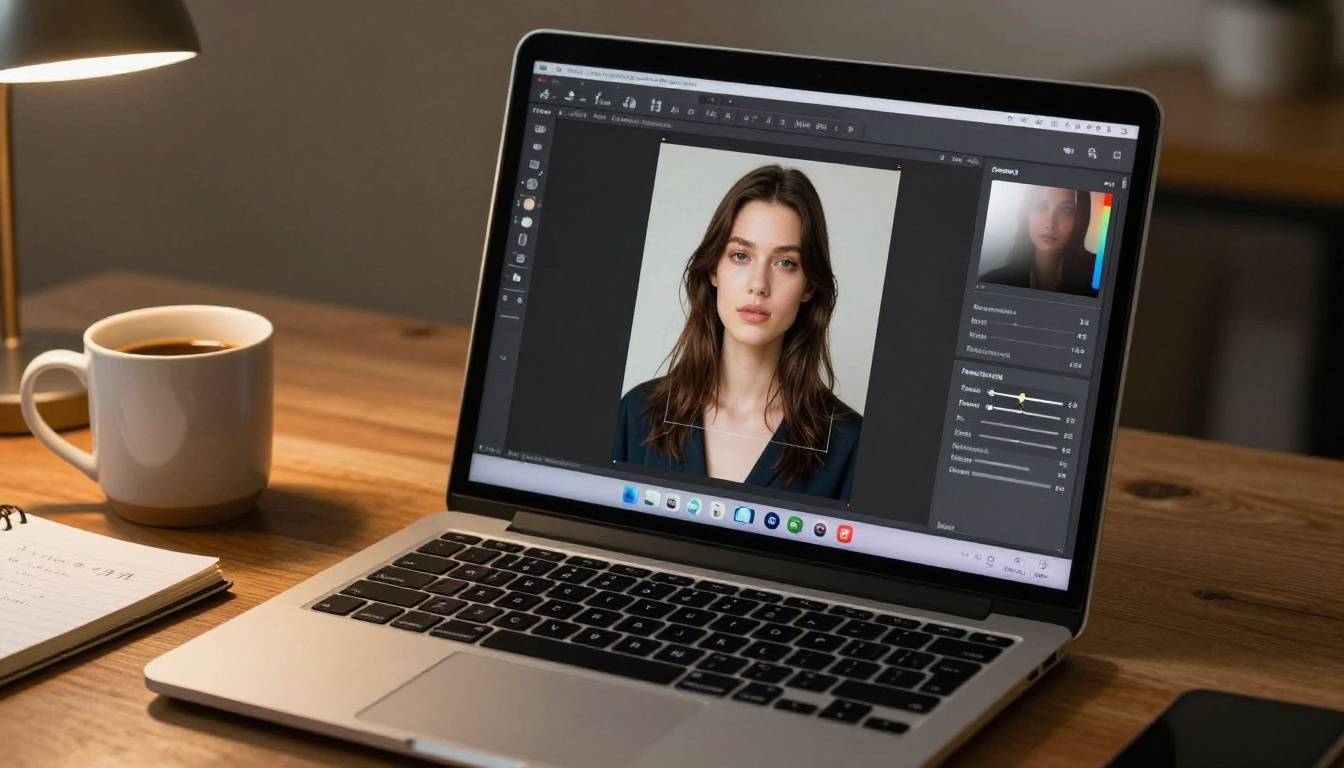
One of the most common uses of AI tools in home portrait photography is background removal and replacement. You shoot in your apartment, and AI makes it look like you were in a professional studio.
The Background Removal Workflow
1. Use Remove Background on PicassoIA
Upload your portrait. The model cuts a clean selection around the subject, including fine hair detail, in seconds. Download as PNG with transparent background.
2. Apply a studio backdrop in Flux Dev
Use image-to-image mode in Flux Dev. Upload your cutout, set prompt strength to 0.45 to 0.55, and write a backdrop prompt:
Seamless light gray studio backdrop, subtle vignette at edges, professional photography, soft diffused studio lighting, photorealistic
The model composites your subject onto the new background with natural light interaction.
3. Verify the edges
Check the hair and shoulder edges after generation. If they look rough, re-run Remove Background with slightly different settings. Flux Dev's img2img mode handles most edge cases well at prompt strength below 0.6.
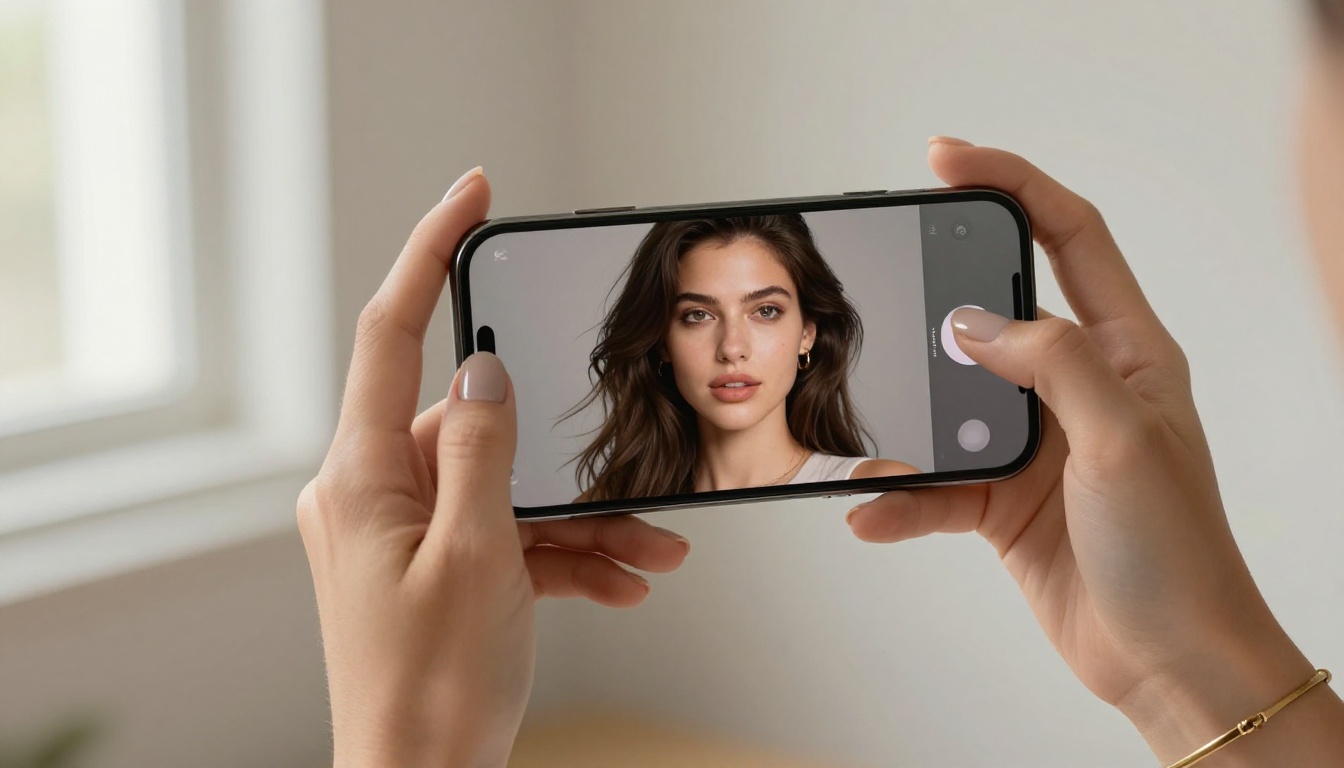
Upscaling Your AI Photos to Print Quality
AI generation tops out at around 1 megapixel by default on most models. For a photo you're printing at 8x10 inches or larger, you need at least 2400x3000 pixels at 300 DPI. That's where AI upscalers come in.
Which Upscaler to Use
PicassoIA has several upscaling models, each with a different strength:
For portrait work, start with Clarity Pro Upscaler. It's optimized specifically for photorealistic skin and hair texture, and it adds genuine detail rather than just blowing up existing pixels.
If you need maximum output size, Image Upscale by Topaz is the only tool on the platform that goes up to 6x. That takes a standard 1-megapixel AI image (roughly 1024x1024) to approximately 6000x6000 pixels, enough for a large canvas print.
💡 Tip: Run Seedream 3 first for a native 2K output, then feed that into Clarity Pro Upscaler at 4x. You end up with a portrait at over 8000px on the long side without any perceptible quality loss.
3 Common Mistakes That Make AI Portraits Look Fake
Even with the right model, certain prompt and workflow errors consistently produce images that look generated rather than photographed. Here's what to avoid:
1. Generic lighting descriptions
"Good lighting" or "professional lighting" are too vague. Name the specific setup: "large octabox from 45 degrees above and left, subtle fill light from a silver reflector on the right, creating a Rembrandt triangle on the right cheek." Specificity forces the model to commit to a realistic light configuration.
2. Skipping the camera spec
Without a focal length and aperture in the prompt, the model defaults to an ambiguous rendering that doesn't mimic a specific camera. Add "85mm f/1.8" or "50mm f/1.4" to anchor the output in real-world photographic physics.
3. Not iterating
One generation is rarely the best one. Run the same prompt 5 to 10 times. The model introduces compositional variation on each run. The 7th result often has a better angle, better eye contact, or better shadow placement than the first. Flux Schnell's unlimited generation and 5-second speed makes this iteration cost nothing.
Your AI Studio Photos Start Here
The combination of AI text-to-image models, background removal, and AI upscaling makes professional studio portraits genuinely accessible at home. You don't need to rent a studio, buy expensive lighting, or rely on luck with your phone camera.
PicassoIA brings together Flux Dev, Flux Schnell, Seedream 3, Clarity Pro Upscaler, Remove Background, and 91+ other models in one place, no setup, no subscriptions, no credit caps on most models.
Pick a prompt template from this article, open any of the models above, and run your first generation. Your first studio photo is less than 10 seconds away. When you want to see everything PicassoIA can do for image creation, the full catalog is at picassoia.com/en/all-models.