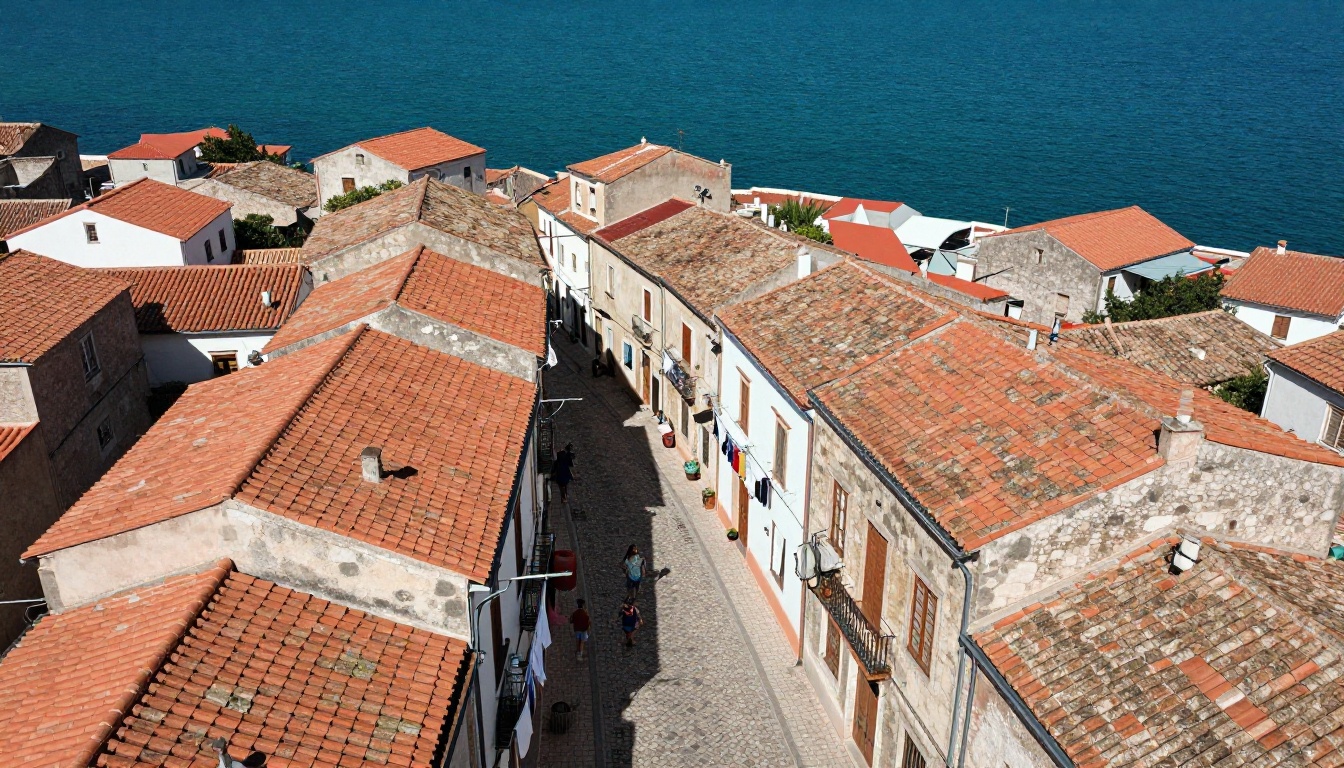
You shot it all: the foggy mountain sunrise, the chaotic street market, the dinner that looked too good to eat. Back home, those clips sit on a hard drive, and turning them into something worth watching feels like a second job. AI changes that entirely. The gap between raw footage and polished travel video has collapsed, and you no longer need a professional editing suite or three days of free time to close it.
Why AI Changed Travel Video Production
For most of travel history, great travel video was a function of money and time. You either hired a videographer or spent weeks in post-production color grading, cutting, and syncing. The quality difference between amateur and professional content was visible in every frame.
That difference is now almost gone, and it happened fast.
From Hours to Minutes
Modern AI video tools handle the hardest parts: pacing, motion, transitions, and even audio sync. Models like Seedance 2.0 from ByteDance generate cinematic footage with built-in synchronized audio from a single text prompt. What once required a full production crew and a scoring session now happens in a single tool call.
For travelers specifically, this matters in a concrete way. You might have 200 clips from a two-week trip. The traditional workflow is to watch all 200, cull them to 40, rough cut, fine cut, color grade, add music, add text, export. That is not a weekend project. The AI workflow inverts this, letting you generate establishing shots you forgot to record, animate a still photo into a moving scene, and produce a polished rough cut in a fraction of the time.
What Used to Cost Thousands
Entry-level cameras today produce stunning footage. The bottleneck was never the hardware. It was knowing how to use editing software like Premiere Pro or DaVinci Resolve. AI removes that bottleneck. You do not need to know what chroma matting means, what color temperature is, or how to manually set keyframes. The models handle the visual intelligence, and you provide the creative direction.
This also changes the economics. Hiring a professional travel videographer for a two-week trip costs between $3,000 and $15,000, not including editing time. An AI-powered workflow producing the same output costs a fraction of that, and the turnaround is measured in hours rather than weeks.
The 3 Core Approaches to AI Travel Video
There is no single way to use AI for travel content. The right approach depends on what raw material you already have and what output you need.
Generate Footage from Text
If you missed a shot, or if you are building content around a destination you want to market, text-to-video AI can generate footage from scratch. You describe the scene, and the model produces it.
This is the most powerful approach for travel marketers, tour operators, and content creators who need footage of places they cannot physically reach right now. A 30-second clip of the Amalfi Coast at golden hour, from a drone angle, with boats passing in the foreground, is now a text prompt away.
Animate Your Travel Photos
This is the approach most travelers will find immediately useful. You already have photos from the trip. Image-to-video AI takes a still frame and breathes motion into it. The waterfall you photographed starts flowing. The street market you captured gets ambient movement. The mountain range gains a subtle atmospheric drift.
This workflow is faster than text-to-video because your photo serves as the first frame, so you control the visual starting point exactly. You do not need to describe the full scene to the model because the image already contains that information.
Edit and Polish What You Already Shot
If you have real footage, AI editing tools handle the work that takes the most time: removing unwanted objects from a frame, adding captions for social media, increasing resolution on old clips, and even replacing the background of a clip without a green screen. These are not gimmicks. They are the same tools that post-production studios use, now accessible in a browser.
Best Text-to-Video Models for Travel Content
Not every model performs equally on travel scenes. Outdoor environments, natural lighting, and geographic variety push models in specific ways. Here are the ones that consistently produce the best results for travel content.
Seedance 2.0 for Cinematic Realism
Seedance 2.0 from ByteDance is currently the strongest option for travel content that needs to feel authentic. It generates videos with native synchronized audio, which matters enormously for travel scenes: waves should sound like waves, markets should have ambient crowd noise, forests should have wind. The model handles camera motion well, with natural-looking pans, dolly shots, and static wide frames.
The faster variant, Seedance 2.0 Fast, reduces generation time significantly while keeping quality high enough for social content. For high-volume production, alternating between the two depending on content importance is the practical approach. The older Seedance 1 Pro remains useful for 1080p batch work at lower cost.
💡 Prompt tip: Always specify lighting in your prompts. "Late afternoon golden hour from the west" gives you far better results than just describing the subject. Adding a camera height and lens type ("shot from knee height at 24mm f/2.8") produces scenes with real photographic character.
Kling v2.6 for Creative Control
Kling v2.6 gives you the most precise camera movement control of any model currently available. For travel content, this is particularly useful when you need a specific shot type: an aerial circular reveal around a mountain summit, a tracking shot following a cyclist through a city, or a slow push into a doorway. The premium model Kling v3 Video generates at full cinematic quality for travel content intended for large-format display or broadcast.
Veo 3 for Photorealistic Scenes
Google's Veo 3 produces some of the most photorealistic video of any current model, which makes it excellent for destination showcase content where the goal is visual accuracy. The lighting rendering handles outdoor travel scenes with a level of realism that few other models match. Veo 3.1 builds on this with faster output, while Veo 3 Fast is the production workhorse when you need to generate in volume.
Wan 2.7 for Free HD Output
Wan 2.7 T2V is the highest-quality free option for text-to-video. It outputs at 1080p and handles natural travel environments well. For budget-conscious creators who need volume, this is a natural starting point. Pair it with AI upscaling tools afterward to push it further for premium deliverables.
PicassoIA Video for Unlimited Free Generation
For creators who want to generate without counting credits, PicassoIA Video offers unlimited AI video generation from both text and images. It is the right starting point for anyone new to AI video who wants to experiment freely before committing to a specific model.
| Model | Resolution | Built-in Audio | Best For |
|---|
| Seedance 2.0 | 1080p | Yes | Cinematic realism and ambient sound |
| Kling v2.6 | 1080p | No | Precise camera movement control |
| Veo 3 | 1080p | Yes | Maximum photorealism |
| Wan 2.7 T2V | 1080p | No | Free, high-volume content |
| Hailuo 2.3 | 1080p | No | Fast cinematic clips at scale |
Animating Your Travel Photos
Still photos are where most creators have the most raw material. Every traveler has thousands of photos. Almost nobody has great video. AI image-to-video tools fix that imbalance directly.
Wan 2.7 I2V and Wan 2.6 I2V
Wan 2.7 I2V is currently the best free option for photo animation. It reads the depth and composition of your photo intelligently, so a waterfall photo gets flowing water, a market scene gets crowd movement, and a sky photo gets drifting clouds. The motion feels natural rather than the rubbery warping produced by older generation models.
Wan 2.6 I2V is slightly older but still excellent, and often faster for simpler scenes. Both models support detailed motion prompts, so you can specify exactly what should move and in which direction.
💡 What animates best: Landscape photos with water, clouds, foliage, and people animate more convincingly than architectural photos. Static geometry like buildings sometimes creates awkward perspective warping at frame edges. When animating architecture, specify "camera hold static, clouds move overhead" rather than letting the model guess.
Kling v2.1 for Smooth, Subtle Motion
Kling v2.1 consistently produces the smoothest motion from still images. For travel photos where you want subtle, almost imperceptible movement, like a slight ocean swell, very gentle crowd movement, or slow rising steam from a street food stall, Kling handles this better than heavier models that over-animate everything. The result feels cinematic rather than artificial.
Pixverse v5 for Fast Social Clips
Pixverse v5.6 generates at 1080p and is built for speed. If you are producing a high volume of animated travel clips for Instagram Reels or TikTok, Pixverse is the fastest route from photo to deliverable. The Pixverse v5 base version is also strong and worth testing, particularly on portrait-format content where the motion curves naturally match vertical framing.
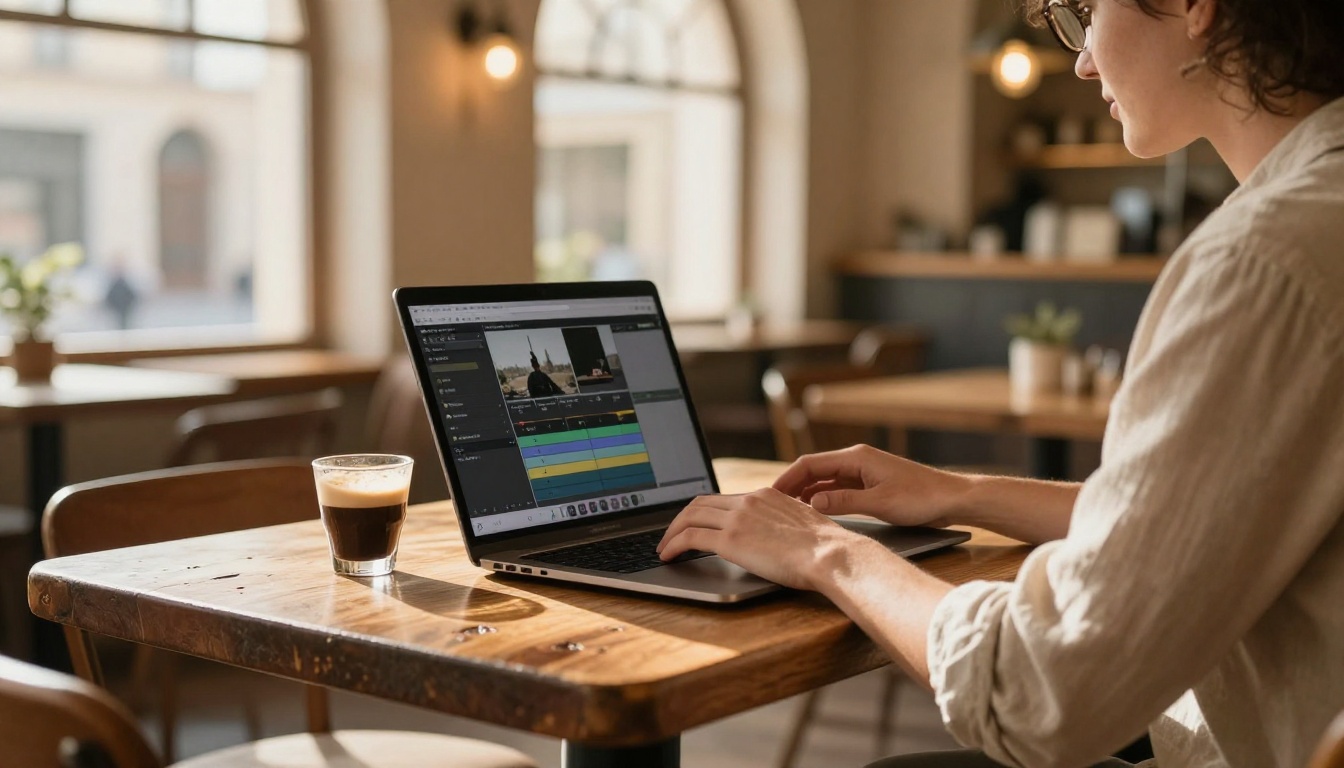
Raw footage almost always has problems. A power line cutting through a landscape shot. A stranger who walked into frame at exactly the wrong moment. A beautiful clip that looks soft because it was shot on an older phone. AI editing tools now solve all of these without manual frame-by-frame work.
Add Captions That Actually Look Good
If your travel content goes to social media, captions are not optional. Most viewers watch without sound. Autocaption automatically transcribes and styles captions directly onto your video. It handles accents, background noise, and multiple speakers better than most desktop tools. The output is publication-ready without manual adjustment.
Remove Unwanted Objects from Clips
That power line through your Santorini sunset, or the stranger who stepped into your perfect alleyway moment: Video Erase Object removes them cleanly across the full clip. The AI fills the removed area using the surrounding frame content, so the result looks like the object was never there. For static shots, the output is nearly indistinguishable from a clean original.
Cut Out Video Backgrounds
For content where you want to place yourself in a different environment, or isolate a subject from its background for a creative transition, Video Remove Background does this without a green screen. Point the tool at any clip and it returns a clean masked output, frame by frame, with no studio setup required.
Push Old Clips to HD and Beyond
Travel clips shot on older phones or action cameras often look soft compared to modern standards. Video Increase Resolution upscales footage up to 8K using AI, recovering detail that appears lost. For professional output, the Crystal Video Upscaler and Topaz Video Upscale are the premium alternatives, with Topaz in particular supporting 120fps output for ultra-smooth slow-motion playback.
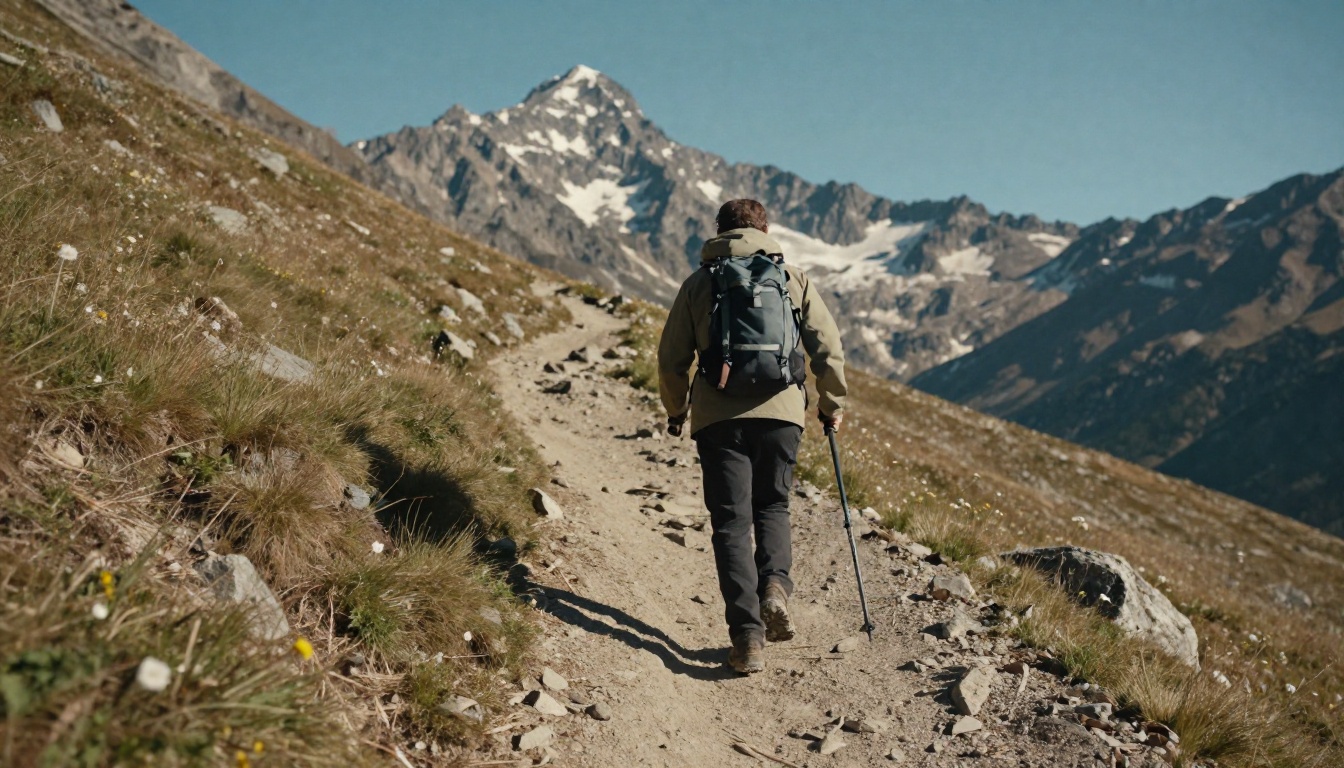
Restyle Clips with a Text Prompt
Lucy Edit 2 lets you restyle or edit any video section using a text instruction. Changing the color mood of a clip, restyling a scene for a different season, or adjusting the aesthetic without re-shooting: these changes happen through a typed prompt. For travel creators who work quickly across multiple deliverables, this removes the need to touch any color grading interface.
How to Use PicassoIA for Your Travel Video Workflow
PicassoIA consolidates all of the above tools in one platform, which removes the friction of managing accounts across multiple AI services. Here is a practical workflow for a typical travel video project.
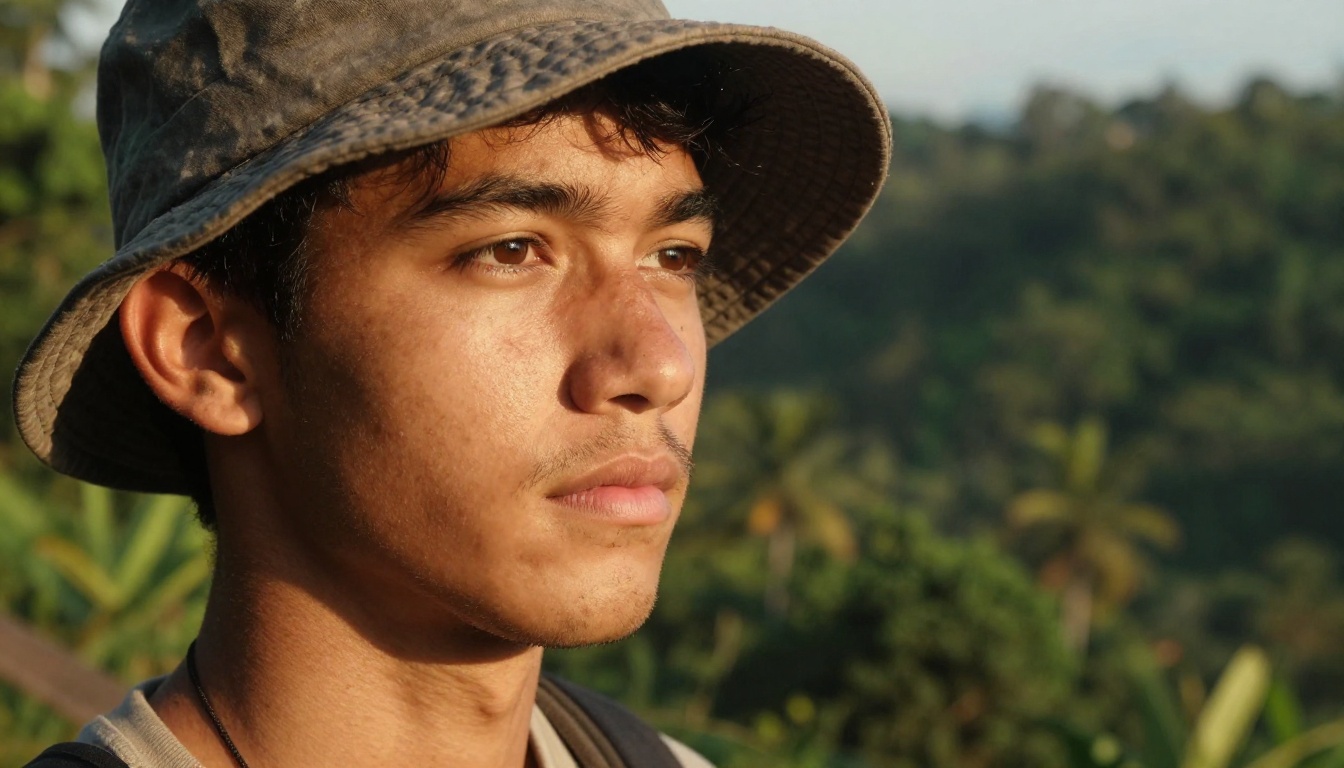
Step 1: Identify what you are missing. Look at your footage and photos. What establishing shots are absent? Which moments would benefit from motion that you only captured as stills? Where do you need B-roll that you simply did not have time to shoot?
Step 2: Generate the gaps. Use Seedance 2.0 or Veo 3 to generate B-roll for destinations or scenes you could not capture. Be specific with lighting, time of day, and camera movement in every prompt. Specificity is the entire difference between a generic and a distinctive result.
Step 3: Animate your best stills. Take your 5-10 strongest travel photos and run them through Wan 2.7 I2V. Add a motion prompt describing what the main subject should do. This single step can fill significant gaps in a travel video where you had excellent photography but limited video.
Step 4: Fix the clips you have. Run your real footage through Video Erase Object for any distracting elements, and Video Increase Resolution for any clips that look soft against AI-generated content.
Step 5: Caption and publish. Run the assembled video through Autocaption before publishing to any social platform. The full workflow for a 60-second travel reel can realistically complete in under two hours, including generation time.
3 Mistakes That Ruin AI Travel Videos
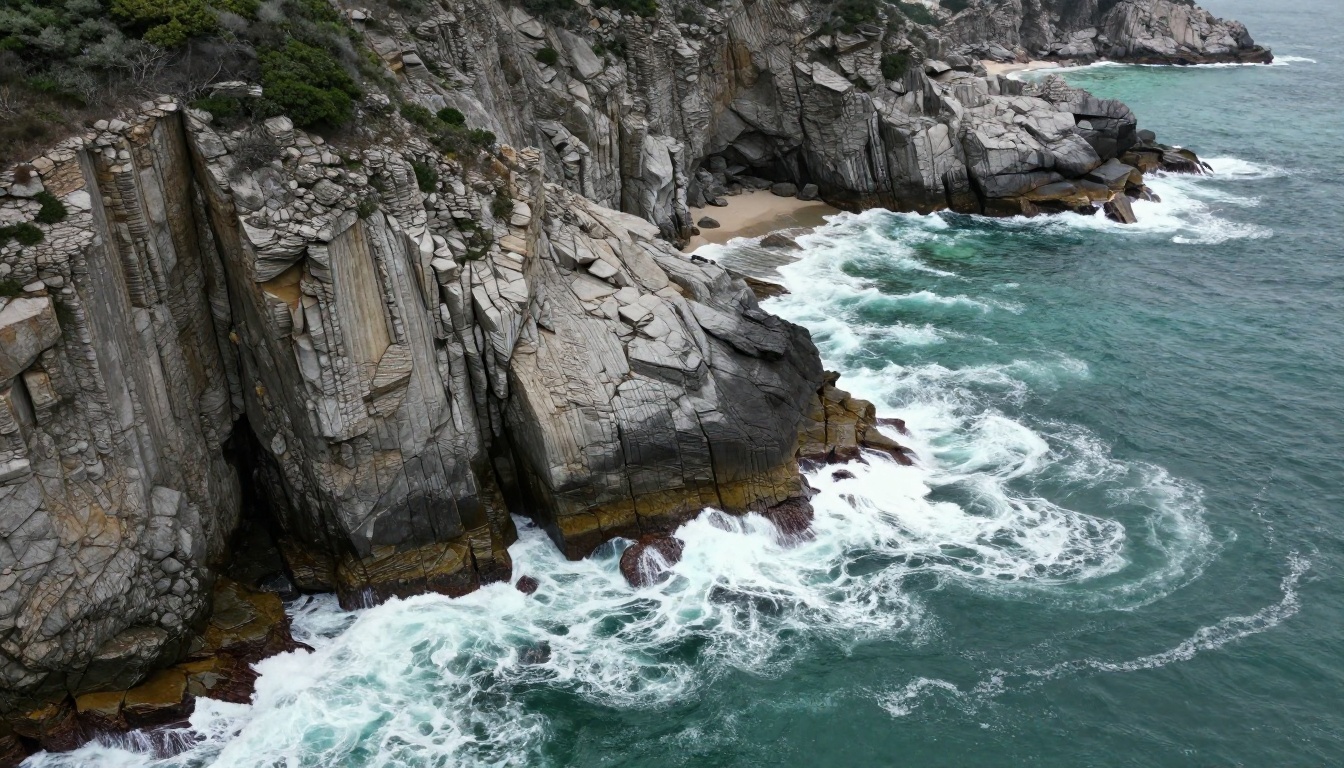
Even with access to strong models, most AI travel videos fail for the same three reasons.
Vague Prompts
"A beach at sunset" produces a generic, forgettable result. AI video models respond to specificity. "A wide-angle shot of a black sand beach in Iceland at the moment of sunset, with low horizontal light turning the waves golden, shot from knee height at 24mm" produces a scene with character. Every parameter you add, whether it is lighting direction, camera height, focal length, or time of day, narrows the result toward something distinctive that looks intentional rather than generated.
The best practice is to structure your prompts in three parts: the subject and action, the environment and lighting, and the camera position and movement. Prompts built this way consistently outperform single-sentence descriptions.
Ignoring Motion Direction
In image-to-video work, the most common mistake is not specifying what should move. If you animate a mountain landscape photo without a motion prompt, the model guesses, and the result is often wrong: the mountain range slowly zooms in, or the clouds move in a direction that contradicts the scene's natural logic. Always write a motion prompt: "gentle left-to-right wind movement through foreground grass, slow camera pan right, clouds drifting at medium speed toward the right edge."
Mismatched Visual Styles
AI-generated footage has a distinct visual character that differs from phone footage. If you cut directly from a raw smartphone clip to AI-generated content, the quality difference is jarring. Fix this by upscaling your real clips to match AI quality, or by applying a slight grain and softness to AI clips to match the organic texture of real footage. Consistency of visual style matters more than absolute quality in any individual clip.
What to Build First
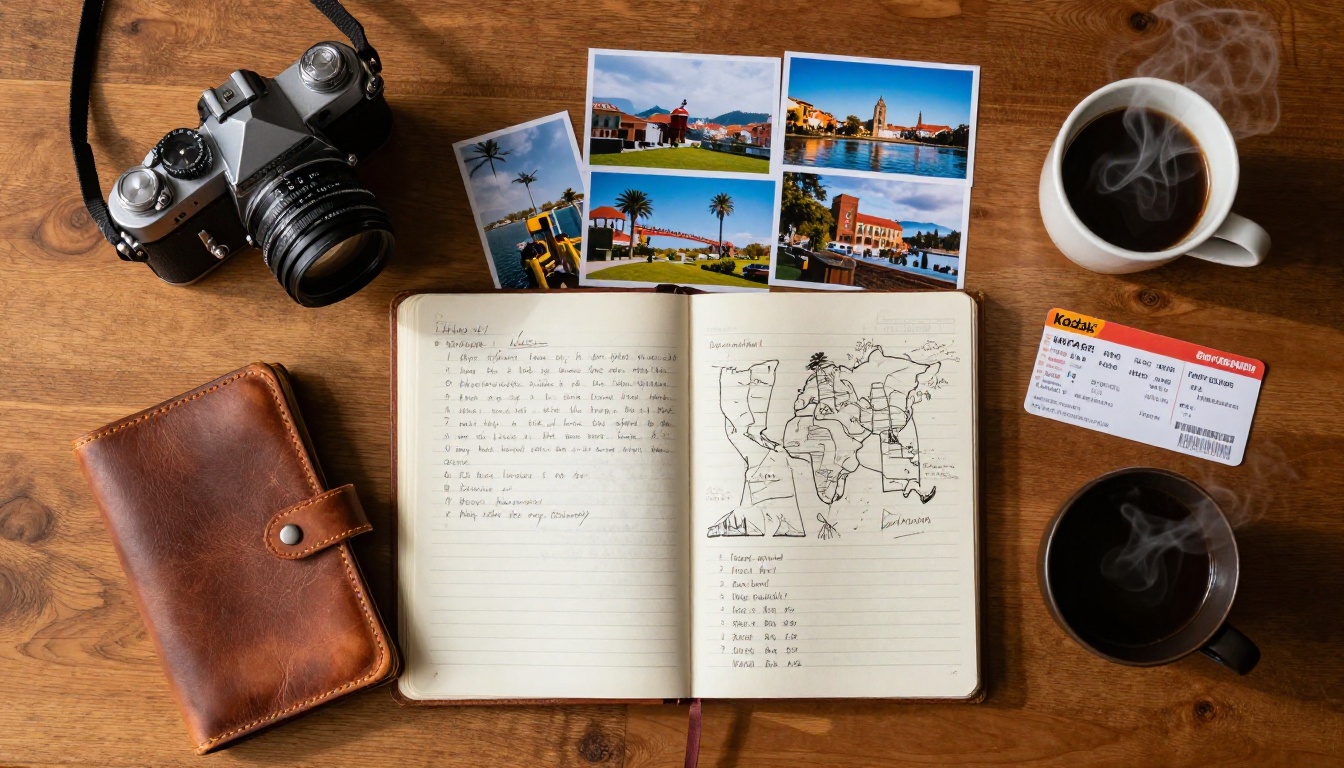
Travel video production has not been this accessible at any point in history. The models available right now, from Seedance 2.0 to Kling v2.6 to Wan 2.7 I2V, handle the creative and technical work that used to require professional skills and expensive software. The only requirement from you is direction: knowing what story you want to tell, which shots support it, and how you want the audience to feel by the end.
If you want to test the workflow without committing to a complex project, start with a single travel photo. Run it through Wan 2.7 I2V on PicassoIA, write a simple motion prompt describing what should move, and see what the model produces. That first result, a still image turned into a moving scene in under two minutes, usually settles any remaining skepticism about what these tools can actually do.
From there, the logical next step is building a short reel. Take three to five of your best travel photos, animate each one, string them together in a video editor, and add captions with Autocaption. You have a shareable travel reel in an afternoon, with no camera work beyond the original photos.
All models mentioned in this article are available at picassoia.com/en/all-models. The free tier includes enough generation capacity to test every workflow described here before committing to anything.


