Turning a static photo into a moving, scrollable vertical video used to require a video editor, a timeline, and at least a few hours of work. Today, AI handles that entire pipeline in under two minutes. You upload an image, write a short prompt describing the motion you want, pick a model, and you get a 9:16 video ready to post on TikTok, Instagram Reels, or YouTube Shorts. No editing software, no keyframes, no exports. Just results.
The catch is that not every image works, not every model is built for vertical output, and not every prompt gets you the motion you actually wanted. This article walks through exactly how to make vertical videos from any image using AI models available right now on PicassoIA, covering which tools to pick, how to set them up, and what separates a smooth cinematic clip from a shaky, distorted mess.
Why Vertical Video Took Over
Horizontal video made sense when people watched content on TVs and computer monitors. That era is functionally over for short-form content. More than 70% of video consumption now happens on smartphones held vertically. Platforms have noticed, and they actively reward creators who upload in the native 9:16 portrait format.

The 9:16 Ratio Explained
9:16 is simply the inverse of the standard widescreen 16:9 ratio. Instead of 1920x1080 pixels wide, you get 1080x1920 pixels tall. On a smartphone screen, that fills the entire display edge to edge, with no black bars, no wasted space, no psychological distance between the viewer and the content.
When you animate an existing photo into a vertical video, the aspect ratio of your source image matters enormously. A portrait photo shot at 9:16 or 4:5 will produce a cleaner vertical video than a landscape 16:9 shot because the AI does not need to crop or reframe the content aggressively.
What Platforms Actually Prioritize
TikTok, Instagram Reels, and YouTube Shorts all use algorithmic signals that factor in completion rate, a metric directly tied to format. Vertical content that fills the screen holds attention longer than letterboxed content. The algorithm responds to that retention signal. A creator posting AI-animated vertical videos consistently outperforms one posting landscape content at the same posting frequency.
💡 Quick stat: Instagram Reels in 9:16 get up to 67% more reach than square or landscape posts, according to internal creator benchmarks.
What Makes a Good Source Image
Not every photo is equal as a starting point. The AI model you choose does not invent subjects out of thin air. It reads the content of your image and predicts plausible motion for every pixel. A bad source image produces an unconvincing video regardless of how strong your prompt is.

Portrait vs. Landscape Photos
A portrait photo (vertical, taller than it is wide) is the ideal starting point. When the source matches the output format, the model has full visual information to work with and does not need to make decisions about what to crop or hallucinate to fill gaps.
A landscape photo can still work, but it requires the model to either crop the center and lose edges of the frame, or outpaint the sides to extend the canvas vertically, which introduces AI-generated content that may not match the original.
Most models handle landscape-to-vertical conversion by cropping. If your landscape shot has important content at the far left or right edges, those elements will likely disappear in the vertical output.
Image Quality Requirements
Higher resolution inputs produce better video output. The reasons are practical:
| Resolution | Result Quality | Notes |
|---|
| Below 512px | Poor | Pixelated, inconsistent motion |
| 512–1024px | Acceptable | Works for social thumbnails |
| 1024–2048px | Good | Recommended minimum |
| Above 2048px | Excellent | Maximum detail retention |
Beyond resolution, image sharpness matters. A slightly blurry photo produces an unstable video where the AI is uncertain about edge boundaries and tends to generate flickering artifacts. Clean, well-lit photographs with sharp subjects produce the most stable animated output.
The Best AI Models for Image-to-Video
PicassoIA hosts over 100 video generation models. For converting a static image into a vertical video specifically, a handful stand out based on motion quality, prompt adherence, and output stability.
Wan 2.7 I2V
Wan 2.7 I2V is currently the strongest open-weight image-to-video model available on the platform. It produces fluid, natural motion from portrait photos with excellent consistency between frames. The model handles human subjects particularly well: hair moves naturally in wind, fabric ripples with realistic physics, and facial expressions remain stable.
For vertical video creation, Wan 2.7 I2V is the first choice because it accepts any input image resolution and handles portrait-format inputs without distortion. The motion is controlled and purposeful rather than random or jittery.
Wan 2.7 R2V
Wan 2.7 R2V goes a step further by letting you animate specific subjects within an image while keeping the background static. For a portrait photo where you want only the person to move while the environment stays still, this model gives you that separation without manual rotoscoping.
Kling v2.6 Motion Control
Kling v2.6 Motion Control adds a layer of precision that other models lack: camera movement specification. You can define whether the virtual camera dollies in, pans left, orbits the subject, or stays locked. For vertical video content where the camera movement itself creates drama, this control is invaluable.
Kling v2.6 in standard mode also performs well for image animation, with strong 720p output quality and reliable subject motion.
Gen4 Turbo
Gen4 Turbo from Runway is the fastest option for quick previews and iteration. When you want to test multiple prompts on the same source image to find the right motion style, Gen4 Turbo produces results quickly without the wait time of larger models. Quality is slightly below Wan 2.7 but acceptable for most social content.
Other Models Worth Trying
How to Use Wan 2.7 I2V on PicassoIA
This model exists on PicassoIA and is one of the top-performing options for the exact use case described here: turning a static photo into a vertical video.
Step-by-Step Walkthrough
Step 1: Prepare your source image
Before uploading, crop your photo to a portrait orientation if it is not already. A 9:16 crop (1080x1920 pixels) will give you the cleanest result. Avoid cropping too tight around the subject's head, as the AI needs some background context to generate motion convincingly.
Step 2: Open Wan 2.7 I2V
Navigate to Wan 2.7 I2V on PicassoIA. You will see an image upload panel on the left and a prompt field below it.
Step 3: Upload your image
Drop your portrait photo into the upload area. The model accepts JPG and PNG files. Wait for the thumbnail preview to confirm successful upload.
Step 4: Write your motion prompt
This is where most people go wrong. Your prompt should describe what moves and how, not what is in the image. The model already sees the image. Focus on motion:
- "Gentle breeze causes hair to flow softly, person turns head slightly to the left, ambient light shifts warmly"
- "Camera slowly dollies forward toward the subject, leaves rustle in background"
- "Subject takes a slow breath, shoulders rise and fall, eyes blink naturally"
Step 5: Set output parameters
For vertical video, confirm the output ratio is set to 9:16. Most PicassoIA models auto-detect this from portrait source images, but you can specify it explicitly in the settings panel.
Step 6: Generate and review
Click generate. Wan 2.7 I2V typically produces a 5-second clip. Review the preview before downloading. If the motion feels wrong (too fast, wrong direction, unstable), adjust the prompt and regenerate.
Best Settings for Vertical Output
💡 Setting tip: Keep motion intensity in the low-to-medium range for portrait videos. High motion values cause facial distortion and background tearing on close-up shots.
| Parameter | Recommended Value | Why |
|---|
| Aspect ratio | 9:16 or match input | Fills mobile screen |
| Duration | 5 seconds | Platform-optimal length |
| Motion intensity | 30–50% | Stable, natural movement |
| Prompt strength | 0.7–0.8 | Balances prompt vs. image |
How to Use Kling v3 Motion Control on PicassoIA
Kling v3 Motion Control gives you the ability to script camera movement explicitly, which adds production value that pure subject animation cannot achieve.
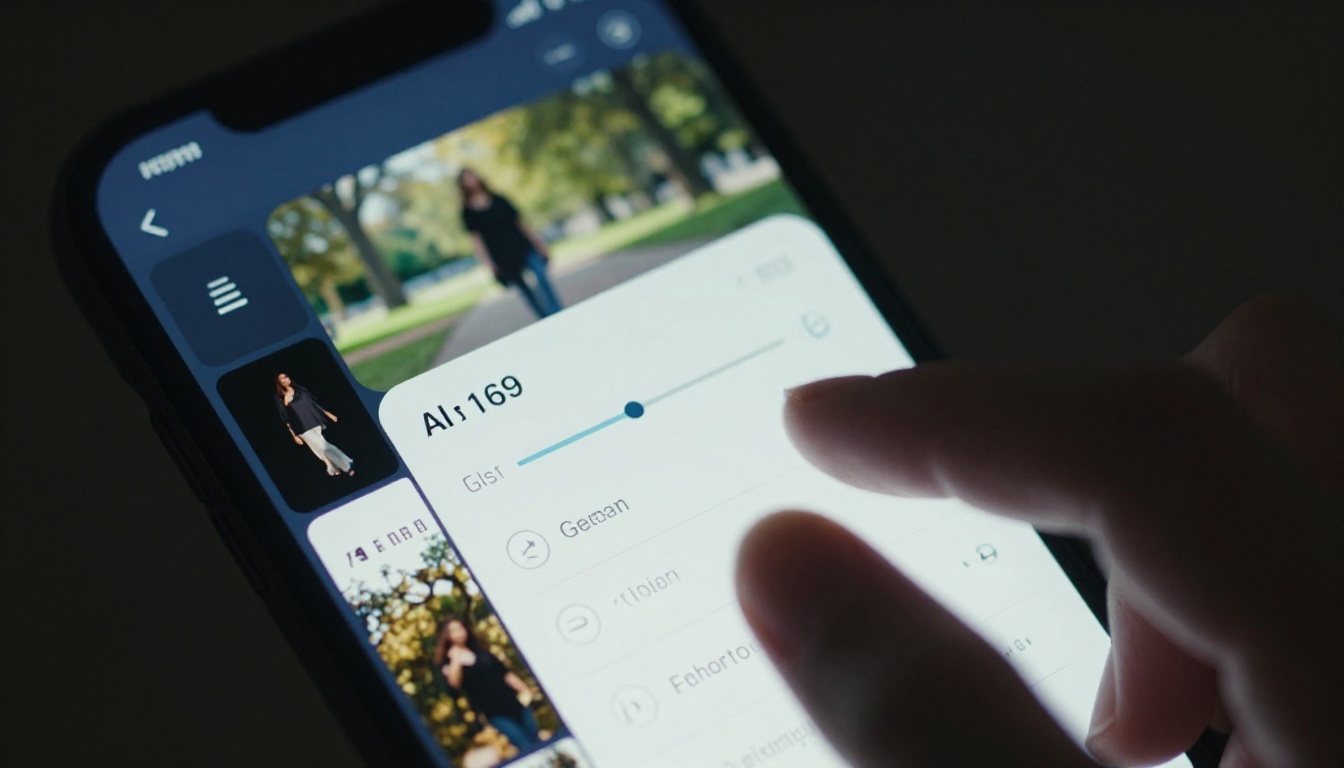
Step-by-Step Walkthrough
Step 1: Choose a portrait image with depth
Motion control works best when there is visual separation between foreground and background. A person standing in front of a landscape, a product on a surface with a distinct backdrop, or a subject framed against an architectural element all work well.
Step 2: Open the model
Go to Kling v3 Motion Control on PicassoIA and upload your portrait image.
Step 3: Specify camera movement
In the camera control panel, you will find options for:
- Dolly in / out: Camera moves forward or backward through the scene
- Pan left / right: Camera rotates horizontally
- Tilt up / down: Camera rotates vertically
- Orbit: Camera circles around the subject
- Static: Camera stays locked, only subject moves
For vertical social content, a slow dolly-in creates immediate visual tension. A tilt-up from feet to face works well for fashion or lifestyle content.
Step 4: Write your subject prompt
Describe the subject's motion separately from the camera. "Subject stands still, slight breeze moves their jacket lapel, hair shifts naturally" combined with a slow dolly-in camera creates a classic cinematic opener.
Step 5: Generate and export
Review the clip in the 9:16 preview panel. Kling v3 Motion Control renders at up to 1080p, making it suitable for high-quality social posts, promotional content, and profile video headers.
Tips That Actually Change Your Results
Writing the Right Prompt
The motion prompt is a direction to the AI, not a description of the scene. Short, specific, active-voice descriptions outperform long ones. Compare these two prompts for the same portrait photo:
Weak: "A beautiful woman in a park with sunlight and trees and a gentle breeze in the golden hour"
Strong: "Subject slowly turns face toward camera, eyes focus forward, hair lifts gently on left side, dappled sunlight shifts slightly warmer"
The weak prompt describes what the AI already sees in the image. The strong prompt tells the AI specifically what should change over time.
Fixing Aspect Ratio Before Upload
Do this before uploading, not after. Use any image editor to:
- Set canvas to 1080x1920 pixels (9:16)
- Position your subject in the center-to-upper portion of the frame (the natural reading zone on vertical content)
- Fill any exposed canvas with background-matched content or blurred extensions of the original
This one step eliminates the most common source of vertical video failures: models that crop in unexpected places or extend backgrounds poorly.
💡 Composition rule: Place your subject's face or focal point in the upper 40% of a vertical frame. Viewers' eyes land there first on mobile scrolling interfaces.
Speed vs. Quality Tradeoffs
Different models on PicassoIA offer different speed-quality tradeoffs. Here is a practical breakdown for image-to-video work:
3 Common Mistakes That Ruin Vertical Videos
Wrong Source Orientation
Uploading a 16:9 landscape photo and expecting a clean 9:16 vertical video is the single most frequent mistake. The AI either crops the content heavily or extends the vertical borders with hallucinated background, neither of which produces a professional-looking result.
Fix: Always pre-crop your source image to portrait orientation before uploading.
Overloaded Prompts
More words do not equal better results. Prompts beyond 40–50 words start to confuse the model's motion prediction. The AI tries to incorporate too many instructions simultaneously and produces motion that is inconsistent, contradictory, or vague.
Keep motion prompts to 15–30 words. One or two specific actions. One clear camera direction if needed. Nothing else.
Skipping the Preview Step
Every model on PicassoIA offers a preview before final render or download. Many users skip this step, download immediately, and discover the motion is wrong after the generation credit is spent. Watch the preview at 1x speed in full screen, ideally on a mobile device to simulate the actual viewing experience. Issues are far more visible at actual viewing size than in a small browser thumbnail.
What You Can Do With AI-Animated Vertical Videos
The practical output here is not just social content. AI-animated vertical videos from images are being used across many creative and commercial contexts:
- Product listings: Animating product photography for e-commerce pages increases time-on-page and conversion rates compared to static images
- Portfolio presentations: Designers and photographers animate their best work to stand out in pitch decks and personal sites
- Event promotions: A single promotional photo becomes a looping animated event teaser without hiring a videographer
- Music promotion: Artists animate cover art or press photos for vertical video promotion across streaming platforms
- Profile headers: Animated vertical videos used as profile media on platforms that support video profiles
The barrier to all of this has dropped to near zero. You need an image, a browser, and a PicassoIA account.
Start Creating Right Now
Every image you already own is a potential vertical video. Your product photos, your travel shots, your portraits, your illustrations. They can all be animated into 9:16 content in minutes.
The models covered here: Wan 2.7 I2V, Kling v3 Motion Control, Gen4 Turbo, Wan 2.7 R2V, and Kling v2.6 Motion Control represent the current top tier for image-to-vertical-video animation. They are all accessible from a single platform with no software to install, no local GPU required, and no export pipeline to configure.
Pick one image. Crop it to 9:16. Open PicassoIA, choose your model, write a short motion prompt, and generate. The whole process takes under three minutes. The result is a video asset that would have taken a production team an afternoon.
All the models mentioned in this article, plus over 100 more for images, audio, visual effects, and text generation, are available at picassoia.com/en/all-models.


