Six months ago, creating a short video clip required camera equipment, actors, an editor, and a budget. Today you can type two sentences into a browser tab and download a cinematic 5-second clip in under three minutes. That shift is real, and it is happening right now.
This article walks you through the entire process of making your first AI-generated video today, from picking the right model to writing prompts that actually produce what you pictured in your head, to editing and polishing the result after generation.

What AI Video Actually Does
Before touching any tool, it helps to know what is happening under the hood. When you type a prompt like "a red kite soaring over misty Scottish highlands at sunrise," the model does not search stock footage. It synthesizes new pixel data, frame by frame, by drawing on patterns learned from millions of hours of real video.
The result is footage that never existed before. No location scouts. No weather permits. No camera operators. The AI is not retrieving something from a database; it is building something that has never existed, pixel by pixel, across every frame.
This matters because it sets your expectations correctly. You are not searching. You are generating. The same prompt run twice will produce two different results, and neither is more "correct" than the other. Your job is to describe precisely enough that the model builds something close to your vision on the first or second attempt.
Text goes in, video comes out
Text-to-video models accept a written description and produce a short clip, typically between 4 and 10 seconds. The output quality varies wildly between models, which is why choosing the right one matters more than anything else. A weak prompt in a great model often beats a perfect prompt in a mediocre one.
The two main creation methods
There are two distinct workflows worth knowing before you start:
- Text-to-Video (T2V): You write a description, and the model creates the entire scene from nothing.
- Image-to-Video (I2V): You supply a still image, and the model animates it with motion.
Each method has a different strength, and the choice changes your entire approach to the creative process.
Text-to-Video vs. Image-to-Video
Picking the wrong method is the most common rookie mistake. Here is how to decide in 30 seconds.
When to pick text-to-video
Use T2V when you want the AI to build the entire visual from scratch and you are not attached to a specific look. It works best for:
- Abstract concepts that are hard to photograph, like a galaxy forming or a dream sequence
- Environments you do not have reference images for
- Quick iteration where you want to test multiple visual directions fast
- Generative art where surprise and variation are features, not bugs
Strong T2V models on PicassoIA include Seedance 2.0, Veo 3.1, and Wan 2.7 T2V.
When image-to-video wins
I2V shines when you have a specific image, whether AI-generated or a real photo, and want to add life to it. The model has a concrete visual to anchor the output, making results far more predictable. Use it when:
- You need a specific face, object, or product to appear in the video
- You want to animate a generated image you already love
- You need stable camera behavior without unpredictable scene changes
- You are working with a client who needs to approve the visual style before motion is added
Strong I2V options on PicassoIA include Wan 2.7 I2V, Kling v2.6, and Hailuo 2.3.
| Method | Best For | Predictability | Speed |
|---|
| Text-to-Video | New scenes from scratch | Lower | Fast |
| Image-to-Video | Animating existing images | Higher | Medium |
💡 Quick tip: Generate a still image first using a text-to-image tool, then pass it into an I2V model. This two-step approach gives you far more control over the final look than T2V alone, because you approve the visual before you animate it.
The Best AI Video Models Right Now
PicassoIA hosts over 100 video models. That is overwhelming. Here are the ones worth your attention, organized by what they do best.
For cinematic quality
Seedance 2.0 from ByteDance is currently one of the strongest models for photorealistic footage with built-in audio. It handles complex camera movements well, and motion is smooth even on abstract subjects. If you only try one model today, start here.
Veo 3.1 from Google produces 1080p output with native synchronized audio. The physics simulation is notably better than most competitors, which matters when your scene includes water, fire, smoke, or fabric.
Kling v3 Video from Kwai excels at cinematic shots with dramatic lighting. Portrait scenes and character-driven prompts respond particularly well to this model.
For speed
LTX 2.3 Fast delivers 4K resolution at a pace that lets you iterate quickly. When you are testing multiple prompt variations, fast turnaround beats raw quality.
Seedance 2.0 Fast is the speed variant of the flagship Seedance model. You trade a small amount of detail for a significant reduction in wait time.
Pixverse v5.6 handles short social-media-format clips quickly and consistently. Good for content that needs to be refreshed frequently without burning through generation budget.
For HD output at lower cost
Ray 2 720p from Luma AI produces clean 720p footage with reliable motion. A strong starting point for anyone who wants quality without premium cost.
Wan 2.7 T2V hits 1080p and handles both T2V and I2V workflows. It is particularly strong with architectural and landscape scenes.
Hailuo 02 from MiniMax generates 1080p video and is a reliable option for human subjects with natural movement.
How to Write Prompts That Work
The model is only as good as what you feed it. Weak prompts are the single biggest reason people quit after their first attempt. Here is what to do differently.
The anatomy of a good video prompt
A well-structured video prompt has four parts:
- Subject: Who or what is in the frame
- Action: What is happening or moving
- Environment: Where the scene takes place
- Camera and lighting: How the shot is framed
Compare these two prompts for the same scene:
Weak: "A woman walking in a park"
Strong: "A woman in her 30s wearing a tan trench coat walking slowly through a foggy autumn park at dawn, fallen leaves swirling at her feet, slow dolly-forward camera movement, volumetric morning light filtering through bare oak branches from the left, photorealistic, 8K, cinematic grain"
The second prompt produces something specific and repeatable. The first produces whatever the model decides is a "walking woman in a park," which could be anything.
5 mistakes beginners make
-
Describing feelings instead of visuals: "A sad video" tells the model nothing. "A man sitting alone on a rain-soaked bench at night, shoulders slumped, soft streetlamp above casting a long shadow" tells it everything.
-
Skipping camera direction: Models respond strongly to camera instructions. "Slow pan left," "handheld close-up," "aerial pull-back," and "static wide shot" all produce different results from identical subject descriptions.
-
Overloading the prompt: Five scenes in one prompt gets you five half-built scenes in one clip. One clear scene, fully described, always produces better output.
-
Ignoring lighting: Light is what makes footage look cinematic or flat. Specify the time of day, direction, and quality: "golden hour backlight," "overcast diffused light," "harsh midday sun from above."
-
Not iterating: Your first result is rarely your best. Change one variable at a time and re-run. Prompt testing is not failure; it is the process.
💡 Pro move: End photorealistic prompts with "8K, photorealistic, cinematic, film grain, natural lighting." These modifiers push most models toward higher quality output without changing the content description.

PicassoIA gives you direct access to the most capable video generation models without requiring separate accounts or API setups. Everything runs in-browser.
Step 1: Pick your model
Go to picassoia.com and open the text-to-video or image-to-video collection. For your first attempt, the PicassoIA Video model is the fastest entry point. It is free, unlimited, and built for broad compatibility with varied prompt styles.
If you want higher quality from the start, head directly to Seedance 2.0 or Pixverse v6.
Step 2: Write and submit your prompt
Paste your prompt into the text field. If the model offers parameter controls, here are the ones worth adjusting on your first run:
- Duration: 5 seconds is the standard. Longer clips increase generation time and occasionally degrade coherence.
- Aspect ratio: 16:9 for landscape or desktop content. 9:16 for social media shorts.
- Resolution: Always pick the highest available option. With LTX 2.3 Pro, that means 4K. With Ray 2 720p, 720p is the native output.
- Motion strength (where available): Keep it at medium for your first run. High motion can introduce visual artifacts.
Step 3: Review and iterate
Most models take between 30 seconds and 4 minutes depending on resolution and queue load. When the video appears, watch it at least twice before deciding whether to iterate. Ask yourself:
- Does the motion feel natural or jerky?
- Is the subject recognizable throughout the full clip?
- Does the lighting match what you described?
If any of those fail, adjust that single element in your prompt and re-run. Do not rewrite the entire prompt after one unsuccessful attempt.
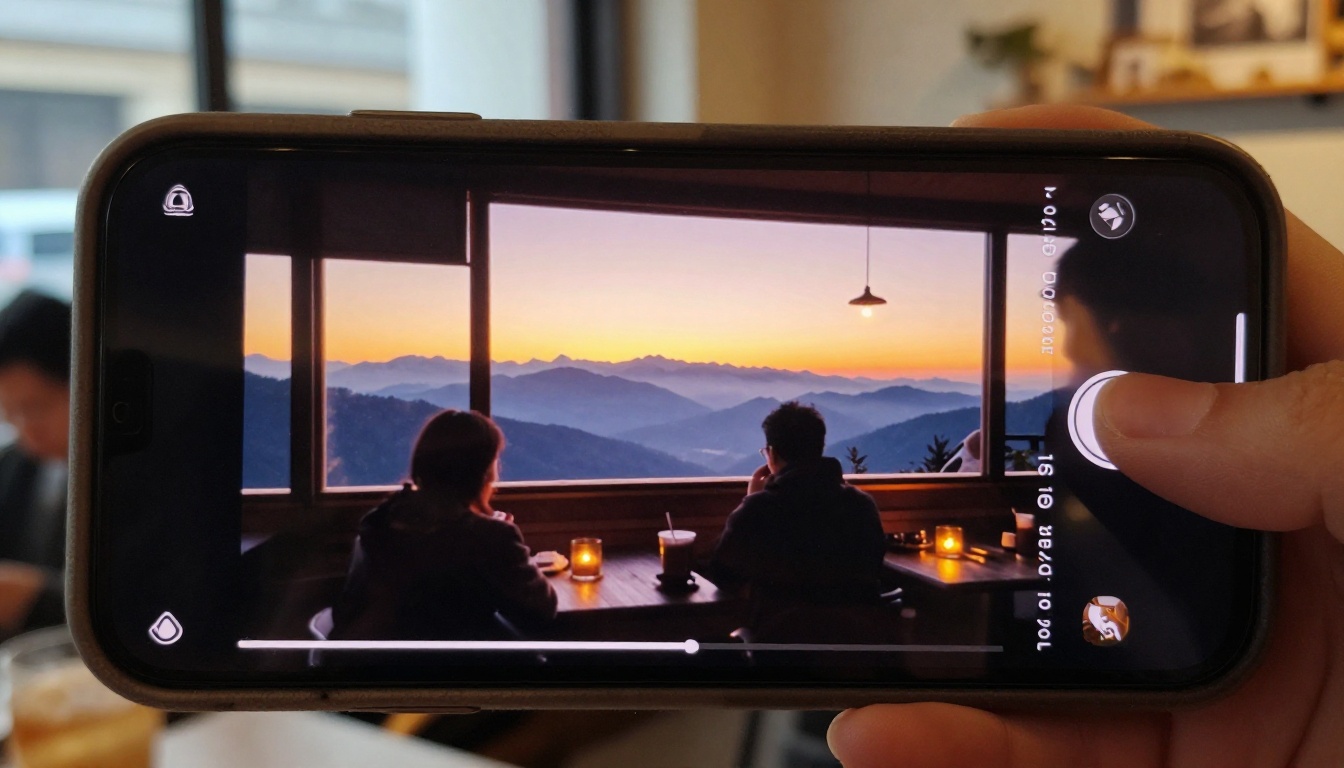
Edit and Polish After Generation
Generating the clip is step one. What you do with it afterward determines whether it looks rough or professional.
Restyle and repurpose
ControlVideo lets you restyle any video clip using a text prompt. If your generated footage has the right motion but the wrong visual style, you can apply a new look without re-generating from scratch. This is particularly useful when you want to test how the same motion would look across different visual treatments.
For swapping characters or subjects within an existing clip, Wan 2.2 Animate Replace gives you the ability to replace the person or object while keeping the background and motion intact.
Restore and upscale old footage
If you are working with lower-resolution generated clips or older source footage, PicassoIA's video restoration tools can recover quality that would otherwise require expensive post-production. DeOldify Video handles colorization of black-and-white footage. For background removal, Robust Video Matting isolates subjects from their backgrounds without green screens.
💡 Layer your workflow: Generate a clip, restyle it with ControlVideo, then isolate the subject with Robust Video Matting. Three tools. One polished result. All within PicassoIA.

When Results Disappoint
Every person who uses AI video generation hits a wall at some point. Here is how to respond when the output falls short.
Bad quality output
If the video looks blurry, has obvious artifacts, or the motion is fundamentally broken, check the model first. Some models are not suited to certain content types. A model that shines on landscape footage may produce terrible results with fast-moving human subjects. Switch to a model that specializes in what you are trying to create.
Also check your prompt for conflicting instructions. "A fast-paced chase scene with slow, dreamy camera work" is a contradiction the model will resolve badly every time.
Motion looks wrong
Unnatural motion, especially on human subjects, is common with lower-tier models or prompts that ask for complex physical actions. Simplify the action: instead of "a woman dancing salsa at high speed," try "a woman swaying gently to music, hands rising slowly." Simpler motion is more reliable across all current models.
For human movement specifically, Kling v2.1 and Wan 2.5 T2V Fast handle body physics better than most other options.
Video doesn't match the prompt
This usually comes down to specificity. The more abstract the language, the more freely the model interprets it. Replace abstract adjectives with concrete visual descriptions. "Beautiful" means nothing to a model. "Golden light at 6am, long shadows across wet pavement, steam rising from a coffee cup" gives it something to work with.
You can also try using the I2V workflow: generate a still image first, then animate it. Since the model has a concrete reference frame, the output matches your intent far more reliably.
💡 If you are stuck: The Sora 2 model from OpenAI handles abstract and complex prompt language better than most current alternatives. It is not the fastest option, but it follows instructions more precisely than most other models.
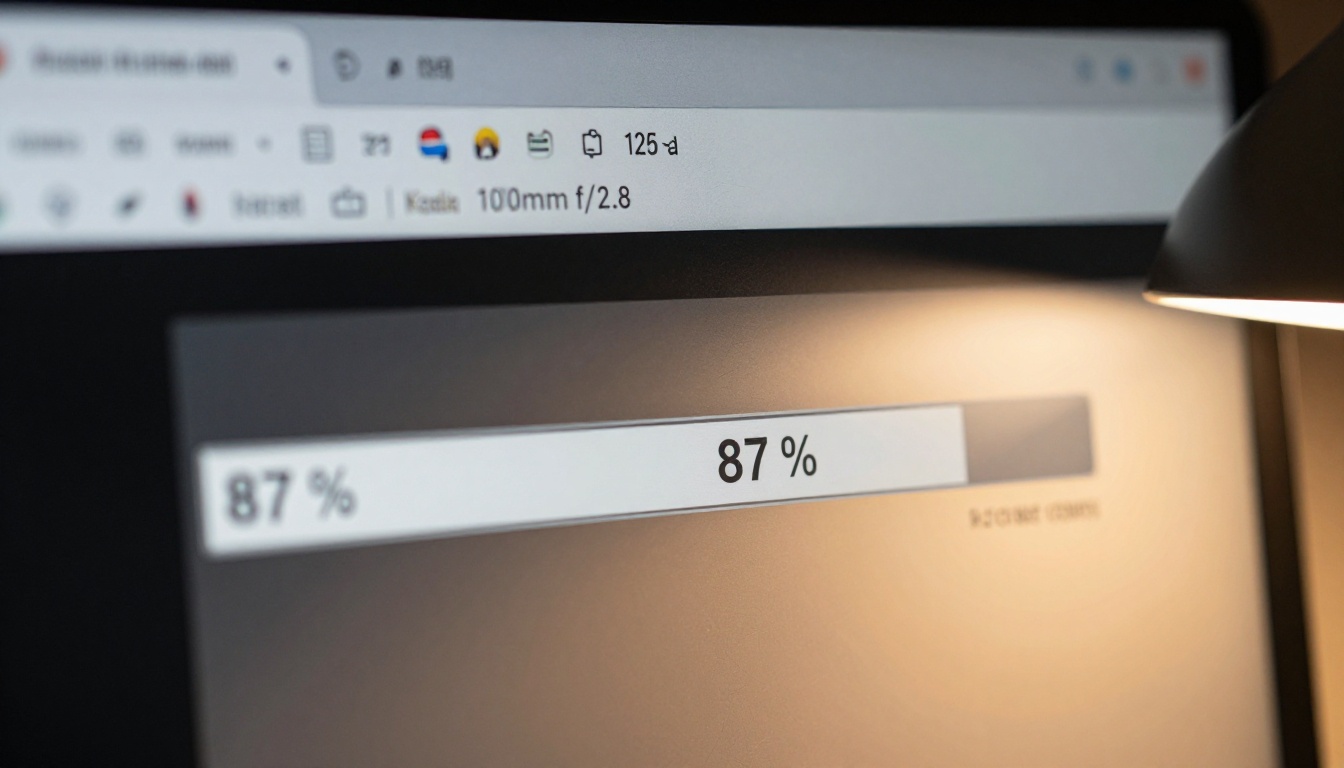
Reading the Specs
When you browse models on PicassoIA, you will see resolution specs, frame rates, and duration caps listed. Here is what actually matters.
Resolution
480p is the minimum for testing and iteration. Acceptable for internal mockups, but not for anything client-facing.
720p is the sweet spot for social content and web publishing. Ray Flash 2 720p and Wan 2.1 I2V 720p both deliver this without high credit cost.
1080p is what you want for anything visible on a large display. Flagship models including Seedance 2.0, Veo 3, and Hailuo 02 all generate at 1080p.
4K is available through LTX 2.3 Pro and LTX 2 Fast. Overkill for social platforms, but excellent for client presentations, background loops, or broadcast use.
Duration and frame rate
Most AI video models cap at 5 to 10 seconds per clip. That feels limiting at first, but in practice, 5 seconds is enough for a strong visual statement. Social platforms, ads, and intro sequences routinely use clips this short. The 24fps standard across most models produces natural-looking motion that avoids the uncanny feel of higher frame rates on synthetic footage.
If you need longer runtime, chain multiple clips together in any standard video editor. Generate the same scene three times with slight prompt variation, trim each to your preferred cut point, and you have a 15-second sequence with organic visual variation across shots.
Practical Uses You Can Start Today
AI video is not a novelty. Here are specific use cases where it is already outperforming traditional production workflows:
- Social media content: A single well-crafted prompt can produce a week of short-form video content. Brands are using Pixverse v5 and P Video for this right now.
- Product visualization: Animate product images without a studio shoot. Useful for e-commerce, pitch decks, and crowdfunding campaigns.
- Concept development: Pitch a video idea to a client with an AI mockup before committing production budget.
- Background footage: Generate looping B-roll for presentations, podcasts with video, and streaming overlays.
- Educational content: Illustrate abstract concepts, historical scenes, or scientific processes that would be impossible or expensive to film.
- Music and audio sync: Tools like Audio to Video from Lightricks let you animate a still image in sync with any audio track, opening up new possibilities for music videos and branded content.
💡 For a wide selection: PicassoIA's model library at picassoia.com/en/all-models gives you access to every model across categories including effects, lipsync, and video restoration. You can generate, edit, and polish without leaving the platform.
Start Generating Your Own AI Videos Now
You now have what you need to create your first AI video today. Pick a model. Write one clear, specific prompt with a subject, an action, an environment, and a camera direction. Hit generate.
The difference between people who "tried AI video once" and people who are actively using it in their work is not talent or technical skill. It is the willingness to run the first generation, observe what comes back, and adjust. The tools are ready. The quality is there.
Open PicassoIA's video generator and submit your first prompt right now. You might be surprised how close the first result is to what you imagined.