Voice and mouth. Two things your brain expects to be perfectly aligned, and the moment they're not, everything else about the video stops mattering. Whether you're dubbing a product demo into Spanish, animating a portrait photo into a talking avatar, or fixing an audio-video offset from a remote recording session, the sync between voice and lips is what separates professional content from amateur work. AI has changed the equation entirely.
What used to take a full post-production team now takes a browser tab and a few clicks. Lipsync AI models reshape mouth movements in a video to match any audio track, frame by frame. Text-to-speech models generate studio-quality voice from a typed script. Combined, these two technologies create a complete pipeline: write text, generate speech, sync it to a face, publish.
This article walks through the full workflow, from generating voice audio to syncing it to video, and covers every major tool available today.
Why Voice-Mouth Sync Breaks Videos
What the Eye Catches First
Human beings are remarkably sensitive to audio-visual misalignment. Research in psychoacoustics shows that people detect sync errors of as little as 45 milliseconds between lip movement and audio. That's less than a single video frame at 30fps. The brain evolved this sensitivity long before video was invented, which means it runs at a level below conscious thought.
The visual cortex and auditory cortex process speech together. When they disagree, the brain flags it as wrong before the conscious mind even registers what happened. Viewers describe the experience as "something feeling off" without being able to name the specific problem. That vague discomfort is enough to close a tab.
The Credibility Cost of Bad Sync
Bad lip sync doesn't just look unprofessional. It signals inauthenticity. In a world where audiences are increasingly trained to spot AI-generated or dubbed content, poor sync becomes a direct credibility problem. It suggests low-budget production, rushed editing, or a fake spokesperson.
For brands, this matters enormously. A product video with mismatched lips signals that the company doesn't prioritize quality. For educators, it's distracting enough to break concentration. For creators dubbing content into new languages, it signals that the localization was cheap and careless. The standard has risen because AI tools have made perfect sync accessible to anyone willing to use them.
How AI Lipsync Actually Works
Phoneme Detection and Facial Mapping
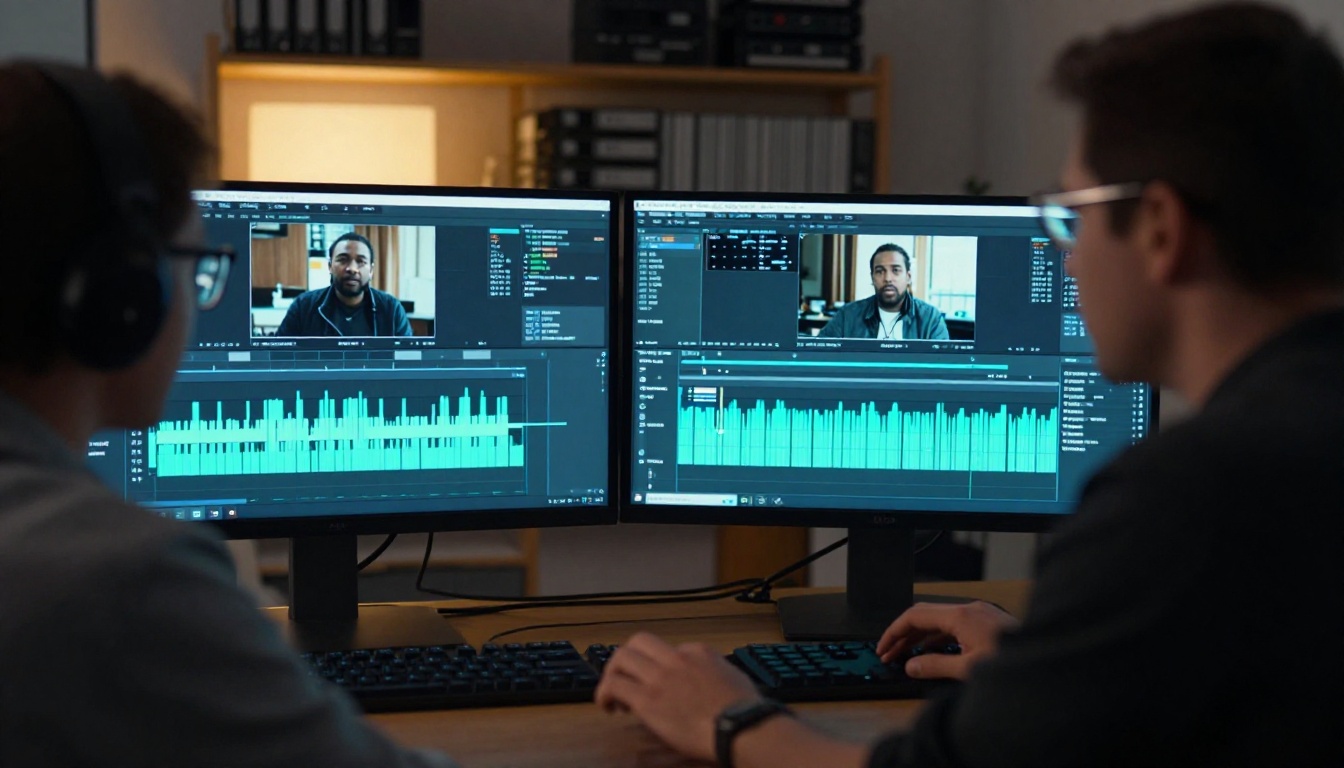
At its core, AI lipsync works by breaking audio down into phonemes, the smallest distinct sound units in speech. Every vowel and consonant produces a distinct mouth shape, called a viseme. AI models are trained on thousands of hours of video that maps the relationship between specific phonemes and the corresponding mouth positions, jaw angles, and lip configurations.
When you upload audio to a lipsync model, it runs the audio through a speech analysis layer, extracts the sequence of phonemes with precise timestamps, then maps those phonemes to the correct visemes in the video. The model warps the mouth region in each frame to match the required shape, using facial landmark detection to track jaw position, lip contour, and tooth visibility accurately.
💡 The quality of the source video matters as much as the audio. Clean, forward-facing footage with good lighting produces far better lipsync results than shaky, poorly lit footage where the subject is turned sideways.
Audio-Visual Alignment Models
Modern lipsync models go far beyond simple viseme mapping. Models like Lipsync 2 Pro and React 1 use transformer-based architectures that model the temporal relationships between audio frames and video frames. Instead of mapping phoneme by phoneme in isolation, they consider the rhythm, pace, and prosody of the full sentence.
This produces sync that looks natural rather than mechanical. The jaw opens and closes with the natural momentum of real speech. Pauses between words appear as natural lip closure. Breathing is accounted for. It is the difference between a marionette and a real person.
Step 1: Generate or Prepare the Voice
Before syncing anything, you need audio. There are three paths: generate it from text, clone an existing voice, or record your own. Each fits a different use case and quality standard.
Text-to-Speech for Scripted Audio
For scripted content like explainer videos, product demos, or educational material, text-to-speech is the fastest path. You write the script, select a voice, and generate audio in seconds. The quality of modern TTS models means the output is nearly indistinguishable from a professional voice actor.
Top TTS models for a lipsync workflow:
- ElevenLabs V3: The current standard for natural, expressive speech. Handles emotional nuance well across long-form content.
- Minimax Speech 2.8 HD: Studio-quality output, ideal for high-end productions where audio clarity is critical.
- Gemini 3.1 Flash TTS: 30 voices across 70+ languages, the top choice for multilingual projects.
- ElevenLabs Flash V2.5: Fastest generation available, excellent for rapid iteration and draft testing.
- Minimax Speech 2.8 Turbo: High-volume workflows requiring fast, consistent voiceover generation.
💡 Generate the audio first, listen to it carefully, and refine the script before running lipsync. Re-generating audio takes seconds. Re-running a lipsync model takes much longer.
For multilingual content specifically, ElevenLabs V2 Multilingual covers 30+ languages with natural accent handling, making it the practical choice for localization pipelines.
Voice Cloning for Your Own Sound
If the video features a real person and you need the dubbed version to sound exactly like them, voice cloning is the answer. Minimax Voice Cloning creates a custom AI voice from a sample recording, preserving the speaker's unique tone, cadence, and accent. Qwen3 TTS lets you design voices from scratch or clone existing ones with fine control over output characteristics.
Chatterbox from Resemble AI adds emotion control on top of voice cloning, so the cloned voice can sound excited, calm, or urgent depending on the scene. Chatterbox Pro extends this with higher fidelity and longer-form stability.
Voice cloning workflow:
- Record 30 to 60 seconds of clean audio from the target speaker
- Upload the sample to the voice cloning model
- Type the new script
- Generate the cloned voice reading the new text
- Feed the audio output into a lipsync model
Step 2: Sync the Mouth to the Audio
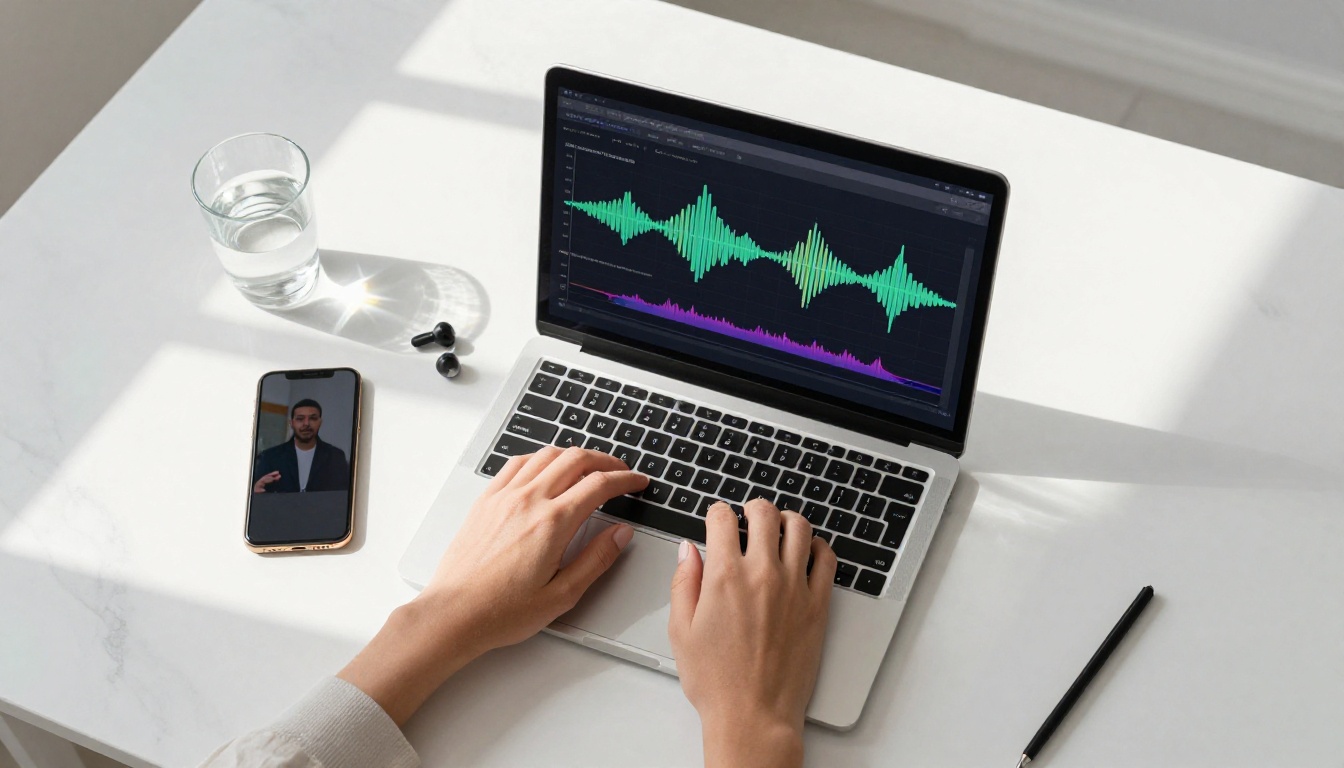
With audio in hand, you now sync it to the face in the video. The right model depends on your source material: existing video footage, a static photo, or a video recorded in a different language.
How to Use Kling Lip Sync
Kling Lip Sync is one of the fastest and most consistent lipsync models available. Here is the exact workflow:
Step 1: Open Kling Lip Sync on Picasso IA.
Step 2: Upload your source video. The video should show a clear, forward-facing view of the speaker's face. A minimum resolution of 720p is recommended for clean landmark tracking.
Step 3: Upload the audio file you generated in Step 1. WAV or MP3 formats both work. Ensure the audio is clean with minimal background noise.
Step 4: Set the sync mode. For most use cases, the default automatic mode produces strong results without manual adjustment.
Step 5: Run the model and preview the output. The model processes roughly in real time relative to the video length.
Step 6: Download the synced video. The output maintains the original video resolution and quality.
💡 Best results come from footage where the speaker faces the camera directly with good, even lighting on the face. Avoid videos where the subject looks away from camera for extended periods.
Lipsync 2 Pro for Precision Results
For content where accuracy is critical, such as corporate presentations, medical explainers, or legal testimonials, Lipsync 2 Pro offers the highest precision of any model in the lipsync category. It handles complex mouth shapes, fast speech, and emotional delivery with more fidelity than standard models.
Lipsync 2 is the baseline version: faster and lighter, suitable for social media content where ultra-high precision isn't the priority. Use Pro when the content will be displayed on large screens or when the speaker remains close to camera throughout the video.
Omni Human 1.5 for Photo to Talking Video
One of the most impressive applications in this space is animating a still photo into a talking video. Omni Human 1.5 by ByteDance takes a single portrait photo and an audio file, then generates a realistic talking video complete with natural head movement, blinking, and full lip sync.
This means no source video footage is required at all. Upload a headshot, upload audio, and the model generates a fully animated video of that person speaking.
Omni Human is the previous version, still useful for many everyday applications. The 1.5 release shows notably improved naturalness in head, shoulder, and upper-body movement.
P Video Avatar offers a similar photo-to-talking-video capability with customizable backgrounds and avatar styling options.
Fabric 1.0 by Veed supports the same photo-to-talking-video workflow with a focus on polished, social-media-ready output formats.
Dubbing Videos in Other Languages
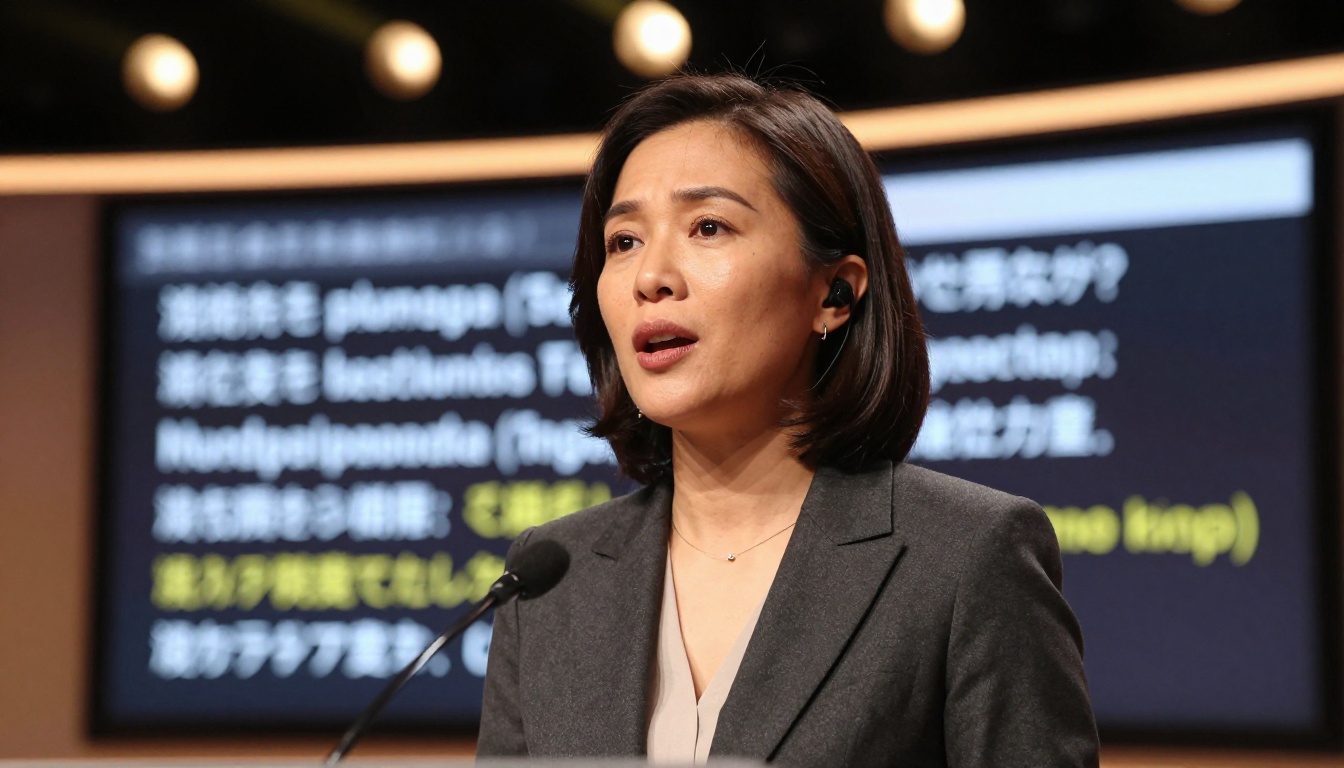
Lipsync and TTS together create something larger than just fixing existing video: they enable full video translation and automatic dubbing. A video recorded in English can be re-voiced in Portuguese, and the speaker's mouth movements adjusted to match the new audio, making the localization invisible to the audience.
Video Translate for Global Audiences
Video Translate handles the complete dubbing pipeline inside a single tool. Upload a video, select a target language from its 150+ supported options, and the model handles transcription, translation, voice generation, and lipsync in one pass.
This is the fastest path to multilingual video content. A five-minute English video can become Spanish, French, German, and Japanese versions in the time it would take a human translator to read the original script once. The output quality is strong enough for social media, marketing campaigns, and corporate training videos.
Lipsync Speed vs Lipsync Precision
For projects where you have the translated audio already prepared and just need to sync it to the video, the choice between Lipsync Speed and Lipsync Precision from HeyGen comes down to deadline and quality requirements.
Pixverse Lipsync is the option to reach for when you need quick turnaround for Instagram Reels or TikTok content where processing speed matters more than frame-perfect precision.
Choosing the Right Model
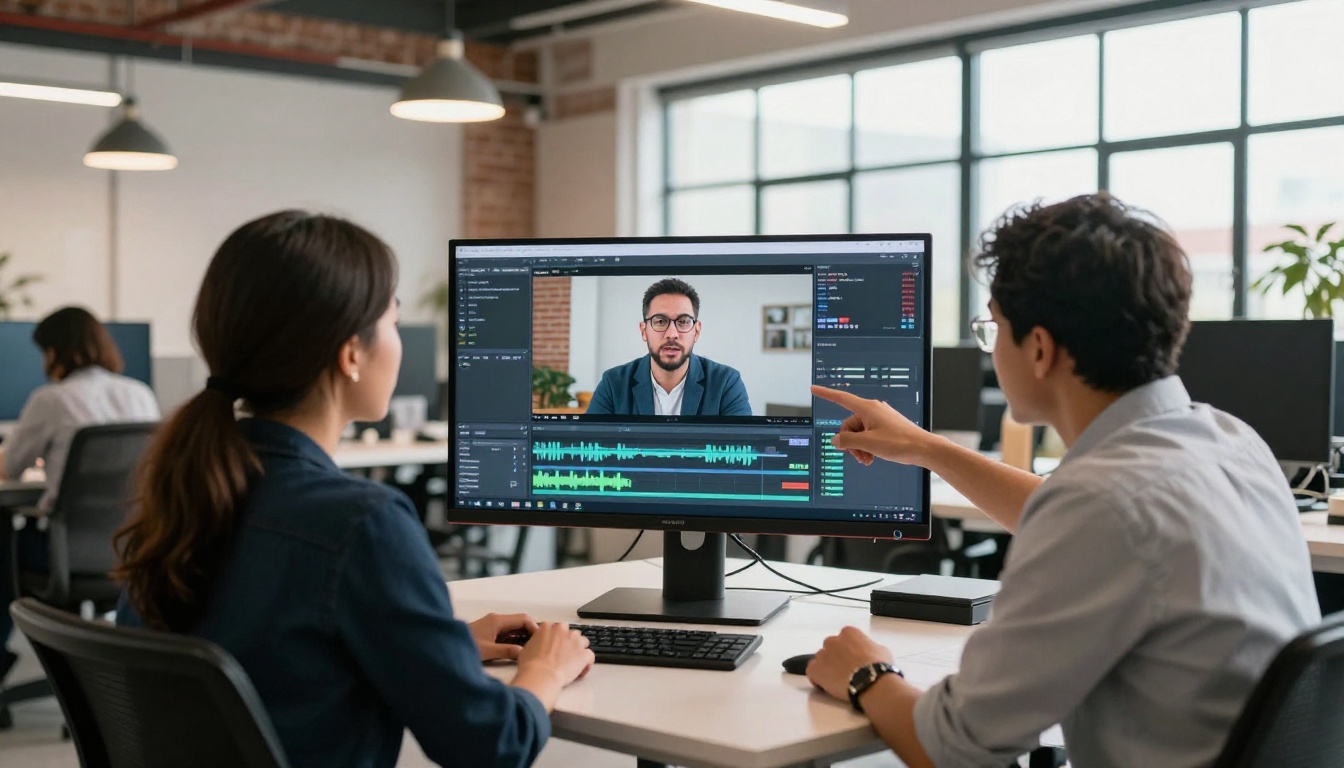
The right model depends on three variables: your source material, your output requirements, and your timeline. Here is a quick reference by use case.
If you have video footage and need to replace the audio:
If you only have a photo:
If you need full translation and dubbing in one step:
5 Things That Ruin Lip Sync
Even the best AI models produce poor results when the input material has avoidable problems. These are the five most common failure points and how to fix each one.
1. Noisy audio. Background music, ambient room noise, or echo in the audio track confuses the phoneme detection layer. The model may misidentify sounds and produce the wrong mouth shapes for the audio. Always use clean, dry audio with no reverb or background sound. Run noise removal on the audio before uploading if needed.
2. Obstructed mouth. If the speaker has a hand near their mouth, is wearing a face covering, or is significantly turned away from camera, the model cannot accurately track the lip region. Ensure the mouth area is fully visible in every frame of the source footage that needs syncing.
3. Mismatched speech speed. If the new audio is significantly faster or slower than the timing of the original video, the lipsync model will struggle to produce natural-looking results. The mouth may appear rushed or drag behind the audio. Match audio pacing to the visual rhythm of the original performance before running sync.
4. Low-resolution video. Models need sufficient facial detail to map landmarks accurately. 720p is the practical minimum. Below that, the model may introduce artifacts around the mouth area, particularly at the lip boundary.
5. Multiple speakers in frame. Most lipsync models are built to handle a single primary speaker. If there are multiple visible faces, the model may sync to the wrong face or produce inconsistent results across the video. Crop the footage to frame the target speaker clearly, or specify the face region before processing.
💡 Before running lipsync, always play your audio alongside the original video in a simple editor. Your ears and eyes will catch obvious timing mismatches faster than any checklist.
The Full Workflow in Practice
Here is how the full pipeline works in practice, depending on the starting point of your project.
For dubbing existing video into a new language:
- Extract and review the original audio to understand the timing, pace, and energy of the performance
- Write the translated script, matching the approximate timing of the original
- Generate new audio using ElevenLabs V3 or Minimax Speech 2.8 HD, adjusting pace to match the original speaker's rhythm
- Run the audio and video through Lipsync Precision or Lipsync 2 Pro
- Review the output carefully, paying special attention to hard consonants and silent pauses
- Export and publish the localized version
For building a talking avatar from a photo:
- Select a high-quality portrait photo with a neutral expression, forward-facing angle, and clear lighting
- Write the script for what the avatar will say
- Generate audio with your preferred TTS model, choosing a voice that fits the subject's apparent personality
- Upload the photo and audio to Omni Human 1.5
- Review the output for natural movement quality and re-run if needed
- Export the final video
For multilingual content at scale:
- Record the original video in your primary language with clean audio
- Upload directly to Video Translate
- Select all target languages in one batch
- Let the model handle transcription, translation, voice generation, and sync automatically
- Review each language version for edge cases and unusual proper nouns
- Publish region-specific versions
Perfect Sync Is Now the Default
The tools covered in this article have collapsed what used to be a multi-day production task into a workflow that takes minutes. There are no more practical excuses for poorly synced video, and no more budget barriers to creating multilingual content that looks and sounds native.
Whether you're a solo creator dubbing YouTube content into a new language, a marketing team localizing product videos for international markets, or an educator building multilingual courses, the same professional-grade tools are accessible right now. The gap between amateur and professional output is no longer about budget or equipment. It is about knowing which tools to use and in what order.
Every model mentioned in this article is available on Picasso IA. Start with a video you already have, or just a single photo. Add a voice from the TTS models. Run it through a lipsync model. The result will speak for itself, and so will your audience's reaction.
Try your first synced video on Picasso IA today and see exactly how fast the process has become.


