Every video starts as a vague feeling. A scene in your head, an emotion you want to convey, or a product you need to showcase. Getting from that feeling to a finished clip used to mean a camera crew, a location, and a real budget. With AI video tools available today, the gap between concept and finished output has collapsed to hours. But the process still matters. Rush through the early stages and you will spend twice as long fixing problems at the end.
This article walks through every stage of producing an AI video, from the first rough idea all the way to a shareable, polished clip. No theory, just the actual steps.
What Your Idea Actually Needs First
Most people open a text-to-video tool and type whatever comes to mind. The results are almost always disappointing, not because the model is bad, but because the input was incomplete. Before you touch any AI tool, spend ten minutes answering three questions.
What is the core visual moment? Not the whole story, just the single most important image. This is your anchor shot.
What is the tone? Cinematic and dramatic? Fast-paced and energetic? Calm and documentary? Your tone dictates your model choice, your prompt language, and your editing pace later.
Who is watching this, and where? A social reel needs punchy 9:16 clips. A product demo works better at 16:9 with slower pacing. A landing page hero video usually runs five to fifteen seconds.
The 3-Line Treatment
A treatment is a brief written summary of your video's story arc. You do not need a full page. Three lines work fine.
- Line 1: What happens visually in the first few seconds.
- Line 2: What changes or develops in the middle.
- Line 3: What the viewer sees or feels at the end.
That structure gives every AI clip you generate a purpose. Without it, you are generating random images that move.
Reference Images Help More Than You Think
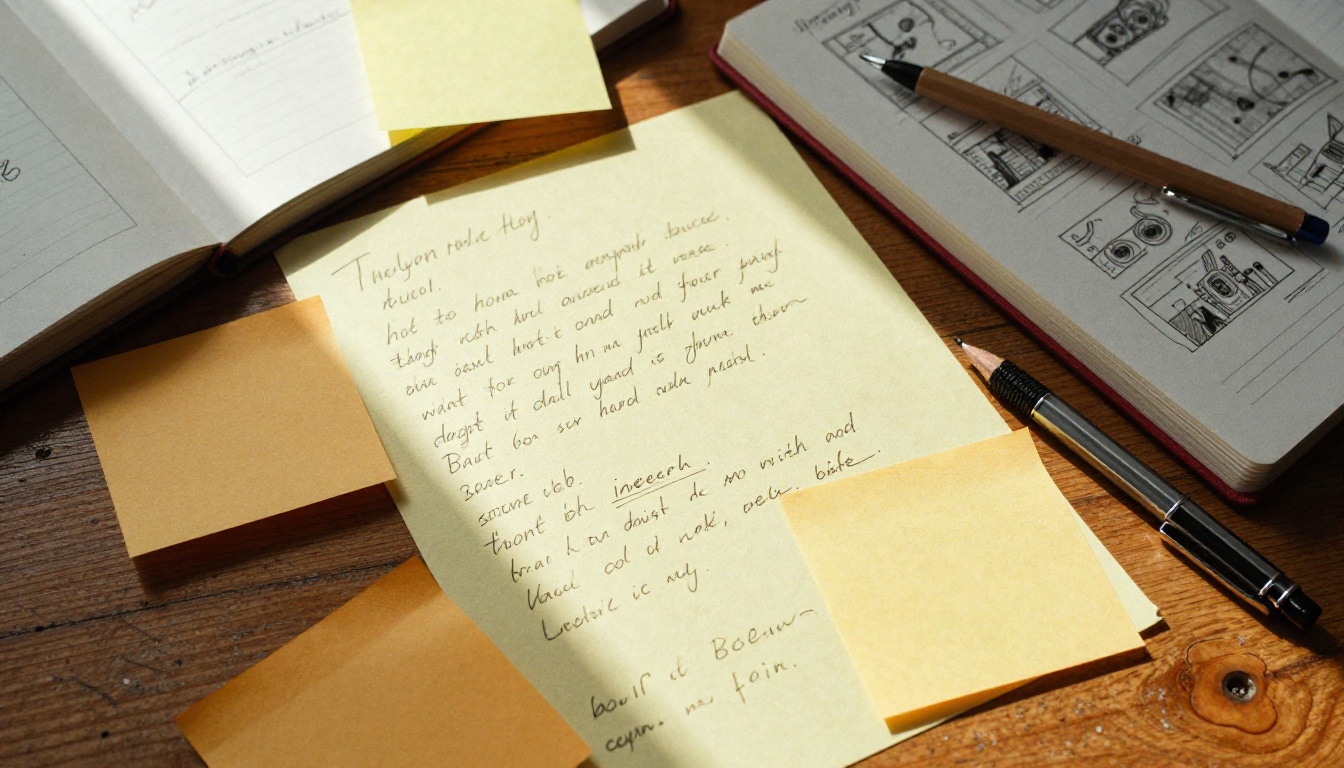
Find two or three photos online, from films, ads, or photography, that share the visual style you want. These become your reference during prompt writing. When you describe lighting as "warm golden hour backlight from the upper left," you are describing what you see in a reference image, and that specificity is what gets AI models to produce useful output.
Writing a Script That AI Can Work With
"Script" sounds formal. For AI video, it is really just a shot list. Each item on the list describes one clip. You are not writing dialogue or action lines, you are describing what the camera sees.
Short Scenes Win Every Time
Current AI video models generate clips between five and ten seconds. Plan for that constraint. Instead of writing "a woman walks through a city and looks up at a building," write two separate shots:
- Close-up of a woman's shoes stepping confidently on wet pavement, city reflections visible.
- Low-angle upward shot of a glass skyscraper facade with overcast sky, pigeons launching from a ledge.
Each of those is a self-contained prompt. Each will generate as a separate clip. Together they tell the same story, but now each clip has a specific, achievable visual target.
The Format That Works
For each shot, write four things:
| Element | What to Write |
|---|
| Subject | Who or what is the main focus |
| Action | What is happening or moving |
| Environment | Where is this taking place |
| Mood | What is the emotional quality |
That four-column approach forces you to think about every shot before you generate it. Models perform dramatically better when all four elements are present in the prompt.
Picking the Right Model for Your Shot
There are over 100 text-to-video models available today. Most people use whatever they find first, which is rarely the right choice. Each model has a personality: some favor cinematic realism, others favor speed, and others produce smooth motion at the cost of fine detail.
Text-to-Video vs. Image-to-Video
This is the first decision you make. If you have a strong visual concept but no source image, use a text-to-video model. If you have already generated a still image you love and want to animate it, use an image-to-video model.
Both workflows are valid. Many professional workflows combine them: generate a reference image first, then animate it. This gives you much tighter control over the final look because you are specifying the first frame exactly.
Models Worth Trying in 2027
Here is a practical breakdown of the strongest options by use case:
💡 Rule of thumb: For your first video, start with Seedance 2.0 or Pixverse v5.6. Both are accessible, produce strong results from moderate prompt detail, and output audio natively.
Prompt Writing That Gets Results
The prompt is your primary control surface. Every extra word of description is an instruction to the model. Vague prompts produce vague results. Specific prompts produce controllable results.
The 4-Part Prompt Formula
Structure every video prompt in this order:
- Subject and action: "A woman in a red coat walks slowly through a morning market."
- Environment: "The market is crowded with stalls, steam rising from coffee carts, cobblestone ground wet from overnight rain."
- Camera and motion: "Slow tracking shot from behind, camera moves at walking pace, slight handheld sway."
- Lighting and atmosphere: "Soft diffused morning light from the east, overcast sky, warm color tones."
That single paragraph gives the model enough specificity to produce a consistent, cinematic result. Compare it to "a woman walking in a market," which could produce anything at all.
What to Avoid in Your Prompt
Some inputs consistently degrade output quality:
- Abstract emotions without visual description: "sad," "happy," "tense" mean nothing to a visual model. Describe the physical expression of that emotion instead.
- Multiple competing subjects: Keep each clip focused on one main subject.
- Conflicting lighting: "bright sunlight and moody dark room" confuses the model's rendering logic.
- Asking for text on screen: Most models produce garbled text. Use a post-production tool for titles and captions.
💡 Prompt tip: Add camera movement to every prompt. Words like "slow dolly in," "gentle pan right," "static wide shot," or "handheld follow" give the model a motion target and dramatically improve the dynamic feel of the output.
How to Use PicassoIA to Build Your Video
PicassoIA Video hosts over 87 text-to-video and image-to-video models in one place, which means you can test multiple models against the same prompt without switching platforms or managing API keys separately. Here is the exact workflow.
Step 1: Open the Model Page
Go to the model you have chosen based on your shot type. For a cinematic scene with audio, open Seedance 2.0. For fast iteration on a product shot, try Pixverse v5.6. Each model page shows example outputs so you can verify the style before committing.
Step 2: Write Your Prompt in the Input Field
Paste your structured prompt from the 4-part formula. Do not include camera lens specs unless the model documentation shows it responds to them. Some models work better with shorter, denser prompts. Others respond to longer descriptions. Start with medium length, around 60 to 80 words, and adjust based on the output you get.
Step 3: Set Resolution and Generate
Most models let you choose resolution. For finished content, select at least 720p. For a first test to check composition and motion, 480p is faster and wastes fewer credits if the shot needs revision.
Click generate, then wait. Generation times vary from 20 seconds to a few minutes depending on the model and resolution you choose.
Step 4: Download and Review
When the clip is ready, download it and watch it at least twice before deciding whether to use it. Watch once for motion quality and once for subject fidelity. Ask: does the subject look like what I described? Does the camera move the way I specified? If both answers are yes, you have a usable clip. If not, revise one element of your prompt at a time and regenerate.
💡 Iteration tip: Change only one prompt element between generations. If you change five things at once, you will not know which change fixed the problem or created a new one.
Assembling Clips Into a Finished Video
Once you have your clips, the actual editing work begins. AI generation is one-third of the process. Assembly and audio are the other two-thirds.
Ordering Your Shots
Go back to your 3-line treatment. Your clips should map to that structure. Put your strongest visual first or second, never last. Audiences decide whether to keep watching within the first three seconds.
Cut on motion when possible. If clip A ends with something moving right, start clip B with something moving in a similar direction. It creates visual flow without any special effects.
A 60-second video typically needs between 8 and 15 clips at 4 to 7 seconds each. Shorter clips feel more energetic. Longer clips feel more contemplative. Match the pace to your tone.
Adding Audio Without a Studio
Most modern AI video models include native audio generation. Seedance 2.0, Veo 3.1, and Hailuo 02 all produce synchronized ambient audio alongside the video. That handles environmental sound automatically.
For music, PicassoIA also hosts AI music generation models that produce royalty-free tracks from a text prompt. Describe the tempo, genre, and mood you need, and you get a full track in seconds.
For voiceover, use any text-to-speech model and record the narration as a separate audio layer in your editing timeline.
3 Mistakes That Kill Your Video
These are the errors that show up most consistently in AI video projects, especially from people who are new to the process.
Mistake 1: Generating without a plan.
People open a model, type something vague, and repeat until they get something tolerable. This is expensive and time-consuming. Ten minutes of planning before you generate anything will save an hour of iteration afterward.
Mistake 2: Using one model for every shot.
Different models have different strengths. A talking head scene might work beautifully in Kling v3 Video, while an outdoor landscape shot might look better in Veo 3.1. Mix models based on the visual requirements of each shot rather than defaulting to one.
Mistake 3: Skipping the audio layer.
A visually strong video with no audio or with the wrong audio feels incomplete. Even two seconds of ambient room tone or subtle background music changes how professional a clip feels. Never ship a video without an audio layer.
💡 Quick win: After assembling your clips, mute the video entirely and just listen to your audio track. If the audio can stand on its own and still communicate the story, your video will hold up when people scroll past it with sound off.
A Real Workflow, Shot by Shot
Here is what a full production workflow actually looks like for a 30-second brand video, from idea to export.
Day 1, Session 1 (30 minutes):
Write the 3-line treatment. Identify four to six core visual moments. Find three reference images. Write a 4-part prompt for each shot.
Day 1, Session 2 (45 minutes):
Open PicassoIA. Generate a test clip at 480p for each shot. Review each result. Revise any prompts that produced off-target results.
Day 1, Session 3 (30 minutes):
Generate final clips at 720p or 1080p. Download all clips.
Day 2, Session 1 (60 minutes):
Import clips into your editing tool. Order shots according to your treatment. Add audio. Rough cut.
Day 2, Session 2 (30 minutes):
Color adjustments if needed. Export at target spec. Review on mobile and desktop.
Total time from concept to finished 30-second video: under four hours.
That timeline assumes you are not regenerating clips multiple times. With practice, your first-generation hit rate improves significantly. After your third or fourth video, most shots land on the first or second try.
Checking Quality Before You Export
Before final export, run your video through this checklist:
- Every clip has a clear subject and the subject is recognizable throughout.
- Motion feels intentional, not random or glitchy.
- Audio is mixed at consistent levels with no sudden spikes or dropouts.
- First three seconds hook the viewer visually.
- Clip length variation exists, so the video does not feel metronomic.
If any of those fail, go back and fix that specific element. Do not re-do the whole video.
Start Your First Video Now
The biggest barrier to finishing an AI video is starting without a plan and then abandoning the project when the first few clips look wrong. That is not a tool failure. It is a process failure. Fix the process and the tool becomes far more predictable.
PicassoIA puts over 87 text-to-video models in one interface, offering everything from fast 720p clips for social media to full 4K cinematic outputs. Whether your shot calls for Wan 2.7 T2V for long landscape footage, Kling v2.6 for character-driven drama, or LTX 2.3 Pro for ultra-sharp 4K resolution, you can test them all from the same account without juggling multiple subscriptions.
Write your treatment, pick your shots, and generate your first clip. The workflow described here works for a 15-second social post and a 3-minute brand story. Scale it to what you are building.
Your idea is already good enough. The only thing left is the process.