The difference between a 9:16 video published on YouTube and a 16:9 video published on TikTok is the difference between content that performs and content that gets buried before anyone sees it. Most creators skip resolution and aspect ratio settings entirely, trusting whatever default the AI model outputs. That approach costs views, quality, and render credits wasted on the wrong format.
This is a direct walkthrough of every resolution and aspect ratio decision that matters for AI video. You will see which platforms demand which specs, which AI models actually produce the resolutions they advertise, and how to configure everything without second-guessing a single setting.
What Resolution Really Controls
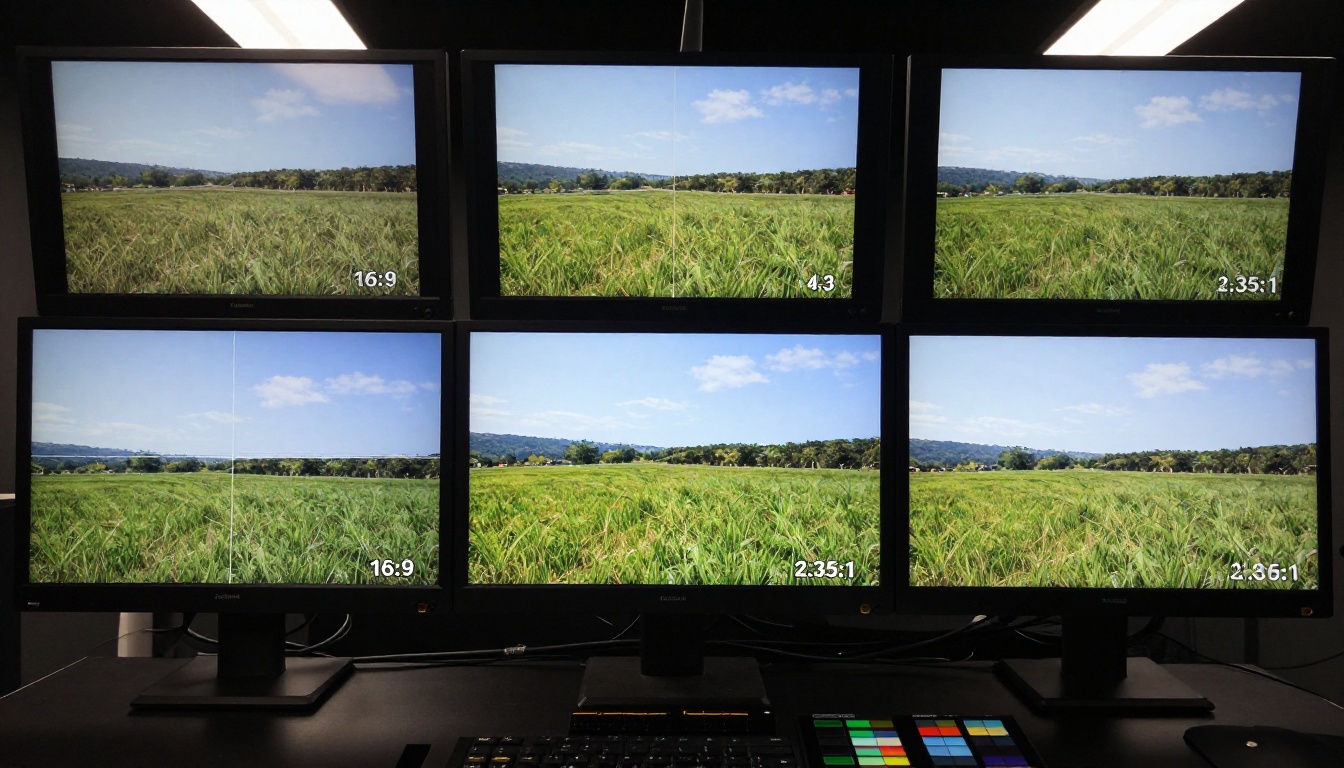
Resolution is not just "how sharp the video looks." It controls three things simultaneously: output file size, render time, and where the video can be published without quality loss.
When you generate a video at 480p, you instruct the AI model to produce approximately 854x480 pixels per frame. At 1080p, that becomes 1920x1080 pixels, which is roughly four times more pixel data per frame. That directly affects how long generation takes, how large the output file is, and whether the platform where you publish can display the video without introducing its own compression artifacts.
Choosing the wrong resolution is not a small cosmetic mistake. Uploading a 480p video to a 1080p-native platform forces the platform to upscale it, and AI video content upscaled by a platform's compression algorithm looks worse than the original. The platform's upscaler was not trained on AI-generated content. It introduces blurring, haloing, and motion smearing that no amount of post-processing can fix.
The Pixel Count Problem
Every platform has a ceiling and a floor. YouTube can technically display up to 4K but its algorithm favors 1080p uploads for thumbnail sharpness in search results. TikTok caps its actual encoding at 1080p regardless of what you upload. Instagram Reels compresses aggressively below 720p, so anything generated at 480p will look noticeably soft when viewed on a modern phone screen.
The math is straightforward: publish at or above the platform's native resolution, and the platform works with your quality rather than against it.
How AI Models Handle Resolution Differently
Not all models treat resolution as a simple switch. Some are natively trained at 720p and can be pushed to 1080p, but the output will show visible distortion in fine details: hair strands, fabric texture, background architecture, and water surfaces. Others, like LTX 2.3 Pro and Wan 2.7 T2V, are natively optimized for higher resolutions and actually produce better motion coherence at 1080p than at lower settings. More pixels give the model more spatial information to work with when predicting inter-frame movement.
Match your resolution to both your platform requirement and the model's native output range. Using a 720p-native model to generate 1080p content is like printing a 2MP photo at A0 size. The dimensions exist on paper, but the actual detail underneath them does not.
Aspect Ratio Basics (No Jargon)
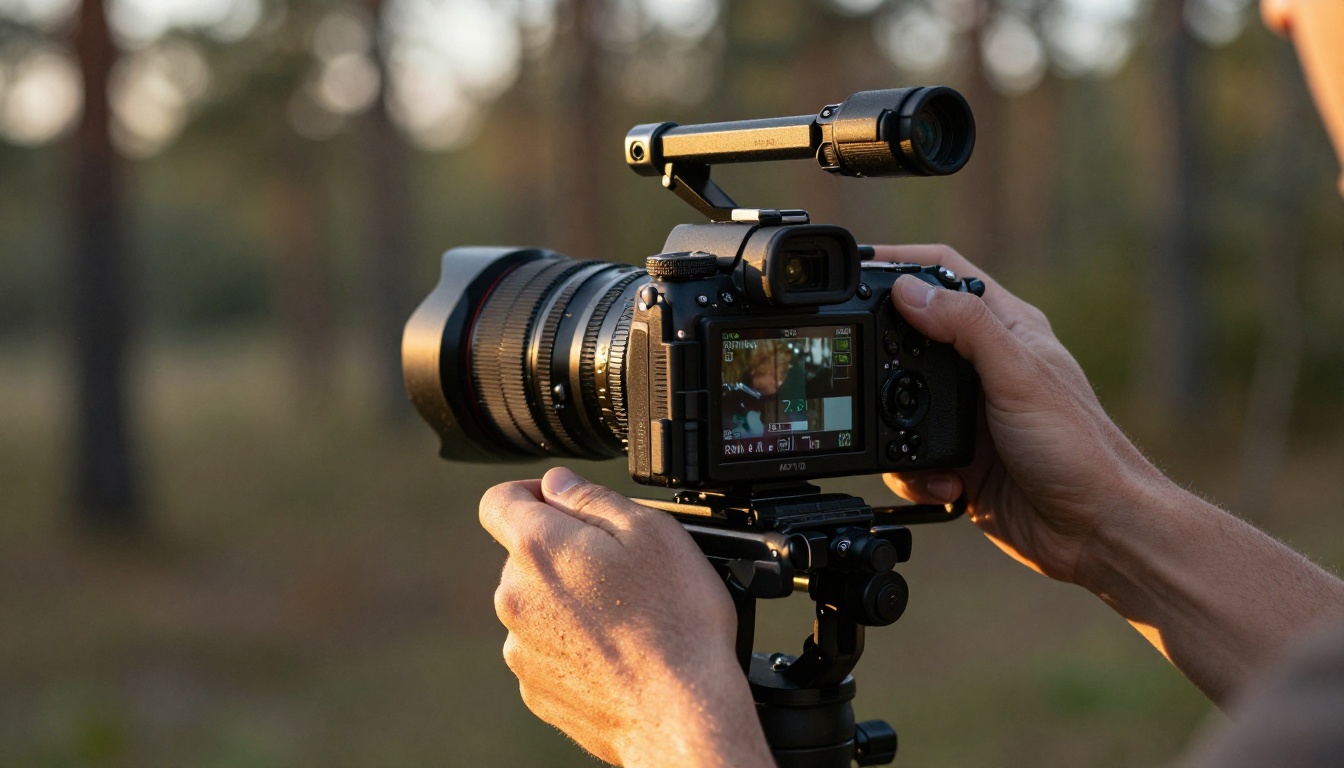
Aspect ratio is the relationship between a video's width and its height. 16:9 means 16 units wide for every 9 units tall. 9:16 is the exact inverse: 9 units wide, 16 units tall. 1:1 is a perfect square.
The choice of ratio is not aesthetic preference. It is a publishing decision driven entirely by where the video will play and how that platform renders it.
16:9 vs 9:16 vs 1:1
| Format | Ratio | Primary Platforms | Ideal Subject |
|---|
| Landscape | 16:9 | YouTube, TV, desktop | Films, tutorials, wide environments |
| Portrait | 9:16 | TikTok, Reels, Shorts | Faces, close-ups, social clips |
| Square | 1:1 | Instagram feed, LinkedIn | Product demos, brand content |
| Ultrawide | 2.35:1 | Cinematic / theatrical | Film-style sequences |
| Tall | 4:5 | Instagram portrait feed | Photography-style content |
A 16:9 video on TikTok will have black bars on both sides. A 9:16 video on YouTube will have black bars on the top and bottom. Both scenarios signal to the platform's algorithm that the content is not natively formatted for the feed, which often results in lower recommendation rates.
The "Wrong Ratio" Mistake
The most common error in AI video production is generating in one ratio and publishing on a platform optimized for another. Creators treat the AI's default output as final and upload it without checking the target platform's format specifications.
💡 Platform first, then ratio, then prompt. Decide where the video is going before you write a single word of the generation prompt. Everything else follows from that decision.

Different platforms have different native specs, different compression pipelines, and different audience habits. Here is what each major platform actually requires for AI-generated video content.
YouTube and Desktop
YouTube natively supports up to 4K and handles 1080p exceptionally well. The optimal spec for AI-generated video on YouTube is 1080p at 16:9. At this setting, videos play without letterboxing on desktop browsers, smart TVs, and tablets. YouTube's search algorithm uses resolution as a quality signal in its ranking criteria, so 1080p uploads surface more often than 720p equivalents for the same keyword.
For cinematic content and narrative sequences, Sora 2 and Veo 3.1 produce strong 1080p output with the temporal coherence needed for longer clips. Wan 2.7 T2V is the better pick for wide, detail-heavy scenes with complex backgrounds and far-horizon depth.
Minimum recommendation for YouTube: 720p at 16:9. Below that, the platform's compression artifacts become visible on any screen larger than a tablet.
TikTok, Reels, and Shorts
All three of these platforms are vertical-first environments. The correct format is 9:16 at 1080p (1080x1920 pixels). Generating below 720p for these platforms means the platform's upscaler runs over your video during publishing, introducing compression artifacts that make AI-generated content look noticeably worse than it actually is.
Seedance 2.0 handles 9:16 vertical content with built-in audio synthesis, making it well-suited for short social clips. Kling v2.6 provides strong motion control in vertical compositions. Pixverse v5.6 frames portrait-orientation subjects particularly well, keeping faces and central subjects sharp without awkward cropping at the vertical edges.
💡 YouTube Shorts only appears in the dedicated Shorts feed when the video is genuinely vertical (9:16). Uploading a 16:9 video with a #Shorts tag places it in the regular feed, not the Shorts player, and it will not receive Shorts-specific recommendations.
LinkedIn and Professional Platforms
LinkedIn's video player defaults to 16:9 but handles 1:1 square video without letterboxing in the feed. For professional demos, brand content, and product showcases, square format performs better on mobile LinkedIn because it occupies more vertical screen space in the feed scroll, increasing the likelihood that someone stops while scrolling.
Resolution at 720p is sufficient for LinkedIn. The platform's compression pipeline reduces visible quality differences between 720p and 1080p on the screens where most LinkedIn content is consumed, making 1080p generation credits an unnecessary expense for this particular platform.
Picking Resolution by Subject
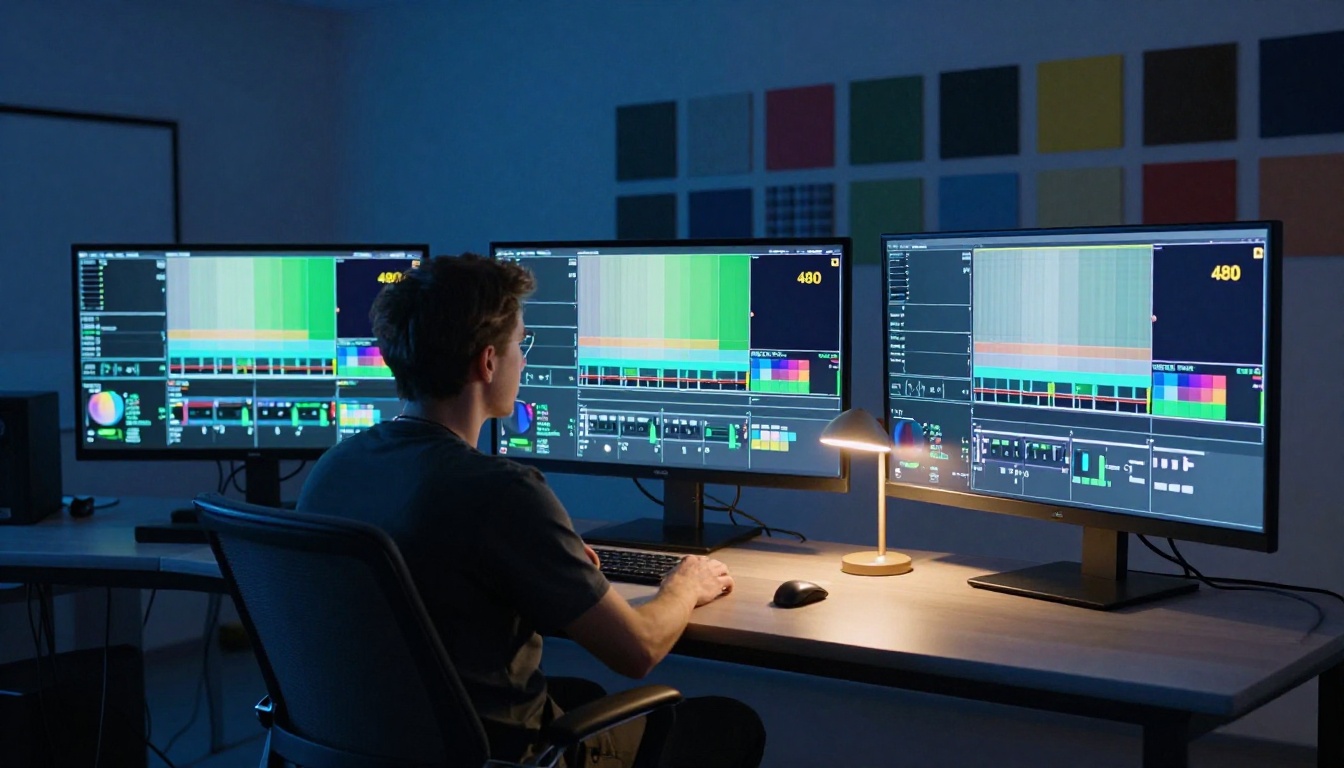
The content of your video affects which resolution settings deliver visible improvement. Not every scene benefits equally from higher pixel counts.
Architecture and Landscapes
Wide environmental shots with strong geometric detail, cityscapes, interiors, forests, water surfaces, contain fine repeating textures across large areas of the frame. Brick patterns, leaf clusters, water ripples, and shadow gradients all carry more information at 1080p, and that detail is visible to viewers even on a phone screen.
For environmental subjects, LTX 2.3 Pro and Wan 2.7 T2V handle complex scene composition without the spatial distortion that lower-resolution models introduce when rendering large environments with deep horizon perspective.
Portraits and Talking Heads
Close-up facial content requires high resolution because viewers spend the entire clip watching a face. Compression artifacts on skin texture, eye detail, and lip movement are immediately visible, even to non-technical audiences. 1080p is not optional for portrait-style AI video targeting any audience with quality expectations.
Kling v2.1 Master maintains consistent skin texture and eye contact across frames at 1080p. Hailuo 02 performs strongly for close-up portrait videos where subtle expressions need to remain stable as the subject moves through the clip.
Fast Motion and Action
High-action sequences introduce a specific problem: temporal artifacts. When AI models generate fast-moving content at lower resolutions, frame blending and ghosting effects make motion look artificial. Limbs blur between frames. Edges of fast-moving objects leave visible trails.
For action-heavy content, use 720p or 1080p with a model that has strong temporal coherence. Kling v2.6 and Seedance 2.0 handle fast motion well due to their motion-prediction architecture. Happyhorse 1.0 is specifically built for fluid motion at 1080p and is the strongest pick when action and movement are the primary subjects of the video.
At 480p, motion artifacts in fast-action scenes are severe enough to make most outputs unusable in any professional publishing context.

The 480p vs 1080p Tradeoff
The assumption that 1080p is always better is wrong. It is sometimes the right choice and sometimes a significant waste of resources.
Speed vs Quality
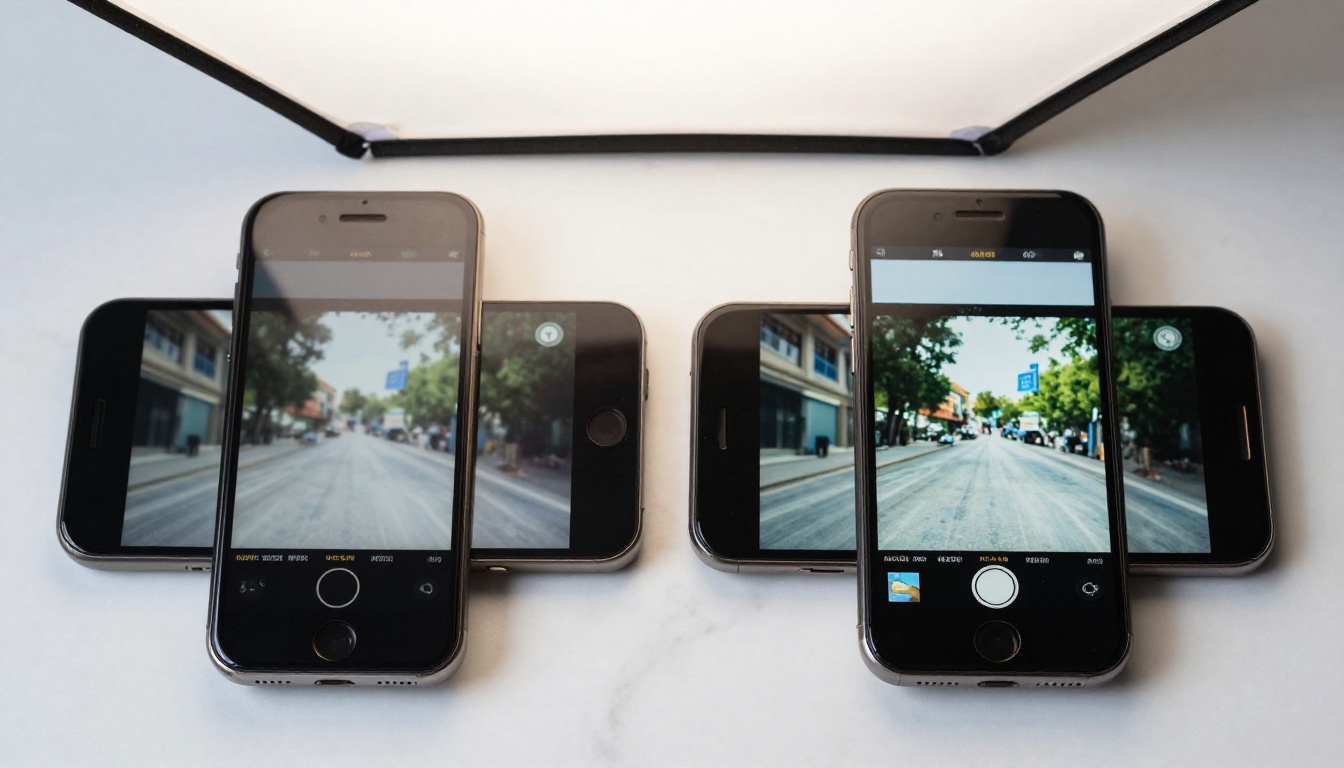
480p generates three to five times faster than 1080p on most AI video platforms. That speed advantage matters enormously during prompt iteration and composition testing. If you are exploring a motion style, testing different lighting descriptors, or checking whether a subject holds coherence across the full clip duration, 480p gives you that feedback in a fraction of the time and at a fraction of the credit cost.
The correct workflow for any serious AI video project: generate your first two or three drafts at 480p, refine the prompt based on what you see, then generate the final version at 1080p. This approach saves credits on every failed draft and ensures the final high-resolution generation runs only once the prompt is confirmed to work.
For rapid draft generation, Ray Flash 2 720p and Hailuo 02 Fast are specifically designed for speed. They trade some output quality for dramatically shorter generation times, making them the correct tools for any iteration phase where the goal is reviewing compositions rather than producing final deliverables.
When 480p Is Enough
There are legitimate final-use cases for 480p:
- Background video loops playing behind UI elements where the video is never the focal point
- Auto-play preview clips that run muted in a small embedded player
- Client review drafts for gathering feedback before investing in full-quality generation
- Heavy-compression platforms where the platform degrades 1080p uploads to near-480p quality before serving them to users anyway
Outside these specific contexts, 480p as a final deliverable is a quality compromise that audiences notice. They may not be able to articulate why the video looks "off," but the visual softness and compression artifacts register as low production value, even to non-technical viewers.
Best AI Video Models by Resolution Output

How to Set This in PicassoIA
PicassoIA surfaces resolution and aspect ratio controls directly on each model's generation page. The settings are visible before you write a prompt, which is the correct order of operations.
Step-by-Step Settings
Step 1: Navigate to your model.
Go to picassoia.com/en/all-models and filter by the text-to-video or image-to-video category. Each model listing shows its native resolution support. Pick the model that fits your target resolution from the table above.
Step 2: Set your aspect ratio first.
The aspect ratio setting changes how the model frames subjects internally during generation. Setting 9:16 after writing a landscape-oriented prompt forces the model to reframe a horizontal composition into a vertical one, producing awkward cropping. Set the ratio first, then write the prompt to match that orientation.
For vertical 9:16 content, write prompts that describe tall compositions: a close-up on a face, a person walking directly toward the camera, or a tall architectural element like a doorway or tower. Wide-scene descriptions do not adapt cleanly to portrait frames.
Step 3: Select your output resolution.
Most PicassoIA models show a resolution dropdown with 480p, 720p, and 1080p options. Match this to your platform target using the tables above. If 1080p is not available in the dropdown for a given model, that model is 720p-native and should be used accordingly.
Step 4: Generate a draft at 480p.
Before committing to full 1080p generation, run the same prompt at 480p. Check three things:
- Is the composition correct for the chosen aspect ratio?
- Is the motion style what you intended?
- Does the primary subject remain coherent across the full clip duration?
Fix any issues in the prompt before spending credits on the high-resolution version. A failed 1080p generation costs three to five times more than a failed 480p draft.
Step 5: Final generation at target resolution.
Once the draft confirms the prompt works, switch to your target resolution and run the final generation. Download the file and verify its actual dimensions match the intended spec before publishing.
💡 Check the actual file properties, not just how it looks in a player. A video upscaled during the download process may display at 1080p in the player while the source file is only 720p.
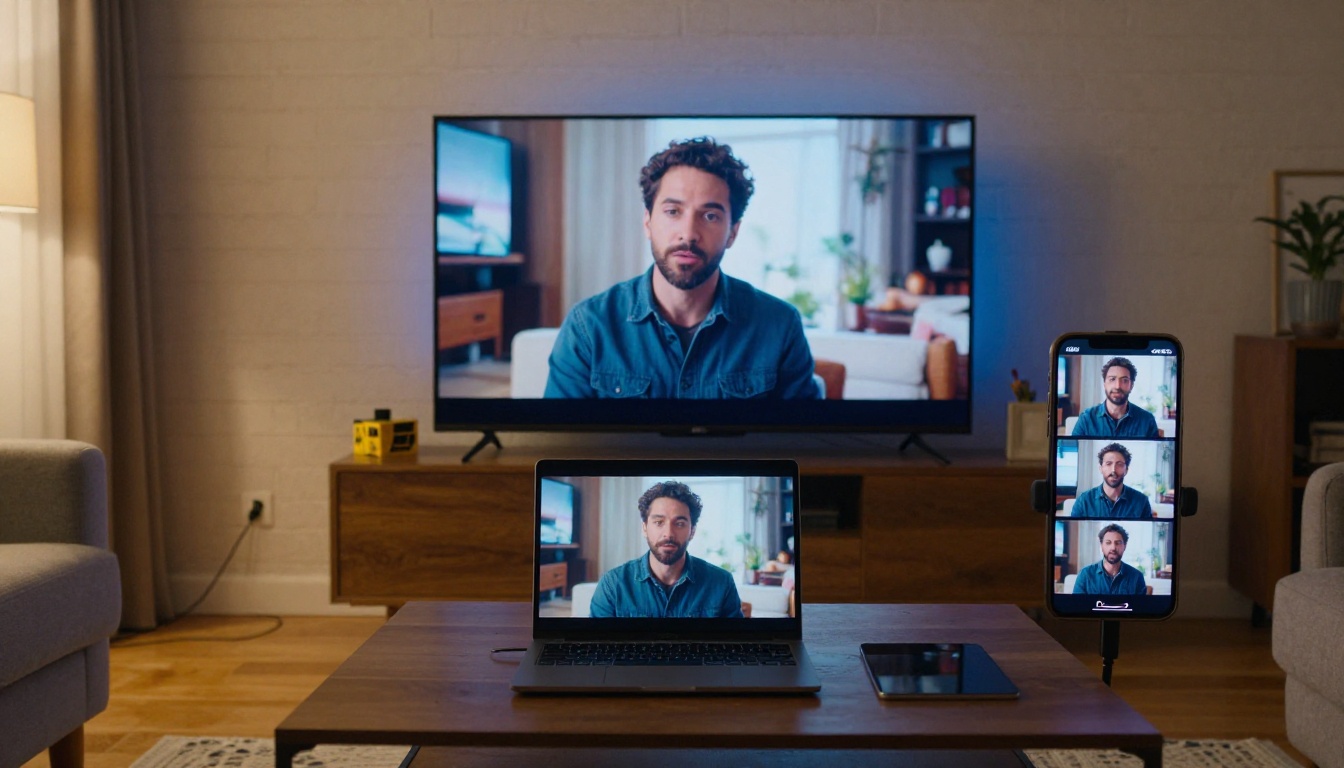
Two Settings People Always Ignore
Beyond resolution and aspect ratio, two additional parameters consistently get skipped and consistently affect output quality.
Frame rate: AI video models default to 24fps, the cinematic standard. Social media platforms often feel more natural at 30fps because phone-shot content is historically at 30fps. Viewers perceive 24fps social content as slower or less responsive even when the underlying content is strong. Kling v2.6 and Wan 2.7 T2V both support variable frame rate selection without introducing the motion artifacts that affect some models when pushed above 24fps.
Clip duration: Longer clips at higher resolutions require significantly more computation. The cost scales faster than linearly, meaning a 10-second 1080p clip costs far more than twice a 5-second 1080p clip. If your target platform auto-trims content (TikTok to 15 or 60 seconds, Shorts to 60 seconds), generating a 30-second 1080p clip when 10 seconds will serve the same purpose is an avoidable expense. Match your clip duration to the platform's natural content window before you generate anything.
💡 Short-form platforms reward content that fits their native loop length. A 10-second clip that loops three times in a session is perceived as more engaging than a 30-second clip watched once and scrolled past.
The Decision Every Time
Before touching a prompt, answer these four questions:
- Where is this video publishing? This determines the aspect ratio.
- What is the primary subject? This sets the resolution floor.
- Is this a draft or the final output? Drafts at 480p. Finals at platform spec.
- Which model produces that resolution natively? Pick from the table above.
That sequence takes thirty seconds. It eliminates every category of waste in AI video production: wrong format for the platform, wrong resolution for the subject, failed drafts at full credit cost, and re-renders because the composition did not fit the chosen ratio.
Your First AI Video Starts Here
Resolution and aspect ratio are not advanced topics reserved for post-production professionals. They are the first two settings you configure before anything else. Getting them right gives the AI a clear framework to work within. Getting them wrong means no amount of prompt engineering will fix a video formatted for the wrong platform at the wrong quality level.
PicassoIA has over 100 text-to-video models at picassoia.com/en/all-models, each with its resolution and aspect ratio capabilities clearly listed. Pick the platform, set the ratio, choose the model that fits your resolution target, run one draft at 480p, and generate the final output at 1080p.
The only gap between you and a properly formatted AI video is a thirty-second decision made before you start typing.


