Most people open an AI video generator, type a vague sentence, and spend the next hour wondering why the output looks nothing like what they imagined. The problem is not the model. The problem is the plan, or more accurately, the absence of one. Before you click generate on anything, there are decisions to make, and the quality of those decisions determines whether your first render is usable or a wasted credit.
Why Planning Saves You Credits
AI video generation is expensive in time and compute. A single render on a model like Seedance 2.0 or Veo 3 can take anywhere from 30 seconds to several minutes, and the output depends entirely on how precisely you defined what you wanted before clicking generate. Bad planning means more retries. More retries means more time and more cost. Every professional video director, whether working with human actors or AI models, starts with pre-production. AI video is no different.
The Biggest Mistake
The most common mistake is conflating "I have an idea" with "I have a plan." An idea is "a chef cooking in a kitchen." A plan is "a close-up shot of a chef's hands folding pasta dough on a floured marble surface, soft window light from the left, slow push-in camera movement, warm midday atmosphere." The second description gives the AI something concrete to work with. The first gives it creative latitude to produce something you probably didn't want.
Vague inputs produce vague outputs. That is not a flaw in the model. It is a direct reflection of the instruction it received.
What Good Pre-Production Looks Like
At minimum, a workable video plan includes:
- A core concept: what is this video about in one sentence
- A subject and action: who or what is doing what
- An environment: where does it take place
- A visual style: lighting, mood, tone
- A camera language: angle, movement, lens distance
- A duration sense: is this a 5-second clip or a 10-second scene
You don't need a Hollywood pre-production bible. You need these six things written down before you touch the tool. Ten minutes of planning routinely saves an hour of re-generation.
Define the Concept Before Anything Else
Every video that works, works because the concept is clear. Every video that fails, fails because the creator skipped this step and hoped the model would fill in the gaps. It won't.
Nail the Core Idea
Write one sentence that describes what your video is. One. Not a paragraph, not a list. One sentence. Here is a template:
"A [subject] [doing action] in [environment], with [mood or feeling]."
For example: "A woman running through a rain-soaked street at night, with a sense of urgency and cinematic tension."
That single sentence is your north star. Every prompt decision you make after this should trace back to it. If a descriptive detail doesn't serve that sentence, it probably doesn't belong in the prompt. This constraint forces clarity, which is exactly what AI models respond best to. Strip the sentence down until it's precise, then build the prompt outward from it.
Who Is Watching?
Before you pick a model or write a single prompt word, ask who this video is for and where it will be seen. A social media clip for vertical mobile viewing needs completely different specs than a landscape video for a website header.
This matters because it directly affects:
- Aspect ratio: vertical (9:16) for mobile, horizontal (16:9) for web and desktop, square (1:1) for most social platforms
- Duration: 3 to 6 seconds for social hooks, 8 to 15 seconds for web embeds
- Pacing: faster cuts work for attention-short environments, slower motion suits premium brand contexts
Knowing your audience before you write a single prompt word eliminates a huge category of re-generation. You won't accidentally produce a beautiful landscape clip for a platform that crops it into a vertical container.
This is the single most important habit you can build when working with AI video. Prompt writing is not something you do in the tool's text field on the fly. It is something you do in a notes app, a document, or a physical notebook. You write it. You edit it. You read it aloud. Then you paste it.
Subject, Action, Environment
Every AI video prompt has three structural pillars: subject, action, and environment. Miss any one of them and the model fills in blanks, often producing something unrecognizable.
| Element | Weak Version | Strong Version |
|---|
| Subject | "a person" | "a woman in her 40s, dark coat, wet hair" |
| Action | "walking" | "walking fast, head down, avoiding eye contact" |
| Environment | "city" | "rain-soaked city sidewalk, reflective puddles, warm store signs" |
The strong version takes 10 extra seconds to write and produces dramatically different output. A weak subject description forces the model to invent a character. A weak action description defaults to generic movement. A weak environment produces a backdrop that rarely matches the mood you planned.
Camera Angles and Motion
AI video models respond well to camera language. These are words that define not just what is in the frame but how the frame moves. Here are the most reliable descriptors:
- Slow push-in: camera gradually moves toward the subject, creates focus and intimacy
- Dolly right or dolly left: camera tracks sideways, reveals environment progressively
- Low angle: shot from below eye level, adds power and drama to the subject
- Aerial wide: overhead establishing shot, conveys scale and location
- Close-up: tight face or detail shot, creates intimacy and emotional weight
- Static shot: no camera movement, everything happens within a fixed frame, works well for product or food content
Pick one camera move per shot. Stacking multiple movements in a single prompt ("dolly in while panning right and tilting up") tends to confuse the model. Choose the move that best serves the moment and commit to it.
Mood and Lighting
Lighting is not a finishing touch. It is part of the prompt structure. A scene lit with "harsh midday sun from directly above" feels completely different from the same scene lit with "soft golden hour light from the left, long shadows on the ground." Both describe sunlight. The resulting videos will look nothing alike.
Common lighting descriptors that produce consistent results:
- Soft diffused morning light, overcast sky
- Harsh overhead midday sun, short hard shadows
- Golden hour, warm directional light from the right
- Overcast daylight, flat even light, documentary quality
- Practical lamp illumination, warm interior, dim background
- Moonlight, cool blue tone, low intensity ambient
💡 Tip: Match the lighting to the emotion. Warm light reads as safe and nostalgic. Cool blue reads as tense or melancholy. Hard directional light creates drama. Flat overcast light creates a neutral, observational tone.
Common Prompt Mistakes
Three patterns consistently produce poor results:
- Describing the result instead of the scene: "a beautiful video of nature" tells the model what quality you want, not what to show. Describe the actual scene with specifics.
- Using abstract emotional words as the primary descriptor: "magical," "epic," "stunning" are not visual instructions. Translate the feeling into concrete visual terms.
- Including contradictions: "fast motion, slow burn, dramatic, peaceful" is not a direction. The model averages them into something mediocre. Pick one tone and commit.
Build a Shot List
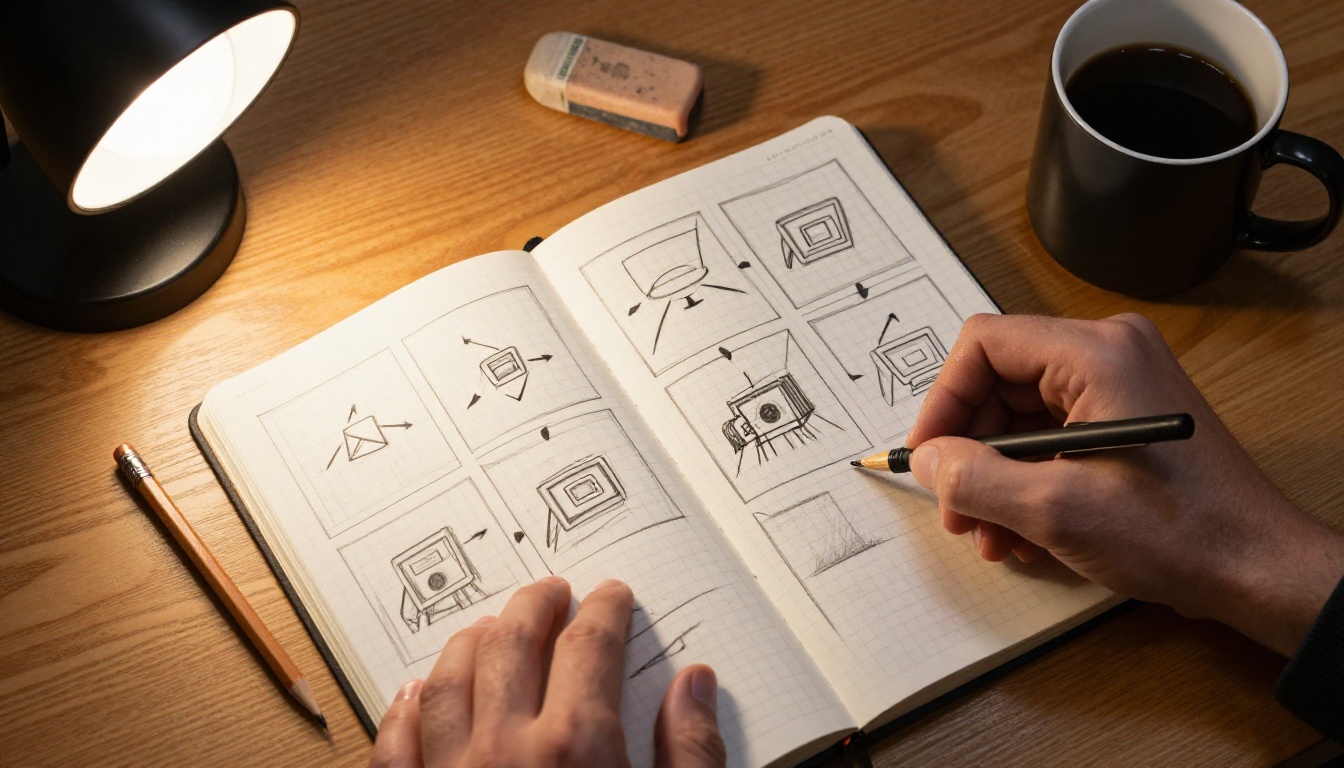
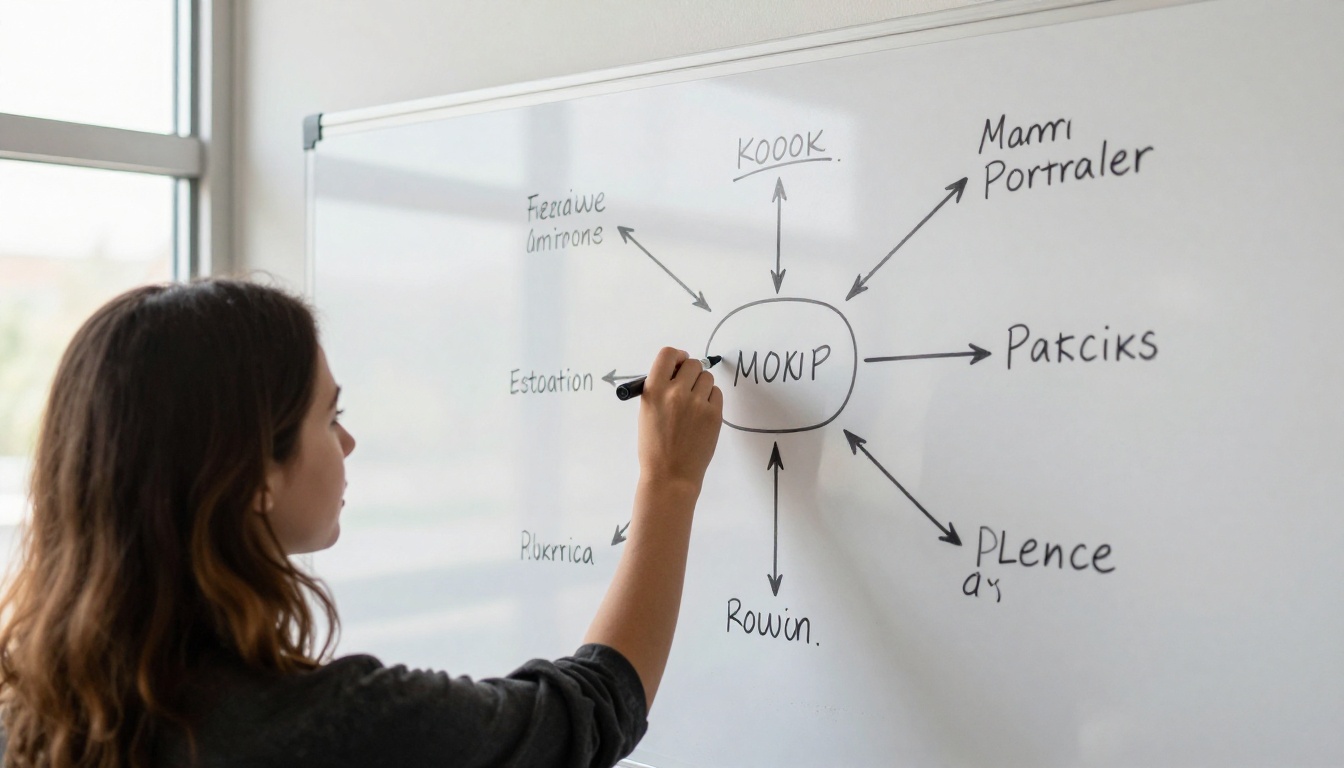
A shot list is the simplest planning document in filmmaking. It is a numbered list where each line describes one shot. The AI equivalent looks almost identical, and it is equally essential for anyone producing more than a single clip.
One Idea Per Shot
Each numbered entry in your shot list should describe a single visual moment. Not a scene with multiple things happening. One moment, one camera position, one action.
Example shot list for a three-clip product video:
- Aerial close-up of hands opening a matte black box on a white surface, soft overhead studio light, slow push-in on the box lid lifting
- Product visible inside white tissue paper, static shot, subtle focus pull from paper to product surface texture
- Medium shot of person holding the product, arms and torso only, crisp natural window light from the left, very slow hand rotation revealing the product back
These three shots tell a coherent visual story when assembled in sequence. If you tried to describe all three in one prompt, the model would choose one direction at random, or blend them into something unintentional.
Sequence Matters
Think in sequences, not individual clips. Ask: what comes before this shot, and what comes after? Does the video move from wide to close, establishing the setting before the detail? Does it build from calm to dynamic, or open with energy and settle into stillness?
Planning the sequence also prevents redundancy. If you already have a wide establishing shot, skip the second wide angle and move to a medium or close-up that adds new visual information. Every clip in the list should add something the previous clip didn't show.
How Long Is Each Shot?
Most AI video tools output clips at fixed durations, typically 5 seconds per clip. Plan around this constraint. A 15-second finished video requires three separate 5-second clips, each planned and generated individually, then assembled in a video editor. Five shots in your list equals roughly 25 seconds of raw footage before editing. Account for this upfront so you don't over-plan a sequence that becomes impractical to generate.
Pick the Right Model
Not all AI video models behave the same way. Picking the wrong model for your concept wastes your planning effort, because each tool has strengths and tendencies that will work against you if you're pushing in the wrong direction.
Text-to-Video vs Image-to-Video
The first decision is whether you're starting from text or from an image.
Text-to-video works best when:
- You want the model to build the visual world from your written description
- You have a precise, detailed prompt
- You don't have an existing visual style reference to match
Image-to-video works best when:
- You already have a source image (a photo or one generated with an image model)
- You want consistent subject appearance across multiple clips
- You need the first frame to match something specific
For maintaining visual consistency across a multi-clip sequence, image-to-video is the more reliable approach. The subject looks the same in every clip because it starts from the same source image every time.
5 Models Worth Knowing
Here are five models on PicassoIA that cover the most common video planning use cases:
| Model | Best For | Output Quality |
|---|
| Seedance 2.0 | Cinematic quality, built-in native audio, smooth motion | 1080p |
| Kling v2.6 | Photorealistic human motion, cinematic scenes | 1080p |
| Wan 2.7 I2V | Animating source images, smooth subject transitions | HD |
| Hailuo 02 | Fast 1080p output, strong detail preservation | 1080p |
| LTX 2.3 Pro | 4K resolution output from detailed text prompts | 4K |
If you are just starting out, PicassoIA Video is a free, unlimited text-to-video tool. Use it to test whether your prompt is working before committing to a premium render.
💡 Tip: Run your prompt on the free model first. Use the output as visual feedback for prompt refinement. Then use Seedance 2.0 or Kling v2.6 for the final version.
Set Your Specs
Once you know what you're making and which model you'll use, lock in the technical parameters before generating anything. These settings affect the output regardless of how well-written your prompt is.
Aspect Ratio
Aspect ratio is the width-to-height relationship of your frame. Most models support:
- 16:9: Standard landscape, ideal for web, YouTube, desktop presentations
- 9:16: Vertical portrait, ideal for mobile, Reels, TikTok, Shorts
- 1:1: Square, works as a safe cross-platform fallback
Set this before writing your final prompt. It affects composition decisions. A subject framed correctly for 16:9 will look awkward in 9:16 if you haven't accounted for vertical headroom and tighter composition in the description.
Resolution and Duration
For first-pass tests, lower resolution generates faster and is sufficient for checking whether your prompt is working. For final output, aim for at least 720p. For platforms where sharpness matters, 1080p is the standard.
Models like Wan 2.7 T2V and Veo 3 produce strong 1080p output from well-structured prompts. Sora 2 is worth considering when you need high resolution alongside precise prompt adherence. Duration in most AI video tools is fixed per clip, so plan your shot list with this constraint built in and generate each clip separately.
Test with One Shot First
Before you generate all five or ten clips in your shot list, generate the first one. Review it carefully. Make a decision based on what you see. Then proceed.
What to Check on First Render
When your first clip comes back, review these elements in order:
- Subject accuracy: Is the main subject what you described in the prompt?
- Action fidelity: Is the motion or activity matching your intent?
- Lighting and mood: Does the atmosphere match the feeling you planned for this shot?
- Camera behavior: Did the model honor the angle and movement you specified?
- Pacing: Does the clip feel too fast, too slow, or right for its place in the sequence?
If three or more of these are off, the prompt needs significant revision before you generate another clip. Generating five bad clips when the first one failed is one of the most common and costly mistakes in AI video production.
The Refinement Loop
When a clip doesn't match your shot list entry, go back to the specific element that failed. Was the subject wrong? Add more precise physical detail. Was the camera movement wrong? Rewrite using cleaner, more standard film terminology. Was the mood off? Revise the lighting descriptor.
Change one thing at a time. If you rewrite the entire prompt for every retry, you will never isolate what fixed or broke each element.
💡 Tip: Keep a simple changelog: prompt version, what you changed, what improved. After three or four retries you will have a clear picture of how the model responds to your language. That log also becomes reusable for future projects with the same model.
How to Use PicassoIA for Video Planning
PicassoIA gives you access to over 100 text-to-video models from every major AI video provider, all in one place. This matters for planning because different concepts perform better on different models, and having them side by side lets you iterate without switching platforms or managing separate accounts.
Start with Free Models
The PicassoIA Video tool is free and unlimited, making it the right starting point for any new concept. Use it to validate your shot descriptions. If the model picks up the core subject and motion correctly on the free version, your prompt is working. Then move to a premium model for the final render. This two-step approach saves credits and shortens the iteration loop significantly.
Use Image-to-Video for Consistency
If visual consistency across clips matters to you, generate a source image first using PicassoIA's text-to-image tools, then use an image-to-video model like Wan 2.7 I2V to animate it. The subject looks identical across every clip because each one starts from the same source frame.
For fast 1080p results with strong motion quality, Hailuo 02 is a solid choice. For maximum resolution when output quality is the priority, LTX 2.3 Pro delivers 4K. For stylized cinematic content with a strong visual tone, Pixverse v5.6 is worth testing alongside the top-tier options.
Your Next Video Starts with a Document
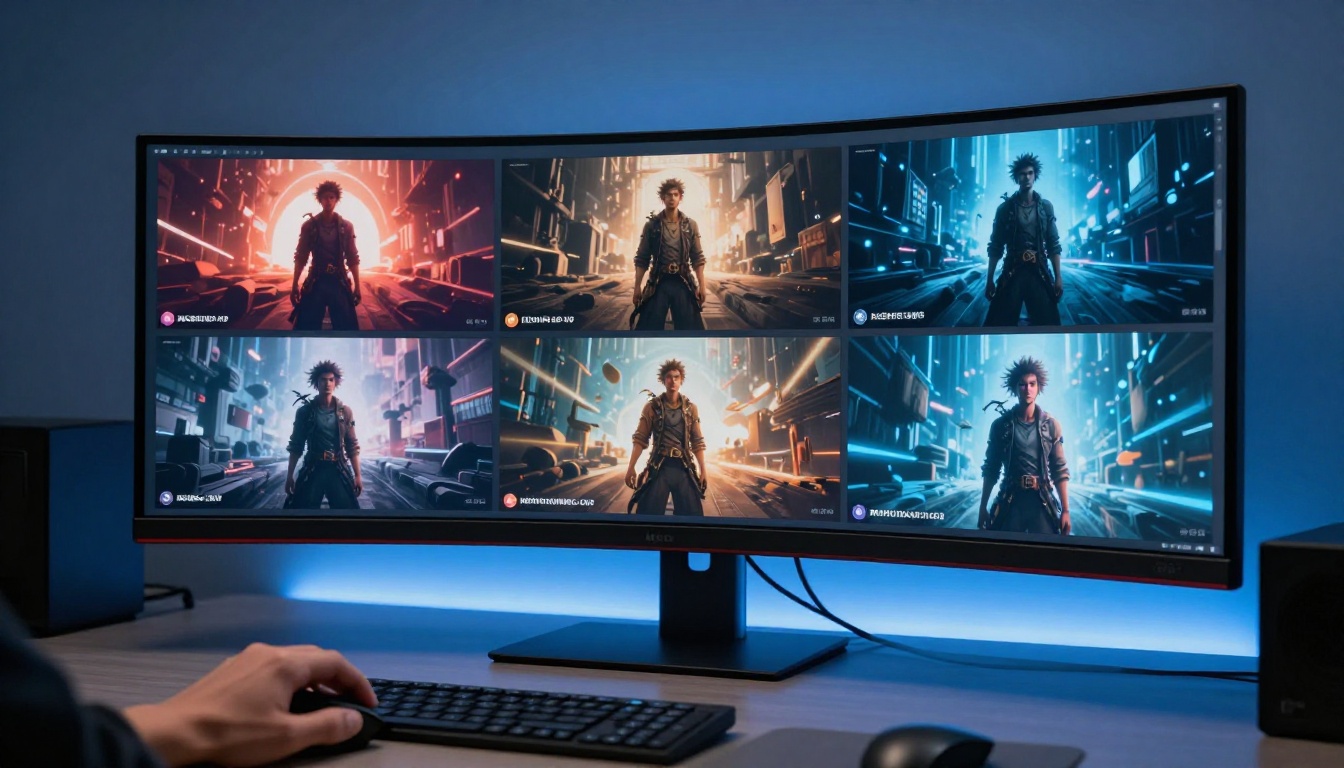
The best AI video result you will produce starts with a blank document, not an open browser tab. Write the concept. Write the shot list. Write the prompts individually. Read them. Refine them. Then generate.
Every tool on PicassoIA is available the moment you have a solid plan. The free models let you test that plan at no cost. The premium models let you execute it at quality. What separates a video that works from one that doesn't is almost never the model. It is the preparation behind the prompt.
Start with one shot. Plan it fully. Generate it. See what comes back. Adjust one thing. Try again. That is the process, repeated until you have exactly what you set out to make. The tool is ready when your plan is.


