That photo from your sister's wedding. Your dad's face in that birthday shot from 2003. The group picture from a trip you'll never forget, where everyone is smiling but one face is just a smear of pixels. Blurry faces in photos are a quiet kind of heartbreak, and for a long time, there was nothing you could do about them. AI changed that completely.
Today, face restoration tools powered by neural networks can take a pixelated, out-of-focus, or low-resolution face and reconstruct it with detail that would have been impossible five years ago. This is not sharpening with a filter in Photoshop. This is the model inferring what was there, filling in texture, edges, and definition from millions of training examples. The results can be stunning.
This article walks you through exactly how AI face recovery works, which models perform best, and how to use them right now without installing any software.
Why Faces Go Blurry in Photos
Before fixing a problem, it helps to know what you're actually dealing with. Not all blur is the same, and the type of blur determines which AI approach will work best.
Motion Blur vs. Focus Blur
Motion blur happens when the subject or the camera moves during the exposure. You'll see streaking in a specific direction, smeared edges, and ghosting. This is especially common in low-light shots where the shutter stays open longer.
Focus blur (or defocus blur) happens when the camera's autofocus locks onto the wrong element. The background is sharp, but the person in the foreground is soft. This is common on phones with aggressive portrait modes.
Both types damage face detail, but in different ways. AI models that specialize in faces have been trained on both categories and can handle each effectively.
Low Resolution and Pixelation
This is the most common issue with old photos. Scanned prints from the 80s and 90s, screenshots from early digital cameras, photos forwarded through WhatsApp dozens of times... each compression step destroys resolution. A face that was once 400x400 pixels gets compressed down to an 80x80 blurry block.
Super-resolution AI is built specifically for this problem. It does not just stretch the image. It predicts the missing pixel data and places it with statistical precision.
What AI Face Restoration Actually Does
The phrase "AI face restoration" gets thrown around a lot, but most people don't know what's actually happening under the hood. This matters because it helps you set realistic expectations and pick the right tool.
How Neural Networks Reconstruct Detail
Modern face restoration models use a class of neural networks called Generative Adversarial Networks (GANs) or, more recently, diffusion-based architectures. Here's the simplified version of what happens:
- The model receives your blurry image as input
- It runs the image through layers of learned feature detection, identifying that what it's looking at is a human face
- It cross-references facial landmark databases, mapping likely positions of eyes, nose, mouth, and jaw
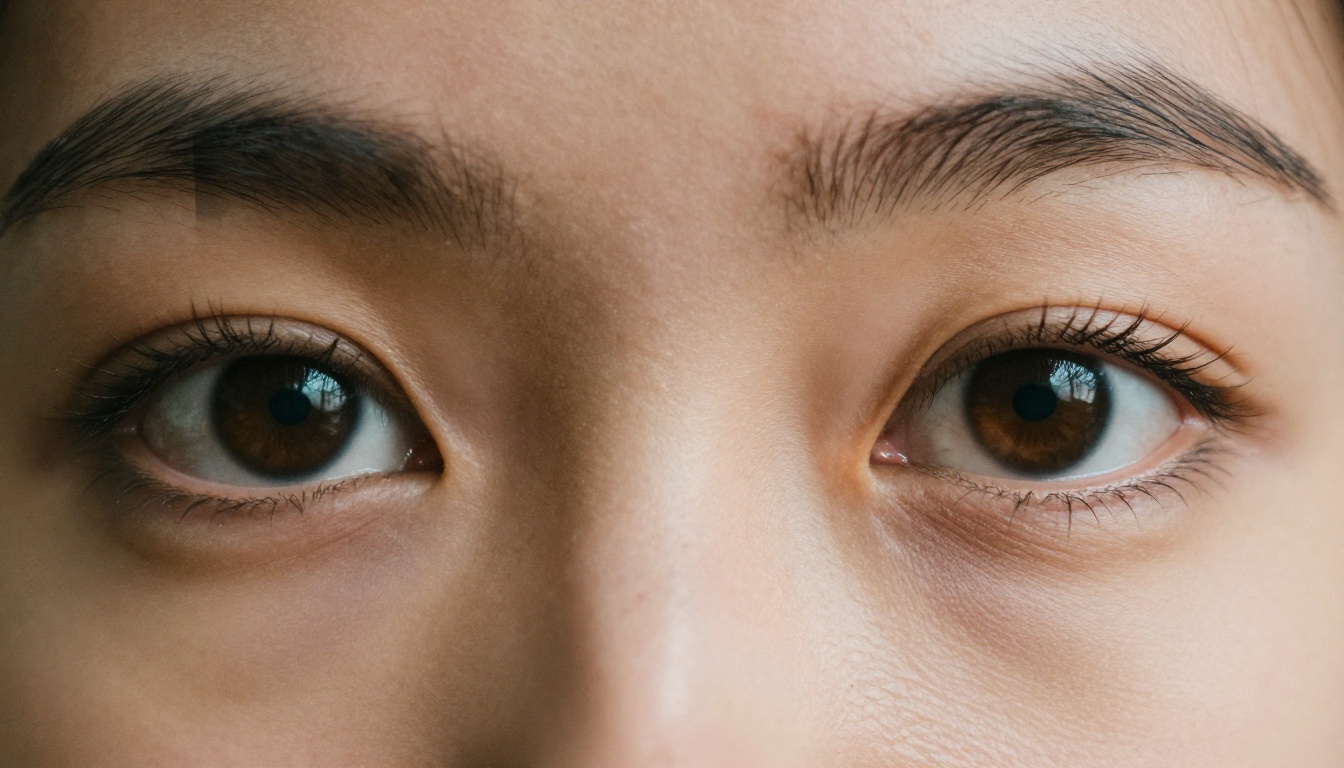
- It generates the missing high-frequency detail: pores, eyelash edges, iris texture, skin shading
- The output is a new image at higher resolution with reconstructed detail
The important word here is "reconstructed." The AI is making educated inferences based on millions of training examples. It is not recovering data that was hidden in the original file. It is generating plausible detail. For most use cases, the result is indistinguishable from a real sharp photo.
Super Resolution vs. Face Enhancement
These two approaches are related but distinct:
| Approach | What it does | Best for |
|---|
| Super Resolution | Increases overall image resolution 2x to 6x | Low-res photos, old scans, compressed images |
| Face Enhancement | Specifically targets facial regions for sharpening | Portrait shots with motion blur or soft focus |
| Combined | Upscales and applies face-specific detail generation | Old family photos, damaged prints |
The best results almost always come from combining both. Upscale first to get the resolution, then apply face-specific refinement.
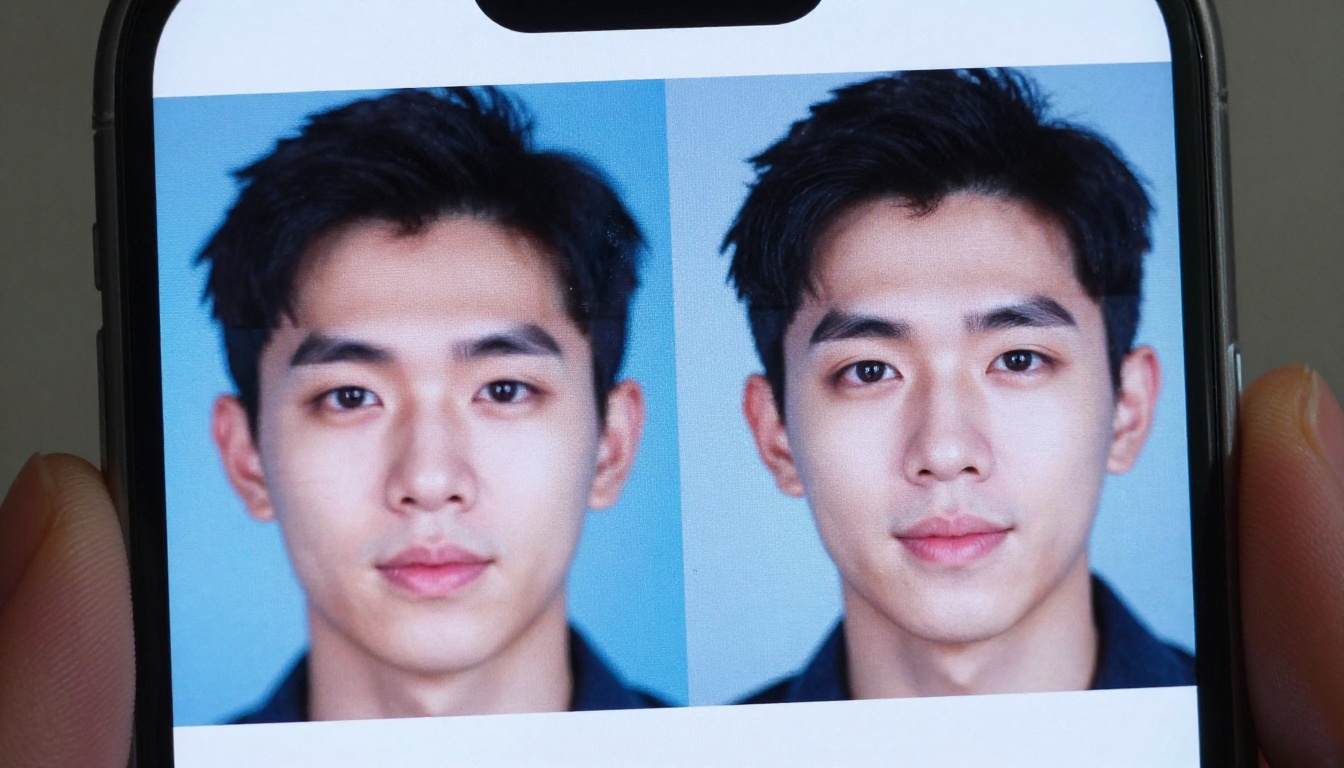
💡 Tip: If your photo has multiple faces at different distances, super resolution handles background faces better than face-specific models, which can sometimes over-process distant or partially visible faces.
The Best AI Models for Face Recovery
Not all upscalers are equal when it comes to faces. Some are built for landscapes and general images. Others were specifically trained on portrait and face data. Here's a breakdown of the strongest options available on PicassoIA right now.
Crystal Upscaler for Portraits
Crystal Upscaler is built specifically for portrait upscaling. It excels at recovering facial detail from photos that were captured at low resolution or compressed aggressively. The model focuses on skin texture, eye sharpness, and hair strand separation, which are the three elements that make a restored face look real rather than painted.
If the photo you're trying to fix is primarily a close-up portrait or a medium shot of one or two people, this is the first model to try.
Clarity Pro Upscaler
Clarity Pro Upscaler from the same developer takes a broader approach. It delivers photorealistic upscaling across the entire frame, not just facial regions. This makes it the stronger choice when your photo has important background elements you don't want to sacrifice.
Think group shots at events, wedding photos where the venue matters, or travel photos where the environment gives the image context. Clarity Pro handles the whole image with equal fidelity.
Real ESRGAN for Old Photos
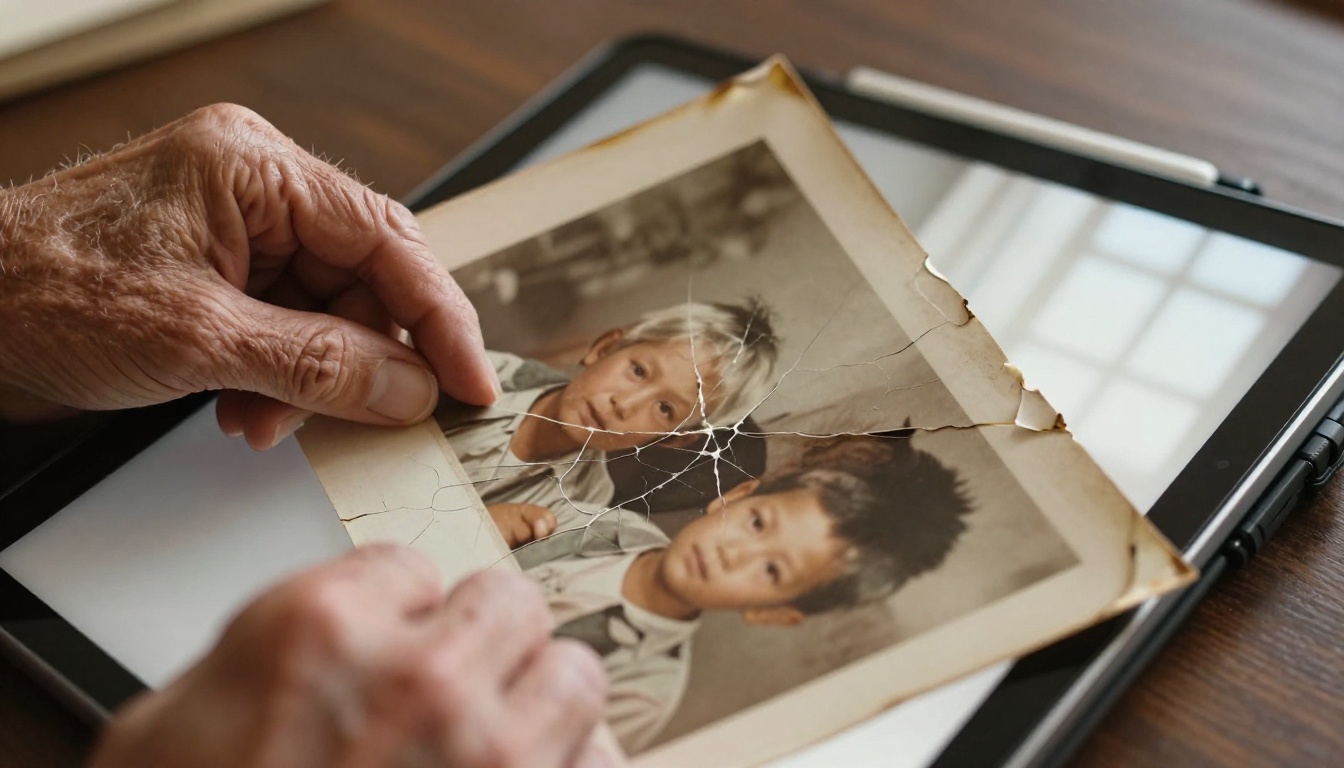
Real ESRGAN has been the gold standard for restoring degraded images for years. It was trained on a wide variety of image degradation types: noise, compression artifacts, color fading, and blur. This makes it particularly strong on old scanned photos.
If you're working with photos from the 70s, 80s, or 90s, where the source material has yellowing, scratches, grain, and blur all at once, Real ESRGAN handles that multi-problem scenario better than portrait-specific models.
Topaz Image Upscale for Maximum Resolution
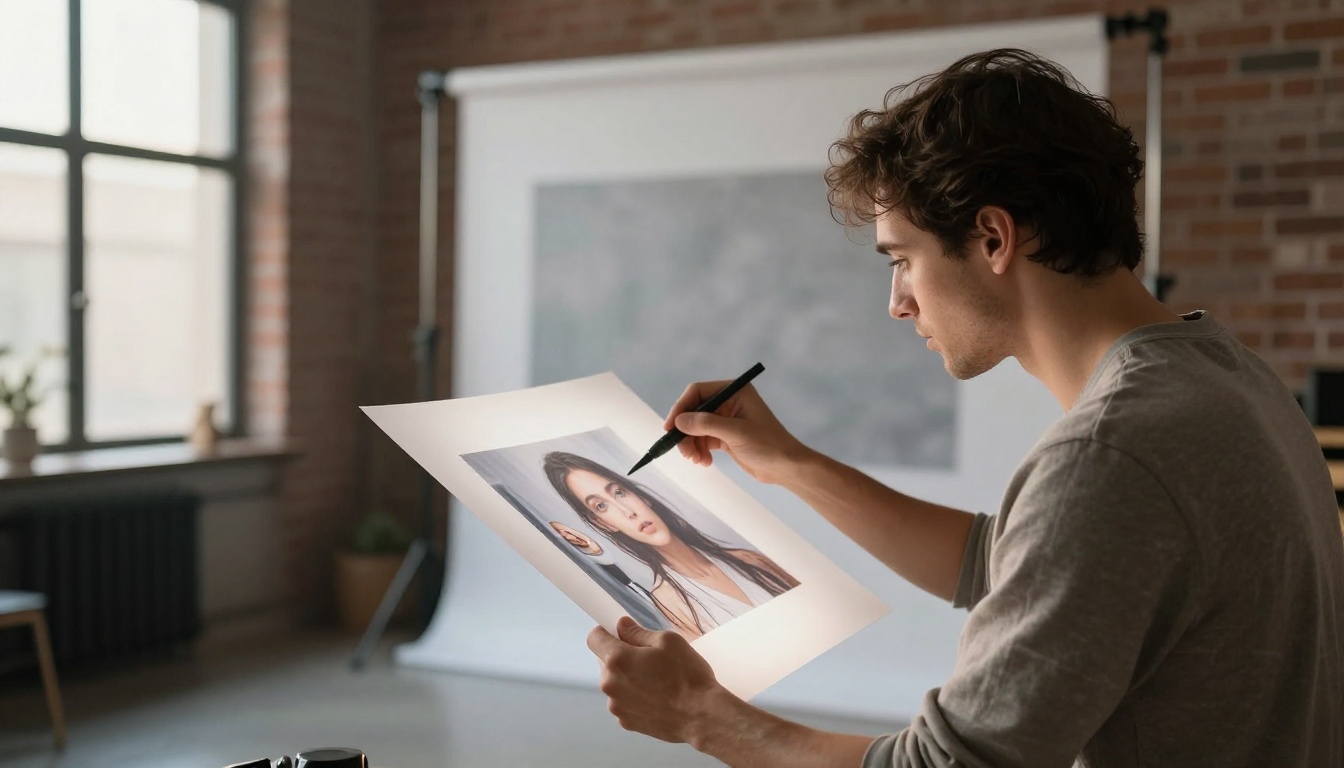
Image Upscale by Topaz Labs is the option when you need to go large. It can upscale up to 6x without introducing the soft, painterly look that cheaper models produce. If you're trying to restore a photo for print, this is the one.
The Topaz model is also excellent at preserving fine detail that other models can hallucinate away, such as the texture on fabric, the grain in a wooden background, or the way light hits metallic surfaces.
P Image Upscale for Speed
P Image Upscale delivers sharp results in about one second. When you have a batch of photos to process or you want a quick preview of what's possible before committing to a longer generation, this model is ideal. The quality is strong at 2x to 4x scaling ranges.
Other Solid Options
PicassoIA also offers several other upscalers worth knowing:
How to Fix Blurry Faces on PicassoIA
Here is the exact workflow to restore a face in a blurry photo using PicassoIA. No software installation required. No account needed for basic use.
Step 1: Choose the Right Model
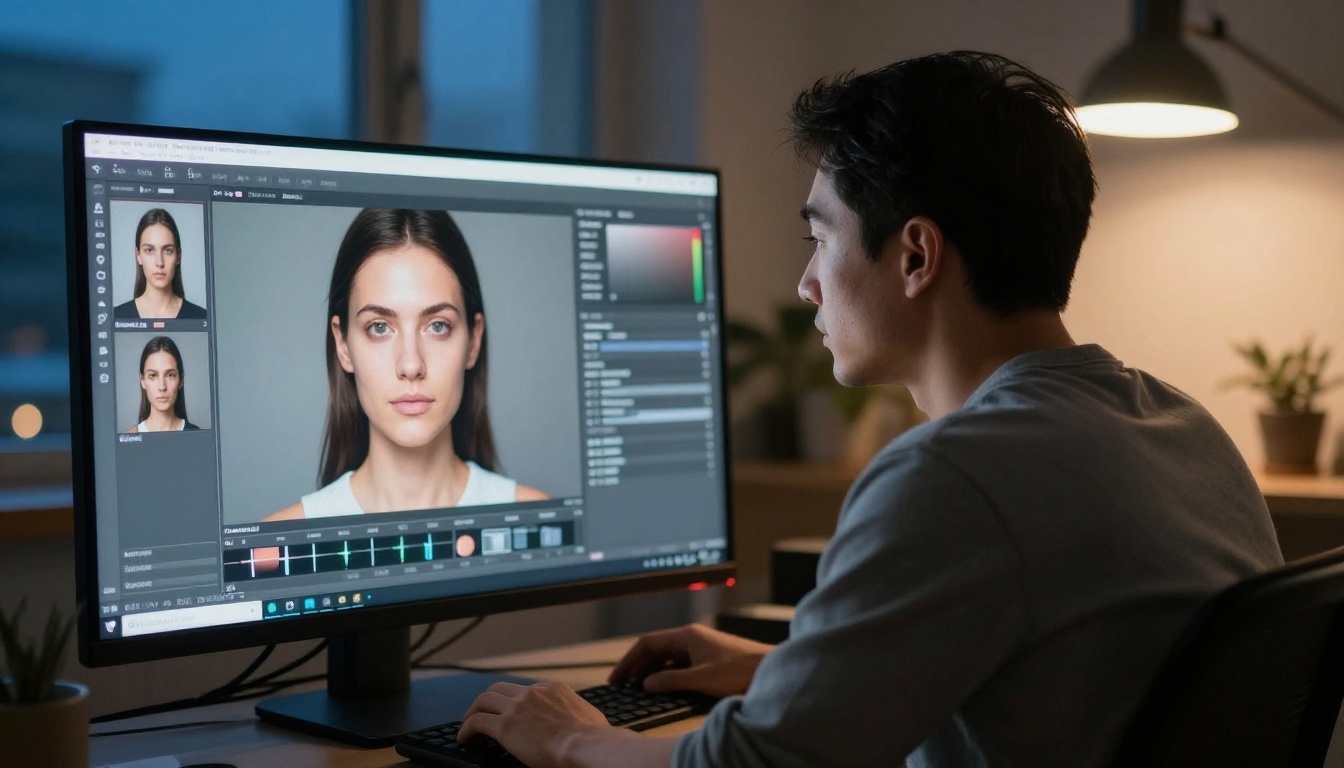
Go to the Super Resolution section on PicassoIA. Based on the breakdown above, pick your model:
Step 2: Upload Your Photo
Click the upload button on the model page and select your image. PicassoIA accepts JPEG, PNG, and WebP formats. There's no need to pre-crop or resize your photo before uploading. The model works on the full image.
💡 Tip: If the face is very small in the frame (less than 10% of the image), crop the photo to the face area before uploading. Most upscalers work better when the subject fills more of the frame.
Step 3: Set Your Scale Factor
Most models give you options for 2x, 4x, or 6x upscaling. Here is a quick reference for choosing:
| Original face size | Recommended scale |
|---|
| Under 100px wide | 4x or 6x |
| 100px to 300px wide | 2x or 4x |
| Over 300px wide | 2x |
| Already decent resolution, just blurry | 2x with face refinement |
Starting too high on the scale can sometimes over-generate detail and produce an uncanny result. Start at 4x for most problem photos, then increase if needed.
Step 4: Generate and Download
Hit generate and wait for the result. Most models on PicassoIA process in under 30 seconds. The output image is shown in a comparison view so you can inspect before and after side by side. Download the full-resolution result directly.
💡 Tip: If the first result looks too smoothed out or artificial, try switching to a different model. Real ESRGAN tends to preserve grain and texture better than portrait-specific models, which sometimes over-smooth skin.
Before You Upload: 3 Things to Check
Getting the best result from AI face restoration is about giving the model the best possible input. These three checks take under a minute and significantly improve output quality.
1. Use the highest-resolution version you have. Even if the face is still blurry, a 2000px wide image gives the AI far more data to work with than a 400px thumbnail. Check if you have a backup, original email attachment, or camera roll version of the photo.
2. Reduce heavy JPEG compression before upscaling. If your photo has visible blocky artifacts from heavy compression, run a quick denoise pass first. Upscaling a compressed image amplifies the artifact pattern, making the output look unnatural. PicassoIA's Increase Resolution by Bria handles this well internally.
3. Check lighting direction. AI models reconstruct detail based on inferred lighting. If the face is heavily backlit or in very deep shadow, the model has less information to work from. Results on well-lit photos are noticeably better. If possible, try to find an alternative version of the photo with better exposure.
When AI Face Restoration Has Limits
AI face restoration is genuinely remarkable, but it has boundaries worth knowing about.
Very Severe Blur
If the face is a smear of 10 to 15 pixels with no discernible structure at all, not even the basic landmark positions of eyes, nose, and mouth, then no model can reliably reconstruct it. The AI needs something to anchor its reconstruction. A completely structureless blur gives it nothing.
In these cases, the output might look like a face, but it won't be the right face. The model will generate a plausible face based on surrounding context, which may not match the actual person.
Group Photos from Far Away
A crowd photo from 50 feet away where faces are 8 to 12 pixels wide is at the edge of what current models handle reliably. You can often recover enough detail to see that someone is smiling, but individual identity features become unreliable.
Faces at Extreme Angles
Profile shots, three-quarter turned faces, or faces with large occluded areas (a hand covering part of the face, hair covering the eye) are harder to restore because the model cannot use its face-landmark anchoring as effectively.
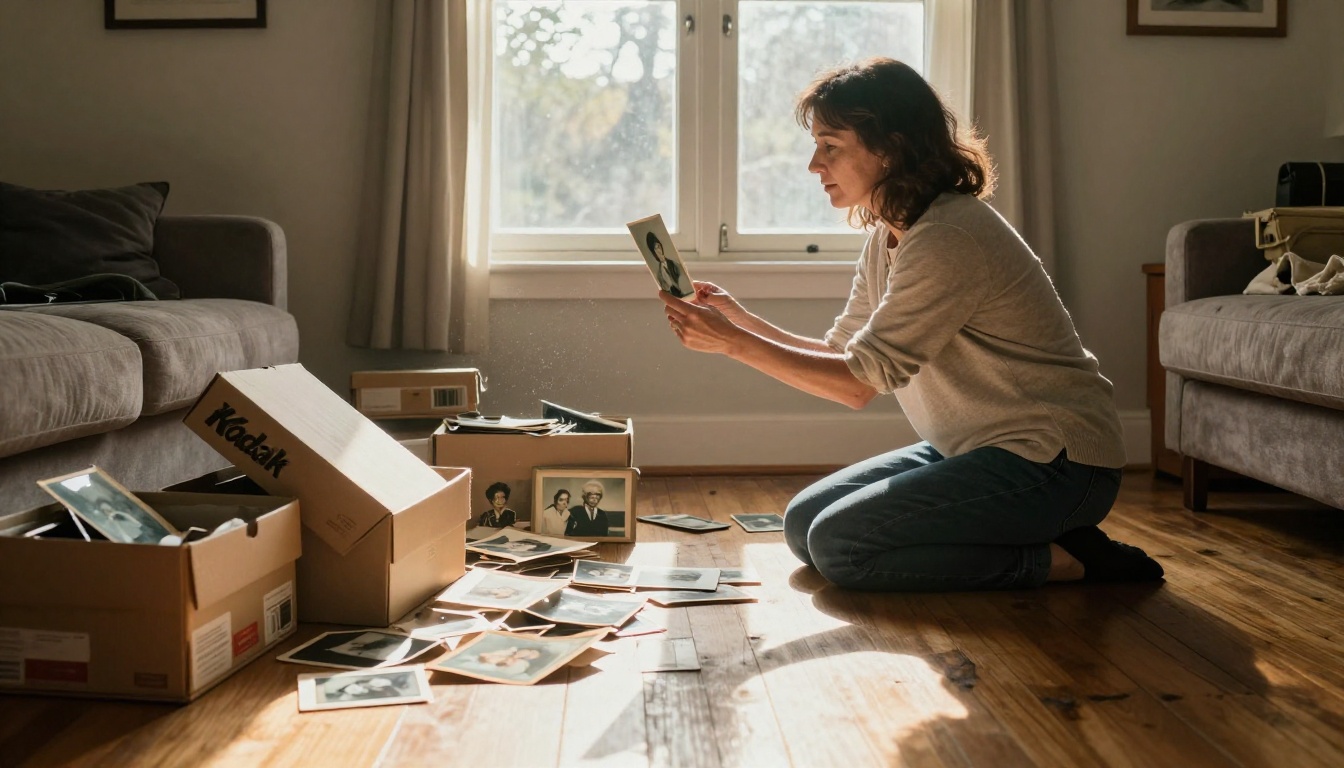
What Else You Can Do with These Models
Once you've recovered a face, you might notice that the surrounding image still doesn't look as good as it could. PicassoIA's super-resolution models don't just fix faces. They fix everything.
Old family photo scans benefit from the full pipeline:
- Upscale the whole image with Real ESRGAN or Clarity Pro Upscaler to recover overall sharpness
- Crop and re-upscale individual faces with Crystal Upscaler if you need maximum facial detail
- Use inpainting tools to repair scratches or stains in the background areas after upscaling
The platform also has tools for background removal, image-to-text captioning, and face swap that can round out your restoration workflow depending on what you're trying to do with the final image.
💡 For video footage: If you have blurry video with unclear faces, PicassoIA also offers video upscaling through tools like Crystal Video Upscaler and Topaz Video Upscale, which apply the same AI sharpening logic to entire video sequences.
Fix Your Photos Now
That blurry face in your photo doesn't have to stay that way. The tools to fix it are online, free to try, and take less than a minute to use.
Start with Crystal Upscaler for portraits, Real ESRGAN for old photos, or Clarity Pro Upscaler for anything with multiple subjects. Upload your image, pick a scale, and see what comes back.
Sometimes the results are exactly what you needed. Sometimes they're better than you expected. The only way to find out is to try.
PicassoIA has more than 90 image models available. Beyond face restoration, you can generate entirely new images, swap faces in photos, remove backgrounds, or take a sharp photo and turn it into a short video. It's worth spending time with each section of the platform to see what's possible for your images.