Photo editing used to require either expensive software expertise or hours of painstaking manual selection work. Today, AI removes unwanted people from photos in seconds with results that look completely natural. This article breaks down how the technology works, which tools deliver the best results, and exactly how to use them right now on PicassoIA.
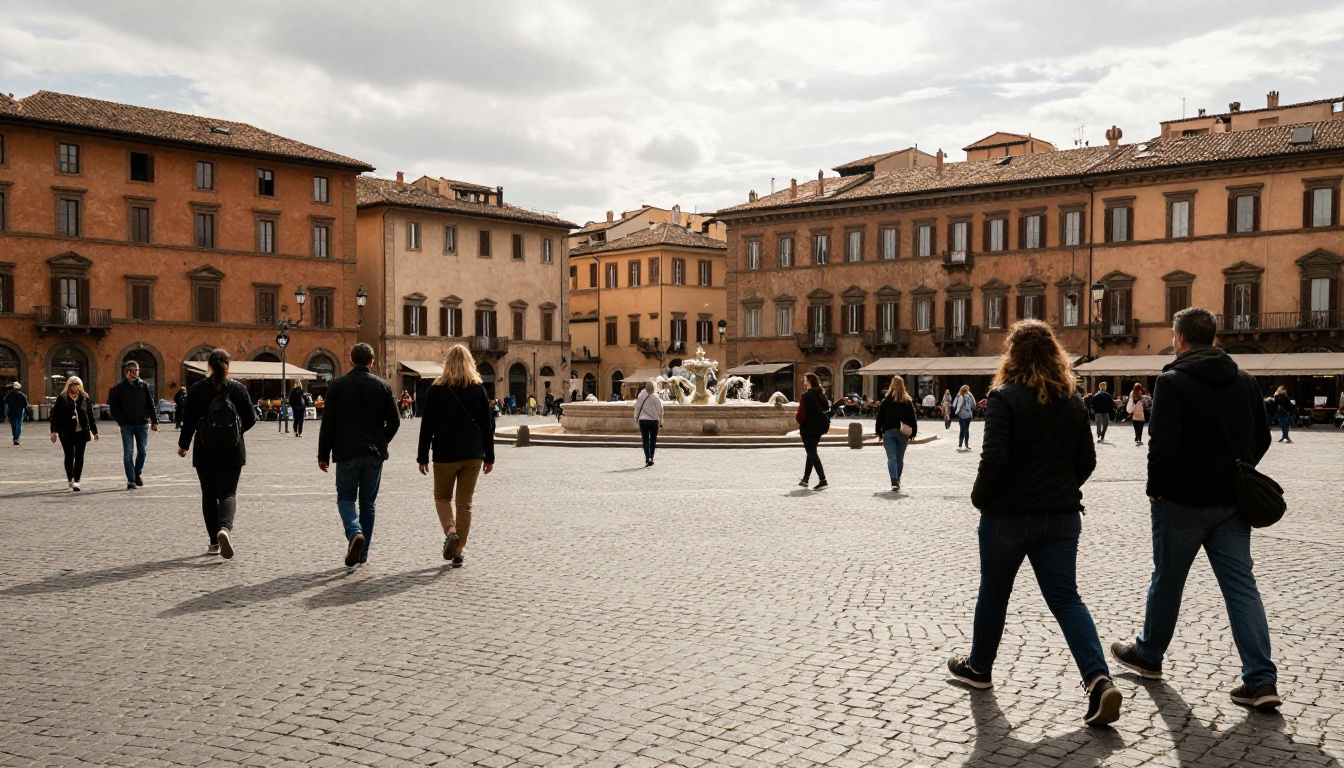
Why Unwanted People Ruin Good Photos
You lined up the perfect shot. The lighting was ideal, the composition was exactly right, and then a stranger walked into the frame. Or worse, you already pressed the shutter.
This happens constantly:
- Travel photography: Crowded tourist attractions make it nearly impossible to capture clean shots of landmarks, fountains, or architecture.
- Real estate photography: A neighbor or passerby showing up in property listings looks unprofessional.
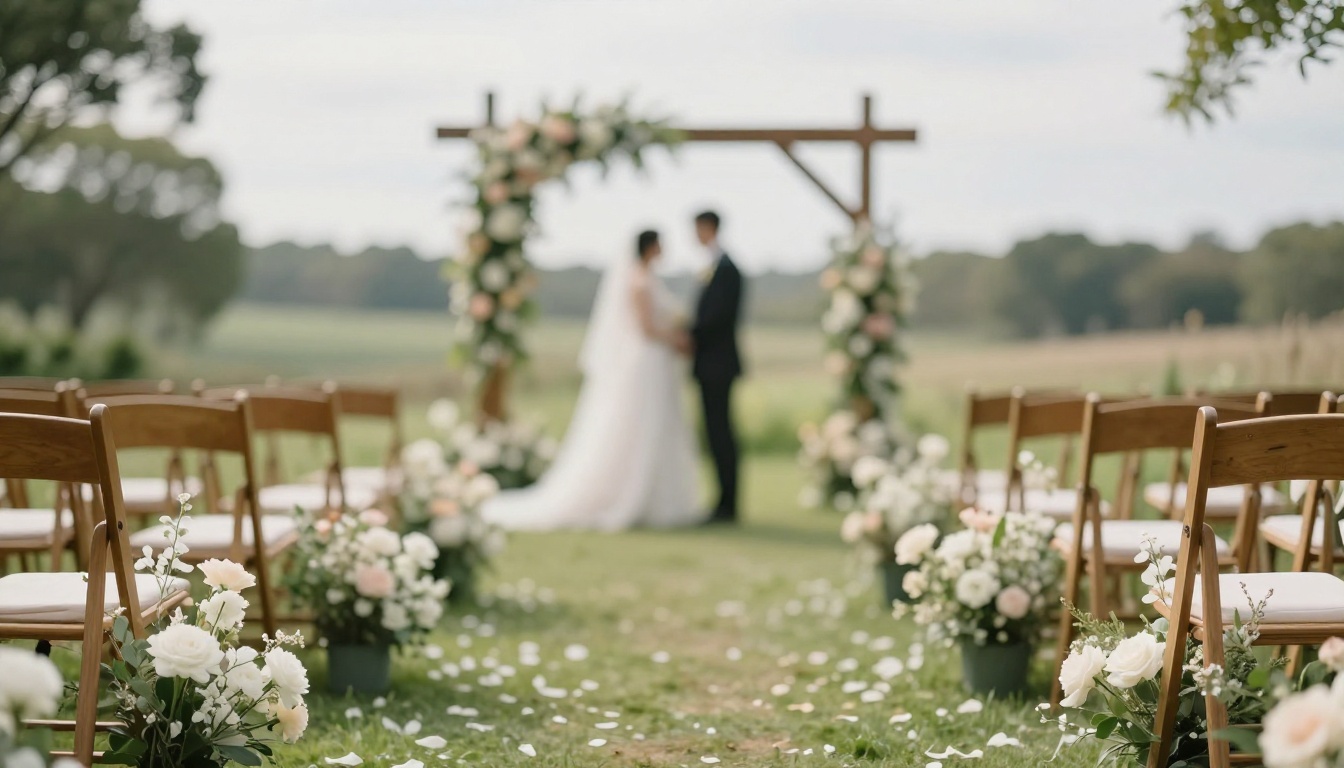
- Wedding and event photos: Background figures at receptions or ceremonies distract from the main subjects.
- Portrait sessions: An accidental third person in the background changes the entire mood of the shot.
The traditional fix was Photoshop's Content-Aware Fill, which worked reasonably well on simple backgrounds but struggled with anything complex. The other option was to reshoot, which is not always possible.
AI changes the math completely.
The tourist trap problem
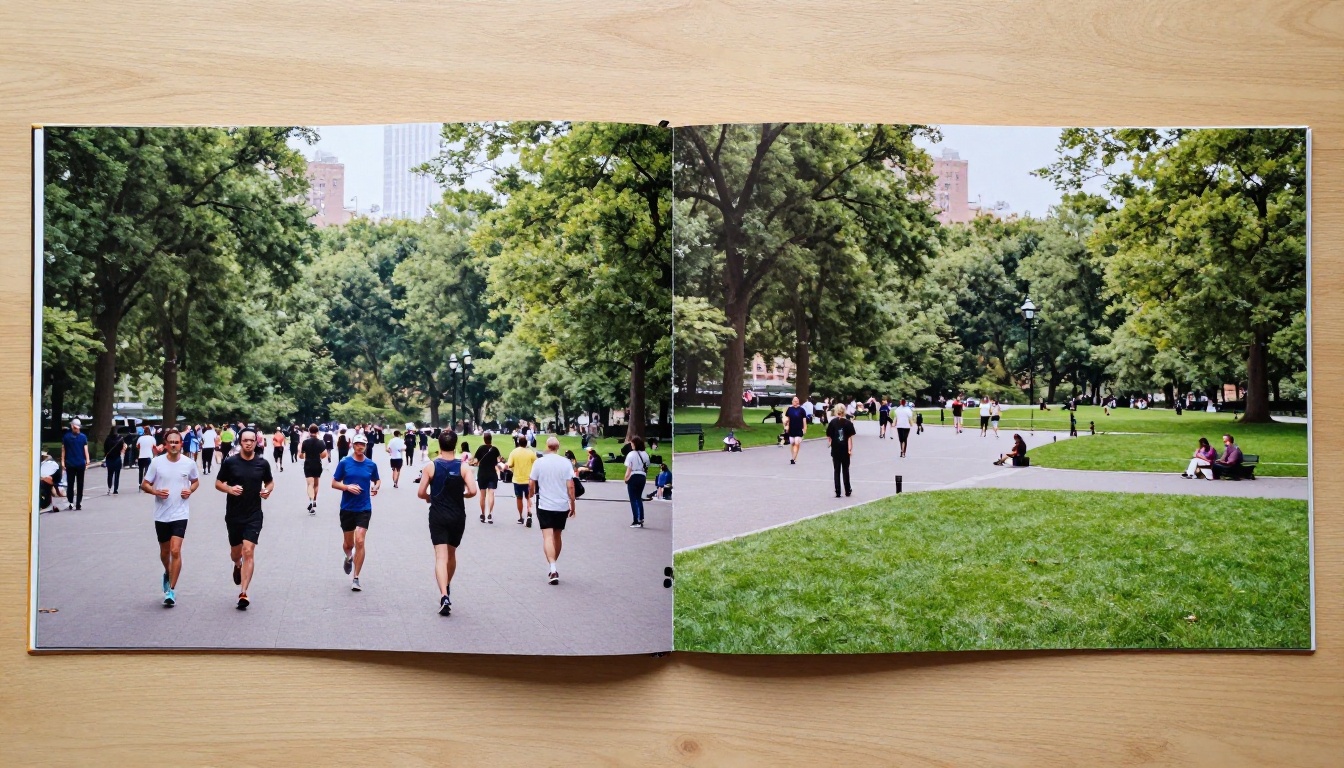
Popular destinations like the Colosseum, Times Square, or any beach boardwalk are nearly impossible to photograph without crowds. Even early morning shoots at famous spots often have other photographers, joggers, or staff moving through the frame.
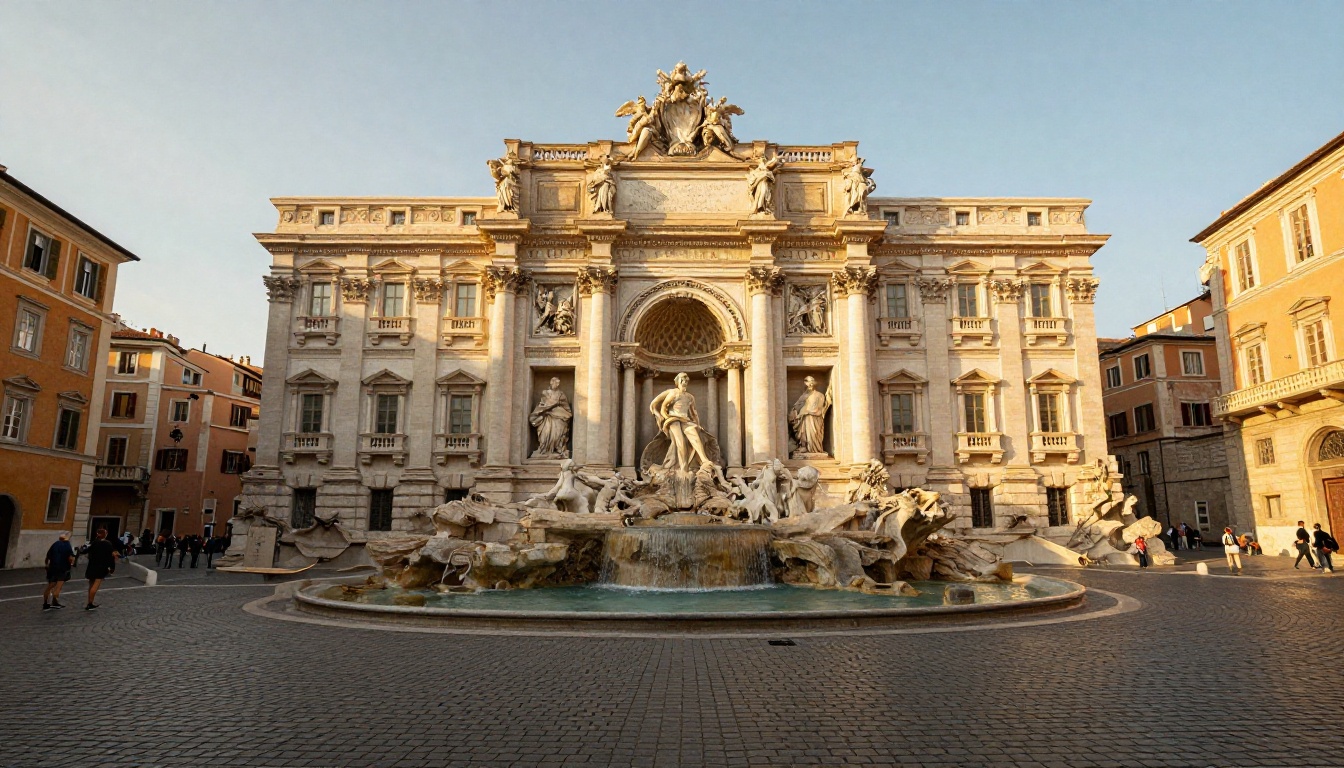
The result above shows what proper AI removal achieves on a busy plaza scene. The cobblestones, building facades, and architectural details are reconstructed seamlessly. There is no smearing, no ghosting, no telltale blur where the figure once stood.
When family portraits go wrong
Group photos at gatherings, birthday parties, or holiday events regularly end up with the wrong person in the frame or with someone in an awkward position. Instead of discarding the photo entirely, AI removal gives you a second chance to fix the image without a reshoot.
What AI Actually Does When It Removes Someone
This is not a simple "delete and fill with a color" operation. The technology running under the hood is significantly more sophisticated, and understanding it helps you get better results.

Inpainting vs. background isolation
Two main AI approaches handle people removal:
| Approach | How It Works | Best For |
|---|
| Inpainting | Fills the selected area by predicting what should be there based on surrounding pixels and learned scene understanding | Complex backgrounds, textured surfaces, natural scenes |
| Background Isolation | Separates subject from background layers, then fills or composites | Clean cutout work, product photos, studio shots |
For removing unwanted people specifically, inpainting is almost always the right tool. Background removal is better suited for isolating a subject you want to keep.
How the AI fills the gap
When you select a person and tell the model to remove them, several things happen simultaneously:
- The model analyzes the surrounding context: grass continues as grass, tiles follow the existing tile pattern, sky gradients match the existing sky.
- It generates plausible pixel content for the masked area using diffusion-based reconstruction.
- It blends the edges so no hard border exists between old and new pixels.
The critical variable is mask accuracy. A precise selection that tightly follows the person's silhouette gives the model exactly the right area to reconstruct. A sloppy selection removes too much or too little and creates visible artifacts.
Tip: Always zoom in before finalizing your selection. A few extra minutes on mask precision saves a lot of post-processing work.
The Best AI Models for This Job
PicassoIA hosts several models that handle people removal at different levels of precision. Each has its strengths depending on your use case.
Bria Remove Background
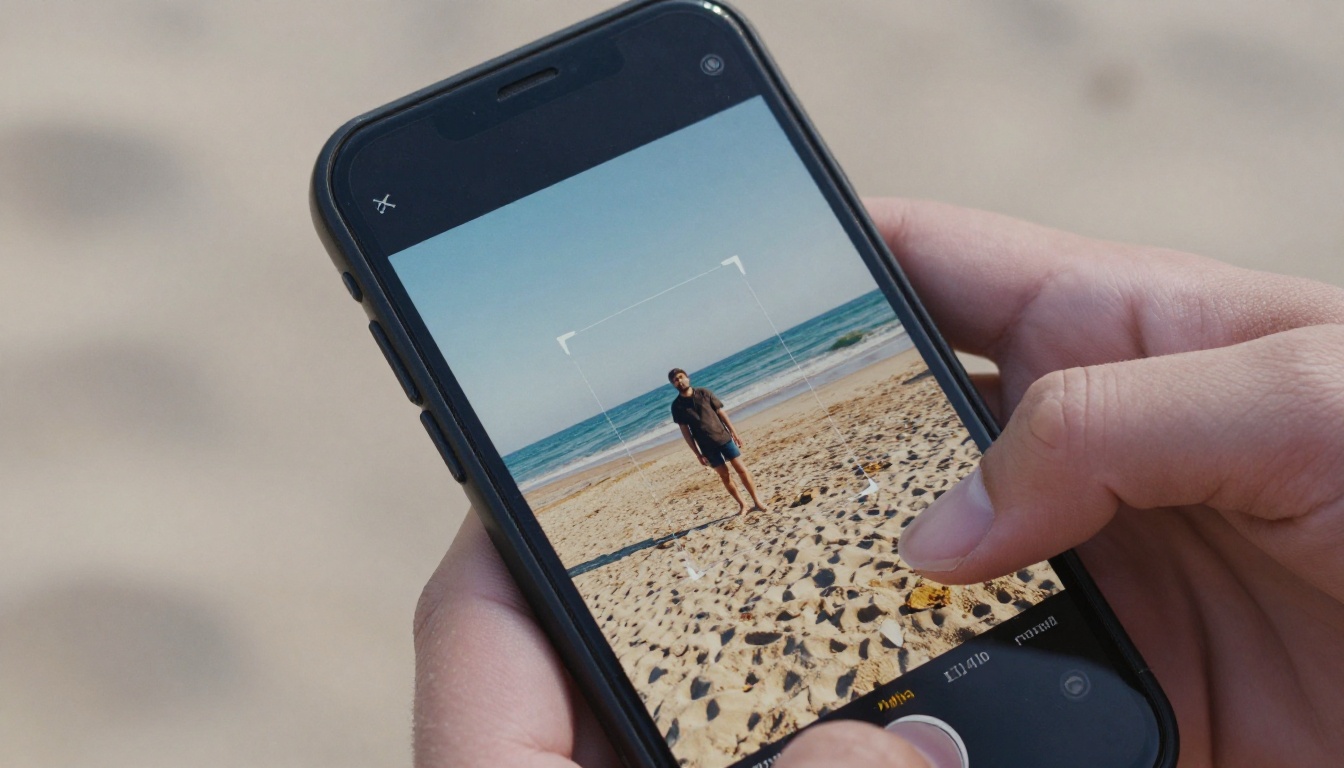
The Bria Remove Background model is the fastest route when you need clean cutouts. It excels at isolating subjects from their surroundings with sharp, accurate edges. While its primary function is background removal rather than inpainting, it works extremely well when combined with a replacement background or when the person occupies most of the frame and you simply want them isolated.
Best for: Clean transparent cutouts, quick isolation, product-style removals.
Fibo Edit for precision work
The Fibo Edit model is a standout choice for targeted inpainting. You select the specific area containing the unwanted person, and the model fills that region intelligently. It is particularly strong when:
- The person is in front of a complex background (brick walls, foliage, water)
- You need the reconstruction to match an existing texture pattern
- Partial removal is needed (erasing someone from a group without disturbing adjacent subjects)
Qwen Image Edit Plus
Qwen Image Edit Plus takes a prompt-guided approach to photo editing. Instead of just masking, you can describe what you want to happen: "remove the person standing on the left and fill with the beach background." The model interprets natural language instructions alongside the image, which makes it powerful for users who prefer describing their intent over drawing precise selections.
Strength: Instruction-based edits, nuanced control over what the fill should look like.
PicassoIA Image Editor Pro
PicassoIA Image Editor Pro is the all-in-one option. It combines multiple editing modes including masking, inpainting, and prompt-based manipulation in a single interface. For workflows that require removing a person and then making additional adjustments (color correction, cropping, adding elements), this is often the most efficient starting point.
Tip: If you are new to AI photo editing, start with PicassoIA Image Editor Pro for its guided interface. Move to Fibo Edit or Qwen Image Edit Plus when you need more targeted control.
How to Remove People on PicassoIA (Step-by-Step)
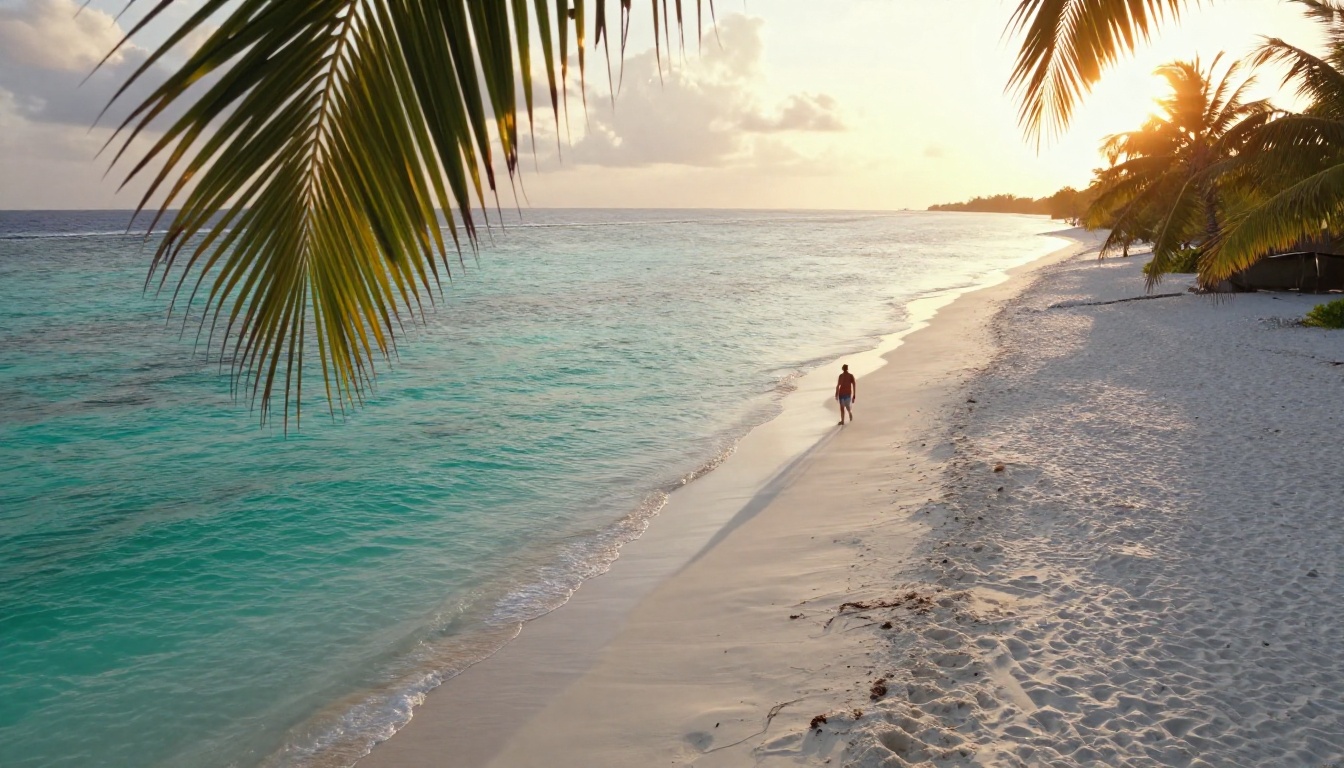
The process is straightforward once you know which tool to use. Here is the full workflow using Fibo Edit as the primary model.
Step 1: Choose your photo carefully
Before uploading, quickly assess the image:
- Is the unwanted person's position within the main composition, or are they on the edge?
- What is directly behind them? (Solid color, grass, water, buildings?)
- Is their shadow visible and does it need to be removed too?
Answering these questions tells you how demanding the reconstruction task will be.
Step 2: Upload and open the masking tool
Open Fibo Edit on PicassoIA. Upload your photo. The interface will load the image in the editor canvas.
Important: Use the highest resolution version of your photo available. AI models produce better inpainting results with more pixel information to work with. A 3000px+ wide original gives the model far more context than a compressed web-size image.
Step 3: Paint the selection mask
Use the brush tool to paint over the person you want to remove. Cover the entire figure including:
- The full body outline with a 5-10px margin around the edges
- Any cast shadows on the ground
- Any reflections in water, floors, or windows
- Accessories like bags, strollers, or anything they are holding
Missing the shadow is one of the most common mistakes and creates a ghost-like dark shape on the ground that immediately signals amateur editing.
Step 4: Set your fill prompt
With Fibo Edit and Qwen Image Edit Plus, you can optionally add a text description of what you want the reconstructed area to look like. For example:
- "sandy beach with gentle wave pattern"
- "stone cobblestone continuing the existing plaza pattern"
- "green manicured grass lawn"
This prompt guides the model toward a more specific reconstruction rather than leaving it to pure inference.
Step 5: Generate and review
Click generate. Review the result at 100% zoom, specifically checking:
- Edge transitions where the figure met the background
- Shadow and reflection areas
- Pattern continuity (tiles, grass blades, water ripples)
If the first result has minor artifacts, regenerate with the same mask. Each generation produces a slightly different result and subsequent runs often improve on problem areas.
Step 6: Download in full resolution
Once satisfied, download the final image. PicassoIA exports in full resolution matching your original upload.
Tricky Scenarios and How to Handle Them
Most removals are straightforward. But some situations require a more careful approach.
Crowded scenes with overlapping people
When multiple people are standing close together or partially overlapping, removing one person risks corrupting the adjacent figures. The recommended approach:
- Remove the background figures first (furthest from center, least overlap)
- Work forward toward the main subjects
- Use a tight mask that excludes any part of people you want to keep

For scenes with dozens of people (concert crowds, busy streets), it is often better to remove them in batches of 2-3 rather than attempting a single mask covering everyone.
Shadows and reflections left behind
A person's shadow can extend 2-3 meters from their feet depending on the sun angle. Overlooking this creates a ghost-like dark shape on the ground that immediately signals an unfinished edit.
Workflow for shadow removal:
- Extend your mask beyond the feet to cover the full shadow length
- Add a note in your fill prompt about the lighting condition (e.g., "afternoon sunlight from the right, clean ground surface")
Reflections in water, polished floors, or windows need the same treatment. What the AI reconstructs in the main figure area will not automatically fix a reflection below it.
Complex textured backgrounds
Random organic textures like gravel, fallen leaves, or rough stone respond very well to AI inpainting because there is no strict pattern to match. Geometric textures like tile floors, brick walls, or wood decking are harder because mismatches are immediately visible.
Tip for geometric patterns: Use a smaller, more precise brush. Run 3-4 generations and select the best result rather than accepting the first one.
3 Mistakes That Wreck Your Results
After working extensively with AI removal tools, these are the three errors that cause the most problems:
1. Loose, oversized masks
Painting a rough oval over the person and a large surrounding area gives the model too much uncertainty about what to reconstruct. The resulting fill often looks generic rather than matching the specific scene. Tight, accurate masks produce dramatically better outputs.
2. Ignoring shadows and reflections
Already covered above, but it bears repeating because it is the single most common missed step. Before finalizing any mask, look at the ground around the person's feet and trace the full shadow length. Check for reflections in any shiny surface within the frame.
3. Working with compressed images
Running AI inpainting on a low-quality JPEG creates visible artifacts because the model is working with degraded pixel information. Always use the best quality original you have. If the original is gone, P Image Edit LoRA can restore image quality before you attempt the removal.
Tip: The order matters. Restore quality first, then remove people. Never the other way around.
Your Turn
Removing people from photos no longer requires Photoshop expertise, hours of manual cloning, or professional retouchers. The models available on PicassoIA handle the heavy lifting, and the workflow from upload to clean final image takes minutes rather than hours.
Start with Fibo Edit for precise inpainting work, Bria Remove Background when you need fast clean cutouts, and Qwen Image Edit Plus when you want to describe your edits in plain language. The PicassoIA Image Editor Pro brings all of these capabilities under one roof if you want a single consistent workspace.
The best way to see what these tools can do is to run your own tests. Upload a photo with an unwanted figure, follow the process step by step, and compare a few different generations. The results are genuinely impressive and the learning curve is short.
Every photo you have been holding back because of an unwanted person in the frame is now fixable. Your archive of "almost perfect" shots is about to get a lot smaller.


