You have hundreds of photos sitting in your camera roll right now. Some of those shots are stunning, captured at just the right moment with perfect light. And they just sit there, static, never moving. AI photo-to-video tools change that completely, and in 2027, the quality has reached a point where the results are genuinely cinematic.
This is not about adding a cheap "pan and zoom" effect. Modern image-to-video models read the visual context of your photo and generate realistic motion that fits the scene. A portrait gets natural hair movement and subtle breathing. A landscape gains flowing water or drifting clouds. A street photo comes alive with pedestrian movement. The technology has matured fast, and the best tools are now accessible to anyone without a film production background.
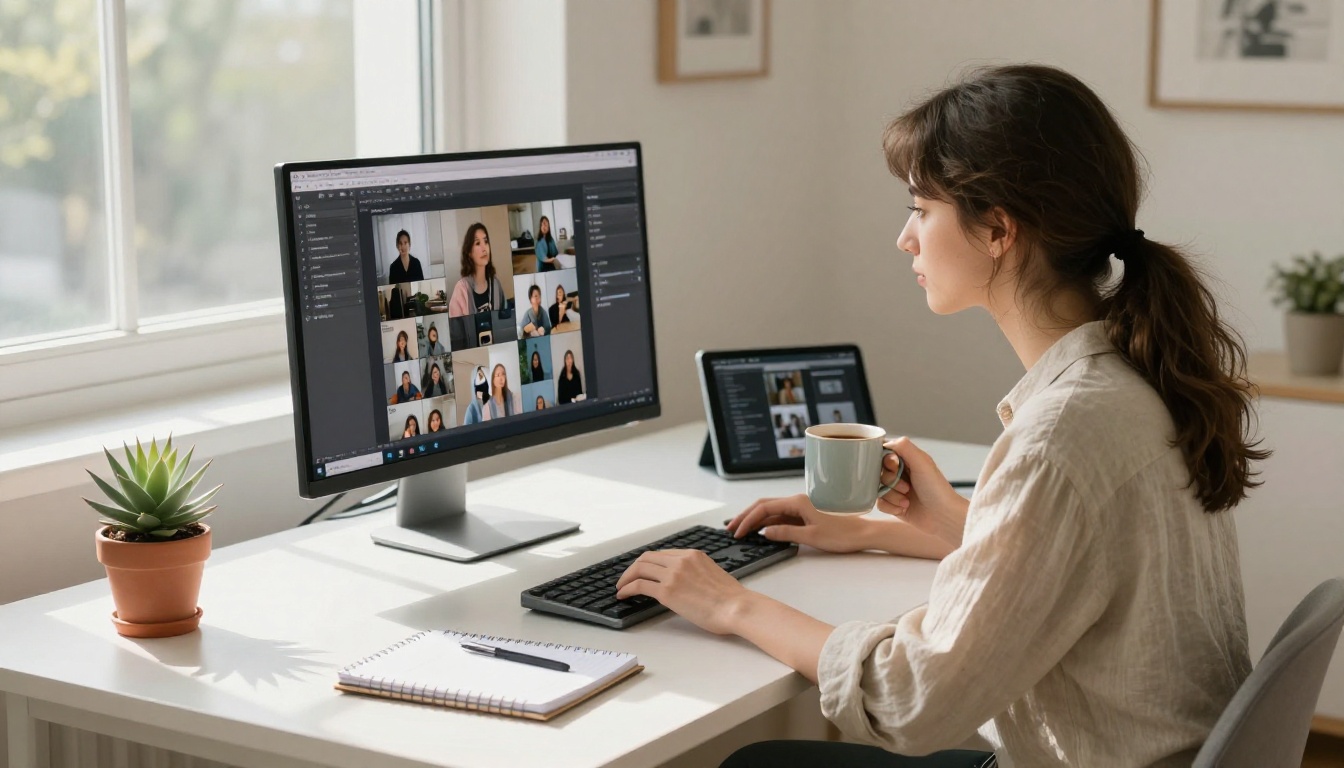
What Photo-to-Video AI Actually Does
It Is Not Just a Filter
The first thing to know: photo-to-video AI is fundamentally different from the "Live Photos" feature on your iPhone or a simple Ken Burns pan. Those tools either capture a micro-video at the moment of shooting or apply a static camera movement to a flat image.
AI image-to-video models actually generate new frames. They predict what the scene would look like if it were a real video clip, filling in the motion that was never captured. A subject's eyes might blink naturally. Fabric might ripple. Leaves in the background might rustle. The model is not moving pixels, it is inventing new ones based on a deep understanding of how the physical world moves.
How the Models Read Motion
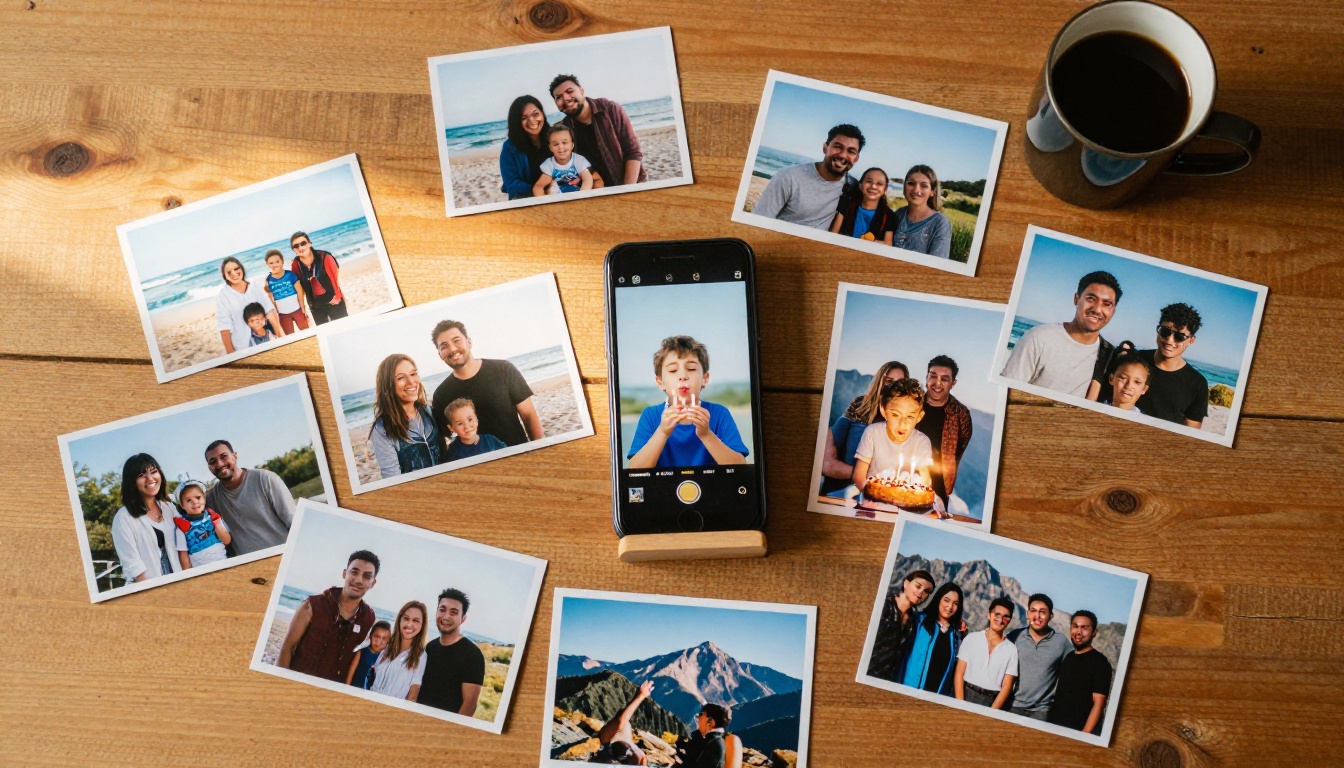
Modern image-to-video models are trained on enormous datasets of video footage paired with still frames. When you upload a photo, the model analyzes:
- Scene depth: Is the subject close or far? What is in the foreground vs. background?
- Subject type: Is it a human face, a landscape, an object, an animal?
- Lighting direction: Where is the light source? How should shadows shift?
- Motion context: A beach scene predicts wave motion. A portrait predicts subtle facial movement. A cityscape predicts traffic and pedestrian flow.
Your motion prompt then acts as a director's instruction, telling the model how to interpret that movement. The quality of that prompt, combined with the quality of the source photo, determines everything about the final result.
💡 Pro tip: The model cannot add detail that was not in the original photo. A blurry, low-resolution image will produce a blurry, low-resolution video. Start with the sharpest photo you have.
The Best Models Right Now
The landscape of image-to-video models has exploded in 2027. These are the standouts that consistently deliver results worth sharing.
Wan 2.7 I2V
Wan 2.7 I2V is one of the most capable open-weight image-to-video models available right now. It handles a wide range of photo types, from portraits to outdoor environments, with strong motion coherence across all five seconds of output. The model is particularly good at preserving subject identity, which means faces stay recognizable and consistent throughout the clip.
What sets Wan 2.7 I2V apart is its handling of complex motion layering. You can have a subject moving in the foreground while the background has independent motion of its own, and the model keeps it all believable. It supports up to 720p resolution and outputs at 24fps.
Kling v2.1
Kling v2.1 from Kuaishou is the choice when you want cinematic camera movement. Where Wan focuses on subject motion, Kling excels at camera behavior, giving you natural dolly-ins, slow pans, and orbital shots around a subject. The motion feels like it was planned by a director, not generated by an algorithm.
For portrait photography specifically, Kling v2.1 is hard to beat. Upload a well-lit headshot and prompt it with a slow pull-back with soft hair movement in a gentle breeze, and the result will look like a professional brand shoot.
Also worth noting: Kling v3 Video and Kling v2.6 are available for those who want the newest generation with even stronger realism.
Hailuo 2.3 Fast
Hailuo 2.3 Fast from MiniMax strikes a balance between quality and speed that makes it ideal for high-volume creative work. If you are building a social media workflow where you need to animate dozens of photos per week, Hailuo processes them quickly without sacrificing the natural motion quality you need for professional output.
It is also worth noting that Hailuo 2.3 (the standard variant) produces slightly richer motion for more complex scenes when you have more time to wait.
Seedance 2.0
Seedance 2.0 from ByteDance brings native audio generation into the equation. When you animate a photo with Seedance, the model does not just generate motion. It generates a synchronized ambient soundscape to match the visual content. Animate a beach photo and you get the sound of waves. Animate a city street and you get ambient traffic noise.
For social media content, this is a significant advantage. Most platforms auto-play videos with audio, and a clip with a natural-sounding soundscape immediately feels more immersive than one that plays in silence.

How to Use Wan 2.7 I2V on PicassoIA
PicassoIA gives you direct access to Wan 2.7 I2V alongside dozens of other image-to-video models in one place, with no installation required. Here is the exact process:
Step 1: Open the model
Go to Wan 2.7 I2V on PicassoIA directly. You will see the model interface with an image upload field and a prompt field.
Step 2: Prepare your photo
Before uploading, check these things:
- Resolution: at least 720p for clean output. 1080p or higher is better.
- Aspect ratio: 16:9 works best for widescreen output. Portrait (9:16) works well for vertical social content.
- Subject clarity: the main subject should be in sharp focus, not motion-blurred.
- Lighting: photos with directional natural light animate more convincingly than flat, evenly-lit images.
Step 3: Write your motion prompt
This is where most people underperform. A prompt like "add motion" gives the model nothing to work with. Be specific about what moves, how it moves, and how the camera behaves.
Weak prompt: "make it look alive"
Strong prompt: "Subject breathes slowly with subtle chest rise and fall, hair moves gently in a light breeze from the left, camera performs a very slow dolly-in over five seconds, background trees sway softly, warm afternoon light shifts slightly"
The difference in output quality between these two prompts is substantial.
Step 4: Set resolution and generate
Select 720p for a balance of quality and generation speed. Click generate and wait. Wan 2.7 I2V typically takes between 60 and 120 seconds depending on current queue load.
Step 5: Review and iterate
Play the result back. If the motion is too aggressive, add the word "subtle" or "gentle" to your prompt and regenerate. If a specific element did not animate as expected, describe it more precisely.
💡 Iteration is normal. Professional content creators rarely accept the first generation. Expect to run 2 to 4 variations before landing on the one you want.
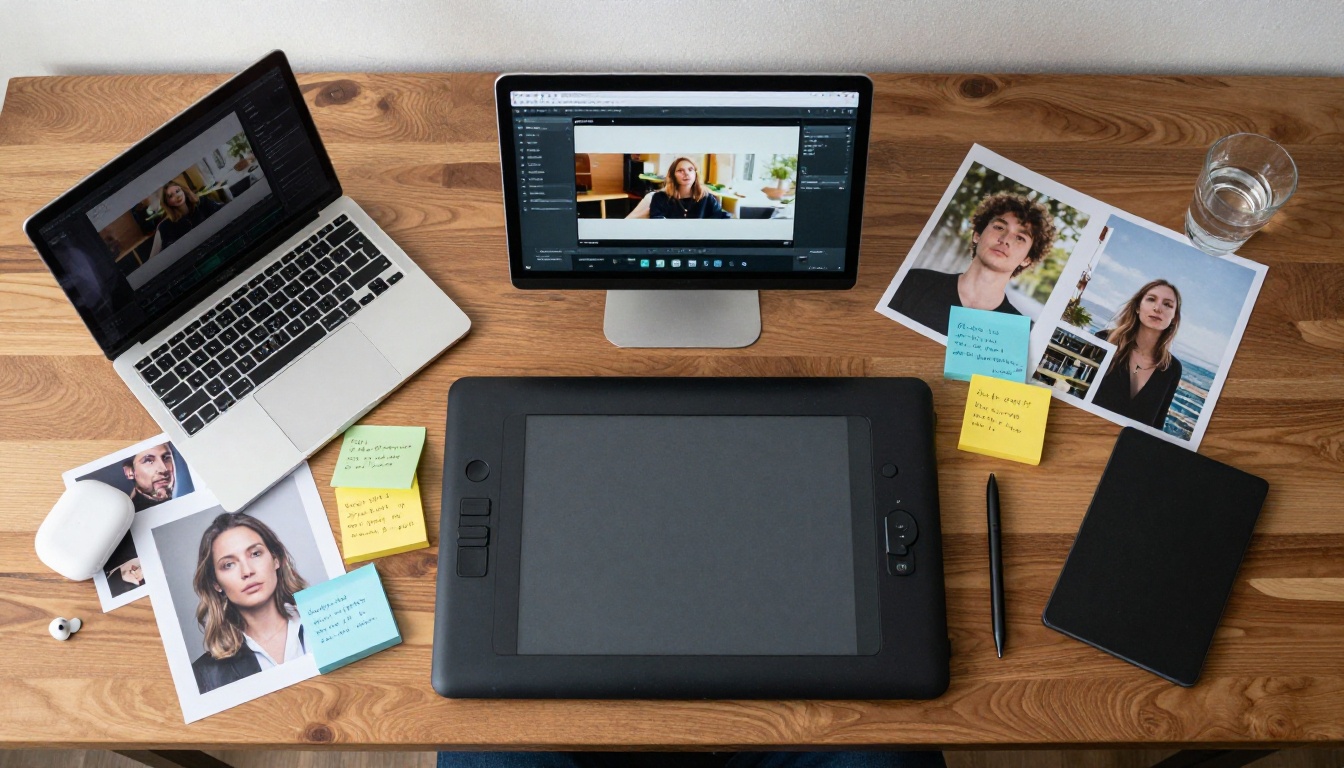
Model Comparison at a Glance
5 Tips for Better Results

Photo Quality Is Everything
Image-to-video models cannot manufacture detail that does not exist in the source image. A photo taken in poor light with a blurry subject will produce a video with the same problems, possibly amplified. For the best results, use photos with:
- Clear subject in sharp focus
- Natural, directional lighting (side lighting and golden hour shots animate particularly well)
- Minimal digital noise or heavy post-processing
- High resolution (at least 1080p is ideal)
Write the Motion, Not the Subject
The model already knows what is in your photo. It has analyzed every pixel. Your prompt should focus entirely on what moves and how. Do not describe the subject in your prompt. Describe the physics of the scene.
Instead of "a woman with long hair standing in a field", write "hair flows gently in a soft breeze from the left, grass moves in slow waves, camera slowly pulls back from a medium shot to a wide shot over five seconds, golden light shifts slightly warmer".
Use Portrait Photos First
Portraits are where these models perform most consistently. The reason: they have been trained on enormous amounts of human video footage, so they have a deep understanding of human anatomy, facial movement, and subtle expression changes. Your first experiments with photo animation will be most successful with a well-lit, clear portrait.
Aspect Ratio Matters
Most models produce the best results when the source image matches the intended output aspect ratio. If you want a 16:9 video clip, upload a 16:9 photo. Using a portrait-format photo to generate a landscape video, or vice versa, can cause cropping artifacts or awkward padding at the edges.
Do Not Over-Prompt
More text in the prompt does not always mean better output. Some models have a context limit and will start deprioritizing details if the prompt is too long. Focus on the 2 or 3 most important motion elements. A prompt like "slow camera dolly-in, subject breathes gently, background bokeh shifts slightly" will often outperform a 200-word essay.
Beyond Basic Animation
Video Morpher for Blending Photos
Video Morpher takes a different approach entirely. Instead of animating a single photo, it blends between two photos, creating a smooth morphing transition. This is powerful for before-and-after comparisons, aging effects, or creative artistic content. Upload two photos of the same person at different ages and get a seamless aging sequence that flows naturally over five seconds.
Ovi I2V for Audio-Synced Clips
Ovi I2V from Character AI specializes in generating video from photos with synchronized audio output. It is particularly strong for content featuring people, where the ambient audio and subtle environmental sounds all align with the visual. For Instagram Reels or TikTok content where the first few seconds of audio determine whether someone keeps watching, this model has a clear advantage.
Gen4 Turbo for Fast Cinematic Output
Gen4 Turbo from RunwayML prioritizes speed without completely sacrificing cinematic quality. When you are on a deadline and need to produce a batch of animated clips quickly, Gen4 Turbo delivers results that still look professional. It is not the highest-quality model in the lineup, but it is the fastest of the cinematic-grade options.
You can also check Wan 2.6 I2V for a slightly lighter-weight version of the Wan image-to-video pipeline, or Kling v2.6 Motion Control when you need precise camera path control over the animation.
The Right Model for the Right Photo
Not every photo calls for the same tool. Here is a quick reference:
💡 Worth knowing: PicassoIA also offers PicassoIA Video, a free unlimited video generator that accepts both text and image inputs. If you want to test the concept before committing to a specific model, this is a solid starting point.
What Photo Type Works Best
Different photo categories behave very differently in these models:
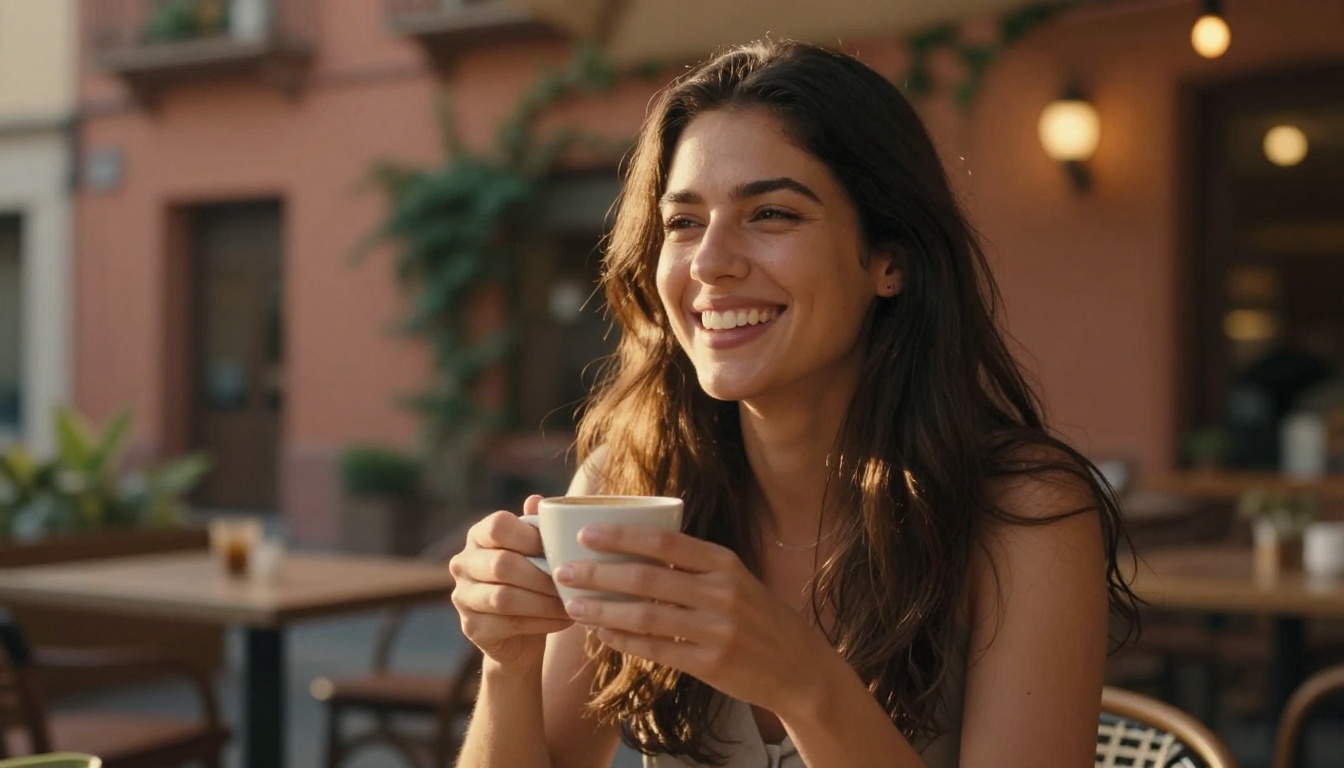
Portraits are the most reliable category. Human faces and bodies are what these models have trained on the most. Expect high identity preservation and natural motion for hair, eyes, and subtle facial movement.
Landscapes work extremely well when there is inherent motion context in the scene, such as water, clouds, trees, or crowds. Static architectural shots with no implied movement can produce stiff results.
Close-ups and macro shots are surprisingly effective. A close-up of a flower in sunlight can animate into a stunning clip with petals moving slightly and light shifting. The reduced field of view makes it easier for the model to generate coherent motion.
Group photos are more challenging. The more people in the frame, the higher the chance of one person's motion looking unnatural. Models like Hailuo 2.3 Fast handle multi-subject images better than most.
Old or scanned photos are possible, but expect lower quality output. Scanned photos often have flat lighting, low resolution, and no depth cues, all of which make motion generation harder. Running the photo through a super-resolution tool first will significantly improve results.
Start Animating Your Photos Today
Every photo in your camera roll is a potential video clip. The tools to do this are not experimental anymore. They are production-ready, accessible without any technical setup, and the results are good enough for professional social media content, client presentations, and personal projects that deserve to be seen in motion.
PicassoIA brings together over 87 text-to-video and image-to-video models in one platform, including every model mentioned in this article. You do not need separate accounts, separate API keys, or separate interfaces. Pick the model that fits your photo and your goal, upload, write your motion prompt, and generate.
Try Wan 2.7 I2V with your best portrait photo today. Write a specific, physics-focused motion prompt. See what happens when a static moment becomes a living clip. Once you start, you will look at every photo you have ever taken completely differently.
Browse all available video models at picassoia.com/en/all-models and find the right tool for your next project.


