How to Turn a Product Catalog into AI Visuals That Actually Convert
Running a product catalog with hundreds of SKUs means spending thousands on photography. This article breaks down the exact process for converting product data into stunning AI-generated visuals, from writing effective prompts to batch processing your full catalog, all without a studio or photographer.
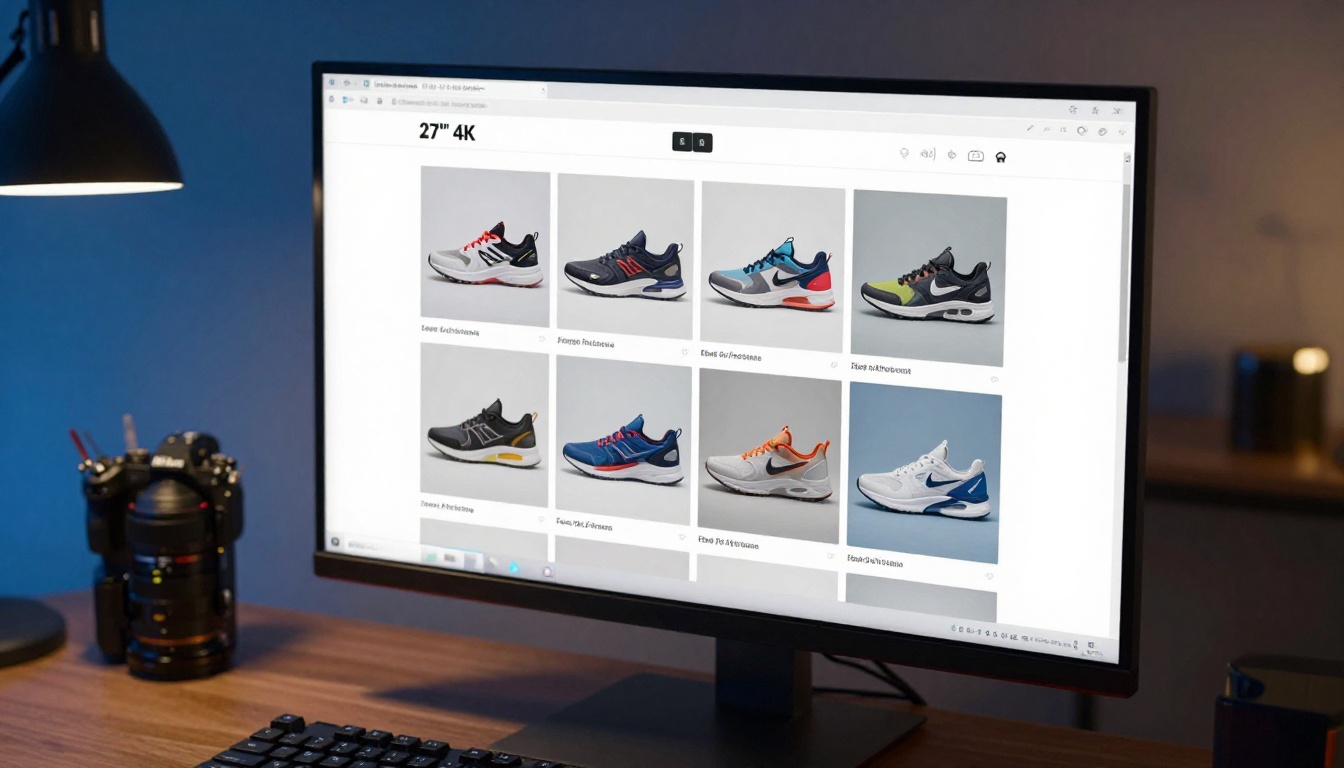
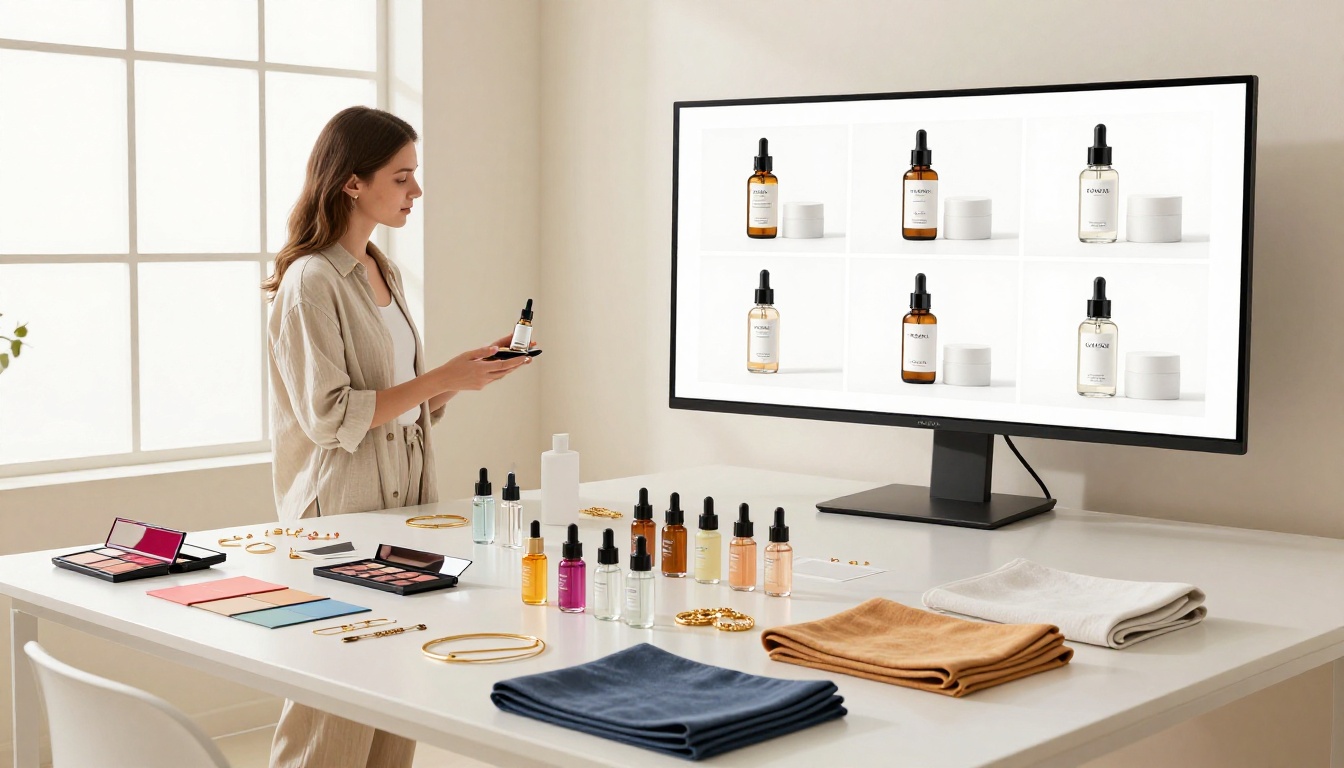
Product photography costs money. Real money. A basic studio shoot for 50 SKUs runs $2,000 to $5,000 once you factor in the photographer, props, editing, and retouching time. If you're running an e-commerce business with a catalog of hundreds of products, that math gets brutal fast. AI image generation changes that equation entirely, and the brands figuring this out early are compressing what used to take months into a single afternoon.
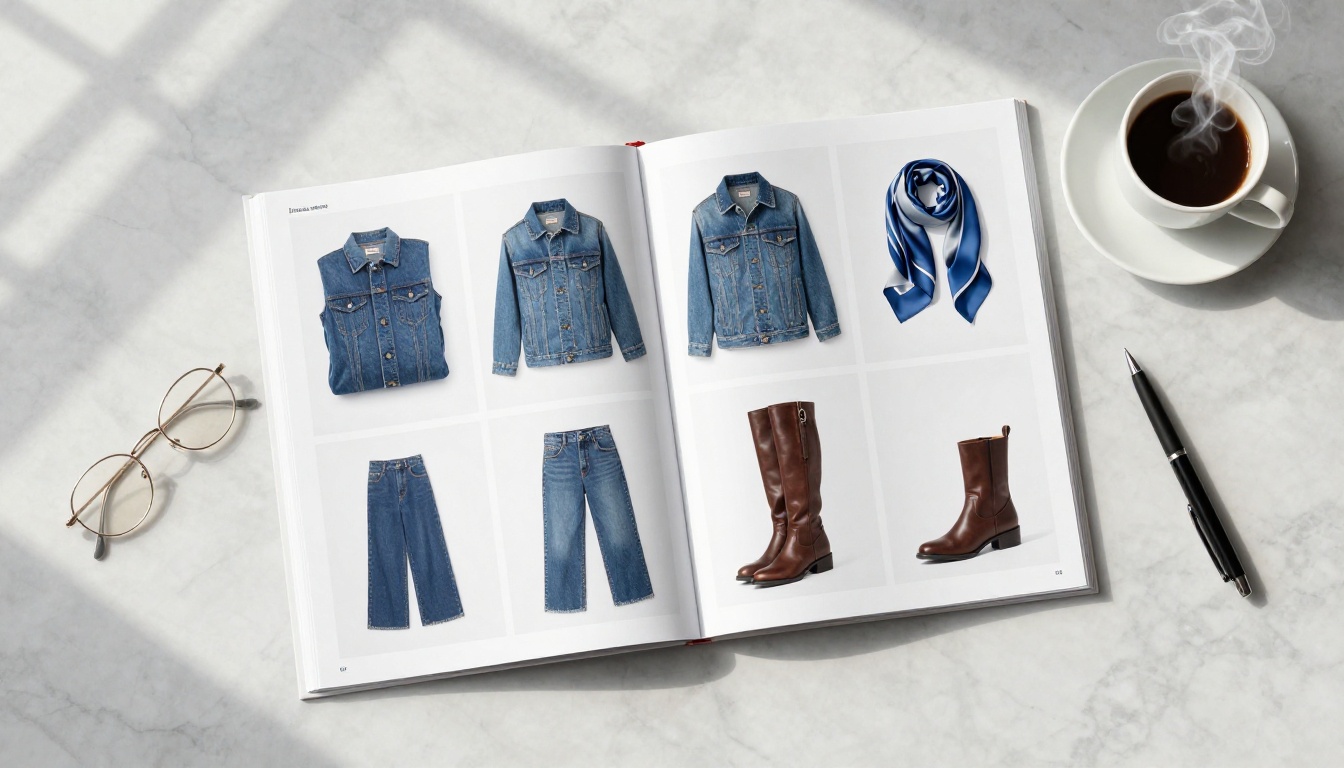
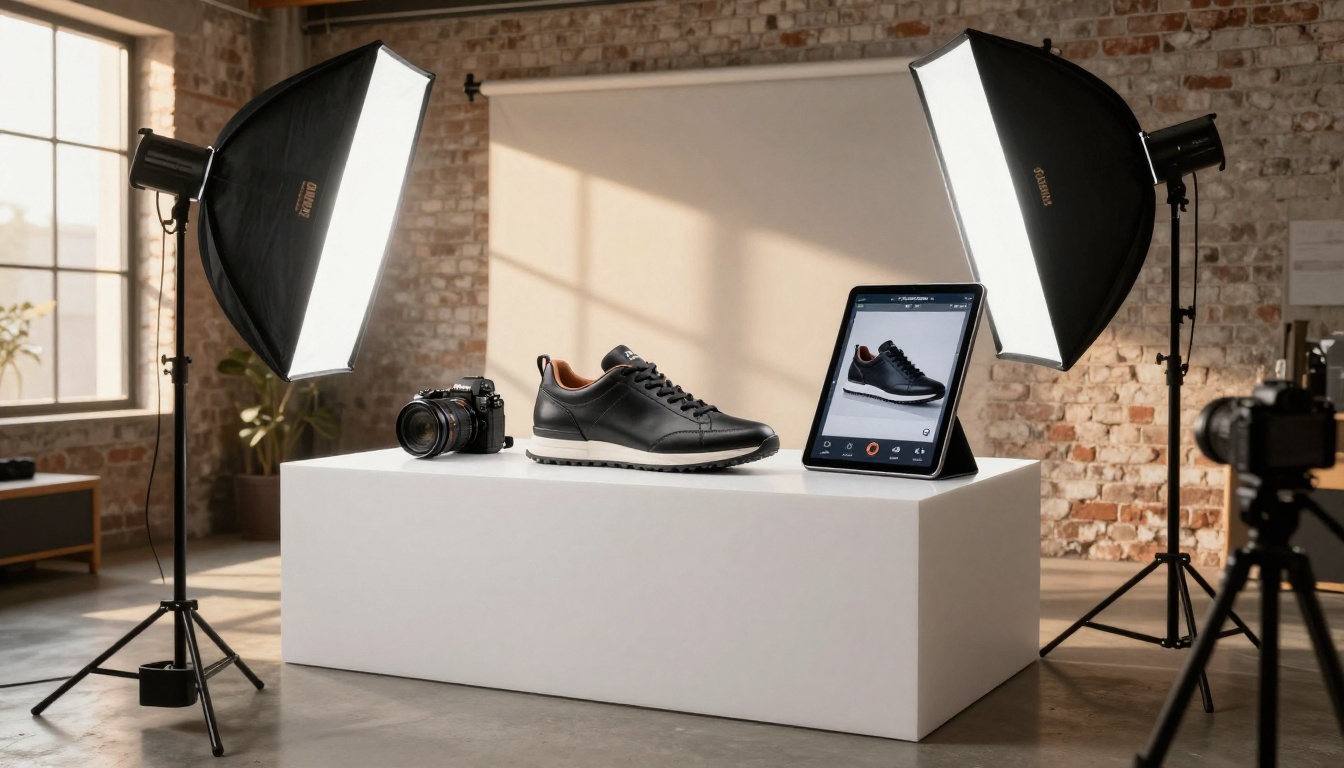
This is not about replacing artistry. It is about replacing bottlenecks. Here is exactly how to take a spreadsheet full of product data and turn it into a full AI-generated visual catalog that looks like it came out of a $10,000 photo studio.
Why Product Photography Is Broken for Scaling Businesses
The Real Cost of Staying Traditional
Most e-commerce owners undercount the true cost of a photo shoot. There is the obvious stuff: studio rental, photographer day rate, model fees if applicable. Then there is the invisible tax: weeks of scheduling, back-and-forth revisions, re-shoots when a product changes, and per-image editing fees that pile up quietly.
A fashion brand with 200 new seasonal SKUs launching quarterly is looking at 800 product photos per year at minimum. At industry average rates, that is $40,000 to $80,000 annually just to keep the catalog current. And that is before accounting for lifestyle shots, variant photography covering every color and size, or seasonal re-shoots.
💡 The hidden cost nobody talks about: When a product sells out and gets replaced, those photography costs are gone. AI-generated images can be regenerated for a new version in minutes, not weeks.
What Changed With Modern AI
Three years ago, AI image quality for product photography was embarrassingly bad. Models hallucinated textures, mangled fine details, and produced that unmistakable "AI smoothness" that signaled fake the moment a customer saw it.
That ceiling has collapsed. Today's photorealistic models produce images that pass human inspection at the thumbnail level and increasingly at full resolution too. The breakthrough was not one model; it was the combination of better base models, prompt engineering maturity, and post-processing pipelines that handle the remaining gaps. The result: a monthly subscription to an AI image platform now competes credibly with a $5,000 photography budget for catalog work.
What You Need Before Generating Anything
Your Catalog Data Requirements
Before you touch any AI tool, your product data needs to be in order. The quality of your AI visuals is directly proportional to the quality of your product descriptions. Vague in, vague out.
For each SKU, you need at minimum:
Product category and sub-type (e.g., "men's chino pants", not just "pants")
Primary material (cotton canvas, full-grain leather, borosilicate glass)
Color with specifics ("dusty rose", not "pink"; "slate gray", not "gray")
Target visual context (clean white background vs. lifestyle setting)
This data already exists in your inventory system. You are not creating it from scratch. You are extracting and structuring it.
The 3 Things Every Good AI Product Prompt Needs
AI models respond to structure. The difference between a usable product image and a perfect one often comes down to whether your prompt addresses these three areas:
1. The subject with specifics: Not "a leather wallet" but "a slim bifold wallet in dark brown full-grain leather with a visible natural grain texture and brass snap closure."
2. The environment and lighting: For catalog photography, this typically means "on a seamless pure white background, soft even studio lighting from above with subtle drop shadow." For lifestyle shots it means describing the scene in photographic terms.
3. The camera and style parameters: "Shot with a 90mm macro lens, f/4 aperture, photorealistic, RAW 8K, Kodak Portra 400 film grain" tells the model to produce something that looks like real photography, not a digital render.
💡 Prompt tip: Always end product catalog prompts with --ar 16:9 --style raw. The raw style flag significantly reduces the AI smoothness effect that makes images look generated instead of photographed.
Step-by-Step: From Product List to AI Visuals
Step 1: Structure Your Catalog Data
Export your product inventory to a spreadsheet. Add a column for "AI Prompt" and one for "Image URL" that you will fill in as you go. Start with your top 20 best-selling products to validate the process before scaling.
For each product, write a base prompt template:
[Product type] in [color/material], [design feature 1], [design feature 2].
On [background description]. [Lighting description].
Shot with [camera specs], photorealistic, RAW 8K, Kodak Portra 400 film grain. --ar 16:9 --style raw
This template approach lets you process products systematically. Fill in the brackets from your product data, and the output stays consistent across every SKU in that category.
Step 2: Test and Refine Your Prompts
Run your first 5-10 prompts individually and evaluate the results against three criteria:
Does the product look physically accurate to the real item?
Is the background consistent with your catalog style?
Does the image quality meet the resolution requirements for your platform?
Adjust the prompt structure based on what fails. If the material looks wrong, add more texture detail. If the background is inconsistent, be more specific about the sweep style and shadow treatment.
Step 3: Generate at Scale
Once you have a working prompt template for a product category, the rest is a fill-in operation. You are running the same photographic setup across all SKUs in that category, swapping only the product-specific details.
For a catalog of 500 products across 10 categories, this typically breaks down to:
10 base prompt templates, one per category
50 products per template with unique fill-in data
Batch processing through your AI image platform
The time investment: 2-3 hours of prompt writing plus generation time. Compare that to 3-4 weeks of studio scheduling, rescheduling, and approvals.
Choosing the Right AI Model for Product Shots
Models Built for Commercial Product Photography
Not all AI image models produce the same quality for product photography. The distinction comes down to how each model handles fine detail, material textures, and color accuracy.
Model Type
Strengths
Best For
Photorealistic base models
Natural textures, realistic lighting
Apparel, accessories, home goods
Product-specific fine-tunes
Consistent backgrounds, clean edges
SKU photography, white-background shots
High-detail models
Micro-textures, material fidelity
Jewelry, leather goods, cosmetics
Fast generation models
Rapid batch processing
Large catalogs, variant photography
On PicassoIA, you have access to over 91 text-to-image models across these categories. The platform's collection at picassoia.com/en/all-models lets you compare model outputs side-by-side before committing to a batch run.
When to Use Different Visual Styles
White background product shots are the workhorse of any catalog. They are what marketplace platforms require, and they are the easiest to generate consistently with AI. The prompt formula is well-established and models handle it reliably.
Lifestyle context shots require more prompt investment but pay off in conversion rates. A leather jacket in a sunlit warehouse loft converts better than the same jacket on a white sweep. These are harder to keep consistent across SKUs but worth the effort for hero images and category landing pages.
Texture close-ups are underused and high-value. A 16:9 macro shot of your fabric weave, leather grain, or ceramic glaze builds product confidence in ways that full-product shots cannot. AI models produce these extremely well.
How to Use PicassoIA for Your Product Catalog
PicassoIA is built for exactly this type of workflow: high-volume image generation with model variety and built-in post-processing tools. Here is how to set up your product catalog generation workflow on the platform.
Setting Up Your First Batch
Browse models by category at picassoia.com/en/all-models. For product photography, start with photorealistic models in the text-to-image collection.
Run a model comparison test: Pick 3 models and generate the same product prompt through each. Compare output on material accuracy, edge definition, and background consistency.
Set your aspect ratio to 16:9: This is the standard for most e-commerce platforms and gives you room to crop for different formats.
Generate in batches by category: Group your SKUs by product type and run each category through its dedicated prompt template. This keeps your catalog visually cohesive without extra effort.
Getting Consistent Results Across SKUs
Visual consistency is the hardest part of AI catalog photography at scale. Three things break it most often:
Lighting inconsistency: If your prompts describe slightly different lighting conditions across products, the catalog will look disjointed. Standardize your lighting description and use it verbatim across all prompts in a category.
Color drift: AI models sometimes interpret the same color description differently. If "dusty rose" produces three different shades across variants, add more specific description ("muted warm pink with slight gray undertone, similar to faded rose petals").
Background variations: The white backdrop is not as standardized as it looks. Different prompt phrasing produces different shadow intensities, gradient qualities, and floor reflection amounts. Decide on your background spec and phrase it identically across all prompts.
Fixing the 4 Most Common Problems
Wrong Material Textures
The problem: The AI generates a product that looks right in shape but wrong in material. Your "matte rubber grip" comes out looking like shiny plastic.
The fix: Material description is where most prompts under-invest. Instead of "matte black rubber," write: "textured matte vulcanized rubber with visible micro-patterning and light-absorbing surface, no specular highlights." The model needs to understand both the visual and physical property of the material.
Inconsistent Backgrounds Across the Catalog
The problem: Running 50 products through the same prompt still produces 50 slightly different backgrounds. Some have soft gradients, others are pure white, some have faint floor lines.
The fix: Add specificity to the background clause: "Shot on a seamless white photo sweep backdrop, soft even lighting with a single soft-edged drop shadow directly below the product, pure white background with no gradient, no floor reflection." Then lock this exact phrasing and never vary it.
Low Resolution for Print or Large Display
The problem: Even with 8K prompting, the actual pixel output may not meet print requirements for large-format catalog printing.
The fix: Use an AI upscaler after generation. Topaz Image Upscale on PicassoIA upscales images up to 6x without quality loss, taking a solid web-resolution image to print-ready. Clarity Pro Upscaler adds micro-detail enhancement that is particularly effective for fabric textures and product edges.
💡 Upscaling workflow: Generate at standard resolution first, validate the image looks correct, then batch-upscale your approved selections. Upscaling only approved images saves both processing time and cost.
Missing or Wrong Product Details
The problem: The AI generates a jacket with five buttons when the product has three. The handbag strap is the wrong style. The logo placement is incorrect.
The fix: AI models hallucinate specifics. For products with precise details that matter to purchase decisions, describe those details explicitly: "exactly three black plastic snap buttons equally spaced down the center front, no pockets, flat back panel without seams." The more a detail influences the customer's buying decision, the more explicitly it must appear in the prompt.
Upscaling and Finishing Your Catalog Images
Raw AI outputs rarely ship directly to a product listing without any post-processing. The finishing step is what separates catalog-ready visuals from AI experiments.
Background Removal for Clean Cuts
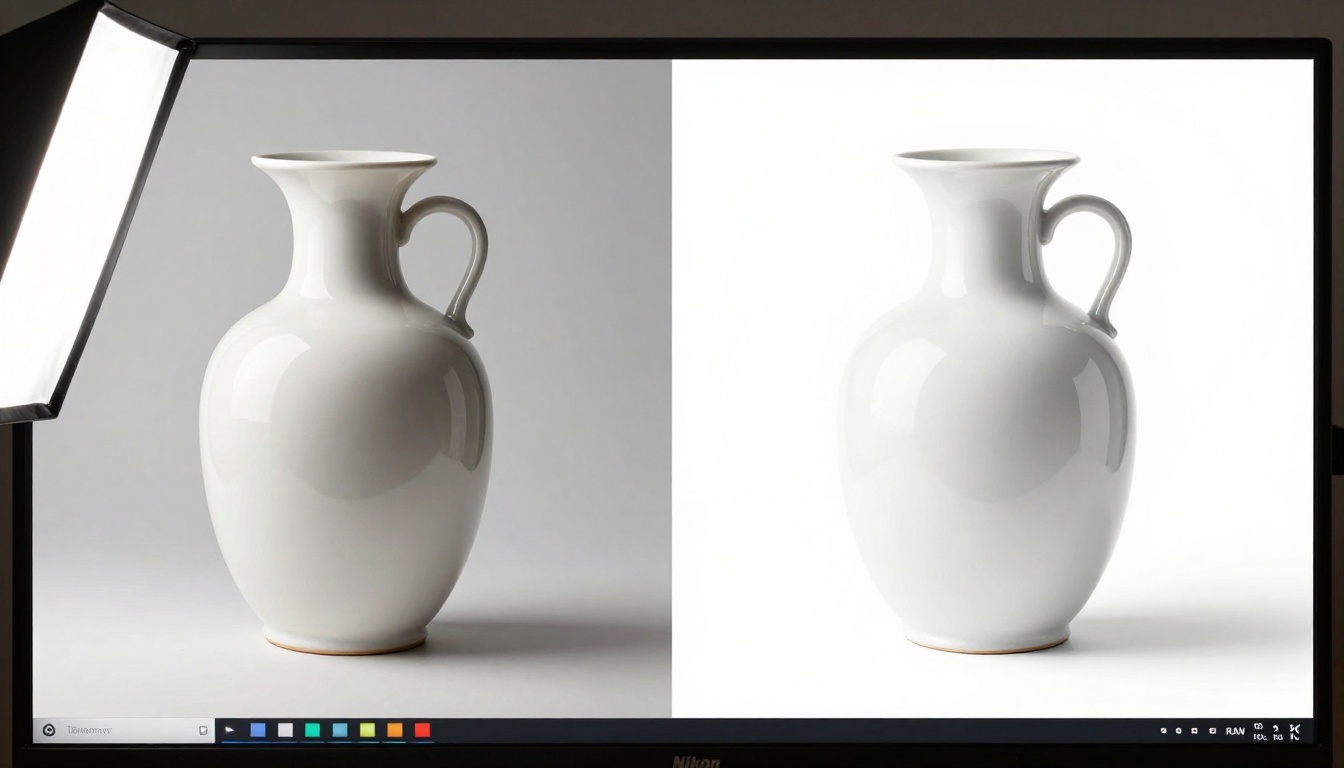
Even with strong white background prompts, some AI-generated product images have slightly imperfect edges where the product meets the background. Remove Background by Bria on PicassoIA handles this with AI-powered edge detection that preserves fine details like fabric fray and transparent product elements.
After background removal, you can place the product on any background: pure white for marketplaces, brand-color gradients for your website, or lifestyle scene composites.
Resolution Enhancement for Large-Format Use
For catalog print production, banner ads, or large display formats, standard generation resolution needs enhancement. The PicassoIA super-resolution collection offers several options:
Real ESRGAN: 4x upscaling, excellent for hard-edged products like electronics and accessories
P Image Upscale: Fast upscaling built for large batch processing
Recraft Crisp Upscale: Optimized for clean, crisp edges, ideal for product silhouettes
Choose based on your product type: hard-edged products do well with ESRGAN's sharp algorithm, while soft goods like apparel benefit from the smoother detail enhancement in Recraft's approach.
Building a Reusable Visual System
The real leverage in AI catalog photography is not the images you generate today. It is the prompt library you build as you work. Every tested and validated prompt is a template that can be reused with minimal adjustment for new products in the same category.
After 100 SKUs, you have a prompt library that makes the next 1,000 trivially fast. After 1,000 SKUs, your templates are dialed in to your brand's visual language and consistency runs itself.
What You Build
What It Gives You
Per-category base prompts
Instant generation for new SKUs
Validated background specs
Consistent catalog look
Approved model list
Predictable quality, no testing required
Upscaling workflow
Print-ready output every time
The Numbers That Make This Worth Doing
A traditional product photo shoot for 100 SKUs might cost $4,000 to $8,000 and take 3-4 weeks from concept to delivery. An AI-generated catalog for 100 SKUs runs 2-4 hours of prompt writing and generation time, plus a fraction of those costs in platform fees.
The math is not close. But the real advantage is not just cost, it is speed and flexibility. When a product gets updated, you regenerate. When you need 10 color variants, you generate all 10 in an afternoon. When you want to A/B test a lifestyle shot against a white-background version, both are ready the same day.
That flexibility compounds over time. Traditional photography locks you into the images you took that day. AI generation means your catalog is always one prompt away from an update.
The brands building AI-powered catalog workflows now are creating an operational advantage that compounds with every product they launch. Each new SKU costs a fraction of what it costs a competitor still scheduling photo shoots three weeks out.
Start Building Your AI Visual Catalog
The best way to see whether AI catalog photography works for your product type is to run a test on 5-10 of your current best sellers. Write prompts using the template structure in this article, generate through PicassoIA's text-to-image collection at picassoia.com/en/all-models, and compare the output to your existing photography.
Pick the images that work. Refine the prompts for the ones that do not. Add an upscaling pass for any images headed to print. By the end of an afternoon, you have a validated workflow, a prompt library, and a much clearer picture of the cost and quality trade-offs for your specific catalog.
Start with five products. Generate a few variations. Test them on your actual listings and measure what happens to click-through rates. That is all the validation you need to decide whether to scale the workflow to your full catalog.
PicassoIA gives you the tools to do it without commitment: access to 91+ text-to-image models, built-in super-resolution upscaling, background removal, and a platform designed for exactly this kind of high-volume creative work. The catalog is waiting to be rebuilt. The only thing missing is the first prompt.