You saved that anime wallpaper years ago. It looked perfect as a thumbnail but the moment you tried displaying it on a 4K monitor or sending it to print, everything fell apart: blurry edges, visible pixel blocks, color banding, and that distinct muddy haze that traditional upscaling never fixes. AI upscaling changes this completely, and knowing how it works will save you hours of frustration.
Why Anime Art Breaks at Higher Resolutions
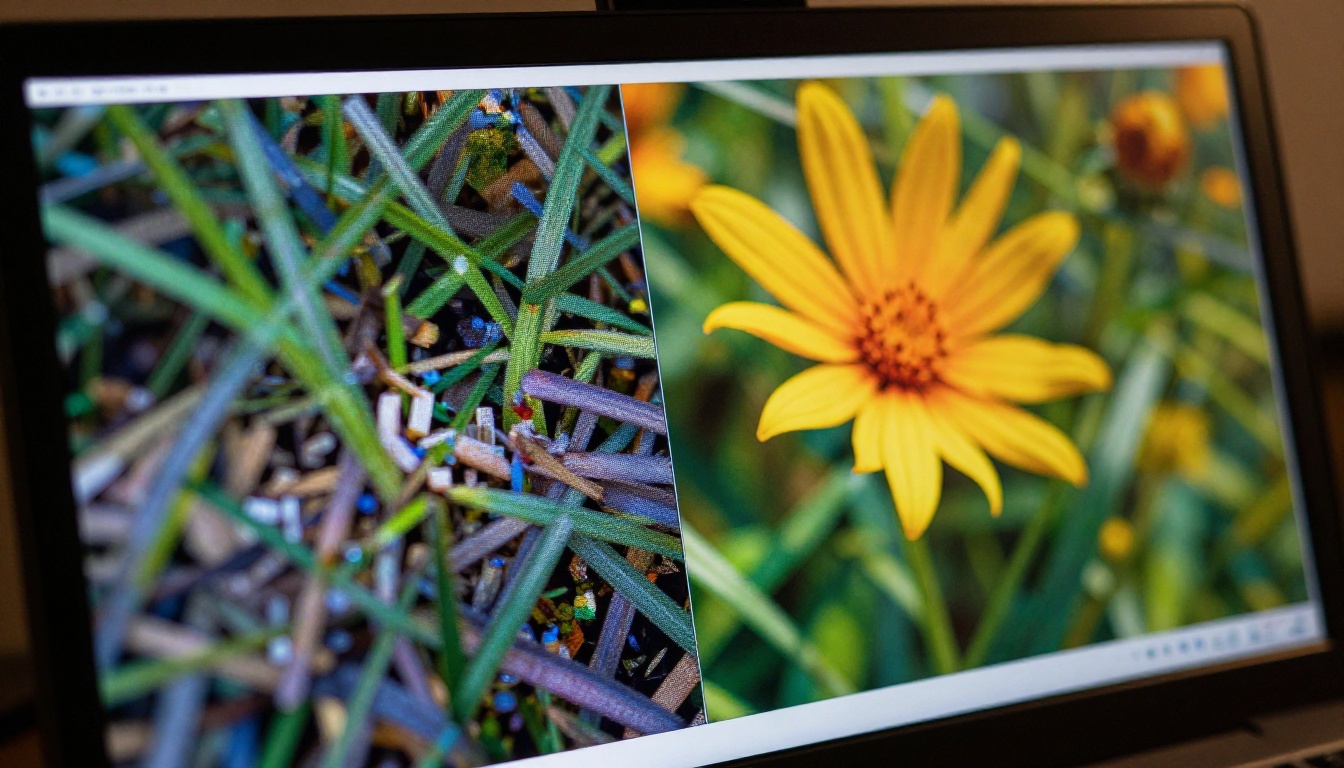
Anime art has a specific visual signature: clean lines, flat color regions, smooth gradients, and precise edge definition. These characteristics are what make anime look so distinct, but they are also what makes standard upscaling catastrophically bad at handling it.
The Core Resolution Problem
When an image is too small for the display or print size you need, software must invent the missing pixels. Traditional algorithms like bicubic interpolation do this by averaging the colors of neighboring pixels, which works reasonably well for photographs but completely destroys anime. The clean black line around a character becomes a fuzzy gray smear. The crisp boundary between a hair highlight and the base color gets blended into an ugly gradient. The overall image looks like it was photographed through a dirty window.
The issue is that bicubic interpolation has no concept of what an edge is. It treats every pixel transition identically, whether that transition is a meaningful artistic boundary or random noise. Anime's high-contrast edges are particularly vulnerable because the algorithm aggressively softens exactly the areas that define the art's style.
Why Traditional Software Falls Short
Photoshop's Preserve Details 2.0 is better than bicubic, but it still struggles with anime for the same fundamental reason: it was trained on photographic content. The patterns it recognizes as "important detail to preserve" are things like skin texture, fabric weave, and hair strands. Anime art does not have these things. A character's face is smooth, flat color. A background sky is a perfect gradient. The software misinterprets anime as a simplistic, low-information image and applies minimal effort to it.
AI upscalers solve this by training specifically on the patterns that matter for each content type.
How AI Upscaling Works on Anime
The breakthrough in AI image upscaling came from Generative Adversarial Networks (GANs) and later diffusion-based super-resolution models. Instead of averaging pixels, these models are trained on what high-resolution images look like at a structural level, then generate the missing detail.
The Neural Network Approach
A super-resolution neural network is trained on pairs of images: a high-resolution original and a deliberately degraded version of it. The network is optimized to map from the degraded version back to the sharp original. After processing millions of image pairs, the network internalizes the statistical relationship between low-resolution blurriness and high-resolution sharpness.
When you give it a new image, it does not interpolate. It reconstructs the missing detail based on everything it was trained on, guided by what the existing pixels suggest. For photographs, this means rebuilding hair texture and skin pores. For anime, a properly trained model reconstructs sharp lines, clean color fills, and smooth gradients.
Anime-Specific Training Sets
This is where the real difference happens. Models trained on anime datasets recognize that a dark line on a light background is almost certainly a hard artistic edge, not a gradual transition. They know that flat-colored regions should remain flat, not get textured the way photographic content would. They absorb the specific character of animated linework.
Real-ESRGAN is the most widely cited model for anime specifically. It ships with a dedicated anime configuration that produces dramatically better results on animated content than its default photographic mode. The difference is visible immediately: lines become crisp, gradients become smooth, and the image no longer looks like it was photographed through frosted glass.
💡 Important: Always specify that you are working with anime content when a model gives you style options. The same AI running in "photograph" mode versus "anime" mode produces completely different results on the same input image.
The Best AI Models for Anime Upscaling
Not all upscalers produce the same output. The field has several strong competitors, each with different strengths. Here is how the major options compare when working with anime source material.
Real-ESRGAN for Anime
Real-ESRGAN is the standard benchmark for anime upscaling. Developed with anime-specific training, it handles the flat color regions and hard edges that characterize Japanese animation without over-sharpening or introducing halos. At 4x, it turns a 512x512 image into a crisp 2048x2048 that holds up on most displays without losing the original art's character.
Its weakness is over-processing: if your source image has intentional grain or texture as part of its aesthetic, Real-ESRGAN may smooth it out more aggressively than you want. In that case, Recraft Creative Upscale is worth trying because it adds texture rather than removing it.
Topaz for Extreme Upscaling
When you need to go beyond 4x, Topaz Image Upscale is the only serious option. At 6x, a 256x256 thumbnail becomes a 1536x1536 image, which is usable for medium-format print. The tradeoff is that Topaz sometimes over-sharpens fine lines, creating a slightly artificial crispness. For screen display, this is rarely a problem. For print, test at smaller scales first.
How to Upscale Anime Art on PicassoIA
PicassoIA hosts all of the major super-resolution models in one place, with no local installation required. The entire process takes under two minutes for most images.
Step 1: Pick Your Model
Start at the super-resolution collection on PicassoIA. For anime specifically, begin with Real-ESRGAN. If you need more than 4x scaling or have mixed photographic and illustrated content, open Topaz Image Upscale instead.
For character portraits and single-subject anime art, Crystal Upscaler produces particularly good results because it is optimized for face and body regions, which tend to be the most scrutinized parts of anime artwork.
Step 2: Upload Your Source Image
Click the upload area and drop your image file. PicassoIA accepts JPEG, PNG, and WebP. For best results:
- Use PNG source files when possible. JPEG compression artifacts get amplified by the upscaler, which can interpret them as real detail and hallucinate patterns that were never in the original.
- Remove watermarks first if your source has them. The upscaler will attempt to reproduce the watermark at higher resolution, making it harder to remove later.
- Start with the highest resolution version you have. If you have a 512x512 and a 1024x1024 version of the same image, upscale the 1024x1024 to get the best final result.
Step 3: Set Your Scale Factor
Most models offer 2x or 4x scaling. Choose based on your output need:
- 2x: For images that are slightly too small for your display. A 1080p image becomes 2160p.
- 4x: For printing or displaying on 4K screens. A 512px image becomes 2048px.
- 6x (Topaz only): For large-format printing or extreme resolution needs.
💡 Pro tip: If you need 8x total upscaling, run the image through the model twice at 4x each pass rather than trying to do it in a single step. Chained upscaling preserves more structural integrity than single-pass extreme scaling.
Step 4: Run and Review
Hit generate. Most models on PicassoIA process a standard anime image in 10 to 30 seconds. When the result loads, zoom in to 100% and check these three things:
- Line edges: They should be sharp and clean, not blurry or fringed with halos
- Flat color regions: Skin tones and backgrounds should be smooth without added noise
- Fine details: Eyes, hair strands, and small decorative elements should read as crisper than the original, not scrambled
If the result is not what you wanted, switch models. The same source image can produce dramatically different outputs with Real-ESRGAN versus Recraft Creative Upscale, and the best choice depends on your specific artwork's style.
Reading the Output: What Good Upscaling Looks Like
Knowing how to evaluate an upscaled result saves you from accepting mediocre output. There are a few specific visual patterns to look for.
Sharp Lines, Not Halos
A halo is a bright or dark fringe that appears around high-contrast edges when an upscaler over-processes. You will see it most often around character outlines and hair. If your result has thick, glowing borders around lines, the model applied too much sharpening. Try Recraft Crisp Upscale instead, which prioritizes clean edges without aggressive contrast boosting.
Clean Gradients
Sky backgrounds, skin shadows, and soft lighting in anime are gradients: smooth transitions from one color to another. A poor upscaler introduces banding (visible stripes) or adds noise to these areas. A good result keeps gradients buttery smooth.
Detail That Makes Sense
The AI is generating detail that did not exist in your source image. This is both the power and the risk. Sometimes models hallucinate texture in areas where the original had smooth color, creating a gritty look that does not match the art's style. If you see this, the model is interpreting anime as photographic content. Use Real-ESRGAN with its anime-specific settings to prevent this.
Mistakes That Hurt Your Results
After upscaling hundreds of anime images, certain patterns emerge that consistently produce bad results. Avoid these.
Upscaling Already-Compressed Images
If your source file is a JPEG that has been saved multiple times, each save cycle introduced compression artifacts. When you upscale this, the model treats those artifacts as real detail and amplifies them. Always work from the highest-quality source you can find. A PNG screenshot is better than a JPEG download. A JPEG at 90% quality is better than one at 60%.
Choosing the Wrong Model for Your Content
Clarity Pro Upscaler and Bria Increase Resolution are exceptional at photorealistic content but were not trained primarily on anime. Using them on anime character art produces inconsistent results: sometimes great, often over-textured. Match the model to your content type.
Scaling Too Aggressively in One Pass
6x in a single pass stresses any model. The further you push from the source resolution, the more the model has to hallucinate, and the higher the chance it invents something wrong. Two 2x passes or two 3x passes generally produce better results than a single 6x pass.
Ignoring the Source Aspect Ratio
Some image preparation pipelines resize images to square format before processing. This squishes or stretches the art. Always verify that your output has the same aspect ratio as your source before you consider the result final.
When to Use Which Model
Choosing between nine models feels overwhelming. Here is a practical decision tree:
Your image is anime or illustration with flat colors and hard edges:
Start with Real-ESRGAN. It handles this content better than any other model in the collection.
Your image is a single character portrait or face-focused art:
Try Crystal Upscaler, which applies specific intelligence to facial features and produces sharper eyes, smoother skin, and more natural-looking hair at high resolution.
You need more than 4x scale or are preparing for large print:
Go directly to Topaz Image Upscale. It is the only model that reliably handles 6x without complete structural breakdown.
You want to add creative depth and painterly texture to the upscaled result:
Recraft Creative Upscale does something different from the others: instead of just sharpening what is there, it reinterprets and adds artistic depth. For certain styles, this produces stunning results. For others, it feels over-processed. Test it on a small crop before committing.
You just need something fast that works reliably:
P Image Upscale and Google Upscaler are both solid general-purpose options that process quickly and rarely produce terrible results.
Comparing Output Quality
The honest answer about which model wins is: it depends entirely on your source image. There is no single best upscaler for all anime art. What you can do is develop a testing workflow.
A Quick Testing Protocol
- Take a 100x100 pixel crop from the most detailed area of your source image
- Run it through your top two or three model candidates at 4x
- Compare the results at 100% zoom
- Apply the winner to the full image
This saves time and prevents you from processing a full high-resolution image through multiple models before finding the one that works.
The Role of Original Image Quality
Two images both described as "low resolution anime art" can be fundamentally different to an upscaler. A 512x512 image that was originally drawn at high resolution and scaled down is much easier to upscale than a 512x512 image that was originally created at that size. The first one has structural information compressed into it. The second one is genuinely low information.
If you have access to the original artist's work at any quality, always start there rather than from a fan-compressed copy.
Fixing Specific Anime Artifacts
Compression Banding on Gradients
Sky backgrounds and lighting gradients in anime frequently suffer from JPEG compression banding: visible horizontal or diagonal stripes in what should be smooth color. Recraft Crisp Upscale is particularly effective at smoothing these out because it applies dedicated edge-aware smoothing before it sharpens.
Blurry Text and Subtitles
If your anime image includes embedded text (subtitles, signs, titles), standard upscalers often produce inconsistent results because text requires its own type of sharpening. Clarity Pro Upscaler handles text regions well, applying higher contrast sharpening to edges that the model identifies as text-like structures.
Old Scanned Manga
Physical manga scanned at low DPI presents unique challenges: halftone dot patterns from the printing process appear as noise to upscalers. For this specific case, Real-ESRGAN performs best because its training data included digitized print material.
See What Your Anime Art Actually Looks Like
AI upscaling has made it possible to take anime art that looked stuck in the past at any size and bring it to a quality level that holds up on modern displays and in print. The difference between bicubic interpolation and a dedicated AI model is not subtle: it is the difference between blurry and sharp, between muddy and vivid, between something you would not bother with and something worth printing.
PicassoIA puts every major super-resolution model in one place, free to access, no local GPU required. Pick your image, pick your model, and see the result in seconds. Start with Real-ESRGAN for typical anime art, try Topaz Image Upscale when you need maximum scale, and experiment with Crystal Upscaler when character detail is the priority.
There are nine different models waiting on PicassoIA to show you what your favorite anime art actually looks like at full resolution. Pick one and see the result for yourself.


