You shot beautiful footage. Maybe it was a wedding, a travel vlog, or an interview. But now it sits at 1080p or lower, looking blurry and washed out on your 4K TV or modern display. The gap between what you filmed and what today's screens demand is real, and it gets more visible every year. AI video upscaling closes that gap without you needing to reshoot anything.
The 1080p vs 4K Reality Check
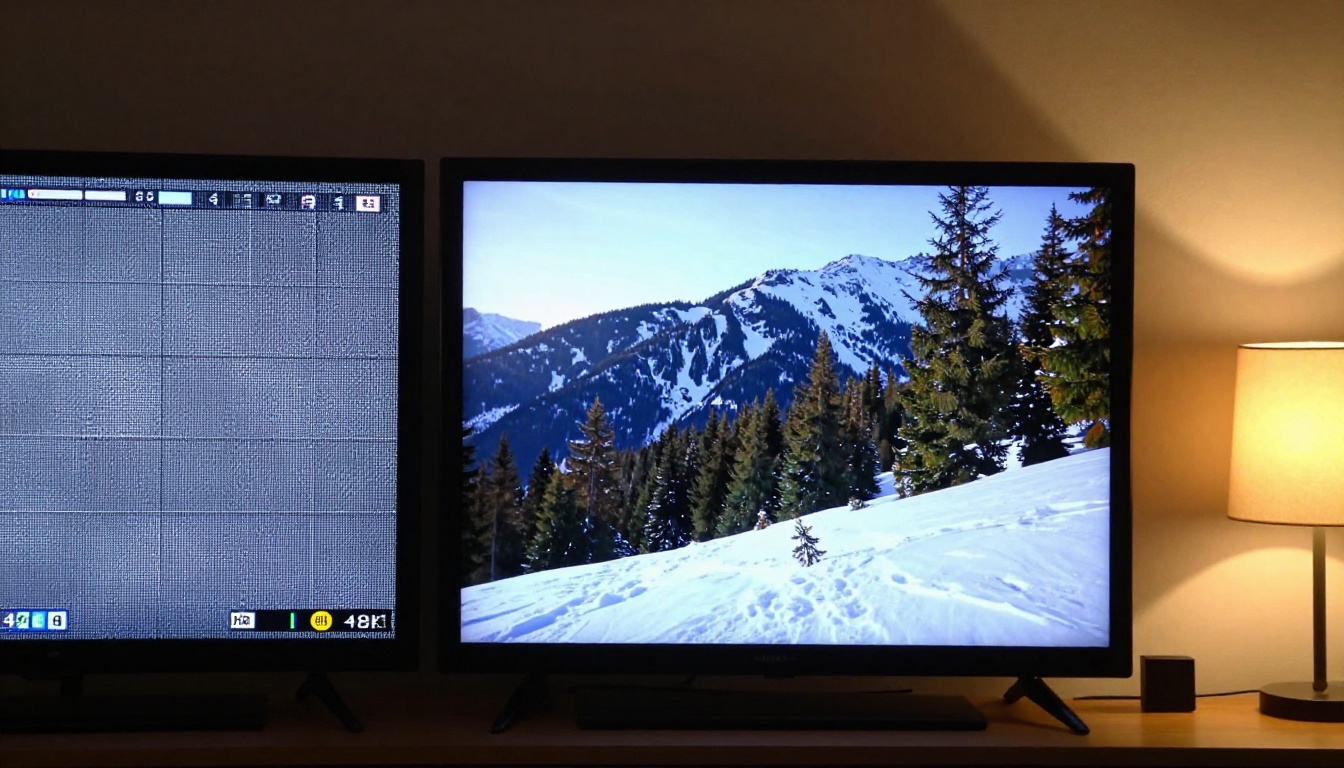
The difference between 1080p and 4K is not just "a bit sharper." We are talking about 4 times the pixel count: 2,073,600 pixels in 1080p versus 8,294,400 in 4K UHD. When you play a 1080p video on a 4K screen, the display has to stretch each pixel across a larger area. The result is soft edges, visible noise, and a muddy image that no color grading can fully fix.
What the Resolution Gap Actually Costs
The problem goes beyond aesthetics. For content creators, it directly affects visibility and monetization. YouTube's algorithm favors 4K uploads for recommendation placement. On social media, crisp visuals hold attention longer than blurry ones. For commercial work, clients expect high-resolution deliverables, and submitting 1080p footage for a 4K project can cost you the contract.
💡 4K on YouTube gets a separate bitrate tier. Even if your audience watches at 1080p, uploading in 4K means YouTube encodes at a higher bitrate across all resolutions, making your video look sharper at every setting.
Why Older Footage Looks Worse on New Displays
Modern OLED and QLED screens have gotten much better at displaying detail, which ironically makes old footage look worse. The screen is not degrading your video; it is simply not hiding its flaws anymore. Pixels that were invisible on a 2009 monitor are now front and center on a 65-inch display. This is why footage shot 5 to 10 years ago often looks noticeably worse than you remember it.
Traditional upscaling (the kind built into most TVs and editing software) works by duplicating pixels, stretching the image, and applying a basic sharpening filter. It adds resolution but not information. You get a bigger image with the same amount of detail, maybe less, because sharpening can introduce edge artifacts and haloing. AI upscaling works differently.
How AI Upscaling Actually Works
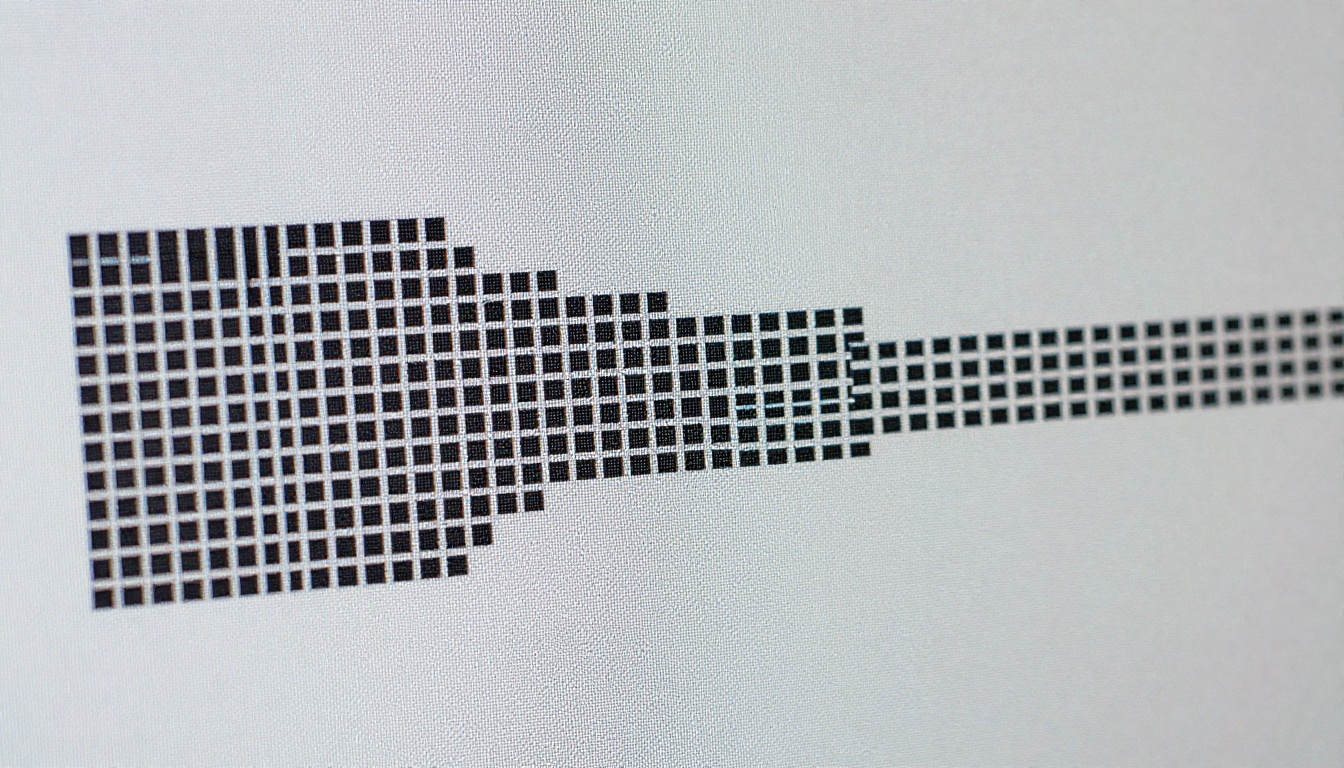
AI-powered video upscaling uses convolutional neural networks trained on millions of image pairs. Each pair shows a low-resolution image and its high-resolution equivalent. Over millions of training iterations, the model identifies what fine details should look like based on context: what a brick wall looks like at 4K, what human hair looks like in high resolution, how fabric textures behave under different lighting conditions.
Super Resolution Is Not Just Zooming In
The term "super resolution" describes the process of generating new pixel information rather than duplicating existing pixels. When you zoom in with traditional software, you get a bigger image with no new data. When a super-resolution AI processes your footage, it reconstructs plausible detail based on what it has absorbed from millions of training examples.
This is why AI-upscaled footage can actually look sharper than the original in many areas. Skin textures, foliage, architectural details, and fabric weaves are areas where AI models excel. The network has internalized what those things look like in high resolution and fills them in accordingly.
Frame-by-Frame Neural Processing
Video upscaling adds a layer of complexity that image upscaling does not have: temporal consistency. A single image can be processed in isolation. A video needs to maintain consistency across hundreds or thousands of frames. If the AI generates slightly different detail patterns on frame 147 versus frame 148, you get flickering artifacts that are often more distracting than the original blurriness.
Modern AI video upscalers address this with temporal coherence algorithms that track how individual pixels and regions move across frames. They use optical flow analysis to determine motion direction and velocity, then apply consistent super-resolution detail that follows objects naturally through the scene.
| Feature | Traditional Upscaling | AI Upscaling |
|---|
| Pixel generation | Duplicates existing pixels | Creates new pixel information |
| Sharpness | Basic filter sharpening | Neural detail reconstruction |
| Texture handling | Blurs fine textures | Reconstructs believable detail |
| Motion consistency | None | Temporal coherence algorithms |
| Processing time | Real-time | Minutes per video clip |
The 3 Best AI Video Upscalers Right Now
Not every AI upscaler is built the same. The difference between a mediocre model and a professional-grade one is visible at a glance: edge definition, color accuracy, artifact suppression, and how well the tool handles motion blur and noise in the source footage.
Crystal Video Upscaler
The Crystal Video Upscaler by philz1337x is one of the strongest video super-resolution models available for consumer use. It is specifically tuned for video content and handles both motion scenes and static shots with impressive consistency. The model outputs at up to 4K resolution with frame-by-frame detail reconstruction that preserves the original color grading without introducing unwanted sharpening artifacts.
What sets it apart is its handling of faces and fine textures. Portrait footage, interview recordings, and anything with close-up human subjects comes out particularly well. The model has strong training data for skin tones and facial geometry, which means upscaled talking-head videos look natural rather than over-processed.
Topaz Video Upscale
Topaz Video Upscale by Topaz Labs is another professional-grade option. Topaz has been in the upscaling space longer than almost anyone, and their video model reflects that experience. It supports upscaling to 4K and 8K with frame rate interpolation up to 120fps, making it a strong choice for action footage, sports videos, and anything with fast motion.
The model also includes built-in noise reduction and grain removal as part of the upscaling pass, which means one processing step handles what would otherwise require multiple post-production steps. For archival footage restoration, this combination of upscaling and denoising in a single pass is particularly useful.
Runway Upscale v1
Runway Upscale v1 is Runway's dedicated 4K video upscaling model. It is optimized for speed without sacrificing output quality on clean source footage. If you have moderately high-quality 1080p footage and need it in 4K quickly, Runway's model delivers fast turnaround times with solid results.
It performs best with footage that already has good exposure and minimal noise. For heavily compressed video or footage shot in difficult lighting conditions, the Crystal Video Upscaler or Topaz Video Upscale models tend to outperform it on fine detail recovery.
How to Use Crystal Video Upscaler on PicassoIA
PicassoIA gives you direct browser access to the Crystal Video Upscaler without requiring software installation or a high-end GPU. Here is the exact process from upload to download.
Step 1: Open the Model Page
Go to the Crystal Video Upscaler on PicassoIA. You will see the model interface with an upload panel on the left and parameter controls on the right.
💡 Before uploading, check your source footage. Trim it to only the section you need upscaled. Processing shorter clips is faster, and you can always combine upscaled segments in your editing software afterward.
Step 2: Upload Your Video File
Click the upload area or drag and drop your video file directly. The model accepts common formats including MP4, MOV, and AVI. For best results, upload the highest-quality version of your source file. If you have a compressed social media export and the original project file, always use the original.

Step 3: Set Your Parameters
The main parameters you will encounter:
- Scale Factor: Set to 4x for a standard 1080p to 4K upscale. Use 2x if your source is already close to 2K or you want faster processing.
- Face Detail: Enable this if your footage contains close-up faces. It applies additional neural processing specifically for facial features and skin texture.
- Denoise: Recommended for footage with visible grain, compression artifacts, or low-light noise. Start at a moderate level and increase if needed.
- Sharpness: Keep this moderate. Over-sharpening is one of the most common mistakes and produces unnatural-looking edges.
💡 Sharpness and denoise interact. Denoising slightly softens the image, which is why the model then re-sharpens the output. If you increase denoise, you may also need to increase sharpness slightly to compensate.
Step 4: Download Your 4K Output
Click the run button and wait for processing to finish. Processing time depends on video length and your selected parameters. A 30-second clip typically takes 2 to 5 minutes. When complete, a download link appears. Download your upscaled file in MP4 format, ready for use in any editing software or direct upload to YouTube, Vimeo, or client delivery.
What You Can Actually Expect
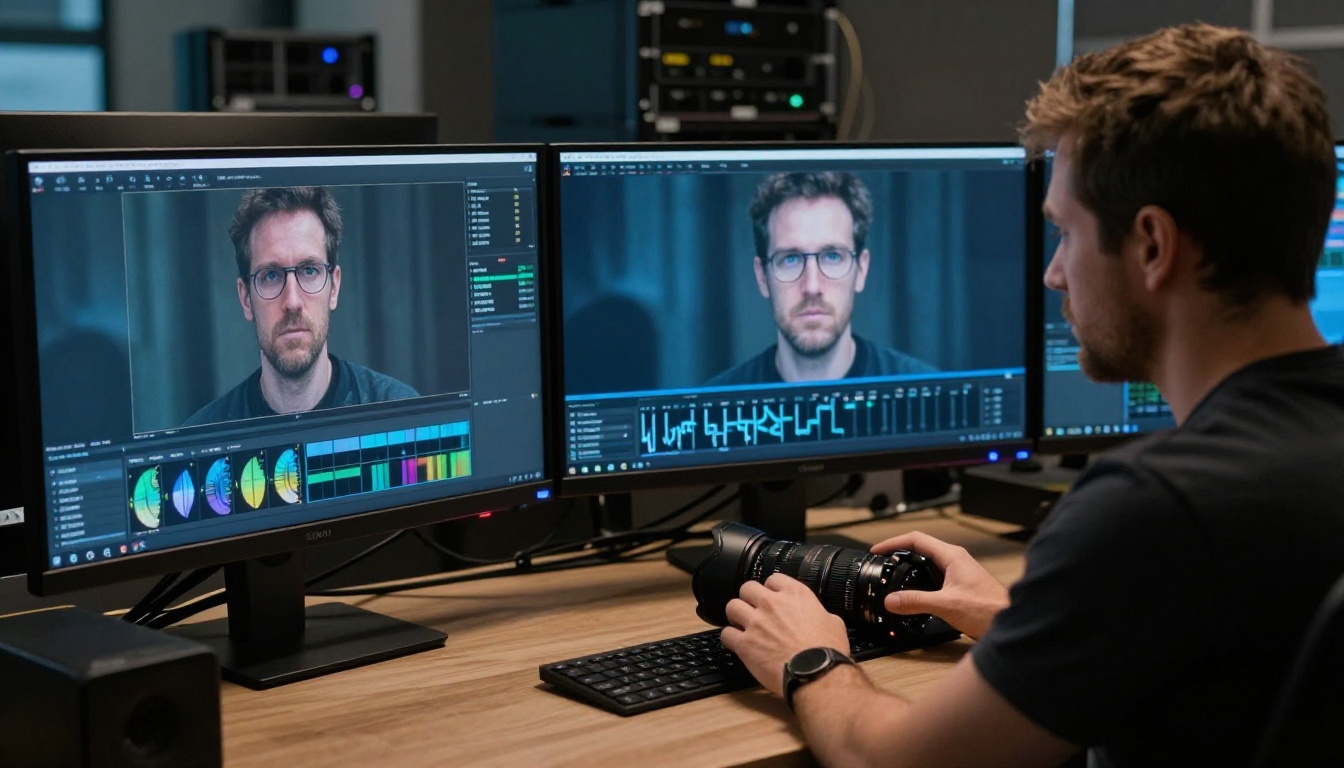
AI upscaling produces impressive results, but setting the right expectations makes the difference between satisfaction and disappointment.
Sharpness, Texture, and Edge Detail
In most cases, you will see a meaningful improvement in:
- Edge definition: Soft, aliased edges become noticeably cleaner
- Texture recovery: Fabric, skin, architectural surfaces, and foliage gain believable fine detail
- Color fidelity: Modern upscalers preserve the original color grade without adding saturation artifacts
- Noise reduction: The AI often suppresses compression noise and grain alongside the upscaling pass
For portrait footage, travel videos, and interview recordings, the results often look close to footage originally shot at 4K. The difference is most dramatic on clips that had soft but correctly exposed, color-balanced source footage.
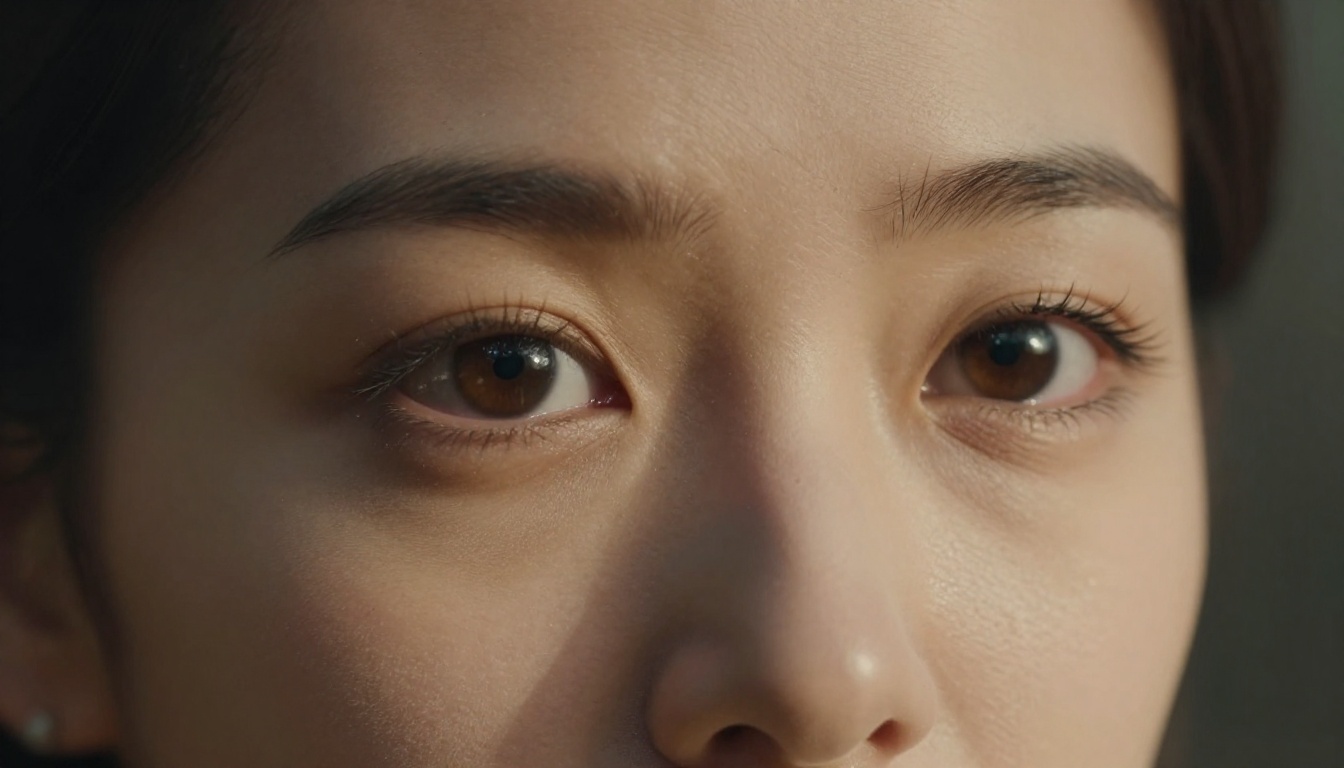
Limitations to Know Before You Start
AI upscaling has real limits. If your source footage has any of the following, results will vary:
- Heavy motion blur: The AI will reconstruct detail in blurred areas, but the reconstruction may look artificial because no original detail exists to recover.
- Extreme compression artifacts: Highly compressed footage contains block artifacts that the AI may reconstruct as texture rather than removing cleanly.
- Defocus blur: Out-of-focus footage cannot be sharpened into focus by upscaling. Upscaling and focus correction are separate problems.
- Very dark, underexposed footage: AI models trained on well-exposed footage struggle with footage shot in near-darkness. The output may have consistent noise rather than recovered detail.
The honest summary: AI upscaling makes good footage great and mediocre footage better. It cannot make bad footage good.
3 Mistakes That Hurt Your Results
Knowing what to avoid saves processing time and storage space on failed attempts.
1. Upscaling from a compressed export instead of the source file.
Every time you export a video, you lose quality through codec compression. If you upscale an export of an export, you are feeding the AI compounded compression artifacts. Always start from the highest-quality source file available: original camera footage, lossless exports, or at minimum, high-bitrate ProRes or DNxHD files.
2. Setting sharpness too high.
The most visible sign of over-processed AI upscaling is an unnatural plastic look on faces and a "painted" appearance on surfaces. The AI already adds detail through super-resolution. Stacking high sharpness on top of that creates double-processing that looks worse than a lower sharpness setting. Start at 50% of the maximum sharpness value and adjust from there.
3. Using the wrong scale factor.
Upscaling a 720p clip by 4x produces a 2880x1620 output, not exactly 4K (3840x2160). If you need a specific 4K resolution for broadcast or client delivery, check your output dimensions and run a resize pass in your editing software afterward. Some platforms reject video that does not match standard resolutions exactly.
💡 For archival footage restoration (family videos, old event recordings), combine upscaling with the Topaz Video Upscale model's built-in denoising. The combination of noise reduction and super resolution in one pass is the fastest way to breathe new life into older recordings.

The gap between the footage you have and the quality your audience expects has never been easier to close. Whether you are restoring old family videos, preparing content for a 4K-first platform, or delivering professional footage to a client who needs it at the highest resolution, AI video upscaling gives you a practical, fast solution that requires no specialized hardware.
PicassoIA puts the Crystal Video Upscaler, Topaz Video Upscale, and Runway Upscale v1 all in one place, accessible directly in your browser. You can test all three models on the same clip and choose the output that works best for your specific footage type.
Beyond video upscaling, PicassoIA also offers image super-resolution tools like the Clarity Pro Upscaler and Real ESRGAN for your still images, plus a full suite of video editing, AI image generation, and audio tools for every stage of the content production process.
Pick a clip from your library, something you have always wished looked sharper, and run it through Crystal Video Upscaler today. The difference in quality is usually visible within the first few seconds of watching the output.


