FLUX.2 Max is the highest-resolution text-to-image model from Black Forest Labs, and it does something most AI image generators still struggle to do: it reaches 4 megapixels without the image falling apart at the edges. If you have been settling for blurry 512-pixel outputs or paying for separate upscaling tools on top of your generation workflow, this model changes that calculation significantly. It takes a text prompt, accepts up to eight reference images, and returns a photorealistic output at resolutions ranging from 0.5 MP to 4 MP, across ten different aspect ratio presets, exported as WebP, JPEG, or PNG. Here is exactly how to use it.
What FLUX.2 Max Does Differently
Most text-to-image models max out at 1 megapixel. That is enough for social posts and website thumbnails, but it falls short for anything going to print, large-format display, or professional client deliverables. FLUX.2 Max bumps that ceiling to 4 megapixels, which is roughly 2000 x 2000 pixels at a 1:1 ratio, or proportionally wider at landscape or portrait ratios.
The model also accepts up to eight reference images. This is not a trivial feature. Feed it your brand photos, a product shot you want reimagined, or a curated set of mood board images, and the model uses them to steer the output's composition and style without requiring a 500-word prompt to achieve the same result.
The 4MP Output in Practice
At 4 megapixels, you get resolution that holds up in situations where 1 MP falls short:
- Print-ready output for A4 or letter-size documents at 150 DPI
- Sharp enough for large-format social banners and digital signage
- Enough detail for billboard mockups at standard viewing distances
- Enough pixel density to crop tightly without losing sharpness
💡 Tip: FLUX.2 Max recommends 2 MP or below for most everyday workflows. The 4 MP setting exists for genuinely large-format needs. For web content and social media, 1 MP delivers near-identical visual quality at significantly faster generation speeds, so there is no point paying the compute cost unless you need the extra pixels.
Reference Images as Steering Tools
The reference image system in FLUX.2 Max works differently from traditional image-to-image generation. You are not feeding it a source image to transform. You are feeding it context. Upload a photo of your product, a room you want to replicate, or a face from an existing brand shoot, and the model factors that visual information into the generation without treating it as a rigid template to follow.
This makes the reference image feature useful for several specific scenarios:
- Brand consistency: feed in existing brand photos and generate new visuals that match the established aesthetic and color palette
- Style matching: upload two or three images with the lighting and tone you want to reproduce in the output
- Subject anchoring: provide a reference portrait and generate new environments or contexts built around the same subject
- Product visualization: upload an existing product photo and describe a new background or setting for it
How to Use FLUX.2 Max on PicassoIA
FLUX.2 Max is available on PicassoIA with no credit cap and no watermarks on downloaded files. Here is the step-by-step workflow from first prompt to exported image.
Step 1: Write Your Prompt
Open FLUX.2 Max on PicassoIA and type your prompt into the text field. The model follows prompts with high fidelity, so specificity pays off here more than it does with looser models.
A strong prompt for FLUX.2 Max includes these elements in this order:
- Subject: what you want in the image and what state it is in
- Setting: where it takes place or what surrounds the subject
- Lighting: direction, color temperature, and quality (soft, hard, diffused, directional)
- Style: photorealistic, cinematic, editorial, or architectural
- Camera specifics: lens focal length, aperture, and shooting angle
- Texture details: surface materials, film grain, atmospheric quality
Example prompt: "Close-up of a stainless steel espresso machine on a white marble counter, morning light from left window, steam rising from the portafilter, 85mm f/1.8, shallow depth of field, natural shadow on the right side, photorealistic, Kodak Portra 400"

Step 2: Choose Your Resolution
FLUX.2 Max offers five resolution settings. Each serves a different output purpose:
| Resolution | Best Use Case |
|---|
| 0.5 MP | Fast concept previews and rapid iteration sessions |
| 1 MP | Social media posts, web articles, email visuals |
| 2 MP | Marketing assets, editorial photography, client mockups |
| 4 MP | Print, large-format display, billboard mockups |
| Match input | When using reference images, to mirror their exact proportions |
For most production workflows, 1 MP is the right default. It generates faster and the visual quality gap between 1 MP and 2 MP is minimal at screen sizes. Reserve 4 MP for outputs that will be reproduced at large physical sizes or delivered to print specifications.
Step 3: Set Your Aspect Ratio
FLUX.2 Max supports ten preset aspect ratios plus a fully custom option that accepts exact pixel dimensions:
- 1:1 for Instagram posts, profile images, and square thumbnails
- 16:9 for YouTube thumbnails, website banners, and presentations
- 9:16 for Instagram Stories, TikTok videos, and Reels covers
- 4:5 for Instagram feed portrait posts
- 3:2 for standard photography proportions matching DSLR camera outputs
- 4:3 for traditional screen and tablet formats
- Custom for exact pixel dimensions when building to spec
💡 Tip: When you upload reference images and set aspect ratio to "match_input_image", FLUX.2 Max automatically mirrors the input proportions and clamps the output resolution between 0.5 and 4 MP. This removes one calculation step and keeps your output immediately sized for use.
Step 4: Upload Reference Images
Click the input images field to upload up to eight reference images in JPEG, PNG, GIF, or WebP format.
What makes a good reference image:
- Clear subjects with minimal visual clutter (the model reads these more accurately)
- Images that are representative of the style and tone you want to reproduce
- Consistent lighting direction across all uploaded references when possible
What to avoid:
- Heavily filtered images with artificial color grading already applied
- Very dark or underexposed images where subject detail is lost
- Images with strong lens distortion that may mislead the model's spatial reasoning
Step 5: Safety Tolerance and Seed
The safety tolerance slider runs from 1 (most strict) to 5 (most permissive). For professional commercial content, a setting of 2 is appropriate for most use cases. For more expressive editorial or artistic subjects, 3 gives more creative latitude without losing meaningful control over the output.
Set a seed number when reproducible results matter. The seed locks the random initialization, so the same prompt plus the same seed equals the same image every time you run it. This is critical for iterative workflows where you want to change one variable at a time, testing a new lighting description or slightly revised subject without re-rolling the entire composition from scratch.
Step 6: Export Format and Quality
Choose from WebP, JPEG, or PNG as your output format. A quality slider from 0 to 100 controls compression for lossy formats. For client deliverables or print workflows, set quality to 90 or above. For web assets where file size matters, 80 balances sharpness and size effectively without visible degradation at typical screen resolutions.
FLUX.2 Max vs Other FLUX Models
Black Forest Labs has released several FLUX variants, each tuned for different priorities. Here is how they compare side by side:
| Model | Speed | Max Resolution | Reference Images | Best For |
|---|
| FLUX.2 Max | Medium | 4 MP | Up to 8 | Print-ready output, brand work, high-res assets |
| Flux Pro | Medium | 1 MP | 1 (image prompt) | Tight prompt precision, specific client briefs |
| Flux Dev | Fast | 1 MP | 1 (img2img edit) | Photo editing, style transfer, iteration |
| Flux Schnell | Very Fast | 1 MP | None | Rapid concept drafting, high-volume ideation |
Use FLUX.2 Max when you need more than 1 megapixel, when multiple reference images need to inform the visual output, or when the result is going anywhere beyond a standard screen display.
Use Flux Schnell in early ideation when you need to test 20 prompt variations quickly. Schnell finishes in under 5 seconds per image, making it the right tool for high-volume concept exploration before committing to a final prompt direction.
Use Flux Dev when you have an existing image you want to redirect or modify. The img2img mode takes a source photo and applies your text prompt as a transformation, letting you change the setting, style, or subject while preserving structural elements from the original.
Use Flux Pro when prompt precision is the main priority. Pro is calibrated to follow descriptions closely, which matters most when you are delivering to a specific client brief with defined visual requirements and little room for creative interpretation.
What the Guidance and Interval Controls Actually Do
Flux Pro and Flux Dev both expose guidance and inference steps controls that FLUX.2 Max does not surface directly. Here is what they mean if you use those models:
- Guidance (default 3 in Flux Dev): higher values make the output follow your prompt more literally. Lower values allow more creative variation. Going above 5 often produces over-saturated or plasticky results.
- Inference steps (Flux Dev default 28, range 28-50): more steps produce higher-quality outputs at the cost of generation time. Below 28 steps, quality degrades visibly.
- Interval (Flux Pro default 2): increases compositional and color variation across runs. Set it low for consistent outputs across multiple generations. Set it higher when you want a range of distinct options from the same prompt.
Writing Prompts That Work
The biggest performance gap in AI image generation is not the model. It is the prompt. FLUX.2 Max follows instructions with high fidelity, which means vague prompts produce vague results and specific prompts produce specific results. The model does not fill in gaps with reasonable assumptions the way a human art director would. It works with what you give it.
The Anatomy of a Strong Prompt
Build every prompt in this order for consistently better results:
- Subject first: "Barista preparing a latte" not "latte being prepared"
- Action or state: "pouring steamed milk into a white ceramic mug with a handle"
- Environment: "behind a weathered pine wood café counter with visible grain"
- Lighting: "warm morning light from a south-facing window on the left"
- Camera angle and lens: "50mm lens at f/2.0, slight low angle, shallow depth of field"
- Texture and atmosphere: "steam texture rising from cup, condensation on the cold milk pitcher"
- Style tag: "photorealistic, Kodak Portra 400 film simulation, natural color"
Prompts built in this sequence tend to produce images where the subject is clearly defined, the lighting makes photographic sense, and the output reads as a real photograph rather than an AI approximation of one.
3 Prompt Mistakes to Fix
Mistake 1: Style conflicts
Writing "photorealistic digital painting" sends the model in two directions at once. "Photorealistic" and "painterly" are fundamentally different visual outputs. Pick one aesthetic lane and stay in it throughout the entire prompt.
Mistake 2: Negative-only descriptions
"No text, no watermarks, no borders" tells the model what you do not want but gives it nothing to build toward. Front-load your positive descriptions. The model performs much better when told what to create, not only what to avoid.
Mistake 3: Skipping the lighting
Most flat, uninspiring AI image outputs fail at the lighting step. Specifying direction (from left, overhead, backlit), quality (soft, hard, diffused), and color temperature (warm amber, cool overcast, golden hour) in every prompt is the single change that most reliably lifts output quality from generic to photographically credible.
💡 Tip: If your first output is close but needs adjustment, change one variable at a time. Revise only the lighting description, regenerate, and compare side by side. Changing multiple elements at once makes it impossible to isolate what improved or degraded the result.
Upscaling Your FLUX.2 Max Results
Even at 4 MP, some scenarios demand more. Printing a large-format poster at commercial print quality (300 DPI) requires pixel counts significantly beyond what 4 megapixels provides. A 300 DPI A3 print needs roughly 14 MP. FLUX.2 Max gets you most of the way there on quality, but a post-processing upscale step closes the gap.
Real ESRGAN for Print-Ready Files
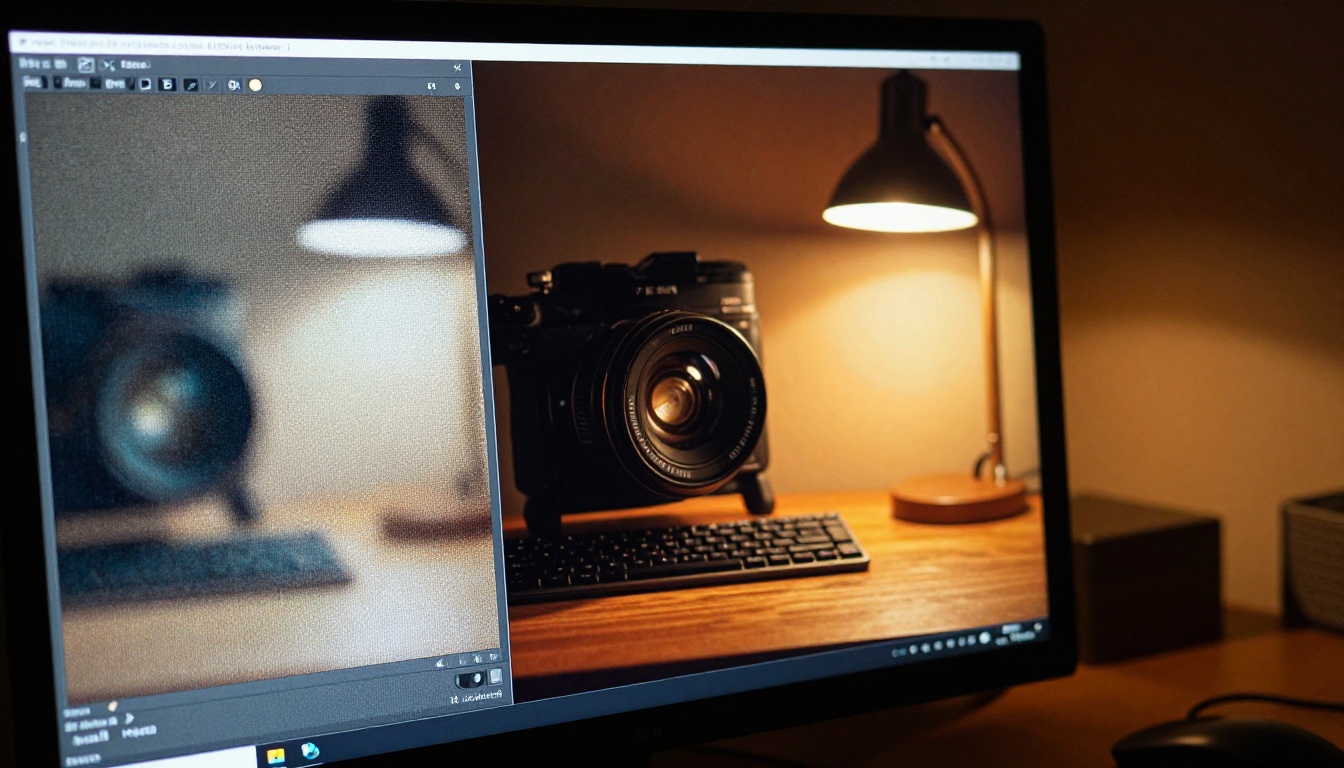
Real ESRGAN is a dedicated AI upscaler available on PicassoIA. It takes any image and increases resolution by 2x or 4x without the blurriness or artifact smearing that comes from simple bicubic pixel interpolation.
The two-step production workflow:
- Generate with FLUX.2 Max at 2 MP
- Pass the output through Real ESRGAN at 4x scale
The result is an 8 MP image with reconstructed fine detail, sharp edges, and no compression noise added in the process.
For portrait images specifically, Real ESRGAN includes a face restoration option that runs a separate sharpening pass on facial regions, recovering soft eyes, over-compressed skin texture, and hair detail that can sometimes blur during the initial generation at lower resolutions. This makes the combination especially useful for editorial portrait work that needs to hold up at full page sizes.
The entire workflow runs in the browser on PicassoIA. No desktop software, no GPU configuration, no file transfer between apps required at any point.
Real-World Use Cases
Product Photography, Without a Studio
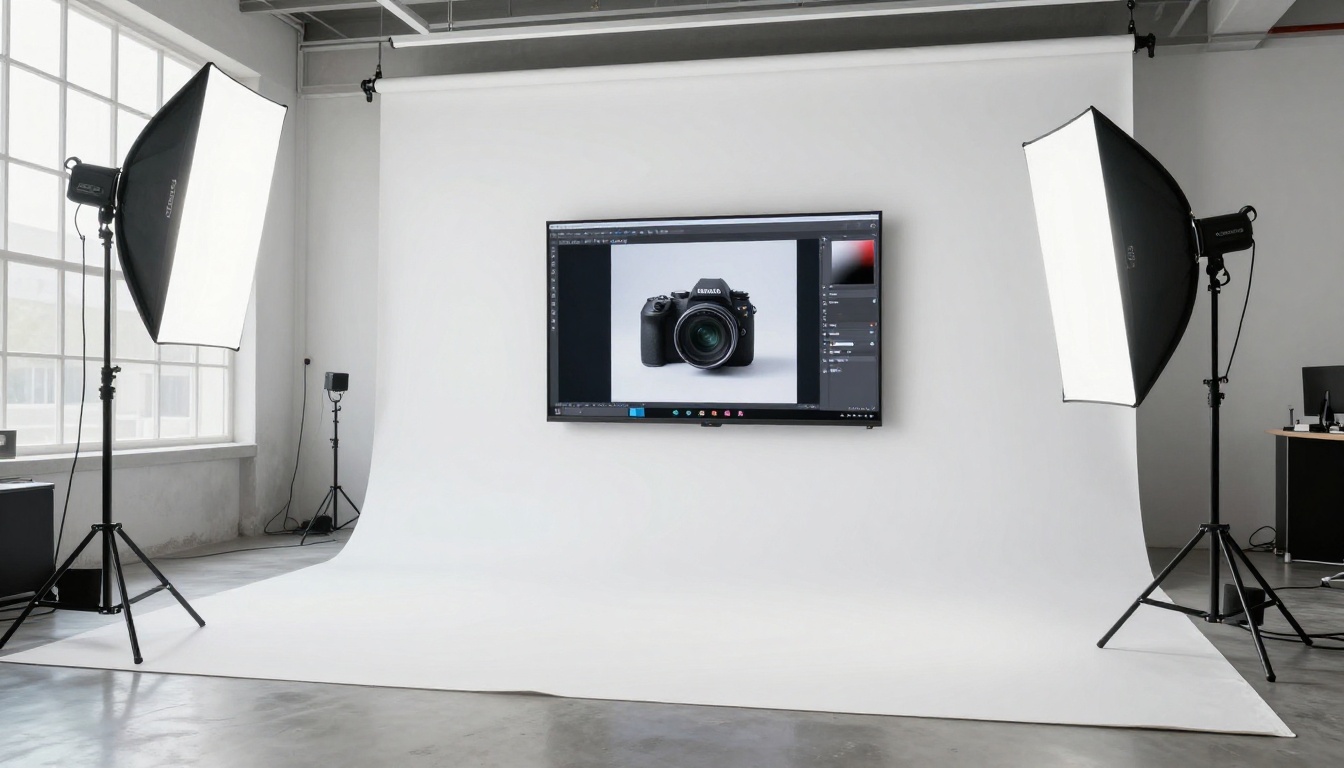
Traditional product photography requires a physical set, lighting equipment, a photographer, and post-processing time measured in days rather than minutes. With FLUX.2 Max, you describe your product in a new setting, specify the surface texture and lighting direction, and get a photorealistic result in seconds.
For products already photographed, upload the existing shots as reference images and describe the new background or context you need. The model maintains the product's visual accuracy while changing everything surrounding it.
This works well for:
- E-commerce listings that need multiple background variants for A/B testing without separate shoots
- Seasonal campaign assets where the same product needs different contextual settings
- Concept visualization before committing to a full production shoot budget
Content Creation at Scale
Content teams face a constant demand for original visuals. Stock photography is expensive, licensing is restrictive, and repeated use of the same images across multiple posts erodes audience trust. FLUX.2 Max generates original images for articles, social posts, and email campaigns directly from descriptive text, with no licensing overhead.
The seed parameter is particularly valuable in this context. Set a seed and generate a series of images for a campaign with consistent visual character, then slightly adjust the prompt for each individual asset while keeping the same aesthetic foundation running across the full set.
Mood Boards and Visual Direction
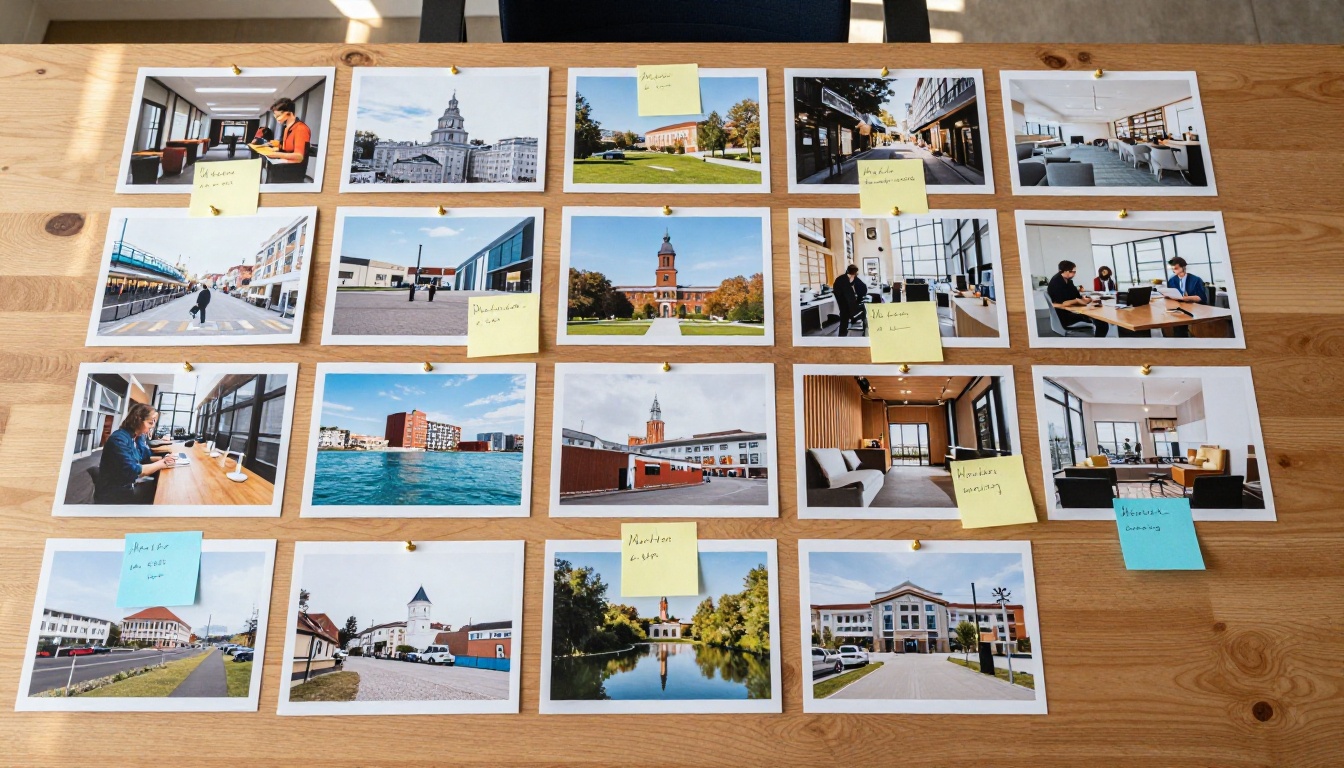
Art directors use mood boards to align visual direction with clients before any real production work begins. Generating mood board imagery with FLUX.2 Max is faster and more specific than sourcing from stock libraries, and the outputs can be styled exactly to the brief rather than approximating it from whatever stock happens to be available.
Upload two or three existing images that represent the desired visual direction and use them as references. Describe the specific scene or subject you need for the board, and FLUX.2 Max generates imagery that fits the established palette, tone, and composition style without manual post-processing to make the outputs feel cohesive.
Portraits and Editorial Photography
Portrait generation is where the 4 MP resolution matters most. At lower resolutions, facial details soften and skin texture disappears. At 2 to 4 MP, FLUX.2 Max renders individual hairs, realistic iris detail, and accurate skin texture at a level that holds up in editorial contexts, both on screen and at moderate print sizes.
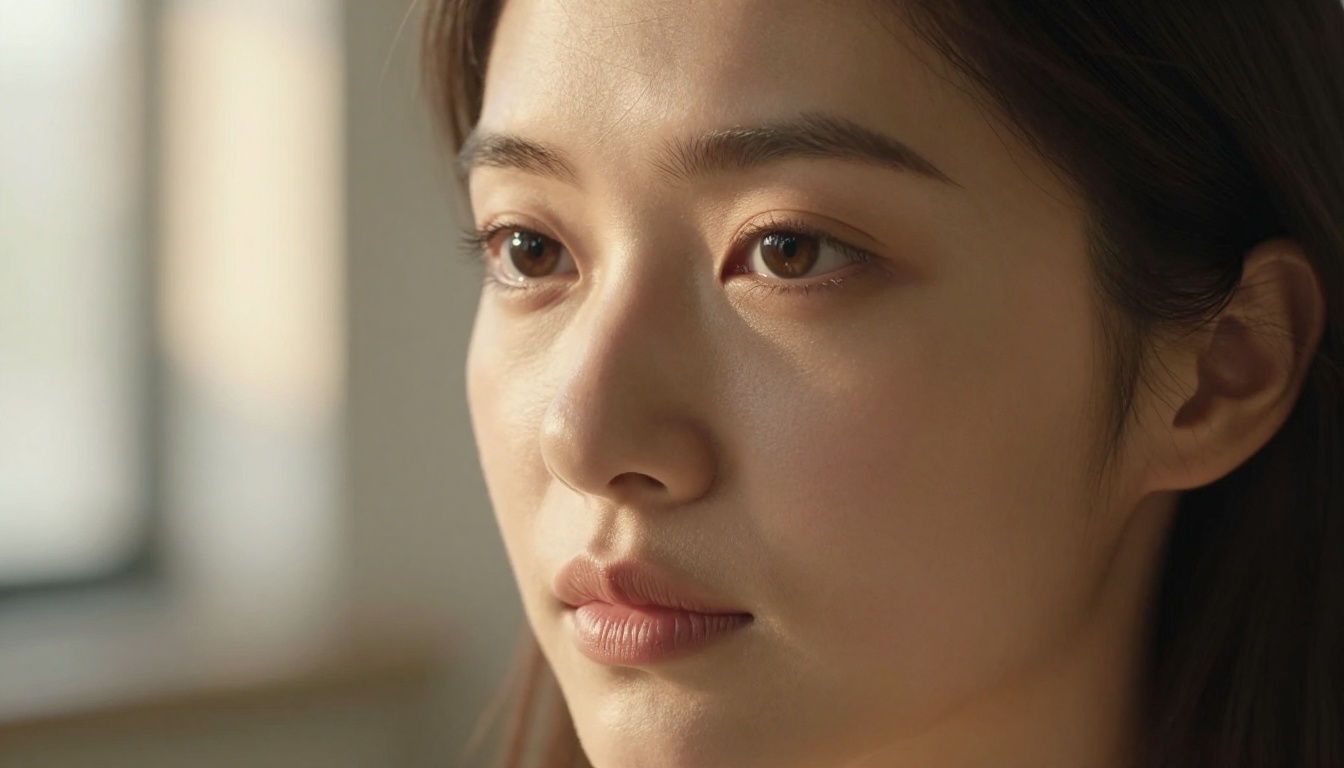
For portrait work, including a telephoto lens reference in your prompt produces the background compression and subject separation that reads most like professional portrait photography. Prompts that include "85mm f/1.4" or "135mm f/2.0" consistently generate images where the subject sits cleanly against a softly blurred background, creating the visual separation that makes portrait photography feel intentional rather than casual.
Try FLUX.2 Max on PicassoIA
FLUX.2 Max is available on PicassoIA with no credit limits, no watermarks on downloaded files, and no account required to start generating. Write your first prompt, pick your resolution, and see what 4 megapixels of photorealistic AI imagery looks like in your browser within seconds.
For fast iteration during early ideation, start with Flux Schnell to test a dozen prompt variations quickly, then bring the strongest candidates into FLUX.2 Max for production-quality final outputs. For images that need to go beyond 4 MP for commercial print work, pair FLUX.2 Max with Real ESRGAN to reach full print resolution in a second browser-based step.
PicassoIA has over 185 text-to-image models available, including Flux Pro for tight prompt following, Flux Dev for image editing and style transfer workflows, and specialized models for every visual style and output format. Each one runs in your browser with no setup required.