How to Use Kling 3.0 for Adult Video Projects: A Real Creator's Playbook
Kling 3.0 is the video model that gives adult AI creators real control over motion, aesthetics, and output quality without constant content blocks. This article walks through the full workflow: choosing the right source image with Seedream 4.5, dialing in motion prompts, picking the correct Kling variant, and pairing it with the best NSFW-friendly tools on PicassoIA to produce polished, professional results at scale.
Kling 3.0 is currently the most capable image-to-video model available for adult content projects, and the gap between it and older approaches is not small. If you have been relying on text-to-video prompts alone, or working around models that keep softening your outputs until they look like stock footage, this workflow will change how you produce content. The combination of a high-quality source image and a precisely written motion prompt is what separates clips that feel filmed from clips that feel generated.
What Kling 3.0 Actually Does
Before running a single generation, it helps to know exactly what Kling 3.0 is doing. The model takes a source image and a motion prompt, then synthesizes realistic video frames that maintain the subject's identity, lighting, and composition while adding the movement you describe. The result is video that feels shot, not rendered.
The Three Kling 3.0 Variants on PicassoIA
PicassoIA hosts multiple Kling 3.0 variants, each tuned for different use cases:
Kling v3 Video: The flagship cinematic model. Best for scenes that need slow, deliberate motion and the highest visual fidelity.
Kling v3 Omni Video: A versatile version that handles both text-to-video and image-to-video in one pipeline. Good for creators who iterate fast.
Kling v3 Motion Control: When you need a specific camera movement or body gesture, this variant gives you granular control over exactly what moves and how.
Why Adult Creators Choose Kling
Kling's edge over other models comes from three things. First, subject consistency: the model keeps faces, body shapes, and clothing details intact across all frames. Second, motion realism: hair, fabric, and water behave like real physics rather than CGI approximations. Third, output at 1080p means your video holds quality even after export and platform compression. For creators who need their content to feel premium, these factors matter every single frame.
The content ceiling is also meaningful. Kling 3.0 handles suggestive, glamorous, and non-explicit NSFW content with far less aggressive softening than many competing models. The output you ask for is much closer to the output you receive.
Building the Perfect Source Image
Kling 3.0 is an image-to-video model. The quality of your output is almost entirely determined by the quality of your starting image. This is not a step to rush.
Seedream 4.5: The Right Tool for NSFW Stills
Seedream 4.5 is the recommended starting point for generating source images for adult projects. It produces 4K outputs with exceptional skin detail, natural lighting, and realistic fabric textures. More importantly for this workflow, it handles suggestive and non-explicit NSFW prompts without softening the result into something unusable.
Your generation prompt for Seedream 4.5 should follow this structure:
[Subject description: body type, hair, skin tone] + [Clothing: material, fit, coverage] + [Pose and expression] + [Environment and lighting] + [Camera angle and lens] + [Style modifiers: photorealistic, 8k, film grain]
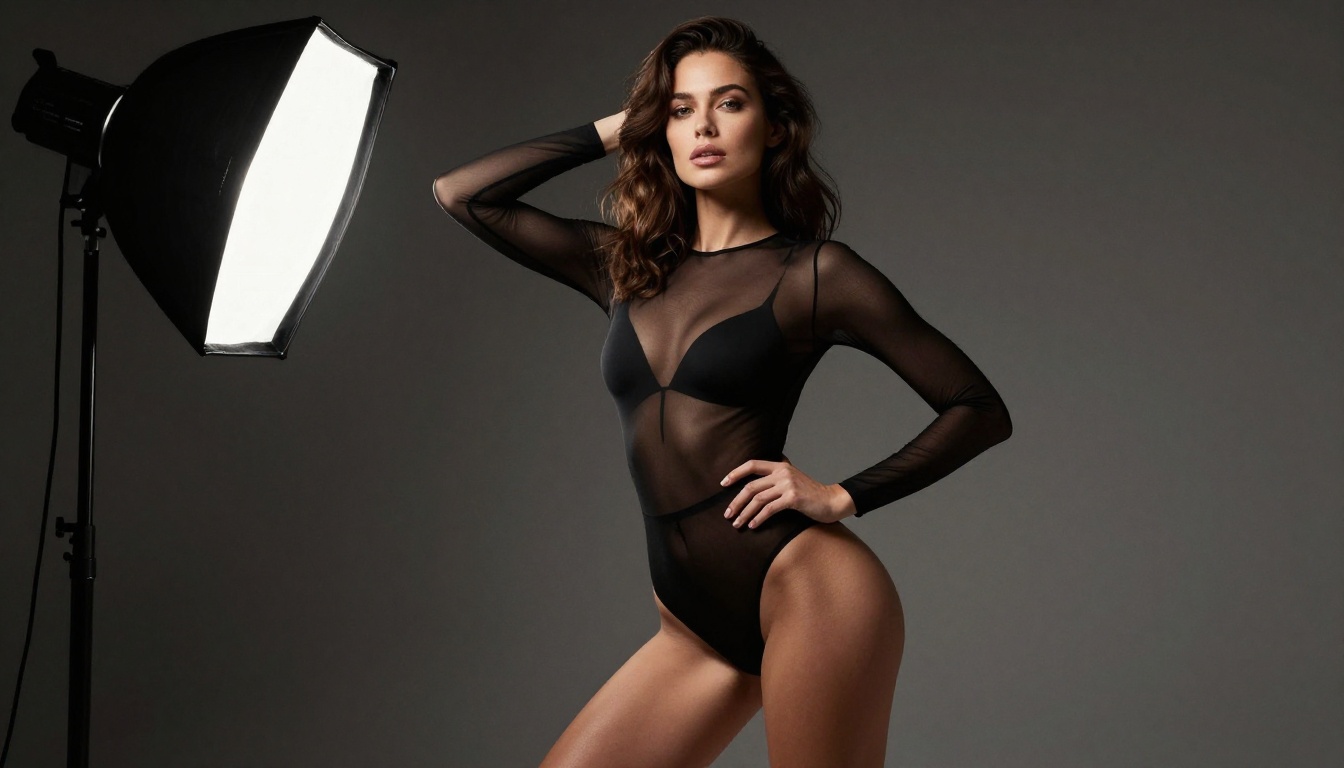
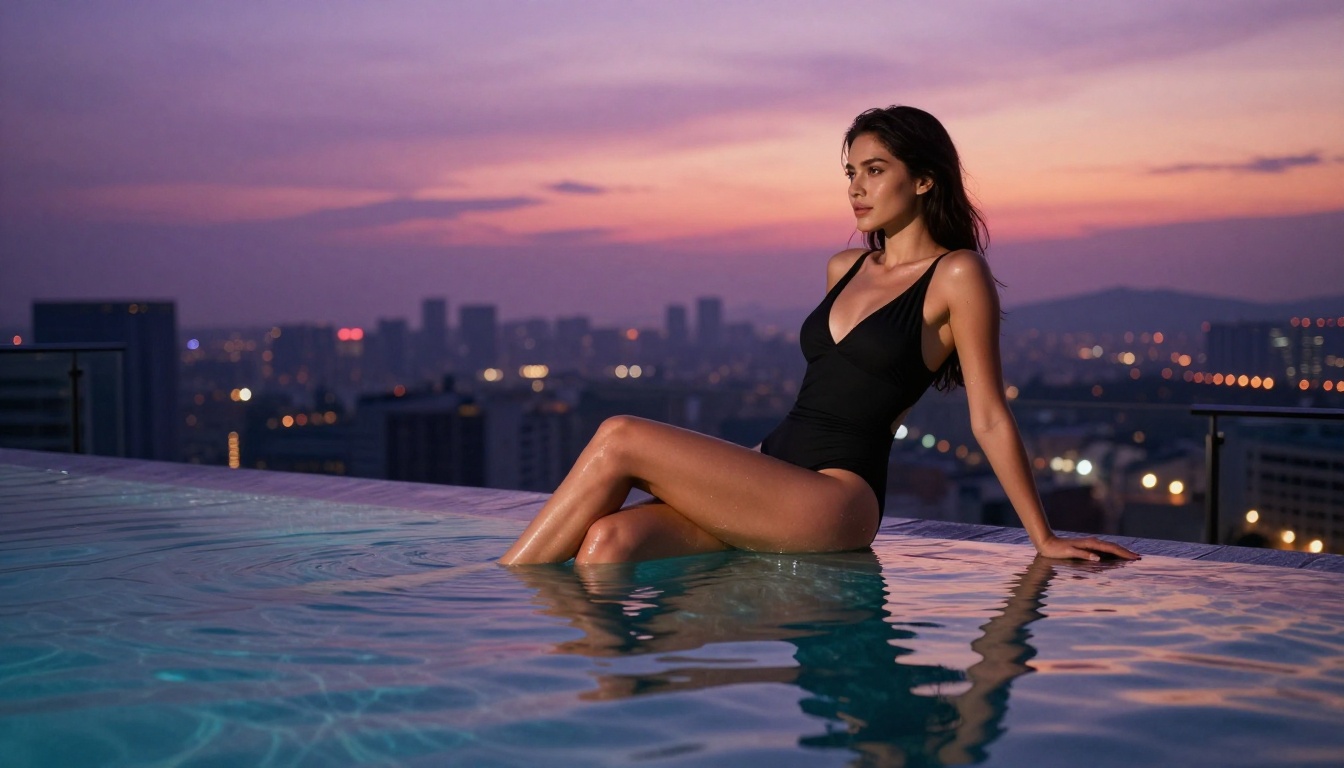
A prompt like "confident woman in black silk bikini standing by hotel window at golden hour, direct eye contact, 85mm f/1.8, photorealistic, Kodak Portra 400 film grain" will produce a source image that Kling can work with far more effectively than a vague description. Specificity in the still image translates directly to quality in the final video.
💡 One critical rule: avoid generating images with extreme poses or foreshortened limb positions. Kling 3.0 handles upright, natural poses with much higher fidelity than contorted ones. Start with the subject standing, sitting, or reclining naturally.
One thing to be explicit about: do not use Seedream 5 Lite for adult content projects. It applies stricter content filtering and will consistently water down suggestive prompts. Seedream 4.5 is the correct choice here.
PicassoIA Image Editor Pro for Refinement
Once you have a strong source image, PicassoIA Image Editor Pro lets you refine specific areas without regenerating the whole image. Use inpainting to fix a distracting background element, sharpen facial detail, or correct lighting in one zone. Unlimited generations mean you can iterate until the frame is exactly right before spending any video credits.
Prompt Structure That Actually Works
The biggest mistake creators make when generating source images is under-describing. A short prompt gives the model too much freedom, and you get a generic result instead of a specific one. Prompts that consistently yield strong Kling source material are 80 to 120 words and describe the scene as precisely as a cinematographer would brief a set photographer.
Pay particular attention to:
Lighting direction and quality: "volumetric morning light from the left" beats "nice lighting"
Lens and depth of field: "85mm f/1.4 shallow focus" gives the model a specific rendering target
Surface texture descriptors: "matte silk, visible fabric weave, no sheen" prevents the flat plastic look
Skin detail: "natural skin texture, visible fine pores, warm undertone" prevents the airbrushed AI look that makes video generation harder
Settings That Move the Needle
Once your source image is ready, getting the generation settings right determines whether the output is usable or a reshoot.
Resolution and Duration
For adult content projects, always generate at 1080p. This is non-negotiable if you plan to distribute the output at full quality. Standard duration is 5 seconds at 24fps: long enough to capture a meaningful motion cycle, short enough to run multiple iterations within a reasonable budget.
If you need longer video, the right approach is to chain clips: generate 5-second segments with consistent subject and lighting, then assemble them in sequence. Trying to force a single long generation produces worse motion quality than chaining short, sharp clips that each do one thing well.
Motion Intensity and Negative Prompts
Kling 3.0 responds well to explicit motion descriptions. Instead of writing "she moves," write "slow turn of the head to the left while hair lifts slightly in a breeze, camera holds steady at medium distance." The more your prompt reads like a director's on-set instruction, the more consistent the output.
For negative prompts, include: morphing, distorted limbs, extra fingers, flickering, low resolution, cartoon, CGI, blurry, choppy motion, warping background. These target the most common failure modes and eliminate most of them before the generation runs.
💡 Motion intensity tip: If the model produces too little movement, add "continuous flowing motion" to your prompt. If it over-moves and starts distorting the subject, add "subtle" and "gentle" as qualifiers before the motion description.
Aspect Ratio for Your Target Platform
Platform
Recommended Ratio
Notes
Web / desktop
16:9
Default, native Kling output
Instagram Reels
9:16
Generate source image at 9:16 first
OnlyFans clips
9:16 or 1:1
Match platform preview dimensions
YouTube
16:9
No adjustment needed
Twitter / X video
16:9 or 1:1
Crop after generation if needed
For 9:16 content, generate your source image at 9:16 in Seedream 4.5 and pass that directly to Kling. Cropping a 16:9 video after generation loses the top and bottom of the frame and rarely produces a clean result.
How to Run Kling v3 on PicassoIA Step by Step
Step 1: Open the Model
Navigate to Kling v3 Video on PicassoIA. You will see two primary input fields: the image upload and the motion prompt.
Step 2: Upload Your Source Image
Upload the image you generated with Seedream 4.5, refined if necessary with PicassoIA Image Editor Pro. The model accepts JPG and PNG. If your source image is very large, resize it to 1920x1080 before uploading. Oversized inputs can slow generation without improving output quality.
Step 3: Write the Motion Prompt
Follow the director's instruction format. Describe what happens from frame 1 to frame 5 in plain terms. Then close with camera and lighting notes: "camera holds steady," "slow dolly forward," "warm side light from left remains consistent." The closing notes prevent Kling from making autonomous camera decisions that might not fit your scene.
Step 4: Submit and Review
PicassoIA queues your generation and returns an MP4. Average wait time is 60 to 90 seconds. Do not resubmit while waiting: the server-side rate limit means rapid resubmission queues additional slots sequentially rather than speeding things up. Review the output fully before deciding to iterate.
If you are building a series of clips around a specific character, Kling Avatar v2 is the right tool. It locks in a face reference across multiple scenes, so your subject looks the same in every clip even when the background, outfit, or lighting changes between generations. This is one of the most frequently requested features for adult content creators who build series around recurring personas.
Kling vs Other Video Models for Adult Content
The right model depends on your specific project. Here is how the top options on PicassoIA compare for this use case.
Wan 2.7 I2V
Wan 2.7 I2V is the strongest open-weight alternative. It produces solid 1080p results with good subject consistency, and it tends to be more permissive with suggestive content than some proprietary models. The weakness compared to Kling 3.0 is in fine fabric motion: silk, lace, and sheer materials appear slightly stiffer in Wan outputs than in Kling's.
Seedance 2.0
Seedance 2.0 includes built-in audio generation, which Kling does not. If your project requires synchronized ambient sound or background music baked into the clip, Seedance 2.0 is the better choice for that specific requirement. For silent video or projects where audio is added in post, Kling 3.0 produces sharper subject fidelity and more realistic motion.
Pixverse v5
Pixverse v5 is fast and handles artistic and stylized outputs well. For creators who want a slightly more editorial or high-fashion look rather than raw realism, Pixverse v5 is worth testing. For photorealistic skin, hair physics, and subject consistency across a long clip, Kling remains the stronger option.
💡 Quick decision rule: If realism and identity consistency are your top priorities, use Kling v3. If you need built-in audio, use Seedance 2.0. If you want a faster, stylized look, try Pixverse v5.
You can also use P Video as a free starting point for testing motion prompt variations before committing to premium model credits. The output quality is lower, but it is useful for confirming that a motion prompt structure will behave the way you expect before running it through Kling.
The Three Mistakes Most Creators Make
Starting With a Low-Quality Source Image
The most common failure is submitting a weak source image and expecting Kling to compensate. It will not. If the source image has overexposed skin, unnatural proportions, or an awkward pose, the video will amplify those problems across 5 seconds of motion. Generate multiple source images with Seedream 4.5 and select the strongest one before you use any video credits. The image selection step is where most of your quality is determined.
Ignoring Negative Prompts
Kling 3.0 without negative prompts will occasionally produce flickering frames, finger anomalies, or background warping. These are predictable failure modes that a well-written negative prompt eliminates almost entirely. Write your negative prompt once, save it in a text file, and apply it to every generation. This is a one-time investment that pays off on every clip you run.
Submitting Multiple Requests Before the First Result Returns
The rate limit between video submissions is not a bug. It protects output quality by preventing queue saturation. Submitting three requests in 10 seconds does not speed up production: it creates three queued slots that process sequentially anyway, often at lower priority than a single, deliberate submission. Work one clip at a time. Review the output. Then iterate.
Production at Scale
Batching Your Image Pipeline
At higher output volumes, the bottleneck is not video generation: it is source image creation. Structure your workflow so you generate a batch of 10 to 20 source images with Seedream 4.5 in a single session. Review them all, rank them, and eliminate the weaker ones. Then run Kling on your top picks. This two-phase approach is faster and wastes fewer credits than alternating between image and video generation one clip at a time.
Prompt Templates That Convert
Build a small library of motion prompt templates that work consistently for your subject type and content category. A reusable template looks like this:
[Subject] is in [environment].
[Specific motion action over 5 seconds].
Camera [camera behavior].
[Lighting note].
[Mood qualifier].
Negative prompt: morphing, distorted limbs, flickering, CGI, cartoon, blurry.
Fill in the variables per scene. This keeps outputs visually consistent across a content series and cuts prompt writing time dramatically once you have identified the template that works for your subjects.
Working With Your Credit Budget
PicassoIA Image Editor Pro offers unlimited image generations, which means the entire image preparation phase costs nothing extra. Reserve your video credits for generations where the source image is already at 9/10 quality. A practical rule: if you would not post the still image by itself, do not spend a video credit on it.
For testing new prompt approaches, use Kling v2.6 Motion Control before committing to a full Kling v3 generation. The motion control variant is cost-efficient and excellent for confirming that a motion prompt will behave the way you expect before running it through the flagship model.
Start Creating on PicassoIA
The combination of Seedream 4.5 for source image generation, PicassoIA Image Editor Pro for refinement, and Kling v3 Video for motion is where most serious adult AI creators land once they have tested the full landscape. The image quality is there. The motion realism is there. The character consistency across a series is there.
Start with one source image and one motion clip. Review the output carefully. Adjust the prompt based on what the model does with your specific subject, pose, and lighting. Within three to five iterations, you will have a repeatable workflow that produces professional results every time.
For creators who need Kling Avatar v2 for persona consistency, or who want to add synchronized audio with Seedance 2.0, or who need the speed of Pixverse v5 during high-volume production runs: all of these tools are available in one place.
Browse the full catalog of over 87 video models and 91 image generation models at picassoia.com/en/all-models to find the right combination for your specific content type and production workflow.