Every creator has been in this situation: you have a clear image in your head and no practical way to produce it without a camera, a location, and hours of post-processing. Nano Banana Pro changes that equation. Type a description of what you want, hit generate, and a sharp image at up to 4K resolution is ready in seconds. No subscription friction, no coding, no editing session afterward.
This article walks through exactly how it works, what the settings actually do, and how to get the most out of each feature, from prompt writing to reference image input to aspect ratio selection.
What Nano Banana Pro Actually Does
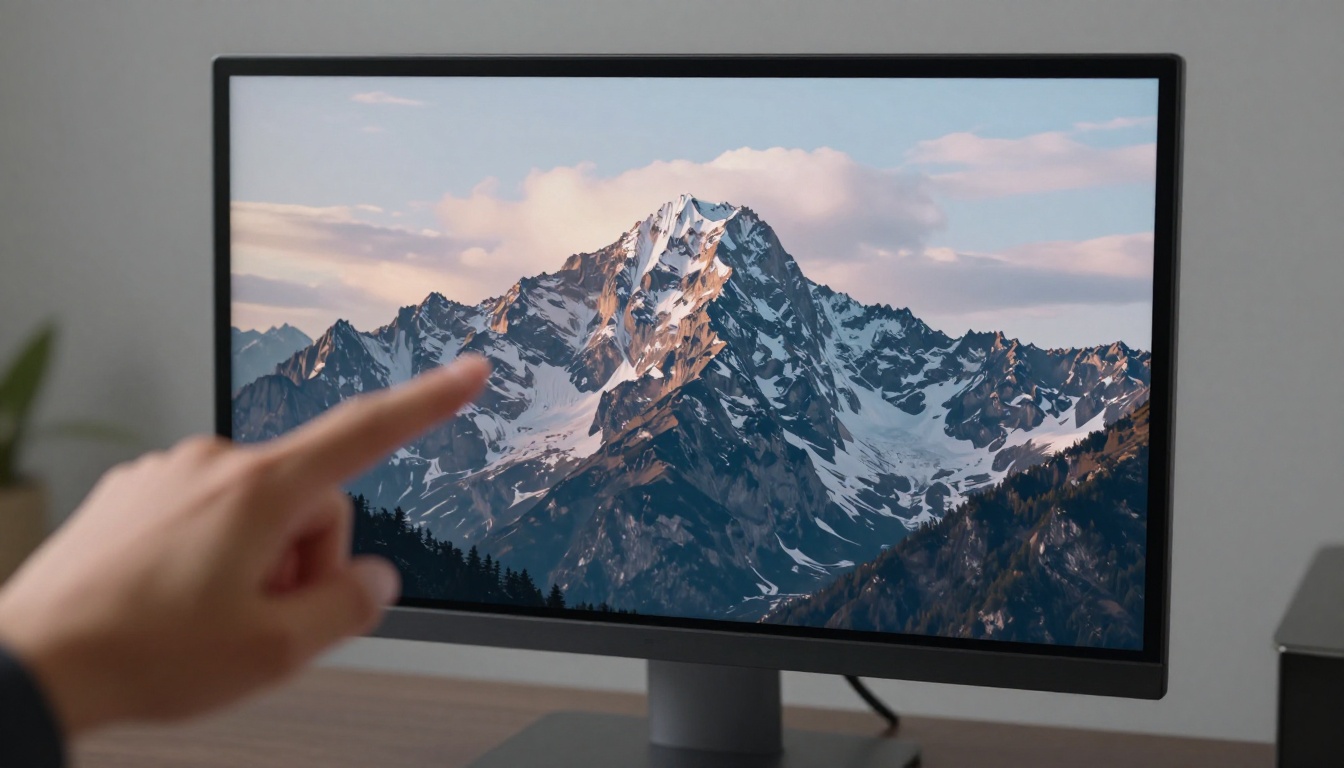
Nano Banana Pro is a text-to-image model that takes a written prompt and renders a photorealistic image at resolutions up to 4K. What separates it from basic generators is the combination of high output resolution, reference image support, and clean file export with no watermarks.
The model runs entirely in the browser. There is no local installation, no GPU requirement on your machine, and no proprietary format to deal with. You write your prompt, set your options, and the output lands as a downloadable JPG or PNG file ready for immediate use.
Three things it does that matter
- Renders at 1K, 2K, or 4K depending on what your project needs, from quick web thumbnails to print-ready files
- Accepts up to 14 reference images alongside your text prompt, so you can show the model exactly what style or subject direction you want
- Outputs clean files in JPG or PNG with no watermark, ready to drop directly into any design workflow
💡 The 4K output is not just a bigger pixel count. It holds fine texture detail, shadow gradients, and depth that simply do not survive at lower resolutions. If you are making anything for print or large displays, render at 4K from the start.
Writing Prompts That Produce Usable Images
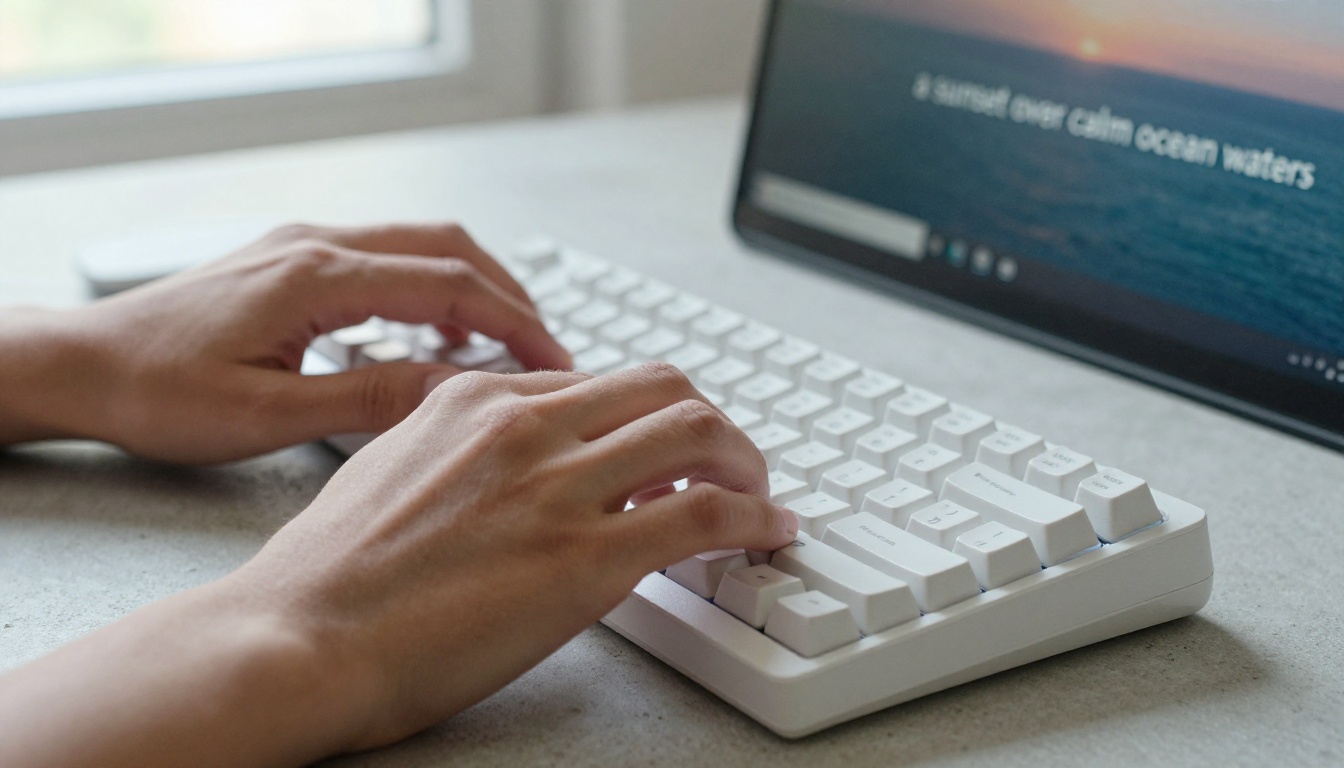
The biggest mistake most first-time users make is writing prompts that are too short. "A sunset" is not a useful prompt. "A wide ocean horizon at golden hour with soft pink clouds reflected in still water, shot at 35mm, photorealistic, natural lighting" is what the model needs to produce something worth using.
What to put in a prompt
Your prompt should cover four things in sequence:
- The subject: What is in the image and what is it doing?
- The environment: Where is it? What surrounds it?
- The lighting: Direction, color temperature, intensity
- The camera style: Focal length, depth of field, film stock if relevant
The model responds to photographic language. Terms like "85mm f/1.8", "volumetric morning light", "Kodak Portra 400 grain", and "shallow depth of field" consistently pull the output toward a more controlled, professional look.
What to avoid
- Avoid stacking too many competing ideas in one prompt. One clear subject with a detailed environment beats three vague concepts crammed together
- Do not ask for text within the image unless you specifically need it, as the model handles typography inconsistently
- Avoid overly abstract descriptions without visual anchors. "A feeling of calm" produces inconsistent results. "A still mountain lake at dawn with soft mist on the water" produces something you can actually use
💡 If your first result is close but not exactly right, change one variable at a time rather than rewriting the whole prompt. Adjust the lighting first, then the environment, then the composition.
Choosing the Right Resolution Setting
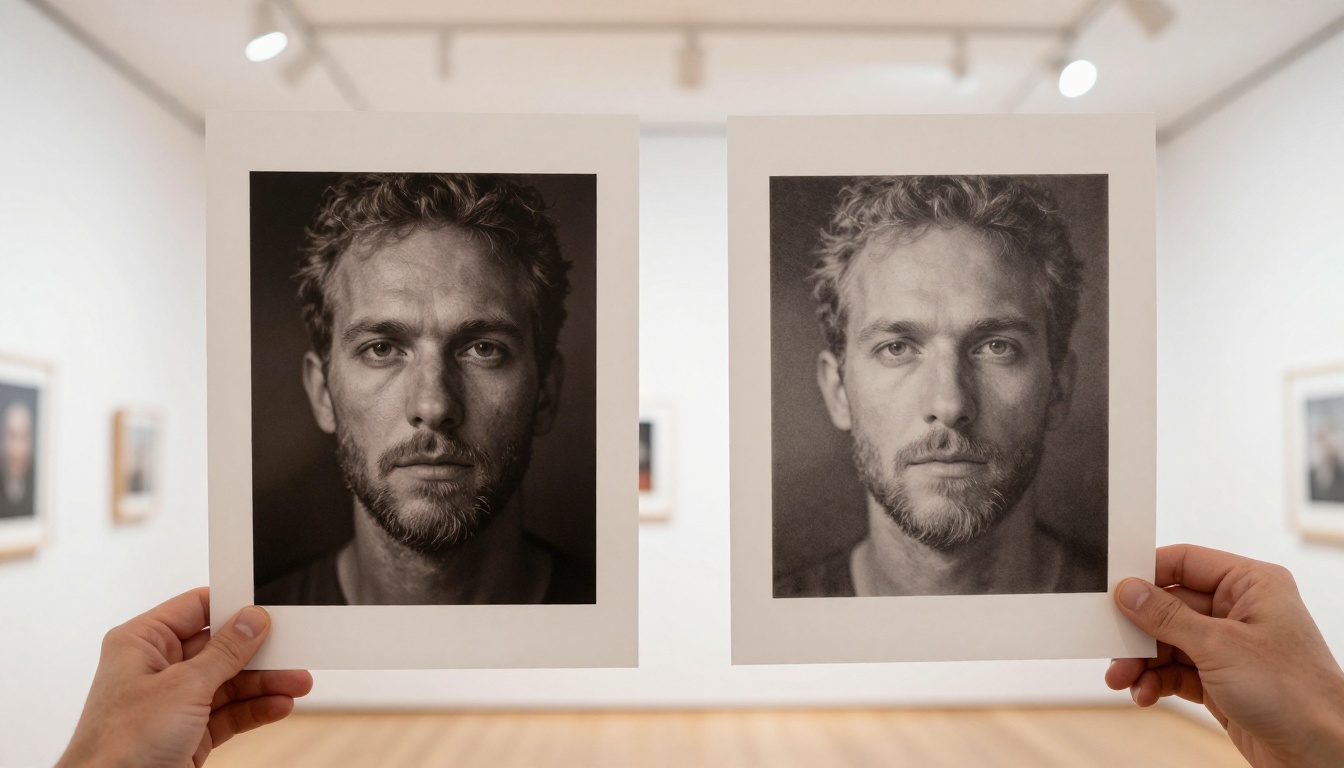
Nano Banana Pro offers three resolution tiers: 1K, 2K, and 4K. Each has a practical use case and generation time varies accordingly.
| Resolution | Best For | Generation Speed |
|---|
| 1K | Quick prototypes, social thumbnails | Fastest |
| 2K | Website images, digital presentations | Moderate |
| 4K | Print materials, large display use | Longest |
The default is 2K, which is a sensible middle ground for most digital work. When you are still iterating on a concept, stay at 2K or 1K. Once you have the image direction locked, run a final 4K version.
For social media content, 2K is more than enough. For a banner that will be printed at large format or displayed on a high-resolution screen wall, you want 4K.
A note on generation time
Higher resolution takes longer. A 4K image on a complex prompt can take noticeably more time than a 1K version of the same prompt. Run at 1K or 2K during iteration rounds, then switch to 4K for the final output once you are happy with the composition, lighting, and subject placement.
This two-phase approach, iterate fast then render high, cuts total generation time significantly compared to running at 4K on every test.
Using Reference Images Effectively
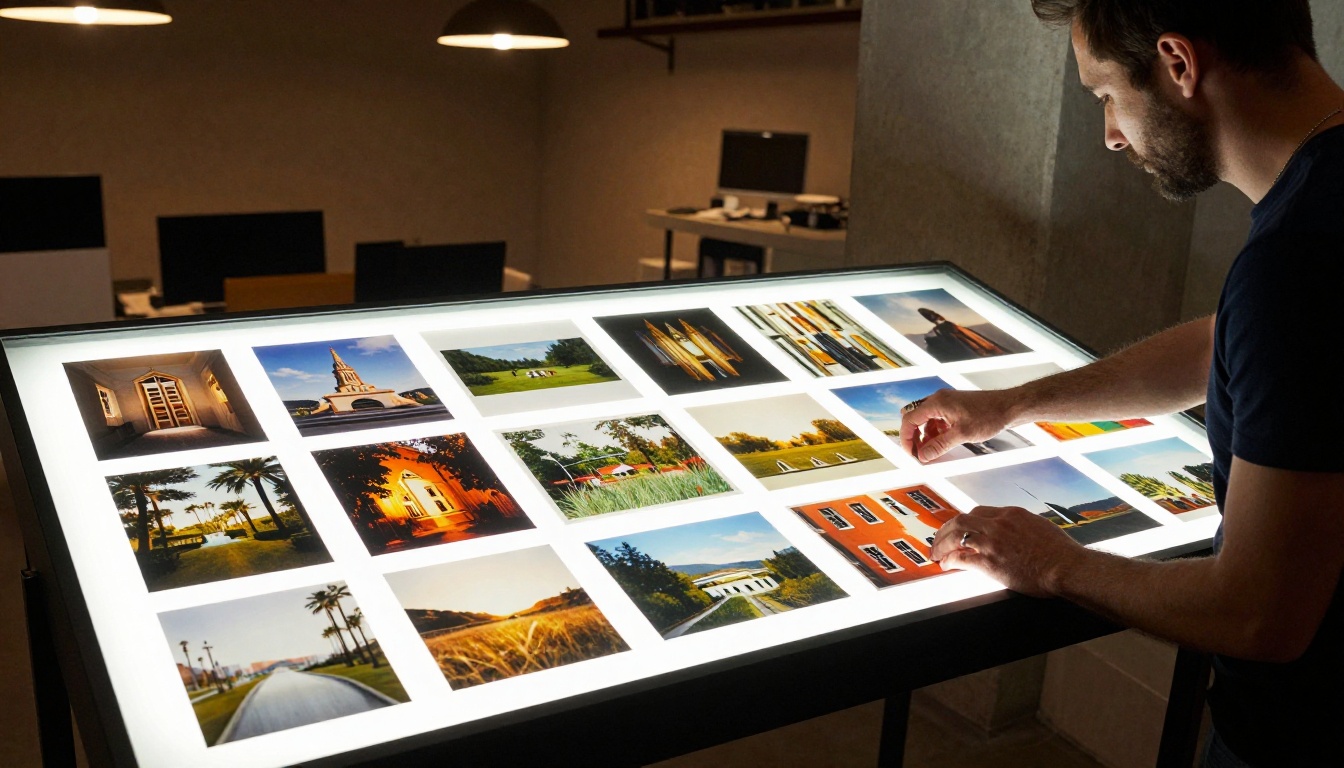
The reference image input is one of the most powerful and underused features in Nano Banana Pro. The model accepts up to 14 images alongside your text prompt. Those images provide visual context that words alone cannot deliver.
What reference images actually do
Think of reference images as a visual brief. The model reads both the images and the text together, then synthesizes them into the output. If you want an image with the color palette of one photo and the subject positioning of another, you can upload both as references and describe what you want in the prompt.
This is where the tool moves beyond basic text-to-image generation and becomes genuinely useful for professional workflows. You are not hoping the model guesses your aesthetic from vague language. You are showing it.
Practical ways to use references
- Style matching: Upload 2 to 3 images with a consistent look you want to reproduce
- Subject variation: Use an existing product photo and prompt the model to place that product in a different environment
- Composition reference: Upload a photo with the framing and layout you want, then change the subject and setting through your text prompt
- Lighting direction: A reference image with specific lighting geometry communicates more precisely than describing it in words
💡 References work best when they are visually coherent. Uploading 14 wildly different images sends conflicting signals to the model. For style matching, 3 to 5 tightly related references tends to outperform a large mixed set.
The model supports 11 aspect ratio presets covering the most common formats you will encounter in design work. Setting the ratio before generating matters because the model composes differently depending on the canvas shape.
Available aspect ratios
| Ratio | Use Case |
|---|
| 16:9 | YouTube thumbnails, website banners, presentations |
| 9:16 | Instagram Stories, TikTok, Reels |
| 1:1 | Instagram feed posts, profile images |
| 4:3 | Standard web images, blog headers |
| 3:4 | Portrait photography, Pinterest |
| 21:9 | Cinematic headers, widescreen banners |
| 2:3 | Book covers, poster formats |
Setting the aspect ratio before you generate is important. Cropping after the fact often cuts off compositional elements the model placed intentionally within the chosen frame. A 9:16 prompt composes the subject differently than a 16:9 version of the same scene.
JPG vs PNG
The output format choice is straightforward. JPG gives you a smaller file size suitable for web and digital use. PNG gives you lossless quality with transparency support if your workflow needs it.
For most digital content, JPG at 4K provides more than enough quality. Use PNG when you are layering the image in a design tool and need a clean edge or transparent background.
How to Run It on PicassoIA
The model runs directly in the browser at PicassoIA. Here is the step-by-step process from opening the model to downloading your image.
Step 1: Open the model
Go to picassoia.com/en/collection/text-to-image/google-nano-banana-pro. The model page shows the input panel on the left and the output preview area on the right. No account is required to generate your first image.
Step 2: Write your prompt
Type your description in the prompt field. Be specific. Include the subject, environment, lighting, and camera style. The more visual information you give, the closer the output will match your intent.
Example prompt: "A flat lay photograph of a leather wallet, keys, and a phone on a dark slate surface, soft diffused overhead studio lighting, shot at 50mm f/4.0, photorealistic product photography, fine texture detail on leather grain"
Step 3: Add reference images (optional)
Click the image input area and upload up to 14 reference photos. These can be your own images, stock photos, or existing brand assets. The model treats them as visual context alongside your prompt.
Step 4: Set your parameters
- Aspect Ratio: Choose the preset that matches your target canvas
- Resolution: Set to 4K for final outputs, 2K for iteration rounds
- Output Format: JPG for web and digital use, PNG when you need transparency
- Safety Filter: The default setting works for most creative and commercial content
Step 5: Generate and review
Click generate. The model processes the request and displays the output in the preview panel. If the result is close but not exactly right, adjust the prompt by modifying one specific element and generate again.
Step 6: Download your image
Once you have an image worth keeping, download it directly from the preview panel. The file is clean, no watermarks, and immediately usable in any design tool or publishing platform.
💡 Save your best prompts in a notes document. A well-crafted prompt combined with the right reference images can be reused with small adjustments to produce a consistent series of images for the same project or campaign.
Real Projects to Try Right Now
Product mockups without a shoot
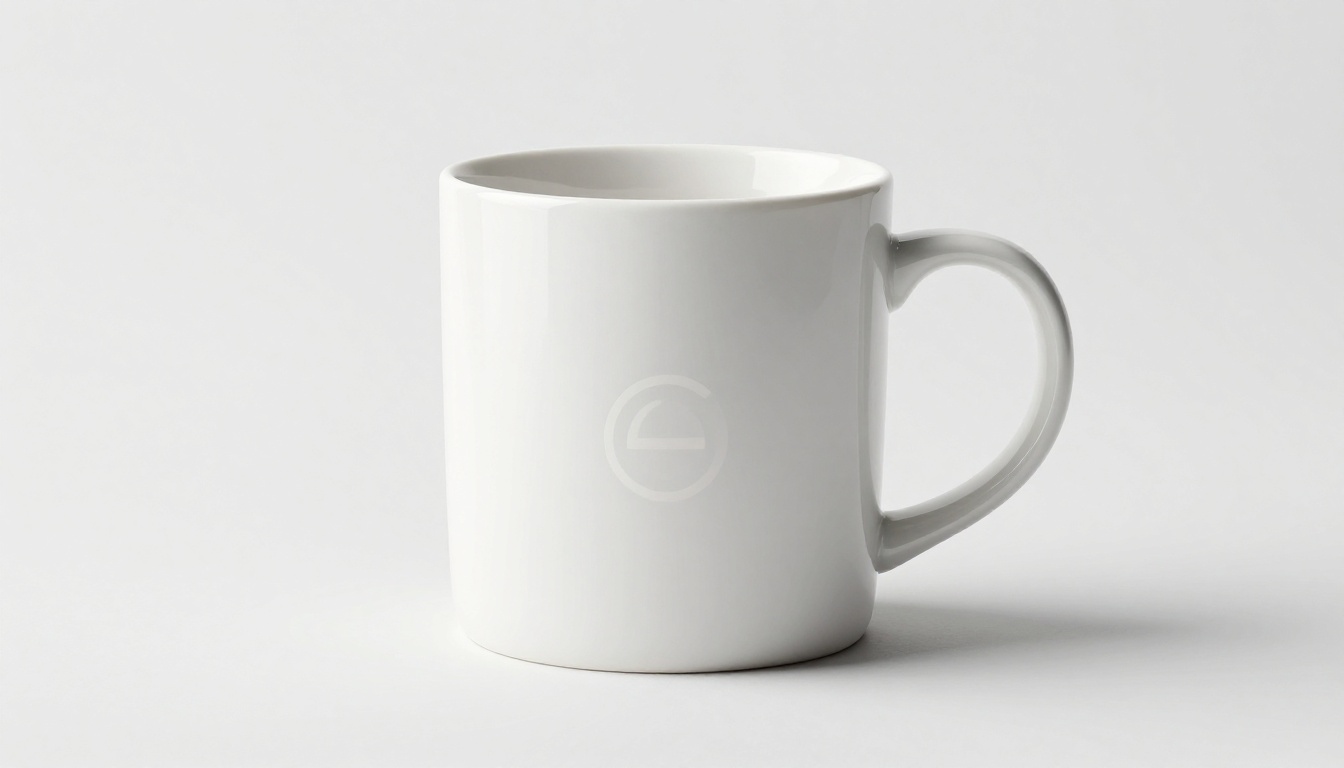
One of the most immediate practical uses for Nano Banana Pro is product mockup generation. Instead of renting a studio, sourcing props, and hiring a photographer, you write a description of the product on the background you want and generate it.
This works particularly well for:
- E-commerce listings: Generate a product on a white seamless background with controlled studio lighting
- Concept visualization: Show a client how a product might look in a specific environment before committing to production
- Marketing materials: Produce product images matched to seasonal campaign aesthetics without a new photoshoot
The reference image input is especially useful here. Upload a photo of the actual product and prompt the model to place it in a different environment or lighting setup.
Social media visuals on demand
Social media managers deal with a constant content volume problem. Campaign briefs require multiple image variations per week, each matched to a specific platform format.
With Nano Banana Pro, you can generate a set of platform-specific images in one session. Write one core prompt, generate at 9:16 for Stories, then switch to 1:1 for feed posts, and 16:9 for banner images. The content stays thematically consistent across formats because the prompt and references stay the same across each run.
Backgrounds for presentations and websites
Background images for presentations, website hero sections, and video content are another strong use case. Describe the mood, color palette, and level of visual complexity you want, set the aspect ratio to 16:9, and generate at 4K for a background that holds up at full screen without pixelation.
For abstract backgrounds, prompt for natural textures: stone, water, fabric, or sky. These produce photorealistic results that feel curated rather than generated.
Campaign visual series
When a marketing campaign needs 10 to 20 images that feel visually related without being identical, Nano Banana Pro handles this well. Set up one strong base prompt, define 3 to 5 reference images that establish the visual direction, and run variations by changing the environment or subject position in each prompt iteration.
3 Common Mistakes That Kill Output Quality
Mistake 1: Vague prompts
A one-sentence prompt rarely produces a usable image. The model fills in the gaps with generic defaults. If the image looks generic or uninspired, the prompt is the first thing to revise. Add specific lighting conditions, a camera focal length, and a concrete environment. The output quality gap between a vague and a specific prompt is significant.
Mistake 2: Wrong resolution for the use case
Generating at 1K for a print project is a common waste of time. The result looks acceptable in the small preview but falls apart at actual print size. Set the resolution to match the final output destination before you start the iteration process. It takes longer but it saves you from discovering the problem after you have already settled on a composition.
Mistake 3: Too many competing references
Uploading 14 highly different reference images creates confused output. The model tries to blend everything and usually produces something that does not match any of your intended references well. Curate your reference set to 3 to 5 images that share a consistent visual direction: similar lighting, similar color palette, similar subject treatment. A tighter reference set gives the model a clearer visual brief to work from.
Nano Banana Pro covers a wide range of image creation tasks, but PicassoIA offers over 91 text-to-image models across different styles and technical strengths. You can browse the full collection at picassoia.com/en/all-models to find models optimized for portraits, product photography, artistic styles, and specialized creative workflows.
The platform also has capabilities that work well alongside image generation. Super Resolution lets you upscale an image you already have to 2x or 4x size without quality loss. Background Removal isolates subjects from generated images for use in layered designs. AI Image Restoration fixes noise, blur, or damage in source images before you use them as references.
These tools are all available within PicassoIA, which means your entire image workflow, from generation to post-processing, can happen in one place.
Start Creating With Nano Banana Pro
The best way to get comfortable with Nano Banana Pro is to open it and run a few prompts at 2K resolution. Pick something specific from your current work, write a detailed prompt following the four-part structure above, and compare the result to what you would normally produce by other means.
The model is free to use on PicassoIA. If you have an existing image you want to use as a visual reference, drop it into the reference input and see how the model interprets the combination of your text and your visual brief.
Start experimenting at picassoia.com/en/collection/text-to-image/google-nano-banana-pro. Your first 4K image is a prompt away.


