Reference images change everything. When you type a prompt alone, the AI is making hundreds of micro-decisions about color, lighting, pose, clothing, facial structure, and mood. Give it a reference image and suddenly those decisions are anchored to something real. The output becomes predictable, consistent, and actually close to what you had in mind.
This is not about describing an image in words. It is about showing the AI exactly what you want and letting the model do the translation. Here is how it actually works.
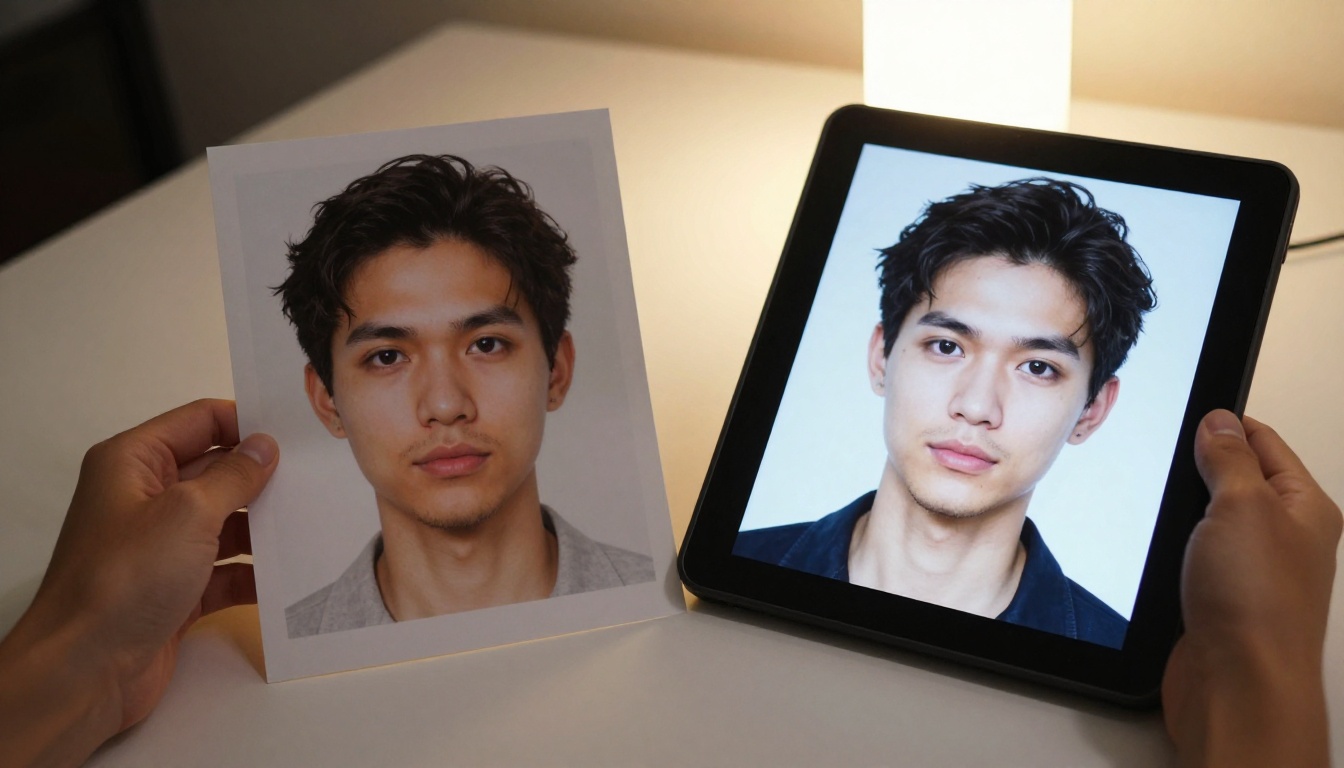
What Reference Images Actually Do
Most people think of AI generators as text-to-image machines. Feed in a prompt, get an image. But the most capable models today are multimodal: they accept both text and images as input, and the image input carries information that no amount of text can fully convey.
When you provide a reference image, you are giving the model a visual anchor. Depending on the tool and how you use it, that anchor can lock in:
- Style: The overall aesthetic, color grading, brush texture, or photographic look
- Subject: The specific person, object, or character you want reproduced
- Composition: Where elements sit in the frame, their relative scale
- Lighting: The direction, color temperature, and intensity of light sources
- Pose and structure: The body position, facial angle, or architectural layout
The model does not copy the reference pixel-by-pixel. It reads the visual information and uses it as a condition alongside your text prompt. The text tells it what to change; the reference image tells it what to keep.
Style vs. Subject vs. Composition
These three elements behave very differently when you use a reference image. Understanding the distinction saves you hours of failed attempts.
Style references work best when the reference image shares the same general subject as your prompt. Feed in a photo with dramatic chiaroscuro lighting and prompt for a portrait, and the model will apply that lighting logic to the new face you describe.
Subject references require the model to extract and transfer specific identity information: a face, a costume, a branded product. This is harder. Models that specialize in subject consistency, like Flux Redux Dev, are built specifically for this use case.
Composition references are the subtlest. You can upload a sketch or even a rough layout and the model will place elements in similar positions. ControlNet was built specifically for this, and it remains one of the most precise tools for composition control.
Why Prompts Alone Fall Short
A prompt like "woman in red dress, cinematic lighting, 35mm film" sounds specific. But it leaves the AI choosing: which woman? Which shade of red? Which film stock's color science? Which direction is the light?
Every one of those open-ended choices is an opportunity for the output to diverge from what you wanted. Reference images close those gaps. The more you can show rather than describe, the more control you have over the final result.
3 Ways to Feed References to AI
Not every AI tool handles reference images the same way. There are three distinct workflows, and each produces a different level of control.
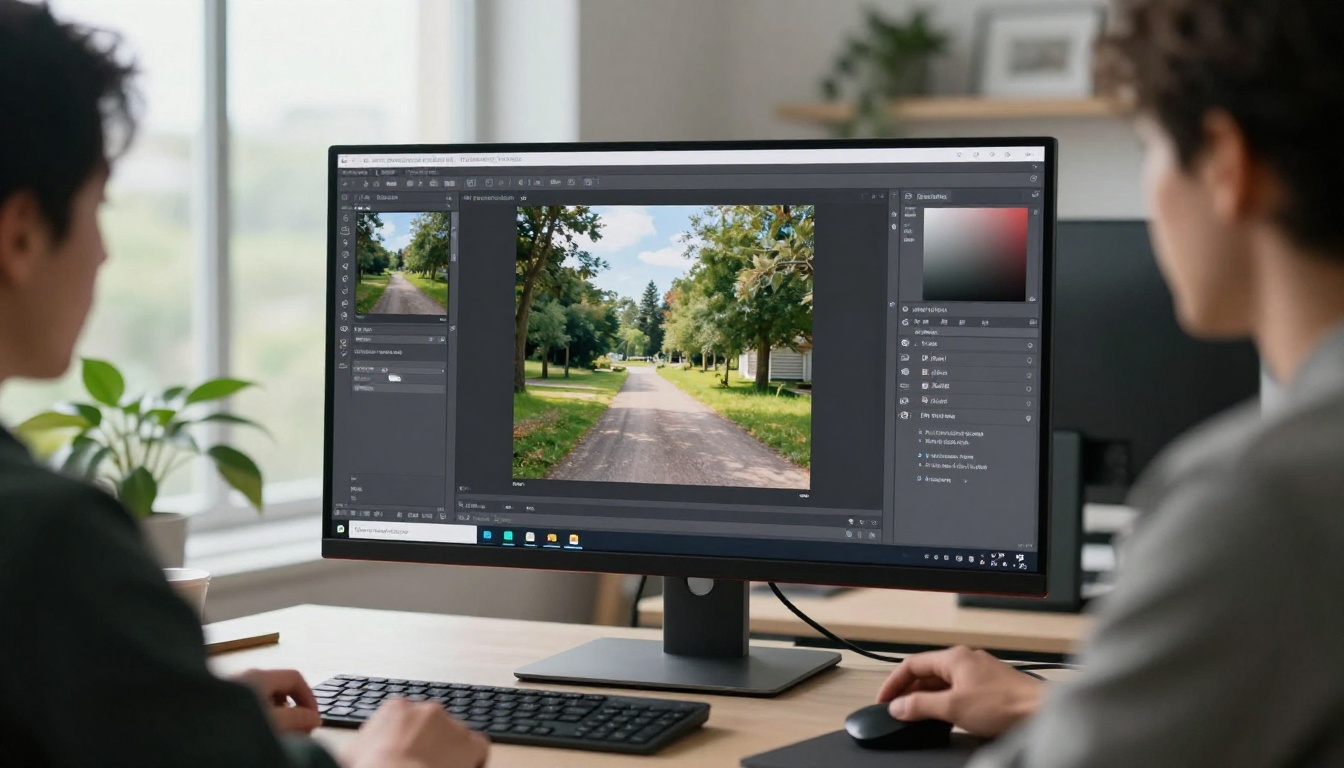
Image-to-Image (The Classic)
The oldest and most universal method. You upload an image and the model generates a new version that preserves the general structure and palette. Most platforms expose a strength or denoising slider: higher strength means more change, lower strength means the output stays closer to the reference.
Best use cases:
- Transforming a rough sketch into a photorealistic render
- Changing the style of a photo while keeping its composition
- Creating quick variations of an existing asset
The weakness of image-to-image is subject identity. If you upload a photo of a specific person, the model may preserve their rough pose and lighting but change their face. For tighter identity control, you need something more targeted.
IP-Adapter and Flux Redux
IP-Adapter (Image Prompt Adapter) is a technique that injects the reference image's semantic content directly into the model's attention layers. Instead of conditioning on the pixel structure, it conditions on what the image represents. This gives much stronger subject consistency.
Flux Redux Dev uses a similar approach built into the Flux architecture. You provide a source image and Flux Redux extracts its style and subject fingerprint, then applies it to new prompts. The result: the same face, the same art style, or the same product appearing across radically different scenes.
This is the method to use when consistency matters more than creative deviation.
LoRA Training for Deep Style Lock
When neither image-to-image nor IP-Adapter gives you the precision you need, you train a LoRA (Low-Rank Adaptation). A LoRA is a small model fine-tuned on 10-30 images of your specific subject, style, or product. Once trained, every generation using that LoRA is anchored to that training data.
P Image Trainer on PicassoIA makes this accessible without a local GPU setup. Upload your reference images, configure a few parameters, and get a trained LoRA you can use in any compatible model.
The tradeoff: LoRA training takes more time and images upfront. But for ongoing projects where you need an absolutely consistent look, the investment pays back immediately.
How Flux Redux Dev Handles References
Flux Redux Dev is one of the most direct tools for reference-based generation available right now. It was designed from the ground up to take a source image and create variations that honor both the style and the content of the reference.
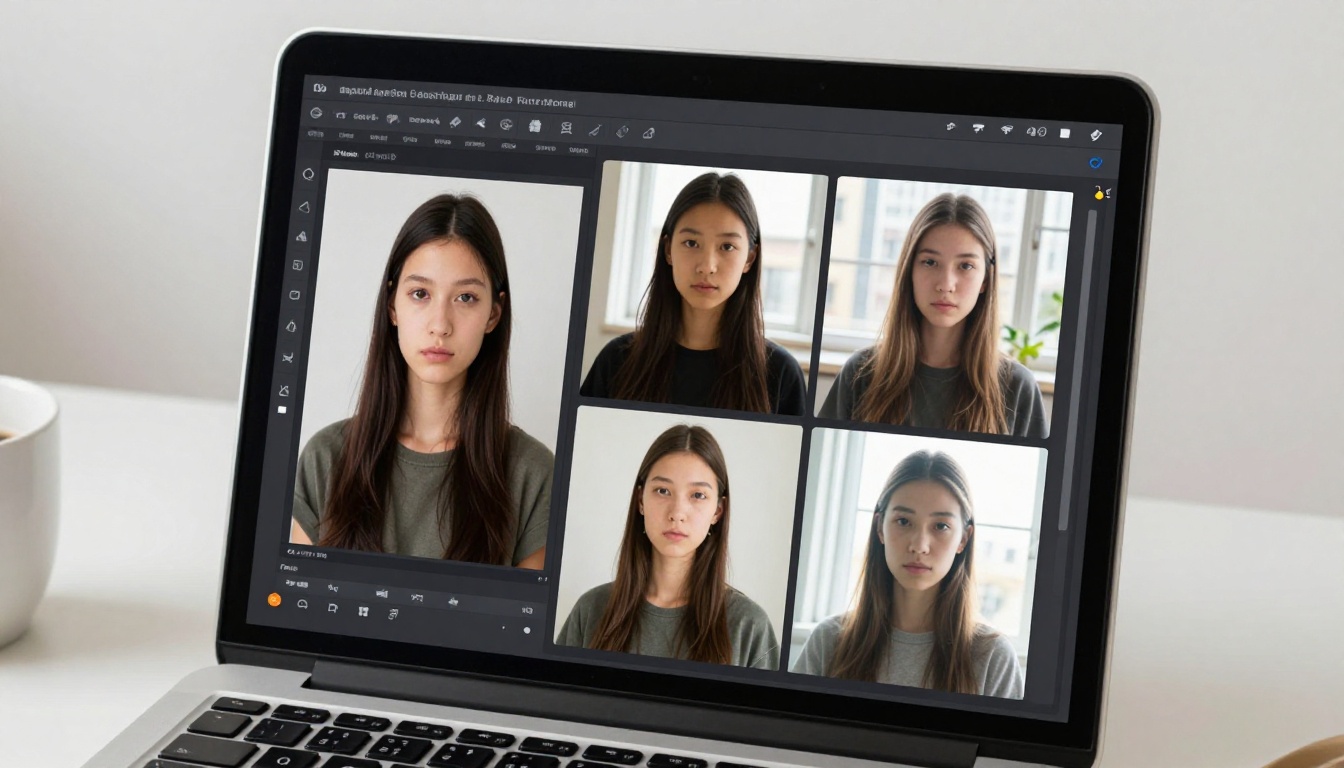
Step-by-Step on PicassoIA
- Open Flux Redux Dev on PicassoIA
- Upload your reference image using the image input panel
- Write your prompt describing what you want to change (new setting, lighting, outfit, scene)
- Set the reference strength. Start at 0.75 for strong reference with some creative freedom
- Choose your aspect ratio and resolution
- Generate your first batch, then review before adjusting strength
The model will keep the core identity of your reference while adapting to your prompt. A portrait of a person on a plain white background can become the same person in a forest, at sunset, or under dramatic studio side lighting. The face and clothing anchor stays; everything else shifts with your prompt.
Strength Settings That Matter
| Strength Value | What It Does |
|---|
| 0.3-0.5 | Light reference influence, more creative freedom |
| 0.6-0.8 | Balanced: strong consistency with room for change |
| 0.85-1.0 | Maximum reference lock, minimal prompt influence |
Most professional workflows live between 0.65 and 0.8. Below 0.5 and you often lose subject identity entirely. Above 0.9 and the output copies the reference too literally, limiting the value of the text prompt.
Getting Consistent Characters
Character consistency is one of the most frequently asked-about challenges in AI image generation. If you are building a story, a product campaign, or a social media persona, you need the same face and clothing to appear across many different scenes.
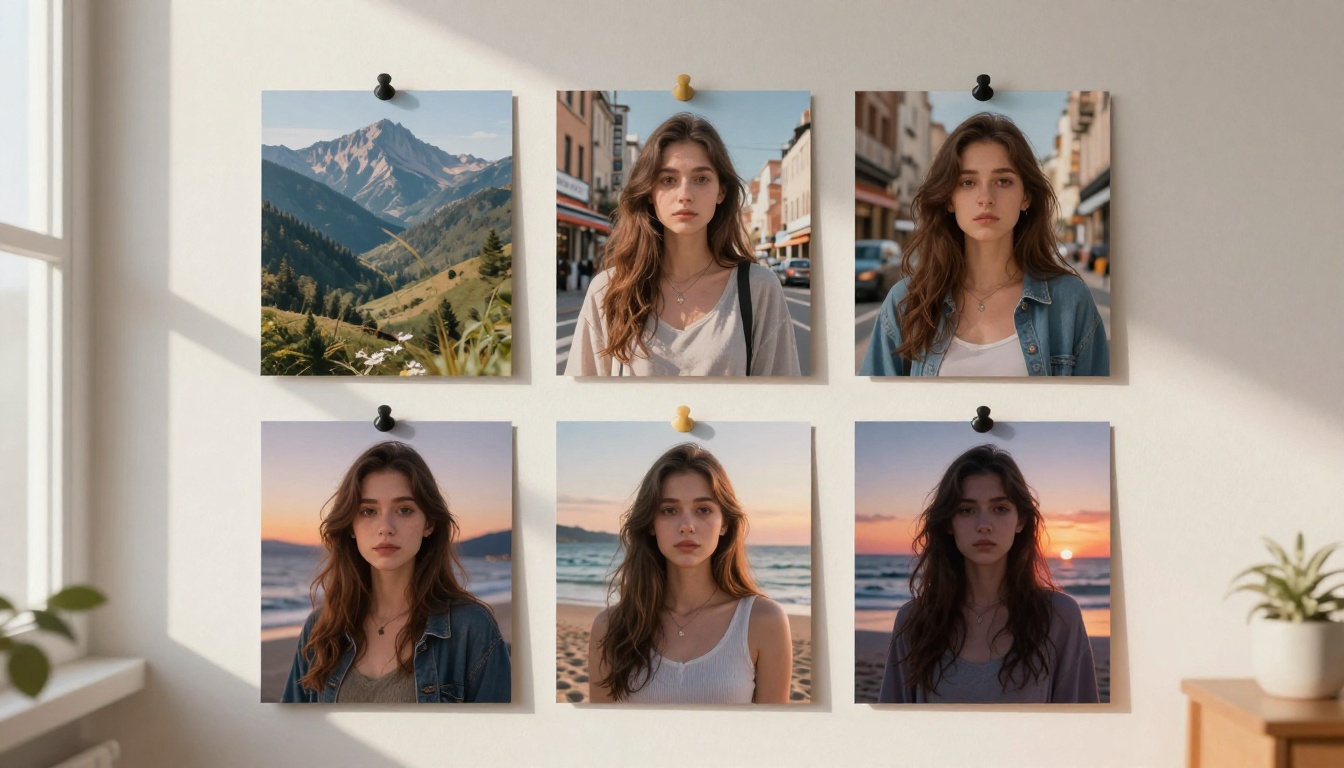
Face Consistency Across Scenes
The fastest workflow for face consistency:
- Generate a clear, front-facing portrait of your character as your master reference
- Feed it into Flux Redux Dev or PicassoIA Image Editor Pro with reference strength at 0.75
- Vary only the setting and lighting in your prompt, leave the character description unchanged
- Keep face description terms in the prompt to reinforce the reference: eye color, hair style, specific facial features
The more consistently you describe the face in text alongside the reference image, the more stable the identity becomes across generations. Text and image work together, not as substitutes for each other.
Clothing and Props Carry Over
The same principle applies to non-face elements. If your character always wears a specific jacket, include the jacket in your master reference image and describe it precisely in your prompt. Models read clothing texture and color from the reference very effectively, especially when the prompt reinforces those details.
For complex branded products or unique objects, LoRA training beats IP-Adapter every time. The detail retention at the fine level (stitching, hardware, logo placement) is significantly better with a trained LoRA than with a single reference image.
Style Transfer Without Losing Your Subject
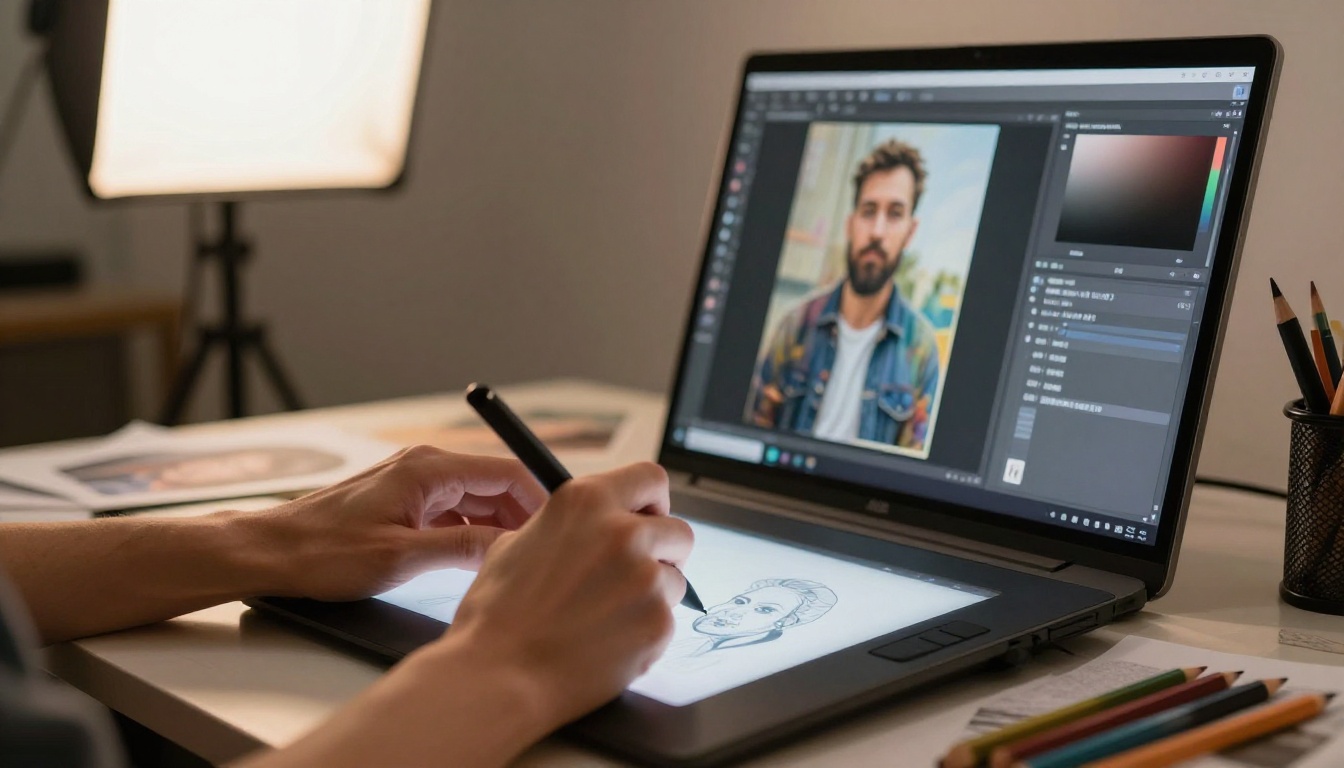
Style transfer is the art of applying the visual language of one image to the content of another. Film noir lighting on a modern street photo. Warm analog tones on a digital portrait. It sounds simple, and with the right approach it is.
The 40/60 Blend Rule
When using image-to-image for style transfer, a reference strength around 0.4 (40%) for the style and leaving 60% to the prompt gives you the most usable results. At this balance:
- The dominant colors and tonal contrast of the reference appear in the output
- The subject from your prompt is clearly legible and not distorted
- Details like skin texture and clothing remain realistic
Go above 0.6 reference strength for style transfer and the style starts overwriting the subject. The person or object you wanted to place in that style begins to lose clarity and recognizable form.
💡 Tip: For style references, use images that have very clear, strong visual language. A heavily stylized reference communicates better than a subtle one. The more distinct the style, the more reliably the model reads and applies it.
When to Use ControlNet Instead
ControlNet is the better choice when your primary concern is pose or composition rather than style. You upload an edge map, a depth map, or a pose skeleton, and ControlNet locks the AI's output to those structural guides while generating freely in all other dimensions.
If you need a specific body pose reproduced exactly in a new scene, or you want to match a room layout from a reference floor plan, ControlNet is the right tool. PicassoIA Image Editor Pro includes ControlNet-compatible editing for exactly this kind of structural guidance, alongside inpainting and outpainting capabilities.
Common Mistakes That Kill Your Results
After understanding the tools, the next step is avoiding the patterns that consistently produce bad outputs regardless of which model you use.

Wrong Reference Weight
The single most common mistake: reference strength too high or too low. New users tend to go to extremes. They set it at 1.0 expecting perfect copying, then get something that looks like a distorted filter. Or they set it at 0.2 hoping for subtle influence, and the reference image has zero effect.
Work from the middle. Start at 0.7, run three generations, then adjust in small increments (0.05 to 0.1) based on what you see. This diagnostic approach is far more efficient than guessing at extremes and wondering why nothing is working.
Mismatched Lighting and Aspect Ratio
Your reference image carries its lighting into the generation. If your reference has harsh side lighting and you want soft beauty lighting in the output, those two conditions fight each other. The model tries to compromise and you get neither one clearly.
Either match the lighting intention of your reference image, or describe the new lighting very explicitly in your prompt and lower the reference strength to let the lighting direction shift.
Aspect ratio mismatches cause distortion. Always match or crop your reference image to the same ratio you are generating at. Feeding a 9:16 portrait reference into a 16:9 generation will skew proportions unpredictably and produce warped subjects.
Using Low-Quality References
Blurry, low-resolution, or heavily compressed reference images degrade output quality. The model cannot extract clear style or subject information from a pixelated photo. Always use the highest quality version of your reference image available.
If your only reference is low resolution, run it through Wan 2.7 Image Pro or a super-resolution model first to sharpen the detail before using it as a reference.
5 Models That Support Reference Images on PicassoIA
Not all AI generators handle reference images equally. Here are five of the strongest options on PicassoIA for reference-based work, each suited to a different use case.
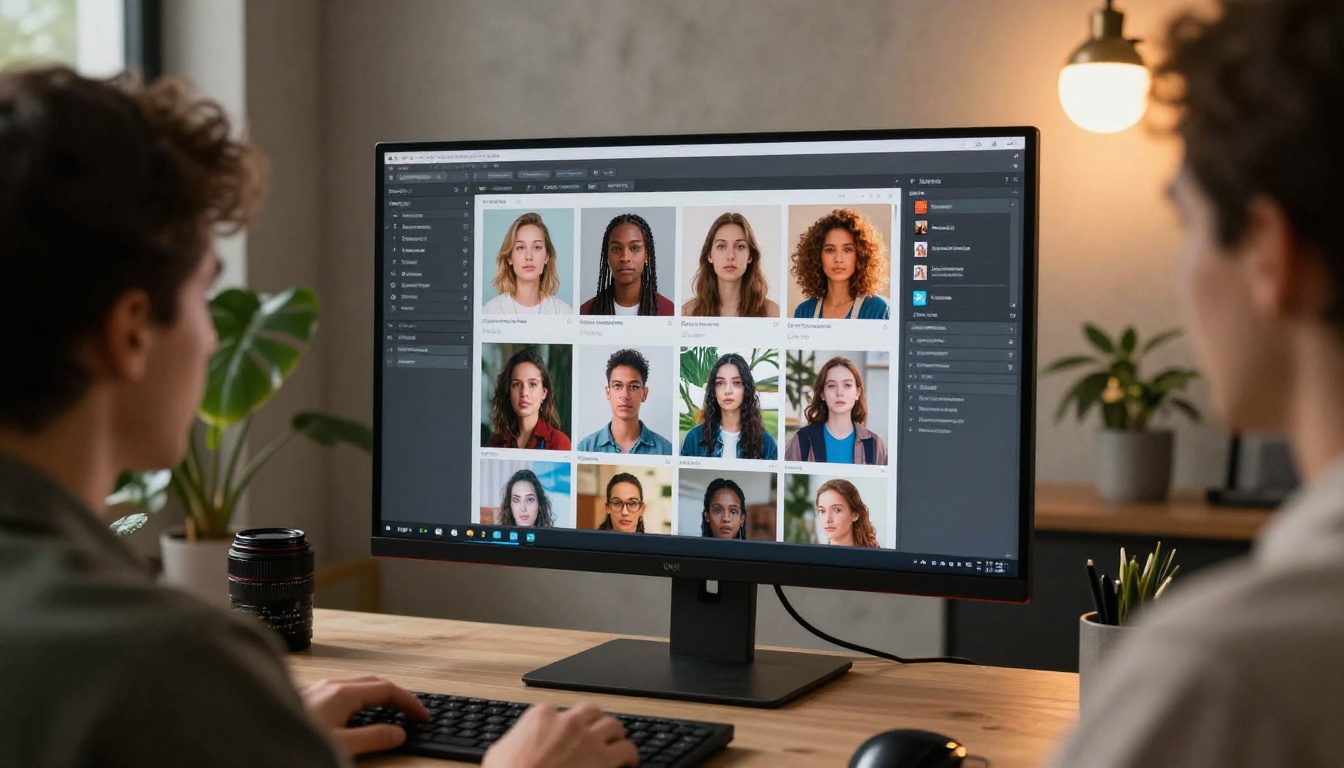
Flux Redux Dev is the default starting point for most reference image workflows because it handles both style and subject with one image input and no training required. It is the fastest path from "I have a reference" to "I have a consistent output."
PicassoIA Image Editor Pro is the power tool for when you need granular control. Inpainting lets you fix or replace specific areas of an image while keeping the rest intact. Outpainting expands the canvas beyond its original borders. ControlNet locks pose and composition. Together, these make it the most versatile reference-based editing platform available.
P Image Trainer and P Image Edit LoRA form a two-step workflow for maximum consistency: train first on your reference dataset, then generate with the trained LoRA applied to every output.
Qwen Image Edit Plus handles direct editing tasks where you have an existing image and want to modify specific elements. It reads your uploaded photo as a reference and applies your text instructions to targeted changes.
Building a Reference-Based Workflow That Scales
Once you understand the mechanics, you can build a repeatable process instead of guessing on each generation.
- Select your master reference early in the project. One high-quality image that represents what you want to anchor.
- Choose the right tool based on what element matters most: subject identity (Flux Redux, LoRA), style (image-to-image), or structure (ControlNet).
- Start at 0.7 reference strength and adjust based on results, not intuition.
- Keep text prompts consistent with the reference to reinforce rather than contradict it.
- Build a reference library over time. Every good output you generate becomes a reference candidate for the next generation.
The professionals who get consistently great results from AI generators are not using better prompts. They are using better reference management. A well-organized library of high-quality references is worth more than any prompt formula.
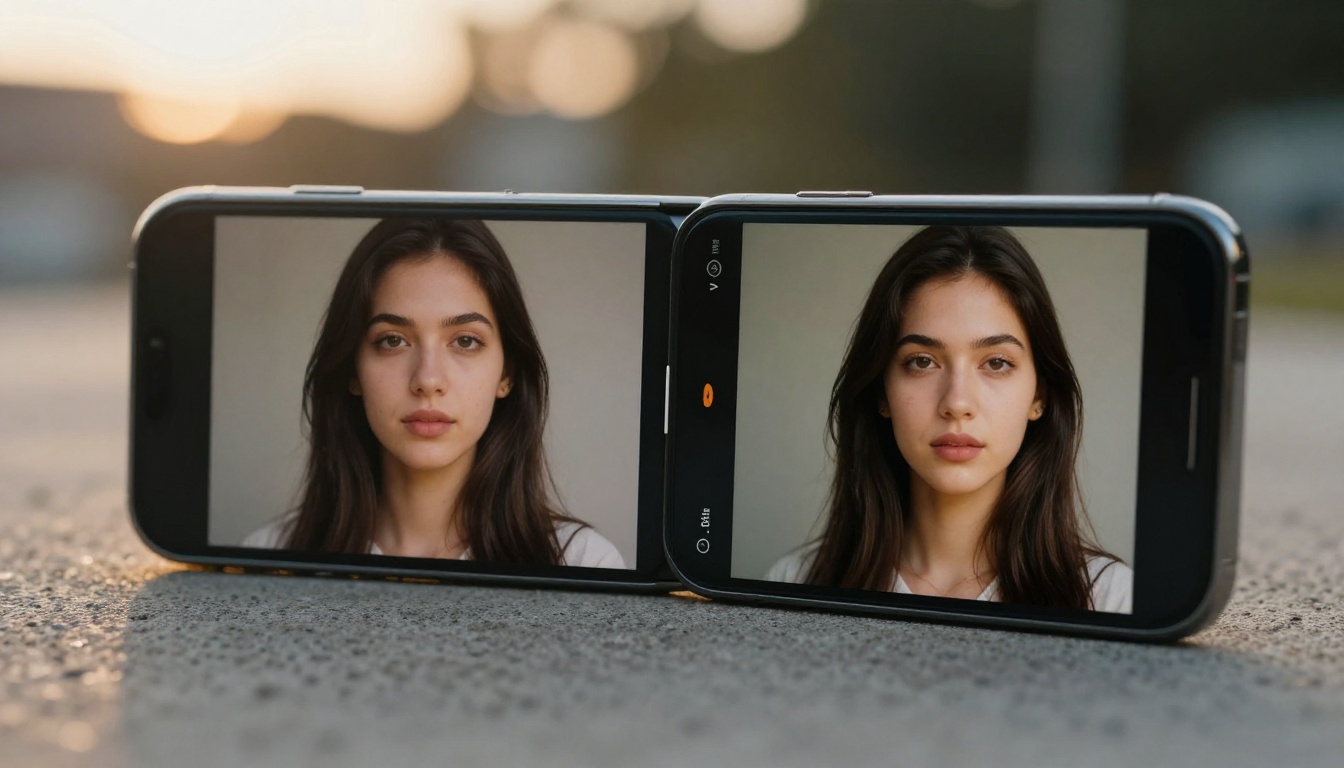
Working With LoRA Training at Scale
For projects that require absolute consistency across dozens or hundreds of images, LoRA training is the most reliable path. The P Image Trainer on PicassoIA walks you through the process without requiring any local setup or hardware investment.
The quality of your training data determines everything. Use 15 to 25 images of your subject with:
- Varied lighting conditions (front light, side light, rim light)
- Multiple angles (front, three-quarter, profile)
- Clean backgrounds on at least half the images
- Consistent subject framing (no partial faces, no cropped limbs)
A well-prepared training set produces a LoRA that holds subject identity reliably across any prompt, scene, or style you apply. A poorly prepared set, with blurry images or inconsistent framing, wastes credits and produces unstable results.
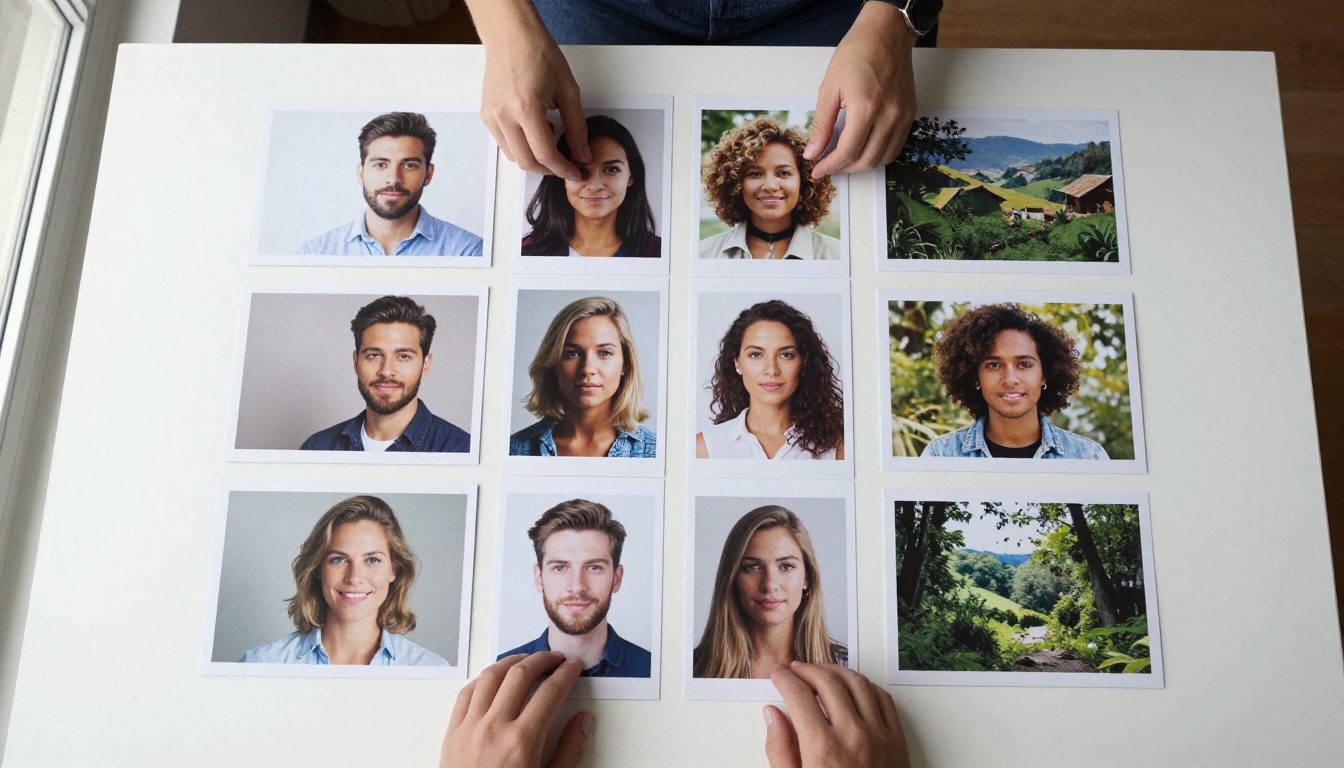
💡 LoRA Tip: Caption each training image with a consistent trigger word (for example, "TOK person") and describe the scene clearly. This trains the model to activate the specific identity when it sees that word in your prompts, giving you precise on/off control over when the LoRA influence kicks in.
Once your LoRA is trained, combine it with P Image Edit LoRA for the most controlled editing workflow on the platform. You can apply the LoRA to new images, use it with inpainting, or blend it with other models for creative hybrid outputs.
Start Creating With Visual References Now
Reference images are not a workaround or an advanced trick. They are the standard workflow for anyone who needs predictable, professional results from AI generation. Whether you are building a brand identity, creating a fictional character, or matching a specific visual style across a project, the tools on PicassoIA give you full control over what the AI anchors to.
Start with Flux Redux Dev for immediate image variations from a single reference. Try PicassoIA Image Editor Pro for granular control with ControlNet and inpainting. When you need maximum consistency across a full project, build your LoRA with P Image Trainer and run all your generations through P Image Edit LoRA.
Browse all available models at picassoia.com/en/all-models and find the right reference-image tool for your next project.


