If you've typed a text prompt and watched an AI return something that looks like a corrupted GIF from 2009, you already know the gap between "AI video" and good AI video. Veo 3.1 from Google closes that gap in a real way. It generates 1080p footage with native synchronized audio directly from a text prompt, and the results sit in a different league from most models you've tried before.
This article breaks down what Veo 3.1 actually does, the differences between its three variants, how to write prompts that don't waste your time, and how to run it right now on PicassoIA without any API keys or local setup.
What Veo 3.1 Actually Does
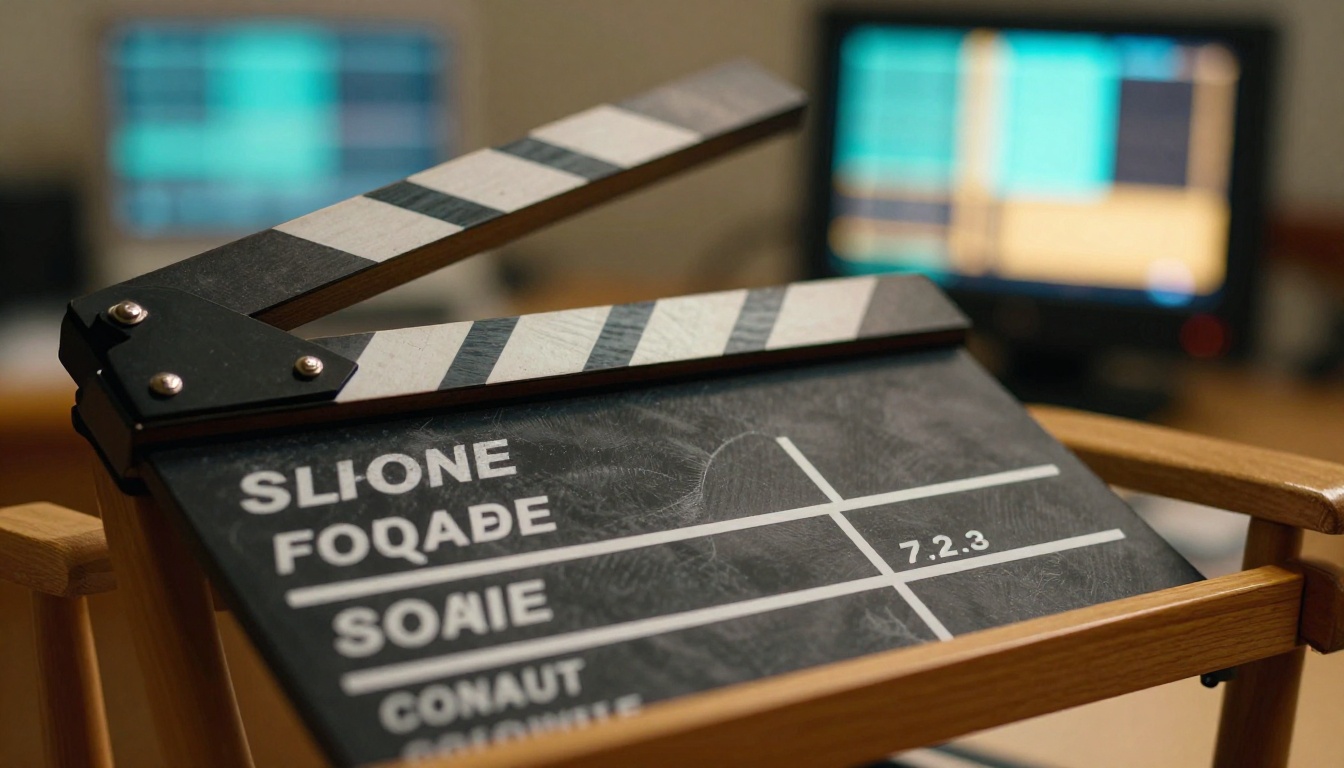
Veo 3.1 is Google DeepMind's latest text-to-video model. The headline feature is native audio: it doesn't generate video and then slap a soundtrack on top. The audio is created alongside the visuals in a single inference pass, meaning footsteps, ambient sound, dialogue cues, and music sync with what's happening on screen frame by frame.
The output resolution is 1080p at a smooth frame rate, which places it well above models that cap at 540p or 720p. For social media, product demos, or short-form storytelling, the quality difference is immediately visible.
What "Native Audio" Actually Means
Most AI video tools treat audio as an afterthought: generate the clip, apply background music, done. Veo 3.1 generates audio and video simultaneously. If your prompt describes a city street with traffic and rain, you hear traffic and rain, synchronized to the puddle splashes and passing headlights on screen.
This matters practically. You don't need a separate tool for sound effects or a sound designer for short clips. The model handles it in one pass.
Veo 3.1 vs Veo 3 vs Veo 2
All three generations are available on PicassoIA, and the differences come down to resolution, coherence, and audio capability:
| Model | Resolution | Native Audio | Best For |
|---|
| Veo 2 | 720p | No | Budget clips, quick drafts |
| Veo 3 | 1080p | Yes | Standard production |
| Veo 3 Fast | 1080p | Yes | Rapid iteration |
| Veo 3.1 | 1080p | Yes | Highest fidelity output |
| Veo 3.1 Fast | 1080p | Yes | Speed without sacrificing much quality |
| Veo 3.1 Lite | 1080p | Yes | Light usage, drafts, testing |
Veo 3.1 is the top-end variant with the strongest prompt adherence and motion consistency across the full clip. Veo 3.1 Fast trades a marginal amount of fidelity for significantly faster generation. Veo 3.1 Lite is the most accessible tier, well suited for iterating on ideas before committing credits to a full render.
The Three Veo 3.1 Models
Choosing the wrong variant wastes time and credits. Here's a practical breakdown of when to use each one.
Veo 3.1 Full
Veo 3.1 is the flagship. Use it when you need the final output to be polished enough to publish: social media posts, demo reels, product showcases. It has the best handling of complex multi-element prompts, the most stable motion across the full clip length, and the most natural audio synchronization.
💡 Tip: Use Veo 3.1 Full for the final render. Use Veo 3.1 Lite to test your prompt first and confirm the composition before spending credits on a high-quality pass.
Veo 3.1 Fast
Veo 3.1 Fast generates at a fraction of the time with nearly the same output quality. The difference is subtle on simple scenes and more noticeable on scenes with many moving elements or complex multi-layer lighting.
It's the right choice for:
- Rapid A/B testing of two different prompt approaches
- Client previews before final approval
- Batch generating multiple clips in a single session
Veo 3.1 Lite
Veo 3.1 Lite is the lowest-cost tier. The output is still 1080p with native audio, but it has reduced detail in motion complexity and audio fidelity compared to the full model. Think of it as a sketch pass.
If you're new to Veo 3.1, start here. Run your prompt through Lite, evaluate the framing and motion quality, then upgrade to Full or Fast once you're confident in the direction.
Writing Prompts That Work

This is where most people go wrong. Veo 3.1 is powerful, but a vague prompt produces vague results. The model responds well to specificity in four areas: subject, action, environment, and camera.
The Prompt Structure That Gets Results
Think of your prompt in four layers:
- Subject: Who or what is in the frame, and what are they doing?
- Environment: Where does the scene take place? What time of day, what surfaces, what is in the background?
- Camera: What angle is it? What lens type? Is the camera moving, and how?
- Audio: What should the viewer hear? Ambient sound, music genre, specific effects?
A weak prompt: "a man walking in a city"
A strong prompt: "A man in his 30s wearing a brown wool coat walks briskly through a rain-soaked New York City sidewalk at dusk, puddles reflecting neon signs from a nearby diner, camera tracking at shoulder height from the side, sound of footsteps on wet pavement and distant car horns"
The second prompt tells Veo 3.1 exactly what to render. The first one leaves too much to chance and you get a generic result that looks like every other AI city walk clip.
Audio Prompting Specifics
Because Veo 3.1 generates audio natively, you can and should include sound direction in your prompt. The model responds to:
- Ambient sound: "the sound of a forest at dawn, birds chirping, wind through leaves"
- Music: "soft jazz piano playing in the background, slow tempo"
- Dialogue cues: "a woman speaking calmly off-screen"
- Sound effects: "glass breaking, followed by a moment of silence"
- Silence itself: "no music, only ambient room tone"
The model doesn't always nail complex spoken dialogue perfectly, but ambient layers and music genre cues are reliably accurate.
Common Prompt Mistakes

Even experienced users repeat the same handful of mistakes with Veo 3.1:
- Overloading with objects: Listing eight different elements in one scene confuses the model. Stick to two or three focal elements per clip.
- No camera instruction: Without a camera directive, Veo 3.1 defaults to a static medium shot. Be explicit: "slow dolly-in", "handheld tracking shot", "aerial bird's-eye view descending slowly".
- Skipping time of day: Lighting is one of Veo 3.1's strongest capabilities. Tell it "golden hour", "overcast midday", "midnight with street lighting", and you'll get dramatically more atmosphere.
- Generic locations: "A cafe" gives you a generic cafe. "A narrow Parisian cafe with marble tabletops and condensation on the windows" gives you a setting with character.
- No negative guidance: Where the platform supports it, include what you don't want. "No camera shake, no text overlays, no CGI artifacts" pushes results toward the photorealistic end.
💡 Tip: Test your prompt on Veo 3.1 Lite first. If the composition isn't right, adjust one element at a time rather than rewriting the whole prompt. Camera direction changes have the biggest visual impact.
How to Use Veo 3.1 on PicassoIA
PicassoIA hosts all three Veo 3.1 variants alongside over 100 other text-to-video models. No API key required, no local setup, no GPU needed on your end. Here's how to use it step by step.
Step 1: Choose your model tier
Navigate to the Veo 3.1 model page on PicassoIA. If you're testing a new prompt concept for the first time, start at Veo 3.1 Lite instead to conserve credits.
Step 2: Write your prompt using the four-layer structure
Subject, environment, camera, audio. Aim for 50-100 words in your prompt for best results. Shorter prompts tend to produce more generic output; longer prompts with specific details produce more controlled results.
Step 3: Set duration and resolution
Veo 3.1 supports multiple clip lengths. For most social and short-form use cases, a 5 to 8 second clip is the practical sweet spot. Resolution defaults to 1080p.
Step 4: Generate and review
Click generate and wait for the render. PicassoIA shows a live progress indicator. Once done, preview the video directly in the browser before downloading.
Step 5: Iterate on the result
If the result is close but not quite right, adjust one element of your prompt at a time. Changing the camera direction typically has the biggest visual impact. Changing the time of day is the second biggest lever for atmosphere. Changing the audio description affects mood significantly even when the visual is already good.
💡 Tip: Save every prompt that produces a strong result. Veo 3.1's outputs are not perfectly reproducible even with an identical prompt and seed. When something works, record the exact text.
Veo 3.1 vs the Competition
Veo 3.1 doesn't exist in isolation. PicassoIA hosts dozens of competing models, and depending on your use case, one of them might serve you better for specific scenarios.
| Model | Resolution | Audio | Speed | Best At |
|---|
| Veo 3.1 | 1080p | Native | Moderate | Fidelity, tight audio sync |
| Seedance 2.0 | 1080p | Native | Fast | Motion realism |
| Kling v3 | 1080p | Optional | Fast | Cinematic framing |
| Sora 2 | 1080p | Yes | Moderate | Long clips, narrative coherence |
| Wan 2.7 T2V | 1080p | No | Fast | High-volume generation |
| LTX 2 Pro | 4K | No | Moderate | Resolution-critical work |
Where Veo 3.1 Wins
Prompt adherence is Veo 3.1's clearest advantage. A detailed, specific prompt is followed more closely here than in most competing models. The model weights camera direction and atmospheric description heavily, which benefits anyone who invests time in crafting their prompts properly.
Native audio quality is a second real win. Seedance 2.0 also generates native audio and does it well, but Veo 3.1's audio synchronization is noticeably tighter on complex scenes with multiple simultaneous sound sources.
Where Veo 3.1 Falls Short
Raw speed goes to Kling v3 and Wan 2.7. If you need 20 clips in an hour, Veo 3.1 Full is not the right tool. Veo 3.1 Fast narrows the gap significantly but is still not the fastest option on the platform.
Resolution ceiling is 1080p. LTX 2 Pro outputs at 4K, which matters for large-screen display, cinema-quality work, or professional post-production where footage is expected to hold up under cropping and color grading.
Real Use Cases
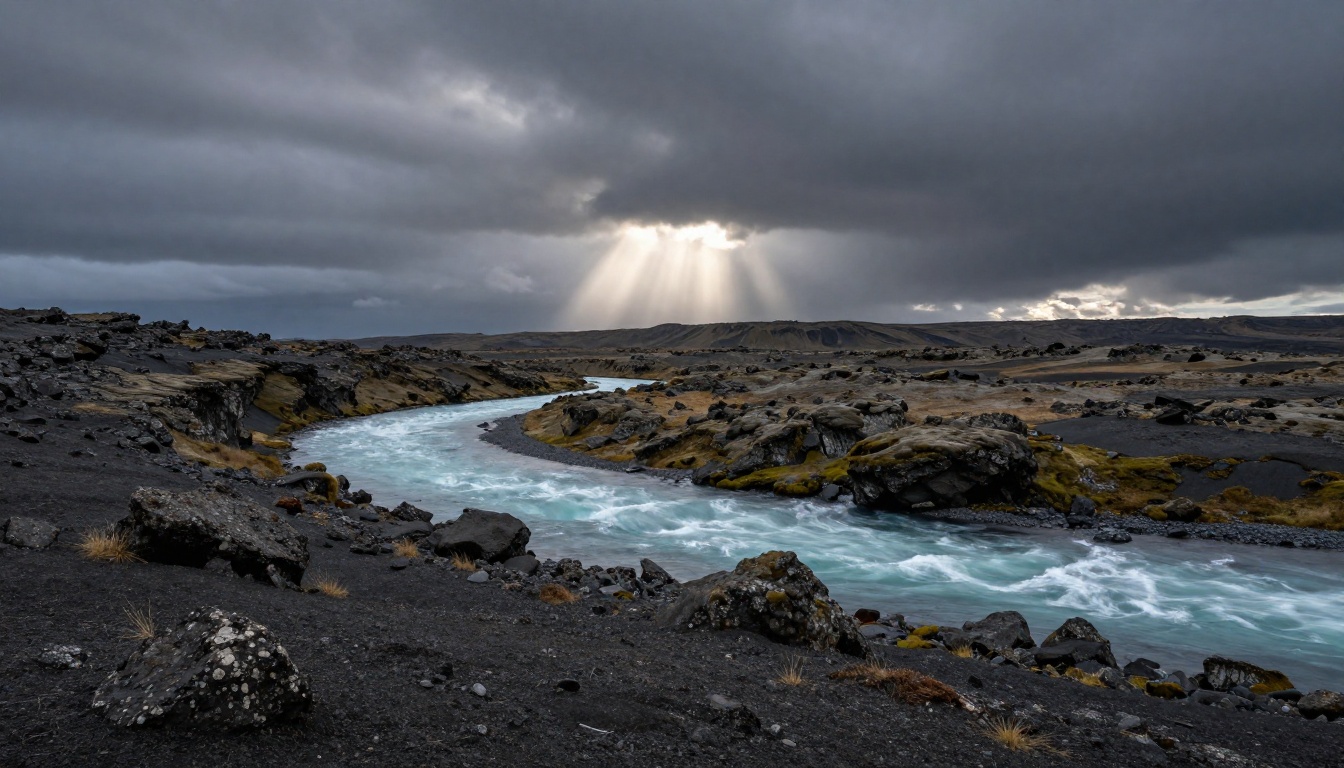
Veo 3.1 isn't just impressive in demo reels. It solves real production problems across several content categories.
Short-Form Social Content
The 5 to 10 second format and native audio make Veo 3.1 a direct fit for Instagram Reels, TikTok, and YouTube Shorts. A single well-crafted prompt can generate a clip that looks indistinguishable from a phone-shot video with a good stabilizer attached.
The audio generation is particularly valuable for social. Short-form content typically needs ambient sound or music, and getting that automatically removes a step from the post-production workflow entirely.
Product Demos and Ads
Static product images have limits. A 5-second video showing a perfume bottle with soft morning light rotating slowly, accompanied by the faint clink of glass and a delicate ambient piano track, tells a brand story that a still photograph cannot.
Veo 3.1 can generate these clips directly from a text prompt. Pair it with PicassoIA Video for broader generation options, or use Pixverse v6 if you want to apply cinematic camera movements on a specific generated frame.
Creative Storytelling and Mood Boards
For directors, writers, and creative directors, Veo 3.1 works as a visual development tool. You can rapid-prototype scene ideas, test color and lighting combinations, and share moving references with collaborators long before any real production begins.
The model handles abstract atmospheric scenes particularly well: a foggy morning forest, a candlelit stone corridor, an empty stadium at dusk. These aren't complex narratively, but they communicate visual tone immediately, which is exactly what a mood board needs to do.
Synthetic Training Data
Researchers and developers building computer vision systems need large volumes of labeled video data. Veo 3.1's high photorealism and controlled prompt adherence make it a viable source for synthetic training clips in controlled scenarios where capturing real footage is expensive or logistically difficult.
Audio Settings Worth Knowing
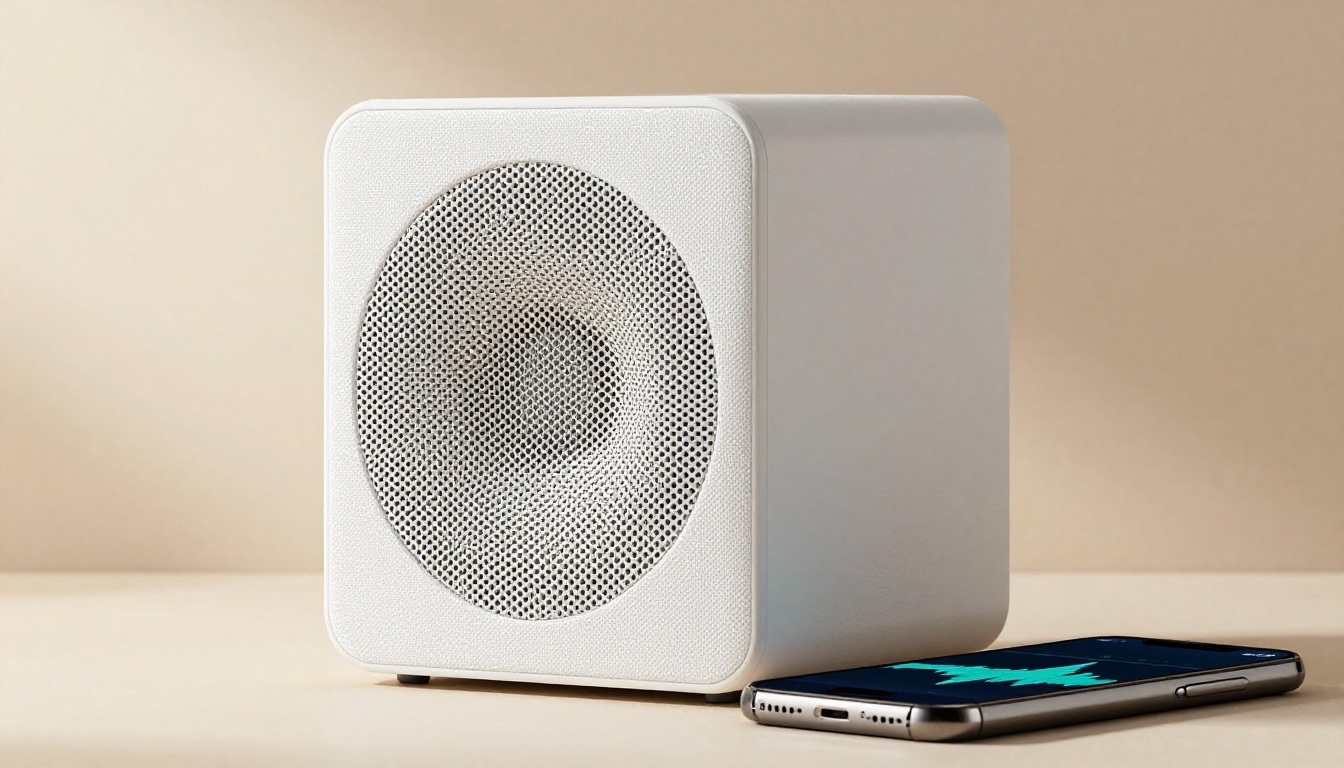
Veo 3.1's audio generation is not a black box. You have significant control over what the viewer hears through specific prompt language.
Silence and clean beds: Include "no background music, ambient silence only" if you want a clean audio bed for post-production mixing. This gives you a track you can score yourself later.
Music tempo and genre specifics: Phrases like "upbeat acoustic guitar", "slow orchestral swell", or "lo-fi hip hop instrumental" all produce meaningfully different results. Vague descriptors like "nice music" tend to produce generic output.
Environmental audio layering: You can stack audio descriptors naturally in your prompt. "The sound of a busy outdoor market, distant conversations overlapping, an occasional car horn, a street musician playing accordion nearby" produces a layered, textured soundscape.
Diegetic vs non-diegetic sound: Describe whether the sound source is visible in the frame. "A piano playing from a visible upright piano in the corner of the room" (diegetic) produces a different mix than "melancholic piano music" (non-diegetic, score-style).
💡 Tip: If you want to replace the audio entirely in post, prompt for "ambient silence, no music" and you'll get a clean visual track with only the natural environmental sound the scene would logically produce.
Editing After Generation
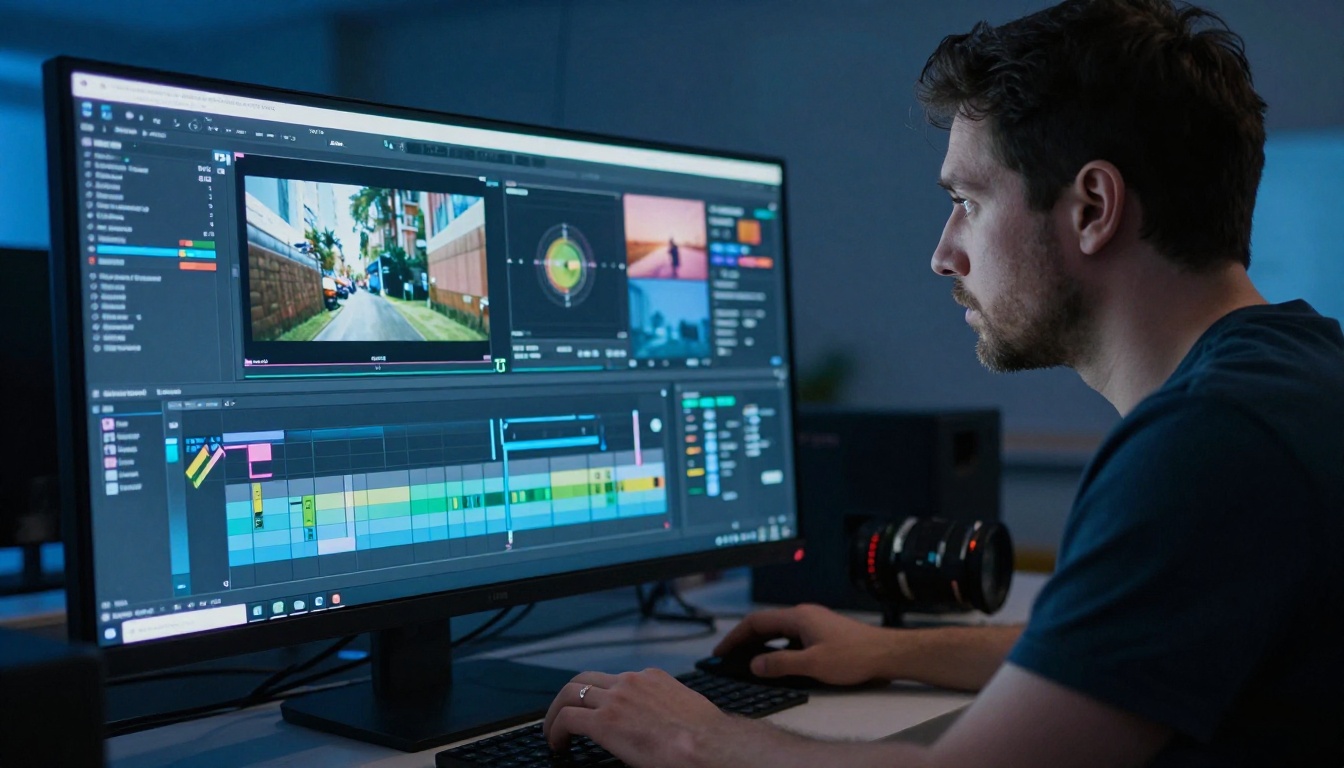
Veo 3.1 generates full clips, but your workflow doesn't have to end there. PicassoIA offers several post-processing tools that work directly on generated video.
For stylization and visual restyling, ControlVideo lets you apply a text-defined visual style to footage you've already generated. If you need to cut between multiple Veo 3.1 clips or apply a consistent look across a batch, this is the tool.
For lipsync on clips that contain faces with speech, PicassoIA's lipsync category handles synchronization automatically, matching mouth movements to an audio track with realistic accuracy.
For AI video restoration and upscaling, the platform's AI Enhance Videos category contains dedicated models for upscaling resolution, stabilizing handheld-style shots, and restoring compressed footage artifacts.
The combination of Veo 3.1 for generation and PicassoIA's editing stack for post-processing handles the majority of short-form video production needs without leaving the platform at any point.
Try It Yourself
You've read the breakdown. The next step is seeing it work firsthand. Open Veo 3.1 Lite on PicassoIA, write a 60-word prompt using the four-layer structure from this article, and run your first generation. Once you've confirmed the composition, switch to Veo 3.1 Fast and compare the output.
The difference between a forgettable AI clip and something genuinely usable isn't the model. It's the prompt. PicassoIA gives you access to Veo 3.1, Veo 3.1 Fast, and Veo 3.1 Lite alongside Seedance 2.0, Kling v3, Sora 2, and over 100 other models in one place. No API keys, no local hardware, no subscription locked to a single provider.
Generate, compare, iterate, and keep the results that work. Start at picassoia.com/en/all-models and pick your starting point.


