Most text-to-video models handle camera movement like an afterthought. You write a prompt, something moves, and you hope for the best. Veo 3.1 is different. Google built native camera control logic directly into the model's architecture, which means the AI does not just respond to subject descriptions. It responds to specific cinematographic vocabulary. Pan, tilt, dolly, crane, rack focus: these are real instructions that Veo 3.1 actually processes. This article breaks down how that system works, which movement types produce reliable results, and how to write prompts that get the shot you actually want.
What Sets Veo 3.1 Apart
It Reads Like a Shot List
Traditional AI video models generate movement as a side effect of the scene. If a character walks forward, the frame moves. If there is wind, the camera might shift slightly. That is reactive motion, not intentional cinematography.
Veo 3.1 takes a fundamentally different approach. The model was trained on a dataset that includes professionally shot footage with labeled camera movements. That means when you write "slow push-in on subject's face," the model recognizes this as a cinematographic instruction, not just a description of proximity.
The result is that your prompt functions more like a director's shot list. You specify the movement, and the model executes it.
The Training Difference
Veo 3 introduced this idea, but Veo 3.1 refined it significantly. The 3.1 update improved:
- Movement smoothness: Less jitter on slow camera moves
- Direction accuracy: Pan left now reliably means pan left, not a slight drift right
- Compound movements: The model handles multiple simultaneous movements, like a dolly combined with a tilt
- Hold and release: Camera holds on a still frame before initiating movement, when prompted to
💡 Tip: Always specify the speed of movement. "Slow" versus "fast" pan produces dramatically different results. Without a speed qualifier, the model defaults to medium pace.
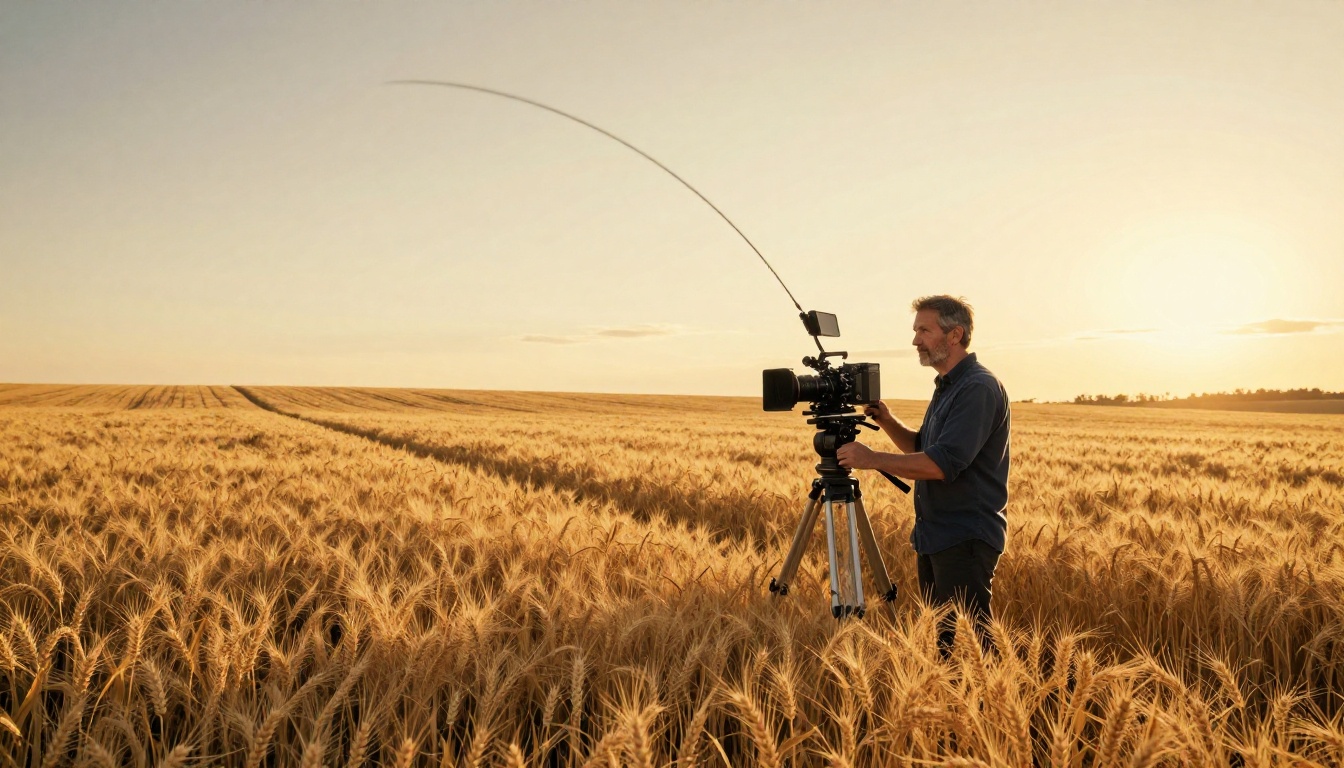
The 6 Core Movement Types
Pan and Tilt
Pan is horizontal rotation around a fixed axis. Tilt is vertical rotation around the same point. These are the most reliable movements in Veo 3.1's repertoire.
| Prompt Phrase | What It Does |
|---|
slow pan left | Camera rotates left, steady pace |
quick pan right | Fast horizontal sweep |
tilt up to reveal sky | Upward rotation, often with a dramatic pause |
tilt down to subject | Downward rotation toward a focal point |
pan and tilt simultaneously | Diagonal compound movement |
The word "reveal" is particularly powerful with tilt. Writing "tilt up to reveal the mountain" signals to the model that the mountain should be hidden at the start and visible at the end. This creates a cinematic effect that feels intentional rather than random.
Dolly and Tracking Shots
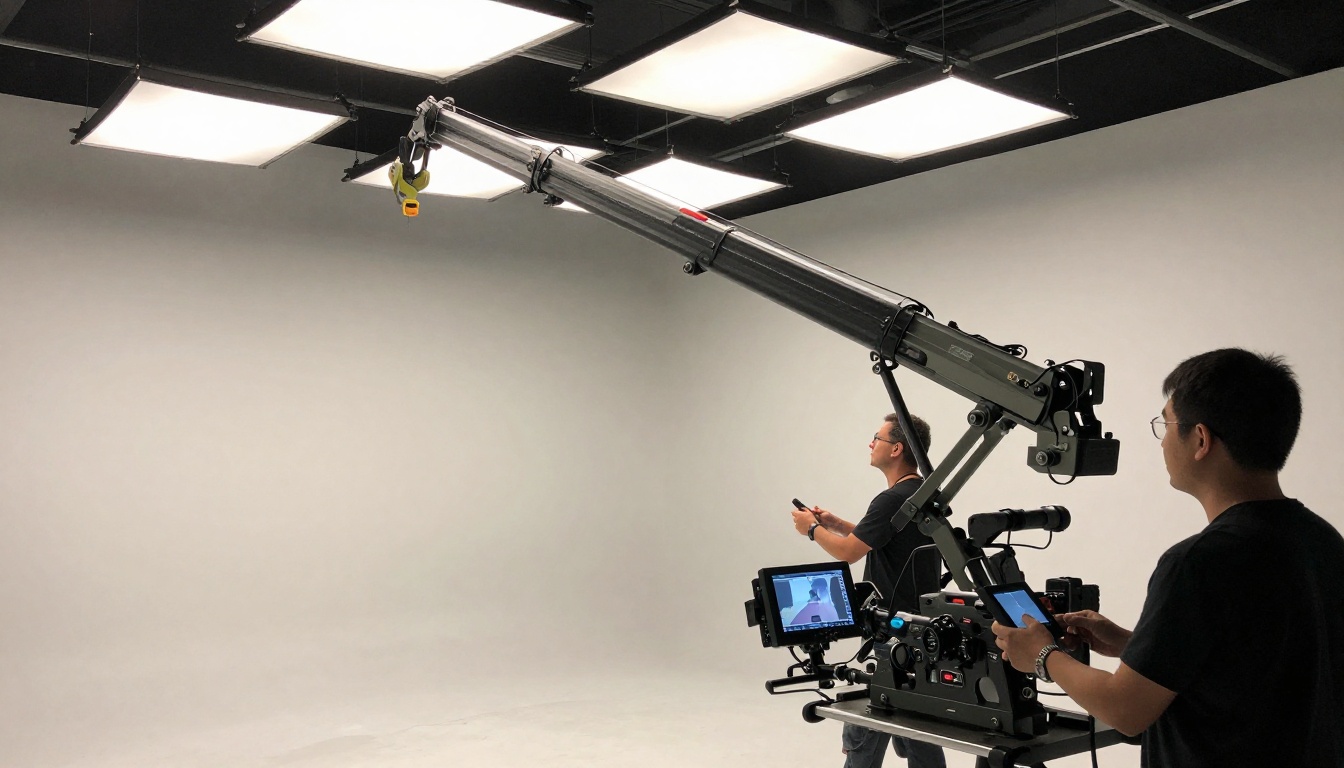
A dolly shot moves the camera physically forward or backward along a track. A tracking shot follows a subject, keeping them in frame as they move. These are two of the most cinematic movements available in Veo 3.1.
Working prompt formulas:
"camera dollies slowly forward toward the door""tracking shot following the woman as she walks down the street""slow dolly out, pulling back from the subject""camera tracks the car from the right side"
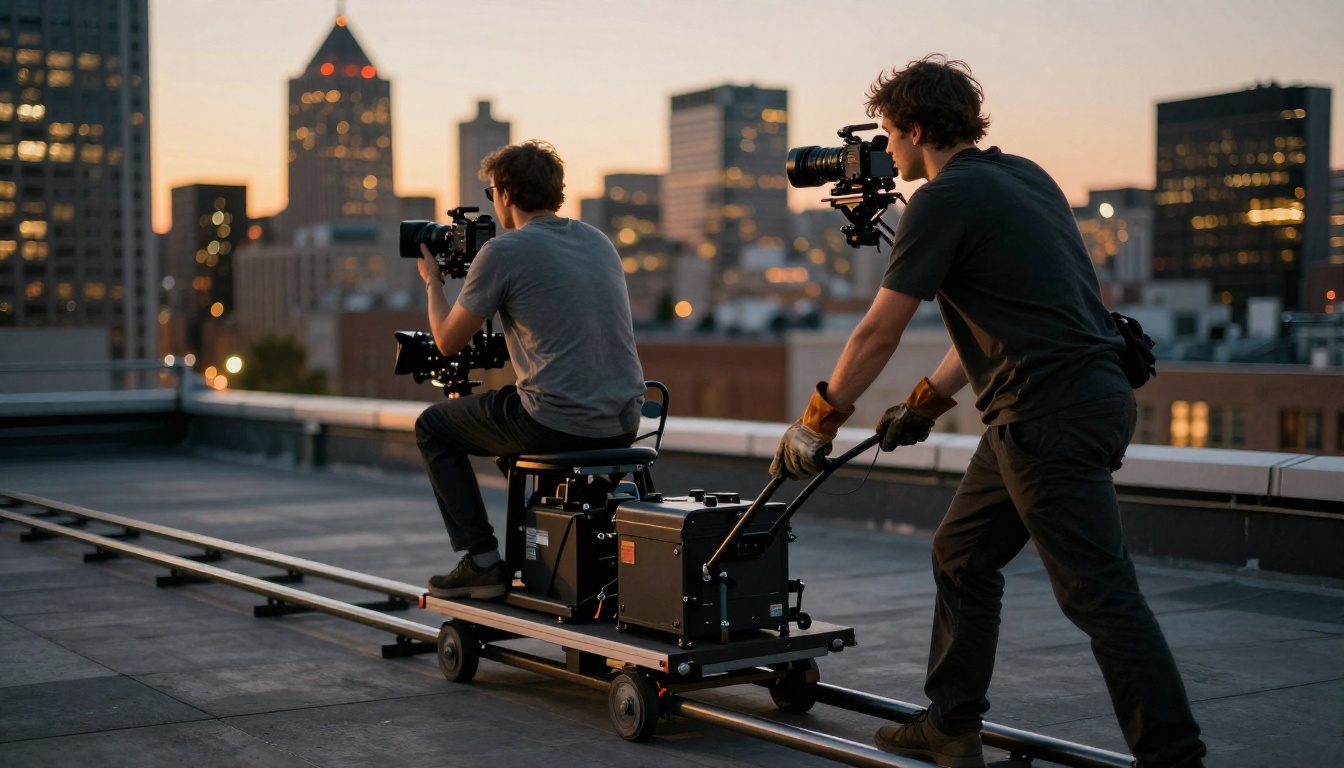
The main distinction for dolly shots is physical movement versus zoom. A dolly moves the entire camera position, which changes perspective and parallax. A zoom only changes the focal length. Veo 3.1 respects this difference when you use the correct terminology.
💡 Tip: Use "dolly" or "push-in" for physical movement. Use "zoom" only when you want a flat zoom effect. The visual difference is significant.
Zoom and Push-In
Zoom is less cinematic than a dolly, but it has its place. In Veo 3.1, zoom behaves differently depending on how you describe it:
"slow zoom in" creates a gradual magnification effect"crash zoom" produces a sudden fast zoom, dramatic and jarring"zoom out to wide shot" pulls back to reveal the broader environment"push-in on the subject's eyes" creates intimacy at close range
The push-in phrase tends to produce more physically realistic results than "zoom in" because the model interprets it as camera movement rather than lens adjustment.
Orbit and Arc Shots
An orbit circles the camera around a stationary subject. An arc is a partial orbit. These are complex compound movements that Veo 3.1 handles better than any previous version.
"camera orbits slowly around the statue" produces a full 360-degree movement"arc left around the character" creates a partial circular path"orbit while tilting up" combines rotation with vertical adjustment
Shot Angles That Work
Low Angle vs. High Angle
Camera angle is separate from movement. Where the camera is positioned in the frame affects how subjects are perceived.
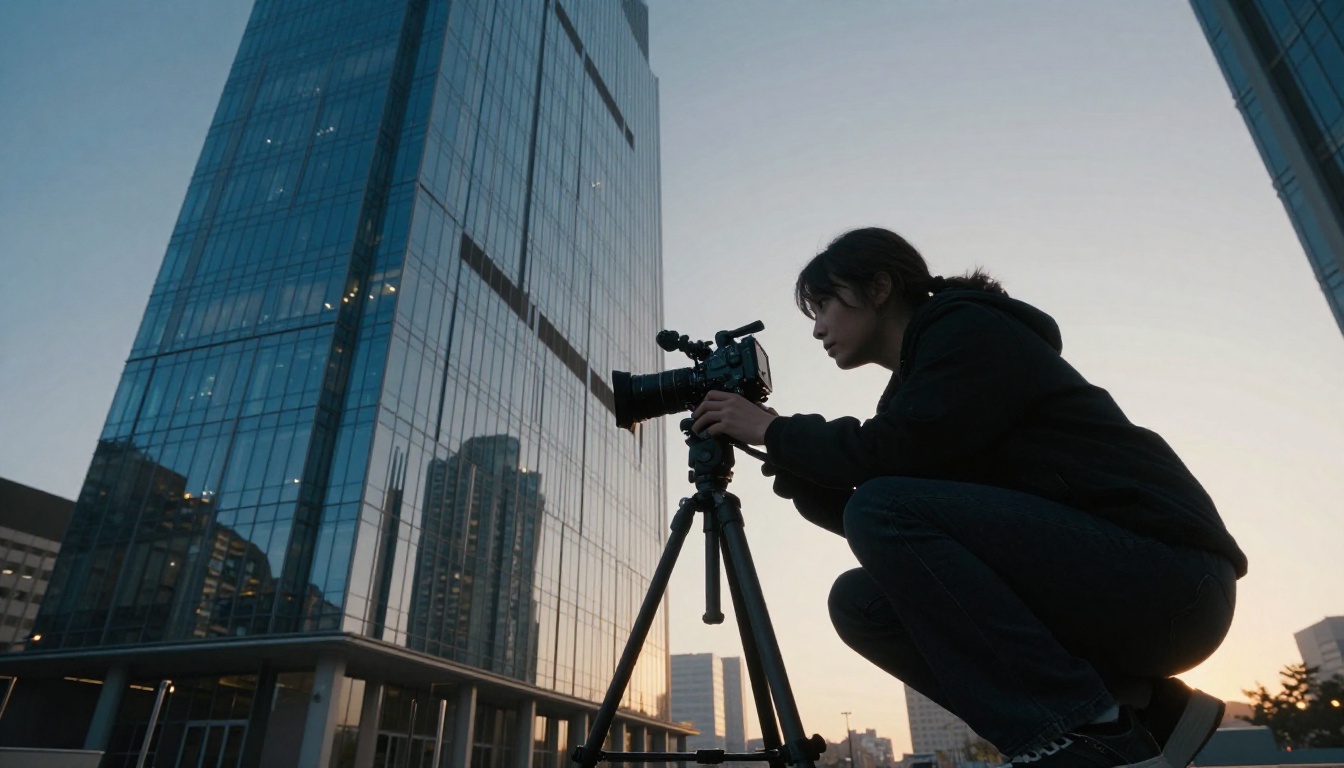
Low angle shots (camera below subject, pointing up) make subjects appear powerful, imposing, or threatening. In Veo 3.1:
"low angle shot looking up at the character""worm's eye view of the building""camera at ground level tilting up"
High angle shots (camera above subject, pointing down) create vulnerability or overview effects:
"high angle looking down at the crowd""overhead shot of the table""bird's eye view of the city street"
💡 Tip: Combine angle with movement for maximum impact. "Low angle slow tilt up" starts humble and builds to something grand. It is a classic cinematic structure.
Aerial and Bird's Eye View
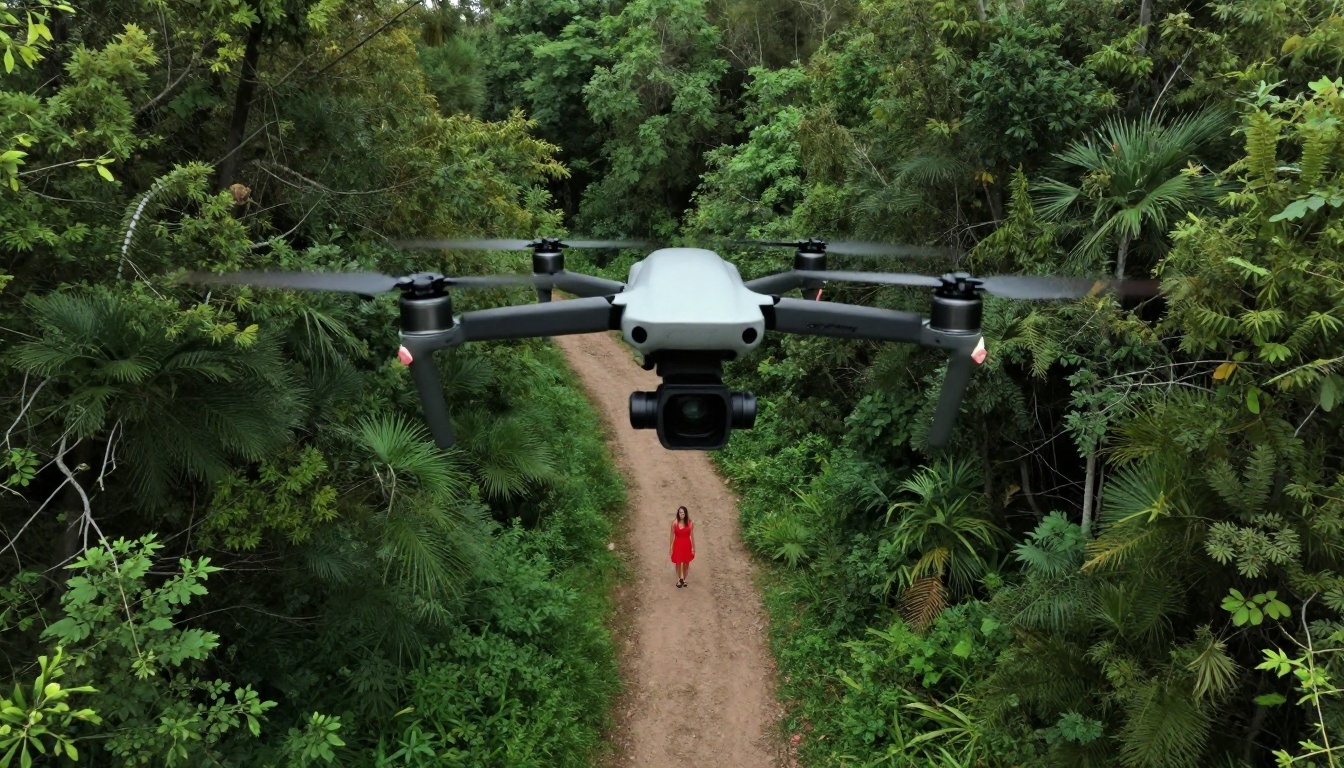
Veo 3.1 handles aerial perspectives with impressive fidelity. The model recognizes drone-style framing instructions:
"aerial shot descending toward the subject" simulates a drone approaching"bird's eye view, slowly rotating" creates an overhead spin"drone shot pulling back to reveal the cityscape" does a reveal from altitude
The limitation here is that aerial movement in the model tends to feel slower and more drifting. If you want a dynamic dive or rush, pair aerial with speed qualifiers like "rapid" or "swooping."
Dutch Angle and Handheld
The Dutch angle tilts the camera on the roll axis, creating a disorienting diagonal composition. It signals unease, tension, or a world out of balance. Veo 3.1 responds to:
"dutch angle" or "canted angle""tilted frame" combined with scene description
Handheld is a stylistic choice that adds realism and documentary energy. The model produces believable handheld motion with:
"handheld camera following the subject""shaky handheld style""documentary-style handheld shot"
Writing Prompts for Camera Control
The Sentence Structure That Works
The most effective prompt structure for camera movement in Veo 3.1 follows this pattern:
[Camera movement] + [Speed/Style] + [Subject/Direction] + [Scene description] + [Mood/Lighting]
Examples:
"Slow dolly forward toward a woman sitting at a cafe table, warm afternoon light, shallow depth of field""Tracking shot following a red sports car along a coastal highway, golden hour, cinematic""Crane shot rising above the rooftops of a medieval city, dawn light, wide angle"
What does not work well:
- Vague descriptors like "interesting camera movement" or "dynamic shot"
- Multiple conflicting movements without transitions: "pan left while also orbiting right"
- Movements that contradict the described scene (asking for an aerial shot of an underground tunnel)
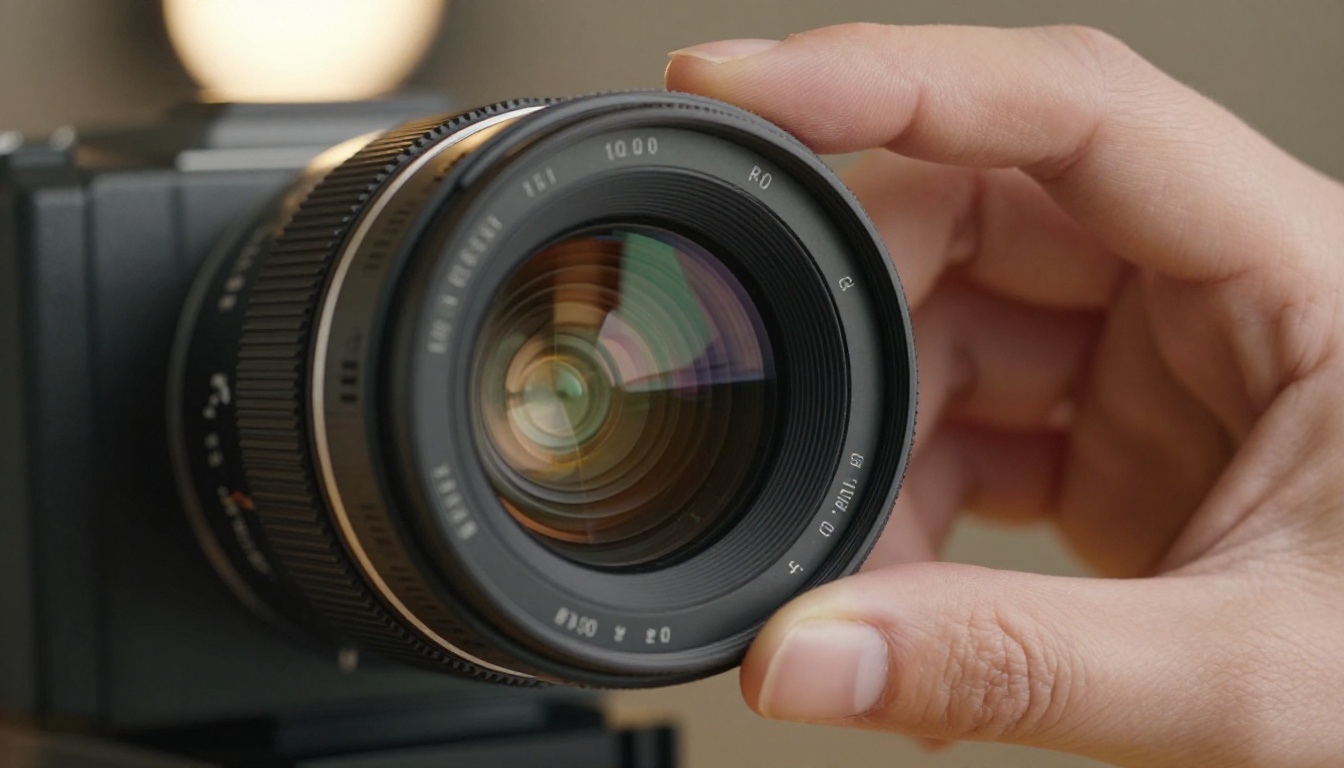
Specific Keywords That Actually Trigger Movement
Not all words are interpreted equally. These are the highest-confidence camera movement keywords in Veo 3.1:
High reliability:
dolly in / dolly outpan left / pan righttilt up / tilt downtracking shotcrane shot / jib shotorbithandheldpush-inpull-back
Medium reliability:
zoom in / zoom outsteadicamarc shotflyover
Lower reliability (results vary):
💡 Tip: Add "smooth" or "fluid" to any movement prompt to reduce jitter artifacts. "Smooth slow pan left" consistently outperforms just "pan left" in output quality.
Combining Movement with Scene
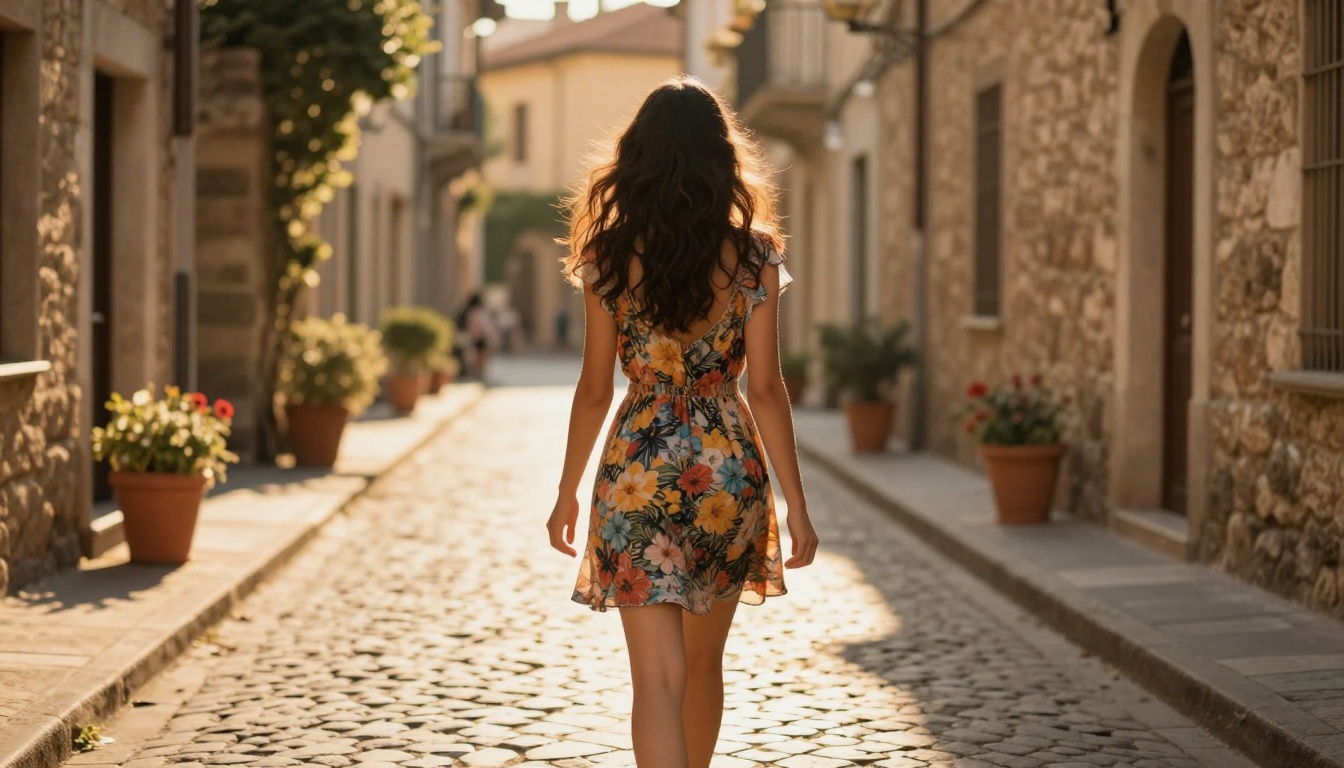
The scene description should support the camera movement, not fight it. A dolly forward works best when there is a clear subject to approach. A pan works best when there is a wide horizontal space to traverse.
Weak: "fast dolly into a blank white wall"
Strong: "fast dolly into a crowded market, faces coming into focus as the camera approaches"
The model uses the scene description to determine how to render the movement. Giving it spatial depth and visual targets dramatically improves output quality.
Veo 3.1 vs. Other Models
Camera control is where Veo 3.1 genuinely separates itself. Here is how it compares to other models available on the platform:
Veo 3.1 Fast is the right choice when you need rapid iteration and testing, accepting a slight reduction in movement precision for speed. Veo 3.1 Lite is the budget option that still maintains solid pan and tilt performance.
For motion-specific work, Kling v3 Motion Control offers a different approach, allowing you to draw camera paths directly. It is less text-driven but offers precise spatial control for complex trajectories. Kling v2.6 Motion Control is the previous generation version with similar path-drawing capabilities at a lower cost per run.
How to Use Veo 3.1 on PicassoIA
PicassoIA gives you direct access to Veo 3.1 without any API setup or account management. Here is how to get camera-controlled shots in minutes.
Step-by-Step
Step 1: Go to the Veo 3.1 model page.
Step 2: In the prompt field, write your camera movement instruction first, then your scene description. The order matters. Camera instructions at the beginning of the prompt carry more weight.
Step 3: Set your duration. For testing camera movements, 5-second clips are enough. Longer clips (8-10 seconds) work better for compound movements like orbit shots that need time to complete.
Step 4: Run the generation. The first output will show you whether the movement is tracking correctly.
Step 5: If the movement is off, add more specificity. "Slow pan left" becomes "very slow pan left, starting on the door and ending on the window." The more spatial anchors you give, the more accurate the movement.
Parameter Tips
For smooth dolly shots:
Use a longer duration (7-10 seconds) and include "smooth" in the prompt. Short clips cut the dolly before it reaches full motion.
For orbit shots:
Specify a clear central subject. "camera orbits slowly around a stone fountain" is far more reliable than "orbit shot" alone. The model needs a pivot point.
For handheld work:
Combine with a walking or active subject. Handheld on a static scene tends to produce random shaking rather than intentional movement energy.
For aerial shots:
Add altitude context. "Drone shot at 200 feet, slowly descending" gives the model a spatial starting point and direction, resulting in more realistic aerial motion.
💡 Tip: If you want to compare outputs, use Veo 3.1 Fast to test your prompt structure quickly, then switch to full Veo 3.1 for the final quality render.
What This Changes for Creators
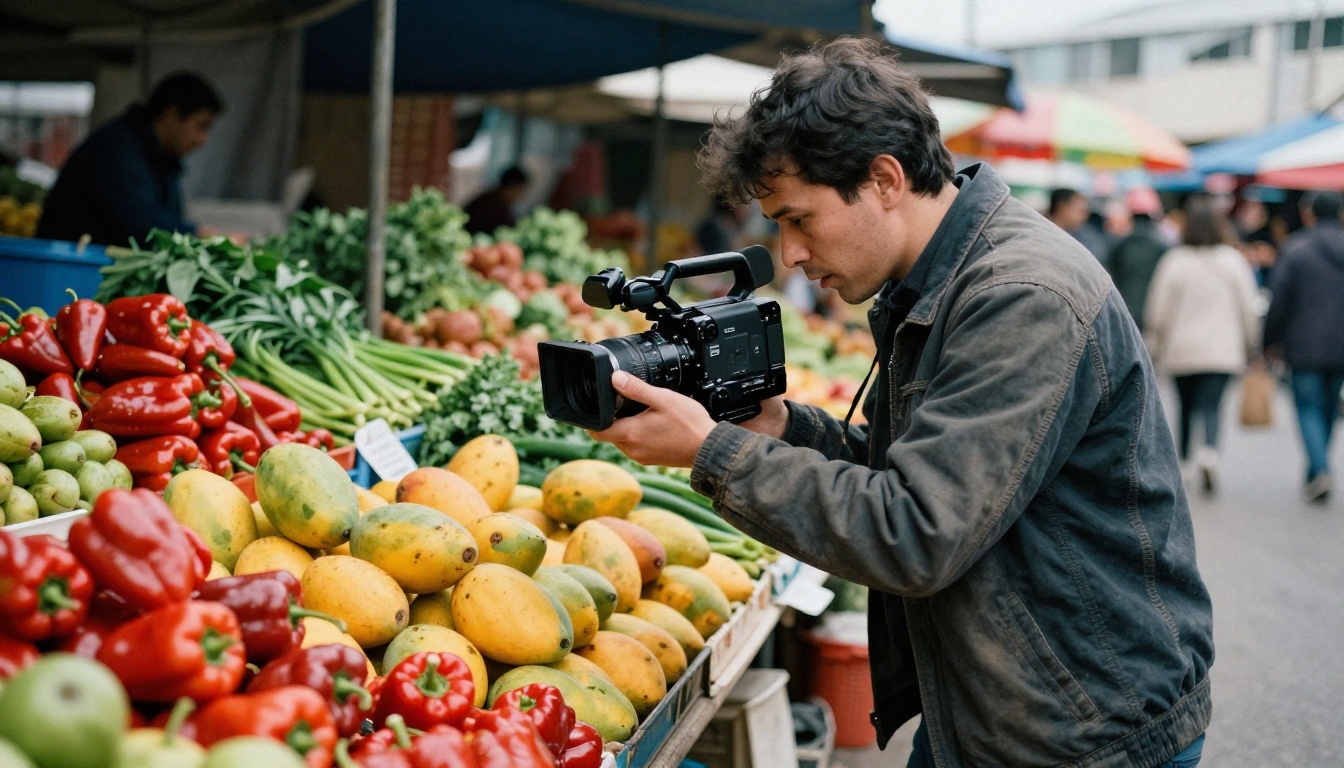
Camera movement is not just a technical detail. It is storytelling. A slow dolly toward a character signals emotional intimacy. A fast pull-back signals revelation or dread. A handheld chase is chaos. A locked-off wide shot is authority.
For the first time with Veo 3.1, these decisions are in your hands rather than left to chance. You do not have to generate fifty clips hoping one happens to pan in the right direction. You write the direction, and the model follows it.
That is not a minor update. It is the difference between having a camera and being a cinematographer.
The platform supports the full range of text-to-video models, from Veo 3.1 at the top end to lighter alternatives like Veo 2 and Kling v2.6 Motion Control for different use cases and budgets. All accessible without setup, all ready to respond to your shot list.
Start with a simple pan. Then build from there. Every prompt is a new shot, every generation a new take. The director's chair is yours.


