Image Editor Free Uncensored: Best Online Options, Prompts and Limits
A practical look at the best free image editors with relaxed content filters. Compare Seedream 4.5, Image Editor Pro, Flux Kontext Fast and Qwen Image Edit, copy working prompts, and see the daily caps, resolution limits and consent rules that actually apply.
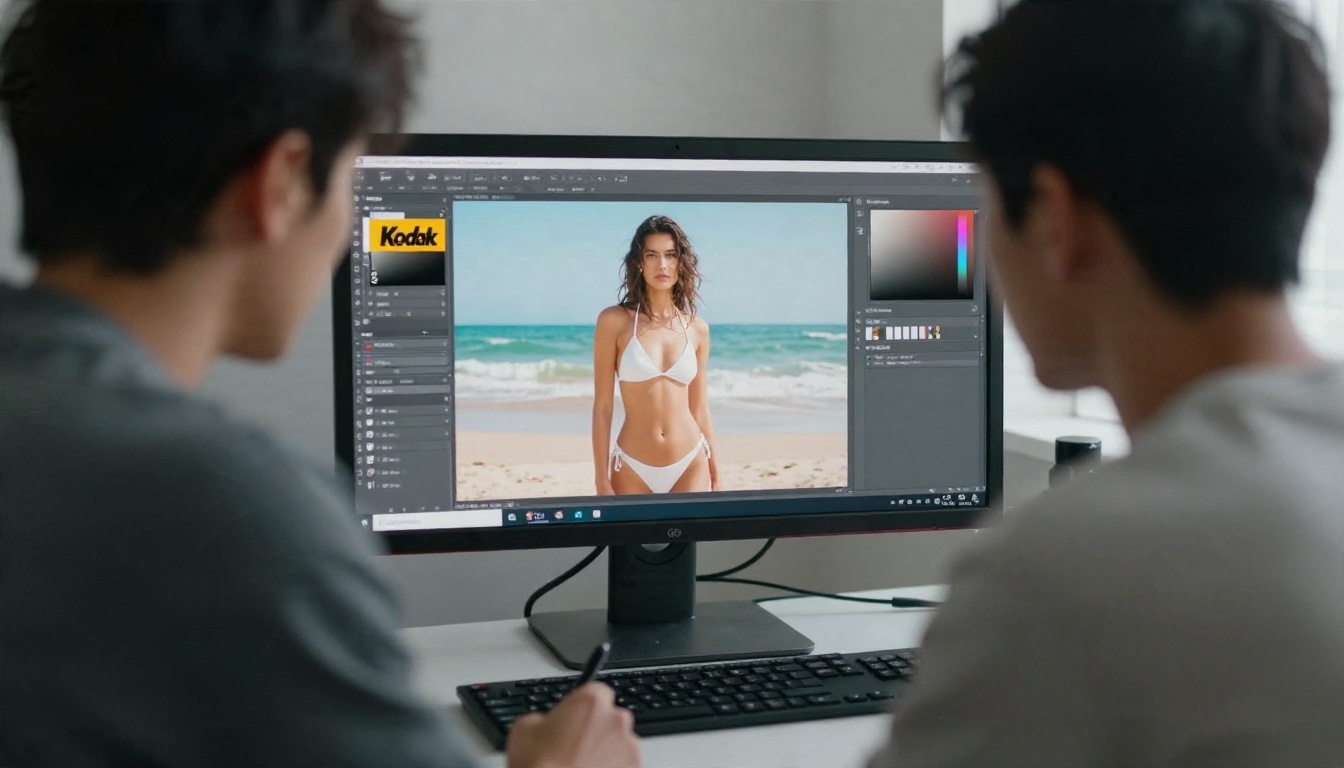
You upload a photo, type a simple instruction like "change the dress to a red swimsuit," and the tool answers with a warning banner. Anyone who has tried to edit a glamour portrait, a beach shot or a fashion look knows the feeling. Most mainstream editors flag harmless requests, shrink your output, or hide the good features behind a paywall. This article sorts out which free image editor with relaxed filters is actually worth your time, which prompts get clean results on the first try, and where the real limits sit. No hype, just what works in late 2026.
What "Uncensored" Really Means
The word gets thrown around loosely, so let's pin it down. When people search for an uncensored image editor, they usually want one of three things: fewer false alarms on swimwear and lingerie style fashion, freedom to edit their own portraits without a lecture, or a tool that does not refuse a normal request because one word looked suspicious.
It does not mean a tool with no rules at all. Every serious platform blocks illegal material, content involving minors, and edits that use a real person's likeness without consent. That line is not negotiable, and you should not want it to be.
Filters vs. hard limits
A filter is a soft layer that reads your prompt and image, then guesses whether the result is risky. Strict filters produce false positives: a woman in a sundress at the beach gets blocked because the model saw too much skin. A hard limit is a policy boundary that stays in place no matter how you phrase things.
Relaxed tools lower the false positive rate. They keep the hard limits. That distinction matters because it tells you what to expect: glamour, bikini, boudoir style and artistic portraits are workable. Explicit material is not, and this article does not cover it.
💡 Tip: If a tool blocks a tame request, rewrite it in plain photographic terms. "Red two piece swimsuit, beach, golden hour" passes far more often than a vague or slangy phrase.
Why free tools throttle you
Image editing is expensive to run. Every edit loads a large model, reads your source photo and renders a new one at full resolution. Free plans protect their servers with four levers: daily credit caps, queue priority, lower resolution output and watermarks. Knowing which lever a tool pulls helps you pick the right one for your workload.
Best Online Options Compared
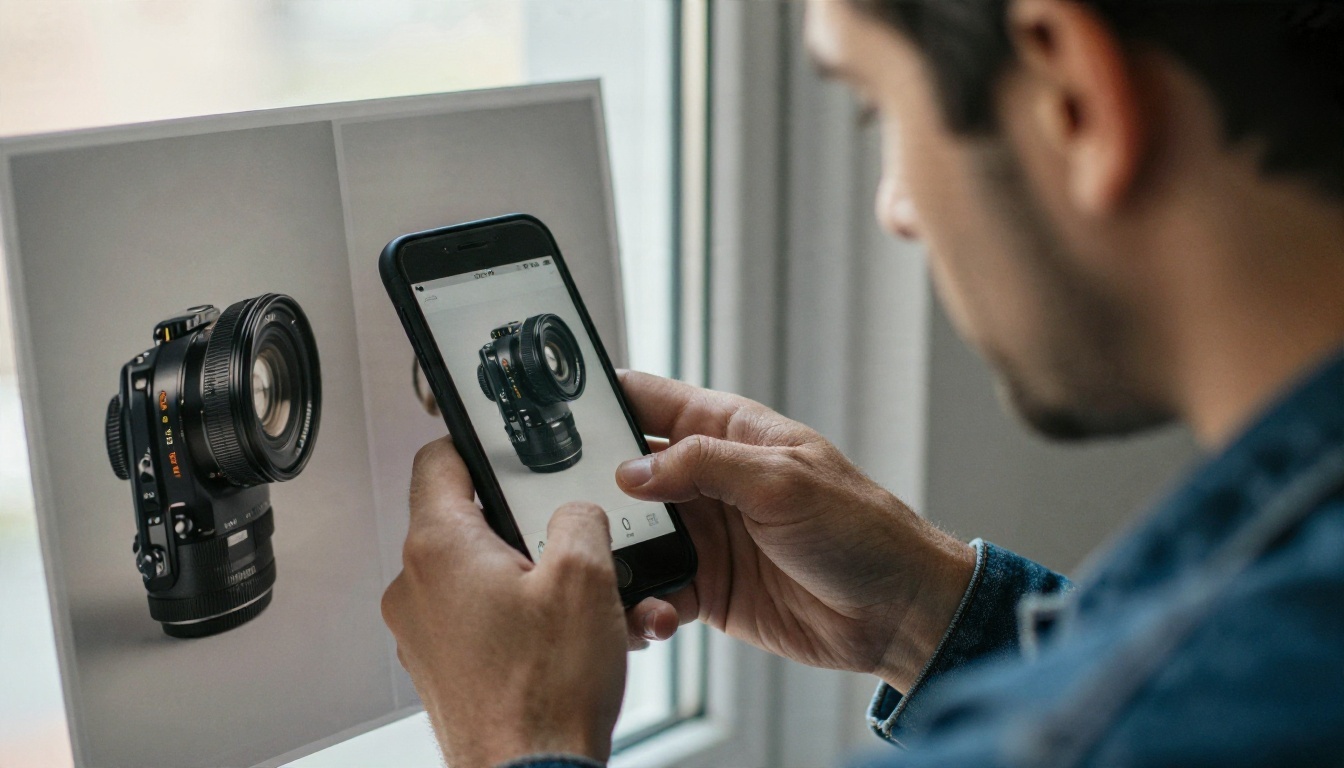
The editors below all run in a browser, handle photo to photo edits and are available on PicassoIA. They are listed in the order I would try them for glamour and fashion work.
Seedream 4.5 for realistic edits
Seedream 4.5 is the first model I reach for when skin, fabric and light have to look like a real photograph. It follows long instructions well, keeps faces consistent with the source image and produces up to 4K output. It handles swimwear, evening wear and lingerie style fashion without the constant refusals you get from stricter tools.
Image Editor Pro for unlimited volume
PicassoIA Image Editor Pro is built for people who edit a lot. The big selling point is unlimited generations, so you can try ten variations of the same outfit change without watching a credit counter. It is quick, forgiving with permissive but non explicit content, and it works from a plain text instruction on top of your uploaded photo.
Flux Kontext Fast for quick changes
Flux Kontext Fast is the speed pick. Hair color, a new background, a different jacket: it returns an edit in seconds and keeps the rest of the photo intact. It is ideal for iterating before you commit to a slower, higher quality pass.
Qwen Image Edit 2511 for precision
Qwen Image Edit 2511 is strong at targeted edits, such as swapping one object, fixing a hand or changing a single piece of clothing while leaving everything else untouched. Its sibling Qwen Image Edit Plus adds extra flexibility with multiple reference images.
Nano Banana for general editing
Nano Banana is a flexible generalist for edits and fresh generations. It is good for product shots, travel photos and everyday retouching. Be aware it is stricter with adult leaning requests, so use it for the safe end of your workflow.
Upload your source photo. A sharp image of at least 1024 pixels on the long side gives the best base.
Type one clear instruction. Describe the change, not the whole picture.
Generate. If the result is close but not right, adjust one detail in the prompt and run it again.
Download the version you like, then optionally upscale it.
Settings that matter
You do not need to tweak a dozen sliders. These matter most:
Source quality: blurry in, blurry out. Use the sharpest original you have.
Prompt length: one to three sentences beats a paragraph. Long prompts dilute the instruction.
One change per run: swapping outfit, background and hair together makes the model drop something.
Seed or variations: run the same prompt several times. Unlimited generations make this free.
💡 Tip: Keep a note of every prompt that worked. A small personal library saves more time than any slider.
Prompts That Actually Work
Good edit prompts read like instructions to a photographer's retoucher. They name the subject, the change and the lighting. Below are templates I have tested, grouped by what you want to change. Replace the bracketed parts with your own details.
Outfit and style changes
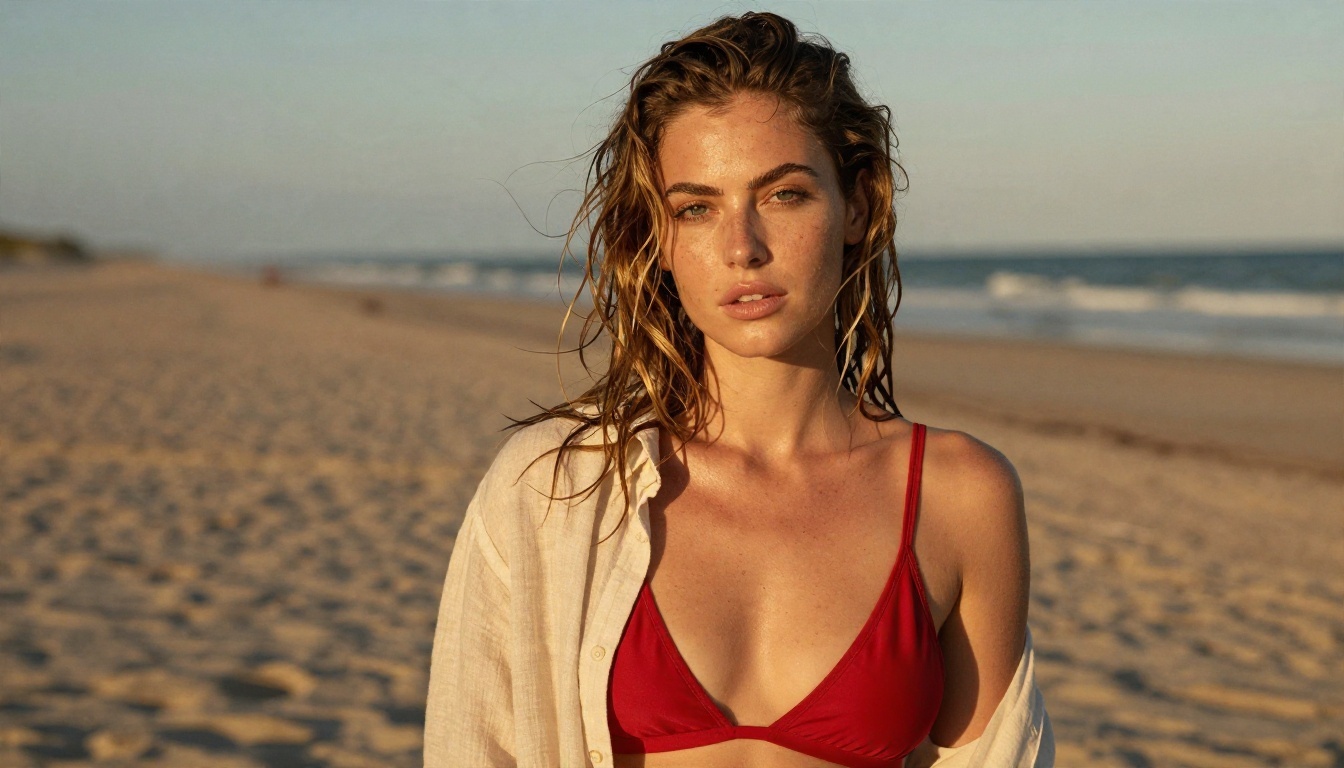
Change her outfit to a red two piece swimsuit and an open white linen shirt. Keep her face, hair and pose exactly the same. Natural skin texture, golden hour beach light.
Replace the top with a black satin slip dress. Keep the background and lighting unchanged. Realistic fabric folds and sheen.
The phrase "keep her face, hair and pose exactly the same" does a lot of work. It tells the model what to protect, which cuts the odds of a drifting face.
Lighting and mood
Relight the photo with warm window light from the left, soft shadows on the right, subtle film grain, Kodak Portra 400 color palette.
Change the time of day to sunset. Warm orange rim light on the hair and shoulders, soft haze in the background.
Background swaps
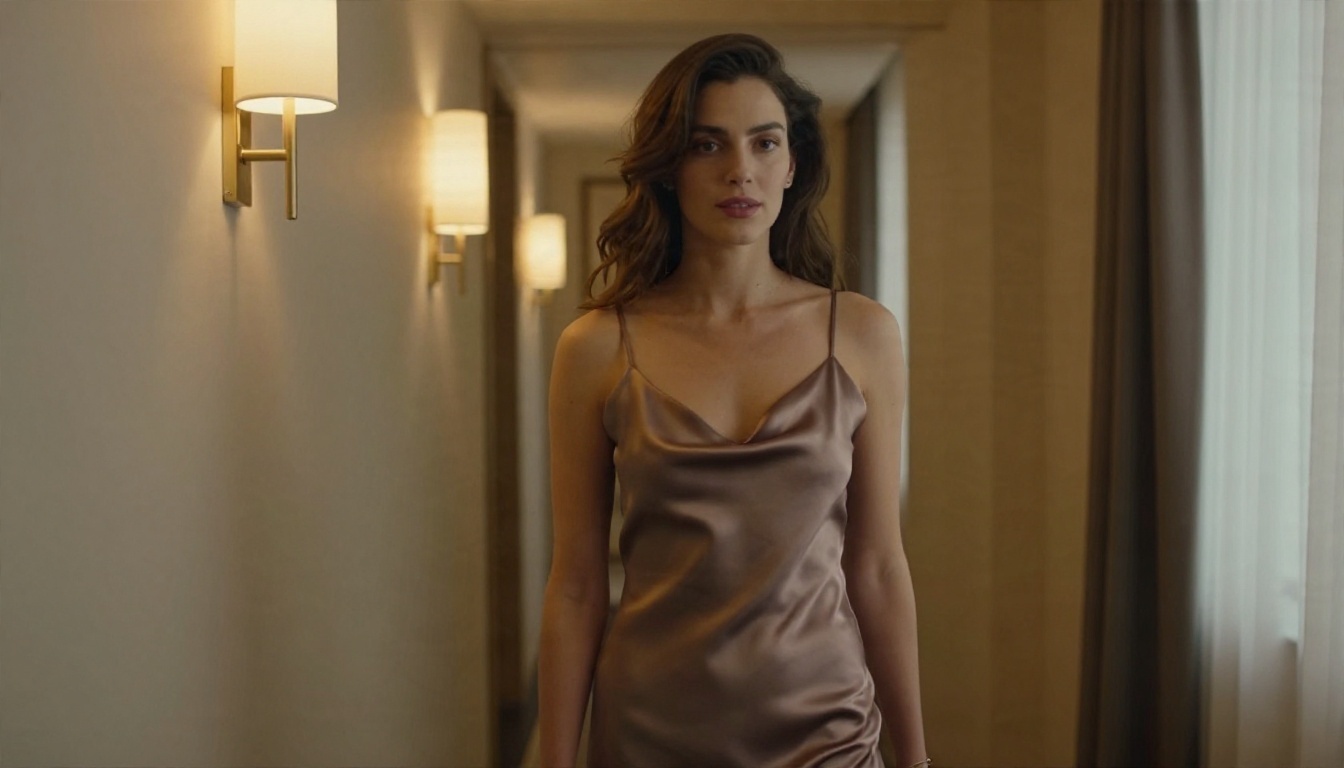
Replace the background with a quiet boutique hotel hallway, warm wall lamps, shallow depth of field. Keep the subject untouched.
Describe the new environment in physical terms: materials, light sources, distance. "Cozy wood cabin with a stone fireplace" beats "nice room."
Fixing common problems
Fix the hands so each has five natural fingers. Keep everything else unchanged.
Remove the stray strands of hair across the face and even out the skin tone slightly. Keep natural pores and freckles.
💡 Tip: Ask for "natural skin texture" or "visible pores." Without it, many editors smooth skin until it looks like plastic.
Real Limits of Free Editors
Free never means unbounded, except in rare cases. Here is what to plan around.
Daily credits and queues
Most free plans give a fixed daily allowance. When it runs out, you wait for a reset or pay. Queue priority is the quieter limit: free users wait behind paying ones during busy hours. This is why a tool with unlimited generations, like Image Editor Pro, feels so different in a long session. You stop rationing attempts.
Resolution and face accuracy
Free output is often capped at a lower resolution, and heavy edits can soften details. Faces are the weakest spot. Beyond roughly three or four chained edits on the same image, the face begins to drift. The fix is simple: go back to the original photo for every new edit instead of editing an edit.
Content rules that still apply
Relaxed does not mean unrestricted. Expect refusals for explicit content, for anything involving minors, and for edits that put real people in compromising situations. If a tool claims there are no rules, treat that as a red flag about the platform, not a feature.
Limit
What you will see
Workaround
Daily credits
Generation stops until reset
Use an unlimited tool for drafts
Queue speed
Slow renders at peak hours
Edit off peak or use a fast model
Resolution cap
Soft, smaller output
Upscale with a super resolution model
Face drift
Eyes and jaw change over edits
Always start from the original photo
Content filter
Refusal on sensitive wording
Rewrite in neutral photographic terms
Matching the Tool to the Job
Different tasks reward different editors. Here is how I split my own workflow.
Fashion and glamour portraits
Start with Seedream 4.5 for the final, polished version. Use Image Editor Pro to run drafts without worrying about limits. This two step habit gives you volume and quality together.
Quick fixes and cleanup
For stray objects, tiny blemishes or a quick background tweak, Flux Kontext Fast is hard to beat. If text sits on the photo, Text Removal clears it neatly. For a more cinematic look, Depth of Field blurs the background after the fact.
Compare before you commit
Run the same prompt through two different editors and compare. Models have personalities: one keeps faces better, another handles fabric better. Five minutes of side by side testing saves hours of rework later.
Mistakes That Waste Your Time
Most bad results come from the same handful of habits. Fix these and your hit rate jumps.
Stacking too many changes
"Change the dress, add sunglasses, make it night, and remove the background person" is four jobs in one request. Split it. Run each change separately and feed the best result into the next step.
Editing an already edited image
Every pass adds small errors. When you want a different version, return to the original upload and write a fresh prompt. Chaining edits is the number one cause of face drift.
Vague words and slang
Models respond to physical, visual language. "Make her look hotter" gives you random output. "Soft golden rim light, glossy lips, natural skin texture, 85mm portrait" gives you control.
Ignoring light direction
A new outfit pasted onto a photo with harsh side light looks fake if the prompt does not match that light. Mention the direction in your prompt, for example "soft window light from the left," so the new elements catch the same shadows as the original.
Consent and Safe Use
Powerful editors come with real responsibility. Keep to a few simple rules and you avoid nearly every problem.
Edit only photos you own or have permission to edit. This includes photos of friends, partners and colleagues.
Never edit images of minors in any way that alters clothing or body.
Do not create content that misleads people about what a real person did or said.
Label heavily edited work when you share it publicly, especially if it shows a real person.
Skip explicit output. The tools above are designed for tasteful glamour, fashion and portraits, and PicassoIA is not a platform for pornography.
💡 Tip: If you are unsure whether an edit crosses the line, picture the person seeing it. If they would be upset, do not make it.
Try Your Own Edits Today
The fastest way to find the right free editor is to test one with your own photo. Here is a simple plan for your first session:
Pick one sharp portrait you own.
Open Image Editor Pro and try three prompts from this article: an outfit change, a lighting change and a background swap.
Run the best result through Seedream 4.5 for a polished final version.
Because Image Editor Pro runs without a generation cap, you can afford to be curious and try odd ideas. That freedom is what separates a good session from a frustrating one. When you want to see what else is available, browse the full lineup at picassoia.com/en/all-models, pick a model, upload a photo and start editing on Picasso IA today.