You upload a perfectly normal photo, type a perfectly normal request, and the editor answers with "this content violates our policy." Anyone who edits images online has hit that wall. A swimsuit shot for a travel brand gets flagged. A dramatic fashion portrait gets blurred. A background swap is refused for no clear reason. That frustration is exactly why searches for an image editor with no restrictions keep climbing.
Here is the honest version of the story: no tool is truly limitless, and the ones that claim to be often hide the catch in watermarks, export caps or a paywall that appears right when you hit "download." What you can find are editors with far fewer arbitrary blocks, fast results and sensible rules that stay out of the way of legitimate creative work. This article sorts the real options from the marketing, shows what the edits actually look like, and gives you a short list of alternatives you can try for free today.
What "No Restrictions" Really Means
Before picking a tool, it helps to decide what you actually need. People searching this phrase usually want one of three things, and each one points to a different kind of editor.
Free vs Unrestricted
Free and unrestricted are not the same promise. Many editors let you start at no cost, then limit you in quieter ways:
- A daily quota of edits that resets after 24 hours
- Watermarks stamped on the corner of every export
- Low-resolution downloads unless you upgrade
- Slow queues for free users while paid users skip ahead
An editor that is free but capped at three edits a day is not "no restrictions" in any useful sense. When you compare tools, count the limits on volume, resolution and speed, not just the content filter.
Where Limits Come From
Restrictions come from three places, and knowing which one you are facing saves time:
- Platform policy. The company decides what its tool will and will not touch.
- Model training. Some image models were trained to refuse whole categories of prompts, even harmless ones, so no setting can change the answer.
- Law and consent. Rules about minors, non-consensual imagery of real people and deceptive deepfakes exist for good reasons and apply everywhere.
The first two are the frustrating ones, and they are the ones a better editor can fix. The third is not negotiable, and any serious tool will enforce it.
💡 Quick test: Upload a plain portrait and ask for a bikini-beach background swap in a tasteful editorial style. If a tool refuses that, its filter is tuned too tight for everyday creative work.
Best Free Online Image Editors
The editors below run in your browser, take natural-language instructions and handle everything from small retouches to full scene changes. I have ordered them by how freely they let you work and how quickly they respond.
Seedream 4.5
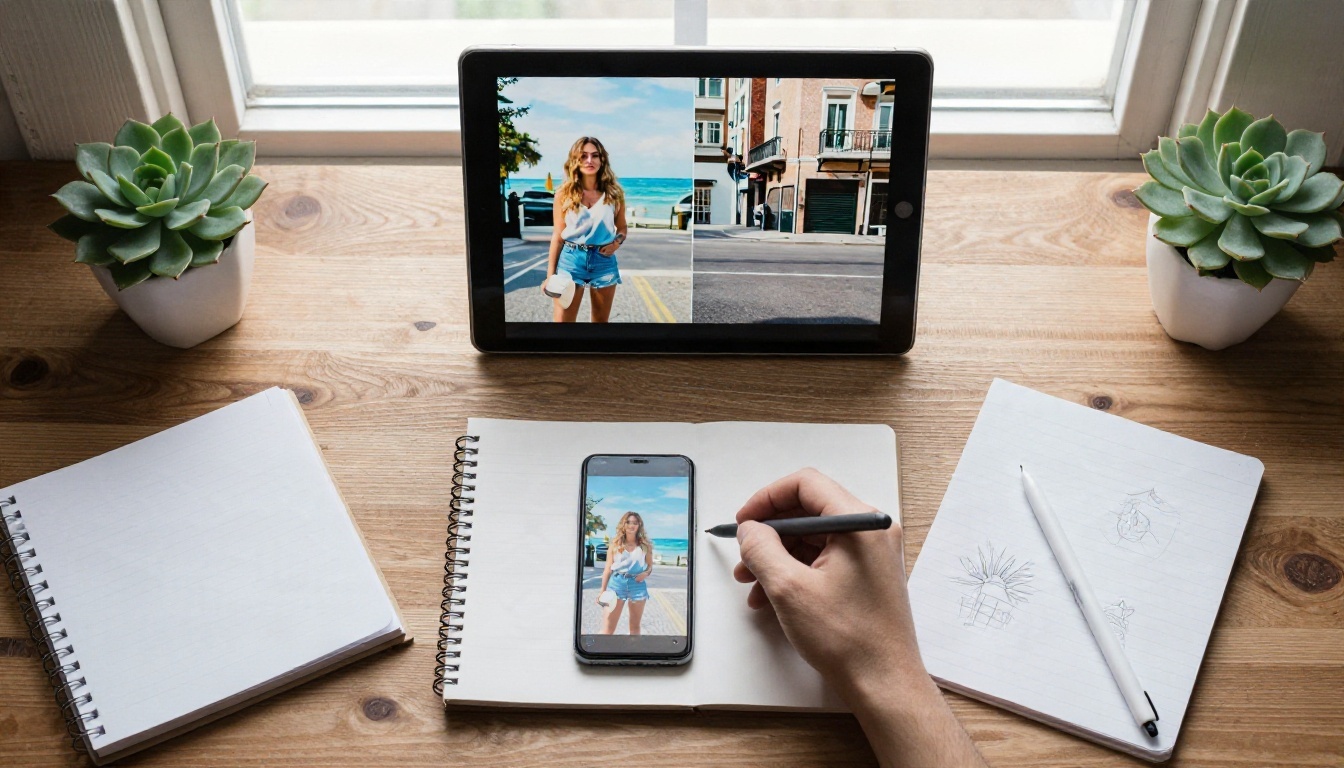
Seedream 4.5 is the model I reach for first when I want an editor that follows instructions closely and does not flinch at fashion, glamour or swimwear work. It produces sharp, high-resolution output with believable skin texture, and it handles detailed prompts about lighting, wardrobe and setting without drifting off course.
What stands out in practice:
- Strong prompt adherence. Ask for "soft window light from the left, satin fabric, shallow depth of field" and you get exactly that.
- High resolution. Output is detailed enough for print and large social formats.
- Fewer false alarms. Artistic, suggestive and glamour-style images are treated as the creative work they are, as long as they stay non-explicit.
PicassoIA Image Editor Pro
PicassoIA Image Editor Pro is built for people who edit a lot and hate counting. It offers unlimited generations, which removes the main frustration with free tiers: running out of tries halfway through refining a photo. You upload an image, describe the change in plain language, and iterate as many times as you like.
It works well for:
- Changing outfits, hair color or scenery while keeping the face consistent
- Swapping backgrounds for product and portrait shots
- Fixing lighting, removing clutter and cleaning up small flaws
- Producing several variations quickly to find the best one
Because there is no meter running, you can afford to experiment. That is the biggest practical advantage of an unlimited editor: you stop treating each edit as precious.
Qwen Image Edit Plus
Qwen Image Edit Plus is a strong option when you need precise, localized changes. It is good at editing text inside images, adjusting one object without disturbing the rest and keeping the original composition intact. If your edit is "change only the jacket color" or "replace the sign," this model respects the boundaries of the request.
There is also Qwen Image Edit 2511, a newer variant worth trying when you want more consistency across several edits of the same person or scene.
Flux Kontext Fast
Flux Kontext Fast is the speed pick. It edits photos in seconds, which matters when you are testing ten different prompts. It keeps character identity stable across edits, so a face you started with is still recognizably the same face after you change the outfit and the location.
Real Examples You Can Try
Talking about features is easy. Here are four editing jobs that regularly trip filters on stricter platforms, and how a freer editor handles them.
Portrait Retouching
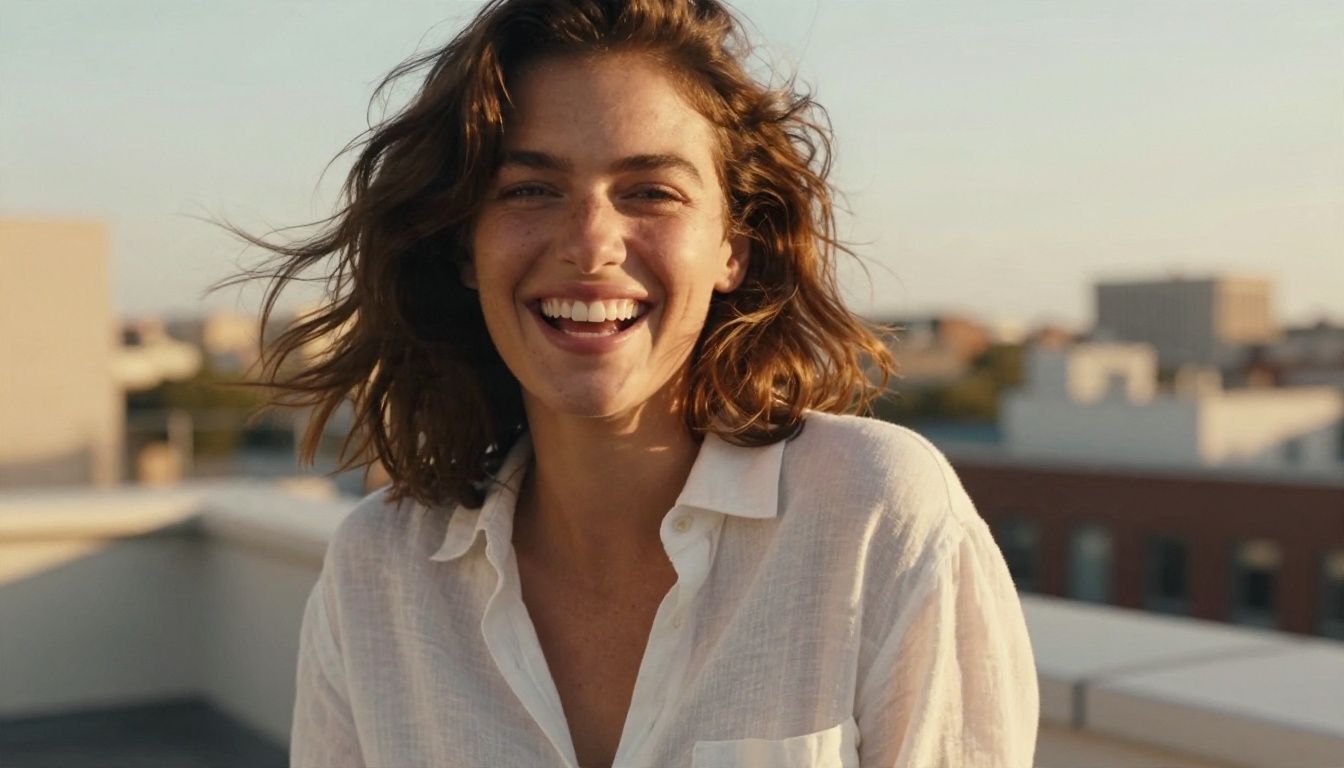
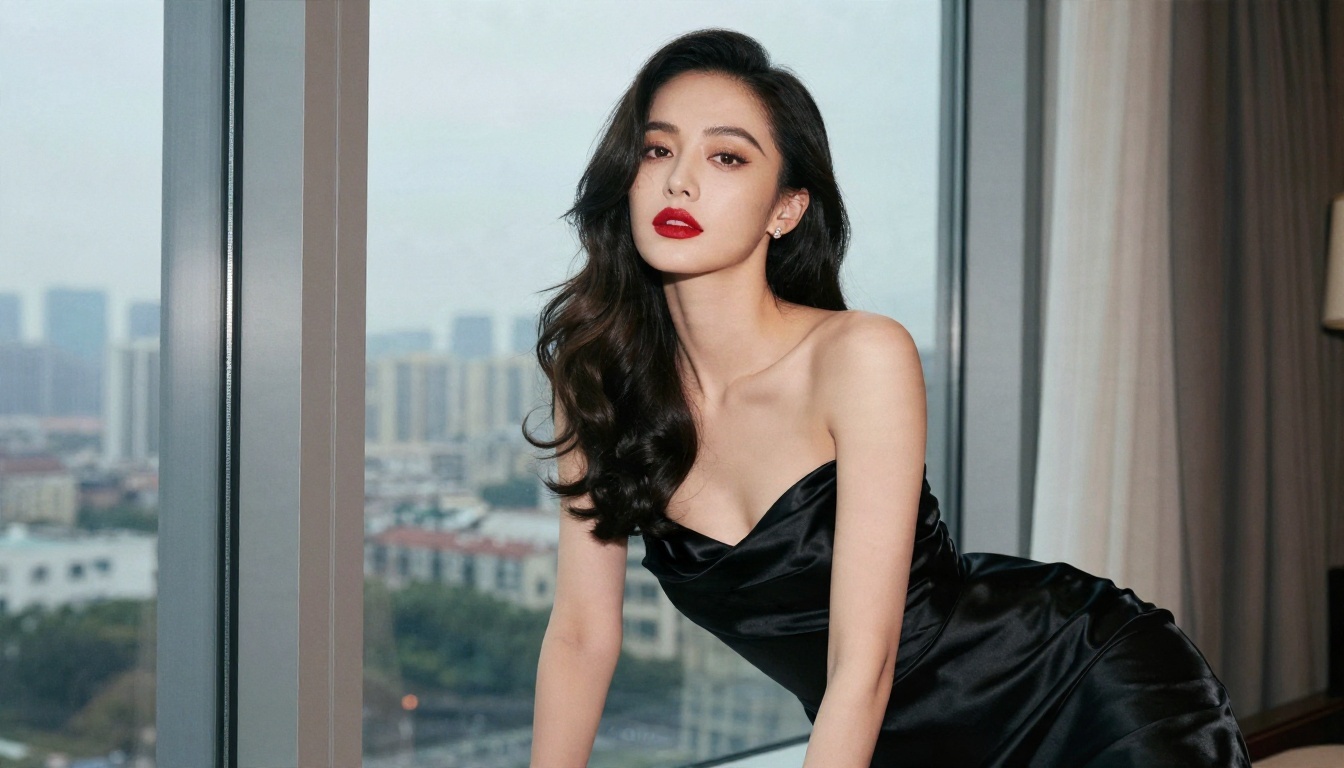
The rooftop portrait above is the kind of image a magazine might run. Typical edits include evening out skin tone without erasing texture, brightening the eyes slightly, taming flyaway hair and adjusting the golden-hour warmth. The trick is to ask for subtlety. A prompt like "keep natural skin texture and visible pores, soften only the harsh shadow under the chin" beats "make skin perfect" every time, because the second one produces the plastic look everyone dislikes.
Background Swaps
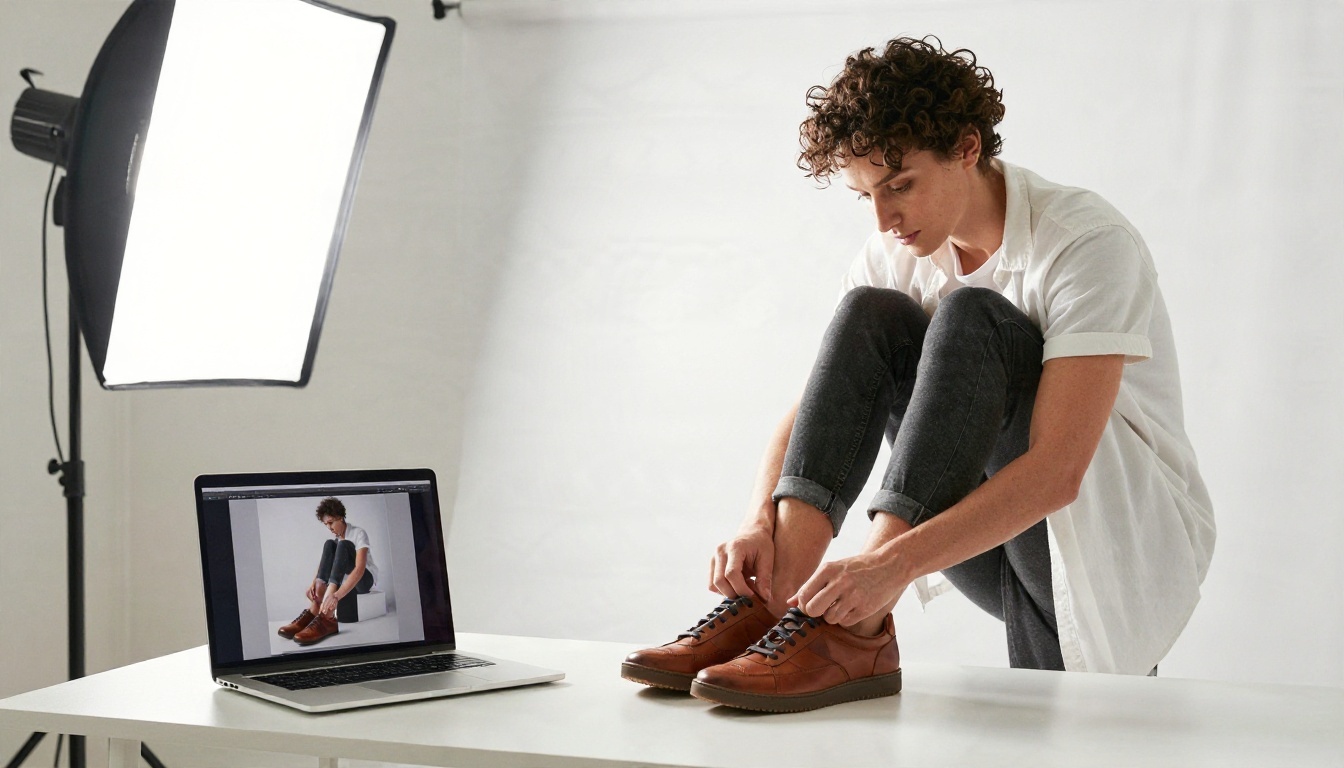
Product and portrait photographers swap backgrounds constantly. A pair of sneakers shot on a plain studio backdrop can become a street scene, a sunlit wooden floor or a minimalist shelf in one prompt. The same applies to people: move a subject from a cluttered room to a clean studio while matching the light direction.
💡 Tip: Always state the light direction in the prompt ("soft light from the left"). It makes the swapped background and the subject feel like they were photographed together.
Photo Restoration
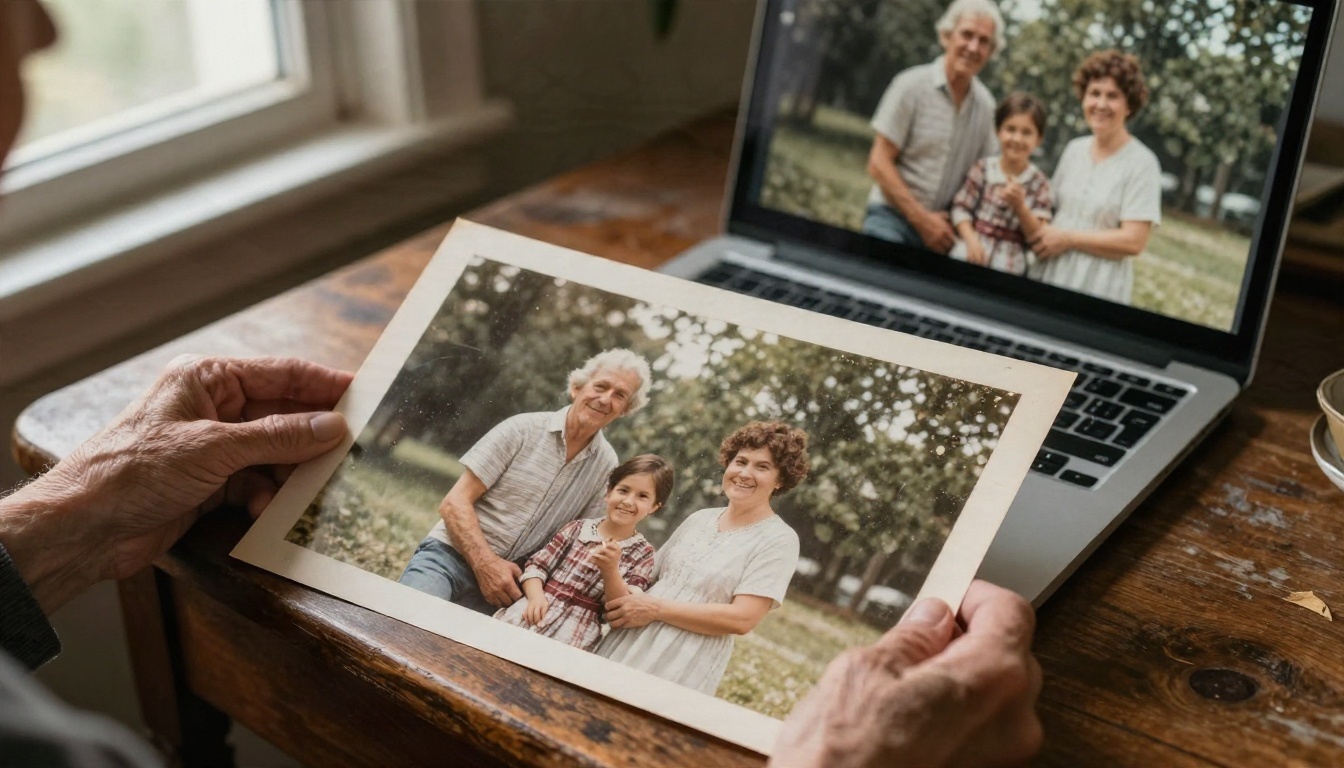
Old family prints with creases, scratches and faded color are a perfect job for an AI editor. Describe the damage and the goal: "remove scratches and creases, restore natural color, keep the original faces unchanged." No filter should ever stand in the way of restoring your grandmother's wedding photo, yet some overcautious tools do block photos of people. A freer editor treats it as the harmless task it is.
Glamour and Swimwear Shots
This is where restrictions bite hardest. Fashion, swimwear and evening-wear photography is a legitimate industry, yet many editors treat any visible skin as a violation. With an editor that allows non-explicit glamour, you can adjust lighting on a satin dress, change a pool-side location or retouch a swimwear campaign shot without a refusal.
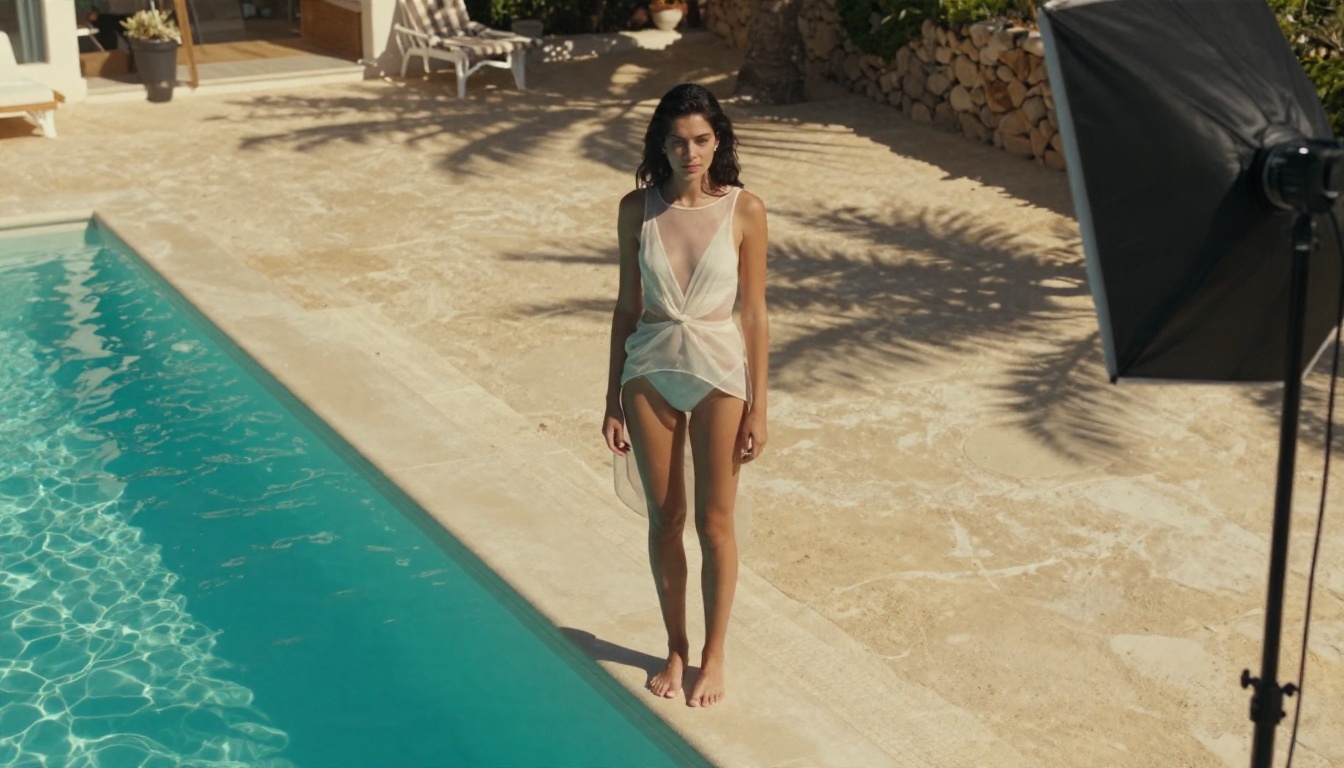
The line to keep in mind is simple: suggestive and attractive is fine; explicit is not. Good editors give you room for beauty, style and confidence, and stay out of pornographic territory.
Alternatives at a Glance
Here is a side-by-side look at the editors discussed, so you can pick based on the job rather than on hype.
| Editor | Best For | Speed | Notable Strength |
|---|
| Seedream 4.5 | Glamour, fashion, detailed scenes | Fast | Sharp output and strong prompt adherence |
| PicassoIA Image Editor Pro | High-volume editing | Fast | Unlimited generations |
| Qwen Image Edit Plus | Precise local changes | Medium | Edits one element without touching the rest |
| Flux Kontext Fast | Quick iterations | Very fast | Consistent faces across edits |
| Nano Banana | Everyday edits and generation | Fast | Simple, flexible, good all-rounder |
| P Image Edit | Sub-second tweaks | Instant | Great for rapid-fire testing |
Two more worth bookmarking: P Image Edit LoRA for style-specific edits, and Text Removal when the only job is deleting captions, watermarks you own or stray lettering from a photo.
💡 Note: Not every model treats adult-leaning artistic content the same way. If your work involves glamour or swimwear, start with Seedream 4.5 and Image Editor Pro, since they are the most relaxed about it.
How to Edit a Photo Step by Step
A reliable routine beats a lucky prompt. This is the workflow I use with PicassoIA Image Editor Pro, and it works with the other editors too.
Pick the Right Model
Match the tool to the task:
- Big scene changes or glamour work: Seedream 4.5
- Lots of iterations on one photo: Image Editor Pro
- One precise change: Qwen Image Edit Plus
- Fast comparisons: Flux Kontext Fast
Write a Prompt That Works
Use a simple structure: what to keep, what to change, how it should look. For example:
Keep the woman's face, pose and hairstyle unchanged. Replace the background with a sunlit Mediterranean terrace. Warm golden light from the left, natural skin texture, 85mm portrait look.
Three habits make a big difference:
- Name what must not change. Faces, poses and proportions drift if you do not protect them.
- Describe light, not just objects. "Soft window light from the right" beats "nice lighting."
- Change one thing at a time. Stacking five edits in one prompt invites errors.
Refine in Small Steps
Run the edit, look at the result, then adjust with a short follow-up: "make the shadows softer," "warm the skin tone slightly," "remove the bag on the table." With an unlimited editor you can run ten rounds without worry. Save the best version after each round so you can step back if a later edit goes sideways.
Limits That Still Apply
Even the freest editor has boundaries, and you should want them there.
Consent and Real People
Edit photos of yourself, of people who have agreed, and of images you have the right to use. Do not create sexualized or misleading images of real people without their permission, and never involve minors. This is the one area where "no restrictions" would be a bad promise, and responsible platforms hold the line.
Watermarks and Quotas
Check three things before you commit to any editor:
| Question | Why It Matters |
|---|
| Is there a watermark on free exports? | Many tools add one that can only be removed by paying |
| What is the maximum output resolution? | Low-resolution caps ruin prints and large banners |
| How many edits per day? | A daily cap turns a quick job into a three-day project |
Also read the privacy terms before uploading personal photos, since some free tools keep your uploads longer than you would expect.
Mistakes to Avoid
A few errors waste more time than any content filter does.
- Over-smoothing skin. Asking for "flawless skin" gives that waxy look. Ask for natural texture instead.
- Vague prompts. "Make it better" produces random changes. Say exactly what should shift.
- Ignoring the source quality. A blurry, tiny input gives a blurry edit. Start from the best original you have, and upscale first if needed.
- Changing too much at once. Layer edits gradually and keep a copy of each stage.
- Trusting the label. A tool that advertises "no restrictions" but refuses a simple swimsuit photo is not what it says. Test with a harmless prompt before relying on it.
Start Editing Your Own Photos
The best way to judge an image editor is to throw your own pictures at it. Take a portrait, a product shot or an old family print, and try the same edit in two or three tools. You will see quickly which ones respect your idea and which ones argue with it.
On Picasso IA you can do that without watching a counter. Start with Seedream 4.5 for detailed, high-resolution scenes, then move to PicassoIA Image Editor Pro when you want to iterate without limits. Keep Qwen Image Edit Plus and Flux Kontext Fast nearby for precise and quick changes.
Ready to see what else is available? Browse the full lineup at picassoia.com/en/all-models, pick a photo you have been meaning to fix, and run your first edit today.


