You have a photo you love. A swimwear shoot, a boudoir portrait, a glamour frame from your own camera roll. You want the words that describe it, either to caption it, tag it, or feed it into a generator and get something just as good. That is exactly what image to text NSFW workflows do, and the gap between a lazy result ("a woman on a beach") and a useful one is huge. This article shows which free tools work, why some of them refuse perfectly legal adult-themed images, which prompts pull out better descriptions, and what to use when captioning is only half of the job.
💡 Scope note: everything below assumes adult subjects, images you own or have permission to use, and non-explicit, glamour-level content. Consent and legality come first, always.
What Image to Text NSFW Means
Image to text is the reverse of text to image. You upload a picture, and a vision model writes about it. When the picture involves swimwear, lingerie, or sensual styling, many tools get nervous, and the quality of the output depends heavily on which model you picked and how you asked.
Captions, Prompts and Tags
These three outputs get mixed up constantly, but they serve different jobs.
| Output | What it looks like | Best for |
|---|
| Caption | One or two natural sentences | Alt text, social posts, archives |
| Prompt | Dense description of subject, light, lens, mood | Recreating the look in a generator |
| Tags | Comma separated keywords | Sorting a large photo library, LoRA training sets |
A caption tells a reader what is there. A prompt tells a generator how to build it. If your goal is to recreate a style, you want the second one, and you will have to ask for it directly.
Who Actually Uses It
The audience is wider than people assume:
- Photographers who need alt text and searchable descriptions for swimwear or boudoir portfolios.
- Creators who want to reproduce the lighting and mood of a favorite shoot with an AI generator.
- Dataset builders who caption images before training a style LoRA.
- Moderators and brand teams who need a description of an image before deciding whether it is suitable for a platform.
- Curious users who simply want to know why a photo looks so good and what the ingredients are.
No single free tool wins everywhere. Some are great at fluent prose, others at raw tags, and a few simply refuse anything that smells adult.
Vision Chatbots on PicassoIA
PicassoIA hosts several large language models that can read images. Three are worth testing first:
- Gemini 3 Flash is fast and handles chart-free everyday photos very well. It is a good first pass for captions and alt text.
- Qwen3.7-Plus generates text and interprets images, and it tends to follow detailed formatting instructions, such as "return a prompt in three labeled parts".
- Kimi K2.5 reads text and images and writes long, patient descriptions when you ask for them.
For a heavier pass, Gemini 3.5 Flash is another option for chat and image reading in one place.
💡 Honest expectation: mainstream vision models handle swimwear, glamour and tasteful boudoir photography fine. They may soften wording or decline when an image is explicit. That is a policy choice by the model makers, not a bug in your prompt.
Open Captioners and Taggers
Outside PicassoIA, the community has built captioners designed for less restricted material. Names you will run into are JoyCaption, CLIP Interrogator, BLIP, and the WD14 tagger family. They are typically open, can run on your own machine, and are popular for dataset work. Their trade-off is setup time: you install them, pick settings, and deal with output that is often tag-heavy and not very readable.
Quick Comparison
| Tool type | Output style | Strictness | Setup |
|---|
| Vision chatbot (Gemini, Qwen, Kimi) | Fluent prose, flexible format | Moderate, varies by image | None, runs in browser |
| CLIP Interrogator style | Prompt fragments with style keywords | Low | Low to medium |
| WD14 style tagger | Pure tag lists | Low | Medium |
| Open captioning models | Long detailed captions | Low | Medium to high |
If you only want to try it in the next five minutes, a browser vision chatbot wins. If you caption a thousand images for training, a local tagger wins.
Where Filters Get in the Way
You upload a perfectly legal swimwear photo, and the tool replies with an apology. Frustrating, but there are reasons.
Why Refusals Happen
Most hosted vision models run a safety layer before and after the model itself. That layer looks at three things: how much skin is visible, whether the request mentions sexual language, and whether the subject might be a minor. The last one is a hard line everywhere, and it should be. Photos where age is hard to judge get refused even if the subject is an adult, which is annoying but understandable.
Typical refusal triggers include:
- Words like "explicit", "nude" or sexual verbs in your instruction.
- Close crops of intimate areas.
- Low-resolution or heavily filtered images where age is unclear.
- Requests that ask the model to speculate about the person's identity.
Staying Inside the Rules
You do not need tricks. You need plain, neutral wording. Ask for visual description, not for sexual commentary. "Describe pose, clothing, fabric, lighting and setting" gets better results than anything coy. Do not ask a model to identify the person, and never upload someone else's private images. If a tool declines, switch to a different tool rather than rewording ten times. Repeated pushing against a filter produces worse text anyway.
A useful extra step for teams: run output through Llama Guard 4 12B, a free content moderation model, to flag anything that should not be published.
Prompt Ideas That Work
The instruction you give the captioner decides almost everything. A vague request returns a vague answer.
Instructions for the Captioner
Copy and adapt these. They work on non-explicit glamour, swimwear and boudoir photography.
For a recreation prompt
Describe this photograph as a prompt for an image generator. Include the subject's pose, clothing and fabric texture, setting, light direction and quality, camera angle, estimated lens, color palette and mood. Write one dense paragraph of 80 to 120 words.
For alt text
Write a neutral one-sentence description of this image for alt text. Mention clothing, setting and lighting. Do not comment on appearance.
For a photographer's notes
Act as a photo editor. List what works in this image (light, composition, styling) and three things I could change on the next shoot.
For tags
Return 20 comma separated tags covering clothing, location, lighting, mood and photographic style. No sentences.
For a lighting breakdown
Explain where the main light is coming from, how soft or hard it is, and how many sources you think were used.
From Caption to Image Prompt
Once you have a description, tighten it before generating. Raw captions are usually too flat. A small template helps:
[subject and pose], [clothing and fabric], [setting], [light direction and quality], [camera angle, lens, depth of field], [film look and texture], [mood]
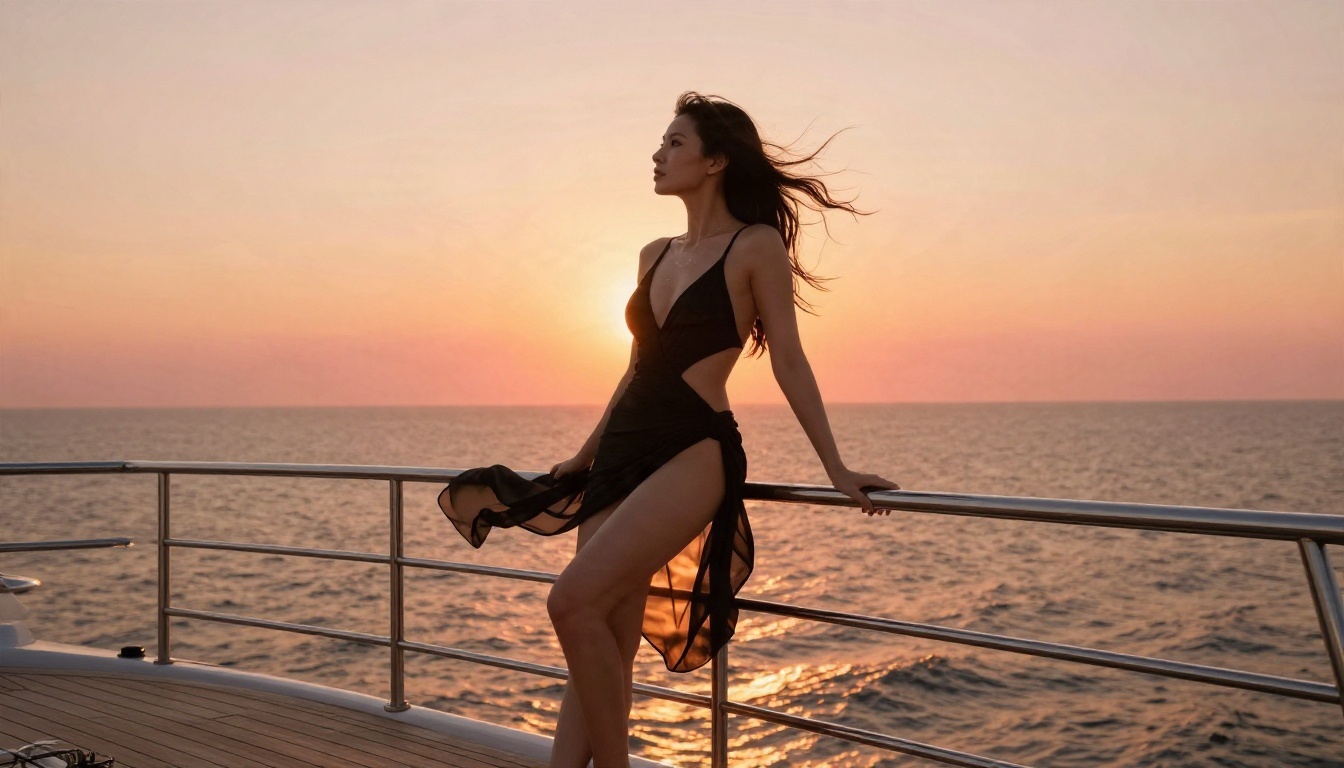
Example, built from the yacht image in this article:
A woman in a black one-piece swimsuit and sheer sarong leaning on a teak yacht rail, wind in her hair, sunset behind her, low warm backlight, 100mm lens, shallow depth of field, Kodak Portra 400 grain, elegant and relaxed.
Short, concrete, no filler adjectives. The more physical the nouns (teak, sarong, backlight), the more faithful the result.
Alternatives When Captioning Falls Short
Sometimes a text description is the wrong tool. If a vision model keeps refusing, or you care more about the look than the words, skip the text stage entirely.
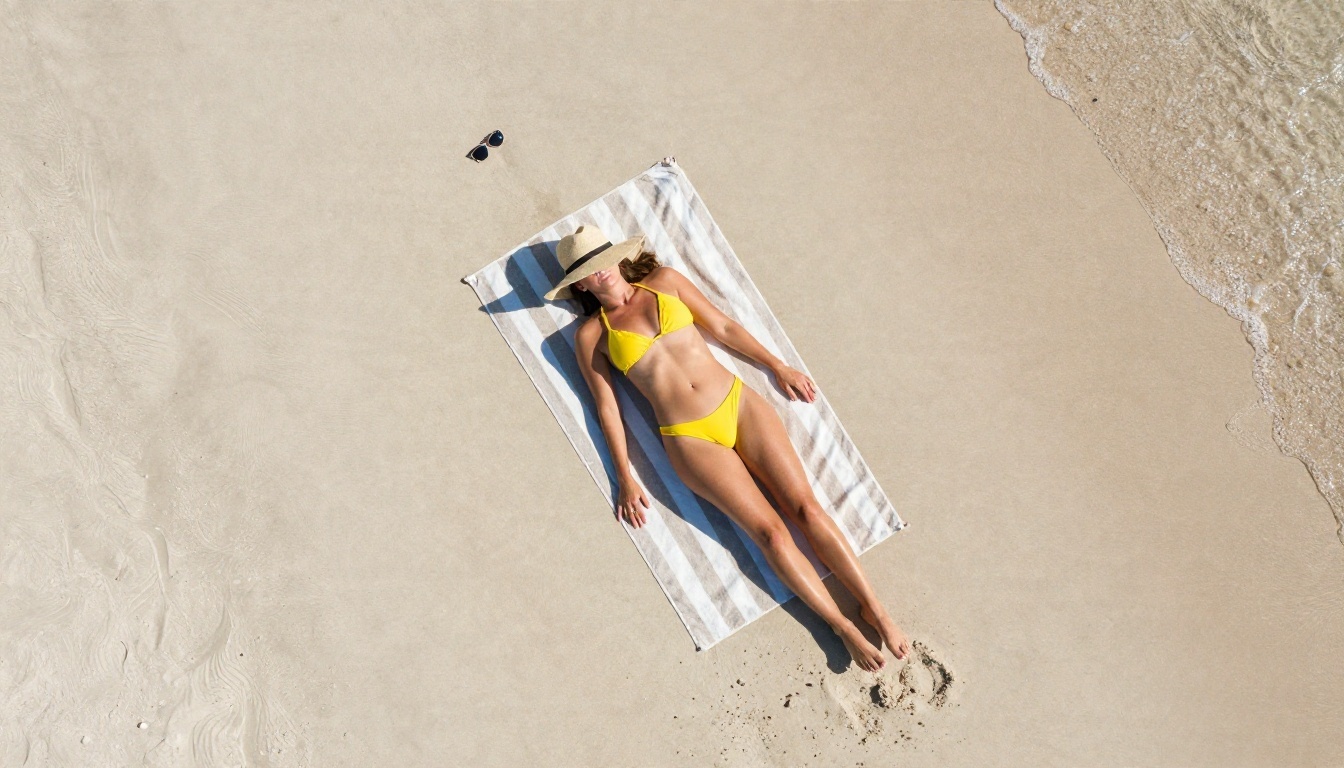
Image to Image Instead of Image to Text
Editing tools take your photo directly and change it, so no description is needed. PicassoIA Image Editor Pro is an unlimited AI photo editor, which makes it ideal for iterating without worrying about running out of credits. Upload a swimwear or glamour image, describe the change (new location, different outfit color, softer light), and compare results side by side.
Generate From Your Own Description
When you have a good prompt, a strong generator turns it into a finished image quickly. These are the models to reach for, in this order:
- Seedream 4.5: the first pick for adult-leaning glamour and swimwear, with sharp 4K output, believable skin and lighting that holds up on close inspection.
- PicassoIA Image Editor Pro: unlimited generations and edits, built for fast iteration on the same photo.
- Z Image Turbo: very quick sharp images, useful for testing ten prompt variations in a few minutes.
- Flux 2 Klein 4B Base: a lightweight option when you want a different rendering character for comparison.
💡 These generators are less restrictive than most chat-based tools, which is the real value: you get the aesthetic you described without a refusal message in the middle of your workflow.
Add Video Later
Once you like a still, you can bring it to motion with a text to video model. That is a separate step, so finish the image first.
How to Run the Loop on PicassoIA
The fastest full workflow is: describe, refine, generate, compare. Here it is with a vision model and Seedream 4.5.
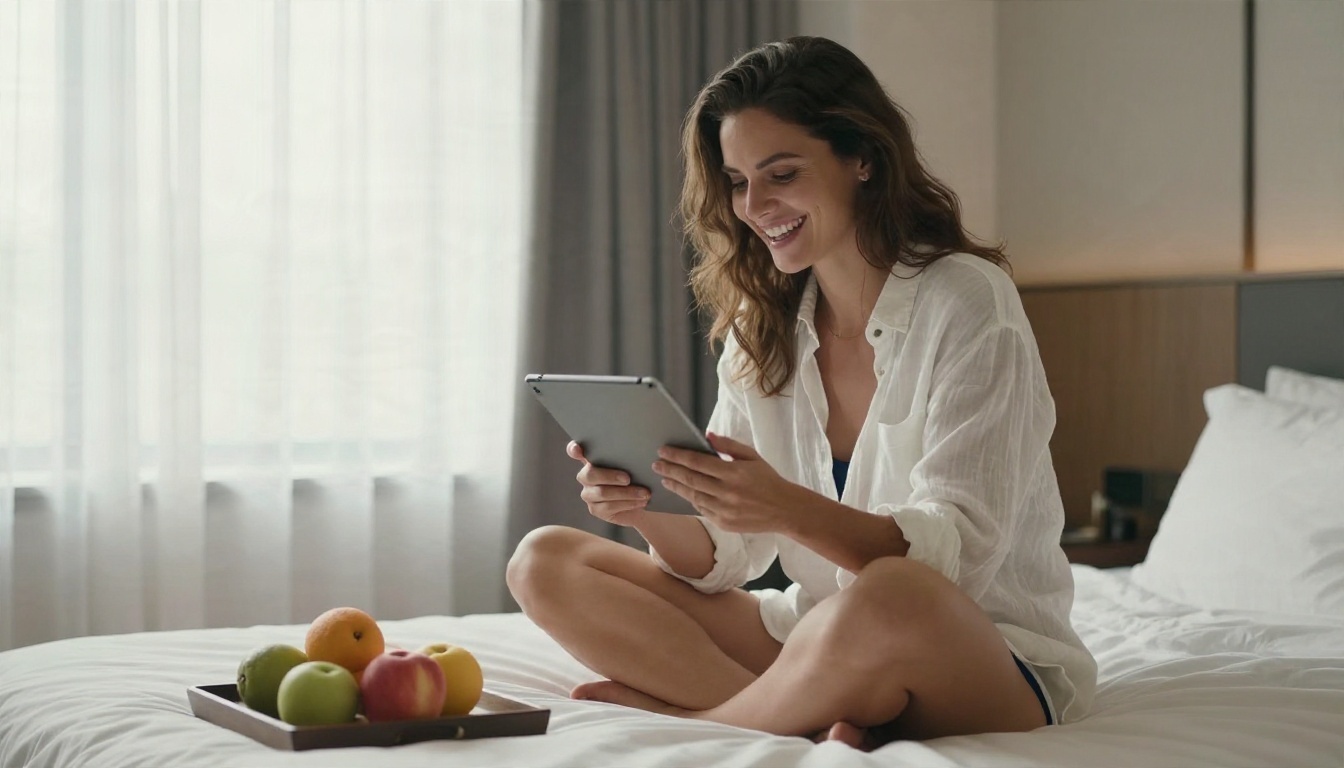
Step by Step
- Pick your reference. Choose a clear, well-lit photo of an adult subject that you own. Avoid heavy filters.
- Describe it. Open a vision model such as Gemini 3 Flash, upload the image, and paste the "recreation prompt" instruction from above.
- Edit the text. Remove anything that is not visual (opinions, names, guesses about the person). Keep fabric, light, lens and setting.
- Open Seedream 4.5. Go to Seedream 4.5 on PicassoIA, paste the cleaned prompt, and choose a 16:9 or 3:2 aspect ratio for landscape scenes.
- Generate two to four versions. Compare light direction and skin rendering first, since those are what separate a believable image from a plastic one.
- Refine in Image Editor Pro. Take your favorite to Image Editor Pro for small changes: a different swimsuit color, a calmer background, softer shadows.
Parameter Tips
| Setting | Suggestion | Why |
|---|
| Aspect ratio | 16:9 for scenes, 3:4 for portraits | Matches how the original was framed |
| Prompt length | 60 to 120 words | Short enough to stay focused, long enough for light and lens |
| Light wording | Say direction and time ("low sun from the left") | Avoids flat, even lighting |
| Skin wording | "natural skin texture, visible pores" | Prevents over-smoothing |
| Iterations | Change one thing per run | Makes it clear what caused a difference |
Common Mistakes
Most failed attempts come down to the same handful of habits.
Asking for Too Much in One Step
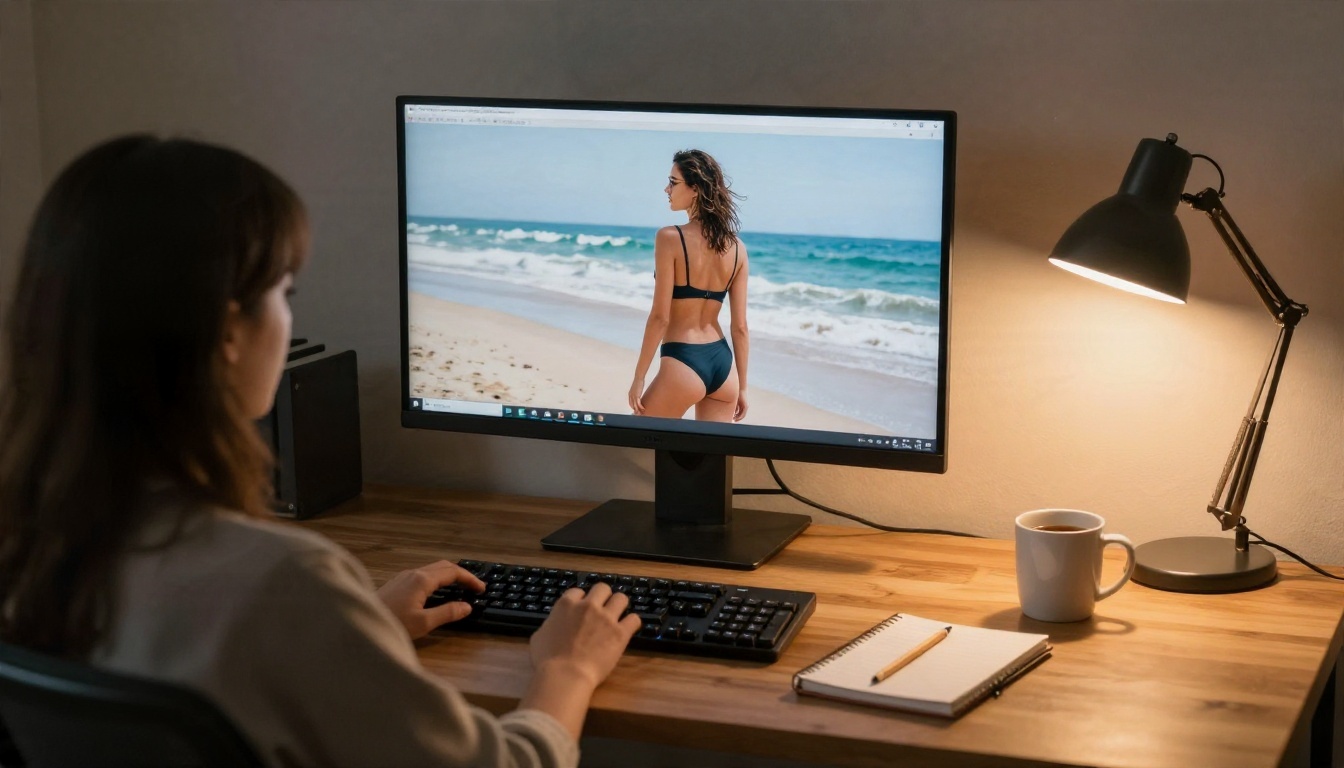
"Describe this, rewrite it, translate it and give me tags" produces mush. Ask for one output at a time and chain the results.
Trusting the Caption Blindly
Vision models guess. They get fabric names wrong, invent jewelry, and misjudge lens length. Always compare the text against the image before you paste it into a generator.
Ignoring Light
Beginners describe the person and forget the lighting. The light is usually what makes a glamour photo work. If your prompt does not mention direction, softness and color temperature, the result will feel generic.
Uploading Images You Do Not Control
Never upload photos of people who have not agreed to it, and never use these tools on anyone whose age you are not certain about. That is not only a platform rule, it is basic decency, and it protects you.
Switching Tools Without a Plan
If one captioner refuses, change the tool, not the intent. Keep your instruction neutral and move to a model or editor that suits the image.
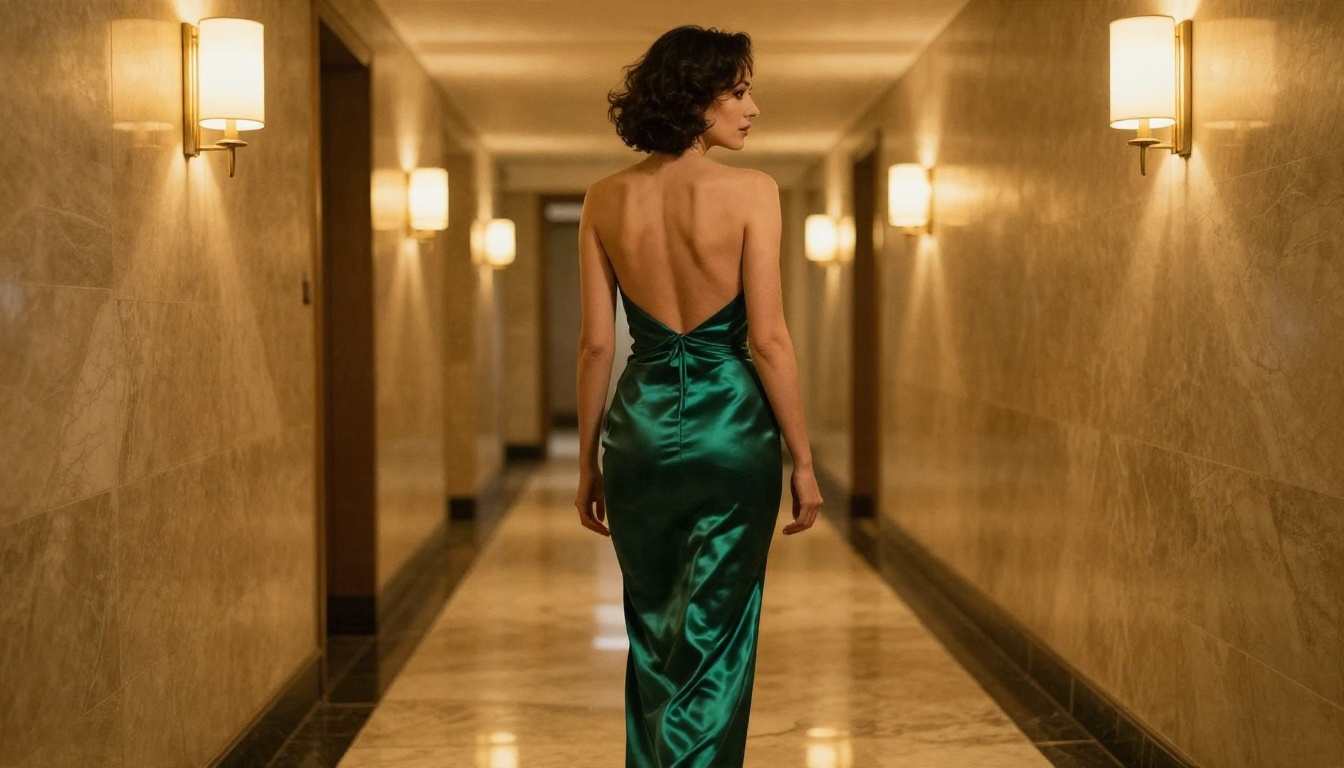
Try It Yourself
The best way to see the difference is to run one image through the whole loop. Take a single swimwear or glamour photo you own, ask a vision model for a recreation prompt, and send that prompt to Seedream 4.5. Then bring your favorite result into PicassoIA Image Editor Pro, where unlimited generations let you test as many variations as you like. Change one detail at a time: the light, the outfit, the location.
You will quickly see which words matter and which ones are noise. Once you have a prompt style that works for you, keep it as a template and reuse it.
For more image generators, editors and vision models, browse the full catalog at picassoia.com/en/all-models and start creating your own images today.


