You have a photograph you love. A portrait taken at golden hour. A landscape from that hiking trip. A fashion shot that captures exactly the right moment. For most of human history, that was it, frozen in time on paper or a screen. But AI has changed the equation entirely. Today, a single still image can be given motion, turning a static JPEG into a fluid, cinematic video clip in seconds. This is image-to-video technology, and right now it is one of the most practical creative tools available to photographers, content creators, marketers, and everyday users who simply want to bring their photos to life.
What Image to Video AI Actually Does
From Static to Motion
When you feed a photograph into an image-to-video model, the result is not a slideshow or a pan-and-scan effect. The model generates entirely new video frames that simulate realistic motion within the scene. Water ripples. Hair sways in an invisible breeze. Fabric catches movement. The subject breathes or subtly shifts.
The output is typically a 3 to 10 second clip. Done well, it looks indistinguishable from footage shot with a moving camera or from a live scene. The photograph serves as the visual foundation, and the AI constructs a physically plausible world of motion around it.
The Tech That Makes It Work
Modern image-to-video models are built on diffusion transformers trained on enormous datasets of video sequences. Through this training, the model builds detailed knowledge of how the visual world moves: how a person's shoulders rise and fall when breathing, how shadows shift as light changes, how surfaces like water or fabric behave under natural forces.
When you provide a source image, the model uses it as an anchor frame and synthesizes subsequent frames that are visually consistent with your original while introducing natural motion. This is called temporal generation, and the quality of the result depends on the model's ability to maintain spatial coherence across every frame.
A model like Wan 2.7 I2V handles this at a very high level. Faces stay recognizable. Backgrounds hold correct perspective. Motion looks organic, not mechanical or glitchy.
💡 The core insight: The AI is not sliding pixels around like a transitions effect. It is generating entirely new visual frames using your image as a reference point, not a mask.
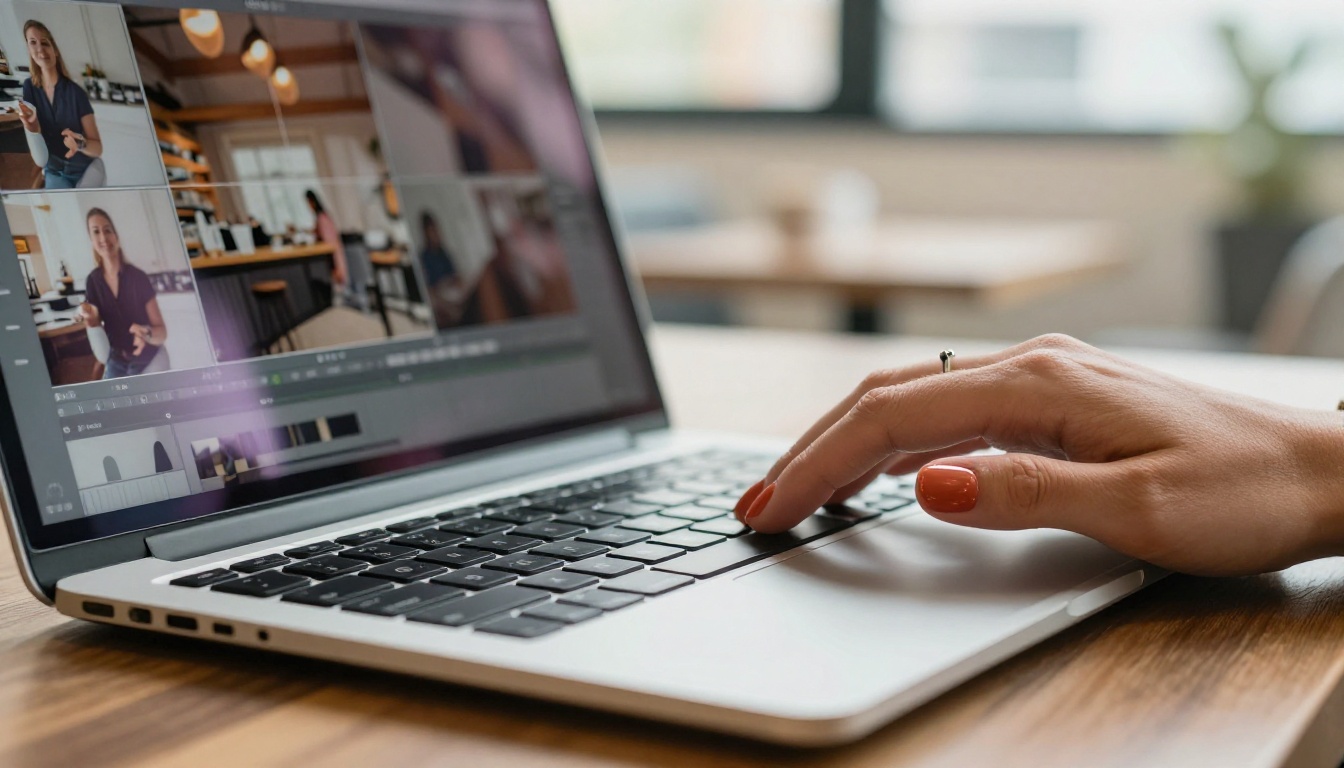
3 Use Cases Worth Your Time
Social Content That Moves
Static images on social platforms compete with video content every moment. Animating your photos gives them motion, and motion captures attention at a biological level. A fashion brand that animates a product shoot gets more clicks and shares than one posting a flat JPEG. A travel creator who turns landscape photography into animated clips gets more reach than one who does not.
The data backs this up: video content typically outperforms still images by 2 to 4 times on most platforms, and image-to-video AI means you can create that content from photographs you already own. No second shoot required.
Archival and Personal Photos
One of the most emotionally powerful applications of this technology involves older photographs. A black-and-white portrait of a grandparent from decades ago can be given subtle motion: a slight head turn, a natural blink, a soft expression shift. Done well, this is a form of connection that flat photographs cannot provide.
Tools like Ovi I2V and Video 01 Live handle portrait animation with strong facial coherence, making them well-suited for personal and archival work where likeness preservation matters most.
Product Footage Without a Set
For e-commerce teams, product marketers, and solo creators, image-to-video technology removes the need for a video production setup entirely. A clean product photograph can become an animated clip showing subtle motion: steam rising from a mug, fabric catching a breeze, jewelry catching light at a different angle. Usable content across every platform, built from a single still.
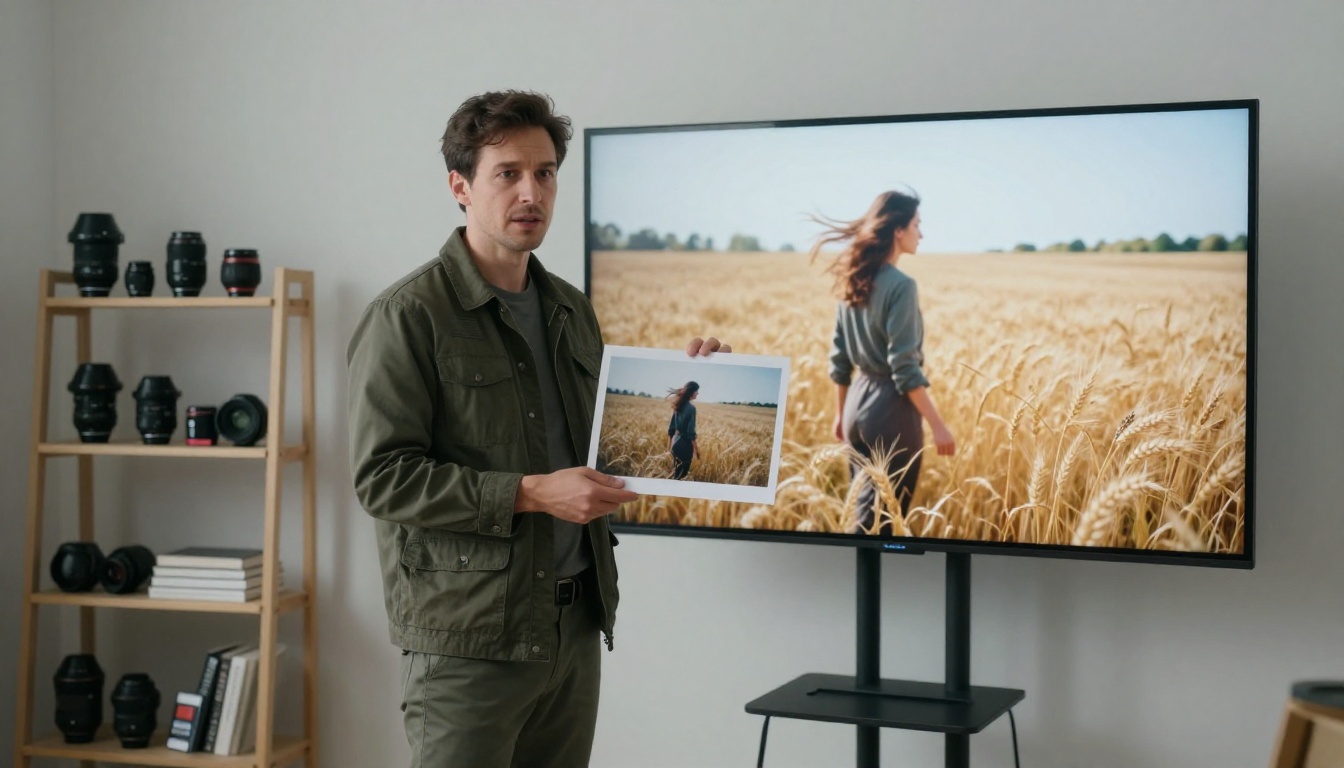
What Makes a Strong Source Image
Resolution Basics
Image-to-video models produce better results when the source image is high-resolution and sharp. Blurry or heavily compressed images cause the model to fill in missing detail inconsistently between frames, which produces flickering and visual artifacts in the output.
Practical benchmarks:
- Minimum: 1024 x 576 pixels (16:9 ratio)
- Preferred: 1920 x 1080 or higher
- Format: PNG or uncompressed JPEG
- Sharpness: The primary subject must be in clear focus
Composition That Responds Well
Some compositions animate more successfully than others. This reflects how the model interprets and generates motion within a scene:
| Composition Type | Result | Reason |
|---|
| Clear subject, simple background | Excellent | Easy element separation |
| Portrait with natural setting | Very Good | Hair, fabric, foliage respond naturally |
| Landscape with sky and water | Excellent | Atmospheric elements animate well |
| Architecture with no people | Good | Camera movement works cleanly |
| Dense crowd scene | Difficult | Too many competing elements |
| Text-heavy graphic design | Poor | Text degrades badly across frames |
4 Things to Avoid
- Heavily filtered images: Heavy Instagram-style filters confuse the model's reading of surface textures and lighting
- Extremely dark photos: Low-light detail gets amplified into noise artifacts during animation
- Multiple subjects at equal size: The model has no clear hierarchy and generates inconsistent motion
- Extreme wide-angle lens distortion: Geometric warping conflicts with realistic motion physics
💡 The simple version: The cleaner and clearer your source image, the more cinematic the animated output. A portrait against a soft bokeh background almost always outperforms a complex, busy scene.
The Top Models Available Now
The model landscape has advanced rapidly. Here is a practical breakdown of what is currently available and where each one performs best.
Wan 2.7 I2V: The Current Standard
Wan 2.7 I2V produces 1080p output and handles scenes with multiple moving elements while maintaining strong subject fidelity throughout the entire clip. For landscapes, nature photography, and fashion shots, the results are consistently impressive. Its predecessor, Wan 2.6 I2V, is also excellent and slightly faster for rapid iteration workflows.
Both models handle portrait animation with natural facial motion that avoids the uncanny valley problem that characterized earlier systems. If you only try one model, start with Wan 2.7 I2V.
Kling v2.6 and v3: Cinematic Output
Kling v2.6 has established itself as a benchmark for visual quality. It produces fluid, natural-looking motion with color grading that feels intentional rather than accidental. For storytelling-focused work, the output often requires no post-processing at all.
Kling v3 Video adds improved motion control, allowing you to specify not just what moves but how: camera direction, subject behavior, and motion speed. The Kling v2.6 Motion Control variant provides even more granular camera trajectory input, which is useful for creators who want precise control over every clip.
Gen4 Turbo: Speed and Volume
Gen4 Turbo from Runway is the right choice when speed matters. It is particularly strong at maintaining consistent motion physics: objects fall, fabric drapes, and hair moves in ways that feel physically correct. For social media content produced at high volume, Gen4 Turbo's speed makes it practical in ways that slower models are not.
Portrait-Focused Options
For face-specific animation, Ovi I2V and Video 01 Live both stand out. They are trained specifically to handle micro-expressions, natural eye movement, and subtle lip motion. Both include native audio generation, meaning if your output will include voiceover or dialogue, the animation timing is already calibrated for synchronized delivery.
For reference-based animation, Grok Imagine R2V provides a strong alternative, particularly effective when the motion prompt references a specific character or stylistic approach from the input image.
Budget Options Worth Knowing
Not every project needs the highest-tier model. Several options offer strong value for creators in the early stages:
- Hailuo 2.3 Fast: Quick output at 720p, good for fast social drafts
- P Video: Accepts both text and image input, flexible for mixed creative workflows
- Seedance 1 Pro: ByteDance's strong general-purpose model with 1080p capability
- I2VGen XL: A solid baseline for understanding the mechanics before committing to premium options
- PIA: Focused on portrait and character animation with personalization capabilities
Writing Motion Prompts That Work
The motion prompt is as important as the source image. It tells the model what to animate, at what speed, and in which direction. A weak prompt produces random, unpredictable results. A specific prompt produces a clip that looks intentional and controlled.
The Right Vocabulary
For camera movement:
- "slow camera pull back revealing the full environment"
- "gentle pan from left to right, subject stationary"
- "subtle zoom toward the face, natural breathing visible"
- "static camera, only the background elements in motion"
For subject motion:
- "hair moving gently in a soft breeze from the left"
- "subtle head turn, eyes blinking naturally"
- "fabric rippling slowly in the wind"
- "waves rolling in from the right side of the frame"
For atmosphere:
- "volumetric golden light shifting slowly"
- "light mist drifting across the background"
- "dappled sunlight through gently moving leaves"
💡 Avoid generic prompts: Phrases like "make it move" or "animate this" produce random, inconsistent output. Describe the motion with direction, speed, and which specific elements are involved.
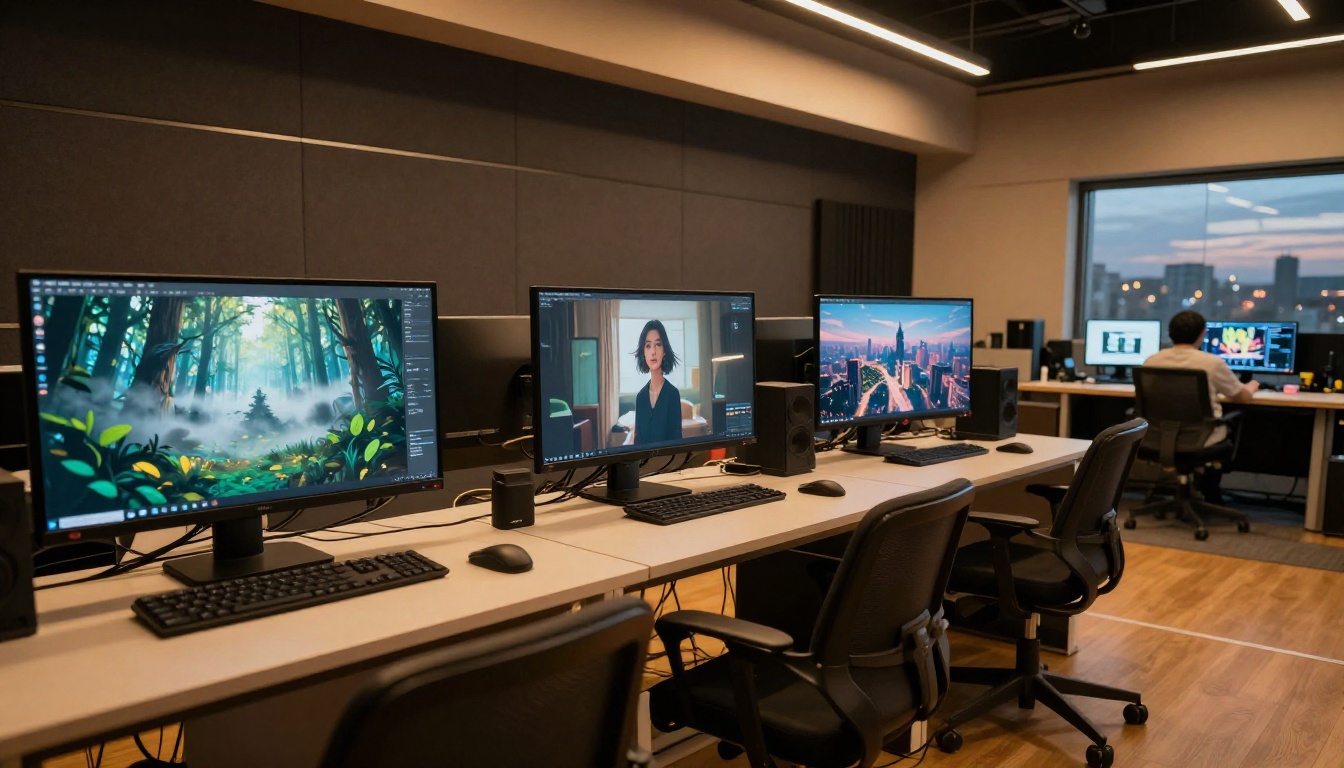
Clip Length by Platform
Most models generate between 3 and 10 seconds. For social content, 5 to 6 seconds is the practical target: long enough to show motion clearly, short enough to loop well.
| Platform | Ideal Clip Length | Looping |
|---|
| Instagram Reels / TikTok | 5-8 seconds | Yes |
| LinkedIn | 6-10 seconds | Optional |
| X (formerly Twitter) | 4-6 seconds | Yes |
| YouTube Shorts | 8-15 seconds | Optional |
| Website background | 5-6 seconds | Yes |
What Happens After Generation
Upscaling the Output
Many models generate at 720p as their default resolution. For publication-ready output, upscaling is a fast next step. The Video Increase Resolution tool pushes clips up to 8K while preserving motion quality across frames. Real ESRGAN Video is a strong alternative, particularly effective at sharpening texture detail in fabric, foliage, and skin.
Both are fast to run and add a meaningful quality jump to clips that appear slightly soft at native resolution.
Combining Clips into Longer Content
A single photograph can yield several usable clips, each with different motion parameters. The workflow is straightforward:
- Generate 3 to 4 clips from the same image with distinct motion prompts
- Select the strongest takes
- Use Video Merge to combine them into a continuous sequence
- Add contextually generated sound with MMAudio
The result is a polished 20 to 30 second piece built entirely from a single still photograph.

5 Mistakes That Kill the Output
1. Using a low-resolution source image
The model invents detail it cannot see in blurry or compressed images, which leads to flickering artifacts. Upscale your photograph with a super-resolution tool before feeding it into any image-to-video model.
2. Writing a vague motion prompt
"Animate this" tells the model nothing specific. Describe direction, speed, and which elements move. "Slow pull back, static subject, leaves swaying in the background" is useful. "Make it move" is not.
3. Expecting photorealism from a non-photorealistic source
The output reflects the input's aesthetic. A painting-style source produces painting-like artifacts in the animation. Photorealistic results require photorealistic source images.
4. Ignoring temporal consistency settings
Most premium models include a consistency strength parameter. Too low and random motion appears; too high and nothing moves convincingly. A setting between 0.6 and 0.8 produces natural results in most scenarios.
5. Running only one generation
The same prompt and image produces different results on each run due to the nature of the diffusion process. Generate 3 to 4 variations per attempt and select the strongest. The variance across runs is higher than most first-time users expect, and the best result is rarely the first one.
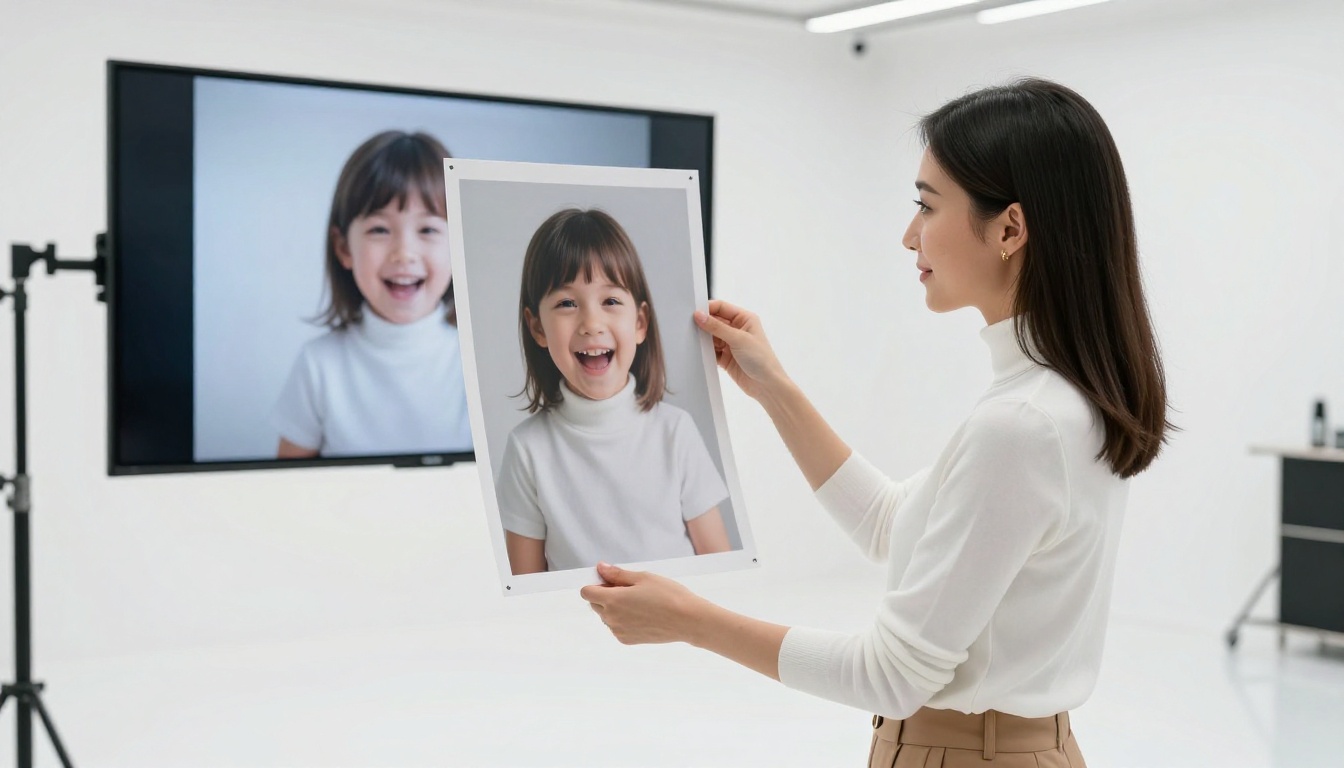
What to Realistically Expect
Setting clear expectations is part of building a reliable creative workflow. Here is an honest breakdown of where current image-to-video AI performs well and where it still has room to develop:
Consistent strengths:
- Natural landscapes: water, sky, cloud movement, foliage
- Fashion and portrait animation with soft, natural movement
- Product shots with subtle environmental motion
- Camera movement applied to static architectural or landscape scenes
Areas of variability:
- Fast, complex motion (sports, action, rapid gestures)
- Hands and fingers, which remain technically challenging for most models
- Dense urban scenes with many independent moving elements
- Text preservation across video frames
The models that handle difficult cases most reliably right now are Kling v3 Video and Wan 2.7 I2V. Both have improved substantially at edge cases where earlier systems failed consistently.
Which Model for Which Goal
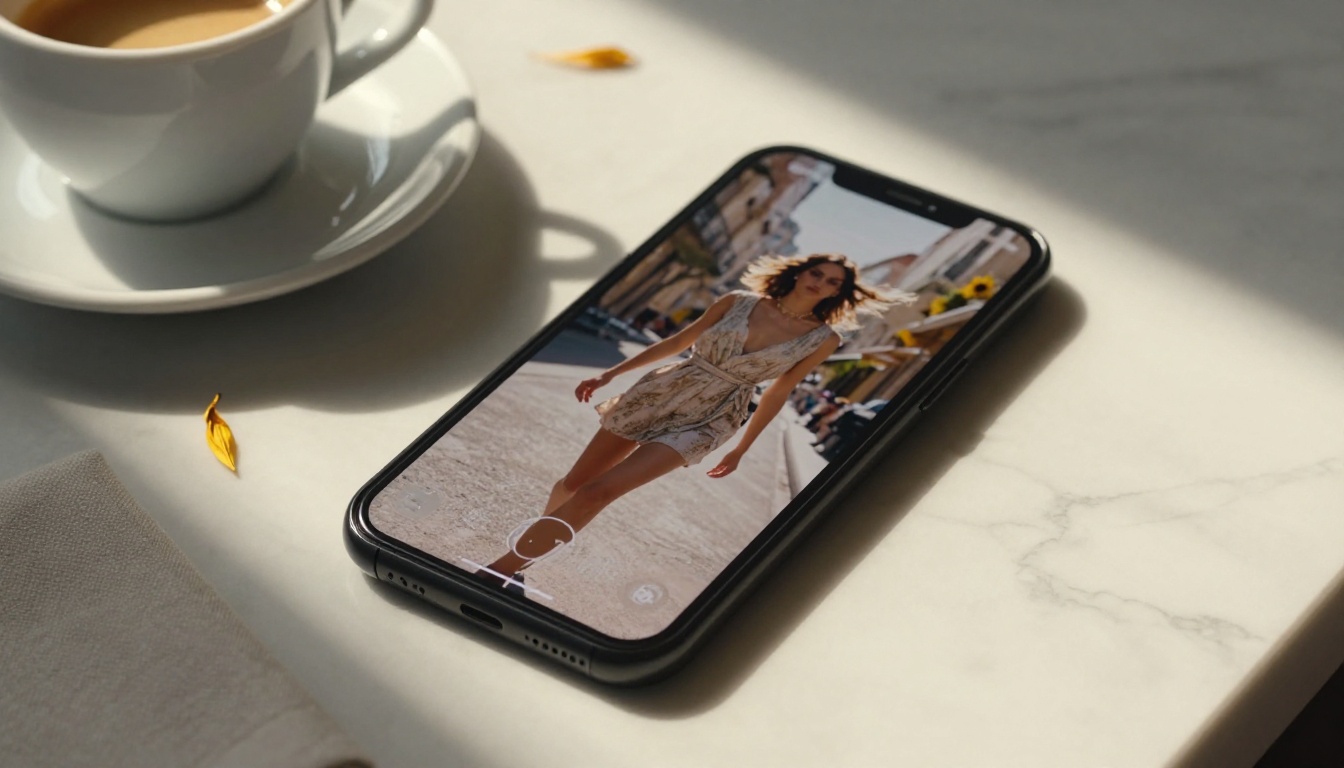
Pick Your First Model and Start
The photographs sitting on your phone, hard drive, or camera card are creative assets waiting to move. Every still image is a starting point for a video clip that performs better on social platforms, tells a stronger story, and holds a viewer's attention in ways a flat image cannot.
All of the models covered in this article are available on Picasso IA, ready to run without local setup or technical configuration. Open an image, write a motion prompt, pick a model, and your animated clip is ready in seconds.
Start with a clean portrait or a landscape photograph. Use Wan 2.7 I2V as your first model and write a specific, simple motion prompt. Generate three variations. Pick the best one. Then try Kling v3 Video on the same image for the cinematic treatment. The difference in output between models is striking, and seeing it firsthand is the fastest way to develop instincts for which model fits which photograph.
The still photos on your device right now are already half the creative work. The rest takes seconds.


