You have a posting calendar, a phone full of half-usable photos, and no time for a photoshoot. That gap is exactly where an Instagram image generator earns its place. You type a sentence, pick a ratio, and a few seconds later you have a sharp, vertical, photorealistic image that looks like it came from a real camera. No stock subscriptions, no editing software, no props to buy.
This article is a working reference. You will get the exact pixel sizes Instagram expects, prompt formulas you can paste straight into a free online tool, a comparison of the best models on PicassoIA for social content, and real examples across portraits, food, travel, fashion and small business.
💡 Quick answer: For feed posts, generate at 4:5 (1080 x 1350). For Stories and Reels covers, use 9:16 (1080 x 1920). Write prompts with a subject, setting, light, lens and film look, and you will get photographic results instead of plastic ones.
What an Instagram Image Generator Does
An Instagram image generator is a text-to-image tool tuned for the way people actually post. Instead of one fixed square, it lets you choose portrait, square or vertical ratios, and it produces images with the detail and lighting that hold up on a phone screen.
How it works in plain terms
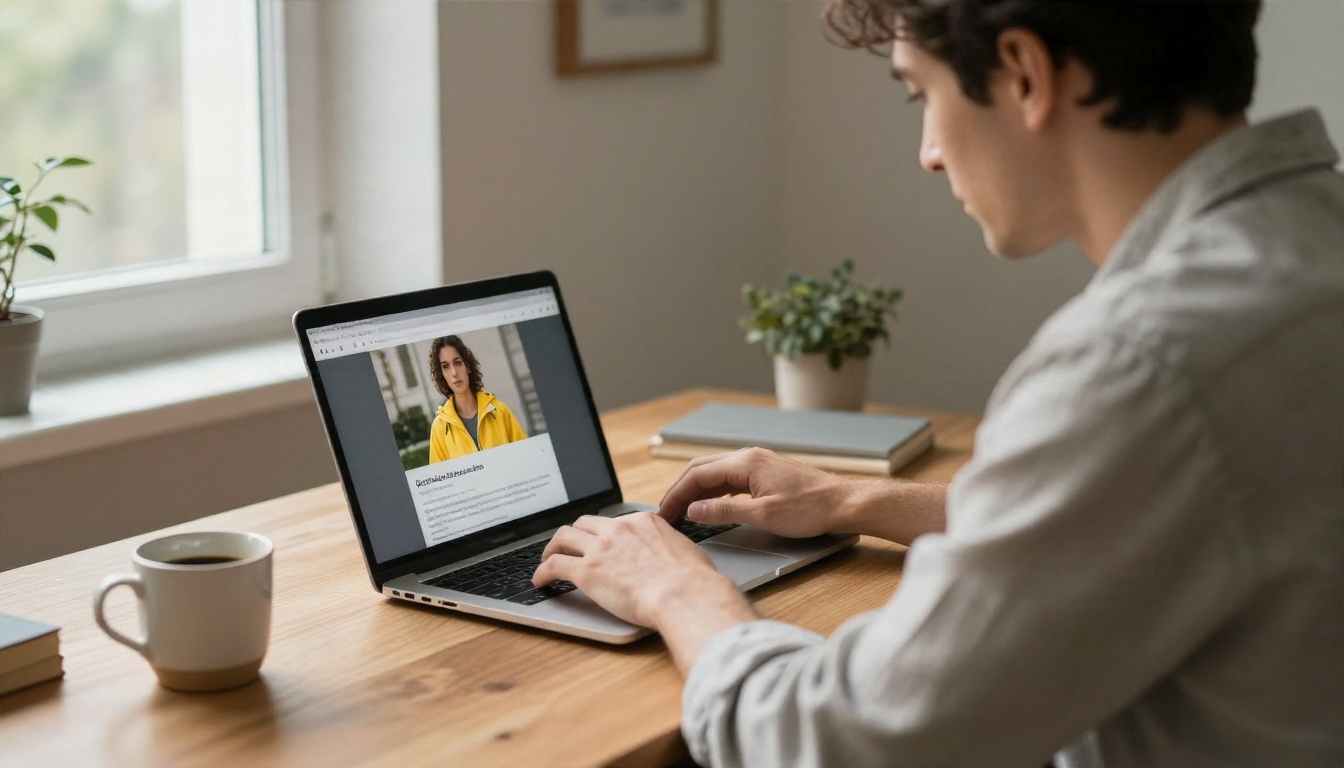
You describe a scene. The model, trained on millions of image and caption pairs, builds a picture that matches your words. Good tools handle faces, hands, fabric, food and light with enough accuracy that viewers scroll past without suspecting anything. If you want to browse every option, the full catalog lives at picassoia.com/en/all-models.
What "free online" really means
Free tools usually come with one of three limits: a daily credit cap, a lower resolution, or a watermark. The best setups give you generous credits on fast models and let you upscale only the winners. That is a smart way to work: draft cheap, finish sharp.
| Free tool limit | What it means for you | Workaround |
|---|
| Daily credits | A fixed number of images per day | Use a fast model for drafts |
| Resolution cap | Output below 1080 px wide | Run an upscaler on final picks |
| Watermark | Logo on the corner | Pick a platform without one |
| Queue time | Waiting at peak hours | Generate early in the day |
Who gets the most out of it
Creators who post daily, small shops without a photographer, freelancers building a portfolio feed, and marketers who need ten variations of one idea before lunch. If your content depends on mood, color and consistency, generation gives you control that stock libraries never will.
Instagram Sizes That Matter
Wrong dimensions cost you quality. Instagram recompresses everything you upload, and a badly cropped or undersized file turns soft fast. Here are the sizes that most current size references agree on for 2026.
| Format | Ratio | Pixel size | Best use |
|---|
| Feed portrait | 4:5 | 1080 x 1350 | Default for photos |
| Feed square | 1:1 | 1080 x 1080 | Product shots, quotes |
| Feed landscape | 1.91:1 | 1080 x 566 | Wide scenery |
| Tall photo | 3:4 | 1080 x 1440 | Grid-friendly portraits |
| Story | 9:16 | 1080 x 1920 | Full-screen stories |
| Reel cover | 9:16 | 1080 x 1920 | Video thumbnails |
| Profile photo | 1:1 | 320 x 320 | Avatar, shown as a circle |
Why 4:5 wins the feed
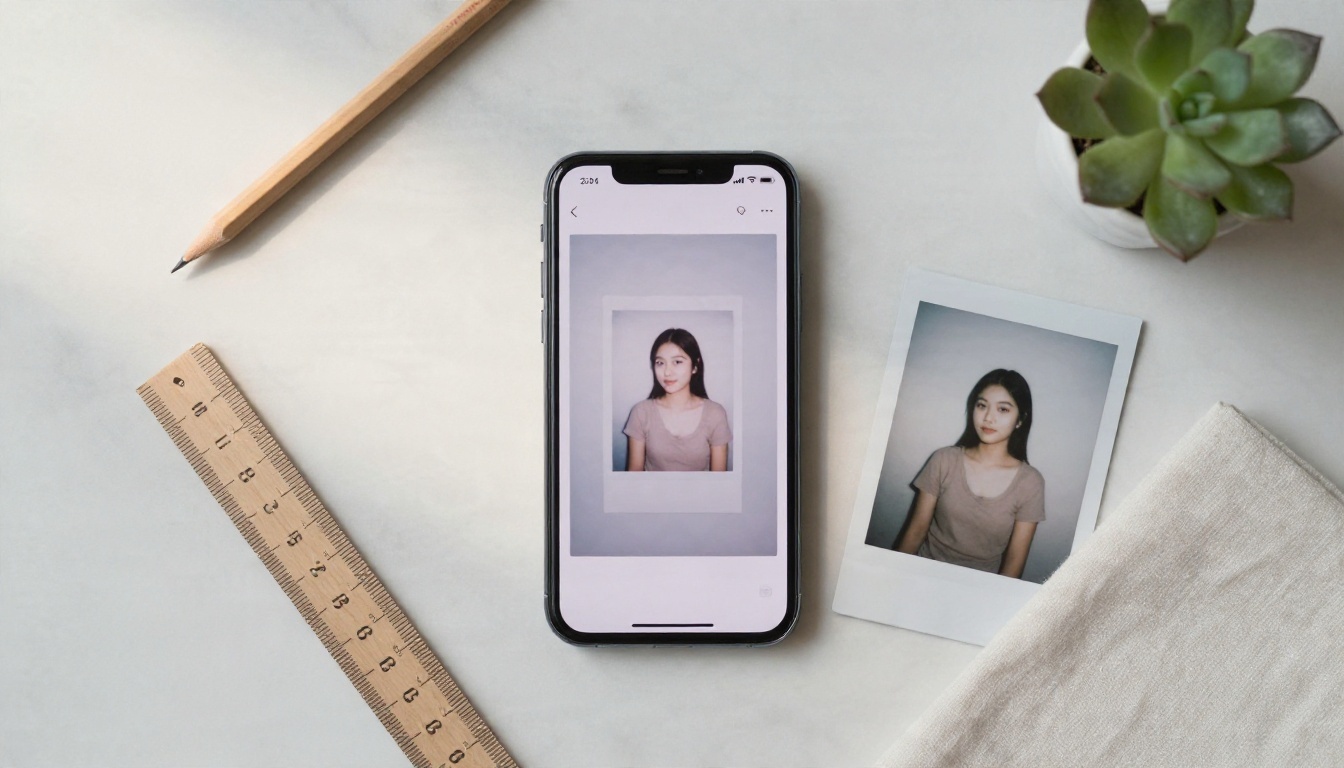
A 4:5 portrait fills more of the screen than a square or landscape image, so your photo takes up more space while people scroll. It is also safe for ads and boosted posts, which is not always true of other tall formats. For a generator, that means you should set the output to portrait before you write a single word of the prompt.
Grid crop and safe zones
Instagram's profile grid now previews posts as 3:4 tiles instead of the old square. Sources disagree slightly on how a 4:5 image gets trimmed there: some say a thin strip is lost at the top and bottom of the tile, while the feed itself shows the whole picture. The practical fix is simple: keep faces, product labels and the main subject in the central 80% of the frame, and leave breathing room at the edges.
💡 Tip: Ask for "negative space at the top" in your prompt when you plan to add a caption overlay or a Story sticker later. Models respect it surprisingly well.
Stories and Reels
Both are 9:16 and 1080 x 1920. Keep important details out of the top and bottom ten percent, where the interface sits. For Reel covers, generate a vertical image with a clear single subject, because the thumbnail is tiny on the grid.
Prompts That Produce Real Photos
The difference between an obvious AI picture and a believable one is rarely the model. It is the prompt. Vague words give generic, glossy output. Specific words about light, lens and texture give you something that feels captured, not rendered.
The five-part formula
Use this order every time:
- Subject and action: who or what, doing what
- Setting: where, with two or three concrete details
- Light: direction, time of day, quality
- Camera: angle, lens, aperture
- Texture and film look: skin, fabric, grain, color palette
Here is a template you can copy:
A woman in an oatmeal knit sweater laughing while holding a ceramic mug, bright Scandinavian apartment with a linen sofa and eucalyptus in a glass bottle, soft morning window light from the left, 50mm lens at f/1.8, shallow depth of field, visible skin pores and fabric weave, Kodak Portra 400 color, fine film grain, 4:5 portrait.
Lifestyle portrait prompts
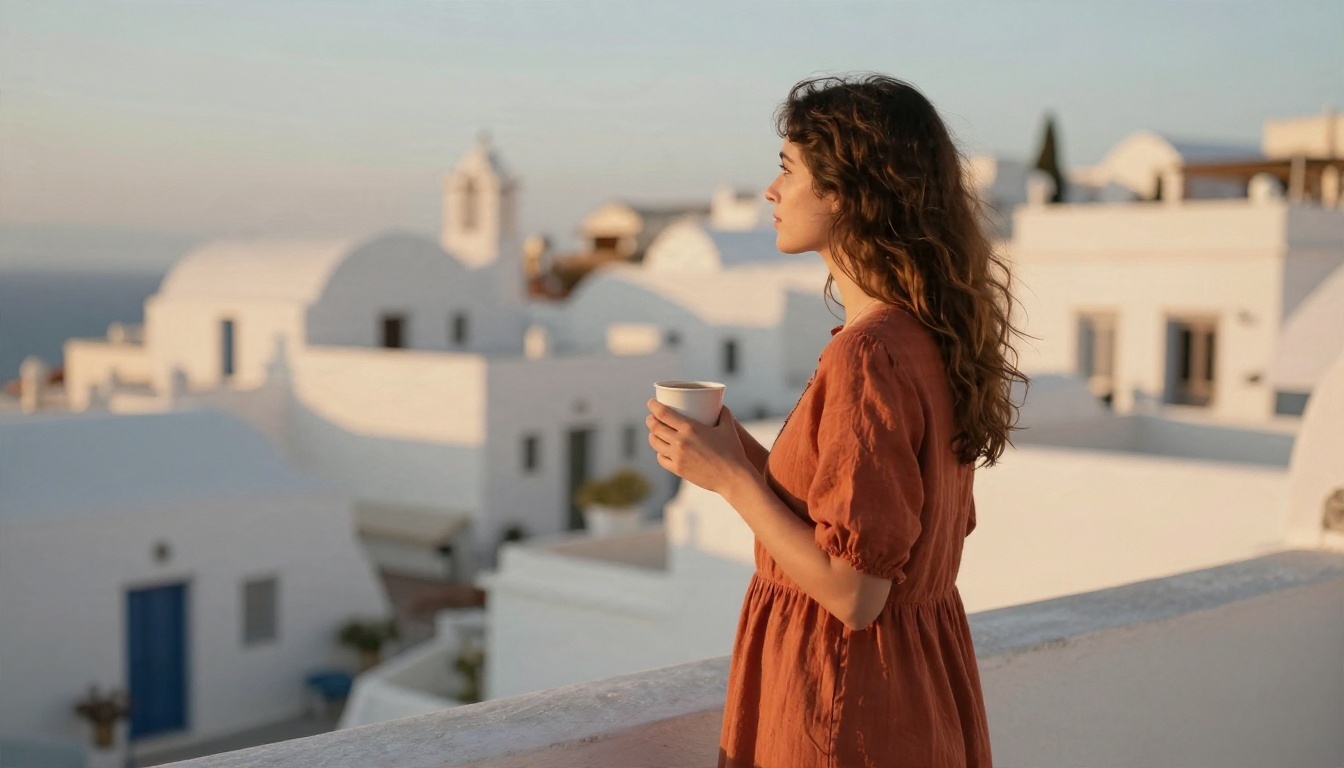
Portraits sell the personal brand. Keep the pose natural and mention the light source, because it shapes the whole mood.
- Candid shot of a woman in a terracotta linen dress on a rooftop terrace at golden hour, warm backlight, 85mm f/1.8, soft rim light on her hair, visible fabric weave.
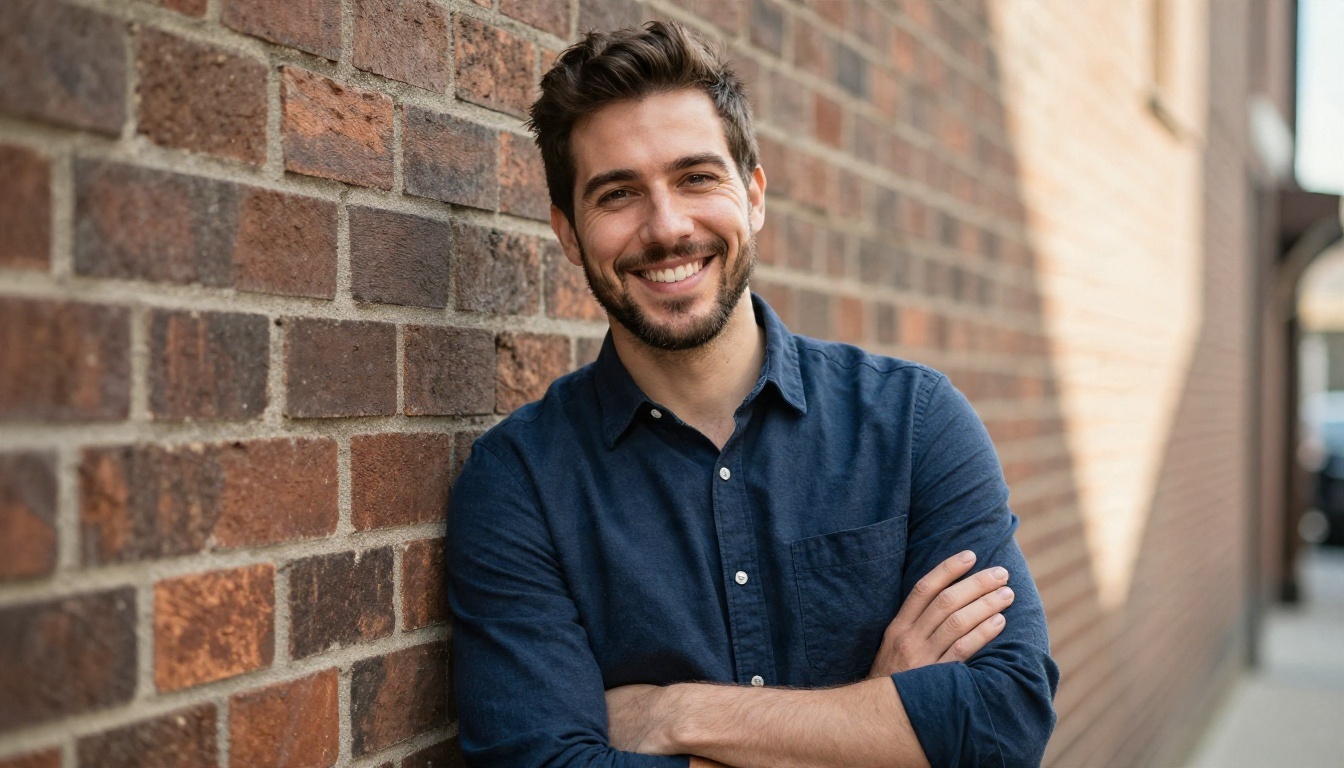
- Man in a navy chambray shirt leaning on a brick wall, open-shade daylight, 85mm f/1.4, detailed beard stubble, natural skin texture.
- Friends laughing around a wooden table at an outdoor cafe, late afternoon sun, 35mm f/2, slight motion in hands.
Food and product prompts
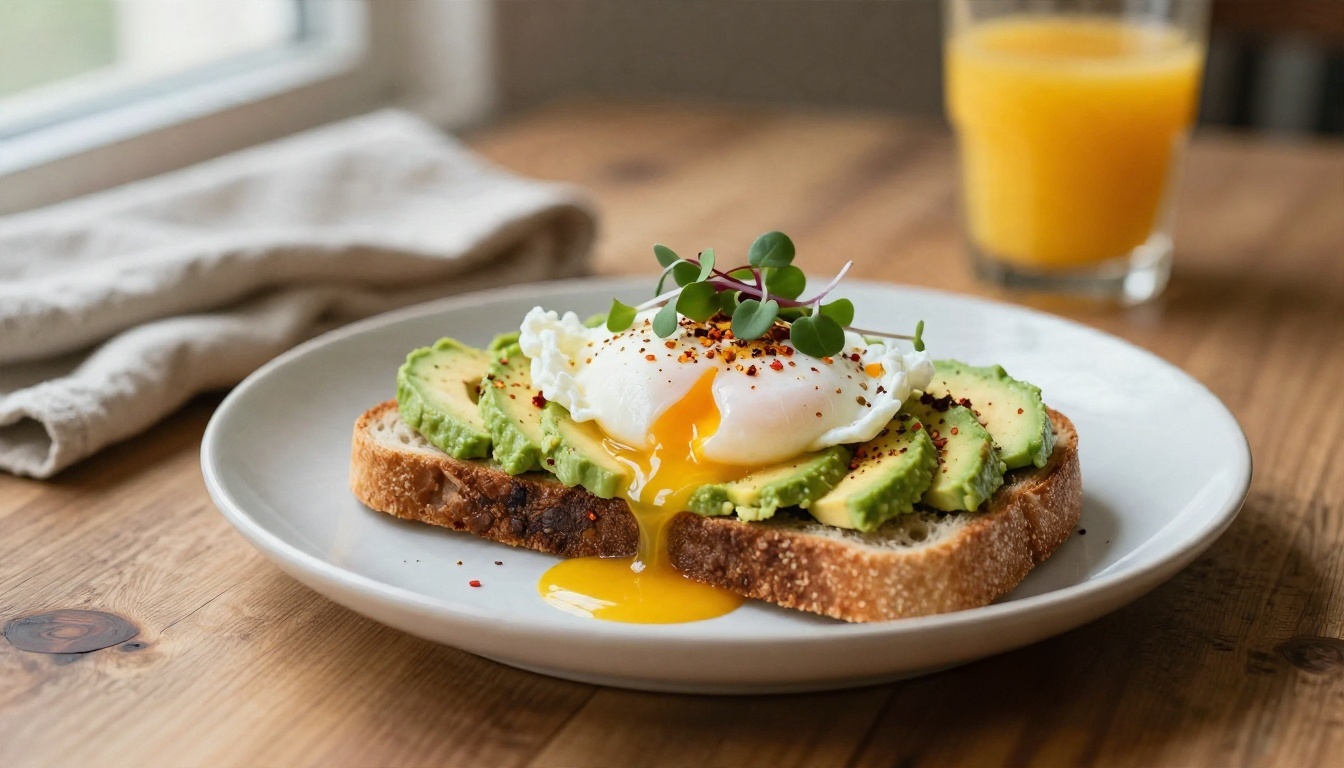
Food rewards close lenses and side light. Product shots reward clean surfaces and one prop, not five.
- Avocado toast with a poached egg on a flat white plate, rustic walnut table, window light from the left, 100mm macro at f/2.8, crisp crumb and herb texture.
- A matte ceramic vase on a pale oak shelf, overcast daylight, 50mm lens, subtle glaze reflections, uncluttered background.
Travel and flat lay prompts
Travel feeds love variety of angles. Mix wide, aerial and detail shots so the grid does not look repetitive.
- Aerial view of a woman on a striped towel on pale sand, straw hat and paperback beside her, turquoise water at the top of the frame, midday sun with crisp shadows, 24mm lens.
- Top-down flat lay of a notebook, linen napkin and a small succulent on marble, soft light from the upper left, muted pastel palette.
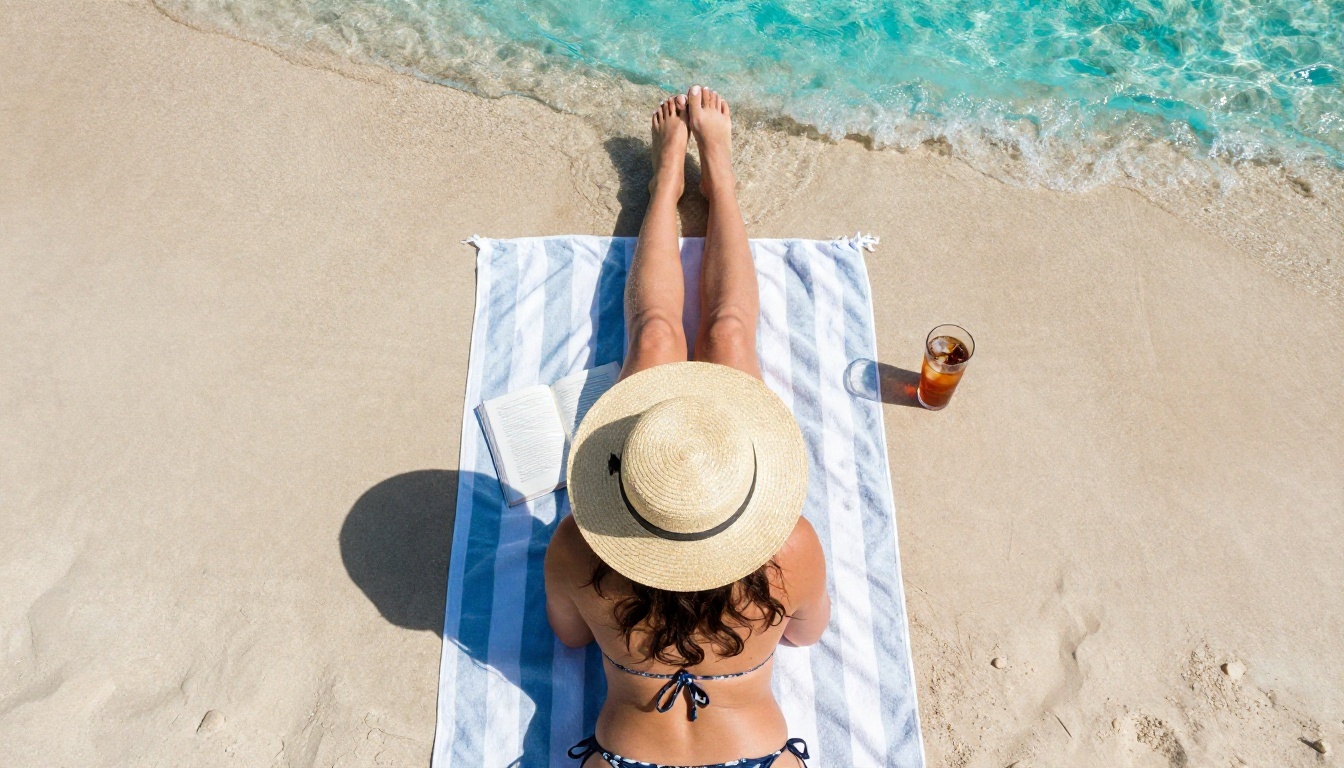
💡 Tip: Words like "8K", "masterpiece" and "ultra detailed" add little. Concrete words such as "visible pores", "wet cobblestone" or "linen weave" do much more.
Best Models on PicassoIA
Different models suit different jobs. Here is how the strongest options compare for Instagram work.
Seedream 4.5 for realism
Seedream 4.5 is the one to try first when you want a face or a scene to look photographed. Skin texture, fabric and light behave naturally, and it outputs at high resolution, which gives Instagram's compression more to work with.
Nano Banana Pro for edits and detail
Nano Banana Pro handles complex scenes with several objects well, and it follows edit instructions closely. Its lighter sibling, Nano Banana, is a good pick when you want to modify an existing photo, such as changing a background or swapping a color.
Speed picks for daily posting
If you post every day, you need volume. Z Image Turbo returns sharp images in seconds, and Imagen 4 Fast is another quick option for clean, believable shots. Draft ten ideas quickly, then re-run the best one on a heavier model.
When you need words inside the image
Most image models still stumble on lettering. For quote cards, event posters or sale announcements, try Ideogram v4 Balanced or P Image Ideogram. Keep the text to one to three words for the cleanest result.
From Prompt to Post in Five Steps
A repeatable routine saves more time than any single trick. This is the one that works for most accounts.
The workflow
- Pick the format first. Choose 4:5 for feed, 9:16 for Stories and Reel covers.
- Write the prompt with the five-part formula above.
- Generate four to six drafts on a fast model.
- Choose the winner and re-run it on a high-detail model like Seedream 4.5 or Imagen 4 Ultra.
- Polish and export as a high-quality JPG at 1080 px wide or larger.
Upscale and fix the details
If a favorite image is a little soft, run it through P Image Upscale, Real ESRGAN or Image Upscale. For small corrections, such as a stray object, an awkward hand or a color shift, PicassoIA Image Editor Pro lets you edit without starting over.
Keep a consistent look
A feed feels professional when colors repeat. Reuse the same film phrase (for example, "Kodak Portra 400, muted warm tones") and the same light direction across prompts. Save your best prompts in a notes file and swap only the subject.
Examples by Niche
Here is how the same method plays out for three common types of accounts.
Small business and shops
Local shops need product context, not just product shots. A photo of the owner arranging ceramics tells a story that a plain white-background image cannot. Generate scenes that show the product in a real room with natural window light.
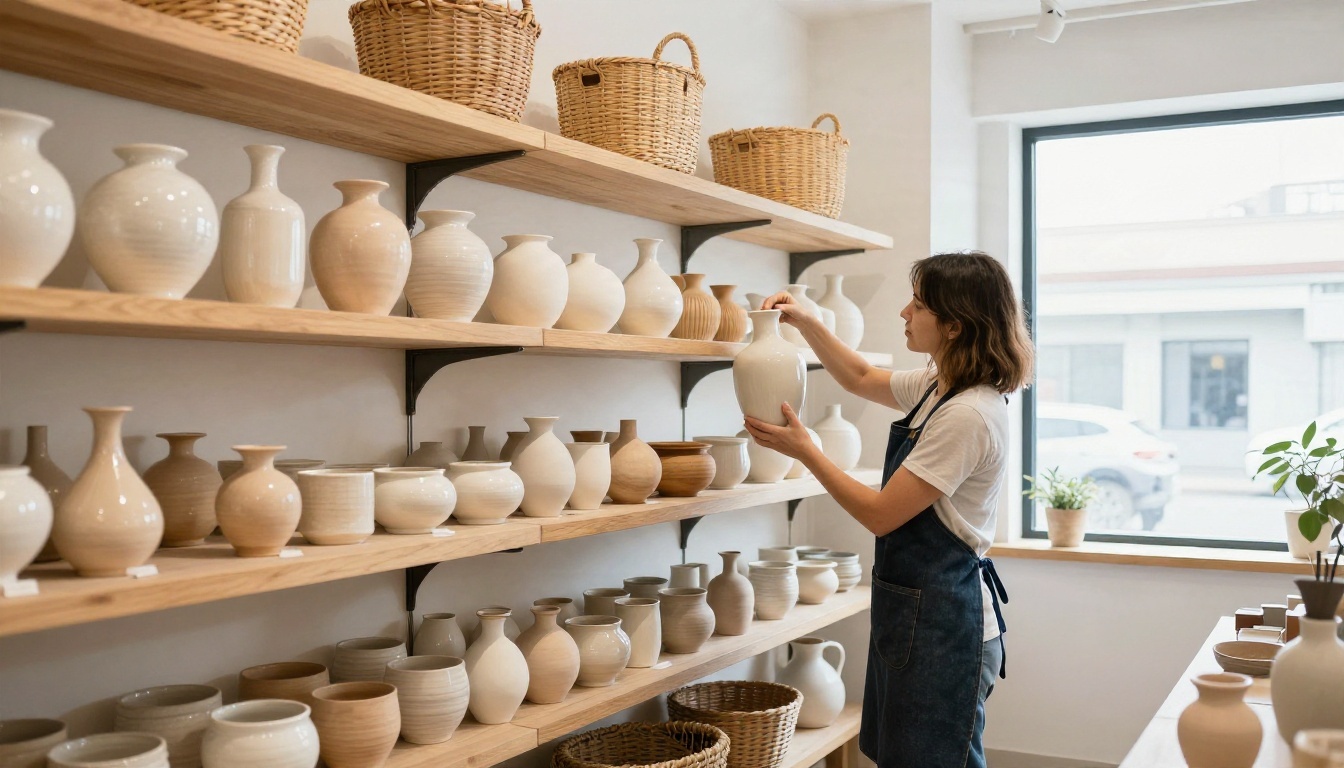
💡 Tip: Generate a lifestyle scene around a real product by uploading your own product photo into an editing model such as Nano Banana, then describe the new setting.
Fashion and street style
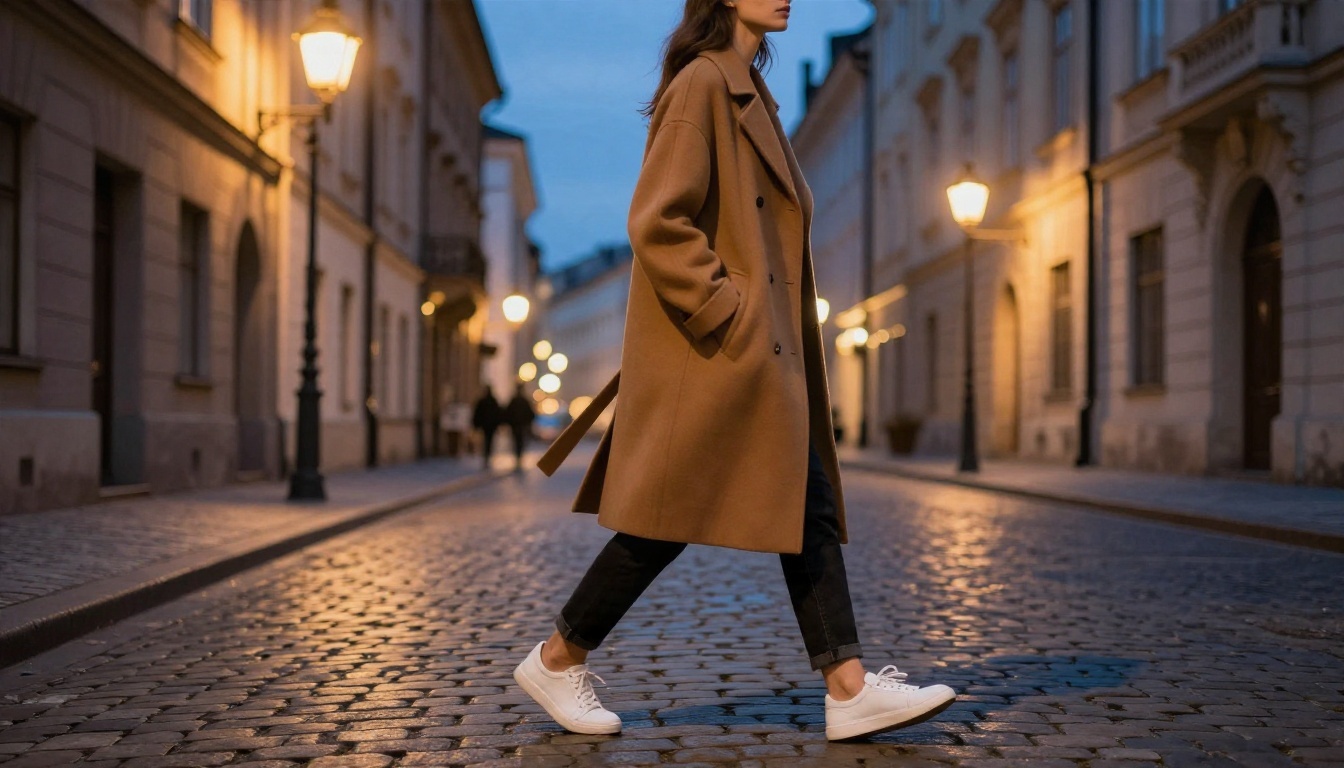
Fashion content depends on movement and mood. Mid-stride shots, warm streetlamps and compressed backgrounds from a 70mm lens give that magazine feel. Mention the fabric ("camel wool coat") so the texture renders properly.
Profile photos and personal brands
A clear headshot builds trust. Request an eye-level portrait, soft open-shade light and a simple background. Remember that Instagram displays the avatar as a circle, so keep the face centered and leave margin around the head.
Planning a grid that flows
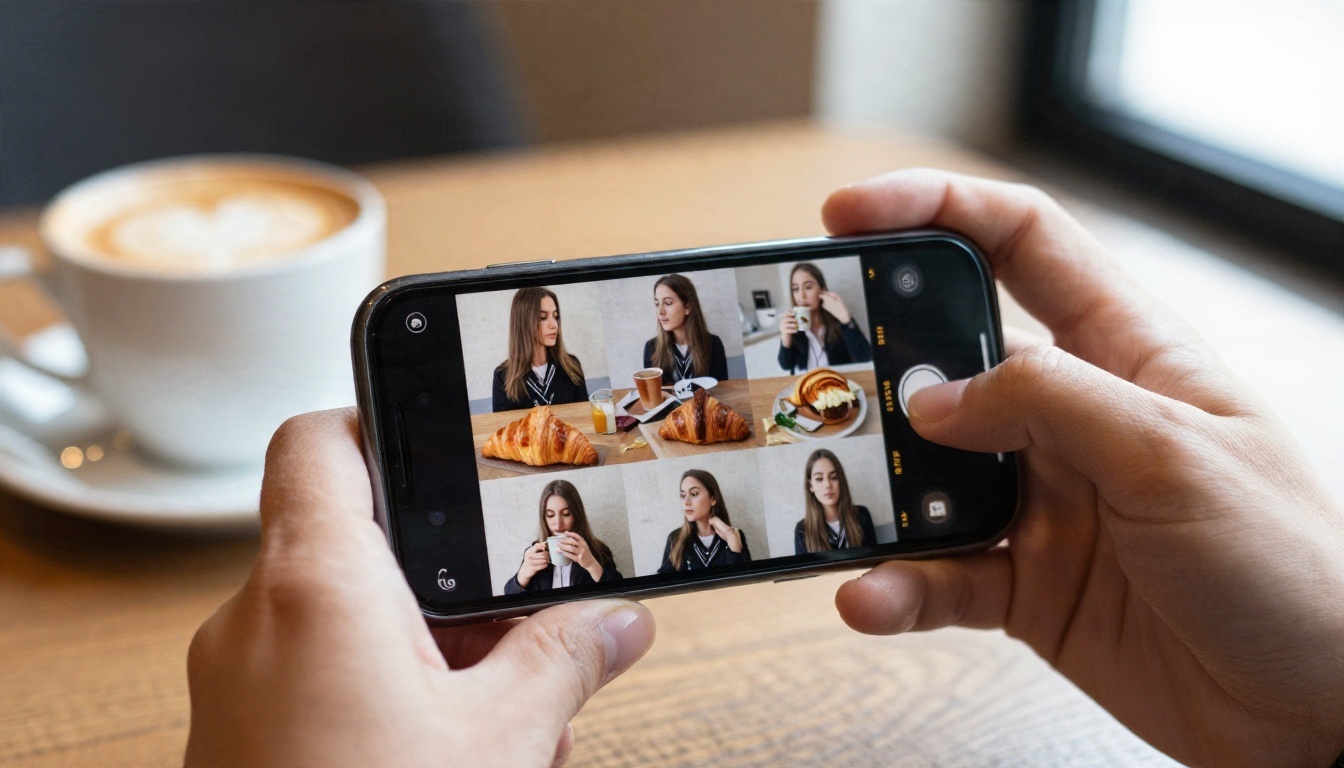
Look at your profile as a whole, not as single posts. Alternate close-ups with wide shots, and repeat one accent color every third or fourth tile. Generating in batches makes this easy, because you can request a matching set in a single session.
Common Mistakes to Avoid
Most weak results come from the same handful of habits.
Generating at the wrong ratio
A square image cropped to 4:5 loses the top and bottom. A landscape image forced into a Story leaves empty bars. Pick the final ratio before you generate, not after.
Overloading the prompt
Fifteen adjectives confuse the model. Stick to one subject, one setting and one light source. If you need a busy scene, describe the layout in order: foreground, middle, background.
Ignoring hands, text and symmetry
These are where artificial images give themselves away. Keep hands relaxed or partly hidden, avoid long strings of text, and check eyes and jewelry for mismatches before you post. If you spot one, fix it with PicassoIA Image Editor Pro instead of regenerating the whole image.
Skipping disclosure rules
Instagram has labels for AI-generated content, and some brands and countries have their own rules. If your image shows a realistic person or a product claim, label it properly and never present a generated image as proof of a real result.
| Mistake | Quick fix |
|---|
| Wrong ratio | Set 4:5 or 9:16 before generating |
| Plastic skin | Add "visible pores" and "film grain" |
| Flat lighting | Name the light direction |
| Messy background | Limit to three concrete details |
| Soft final image | Upscale the winner |
Frequently Asked Questions
Can I use generated images on a business account?
Generally yes, but check the terms of the tool you use and keep your own labeling in line with Instagram's policies.
What resolution should I upload?
Export at 1080 px wide or higher. A higher-resolution source gives you a cleaner result after Instagram compresses the file.
Do I need to write long prompts?
No. Forty to seventy words with a clear subject, light and lens is plenty. Longer is only useful for hero images.
Make Your Next Post Today
You now have the sizes, the prompt formula and the models. The fastest way to see it work is to run one test: pick a 4:5 ratio, paste the template above, swap in your own subject, and generate six drafts on Z Image Turbo. Choose your favorite and re-run it on Seedream 4.5 for the final version.
Open Picasso IA, try a few prompts from this article, and compare models side by side. Within an hour you can have a week of posts ready to schedule. Browse the full model list at picassoia.com/en/all-models and start creating your own Instagram images.


