Kling 3.0 Tricks for Smoother Video: What Actually Works
A practical breakdown of what separates choppy AI video from fluid cinematic output in Kling 3.0. From prompt architecture and camera motion language to resolution choices and post-generation upscaling workflows, these specific settings produce noticeably smoother video in real use.
Kling 3.0 is not a magic button. Put in a lazy prompt and you get a jittery five-second clip that looks like stock footage shot from a boat in choppy water. Put in a carefully structured prompt with the right motion language, the right camera directives, and an awareness of how the model processes temporal coherence, and you get something that passes for professional cinematography. The gap between those two outcomes is entirely in how you work the model.
This breakdown covers the specific Kling 3.0 tricks for smoother video that hold up across repeated generations. From prompt syntax and camera motion language to resolution choices, frame duration decisions, and post-generation workflows, these are the techniques that separate clean, fluid AI video from the choppy output most people accept as the norm.
What Kling 3.0 Actually Changes
The jump from Kling v2.6 to Kling v3 Video is not cosmetic. Kling 3.0 ships with a significantly rearchitected motion diffusion pipeline that handles temporal consistency across frames at a much higher fidelity than any previous version. In practical terms, that means the model is less likely to flicker a light source, stutter a character's movement mid-motion, or drift the background between frames.
But the model's improvements only pay off if your prompts give it the right information to work with. Kling 3.0 reads your prompt as a description of what exists in space and how that space moves through time. Feed it motion ambiguity and you get temporal artifacts. Feed it precise, hierarchical motion descriptions and you get smooth, cinematic output.
Motion fidelity at its core
The internal architecture of Kling 3.0 uses a refined attention mechanism that weighs adjacent frames more heavily during denoising. This is what produces smoother playback compared to earlier models. The side effect: motion that is too fast or too complex overwhelms the model's temporal attention and produces jitter exactly where you do not want it.
The rule of thumb that works in practice: describe slow, deliberate movement. The model handles fast motion far less gracefully than it handles motion with momentum and weight.
How the model reads prompts differently
Kling 3.0 parses prompts in layers, subject first, then environment, then motion. It weights the first 30 to 40 tokens most heavily. If your motion direction is buried at the end of a 100-token prompt, the model may deprioritize it. Lead with what moves, follow with how it moves, and close with environment context.
The Prompt Architecture That Reduces Jitter
This is where most Kling 3.0 outputs fail. The prompt either describes too much simultaneous motion, uses ambiguous velocity language, or includes conflicting camera and subject directives. Any of these generate visible artifacts.
Describing motion velocity correctly
Words like "moving" or "walking" are velocity-neutral. They give the model no temporal anchor. Use specific velocity descriptors that imply weight and momentum:
Vague
Specific
walking
strolling at a measured pace, weight shifting naturally with each step
moving camera
slow dolly-in, camera advancing at a barely perceptible rate
water flowing
shallow river current drifting left to right, barely perturbing the surface
leaves blowing
leaves trembling in a faint breeze, minimal lateral sway
The specificity locks the model into a particular velocity band. Lower velocity descriptions produce smoother output with less inter-frame noise. This single change is responsible for more smoothness improvement than any parameter setting.
Shot type keywords that stabilize output
Certain camera shot vocabulary activates different stabilization behaviors in Kling v3 Video:
"static wide shot" produces the most temporally stable output of any camera directive
"locked-off camera" nearly eliminates camera drift artifacts entirely
"slow dolly-in" produces smooth forward motion without background jitter
"gentle pan left" produces lateral camera movement without background flicker
"handheld" introduces intentional organic movement but increases jitter risk significantly
Tip: If smooth output is the priority, start with "locked-off camera" or "static shot" and add movement only where necessary. You can always add motion in a second pass, but you cannot easily remove jitter in post.
Camera Movement Tricks That Work
Camera movement is where most users create their own problems. Complex camera paths, fast tracking shots, or simultaneous camera and subject movement all increase the probability of temporal artifacts. Kling 3.0 handles camera movement better than any previous version, but it still benefits from constraint.
Slow dolly vs. static framing
A static shot gives the model maximum temporal coherence budget to spend on subject detail and lighting consistency. A slow dolly-in spends some of that budget on camera path but produces a more cinematic result. Here is what works in practice:
For static outputs:
Locked-off camera, medium wide shot, [subject] [in environment], natural lighting, no camera movement, photorealistic
For slow dolly:
Slow dolly-in toward [subject], starting from medium shot, camera moving gently forward over 5 seconds, [subject] remains stationary, [environment description]
The structural point: slow dolly syntax separates camera movement from subject movement. The model does not have to solve two motion problems simultaneously, so each individual motion is cleaner.
Why "gentle" beats "dramatic"
The word "dramatic" in a Kling 3.0 prompt correlates with faster, more exaggerated motion synthesis. "Gentle" activates conservative motion prediction. For smoother output:
Replace "dramatic camera push" with "subtle camera drift forward"
Replace "fast pan to reveal" with "slow lateral reveal, gentle rightward pan"
Replace "sweeping aerial" with "slow aerial glide maintaining altitude"
These are not arbitrary stylistic choices. They are direct observations about what Kling v3 Omni Video does smoothly versus what it does with visible processing artifacts at the motion boundaries.
Subject and Background Layering
One of the least-discussed Kling 3.0 tricks for smoother video involves how you describe the relationship between moving subject and background. When both are described as moving, the model's motion planner splits its attention and produces weaker, jitterier results for both.
Anchoring the background first
Describe the background as nearly static before you describe subject motion. This gives the model a temporal anchor point from which to extrapolate subject movement:
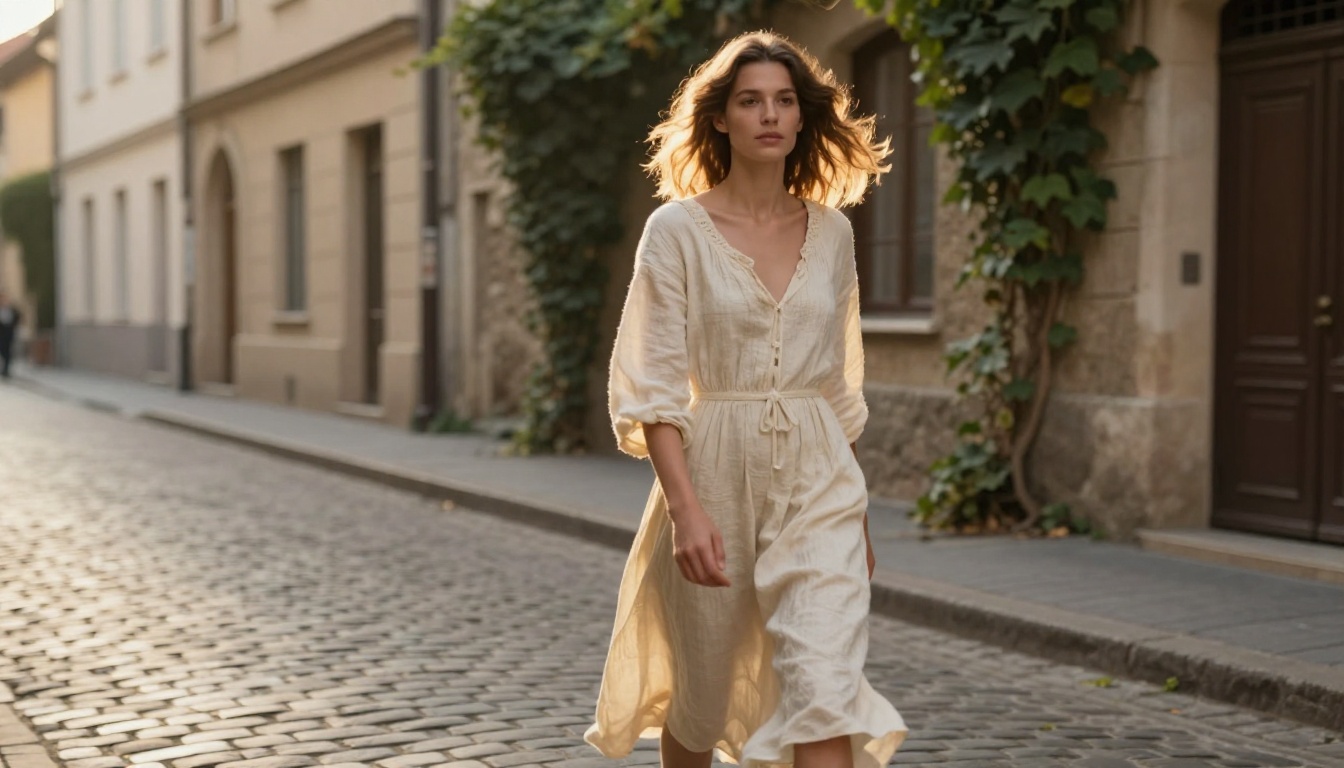
"A quiet cobblestone street in morning light, storefronts still and undisturbed, a faint breeze barely visible in a distant curtain. A woman walks slowly through frame from left to right, her footsteps measured and deliberate."
Compare to:
"A woman walking on a cobblestone street with shops and people around her."
The first version gives the model a stable world first, then a moving subject within it. The output from the structured version consistently shows less background flicker and cleaner subject motion.
Isolating subject motion in prompts
If your subject is the primary motion source, tell the model everything else is still:
"The background remains static throughout"
"No environmental movement, still air, fixed environment"
"Only the subject moves, everything else is motionless"
These explicit stillness directions reduce the model's motion solution space. A smaller solution space means higher quality per motion element. This technique works particularly well in Kling v3 Motion Control where you have additional precision over the camera path.
How to Use Kling v3 on PicassoIA
PicassoIA hosts multiple Kling 3.0-era models with different strengths. Knowing which model to use for which type of output is itself a smoothness trick, because using the wrong model for a given prompt type introduces unnecessary processing strain.
Step-by-step with Kling v3 Video
Kling v3 Video is the standard cinematic generation model. It accepts both text and image input, outputs at up to 1080p, and handles subject-focused prompts with high temporal consistency. Best for character or subject-centered clips, slow-motion style output with minimal camera movement, and nature and landscape footage.
Write your prompt using the layered architecture: background anchor first, then subject description, then motion direction
Set duration to 5 seconds for the cleanest output, the first 5 seconds carry the highest temporal coherence
Select 1080p for detail-heavy scenes or 720p for complex motion scenes
If using image-to-video mode, upload a sharp, well-composed source image as the first-frame reference
Kling v3 Omni Video for text-to-video
Kling v3 Omni Video is the text-only generation variant. It does not require an input image, which makes it faster to iterate but requires more precise prompting to produce stable output. Omni handles wide establishing shots and environmental footage particularly well.
Tip: For Omni, explicitly specify aspect ratio and lighting direction in your prompt. Without a visual reference frame, the model needs more textual anchoring to maintain spatial consistency across the full clip duration.
Kling v3 Motion Control for precision
Kling v3 Motion Control is the most powerful option when you need specific camera path control. It accepts brush-direction input for camera trajectory, which bypasses the model's internal camera motion planner entirely. For smooth results with this model, use slow single-axis motion paths, pure left-to-right, pure forward, or pure upward. Avoid complex curves or multi-axis camera paths that require temporal blending across trajectory changes.
Resolution and Duration Decisions
These two parameters have the most direct impact on perceived smoothness, and most users get them wrong in the same direction. They push for longer duration and higher resolution before the underlying prompt quality can support it.
1080p vs. 720p tradeoffs
Setting
Smoothness
Detail
Generation Time
480p
Highest temporal consistency
Limited
Fastest
720p
Strong temporal consistency
Solid for most content
Fast
1080p
Slightly lower for complex motion
Maximum detail
Slower
1080p is not always smoother. The model has to maintain temporal consistency across four times as many pixels compared to 480p. For a complex scene with multiple motion elements, 720p often produces cleaner playback than 1080p because the model's temporal budget stretches further across fewer pixels. Use 1080p for static or near-static scenes where detail matters more than motion complexity.
5s vs. 10s: which runs smoother
Kling 3.0 maintains highest temporal coherence in the first 5 seconds of generation. At 10 seconds, the model extrapolates further from its initial frame prediction, which accumulates small errors and produces slightly less smooth motion in the second half of the clip.
For smoother results: generate two 5-second clips and edit them together rather than generating one 10-second clip. The seam edit is invisible in post; the temporal drift in a 10-second clip is not. This is one of the most impactful workflow decisions for anyone prioritizing smoothness over convenience.
Combining Kling with Video Enhancement Tools
Even a well-crafted Kling 3.0 output benefits from post-generation processing. The two most useful operations are upscaling for detail and temporal smoothing for any residual motion artifact.
Upscaling after generation
PicassoIA provides three dedicated video enhancement models that work particularly well downstream of Kling outputs:
Crystal Video Upscaler: Best for natural footage with organic texture. Upscales to 4K while preserving film grain and natural color science. Recommended for landscape and character clips from Kling v3 Video.
Video Upscale by Topaz: Industry-standard temporal upscaling with 120fps interpolation support. Best for footage where frame rate smoothness matters as much as resolution.
Upscale v1 by Runway: General purpose 4K upscaling. Fast turnaround, solid results across most content types.
The workflow that consistently outperforms: generate at 720p in Kling v3 Video for clean temporal consistency, then upscale with Crystal Video Upscaler or Video Upscale by Topaz to 4K. You get the smoothness of lower-resolution generation with the visual quality of 4K final output.
Temporal smoothing tricks at the prompt level
Two prompt-level techniques reduce the need for post-processing correction and should be part of every generation:
Consistent lighting direction: If your source image for image-to-video has strong directional lighting, specify exactly the same lighting direction in your prompt using words like "warm light from the left throughout" or "consistent overhead diffused light, no shift." Lighting inconsistency between frames is one of the most common smoothness artifacts.
Single focal subject: Multi-subject scenes force the model to track multiple motion trajectories simultaneously. Each additional moving subject reduces per-subject temporal quality. For smooth output, feature one primary subject per clip and composite in post if needed.
The Settings That Matter Most
After testing across hundreds of Kling 3.0 generations, these are the parameters with the highest impact on smoothness, ranked from highest to lowest:
Prompt motion velocity language: slow, deliberate, weighted motion descriptions consistently outperform fast or dramatic ones
Background anchoring syntax: explicit stillness direction for background reduces flicker
Duration: 5 seconds outperforms 10 seconds for temporal coherence
Resolution: 720p for complex motion scenes, 1080p for simple or static scenes
Post-generation upscaling: generate at lower resolution, upscale higher for the best quality and smoothness balance
Tip: Before scaling up duration or resolution, nail the prompt structure first. A perfectly structured 5-second 720p clip from Kling v3 Video then upscaled with Crystal Video Upscaler will beat a sloppily-prompted 10-second 1080p clip every time.
Comparing Kling Versions for Smooth Output
Knowing where each Kling version sits in the smoothness spectrum lets you pick the right tool for the right job rather than defaulting to the newest model for every generation:
For pure smoothness, Kling v3 Video and Kling v3 Omni Video are the clear choices. The v2.x series still has its place for faster iteration and budget-conscious generation where turnaround speed matters more than peak smoothness.
What Still Does Not Work Smoothly
Being honest about Kling 3.0's current limits saves time and frustration:
Crowd scenes: Multiple people moving simultaneously still produces visible body artifact flickering at frame boundaries. Generate individuals separately and composite in post.
Text in video: Kling 3.0 cannot maintain readable text across frames. It flickers and morphs. Keep text out of prompts entirely and add it in post with motion graphics.
Rapid action: Any motion described as "fast," "rapid," "sudden," or "explosive" reliably produces jitter. The motion planner is optimized for weighted, physical movement, not high-velocity action sequences.
Scene transitions: Describing a scene change or transition within a single clip prompt produces obvious discontinuities at the transition point. Use separate clips and cut them together in an editor.
These are model-level constraints in version 3.0. Some will improve in future versions. For now, work around them rather than into them.
Start Creating on PicassoIA
Every technique in this article came from actually running generations in Kling v3 Video, Kling v3 Omni Video, and Kling v3 Motion Control and observing what changed with each prompt variation. The only way to internalize them is to do the same.
PicassoIA gives you access to the full Kling model family alongside 100+ other video generation models including Seedance 2.0, Veo 3, Pixverse v6, and LTX 2 Pro for cinematic 4K output. Post-generation smoothing with Crystal Video Upscaler and Video Upscale by Topaz is one click away on the same platform.
Start with one prompt, apply the background anchoring syntax, keep the motion slow and deliberate, and compare it directly against your previous outputs. The difference is immediate. See the full model catalog at picassoia.com/en/all-models.