You are staring at a pricing page, a pile of credits, and a vague feeling that a five-second clip should not cost this much thinking. Fair. Kling 3 Pro pricing is confusing because the word "Pro" means two different things, the numbers change depending on where you buy, and half the pages you find online contradict each other. This article sorts it out: the free trial, Standard vs Pro, the real limits, API rates per second, and a way to try Pro mode without committing to a subscription first.
💡 Quick note on accuracy: Kling prices, credit amounts and plan names shift often, and the third-party sources I checked disagreed with each other on several points. Treat every figure below as an approximate range reported in November 2026, and confirm the final number on the checkout screen before you pay.
What Kling 3 Pro Actually Costs
Here is the short version for people in a hurry. Kling 3 runs in two quality modes, Standard (720p) and Pro (1080p). Pro costs roughly 30 to 70 percent more per second than Standard, depending on the provider. Turning on native audio adds another 33 to 50 percent on top. A free tier exists, but it is watermarked and limited.
Two Meanings of "Pro"
This trips up almost everyone. On Kling's own subscription page, Standard, Pro and Ultra are membership plans. Separately, inside the Kling 3 model, Standard and Pro are generation modes that decide resolution and cost per second. So you can be on the Pro membership and still choose Standard mode for a cheap draft, or be on a lower plan and burn credits quickly by running everything in Pro mode.
| Term | What it means | Where you see it |
|---|
| Standard / Pro / Ultra plan | Monthly membership with a credit allowance | Subscription page |
| Standard mode | 720p generation, lower cost per second | Model settings |
| Pro mode | 1080p generation, higher cost per second | Model settings |
The Price Range at a Glance
| Item | Reported range |
|---|
| Free plan | Around 66 credits per day, watermark, capped resolution |
| Entry paid plan | Roughly $7 to $10 per month, about 660 credits |
| Mid plan | Roughly $30 per month, about 3,000 credits |
| Top plan | Roughly $60 per month, about 8,000 credits |
| API, Standard mode | About $0.10 to $0.17 per second |
| API, Pro mode | About $0.11 to $0.22 per second, higher with audio |
The Free Trial: What You Get
The free tier is real, but it is a taste, not a workflow. Most sources report a small daily credit allowance, usually quoted as 66 credits per day. One account-level report claims the credits are granted differently than the daily number suggests, so do not assume the allowance stacks or rolls over. If you do not use them, expect them to vanish.
Daily Credits and What They Buy
At Standard mode rates of around 5 credits per second, 66 credits gets you roughly two clips of five seconds. In Pro mode, at around 8 credits per second, a single five-second clip uses 40 credits, so you get one clip a day and a little left over. Add audio and the free allowance covers even less. Queue times on the free tier are also longer, since paid members go first.
Watermark and Resolution Caps
Free output carries a watermark. Reports about resolution vary: some say free exports top out at 720p, others say lower. The consistent point is that 1080p without a watermark is a paid feature. If your goal is a client deliverable or a public post, the free tier will not work.
Is the Trial Worth Using?
Yes, for one purpose: checking whether the motion style fits your idea. Test a single prompt, look at how the model handles faces, hands and camera moves, then decide. Do not build a content calendar on it.
💡 Tip: Spend your first free credits on your hardest scene, not your easiest. A model that handles a crowded street with moving cameras will handle a simple product shot easily. The reverse is not true.
Standard vs Pro Mode Compared

The gap between modes is smaller than the price gap suggests in some scenes, and larger in others. Here is how the two stack up.
Visual Quality
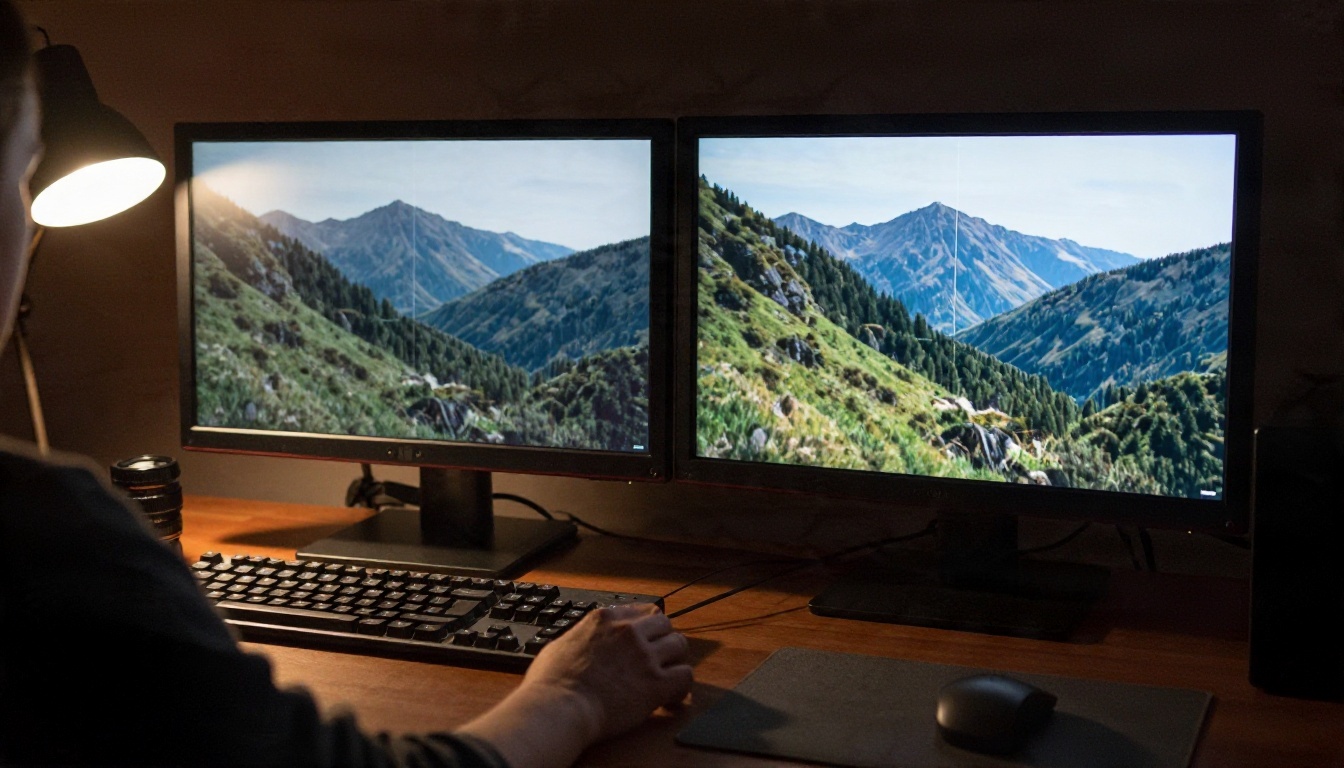
Pro mode outputs 1080p, Standard outputs 720p. In wide landscapes and fast motion, the extra resolution shows in fine detail: fabric weave, hair strands, distant signage. In a close-up of a face under soft light, the difference is subtler. If the clip ends up on a phone in a vertical feed, Standard often looks fine. If it lands on a big screen or inside a client presentation, Pro earns its price.
Price Per Second
Third-party API listings gave these approximate figures, per second of video without audio:
| Provider type | Standard | Pro |
|---|
| Mid-priced API host | about $0.168 | about $0.224 |
| Discount API host | about $0.095 | about $0.127 |
| Lowest listing seen | not listed | about $0.112 |
The spread between hosts is nearly double. That alone is a reason to compare before wiring anything into production.
The Audio Premium
Native audio, meaning ambient sound, effects and some speech generated together with the picture, adds roughly a third to half again to the per-second price in Pro mode. For a mid-priced host, Pro with audio sits near $0.336 per second. If you plan to add your own soundtrack or voiceover later, leave audio off and save the money.
When to Pick Each Mode
- Standard: drafts, prompt testing, social clips, storyboard previews, anything you will iterate on a lot.
- Pro: final deliverables, ads, large-screen playback, hero shots where texture matters.
- A split workflow: test five versions in Standard, then re-run only the winner in Pro.
Credit Math for Real Projects

Numbers on a pricing page mean little until you convert them into finished clips. Using the reported rates of roughly 5 credits per second in Standard and 8 in Pro (one source put a five-second 1080p clip with audio near 60 credits), here is what each plan buys.
Clips Per Plan
| Plan (approx. credits) | Standard, 5 s clip (about 25 credits) | Pro, 5 s clip (about 40 credits) | Pro with audio (about 60 credits) |
|---|
| Entry, 660 | about 26 clips | about 16 clips | about 11 clips |
| Mid, 3,000 | about 120 clips | about 75 clips | about 50 clips |
| Top, 8,000 | about 320 clips | about 200 clips | about 130 clips |
Remember that these are attempts, not keepers. Most creators discard a share of generations because of odd hands, drifting faces, or a camera move that missed the brief. Plan on roughly one usable clip for every two or three runs.
Cost Examples at API Rates
Using the mid-priced host figures:
- 5 seconds, Standard, no audio: about $0.84
- 5 seconds, Pro, no audio: about $1.12
- 5 seconds, Pro with audio: about $1.68
- 10 seconds, Pro with audio: about $3.36
- 15 seconds, Pro with audio: about $5.04
A 30-second ad assembled from six five-second Pro shots, with two attempts per shot, lands around $13 to $20 at these rates. On a discount host it could be half that.
💡 Budget rule of thumb: multiply your target number of final clips by three, then price that many attempts. If the total makes you wince, run drafts in Standard mode first.
Limits That Catch People Out

Price is only half the story. These caps and quirks shape what you can actually make.
Clip Duration
Sources disagree on maximum length: some say up to 10 seconds, others say up to 15 with multi-shot scripting. The model page on PicassoIA lists up to 15 seconds and up to 6 scenes in one generation, which is the more flexible figure. Longer clips cost proportionally more, and quality can drift in the final seconds, so many creators prefer chaining shorter shots.
Resolution and Watermarks
Standard mode gives you 720p. Pro mode gives you 1080p. Free-plan output is watermarked. Paid memberships remove the watermark and unlock 1080p, according to the free-plan documentation reported by several sources. Native 4K was mentioned by a few reseller pages at a much higher credit rate, around 30 credits per second, so budget carefully if you ever try it.
Queue Speed and Concurrency
Free accounts wait longer and often run one job at a time. Paid tiers get priority and more parallel jobs. If you are producing in bulk, concurrency matters more than the monthly credit count, because waiting eats your day.
Commercial Use and Credit Expiry
Credits tend to expire. Trial packs are reported to last about 30 days and larger packages around 90 days, while daily free credits vanish at day end. Commercial rights usually require a paid plan. Read the terms attached to your specific plan before you publish ads made from generated clips.
API Pricing and Rates
If you are building an app, a batch workflow or a marketing automation, the API is where Kling 3 pricing gets interesting, and where the biggest savings or surprises hide.
Per-Second Billing
Almost every host bills per second of generated video, with separate rates for Standard and Pro, and a surcharge when audio is on. Resellers that price in credits rather than dollars show numbers like 85 credits per second for Standard and 115 for Pro on their own scale, so always convert to dollars before comparing.
| What to compare | Why it matters |
|---|
| Price per second, Standard | Your draft cost |
| Price per second, Pro | Your final render cost |
| Audio surcharge | Can add a third or more |
| Failed generation policy | Do you pay for unusable results? |
| Minimum top-up | Matters for testing |
| Rate limits | Decides how fast you can batch |
Choosing an API Provider
Official access, aggregator hosts and discount resellers all exist, and prices differ by close to two times for the same output. Cheaper is not always better: ask about uptime, queue speed, how refunds work on failed jobs, and whether the host supports start and end frame pinning and multi-shot prompts. Test with ten clips before you commit a monthly budget.
When the API Beats a Subscription
Below roughly 50 clips a month, a membership is often simpler. Above that, or when you need to trigger renders from your own software, API billing wins because you pay only for seconds you generate and never lose unused credits at the end of a cycle.
How to Use Kling v3 Video on PicassoIA
If you want to try Pro mode before choosing a plan, Kling v3 Video on PicassoIA exposes the same Standard and Pro switch: Standard produces 720p, Pro produces 1080p. It also offers native audio, flexible aspect ratios, start and end frame pinning, and multi-shot scripting. Check the credit cost shown in the interface before each run, since that is the number that counts for your account.
Step by Step
- Open the Kling v3 Video model page.
- Write your prompt, up to 2,500 characters. Start with the subject, then the action, then the camera move, then the light.
- Set mode to standard for drafts or pro for final 1080p output.
- Choose a duration. Five seconds is the cheapest way to test an idea.
- Pick an aspect ratio: 16:9 for widescreen, 9:16 for vertical feeds, 1:1 for square posts.
- Toggle generate audio only when you need ambient sound.
- Optionally upload a start image, and an end image if you want the model to animate between two frames.
- Run it, review the result, and adjust the prompt before spending more.
Parameter Tips That Save Credits
- Draft in Standard, finish in Pro. Same prompt, same seed of an idea, half the worry.
- Keep audio off during testing. Add it only on the final render.
- Use a negative prompt to cut out common problems, such as distorted hands or text artifacts.
- Use multi-shot sparingly. Six scenes in one generation is powerful, but a bad shot forces you to redo all of them.
- Pin the start frame when you need a character or product to look exactly right.

Other Kling 3 Models Worth Knowing
The family has siblings with different strengths. Kling v3 Omni Video targets text to 1080p video with broader input control, and Kling v3 Motion Control animates characters by following a reference motion. Pick based on the job, not the label.
Cheaper Alternatives for Rough Drafts
Sometimes you do not need Kling at all for the early stage of a project. These are on PicassoIA and work well for idea testing:
A sensible routine is to draft concepts in a cheap or unlimited model, pick the strongest idea, then render the final version in Kling's Pro mode.
Mistakes That Waste Your Budget
A few habits quietly double the cost of a project.
- Running Pro on every test. Pay the 1080p premium only for shots you intend to keep.
- Leaving audio on by default. If you edit sound separately, you are paying for audio you will delete.
- Writing vague prompts. "A cool city scene" gets you random results and wasted credits. Specific camera moves and light direction get usable shots faster.
- Ignoring expiry. Credits that vanish at day end or month end are money lost. Plan your heavy generation days.
- Skipping the small test. Spend one clip checking motion and faces before queuing twenty.
- Comparing plans by price alone. Compare cost per usable clip, which includes queue speed and failure handling.
Make Your First Clip Today
The cheapest way to find out whether Kling 3 Pro is worth its price is to make one clip and judge it with your own eyes. Write a specific prompt, run a five-second Standard draft, then push your best idea through Pro mode and compare the results. Open Kling v3 Video on PicassoIA, try both modes with the same prompt, and keep the one that fits your budget and your screen. When you want more options, browse the full catalog at picassoia.com/en/all-models and mix models to fit each stage of your project.


