Open Kling AI on a free account and the credit counter shows 66. That is the number every write-up about the free plan repeats, and it trips people up because it refills every day instead of piling up. Spend it today and you get another 66 tomorrow. Skip a day and the unspent credits are simply gone.
So what do 66 credits actually buy? On the newest Kling model, roughly 5 to 11 seconds of video per day, stamped with a watermark and queued behind paying users at peak hours. That is plenty for testing an idea and thin for finishing a project. Below you will find the daily limits in plain numbers, how referral codes really pay out, ways to waste fewer credits, and where to keep generating once the counter hits zero, including Kling v3 Video on PicassoIA.
💡 Check the date on every number. The figures below were reported by third-party trackers in July 2026. Kling changes its free tier often (one write-up says the daily amount used to be 166), so confirm the balance in your own credits panel before you plan around it.
What You Get Every Day
The 66 Credit Allowance
A free Kling account is credited about 66 credits every 24 hours. The balance does not carry over, which rules out saving up for a big weekend render. Think of it as a daily ticket rather than a bank account: it is good for today only, and tomorrow brings a fresh one.
| Free plan item | What you get |
|---|
| Daily credits | About 66 |
| Rollover | None, unused credits expire at reset |
| Maximum resolution | Up to 1080p |
| Watermark | On every export |
| Commercial use | Not included |
| Queue | Lower priority than paid plans |
Paid subscribers get a monthly credit pool on top, plus a daily login bonus that is claimed on the first login of the day and expires the same day. The free tier is the daily allowance and nothing else, which is why the way you spend it matters so much.
What Resets and What Does Not
Unused daily credits clear at reset. Reports disagree on whether that clock runs to midnight or to 24 hours after you claim, so watch the countdown in your own credits panel and write down the real reset time once.
Two habits help:
- Log in at a steady time. The balance is waiting when you sit down to work, and you can plan the session around it.
- Spend what you would lose anyway. If the reset is an hour away and 30 credits are left, that is the moment for a rough test clip, not for a polished take.
Prompts, storyboards and saved start images are not credits, so they never expire. Preparation done today carries into tomorrow's allowance even when the credits do not.
What 66 Credits Buy
Cost Per Second on Kling 3.0
Kling charges by the second of output, and the price moves with resolution and audio. A July 2026 breakdown of the Video 3.0 model lists these rates:
| Setting | Credits per second | Seconds from 66 credits |
|---|
| 720p, no audio | 6 | About 11 |
| 1080p, no audio | 8 | About 8 |
| 720p, with audio | 9 | About 7 |
| 1080p, with audio | 12 | About 5 |
Audio is the expensive toggle. Switching sound on at 1080p doubles the per-second price compared with silent 720p, so a clip you only need as a motion test should stay silent.
A Realistic Daily Output
Here is what one day can look like once you do the arithmetic:
- Two 5 second clips at 720p with no audio: 60 credits, 6 left over.
- One 10 second clip at 720p with no audio: 60 credits, 6 left over.
- One 5 second clip at 1080p with audio: 60 credits, 6 left over.
Whichever you choose, a retake costs the same as the first attempt. A day with one failed generation is a day with half the output, and that is why the habits further down matter more than any referral bonus.
Set that against a paid plan. If the reported Standard figure of 660 credits a month holds, 66 free credits spent every single day add up to about 1,980 credits over 30 days, three times as many. The catch is the expiry: free credits only count when you actually use them on the day they appear, and the watermark and queue stay.
💡 Older models cost less per clip. One tracker puts a standard 5 second clip at roughly 10 to 25 credits, while Kling 3.0 lands around 25 to 35. For a rough motion test, an older model stretches the daily balance further.
Limits Beyond the Counter
Watermark and Commercial Rights
Every free export carries a watermark, and the free plan does not grant commercial-use rights. That settles what the free tier is for: personal tests, storyboards, mood boards and practice. A client deliverable, an ad or a monetized channel needs a paid plan, or a different generator whose terms allow it.
The free plan fits you if you:
- want to test prompts and styles before paying for anything
- publish only for yourself or as practice
- can live with a slow queue
It stops fitting when you:
- need clips without a watermark
- deliver work to clients
- work to a deadline that a busy queue can break
The Free Queue Problem
The bigger bottleneck is often not credits at all. Free jobs run on lower-priority capacity, and users report a "queue for the free plan is busy" message at peak hours. A balance you cannot spend is worth nothing at reset, so the queue quietly shrinks your real daily output.
Reported workarounds are simple:
- Submit early in the morning or late at night instead of at midday.
- Keep the prompt and start image ready, so you can send the job the moment the queue opens.
- Do not stack many small test clips. One well-prepared job beats five rushed ones.
How Referral Codes Work
What the Bonus Pays
Referral programs are where most "free credits" promises come from, so read the fine print. As reported by third-party trackers (not confirmed on Kling's own pages):
| Who | Trigger | Reported reward |
|---|
| The inviter | A friend subscribes with your code | About 500 credits per friend |
| The new user | Signs up with a code and subscribes | Around 50% extra credits in month one |
User reports put the Standard plan at roughly 990 credits instead of 660 in that first month. The catch sits in the trigger column: the rewards attach to a paid subscription, not to a free sign-up. A referral code will not raise your daily 66.
💡 Promotional bonus credits typically expire after about 30 days, and only one promo code applies per purchase. Spend them before the date, not after.
Why Random Codes Disappoint
Search for a Kling referral code and you will land on lists of strings posted on coupon sites and forum threads. This article leaves them out on purpose. They are affiliate links from strangers, nobody can confirm they still work today, and a code that fails at checkout only wastes your time.
Better options exist. Ask a friend who already pays for Kling to send their personal invite link, or open the invite page inside your own account and share that link instead. Both are verifiable the moment you click, and the bonus lands where the program says it should.
Before you trust any link, run three quick checks: it should open on the official Kling domain, it should show the bonus before you pay, and it should state when the bonus expires. If one of the three is missing, close the tab.

Stretching 66 Credits Further
Plan Shots on Paper First
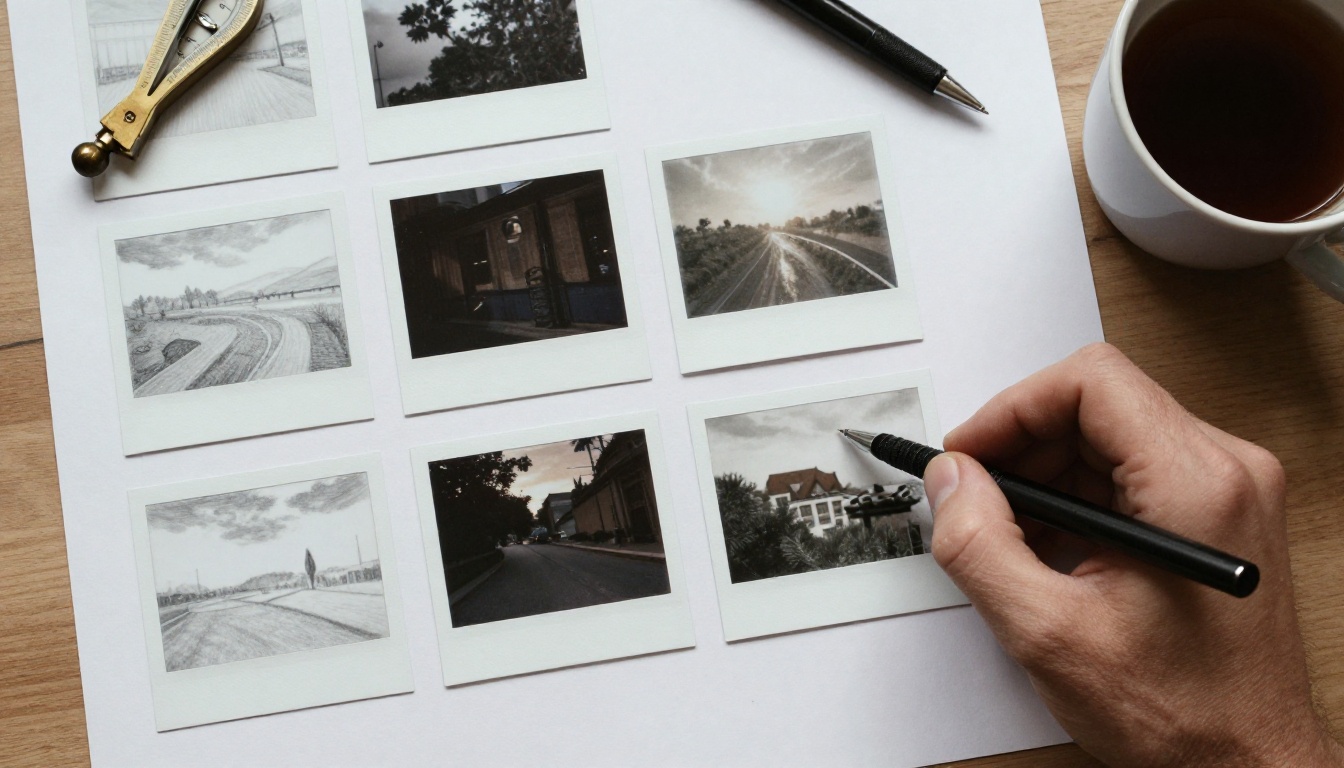
The cheapest credit is the one you never spend. Sketch the shot before you generate it: one subject, one action, one camera move, one light source. A rough storyboard of three or four frames shows you which single clip deserves the day's credits.
Draft in the cheapest setting, 720p with no audio. Raise the resolution or add sound only for the take you plan to keep. Here is how the arithmetic can look across two days when you plan ahead:
| Day | Clip | Setting | Credits |
|---|
| 1 | Draft A, 5 seconds | 720p, no audio | 30 |
| 1 | Draft B, 5 seconds | 720p, no audio | 30 |
| 2 | Final take, 5 seconds | 1080p, no audio | 40 |
| 2 | Short fix, 4 seconds | 720p, no audio | 24 |
Day one spends 60 of 66 credits on two options. Day two spends 64 on the clip you picked, plus a short insert for the edit.
Write Prompts That Land Once
Vague prompts produce retakes. A prompt that names one subject, one action and one camera move gives the model less room to wander. A solid example:
A woman in a wool sweater turns a page in a sunlit kitchen, slow push-in from the side, soft window light from the left, shallow depth of field.
3 common mistakes that burn credits:
- Stacking actions. Three movements in five seconds usually produce one good one and two messy ones.
- Ignoring light. "Soft window light from the left" tells the model more than "nice lighting".
- Skipping the negative prompt. Name what you do not want, such as warped hands or text overlays, wherever the tool offers the field.
Start From a Strong Frame
Image-to-video removes guesswork. Generate a still you already like with a text-to-image model such as Seedream 4.5 or P Image, then hand that frame to the video model as the opening shot. The model animates what is already there instead of inventing the scene, which cuts down on rerolls.
A wide, uncluttered frame with a clear direction of travel, like a road curving along a coastline, gives the model an obvious motion to follow. If you publish to vertical feeds, generate the still in 9:16 first. The video follows the image, so you pick the final shape when you pick the frame.

How to Use Kling v3 on PicassoIA
Kling v3 Video on PicassoIA accepts text prompts up to 2,500 characters and produces clips up to 15 seconds. It supports multi-shot scripts with up to 6 scenes, native audio, 720p standard and 1080p pro output, and pinned first and last frames. Aspect ratios are 16:9, 9:16 and 1:1.
Pick Mode and Duration
- Open the model page and write your prompt.
- Set mode:
standard renders 720p for drafts, pro renders 1080p for finals.
- Set duration in seconds. Five is the default.
| Setting | Options | Tip |
|---|
| Mode | standard (720p), pro (1080p) | Draft in standard |
| Duration | Up to 15 seconds | Start at 5 |
| Aspect ratio | 16:9, 9:16, 1:1 | Ignored when a start image is set |
| Audio | Off by default | Add it last |
Add a Start Frame
- Upload a start image (JPG or PNG, up to 10 MB, at least 300 px) to use it as the first frame. The aspect ratio then follows the image.
- Optionally add an end image to pin the last frame. It requires a start image.
- Use multi_prompt to script up to 6 shots, as long as the shot durations add up to the total duration. For example, set the duration to 10 and paste a two shot script:
[{"prompt": "Wide shot of a coastal road at golden hour", "duration": 5}, {"prompt": "Slow push-in on a white van rounding the bend", "duration": 5}]. Each shot needs at least one second.
Switch Audio On Last
- Leave audio off while you test motion, then turn on generate_audio for the version you keep.
- Add a negative prompt for anything you do not want, then generate.
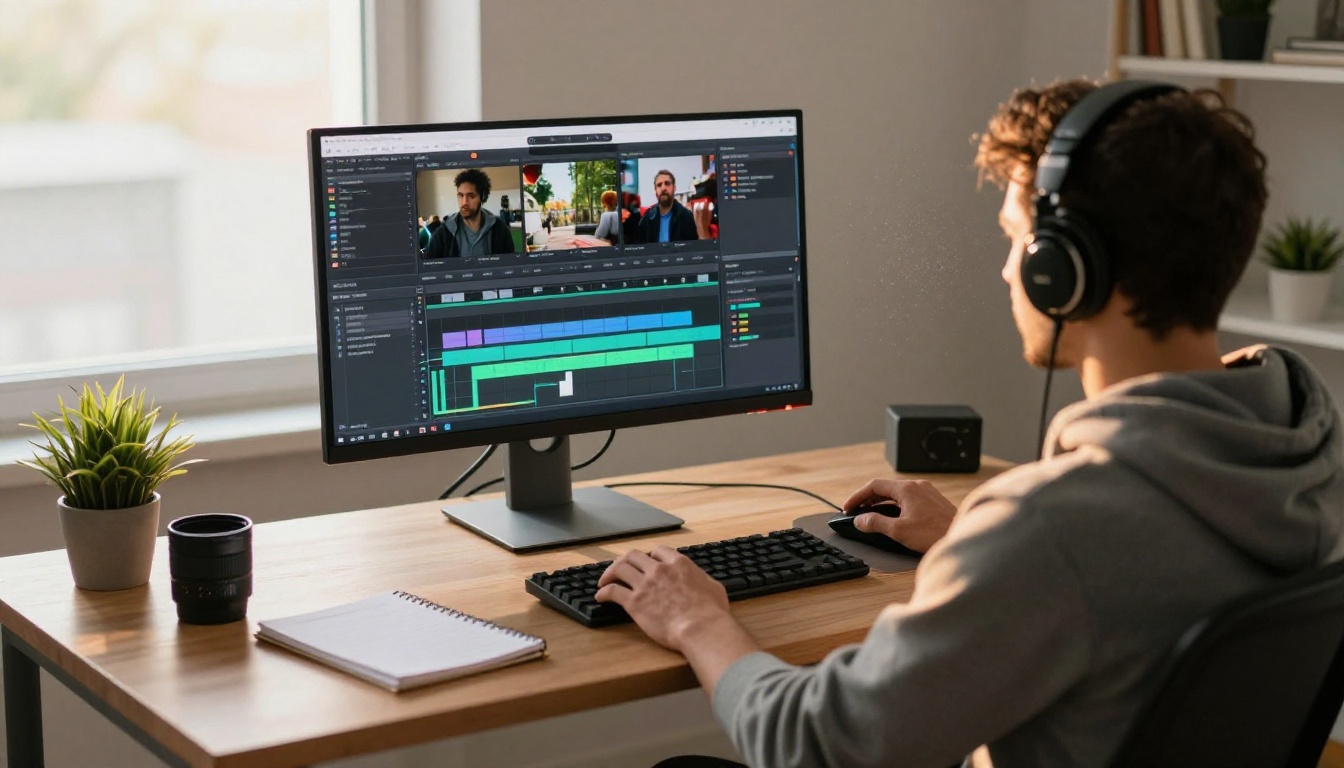
Credits and limits on PicassoIA follow your plan, so check what a generation costs on the model page before you commit to a long clip.
What to Use When Credits Run Out
When the counter hits zero you do not have to wait for tomorrow. Unlimited models usually trade top resolution for volume, which makes them ideal for drafts. These models on PicassoIA make useful backups:
A Simple Two Step Workflow
Rough out the idea on an unlimited model first. Test the framing, the camera move and the pacing as many times as you like. Then spend your 66 Kling credits only on the take that already works, in the cheapest setting that shows it properly. You keep the Kling look for the final clip and stop paying for experiments.
Try It Yourself Today
Daily credits are a good reason to test an idea and a poor reason to wait. Open Picasso IA, generate a still image with Seedream 4.5, animate it with Kling v3 Video, and see how far one afternoon gets you. Try three different prompts, change one detail at a time, and keep the clip that surprises you.
Every model is one click away at picassoia.com/en/all-models. Pick a scene you have been meaning to film, type it out, and let the first frame appear.


