You type a perfectly normal prompt, press generate, and get a red warning instead of an image. If that has happened to you on Leonardo AI, you are not alone, and you are not necessarily doing anything wrong. The Leonardo AI content moderation filter is a blunt instrument. It protects the platform from genuinely harmful output, but it also catches swimwear shoots, anatomy studies, boudoir-style portraits and plenty of other legitimate creative work.
This article breaks down how the filter works, what it allows and refuses, why false positives happen, and what you can do about them. It also covers the realistic alternatives for creators who want more room for tasteful, non-explicit glamour and fashion imagery.
How the Leonardo Filter Works
Leonardo AI does not rely on a single gate. Based on its own documentation and support material, moderation happens in layers, and knowing which layer blocked you tells you what to change.
Layer one: the prompt check
Before anything is generated, your text is scanned. Certain words, and certain combinations of words, trigger a block. The developer documentation says that flagged prompts sent through the API come back as a 400 Bad Request error, and the example it gives is a plain request for a nude subject, which returns a "content moderation filter" message. The web app behaves the same way, just with a friendlier banner.
Because this layer is keyword driven, it has no sense of context. A prompt for "a nude-colored lipstick swatch" and a prompt for something actually explicit can look similar to a simple matcher.
Layer two: the output check
Even when your prompt passes, the generated image can still be flagged. Leonardo says its system automatically marks any generation that might contain not-safe-for-work content. In the app, those images are typically hidden behind a click-to-reveal step. In the API, each image carries an NSFW attribute so developers can decide whether to show it to their own users.
💡 Quick diagnosis: If you get an error before any image appears, the prompt layer fired. If you get an image that is hidden or blurred, the output layer fired. The fixes are different.

What the rules explicitly forbid
The platform's terms, as summarised by several policy trackers in 2026, prohibit a few categories outright:
- Sexual content involving minors, with zero tolerance
- Sexual violence and non-consensual sexual content
- Impersonation, including realistic sexual imagery of real people
- Other material that breaks the law or targets individuals
Reports in 2026 also mention that the company pledged to tighten its guardrails after press scrutiny over deepfake pornography. Treat that as a signal of direction: the filter is more likely to get stricter than looser.
Mature Content Rules in Practice
The line between "mature" and "not allowed" is where most frustration lives. Leonardo has never positioned itself as an adult content platform, so anything that reads as sexual tends to be blocked or hidden.
What usually passes
| Request type | Typical outcome | Notes |
|---|
| Fashion portraits, evening wear | Passes | Rarely flagged |
| Standard swimwear on a beach | Mixed | Depends on wording and pose |
| Classical figure studies | Often blocked | Anatomy words trigger the prompt check |
| Boudoir or lingerie styling | Often blocked or hidden | Output layer is sensitive |
| Anything explicit | Blocked | Not allowed on the platform |
| Real people in suggestive scenes | Blocked | Impersonation and consent rules |
Free plan versus paid plan
Leonardo's own FAQ is surprisingly candid here: it says the differences in moderation between free and paid tiers are hard to describe precisely, and suggests trying the lowest paid tier to test your specific use case. In other words, there is no published promise that paying unlocks mature content. Do not assume a subscription changes the rules.
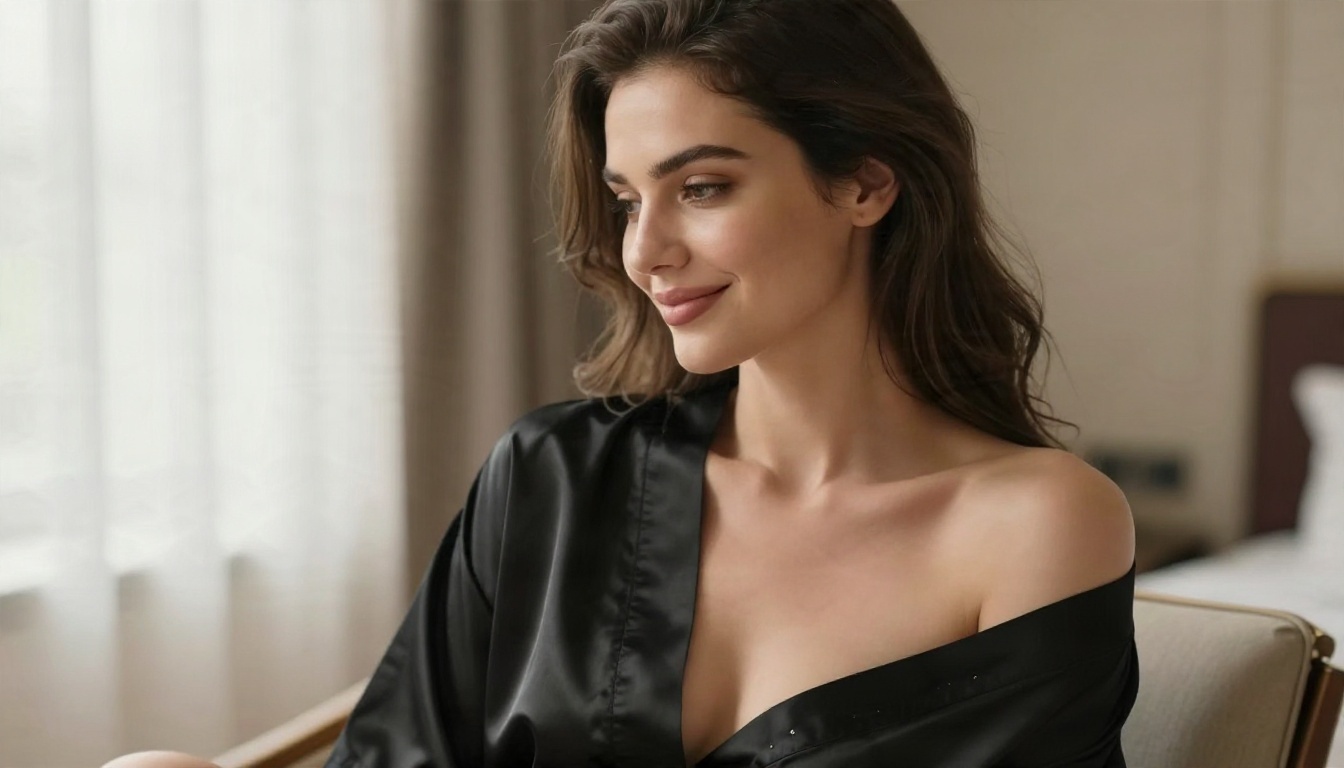
A tasteful boudoir-style portrait like this one is exactly the kind of request that tends to get flagged on stricter platforms, even though nothing in it is explicit.
Why Harmless Prompts Get Blocked
Most complaints are not about adult content at all. They are about false positives.
Keyword collisions
Words with innocent meanings sit next to sensitive ones. "Skin," "bare," "strip," "naked eye," "revealing" and "exposed" can all appear in photography, architecture or product prompts. A keyword filter sees the word, not the intent.
Combination triggers
Leonardo's support text describes the filter as blocking certain keywords and keyword combinations. That means a prompt can be fine on Monday and blocked on Tuesday after you add one innocent adjective. If a prompt that worked yesterday fails today, check what you changed, not the platform's mood.
Subject and clothing triggers
Swimwear, sheer fabrics, wet hair and close framing on shoulders or legs can push the output layer into flagging an image that a human editor would approve in a magazine in seconds.
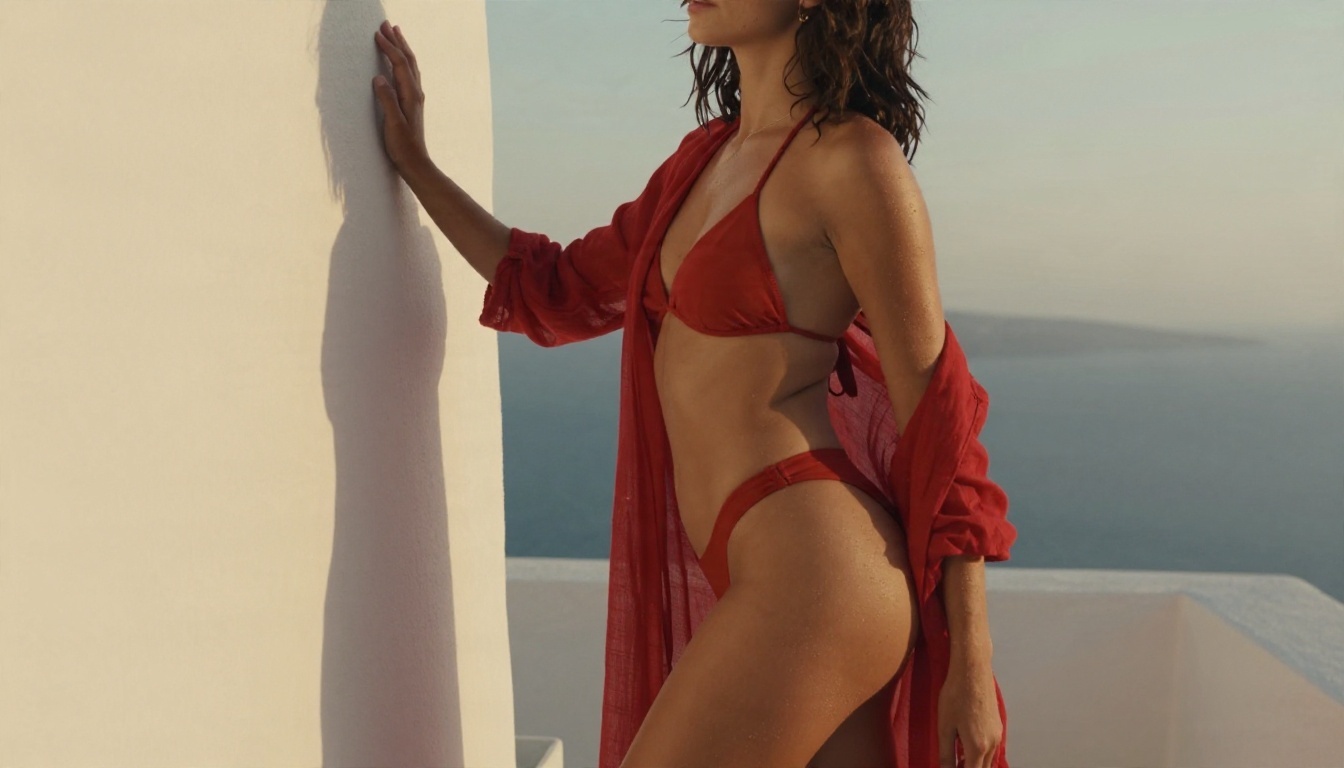
Summer fashion work like this is where over-blocking hurts most. It is ordinary editorial content.
What to Do When You Get Flagged
Before switching tools, try the legitimate fixes. They solve a surprising share of cases.
Rewrite the prompt with neutral language
Describe the photograph instead of the body. Compare these two approaches:
- Flag-prone: "woman, bare skin, revealing outfit, wet, close up"
- Safer: "woman in a red swimsuit and linen wrap, editorial summer fashion photo, golden hour, 35mm lens"
Camera details, wardrobe names and lighting give the model plenty to work with, and they steer away from words that trip the matcher.
Remove one word at a time
Cut your prompt in half, test, then add pieces back. This finds the trigger word fast. It also teaches you which terms the filter dislikes, so you stop writing them by habit.
Contact support for real false positives
According to Leonardo's support text, if the filter blocks something it should not, you can send the prompt together with a screenshot of the message to customer support. It is the only official appeal route I found, and it is slow, but it is free.
💡 Do not try to trick the filter. Misspelling banned words or hiding them in odd phrasing can violate the terms of service and may put your account at risk. If a request keeps failing, the better move is a tool with different rules, not a clever workaround.
Limits That Will Not Change
Some restrictions are structural and no prompt rewrite will move them.
| Limit | Why it exists |
|---|
| No explicit sexual imagery | Platform positioning and legal exposure |
| No sexual content of real, identifiable people | Consent and deepfake concerns |
| Hidden or flagged NSFW outputs | Output-level safety layer |
| Credit costs for every attempt | Generation uses tokens even if you reject the result |
| Terms apply to every plan | Paid tiers do not publish looser rules |
The last two matter if you are budget conscious. I could not find a clear statement on whether a blocked generation consumes credits, so check your own balance after a blocked attempt before assuming it is free.
Honest take on the filter
The filter is not a villain. A mainstream platform with a huge user base needs strict defaults, and those defaults prevent real harm. The problem is fit. If your work is fashion, swimwear, boudoir styling or figure photography, you are using a tool built for a broader audience with the strictest settings applied to everyone.
Alternatives That Fit Glamour Work
If your projects are tasteful, suggestive and non-explicit, a generator with a more permissive approach saves hours of prompt wrestling. These are the models on PicassoIA worth trying, in the order I would test them.
Seedream 4.5 as the first stop
Seedream 4.5 is my first recommendation for glamour and swimwear. It produces sharp, photographic skin and fabric detail, handles lighting direction well, and accepts the kind of fashion, bikini and boudoir-style prompts that tend to get stopped elsewhere. It supports high resolution output, so images hold up in print and large social formats.
PicassoIA Image Editor Pro for unlimited iterations
PicassoIA Image Editor Pro is built for iteration. Generations are unlimited, so you can test ten versions of a wardrobe or pose without watching a credit meter. That changes how you work: you stop writing one nervous perfect prompt and start refining visually.
Fast and photorealistic options
If you like Leonardo's own models
Leonardo's house models are available on PicassoIA too, without the Leonardo app layer around them. Phoenix 1.0 is strong on prompt adherence and larger outputs, and Lucid Origin suits more artistic looks. Rules still differ by model, so test each with your own subject matter.
Side by side
| Model | Best for | Iteration speed | Realism |
|---|
| Seedream 4.5 | Glamour, swimwear, fashion | Fast | Very high |
| Image Editor Pro | Unlimited refinement | Very fast | High |
| Z Image Turbo | Rapid batches | Very fast | High |
| Realistic Vision v5.1 | Natural portraits | Moderate | High |
| Phoenix 1.0 | Prompt accuracy, large size | Moderate | High |

💡 A word on limits: No reputable platform allows explicit pornography, content involving minors or sexual imagery of real people, and you should not look for one that does. The goal here is freedom for tasteful, artistic, adult-audience photography, not removing every safeguard.
How to Use Seedream 4.5 on PicassoIA
Here is a simple workflow for a swimwear or glamour shot that Leonardo might have refused.
Step 1: Open the model
Go to the Seedream 4.5 page and open the generator. No local install is needed.
Step 2: Write a photographer's prompt
Structure it as subject, wardrobe, setting, light, lens. For example:
"Close-up of a stylish woman in a white linen shirt and bikini top on a sailboat deck at sunrise, wind in her hair, golden rim light from behind, 85mm f/1.8, Kodak Portra 400 grain."
Step 3: Set the output
Choose a 16:9 aspect ratio for banners and websites, or 4:5 or 9:16 for social feeds. Pick the highest resolution available if you plan to print.
Step 4: Generate several variations
Run three to five variations with small prompt changes: different light direction, lens, or wardrobe color. Photographic vocabulary gives more control than adjectives like "beautiful."
Step 5: Refine in Image Editor Pro
Take your best frame into Image Editor Pro to adjust details, fix small issues, or restyle the outfit without starting over.
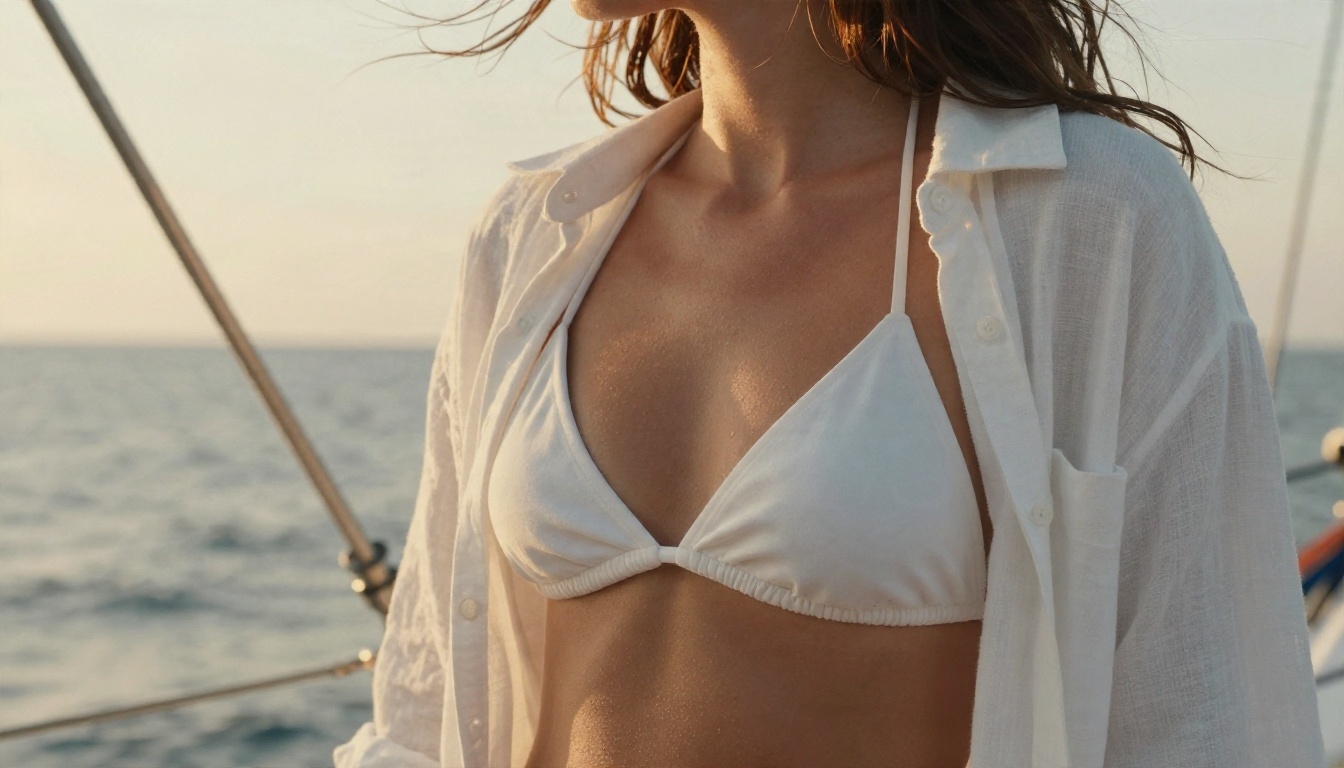
An example of the sailboat prompt above: warm rim light, natural skin texture, tasteful framing.
Parameter tips
- Name the light source and direction, such as "soft window light from the left."
- Specify a lens and aperture to control depth of field.
- Mention film stock for color character, for example Kodak Portra 400.
- Keep prompts under roughly 80 words; longer prompts dilute the focus.
- Describe fabrics (silk, linen, satin) to get believable texture.
Practical Rules for Staying Out of Trouble
Whatever platform you pick, a few habits keep your work safe and your account healthy.
- Never use real people's likenesses for suggestive imagery. This is the fastest route to a ban and it harms real individuals.
- Label AI work where required by the platform you publish on.
- Check usage rights for commercial projects, especially advertising.
- Keep prompts descriptive and neutral, which also gets better images.
- Save prompts that work so you can reuse them across tools.
Quick decision checklist
- Blocked before generation: rewrite the prompt with photographic language.
- Image hidden after generation: simplify wardrobe, pose or framing.
- Blocked repeatedly on harmless fashion: contact support, then consider another tool.
- Project needs tasteful glamour at volume: move the workflow to Seedream 4.5 and Image Editor Pro.
Try It on Your Own Prompts
The fastest way to judge any generator is to run the prompt that just failed. Take the exact request Leonardo refused, rewrite it like a photographer's shot list, and run it through Seedream 4.5, then polish the best result in PicassoIA Image Editor Pro. Because iterations are unlimited, you can try bold ideas without worrying about spending credits on a miss.
Ready to see how far your ideas can go? Open Picasso IA, pick a model, and start creating your own fashion, swimwear and glamour images today. You can also browse every available generator at picassoia.com/en/all-models and find the one that matches your style.


