You have a video where the speaker says one thing, and a new audio track that says another. Maybe it is a translation, a corrected script, or a voice you generated an hour ago. The mouth on screen still follows the old words, and every viewer notices within two seconds. Sync V2, the second generation lipsync model from Sync Labs, exists to fix exactly that problem: it takes a video and an audio file, then rewrites the mouth region frame by frame so the lips follow the new speech.
This article walks through what you can adjust, what it costs per second of footage, how API access works, and which free routes are worth your time. If you only want to try it right now, Lipsync 2 on PicassoIA runs the model in the browser with no code.

What Sync V2 Actually Does
Sync V2 is a video-to-video lipsync model. You give it two files: an MP4 with a visible face, and a WAV with the speech you want that face to say. It returns a new MP4 where the mouth, jaw and surrounding skin are regenerated to match the audio, while the rest of the frame stays as filmed.
That is different from an avatar generator. Avatar tools start from a single photo and invent everything. Sync V2 starts from real footage, so lighting, head movement, background and clothing stay intact. Only the speech area changes. This is why it became popular for dubbing, ad localization and fixing scripts after a shoot.

Where it fits best
The model shines on clips with a clear, front-facing or three-quarter face and stable lighting. Think interviews, webinars, product demos, training videos and talking-head social posts. It struggles more when the face is tiny in frame, covered by a hand or microphone, or turned away from the camera for long stretches.
Lipsync 2 versus Lipsync 2 Pro
Sync offers a standard model and a higher tier. Both are available on PicassoIA, so you can test the same clip on each.
| Feature | Lipsync 2 | Lipsync 2 Pro |
|---|
| Best for | Everyday dubbing, social clips, drafts | Close-ups, fine detail, final delivery |
| Sync modes | Loop, bounce, cut off, silence, remap | Same family of controls |
| Typical API price | Lower per second | Roughly 1.5 to 2 times higher |
| When to pick it | Volume work and testing | Clips where teeth, beards and skin texture matter |
💡 Tip: Run your first test on the standard model. Move to the Pro version only for shots that will fill the screen, like a hero video on a landing page.
Every Setting, Plainly Described
Sync V2 has a short list of inputs. That is a good thing, because there is little to misconfigure. Here is what each one does.

sync_mode: five ways to handle length
The most important setting decides what happens when your audio and video do not have the same duration. And they rarely do.
| Mode | What it does | Use it when |
|---|
| loop (default) | Repeats the video from the start until the audio ends | A short face clip needs to carry a long voiceover |
| bounce | Plays the video forward, then backward, then forward again | You want smoother repetition with no visible jump cut |
| cut_off | Trims the longer file to match the shorter one | Audio is longer and you only need the overlap |
| silence | Pads the shorter audio with silence | Video is longer and the speaker can simply stop talking |
| remap | Stretches or compresses the video timing to fit the audio | A translated track runs a bit longer or shorter than the original |
Remap is the one dubbing teams reach for most. Spanish and German translations often run 15 to 25 percent longer than English, and remap absorbs that gap without cutting words. Bounce looks better than loop for static avatars because loop shows a tiny jump every time the clip restarts.
Temperature: how expressive the mouth gets
Temperature runs from 0 to 1, and the default is 0.5. Low values give small, restrained mouth movements. High values give wider, more animated shapes.
- 0.2 to 0.35: corporate training, news style delivery, calm narration
- 0.5: a safe default for most talking-head footage
- 0.65 to 0.8: energetic presenters, ads, children's content, character work
Go too high and the mouth can look exaggerated, especially on a speaker who barely moves their face in the original. Go too low on an excitable speaker and the lips look sleepy against the body language. Change it in steps of 0.1 and compare.
Active speaker detection
This is a simple on or off switch, off by default. When it is on, the model works out who is talking in a multi-person scene and applies lipsync only to that person. Without it, the model may try to sync every visible face to the same audio, which looks strange in a two-person interview.

Turn it on for interviews, panels and any shot with more than one face. Leave it off for single-speaker clips, since it adds nothing there.
Input file rules
The model expects an MP4 video and a WAV audio file. If your voiceover is an MP3 or M4A, convert it first. Clean audio matters more than people expect: background music under the voice, heavy reverb or clipping can all produce muddy mouth shapes.
💡 Tip: Export the voice track alone, without music, before uploading. Add the music back after the lipsync is done.
The Real Cost of Sync V2
Pricing is where most people get surprised, because lipsync is billed on the length of the output video, not on the number of attempts you are happy with.

Per-second API rates
Based on Sync's published API pricing at the time of writing, billing works per output frame, which translates to a per-second rate at 25 frames per second:
- Lipsync 2: roughly $0.04 to $0.05 per second, which lands around $2.40 to $3.00 per minute
- Lipsync 2 Pro: roughly $0.067 to $0.083 per second
- Third-party API hosts list the standard model at around $3 per minute of video
Because billing follows frames, your fps setting matters. A 30 fps clip contains more frames than a 25 fps clip of the same length, so check how your platform counts it. Prices change often, so treat these numbers as a planning range and confirm them on the provider's pricing page before you commit a budget.
What common projects cost
Here is a rough budget at the standard model's rate, using about $3 per minute:
| Project | Length | Approximate cost |
|---|
| Single social clip | 30 seconds | $1.50 |
| Product demo, one language | 3 minutes | $9 |
| Same demo in 5 languages | 15 minutes total | $45 |
| Weekly training video, 10 minutes, 3 languages | 30 minutes total | $90 |
The hidden cost: retries
Nobody gets the perfect result on the first attempt for every clip. Plan on 1.5 to 2 runs per finished video while you tune temperature and sync mode. The cheap way to do that is to cut a 5 to 10 second test segment, tune the settings there, then run the full length once.
API Access Basics
Sync V2 is available through Sync's own API and through several model hosting platforms. The workflow is the same everywhere: submit a job with two file URLs, wait for processing, then fetch the output video.
What a request contains
A typical job includes:
- A public URL to the MP4 video
- A public URL to the WAV audio
- The model name, standard or Pro
- Options such as sync mode, temperature and active speaker
Processing is asynchronous. You get a job ID back, poll its status, and download the result when it finishes. Processing time depends on clip length and queue load, and most short clips finish in a few minutes.
Plan limits to check
The maximum clip length depends on your subscription. Sync's plans range from about one minute per generation on the entry tier up to about thirty minutes on the largest. If you are dubbing long webinars, split them into chapters of two to five minutes. That also gives you cheaper retries when one segment looks off.
💡 Tip: Build your job queue so that each segment is its own request. A failed or weak segment then costs a few dollars to redo, not the price of the whole video.
Free Options That Work
You do not need to pay to find out whether Sync V2 suits your footage.

Free tiers from the provider
Sync has offered free accounts with a small monthly allowance, described as a few short generations per month with a short maximum duration, around 15 to 20 seconds each. Published figures have differed between pages, so check the current number when you sign up. It is enough for a proper test, but not for production.
Free in the browser on PicassoIA
Lipsync 2 on PicassoIA is described as free to try online with no coding needed. You upload the video and the audio, pick the sync mode, and run it. That makes it the fastest way to compare sync modes side by side without setting up an API key or a billing account.
For a quick comparison, Lipsync 2 Pro sits in the same category, so you can run both on the same 8 second sample and decide whether the extra detail justifies the higher cost.
How to Use Lipsync 2 on PicassoIA
Here is the workflow, start to finish, for a typical dubbing job.
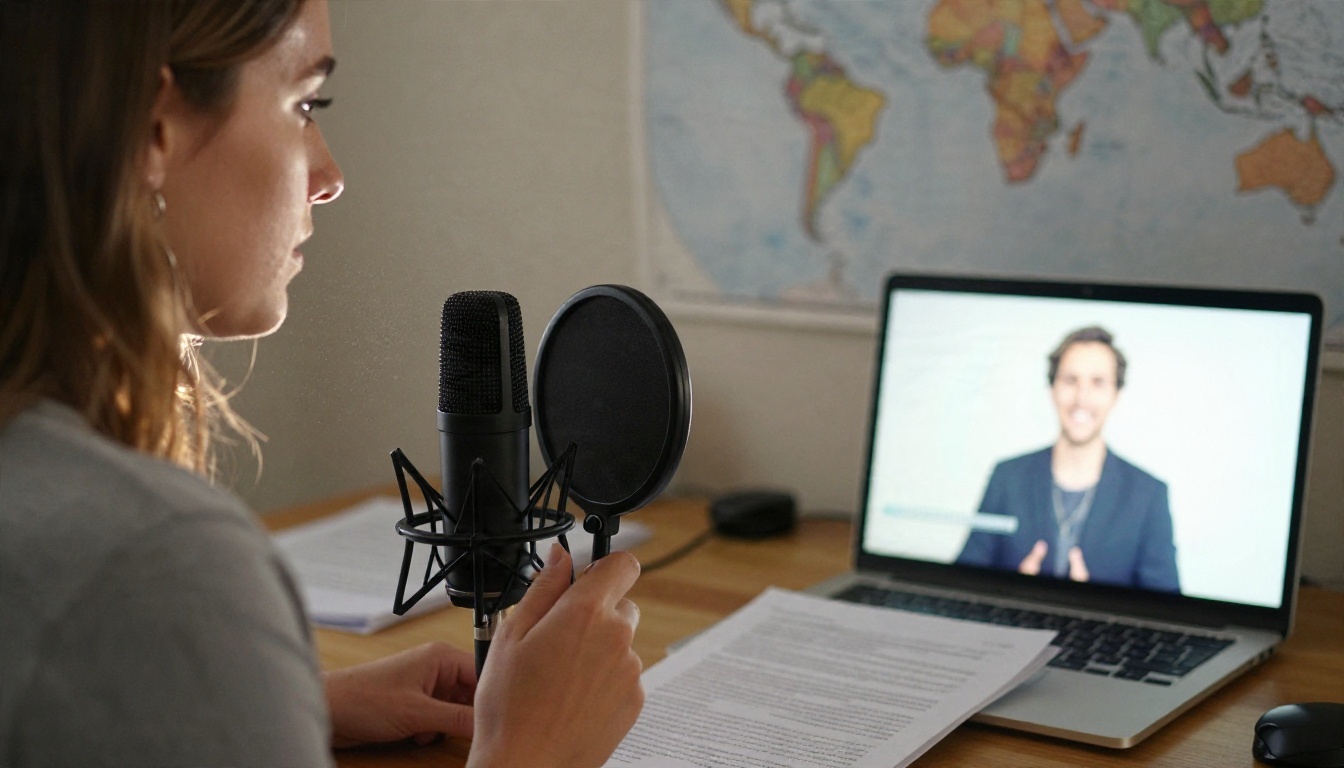
- Prepare the audio. Record or generate your new voice track and export it as a WAV file. Keep it voice only, with no music.
- Prepare the video. Trim your clip to the segment you want, ideally 5 to 30 seconds for the first test, and export it as MP4.
- Open the model. Go to the Lipsync 2 page and upload both files.
- Choose the sync mode. Use remap for translated dubbing, loop or bounce for a short clip under a long voiceover, cut_off if you want the shorter length to win.
- Set temperature. Start at 0.5. Lower it for serious content, raise it for lively delivery.
- Toggle active speaker. Switch it on only when more than one person is on screen.
- Run and review. Watch the result at full screen, with sound, and pay attention to plosive sounds like B, P and M, where the lips must visibly close.
- Adjust and rerun. Change one setting at a time so you know what caused the improvement.
💡 Tip: If the audio was generated by a text to speech tool, add a quarter second of silence at the start. The model then has a clean neutral mouth position to begin from.
When Another Model Fits Better
Sync V2 is strong, but it is not the only option on PicassoIA, and some jobs call for a different tool.

- Lipsync 2 Pro: the same family with more detail, suited to close-ups and final delivery.
- Kling Lip Sync: matches mouth movement to audio in a video, a solid second opinion when a clip looks stiff on another model.
- Lipsync Precision: aimed at dubbing any video where accuracy matters most.
- Lipsync Speed: built for fast turnaround when you are dubbing many clips and want results in seconds.
- P Video Avatar: creates talking avatar videos when you have no source footage at all.
A simple rule: real footage plus new audio points to Sync V2 or one of its rivals. No footage points to an avatar model.
Mistakes That Waste Credits
Most disappointing results trace back to the same few errors.
- Running the full video first. Always test a short segment.
- Using the wrong sync mode. Loop on a translated dub will repeat gestures; remap is usually the better call.
- Leaving active speaker off on a two-person shot, then wondering why both people talk.
- Uploading noisy audio. Music, echo and clipping confuse the mouth shapes.
- Judging on a phone speaker. Review at full size with headphones, because lip errors hide in small previews.
- Cranking temperature to 1.0 for every clip. Extreme values suit few speakers.
Also keep an eye on the source video. A face that is blurred by motion, partly hidden, or less than a few hundred pixels tall will limit the quality, no matter how well you tune the settings.
Try Your Own Lipsync Today
Sync V2 rewards quick experiments. Pick a ten second clip you already own, record or generate a new line of dialogue, and run it through Lipsync 2 on Picasso IA. Try remap, then bounce. Move temperature from 0.3 to 0.7 and watch how the same sentence changes personality.
When you want to compare, run the identical sample on Lipsync 2 Pro and Kling Lip Sync. Ten minutes of testing will tell you more than any spec sheet, and it will show you exactly how much budget your real project needs. For the full range of tools, browse all models on PicassoIA and build your own dubbing workflow.


