You jump into a lobby, say three words, and suddenly you sound like a gravel-throated orc, a calm android, or a cheerful tavern keeper. That is the promise behind tools like Livevoice, and it is the reason so many players search for a free AI character voice before they ever buy a microphone. The catch is that "free" hides a lot of small print, the default settings are rarely the best ones, and a voice changer is not always the right tool when what you really need is a script read aloud by a believable character.
This article sorts out what to expect from Livevoice style character voices for gaming, which settings matter most, how to fix the usual problems, and which text to speech alternatives make more sense when you are building NPCs, trailers or roleplay audio instead of talking live.
💡 Quick honesty note: I could not confirm a detailed, current feature list or free tier for Livevoice from public sources. Where I describe it below, I describe how live AI character voice tools generally behave. Check the app itself for exact voice counts, daily limits and pricing, because those change often.
What Livevoice Is Really For
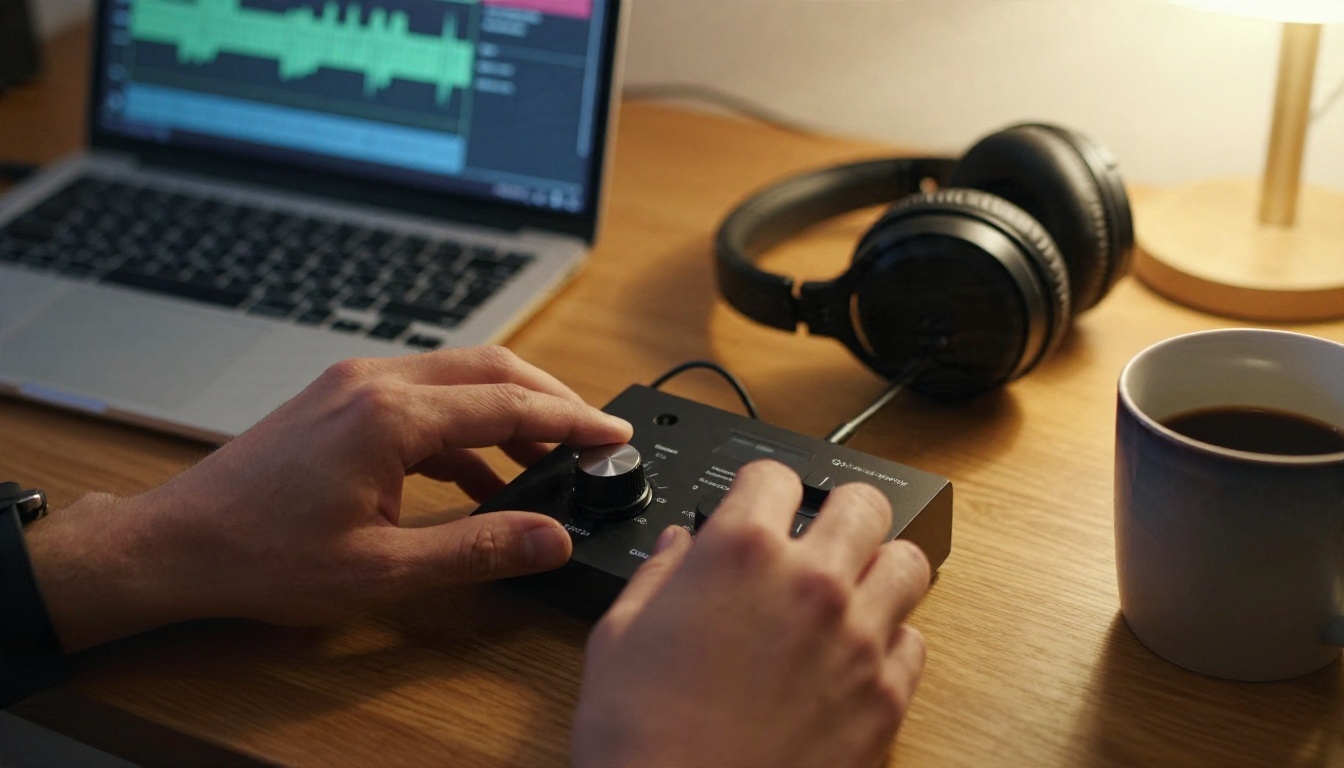
Live AI voice tools sit between your microphone and the game. You speak, the software changes the tone, pitch and character of your voice in near real time, and the game or chat app hears the new version. That is a different job from text to speech, where you type a line and get an audio file back.
The live voice changer model
A live character voice tool listens to your microphone, processes it, and sends the result to a virtual audio device. In Discord, Steam voice chat, or an in-game push to talk system, you pick that virtual device as your microphone. Everything you say then comes out as the character.
This model is perfect for:
- Roleplay servers where staying in character is the whole point
- Streams and short clips where a funny voice gets a reaction
- Privacy, since a changed voice hides your natural one in public lobbies
- Party games where a ridiculous voice makes friends laugh
Where live tools fall short
A live voice changer is only as good as your delivery. If you mumble, the character mumbles. If your microphone picks up keyboard clatter, the model tries to turn that into voice too. And because the processing has to be fast, quality is usually a notch below what an offline text to speech model can do with the same line.
That gap matters once you stop playing and start making things: dialogue for a mod, narration for a trailer, a voice for a game master bot. For those jobs, typed script to audio is the better path, and I cover it further down.
Free Voices: What You Usually Get
Free tiers in this category follow a few familiar patterns. Knowing them saves you from the frustration of a voice that disappears halfway through a session.
Typical free tier limits
| Free tier pattern | What it means for gaming |
|---|
| Small rotating voice pool | A handful of voices are free, and the lineup changes by day or week |
| Time or character cap | You can run a few hours or minutes, then the voice stops |
| Lower quality processing | More latency or a slightly robotic edge compared with paid plans |
| Watermark or sign-in requirement | You may need an account, and some outputs carry limits |
| Personal use only | Streaming for money may require a paid plan |
💡 Before a tournament or a stream: test your free voice for a full hour, not five minutes. Caps and slowdowns show up late.
Picking a voice that fits the character
A good free voice beats a mediocre premium one if it matches the role. Think about what the character needs to say, not just how it sounds.
- A gruff warrior needs a low pitch, but not so low that words blur
- A cheerful shopkeeper needs a lighter, brighter voice with clear consonants
- A robot or android hides small errors well, so it is forgiving on bad microphones
- A narrator needs steady pacing, which many voice changers struggle with
Say the same sentence in three different voices before you commit. The one that stays clear when you speak fast is the one that survives a real match.
Settings That Change the Sound
Most bad results come from settings, not from the voice itself. These are the ones worth touching first.
Pitch and formant
Pitch moves your voice up or down. Formant changes the perceived size of the speaker. Push pitch too far and you get the classic chipmunk or demon effect that sounds cheap. A small shift, a few semitones at most, keeps natural speech rhythm while still selling the character.
If the tool offers a separate formant slider, move it a little in the opposite direction from pitch. A lowered pitch with a slightly raised formant often sounds more human than a single big drop.
Input gain and noise
Set your microphone gain so your normal speaking voice peaks around the middle of the meter, never in the red. Clipping sounds awful once the AI model processes it. Turn on noise suppression only if you actually have background noise, since heavy suppression can chew up the first syllable of each sentence.
A few quick rules:
- Keep the microphone 10 to 15 centimeters from your mouth
- Use a pop filter or speak slightly off axis
- Mute your game audio from leaking into the mic by wearing closed back headphones
- Record a short test and listen with headphones before you go live
Latency and buffer size
Latency is the delay between your voice and the changed voice. Under about 100 milliseconds feels natural. Over about 200 milliseconds and conversations start to trip over each other. Lower the buffer size until you hear crackling, then raise it one step.
Also close heavy background programs. A game plus a screen recorder plus a voice model fights for the same processor, and the voice is usually the first thing to stutter.
Routing audio into Discord and the game
Most live voice tools create a virtual microphone. In your game or chat app, choose that device as your input. Then turn off any second noise filter inside the chat app, because stacking two filters usually makes the voice sound underwater.
Common Problems and Quick Fixes
Here are the issues players report most, with the fix that usually works.
| Problem | Likely cause | Fix |
|---|
| Voice sounds robotic | Pitch pushed too far | Reduce the shift and speak with more natural pauses |
| Words get cut off | Aggressive noise gate | Lower the gate threshold or switch it off |
| Delay between speech and voice | Large buffer or busy processor | Lower the buffer size and close extra programs |
| Friends cannot hear the voice | Wrong input device in the game | Select the virtual microphone in game settings |
| Echo or doubled voice | Two filters or speaker bleed | Use headphones and disable the second filter |
| Voice stops after some time | Free tier cap | Check usage limits or switch tools for longer sessions |
💡 If everything seems fine in the voice app but your friends hear nothing, check your operating system privacy settings. Apps often need explicit permission to use the microphone.
When Text to Speech Beats Live Voices

Here is the thing most "free voice changer" articles skip. If you are making a game rather than playing one, typing the line is almost always better than speaking it live.
With text to speech you control the script exactly. You can regenerate a line ten times until the delivery lands. You can write "whisper this" or "say it angrily" in plain words. And you get a clean audio file you can drop into a game engine, a video editor, or a Discord bot.
That is why I treat text to speech as the natural alternative to Livevoice for three jobs:
- NPC and quest dialogue for indie games and mods
- Narration for gameplay trailers and lore videos
- Character bots that speak in a server voice channel
Alternatives Worth Trying
Livevoice is not on PicassoIA, so you will not find a page for it here. For similar results on the speech side, these four models are available today, each for a slightly different gaming job.

Realtime TTS 2 for expressive NPCs
Realtime TTS 2 is the one I would reach for first. You write plain-English tone notes inside the text, such as a bracketed instruction to say a line excitedly or in a hushed style, and the voice follows. It also supports inline laughs, sighs and breaths, which makes NPCs feel alive, and it handles 100+ languages with automatic detection. Audio comes out fast enough to feel near live.
Chatterbox Turbo for fast, punchy lines
Chatterbox Turbo is built for speed. It suits short barks, shop greetings and combat callouts where you need many quick variations. If you want more emotion control or voice cloning behavior, the sibling Chatterbox is worth a listen.
Qwen3 TTS for custom voice design
Qwen3 TTS lets you clone a voice or design a new one from a description. That is handy when you need a unique villain or a mascot voice that no preset quite matches.
Flash v2.5 for low delay at scale
Flash v2.5 is a fast text to speech option when you have a lot of lines to generate and you care about turnaround. If you want richer emotion later, v3 is the more expressive sibling.
How to Get Similar Results on PicassoIA
The steps below use Realtime TTS 2, since its natural-language control gets closest to the "give me a character" feel of a live voice tool.
Step by step
- Open the model page. Go to the Realtime TTS 2 page on PicassoIA.
- Write your line. Keep each generation under 2,000 characters. Put a bracketed instruction before the words it applies to, for example
[say gruffly, slow and low] before a warrior line.
- Add reactions. Insert tags such as
[laugh], [sigh], [breathe] or [clear throat] where a real person would make that sound.
- Shape pacing. Use a break tag like
<break time="1s" /> for a dramatic pause, and capitalize a word when it needs emphasis.
- Choose a voice. The default is Ashley. Presets such as Dennis, Alex and Darlene give you different starting characters.
- Set language. Leave it on auto, or choose a language such as Spanish or Japanese for localized dialogue.
- Pick the format. MP3 is fine for testing. Use WAV or FLAC when the file goes into a game engine or an editor.
- Generate, listen, adjust. Regenerate until the line fits your character.
Parameter tips
| Setting | What it does | Suggested use |
|---|
| speaking_rate | Speed multiplier, 0 means normal | Slightly slower for villains, a touch faster for excited characters |
| temperature | Controls randomness, 0 uses the model default | Raise it for more expressive variety, keep it at default for consistent lines |
| sample_rate | Audio quality in Hz | Keep 48000 for final files, lower for quick tests |
| text_normalization | Expands numbers and abbreviations | Leave on auto, set to off if you want text read exactly as written |
💡 Consistency trick: for a recurring NPC, keep the same voice, same speaking rate and same style note in a small text file, and paste them in each time. That way the character sounds like the same person across forty lines.
Which Option Fits Which Player
| Your goal | Best fit | Why |
|---|
| Stay in character during live roleplay | A live voice changer such as Livevoice | It works in real time with your own speech |
| NPC and quest dialogue | Realtime TTS 2 | Tone notes and reactions inside the script |
| Many short voice lines quickly | Chatterbox Turbo | Fast generation for barks and callouts |
| A unique custom character voice | Qwen3 TTS | Voice design and cloning options |
| Fast turnaround at volume | Flash v2.5 | Quick generation for large scripts |
Plenty of creators use both. They speak live with a voice changer for the fun, and they use text to speech for anything that has to be polished, repeated or published.
A Few Rules for Safe, Fair Use
Character voices are fun, but a few habits keep you out of trouble.
- Do not imitate real people without their permission, especially public figures or other streamers
- Tell your audience when a voice is synthetic, particularly in competitive or paid settings
- Check game and platform rules, since some servers and tournaments ban voice changers
- Read the license of any free voice before you use it in a monetized video or game
Build Your Own Character Voice
If you came here wanting a free character voice for gaming, the plan is simple. Keep a live voice tool for the moments where you are playing, and use text to speech when you need a line to sound exactly right.
Open one of the models above on PicassoIA, paste a short line of dialogue, add a tone note in brackets, and listen to what comes back. Change the voice, slow the pace, add a sigh, and try again. Within ten minutes you will have a character that sounds like it belongs in your game, and you can browse every other voice and audio model at picassoia.com/en/all-models.


