You can budget a Luma video project in ten minutes, or you can find out three weeks later that your cost per clip was double what you assumed. The difference comes down to a handful of facts: what Ray2 charges per second, how long a single clip can run, which resolution tier you are actually billed for, and how many requests the API lets you send at once. This article puts those facts in one place for the Luma Dream Video API: Pricing, Max Length, Ray2 Limits and Alternatives, and then shows you how to run Ray2 directly in your browser if you would rather skip the billing dashboard entirely.
A quick honest note before the numbers. Luma has reorganized its lineup more than once, and most public pricing figures come from third-party API resellers, not from one official rate card. Treat every dollar amount below as a reported range, and check the live pricing page of whichever provider you plan to pay before you commit a budget.
What the Luma Dream Video API Is
When people search for the "Luma Dream Video API", they usually mean the developer access to Dream Machine, Luma's video generation product, and specifically the Ray2 model family that powers it. You send a text prompt (and optionally a start frame or end frame), and you get back a short video clip.

Dream Machine, Ray2, Ray Flash 2
Three names get mixed up constantly:
- Dream Machine is the product name, the web app and the legacy developer API.
- Ray2 is the higher quality video model, built for realistic motion and natural camera behavior.
- Ray Flash 2 is the cheaper, faster sibling. It trades a little fidelity for lower cost per clip.
Where Ray 3.2 Fits
Recent reporting suggests Luma now lists Dream Machine and Ray2 as legacy, with Ray 3.2 as the current model on its newer API platform. I could not confirm that against Luma's own pages, so verify it before you build a product on Ray2. The practical takeaway: Ray2 still works and is still sold by several resellers, but if you start a long-term integration today, you should at least price Ray 3.2 next to it. Both Ray2 and Ray 3.2 are available on PicassoIA, which makes side-by-side testing easy later in this article.
💡 Tip: Never hard-code a model name into production without a config switch. Video models get renamed, retired and repriced quickly.
Luma API Pricing in Plain Numbers
Pricing is where most of the confusion lives, because the same model is quoted three different ways: per second, per clip, and per million pixels.

Per-Second and Per-Clip Rates
Here is what reseller listings and cost trackers report for Ray2 class models. These are third-party figures, so expect drift.
| Source type | Reported Ray2 rate | What it means for a 5 second clip |
|---|
| Resellers quoting per clip | About $0.50 per 5 second clip at base resolution | Around $0.50 |
| Resellers quoting per second | Roughly $0.10 per second at base resolution | Around $0.50 |
| Resolution multiplier | Reported 2x at 720p and 4x at 1080p | About $1.00 at 720p, $2.00 at 1080p |
| Nine second clips | Reported at roughly 2x the five second price | About $1.00 at base resolution |
| Ray Flash 2 | Reported around $0.60 for a 5 second 720p clip on one guide | Cheaper than Ray2 at the same tier |
| Per-megapixel billing | Reported near $0.016 per megapixel for Ray2 and $0.005 for Ray Flash 2 on a video modification meter | Depends on pixel count |
The numbers do not line up perfectly, and that is the point. Some resellers add their own margin, some bundle resolution multipliers, and some bill only a modification meter. If you see a quote that sounds too cheap, check which resolution and duration it assumes.
App Credits Are Not API Credits
This trips up a lot of people. The credits you buy for the Dream Machine web app do not carry over to the developer API. They are separate balances, billed separately. In the app, reported credit costs for a 5 second 720p clip are around 55 credits for Ray Flash 2 and 160 credits for Ray2. For comparison, Ray 3 at 720p is reported near 320 credits for the same length, and roughly 850 credits at 1080p.
If you are only testing ideas, buying app credits and then discovering you need API access means paying twice.
How Long Can a Ray2 Clip Be
Short. That is the honest answer, and it shapes everything about how you plan a project.
5 Seconds or 9 Seconds
Ray2 generates clips in two lengths: 5 seconds and 9 seconds. There is no 15 second option and no 30 second option in a single generation. The 9 second option costs roughly double the 5 second one on most reseller price sheets, so it is not a discount for longer footage. It is simply more footage for proportionally more money.
How to Build Longer Videos
If you need a 30 second sequence, you have three practical routes:
- Chain clips with end frames. Generate clip one, grab its final frame, and feed it as the start frame of clip two. Ray2 supports start and end frame anchoring, which helps with continuity.
- Use the loop option when you need a seamless background where the last frame matches the first.
- Cut between shots. Plan a sequence as six or seven 5 second shots with different angles, the way a film editor would. This almost always looks better than one long take, and the cost per usable second is lower because you reject fewer clips.
💡 Tip: Plan your edit before you generate. A 30 second video is about six 5 second shots, so budget for roughly ten generations to account for rejects.
Ray2 Limits You Will Hit
Length is only one boundary. Resolution and request volume matter just as much once you move from a demo to a real workflow.
Resolution Tiers
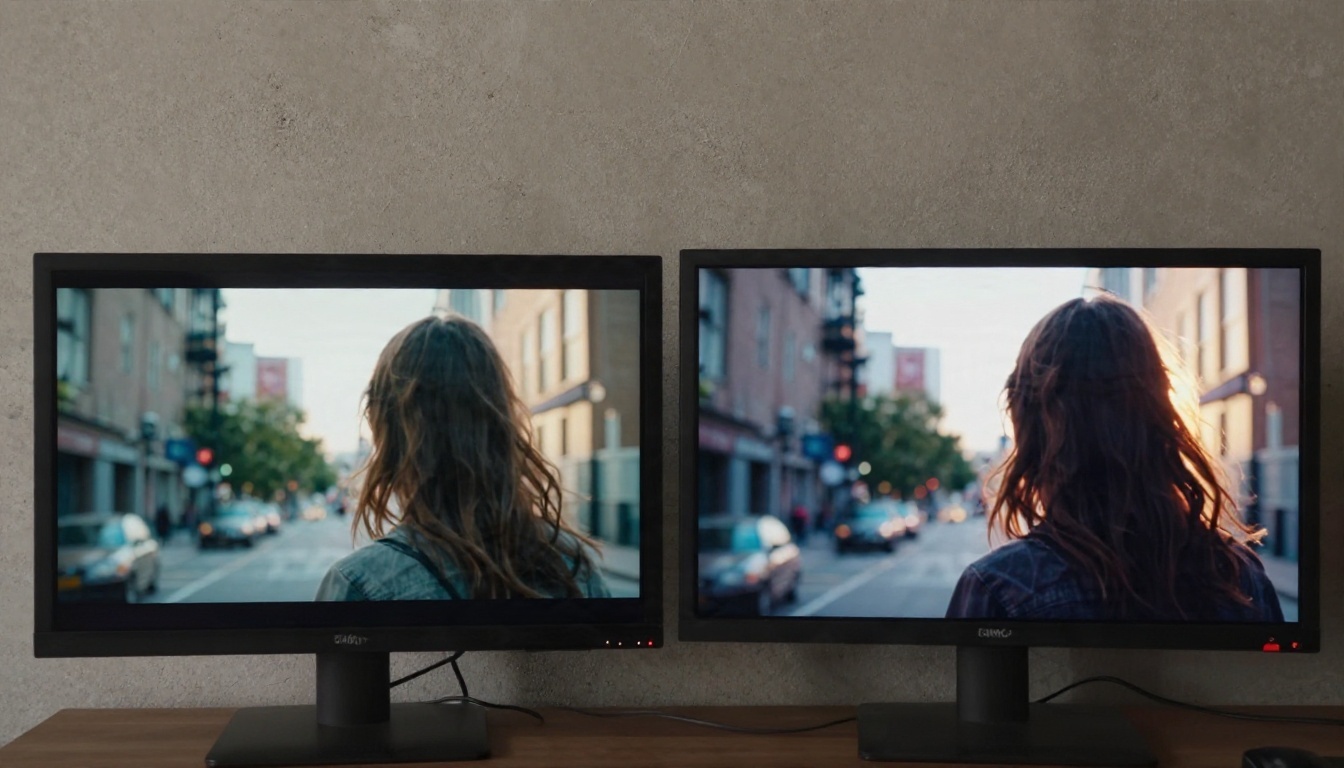
Ray2 is sold at several output tiers, from 540p up through 720p, 1080p and, on some listings, 4K. Higher tiers cost more because pricing scales with pixel count. For web previews, social posts and rough cuts, 540p or 720p is often enough. Reserve 1080p for the final selects rather than every test render.
| Tier | Best use | Cost behavior |
|---|
| 540p | Prompt testing, storyboards | Lowest cost |
| 720p | Social posts, web embeds, client drafts | Mid cost |
| 1080p | Final delivery | Reported 4x the base rate |
| 4K | Large screen or heavy crops | Highest cost, limited availability |
Rate Limits and Concurrency
Older Luma developer documentation listed limits for the Build tier of roughly 10 concurrent generations and 20 create requests per minute for Ray video. That page may be outdated, so confirm your own tier. Luma's newer platform also describes shared capacity on pay-as-you-go plans, which means you can hit throttling at peak hours and there is no latency guarantee. A paid dedicated option exists for teams that need a guaranteed request rate.
Other Practical Limits
- No native audio on Ray2. You get silent video and need to add sound separately, using text to speech or music generation.
- Short prompts win. Ray2 follows clear camera and subject instructions better than long, tangled paragraphs.
- Faces and hands drift over longer clips, which is another reason to favor 5 second shots.
- Asynchronous jobs. The API does not return video instantly, so your app needs polling or a webhook.
Hidden Costs Teams Miss
The sticker price per clip is rarely the real cost. Here is where budgets quietly break:
- Reject rate. Plan on discarding a share of generations. If one in three clips is unusable, your real cost per keeper is 50 percent higher than the price list.
- Resolution creep. Someone raises the default to 1080p "just for this client" and the bill quadruples.
- Engineering time. Polling, retries, storage, error handling and key rotation take real hours. A reseller wrapper adds convenience and also a margin.
- Separate balances. App credits and API credits do not merge, so unused credits in one place are wasted.
- Audio. If you need sound, add the price of a second tool.
💡 Tip: Run a ten clip pilot at 540p first. Multiply your reject rate and your final resolution multiplier, and you will have a believable monthly number.
Alternatives Worth Testing Today
If the API route feels heavy, or you just want to compare outputs, several strong video models are available on PicassoIA with no key, no billing console and no code. Ray2 itself is among them, and so are its closest rivals.

Ray 3.2 for Newer Luma Output
Ray 3.2 is the newer Luma model, with cinematic text to video and HDR. If you like Ray2's look but want the current generation, this is the first comparison to run.
Ray Flash 2 for Cheap Drafts
Ray Flash 2 720p and Ray Flash 2 540p are the budget end of the Ray family. Use them for prompt testing before spending on the heavier model.
Kling v3 for Motion
Kling v3 Video is a strong pick for cinematic movement and character action. Kling v3 Omni Video pushes to 1080p output.
Veo 3.1 and Seedance for Sound
If you need audio built into the clip, try Veo 3.1 Fast or Veo 3.1 Lite, which generate native audio. For longer output, Seedance 2.5 goes up to 30 seconds, and Seedance 2.5 Lite handles up to 10 seconds. Wan 2.5 T2V is another solid option, and Wan 2.5 I2V Fast animates a still image quickly.
How to Use Ray 2 on PicassoIA
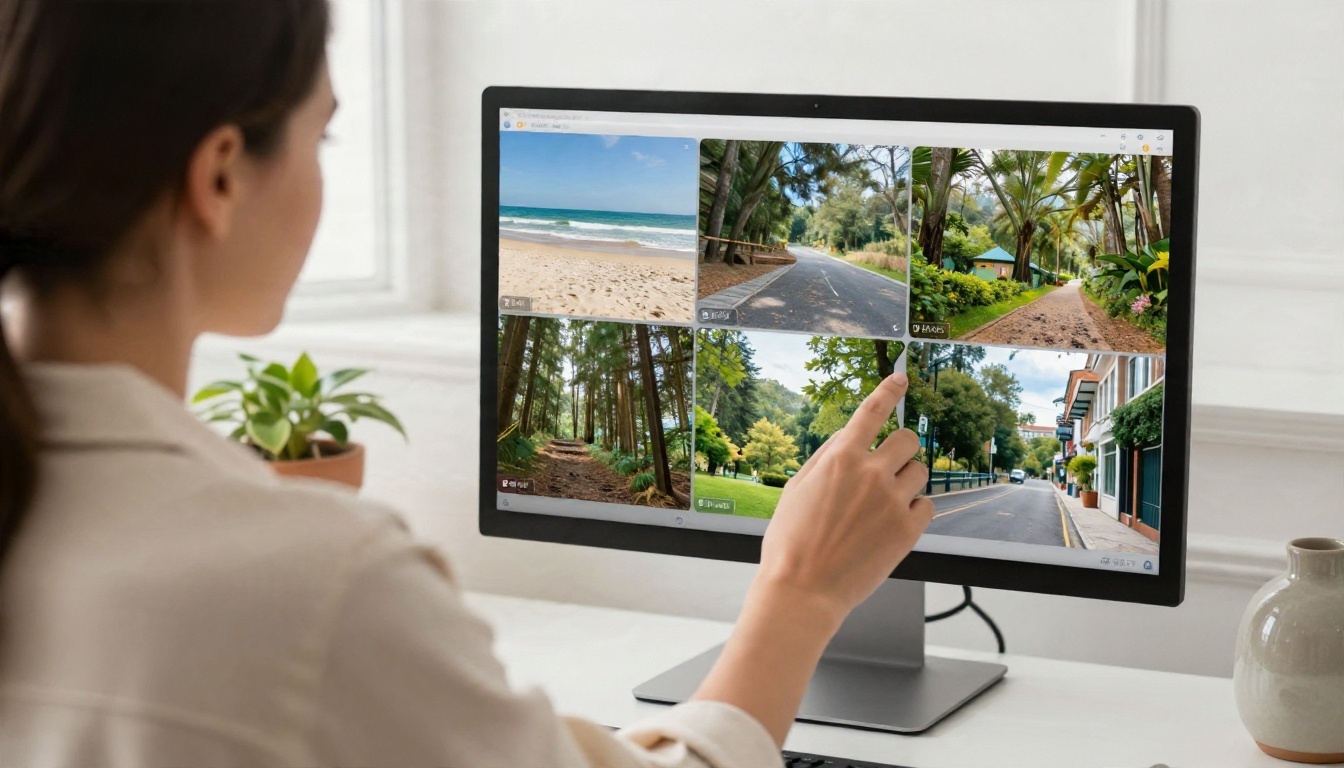
Ray2 is on PicassoIA, so you can test the exact model this article is about without an API key. Here is the workflow with Ray 2 720p. If you want cheaper tests, use Ray 2 540p first.
Step by Step
- Open the model page for Ray 2 720p and find the prompt box.
- Write your prompt. Describe subject, setting, light and action in one or two sentences. Example: "A woman in a cream coat walks along a foggy pier at sunrise, soft golden light, gentle breeze moving her hair."
- Choose a duration. Pick 5 for tests and 9 only when a shot truly needs the extra time.
- Set the aspect ratio. Options include 16:9, 9:16, 1:1, 4:3, 3:4, 21:9 and 9:21.
- Add camera concepts. The model supports more than 30 camera moves, including aerial drone, dolly zoom, pan right, orbit left, push in and handheld.
- Anchor frames if needed. Upload a start image, an end image, or both, to keep the clip grounded in real content.
- Toggle loop if you want the last frame to match the first for a seamless background.
- Generate, review, and iterate. Change one variable at a time.
Parameter Tips
- Keep to one camera concept per clip. Stacking three moves usually muddies the motion.
- Use start and end images for product shots where the object must stay recognizable.
- Test at 540p, then rerun only the winners at 720p.
- For a vertical social post, choose 9:16 from the first generation instead of cropping later.
💡 Tip: Save your best prompt as a template and change only the subject. Consistent phrasing gives consistent results across a series.
Which Route Fits Your Project
Here is the short decision path.
Choose the Luma API if you are building a product that must generate video automatically, you have engineering time, and you can tolerate rate limits and a separate billing balance. Price Ray 3.2 next to Ray2 first, because Ray2 may be on its way out.
Choose a reseller API if you want one key for many models, and you accept the added margin for the convenience.
Choose a browser workflow if you are a creator, marketer or small team who needs finished clips, not an integration. There is no setup, no polling code and no credit balance to track. You can compare Ray2, Ray 3.2, Kling and Veo on the same prompt in one afternoon, then pick the one whose look fits your brand.
A sensible hybrid is common: prototype in the browser, lock the prompt and model choice, and only then decide whether an API integration is worth building.
Make Your First Clip Today
The fastest way to settle the Ray2 question is to watch it run on your own idea. Open Ray 2 720p, type a short scene, and render a 5 second clip. Then run the same prompt on Ray 3.2 and Kling v3 Video and compare the motion, the light and the faces.
Picasso IA puts these models in one place, so you can test, compare and keep the best result without managing API keys or separate balances. Browse the full lineup at picassoia.com/en/all-models, pick a model, and start creating your own videos today.


