Making a music video used to mean renting cameras, hiring dancers, booking locations, and hoping your budget survived the edit. That whole world cracked open in the last 18 months. AI now handles every layer of production, from writing your original track to generating cinematic visuals that sync with the beat. Whether you are an independent artist, a content creator, or someone who just has a song idea and no crew, this is the workflow that produces results right now.
Why AI Music Videos Hit Different Now
The first wave of AI video tools was impressive but passive. You generated a clip, downloaded it, and then spent hours in a separate editor lining everything up by hand. The current generation of models removed that friction entirely. Audio and visual generation have merged, and the creative ceiling has been raised significantly.
Built-in Audio Changes the Equation
Models like Seedance 2.0 and Veo 3 now generate video with native, synchronized audio built in. You are not adding a soundtrack after the fact. The model reads your prompt holistically, interpreting motion, rhythm, and atmosphere as a single creative intention. Pixverse v6 takes this further with its cinematic motion engine, which translates prompt pacing into visual tempo automatically.
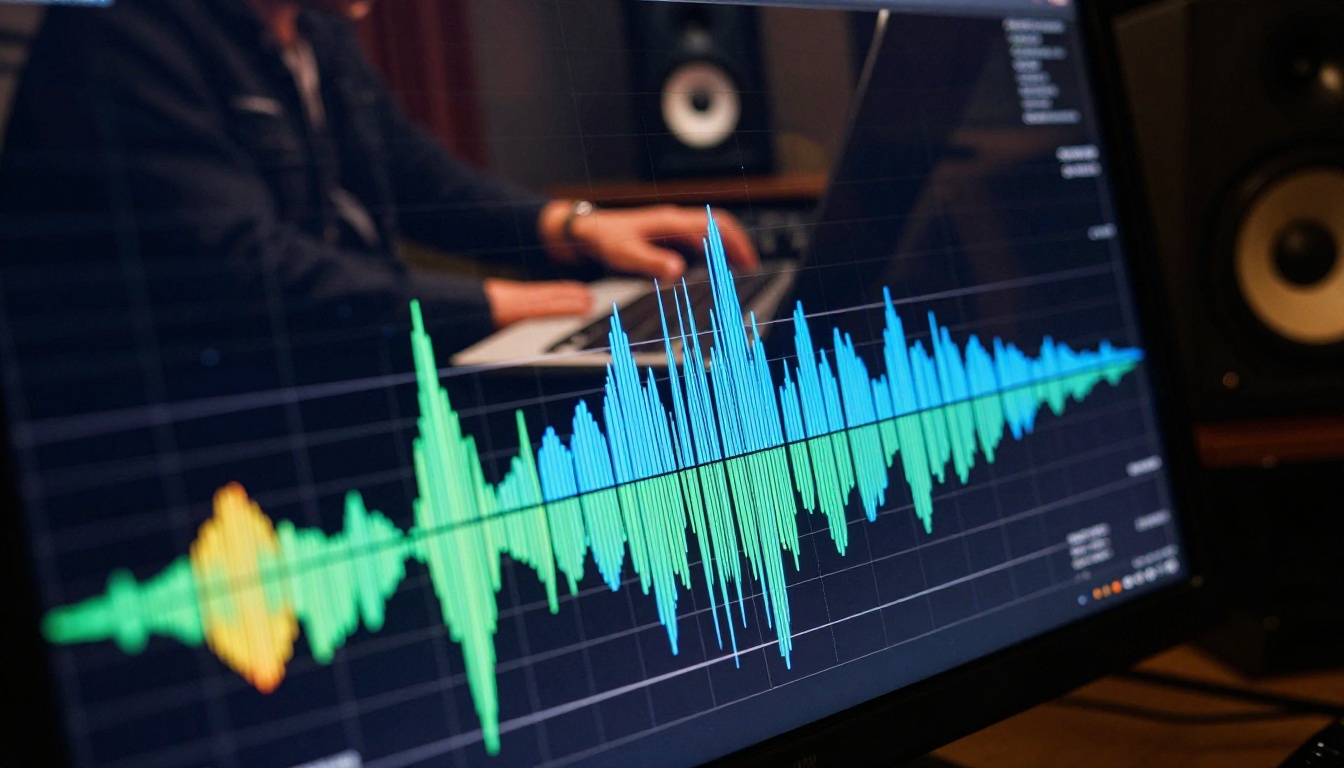
When audio and video are generated from the same source prompt, the emotional register stays consistent. The lighting feels like the song. The movement matches the energy. That is extraordinarily difficult to fake in post-production, and it is the core reason this workflow produces results that feel intentional rather than assembled.
The Cost Dropped to Almost Nothing
A traditional music video costs anywhere from $5,000 to $500,000. A cinematic AI music video, using the same models that major labels are quietly testing internally, costs roughly the price of a few hours of cloud compute. That is not a minor efficiency gain. It is a structural change in who gets to make professional-looking visual content for their music.
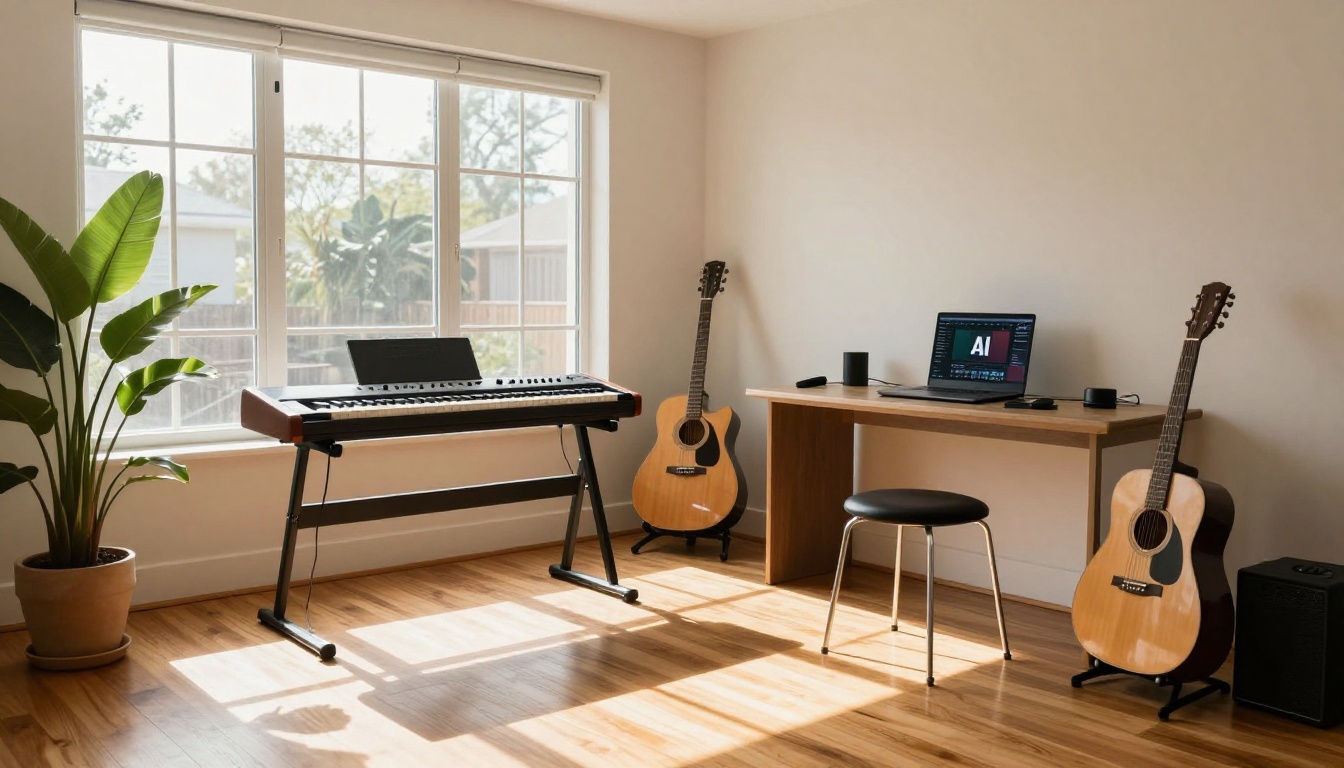
Independent artists who could never afford a director can now produce visual content that competes on production quality. The gap between a bedroom producer and a signed act narrows with every model release. You do not need the budget anymore. What you need is a clear creative vision and the right tools.
Step 1: Create Your Song First
Before you open any video tool, you need the audio. This is not just a practical prerequisite. It is a strategic one. The better your track, the more emotionally specific your visual prompts will be, because strong music makes your creative direction obvious.
Pick the Right AI Music Model
The AI music generation category has grown into a serious set of options. Music 2.6 by Minimax is one of the strongest free options available right now, generating full songs with coherent structure, real vocals, and believable instrumentation from a single text prompt. It is fast and accessible.
If you want to write your own lyrics and receive a fully produced song around them, Music 01 handles that workflow with strong vocal quality. For purely instrumental compositions, Stable Audio 2.5 from Stability AI produces high-fidelity audio with a real sense of texture and space. When you want full-length, radio-quality songs, Lyria 3 Pro from Google is at the top of that range. Its sibling Lyria 3 is excellent for quick creative drafts, and ElevenLabs Music rounds out the category with its voice-forward approach to AI composition.
Writing Prompts That Produce Real Results
The biggest mistake in AI music generation is being too vague. "An upbeat pop song" is a starting point, not a prompt. Models that produce differentiated, emotionally coherent tracks respond to specific sensory and atmospheric language.
Instead of: "a sad pop song"
Write: "melancholic indie pop, slow arpeggiated guitar, warm reverbed female vocals, sounds like 2am on an empty highway, tempo around 80bpm, raw and honest, wide reverb tail on drums"
What to include in a music prompt:
- Tempo or energy level (slow, mid-tempo, driving, frantic)
- Instrumentation (acoustic guitar, synth bass, brass ensemble, 808 kick)
- Vocal style or absence thereof (breathy female, gritty male, no vocals)
- Emotional quality (defiant, tender, nostalgic, exhilarating)
- Reference atmosphere ("sounds like a rainy afternoon", "late night freeway drive", "summer festival energy")
The detail you put into your music prompt will directly shape your video prompts. A specific sonic description creates a specific visual direction, and the two need to share the same emotional DNA.
Step 2: Build the Visuals
Once you have your track, the visual production splits into two approaches: generating video from text descriptions, or using models that take your audio and animate directly to it.
Text-to-Video for Music Content
The text-to-video approach gives you the most creative control. You write a scene description that captures the mood and movement of your track, and the model generates footage that embodies that feeling.
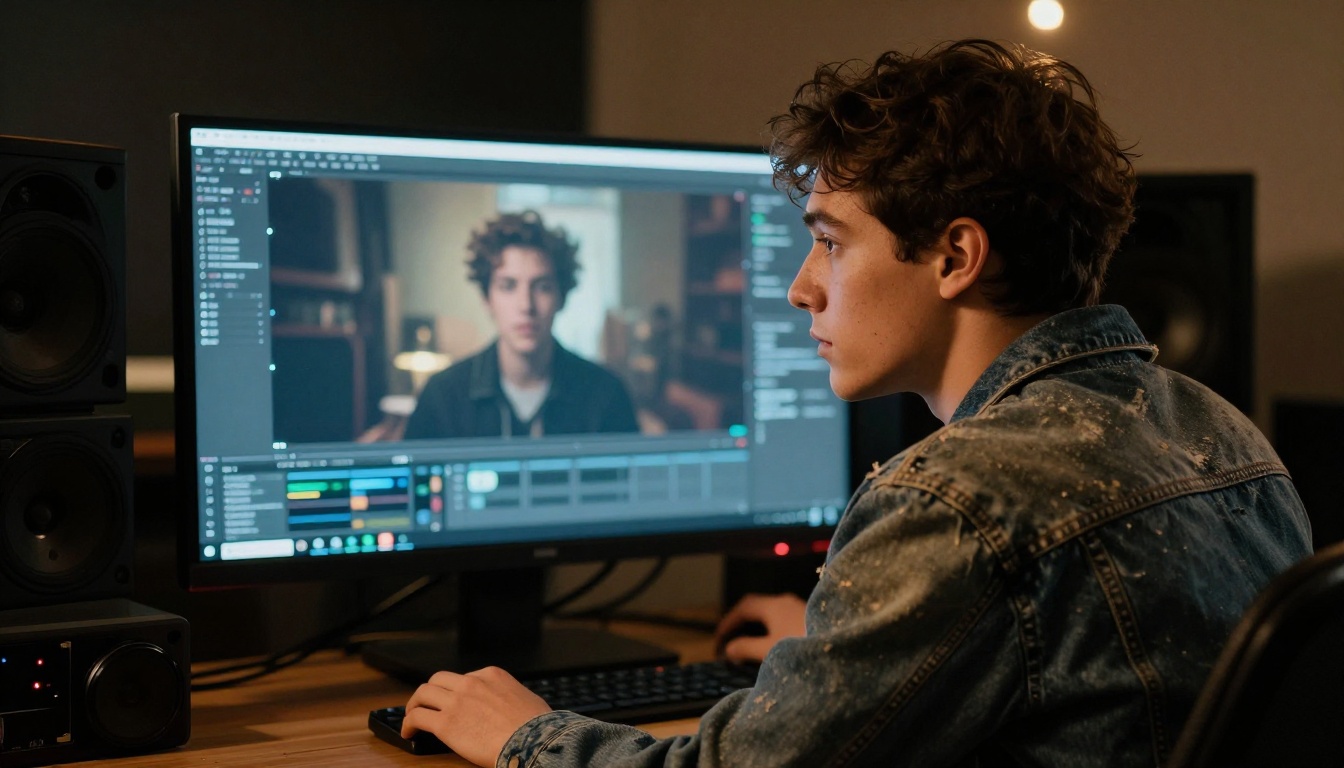
Kling v3 Video is one of the best choices for music video aesthetics. Its cinematic motion system handles slow pans, dramatic camera moves, and deep atmospheric composition with consistency. This is precisely what visual storytelling in music requires: scenes that feel lived-in, not generated.
Wan 2.7 T2V produces 1080p output and handles complex scene descriptions with strong spatial coherence. Use it for performance-style sequences, sweeping location shots, or any scene where scale and detail matter. For rapid concept testing before committing to a final render, Wan 2.2 T2V Fast lets you iterate quickly at 720p and filter out weak visual directions without burning render time.
💡 Prompt structure for music video clips: Describe the subject, their movement, the setting, the lighting mood, and the camera angle. Match the energy level of your prompt to the energy of the song section you are visualizing. Soft ballads call for slow, drifting camera moves. High-energy tracks call for dynamic angles and deliberate motion.
Visual concepts that work well for music videos:
- Artist performance: Singer or musician in a real or atmospheric location, moving with the music, camera pushing slowly in
- Narrative storytelling: A sequence of scenes that follow a visual arc, each one advancing an emotional story connected to the lyrics
- Abstract atmosphere: Landscapes, textures, and light movement that evoke a mood without literal narrative
- Stylized portraiture: Close-up shots with deliberate lighting and minimal movement, letting the face and expression carry the emotion
Audio-Synced Video Models
The most efficient approach for music video creation is using models that take your audio track and generate visuals that respond to it directly. Wan 2.2 S2V (Sound to Video) was built for this exact workflow. Feed it your audio file, add a scene description, and it generates video motion that reflects the rhythm and dynamics of what it hears.
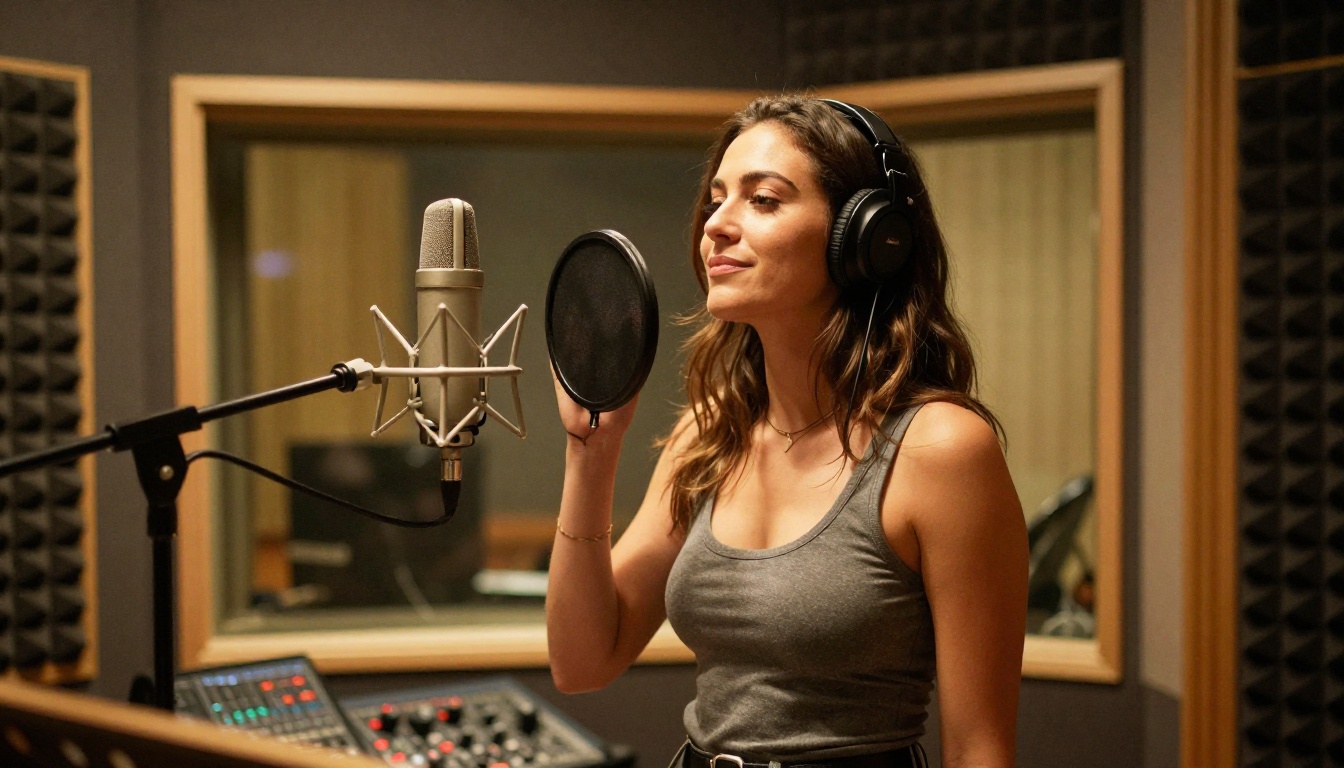
The Audio to Video model from Lightricks takes a different angle: animate a still image using any audio source. This is powerful for music videos where you want a strong visual identity. Take an AI-generated portrait, a stylized location shot, or a vivid scene, and let the audio drive the movement in every pixel. The image breathes and moves with the music without losing its visual character.
Step 3: Sync Everything Together
If you are using models with native audio generation, much of the sync work is already handled for you. For workflows where audio and video come from separate tools, a clean process makes the assembly fast.
Models That Handle Sync Automatically
Seedance 2.0 generates video with synchronized audio built into the output. When your prompt is specific enough, the result already feels like a produced clip. Veo 3 and Veo 3.1 from Google create audio-visual experiences that feel intentionally composed from the ground up.

Pixverse v6 and Hailuo 2.3 also produce video with in-built audio that responds to the prompt's emotional content. For productions where prompt adherence and output fidelity are the priority, Sora 2 remains the reference point for cinematic quality and consistency across a sequence.
The Manual Sync Workflow
When you need complete editorial control, generate audio and visuals separately, then assemble them in a standard video editor. Here is the cleanest process:
- Generate your track and listen through it carefully, noting the emotional arc section by section.
- Identify the main structural parts: intro, verse, chorus, bridge, outro.
- Write one distinct visual scene prompt per section, with mood and energy directly matching each part of the song.
- Generate clips using a high-quality text-to-video model for each scene.
- Bring all clips and the audio into your editor and cut to the beat.
This approach gives you full editorial control without losing the speed advantage of AI generation. A five-section song becomes five targeted generation tasks, each informed by what the music is doing at that exact moment.
How to Use Seedance 2.0 for Music Videos
Seedance 2.0 is currently one of the strongest options for music video creation on PicassoIA, specifically because it generates video with native built-in audio. Here is how to use it effectively for music video production.
Getting the Best Out of Seedance 2.0
Step 1: Open Seedance 2.0 on PicassoIA. You will see the text prompt field and resolution options waiting.
Step 2: Write a scene prompt that describes both the visual content and the audio atmosphere you want. Seedance responds strongly to emotional tone. A prompt like "slow motion performance shot of a singer in an empty concert hall, single spotlight from above, dusty atmosphere, melancholic piano music building slowly" will produce very different audio-visual output than a high-energy description.
Step 3: Set your resolution. Seedance 2.0 supports higher output quality, so use the highest available option when the clip is intended for a final project rather than a test render.
Step 4: Generate and evaluate the clip. Focus first on whether the motion and mood match what the music section needs. Color and atmosphere can be adjusted through prompt language on the next pass. Motion timing is harder to control after the fact.
Step 5: For multi-section videos, treat each clip as a separate generation task. Keep your visual language consistent across prompts, using the same color palette descriptions and lighting references, so the clips cut together coherently without jarring shifts.
💡 Seedance 2.0 tip: Include camera movement direction explicitly in your prompts. "Slow dolly pull-back" or "steady handheld tracking shot" will produce different kinetic energy in the output. For music videos, camera motion is pacing, and pacing is what makes a cut feel emotional rather than mechanical.
Best Models for Music Video Production Right Now
Here is a consolidated view of the strongest tools available for each stage of the workflow:
| Stage | Model | Why It Works |
|---|
| Music Creation | Lyria 3 Pro | Full songs at professional quality |
| Music Creation | Music 2.6 | Fast, free, with real vocals |
| Video (cinematic) | Kling v3 Video | Cinematic motion, dramatic output |
| Video (speed) | Wan 2.2 T2V Fast | Rapid iteration at 720p |
| Video (audio sync) | Wan 2.2 S2V | Audio-driven video generation |
| Video (image animate) | Audio to Video | Animate still images with audio |
| Video (premium) | Sora 2 | Highest prompt adherence |
| Video (built-in audio) | Seedance 2.0 | Native synchronized audio output |
3 Mistakes That Kill the Final Cut
1. Generic prompts throughout. "A music video" is not a prompt. "A slow tracking shot through a dim warehouse at golden hour, singer silhouetted near a cracked window, dust particles suspended in the light, camera drifting left at half speed" is a prompt. The specificity is the difference between generic stock footage and a clip with a real visual signature.
2. Mismatched energy. Using slow, drifting visual prompts for a high-BPM track, or frantic, rapid-cut descriptions for a ballad, creates a disconnect that viewers feel immediately even if they cannot articulate why. The energy of your visual prompt must mirror the energy of the music it will accompany. Go back to the track before writing each scene.
3. Skipping the music step. Many creators jump directly to video generation and plan to add music later. Do not. Generate the track first. Use its tempo, emotional register, and sonic character to directly inform every visual decision you make. The connection between audio and visual shows in the final result in ways that cannot be reverse-engineered in the edit.
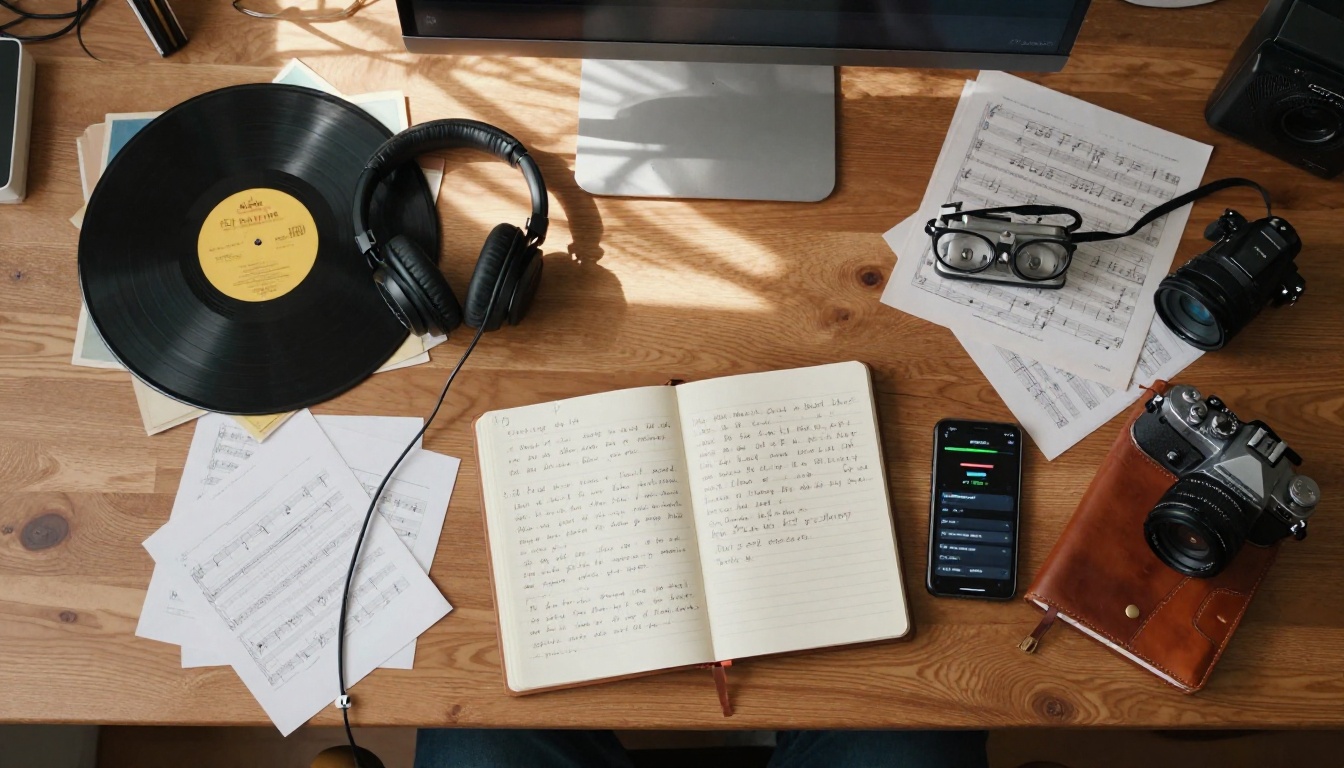
💡 Planning tip: Keep your visual prompts in a document alongside your song structure. Align each visual scene to its corresponding song section before generating anything. Pre-planning here cuts generation time significantly and produces far more coherent final edits.
What You Can Build Right Now
The tools are here, they are accessible, and they work. You do not need a label, a director, a location scout, or a production budget. A solo artist with a laptop and a clear creative idea can produce a professional-quality music video in a single afternoon.
The workflow is direct: build your track with one of the AI music models, draft your visual concept scene by scene aligned to the song structure, generate each clip through a text-to-video or audio-sync model, and assemble the edit. From an empty page to a finished video, that pipeline runs in hours rather than months.
What makes this genuinely powerful is that every step is iterative. Regenerate any clip until it matches your vision. Restyle the music until the production feels right. Nothing is locked until you decide it is.
Picasso IA has every model in this workflow in one place: from Music 2.6 and Lyria 3 Pro for audio, to Seedance 2.0, Kling v3 Video, and Wan 2.2 S2V for visuals. Pick a song concept, build your scenes around it, and start generating.

The hardest part is no longer production. It is deciding what story you want your music to tell visually.


