Most AI image generators give you a 1024x1024 square and call it done. Nano Banana Pro works differently. Type what you want to see, pick 4K from the resolution dropdown, and the model renders your image at full four-thousand-pixel quality in one pass. No upscaling pass afterward, no extra tools, no complicated export steps. For designers, content creators, and photographers who need output they can actually use at scale, this changes the production workflow entirely.
What Nano Banana Pro Actually Does
Nano Banana Pro is a text-to-image model built by Google and available on PicassoIA. It takes a written description and produces a finished image at your chosen resolution: 1K, 2K, or 4K. The distinction matters more than it sounds.
Most models generate at a fixed low resolution and leave you to upscale afterward, which introduces softness and compression artifacts into fine detail. Nano Banana Pro renders at the target resolution natively, meaning the pixel detail in a 4K output is actually present in the initial generation, not manufactured by a post-process algorithm trying to fill in gaps.
The result is that fabric textures look like fabric textures. Skin looks like skin. Water reflects light the way water actually does. At 4K, the fidelity is high enough to use images directly in professional contexts without a round-trip through a separate editing application.
Native 4K, Not an Afterthought
When you select 4K in Nano Banana Pro, you get a 3840x2160-pixel image at 16:9. That is enough resolution to print large format, use as a full-bleed presentation background, or crop heavily into a specific region without losing clarity. A fashion shot at 4K holds individual fabric threads. A product image holds surface texture you can zoom into at 200% without blur.
💡 Tip: For most web use cases, 2K is the practical sweet spot. Save 4K for print work, large display use, or any situation where you know you need to crop aggressively into the final image.
The model handles 11 different aspect ratios: 1:1, 4:3, 3:2, 3:4, 4:5, 5:4, 2:3, 9:16, 16:9, and 21:9. You are not locked into a square format. Need a banner for a website header? Pick 21:9. A vertical story post? 9:16. A product thumbnail? 1:1. All at 4K resolution.
Reference Images as Creative Control
This is the feature most people skip past and then wish they had used from the start.
Nano Banana Pro accepts up to 14 reference images alongside your text prompt. Feed it a photo of your subject, a shot you like the lighting from, and a composition reference, and the model uses all of them as visual context. The output lands much closer to what is in your head than a text-only prompt can produce.
This works especially well for:
- Brand consistency: Feed the model your existing product shots as references, then describe new scenarios with the same visual language.
- Character consistency: Upload a portrait, then prompt variations of the same person in different settings or outfits.
- Style matching: Share three images with the aesthetic you want, then describe new content in that established visual language.
The reference image system is what separates Nano Banana Pro from single-prompt generators. It lets you bring creative direction into the generation process rather than hoping the model interprets your words correctly.
How to Use Nano Banana Pro on PicassoIA
Here is the exact workflow from browser open to downloaded 4K file.
Step 1 - Open the Model
Go to Nano Banana Pro on PicassoIA. No account is required to start generating. The interface loads with a text prompt field, a reference image upload area, and resolution and aspect ratio controls.
Step 2 - Write Your Prompt
This is where most people get inconsistent results. Nano Banana Pro responds well to structured, specific descriptions. Think in four components:
- Subject: Who or what is in the image, with precise visual detail.
- Environment: Where it is happening and what surrounds the subject.
- Lighting: The direction, quality, and color temperature of light.
- Technical: Camera type, lens focal length, angle, and film or sensor style.
A weak prompt: "beautiful woman at the beach"
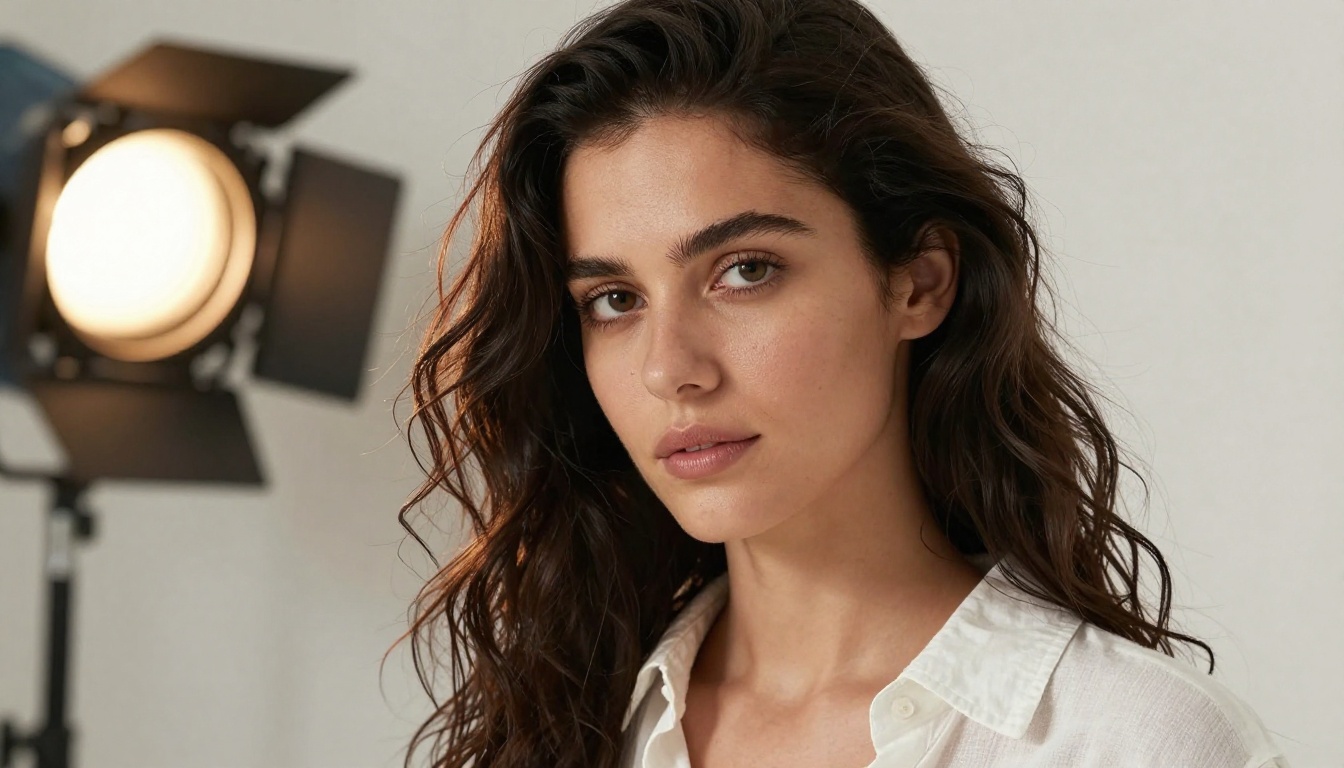
A strong prompt: "A woman in a white bikini standing at the shoreline of a tropical beach, crystal-clear shallow water at her feet, warm golden-hour light from the left creating amber highlights on her skin, shot from hip height with an 85mm f/1.4 lens, Kodak Portra 400 film look, photorealistic"
The output difference between those two prompts at 4K is enormous. Specificity gets amplified at higher resolutions.
Step 3 - Set Resolution to 4K
In the Resolution dropdown, select 4K. The default setting is 2K, so this requires an active choice. Generation at 4K takes slightly longer, typically 30 to 90 seconds depending on prompt complexity, but the increase in output detail is significant for professional use.
If you are iterating on concepts and do not need final-quality files yet, run at 1K first. The composition and content will be representative. Switch to 4K only when the prompt is dialed in and you are ready for the final output.
Step 4 - Pick the Right Aspect Ratio
Under Aspect Ratio, choose from the 11 available presets. Here is a quick reference for the most common creative use cases:
| Use Case | Recommended Ratio | 4K Pixel Size |
|---|
| Social media feed post | 1:1 | 2160x2160 |
| Instagram or TikTok Story | 9:16 | 2160x3840 |
| YouTube thumbnail | 16:9 | 3840x2160 |
| Desktop wallpaper or presentation | 21:9 | 5120x2160 |
| Print portrait orientation | 2:3 | 2880x4320 |
| Product catalog or standard photo | 4:3 | 2880x2160 |
| Website banner | 16:9 | 3840x2160 |
Step 5 - Generate and Download
Hit Generate. When the image appears, right-click to save or use the download button to choose your output format: JPG or PNG.
PNG preserves all image data and is the right choice for any image you plan to edit further in Photoshop, Figma, or similar tools. JPG produces a smaller file with slight compression that is imperceptible at normal viewing sizes, making it the practical default for web publishing and social media.
Prompts That Actually Work at 4K
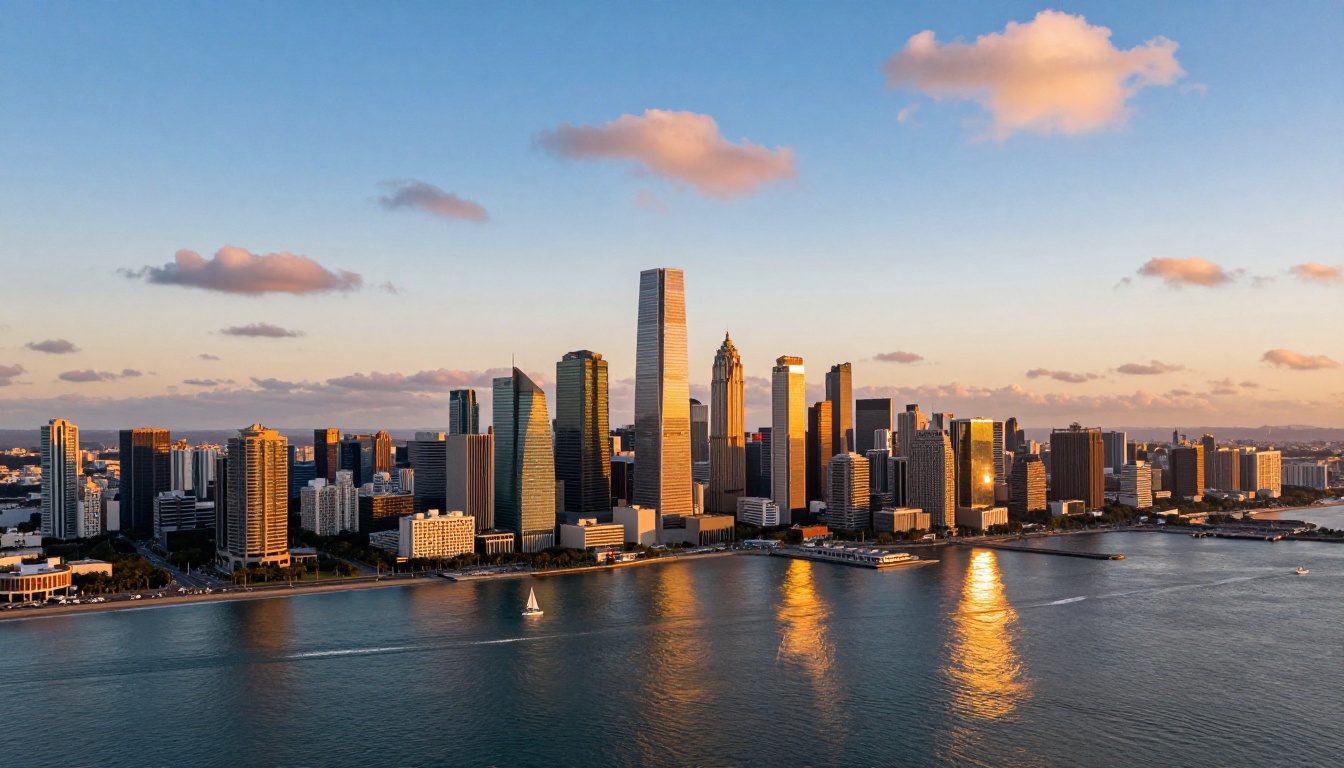
The resolution setting opens the door, but the prompt fills the room. Here is what separates sharp, usable 4K images from blurry, generic ones.
Describe Light Before Subject
Lighting is the single highest-impact variable in AI image generation. Describe it early in your prompt, before you describe what the subject is doing. "Volumetric morning light from the upper left" does more work for image quality than "beautiful sunset background."
Specific lighting descriptors that consistently produce strong results with Nano Banana Pro:
- "Volumetric morning light from the upper left, warm amber color"
- "Single softbox studio light from the right, hard directional shadow"
- "Blue-hour ambient light, no direct sun, cool tones"
- "Overhead midday sun, strong shadows, slight flare"
- "Window light, overcast diffused, flat even illumination"
- "Backlighting from a bare tungsten lamp, hair catching the light"
The more precise you are about direction, quality (hard vs. soft), and color temperature, the more the model can reproduce a real photographic lighting setup at 4K fidelity.
Be Specific, Not Poetic
Poetic language like "ethereal beauty" or "stunning atmosphere" gives the model almost nothing to work with visually. Concrete, observable detail gives it everything.
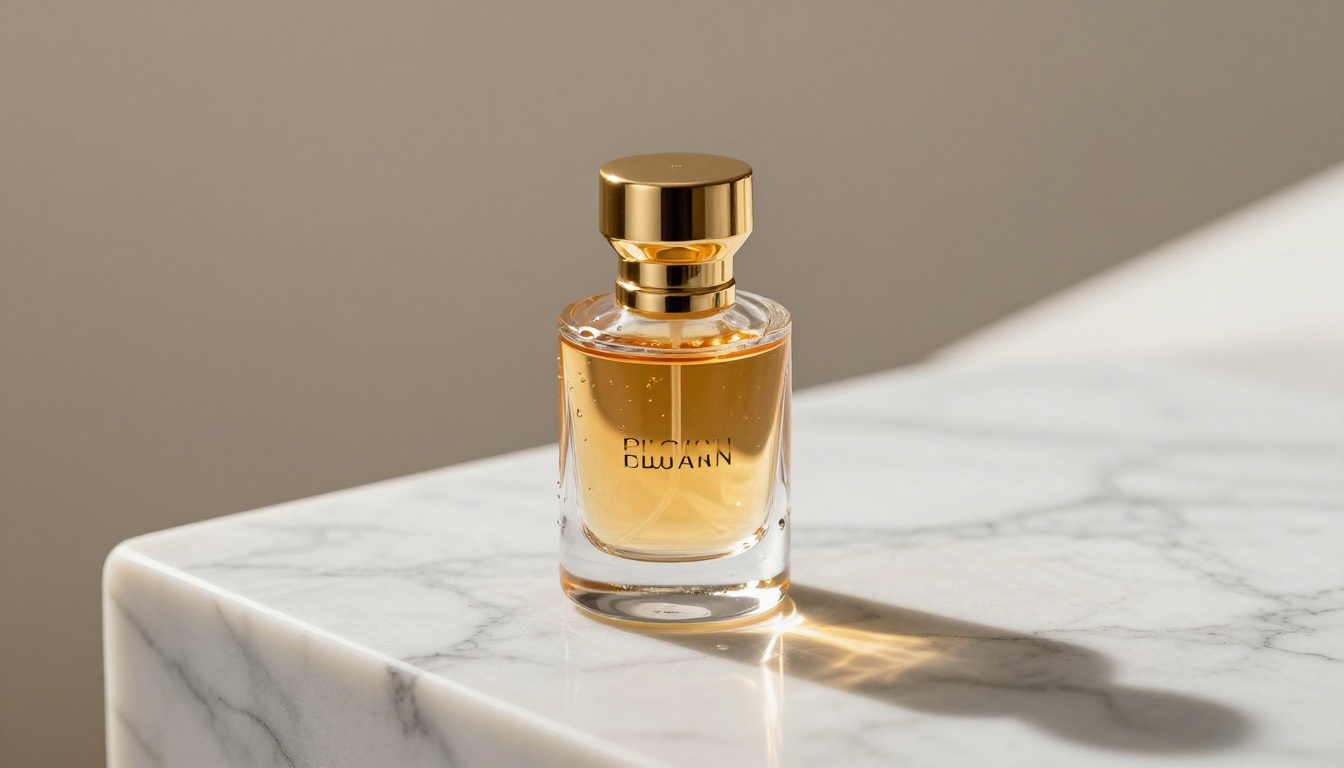
💡 Compare: "A stunning luxurious product shot" vs. "A glass perfume bottle on white Carrara marble, single shaft of natural window light creating a caustic refraction pattern, 100mm macro lens at f/2.8, surface condensation micro-droplets visible on the glass"
The second prompt produces a 4K image you can use directly in an ad campaign. The first produces something forgettable. At 4K resolution, your prompt's specificity gets amplified. Strong details become strong images. Vague language becomes vague images at four times the resolution.
Useful specifics to add to any prompt:
- Camera lens (85mm for portraits, 24mm for environments, 100mm macro for products)
- Aperture (f/1.4 for shallow bokeh, f/8 for deep landscape focus)
- Film stock (Kodak Portra 400, Fuji 400H, Ilford HP5, Kodak Ektar 100)
- Shooting angle (low-angle for power, overhead for flat lay, eye-level for natural)
- Time of day (blue hour, golden hour, midday, overcast afternoon)
- Texture language (pores visible, fabric grain, surface condensation, marble veining)
4K AI Images for Real Work
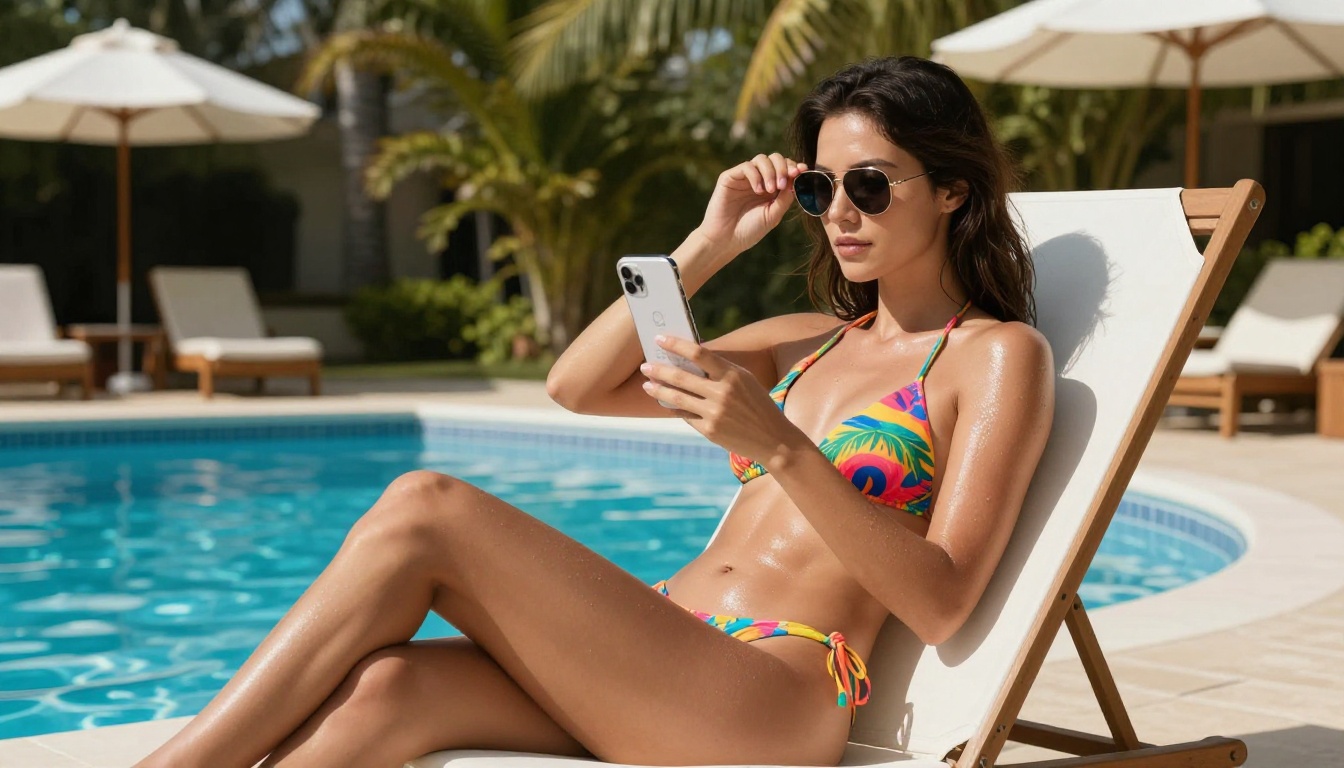
The jump from standard to 4K resolution is not just about pixel count. It changes which workflows become genuinely viable with AI-generated imagery.
Product Shots Without a Shoot
At 4K, Nano Banana Pro produces product imagery sharp enough to use in real advertising and catalog contexts. A perfume bottle, a sneaker, a watch, a piece of furniture: describe the product with a specific background, surface material, and lighting setup, select 4K, and you get a production-ready asset.
This does not replace photography for final hero images in most high-budget campaigns, but it is an extremely fast way to concept product visuals, test background and lighting variations, or fill content calendars during gaps between shoots. The 4K output holds enough detail that clients can evaluate composition, lighting direction, and color palette without needing to commission a photographer first.
For even higher sharpness on fine product textures, the output from Nano Banana Pro pairs directly with Clarity Pro Upscaler to push surface detail further after initial generation.
Social Media That Stops Scrolling
Social platforms surface high-quality visuals over mediocre ones, both algorithmically and in terms of user attention. An AI-generated image that starts at 4K and gets resized to 1080x1920 for a Story post will hold sharpness through that compression in ways that a low-resolution AI output simply cannot.
For social content specifically, the 9:16 aspect ratio at 4K is the correct setting. This outputs at native story dimensions with resolution to spare for cropping to carousels, thumbnails, and feed posts from the same base image.
💡 Content workflow: Generate once at 4K in 9:16, then derive your square post, vertical story, and horizontal thumbnail from the same file. One generation, three or four pieces of platform-ready content.
Presentation Backgrounds Worth Paying For
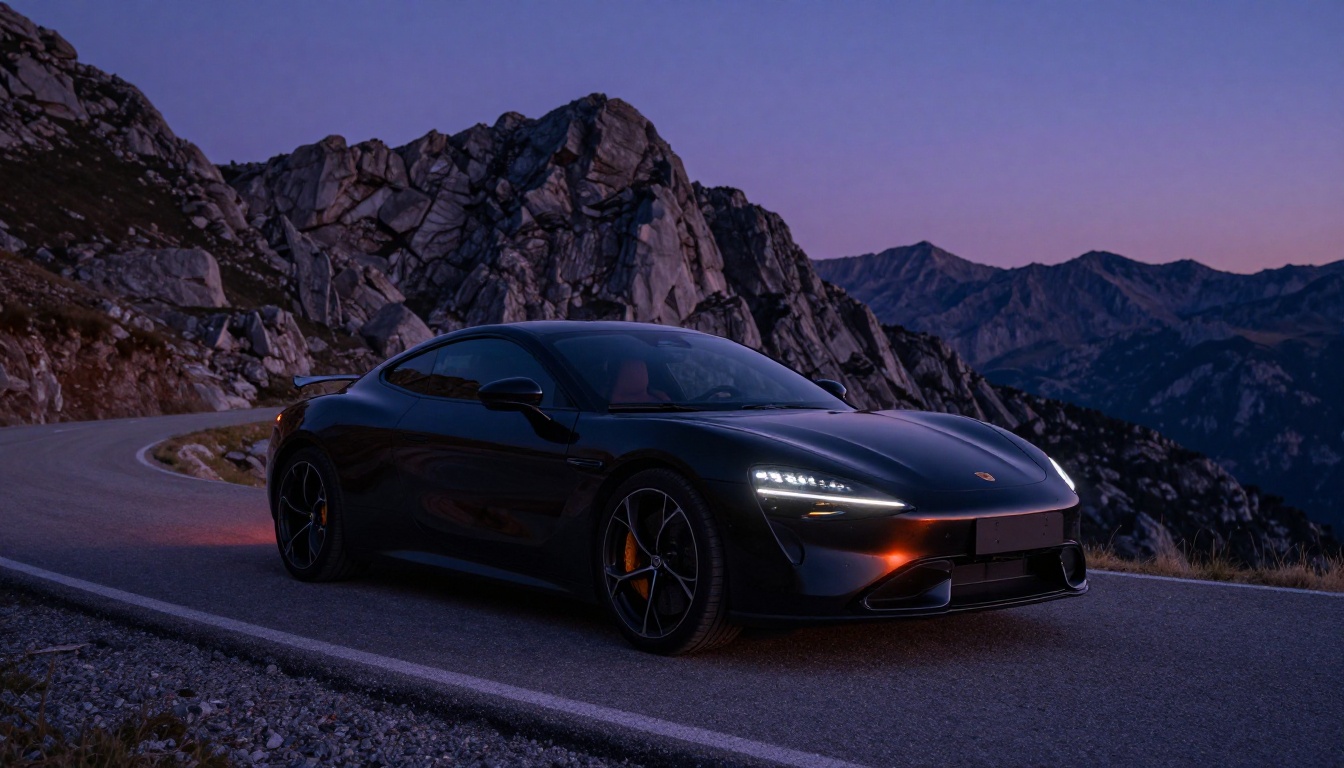
Background images in presentations are almost universally low quality because most people grab whatever comes up in a quick stock search. With Nano Banana Pro at 4K in 16:9, you get a background precisely matched to your presentation topic, color palette, and aesthetic.
Describe what you need: "Aerial view of a coastal city at golden hour, warm amber and gold tones, clear sky, sharp buildings". Select 4K, 16:9. Generate. Drop it into the slide. The background is visually distinctive, on-brief, and at a resolution that looks sharp on any projector or display.
When to Pair with a Super Resolution Model
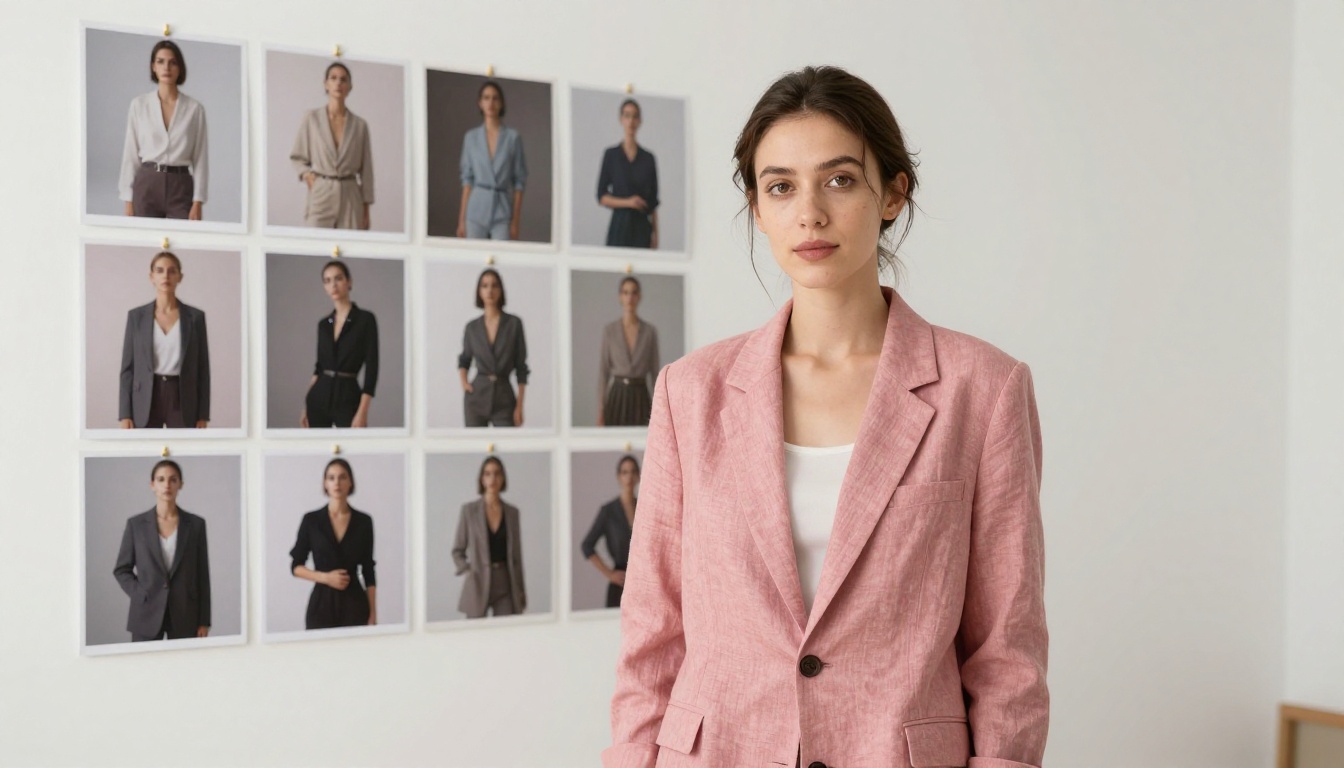
Even at native 4K, there are situations where you need more. Printing a large format banner. Cropping into a very specific detail of the image. Recovering sharpness in a generation that came out slightly soft in one area. These are the cases where a dedicated super resolution model adds value after Nano Banana Pro does its job.
Upscale Models on PicassoIA
PicassoIA has several super resolution models worth knowing for different use cases:
| Model | Best For | Link |
|---|
| Clarity Pro Upscaler | Photorealistic detail and texture enhancement | Open |
| Real ESRGAN | General upscaling, clean sharp edges | Open |
| Google Upscaler | 4x enlargement without perceptible detail loss | Open |
| Image Upscale by Topaz | Up to 6x for large-format print work | Open |
| Recraft Crisp Upscale | Clean lines, product and graphic imagery | Open |
| Crystal Upscaler | Portrait-specific detail recovery | Open |
The standard workflow for print-grade output: generate at 4K in Nano Banana Pro, then run through Clarity Pro Upscaler or Topaz Image Upscale for anything going above A3 in print size.
💡 When not to upscale: If the image is going to web or social media at standard display dimensions, 4K from Nano Banana Pro is already well above what any screen can resolve. Adding an upscale step adds processing time without producing visible benefit in those contexts.
Resolution at a Glance
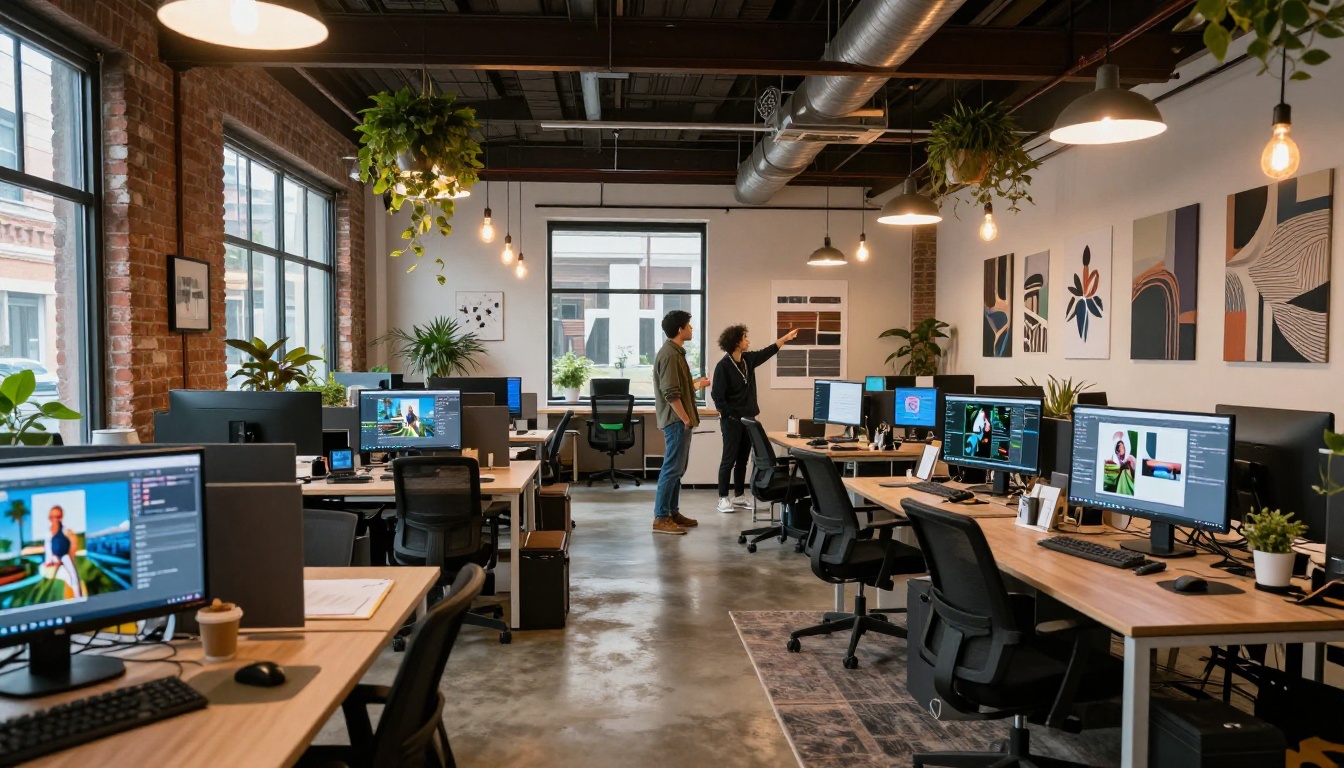
Here is a direct comparison of what each resolution setting in Nano Banana Pro actually delivers:
| Setting | Pixel Dimensions (16:9) | Best For | Approximate JPG File Size |
|---|
| 1K | 1920x1080 | Quick concepts, iteration, web thumbnails | 200 to 400KB |
| 2K | 2560x1440 | Social media, web banners, most screen use | 500KB to 1MB |
| 4K | 3840x2160 | Print, large format, aggressive cropping | 2 to 5MB |
For most content creation workflows, 2K covers 80% of use cases. Choose 4K when the image will be printed, heavily cropped, or displayed at large sizes on a high-density screen.
Output format also matters:
- JPG: Smaller file, very slight compression artifacts in extremely fine detail. The right default for web publishing and social.
- PNG: Lossless quality, larger file. The right choice when you plan to edit the image afterward in Photoshop, Figma, or any tool where pixel integrity matters.
At 4K in PNG, a single image will typically be 8 to 15MB. At 4K in JPG, expect 2 to 5MB. Both are fully usable professionally.
Start Generating Your First 4K Image
What makes Nano Banana Pro worth using is the combination of things that usually require separate tools: native 4K resolution, multi-reference input, flexible aspect ratios, and clean file export, all in one prompt-to-image workflow with no coding required and no account needed to start.
The best way to understand the quality ceiling is to actually hit the 4K button and generate something. Open Nano Banana Pro on PicassoIA, type a detailed description of something specific, set resolution to 4K, and see what comes back. Try adding lighting direction, a specific lens focal length, and a film stock name to the prompt. Those three additions alone will produce noticeably sharper and more intentional results.
If you want to push the output further after generation, Clarity Pro Upscaler, Real ESRGAN, and Google Upscaler are all available on PicassoIA to run on the same image directly in your browser. No download, no app switching, no pipeline to set up.


