You have a message to deliver. A product to present. A course to sell. The only thing standing between you and a polished presenter video used to be a camera, a studio, decent lighting, and hours of editing. Now none of that is required.
AI presenter technology lets you take a single photo, pair it with a voice recording or typed script, and produce a video of a realistic talking person delivering your message. The mouth moves. The face reacts. The timing syncs to the audio with near-frame-level precision. What would take a full production day now takes minutes.
This article breaks down exactly how that works, which models produce the best results, and how you can start making your own AI presenter videos today.
What an AI Presenter Actually Is
An AI presenter is a video of a realistic human face speaking on camera, where that face and voice were generated or animated by artificial intelligence rather than recorded in person. The result looks like a standard talking-head video but requires no physical shoot.
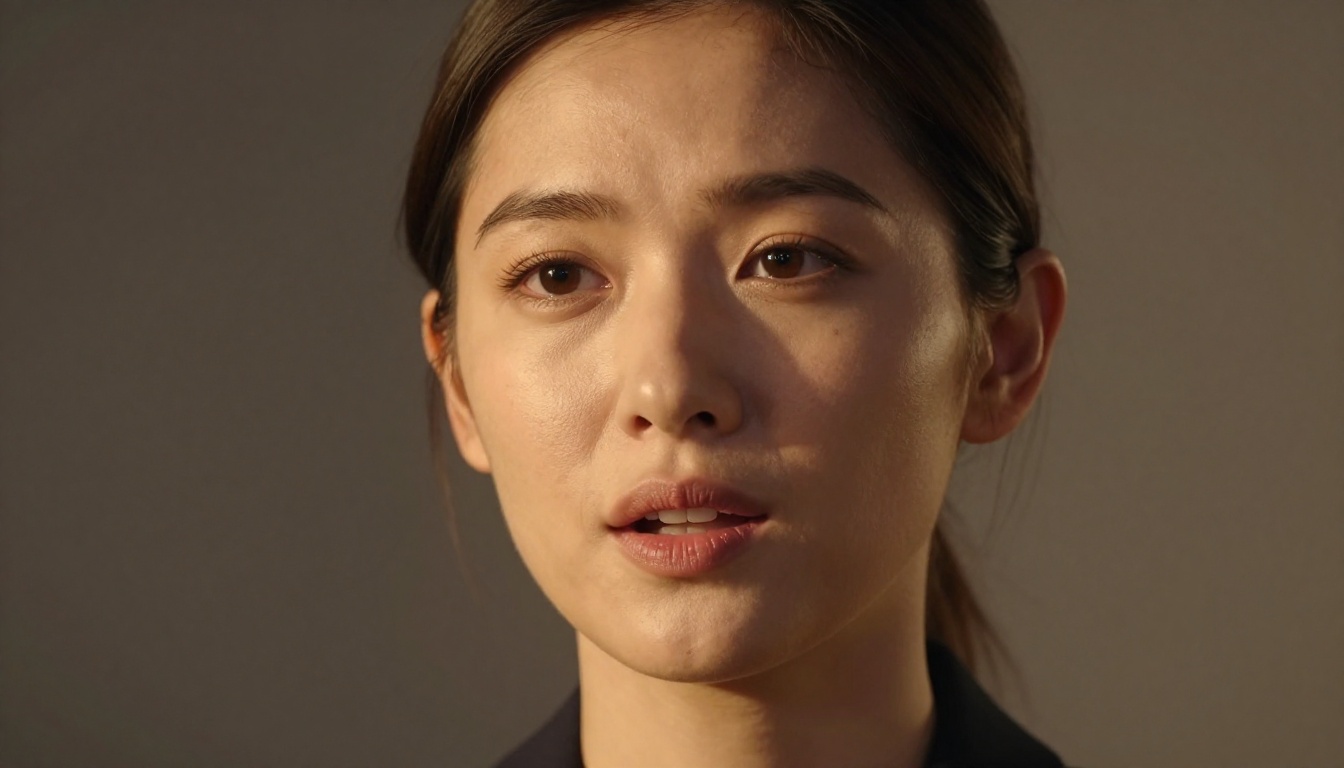
There are two distinct approaches, and knowing the difference matters when choosing your tools.
Photo-to-video animation
You supply a still image (a portrait, a headshot, even a photo generated with AI) and the model animates the face to match an audio track. The result is a video where the person in the photo appears to speak. This is the most popular approach because it requires only one image and one audio file.
Full avatar generation
Instead of animating a photo, some tools build an avatar from scratch and render it speaking your script. You define the appearance, voice, and setting. Avatar IV by HeyGen is built for exactly this, producing a fully rendered virtual presenter from a photo with consistent identity across every video you make.
Both methods produce a talking-head video. The difference is in how the face originates, and which you choose depends on whether you already have a specific face in mind or want to create one from scratch.
Why Creators Are Switching to AI Presenters
The practical reasons are straightforward, but the scale of what changes when you remove the production barrier is worth spelling out clearly.
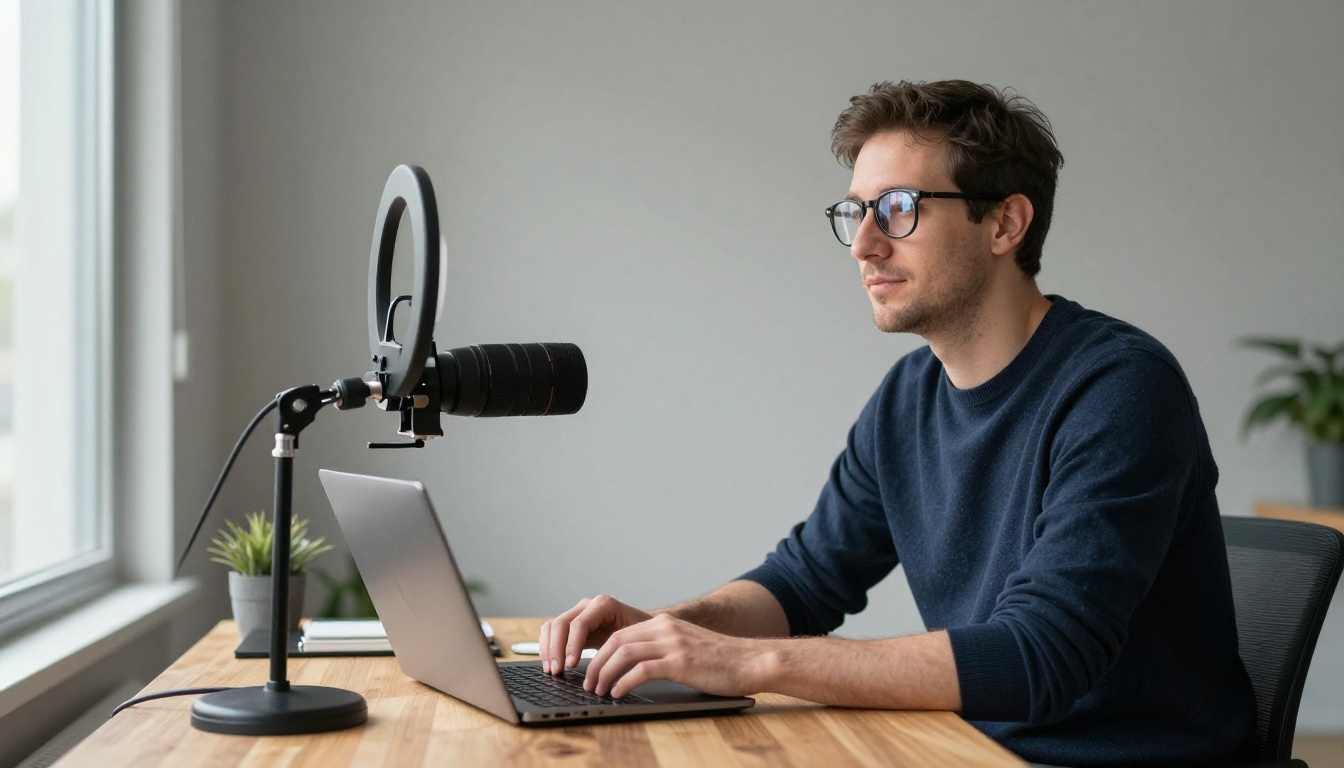
No camera needed, no reshoots
A single portrait photo is all the input required. A great headshot from three years ago works perfectly. An AI-generated face works too. The presenter never needs to show up, learn lines, or re-record because they forgot a word. When the script changes, you change the audio and regenerate. The face stays exactly the same.
Produce in every language
This is where AI presenter tools genuinely pull ahead of traditional production. Video Translate by HeyGen takes an existing video and re-dubs it into 150+ languages, automatically syncing the mouth movements to the new translated audio. A single recorded video becomes a global campaign without any additional filming.
Scale without proportional cost
Traditional video production scales linearly: more videos means more studio time, more presenter fees, more editing hours. AI presenter production does not scale that way. Once you have your workflow set, producing 50 presenter videos takes roughly the same per-unit effort as producing 5. For high-volume content operations (e-learning platforms, product catalogs, social media teams) that difference is significant.
Consistent output every time
Human presenters have off days. AI presenters do not. Every video carries the same energy, the same framing, the same delivery pace. For brand consistency across a large content library, that reliability has real value. The presenter looks identical in a video produced today and one produced in six months.
Worth knowing: AI presenters work best for scripted, direct-to-camera content. Anything requiring genuine physical performance, improvisation, or real-time audience interaction still benefits from a real person.
The Models That Actually Deliver
Not all lipsync and avatar tools produce the same quality. Some are fast and slightly rough. Others are slower but produce near-broadcast-quality output. Here is a breakdown of the main options available right now.
Lipsync tools: animate any face
These models take an existing image or video and synchronize the mouth movements to an audio track. The face stays consistent with your source photo throughout.
Avatar and character animation tools
These go further, creating fully animated characters or generating expressive motion across longer video sequences.
- Dreamactor M2.0 animates any character with detailed body motion, useful when you want movement beyond a static talking head.
- Kling Avatar v2 turns any face into a video presenter with natural micro-expressions and head movement.
- Video Agent by HeyGen takes a text prompt and produces a polished AI presenter video complete with voiceover, b-roll cuts, and transitions. One of the few tools that handles the full video structure, not just the face animation.
- Avatar IV lets you create a custom talking avatar from a single photo, ideal for building a consistent branded presenter identity.
How to Use Omni Human 1.5 on PicassoIA
Omni Human 1.5 by ByteDance is one of the most capable photo-to-video lipsync models available. It produces realistic facial animation from a single still image matched to an audio track. Here is the full workflow from start to exported video.
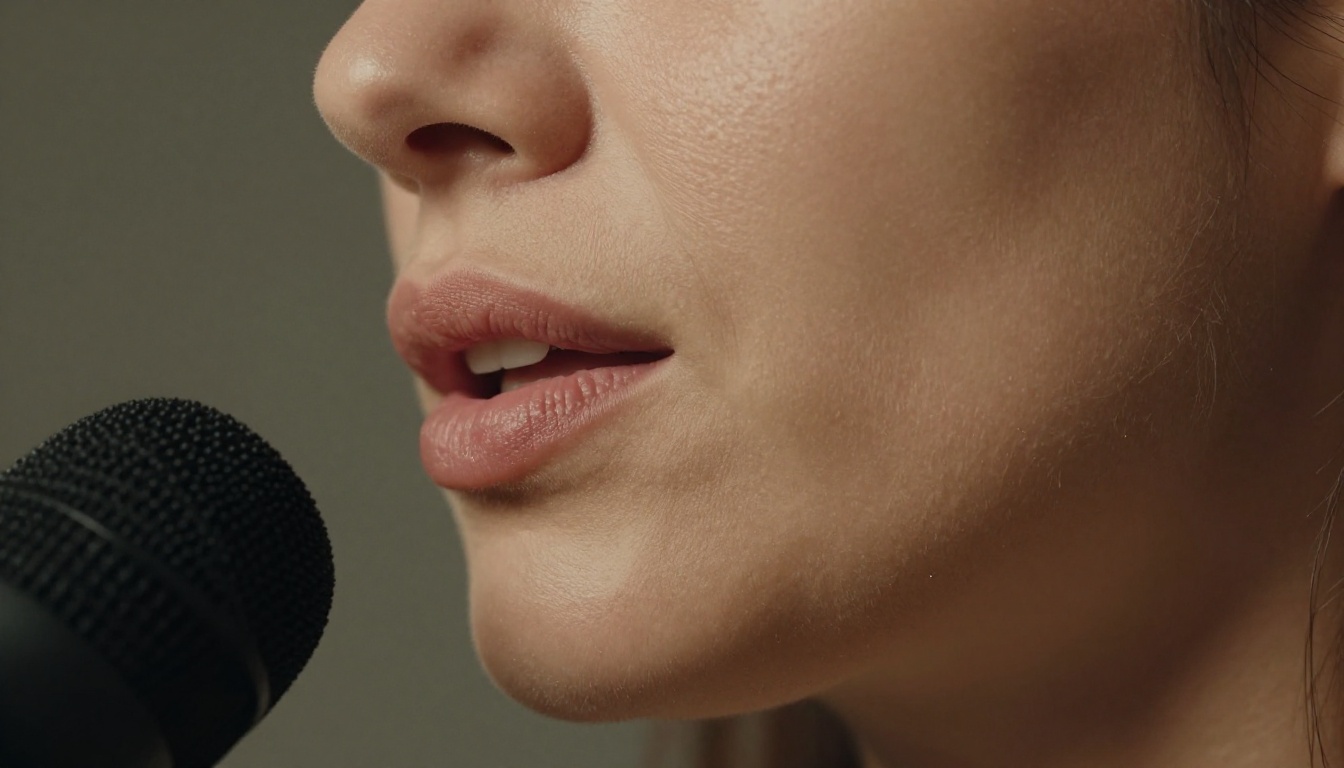
Step 1: Prepare your portrait
Your source photo should meet these criteria:
- Front-facing or slight angle portrait with the face clearly visible
- Even lighting across the face with no heavy shadows on one side
- Minimum 512x512 pixels (higher resolution produces sharper animation output)
- Face occupying at least 40% of the frame for best landmark detection
If you do not have a suitable portrait, generate one using any text-to-image model on PicassoIA first. An AI-generated face with neutral lighting and a plain background gives the model ideal input conditions.
Step 2: Prepare your audio
You have two options for the voice track:
- Record your own voice: A clean recording in a quiet room with a decent microphone works well. Avoid rooms with hard walls that create echo. Export as MP3 or WAV.
- Generate with text-to-speech: PicassoIA offers text-to-speech models that convert your written script into a natural-sounding voice. This means your entire workflow stays in one place and revisions are instant.
One important note: feed only the voice track. Do not include background music in the audio file you upload. The model reads the full waveform to drive mouth animation, and music frequencies will produce incorrect mouth shapes.
Step 3: Run the model
- Open Omni Human 1.5 on PicassoIA
- Upload your portrait photo to the image input field
- Upload your clean voice audio file
- Set motion intensity to 0.5 for natural movement; increase to 0.7 for more expressive animation with more visible head movement
- Set output resolution to 720p for social clips or 1080p for professional deliverables
- Generate
Processing takes roughly 60 to 120 seconds depending on audio length.
Step 4: Review and refine
Watch the output and check for:
- Mouth movements matching consonants and vowels correctly throughout the audio
- Natural blinking and subtle head micro-movements between sentences
- No distortion artifacts around the jaw, hairline, or neck
If the sync feels slightly off on specific syllables, regenerate with a different seed value. If mouth movement looks rigid or mechanical, increase the motion parameter. For longer scripts over 90 seconds, split the audio into 30-second segments and generate separately, then join the clips in any standard video editor.
Tip: For the most natural results, choose audio where the speaker pauses briefly between sentences. Those natural breath pauses give the model clean boundaries between phrases and produce better overall sync quality.
Pairing Your Presenter with the Right Voice
A realistic AI presenter video is only as convincing as the voice underneath it. The face animation is driven by the audio waveform, so a natural-sounding voice produces better lip movement results than a flat, robotic one.
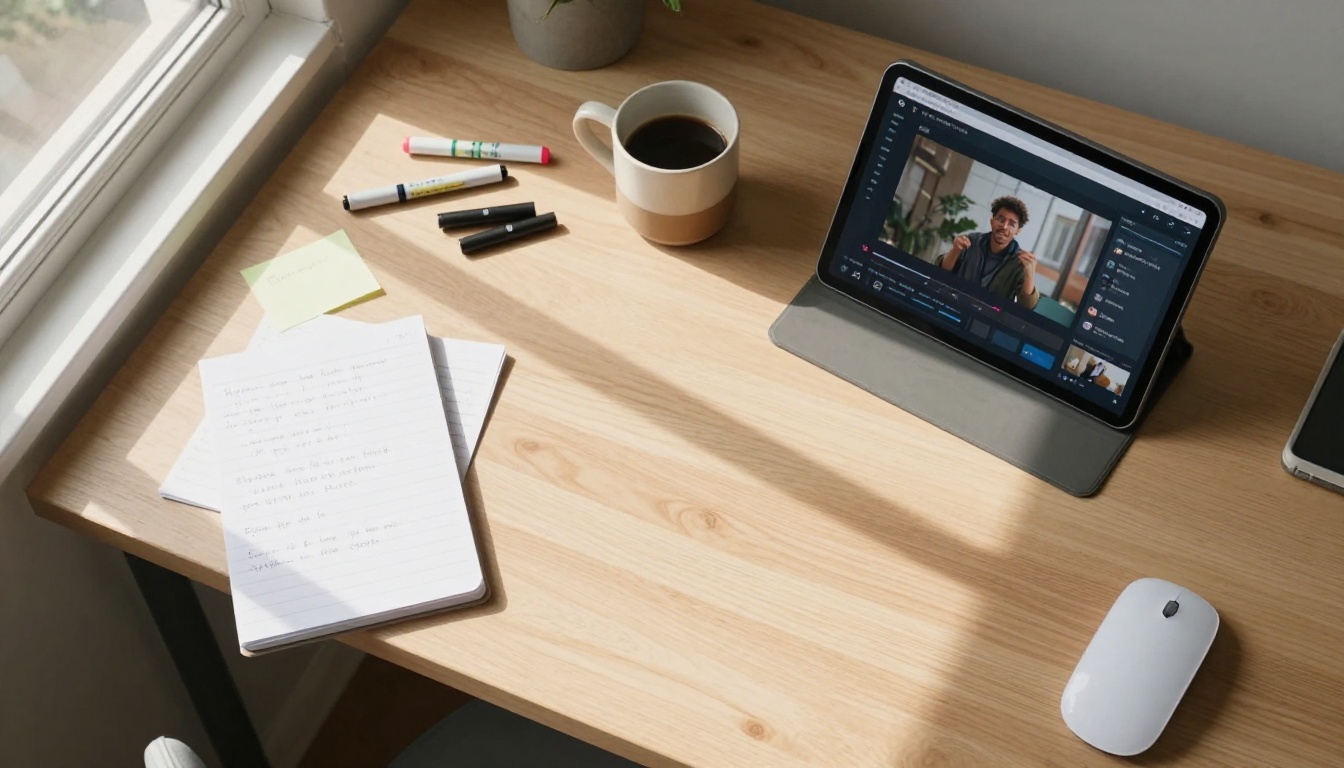
PicassoIA's text-to-speech models convert a written script into a human-sounding voice with natural pacing and inflection. The advantage over recording your own voice: you can iterate on the script and regenerate the audio in seconds without re-recording anything. Change a sentence, regenerate the voice, re-run the lipsync. The entire revision cycle takes under two minutes and is non-destructive to any previous work.
For international content, Video Translate pairs powerfully with any lipsync workflow. Once you have an English presenter video, the translation tool re-dubs it into another language and automatically resyncs the mouth movements to the new audio. One production workflow scales to every market you need, with no additional filming.
A useful combination for high-volume creators: use Lipsync Speed for fast draft reviews where you check the script and pacing, then re-run the final version through Lipsync Precision or Lipsync 2 Pro for the published version. This saves generation credits while still delivering polished output at the end.
Real-World Use Cases
AI presenter videos work across a broad range of content formats. Here are the situations where they deliver the most practical value.
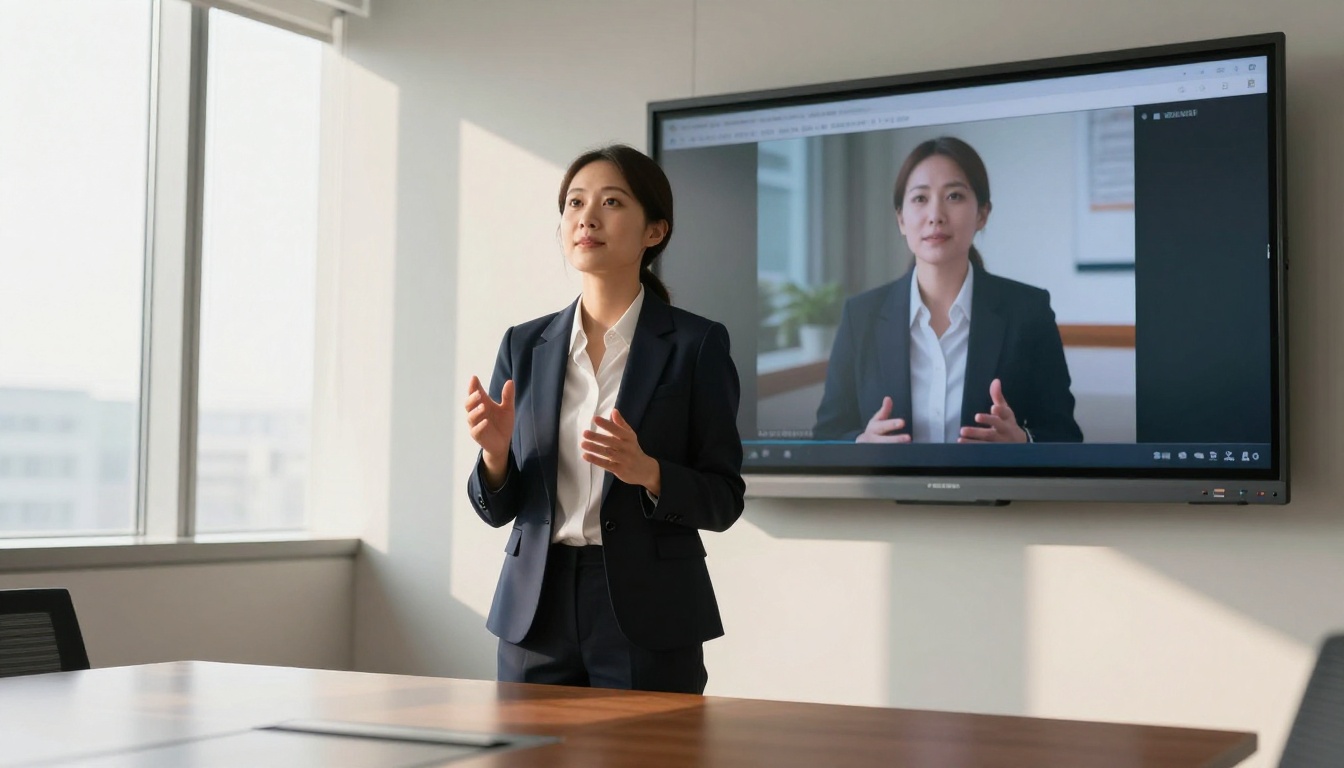
Product demos and marketing videos
A spokesperson introduces the product, walks through the features, and delivers the call to action. Traditional production of this format requires booking a presenter, a studio, and a camera operator. With an AI presenter, you write the script, choose the face, and have a video inside 10 minutes. When the product updates, you update the script and regenerate only the segments that changed.
E-learning and corporate training
Online courses benefit enormously from a consistent presenter face across every module. Courses that previously required a presenter to re-record every time content was updated can now be revised by regenerating a single audio segment and re-running the lipsync. An instructor who looks identical across a 40-module course recorded over 12 months is only possible with AI presenters.
Short-form social media
Short videos on social platforms typically need a speaking face. AI presenter tools produce a talking-head clip from any script in minutes. For teams managing multiple social accounts or posting daily, this means consistent presenter-led content at a volume that would be impossible with traditional recording schedules.
Worth noting: Lipsync 2 is well-suited to short-form video because of its fast processing and clean output on clips under 60 seconds.
Multilingual content at scale
Rather than filming separate versions of a video in each target language, you produce once and localize with lipsync tools. Video Translate handles both translation and resync automatically. A single presenter video can serve 10 regional markets without any additional production cost.
What Affects Output Quality
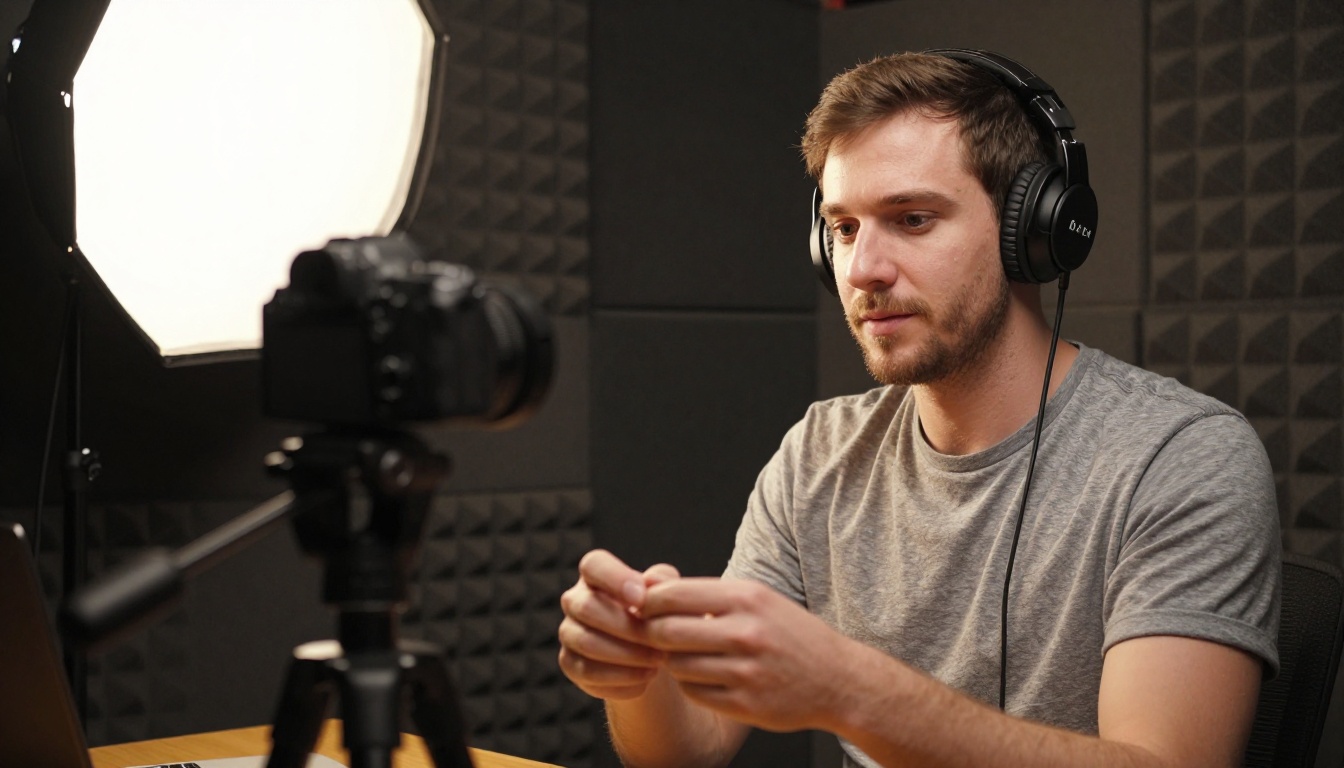
Not every AI presenter video comes out looking polished on the first attempt. These factors directly affect the result:
Source photo quality
- Higher resolution photos produce sharper, more detailed animation
- Even lighting on the face avoids shadow artifacts in the animated output
- Avoid strong side-lighting, heavy stylized filters, or photos where the face is partially obscured
Audio clarity
- Clean voice recordings with no background noise produce better lip movement sync
- Natural-sounding voices (from quality text-to-speech or a good microphone) produce more organic facial movement
- Short natural pauses between sentences help the model handle breathing and mouth reset correctly
Model selection
- Fast models trade some precision for speed; use them for drafts and social content where near-perfect sync is not critical
- Precision models like Lipsync Precision and Lipsync 2 Pro are worth the extra processing time for final professional deliverables
Script structure
- Shorter, segmented scripts produce more consistent results than single long audio files
- Scripts with natural sentence rhythm and clear pronunciation produce better mouth animation than run-on sentences or heavily technical vocabulary
3 Mistakes People Make on the First Try
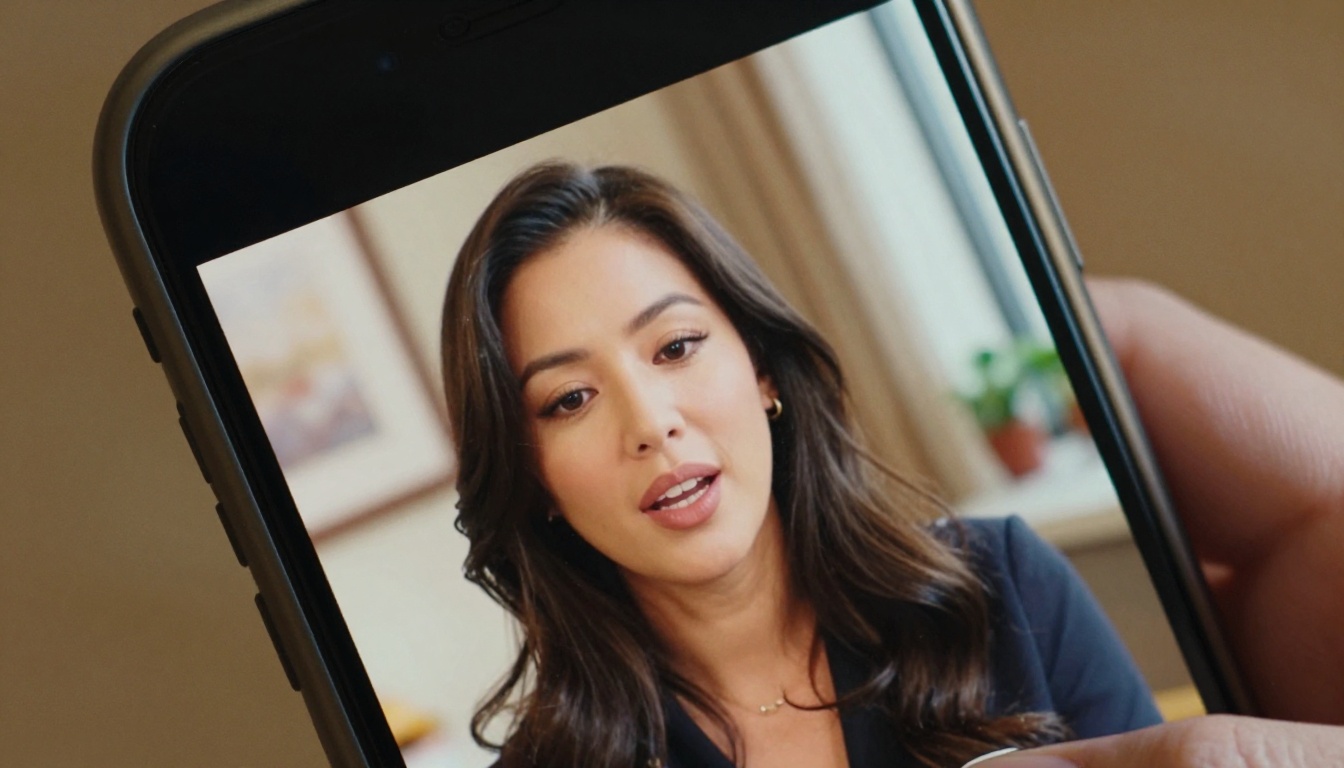
Using a low-quality or stylized source photo. A heavily filtered photo or a low-resolution headshot produces blurry, artifact-heavy animation. Start with the clearest, most natural portrait available. If you do not have one, generate a photorealistic face using any image model on PicassoIA.
Feeding audio that includes background music. Some users include background music or ambient sound in the audio file they upload to the lipsync tool. The model analyzes the entire audio waveform to drive mouth animation, not just the voice frequencies. Background music confuses the analysis and produces incorrect mouth shapes. Feed only the clean voice track.
Expecting the first output to be final. Every generation has variance. Unusual consonant clusters or fast-paced delivery sometimes produce slightly unnatural mouth shapes on a specific word. Regenerating with a different seed value, or rephrasing one sentence in the script, resolves most cases within one or two attempts.
Create Your First Presenter Video Today
The workflow for an AI presenter video is: choose a face, provide a voice, run a lipsync model. That is the whole process. No technical background required, no specialist software, no production equipment.
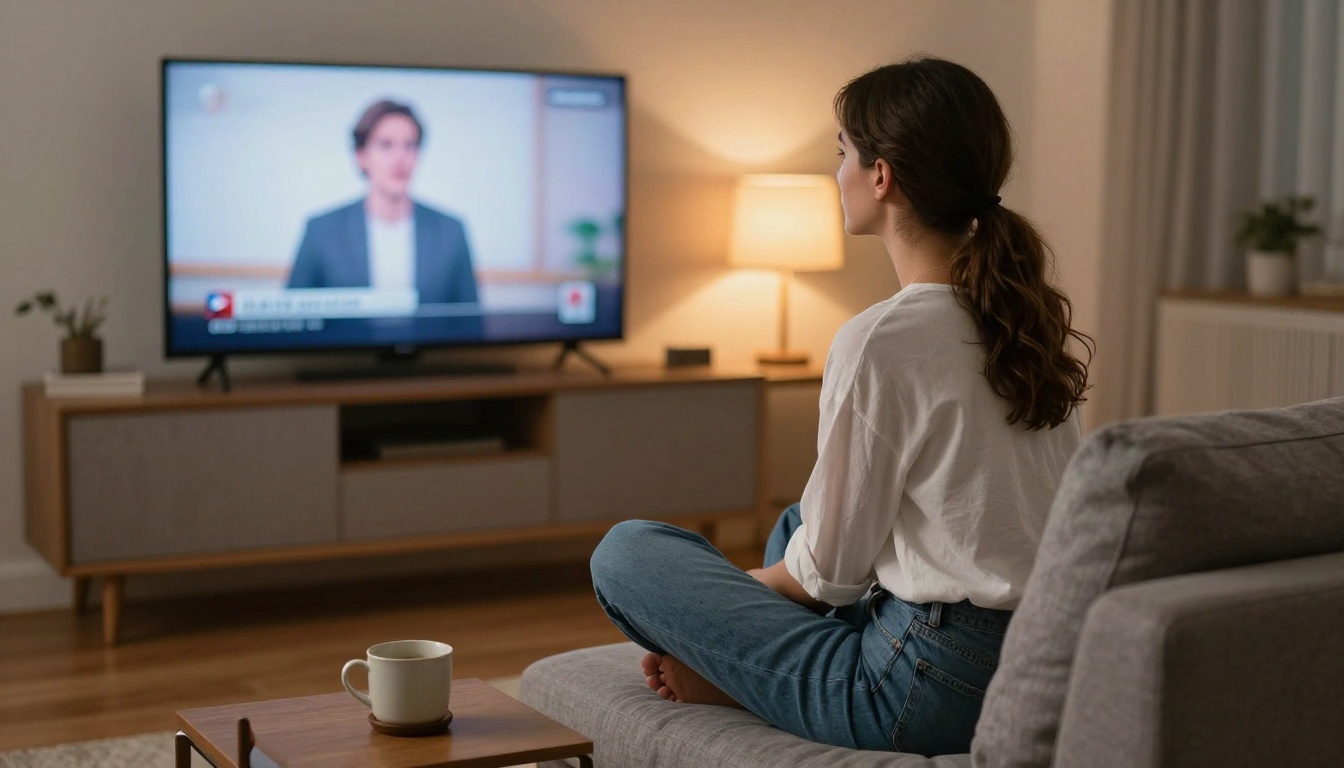
The fastest starting point is Omni Human 1.5 on PicassoIA. Upload a portrait, record a 30-second script, and see what the model produces. That first output will show you exactly what is possible today.
To go further, combine an AI-generated face from any text-to-image model with a voice from PicassoIA's text-to-speech tools and your script. Every element is AI-generated, produced in one place, ready to publish. No real-world input required at any step.
For teams producing content in multiple languages, pair Video Translate with Lipsync Speed to localize at scale. One workflow, many markets, no additional filming.
The models are fast enough that iteration costs almost nothing. Try different faces, different voices, different motion intensity settings. Within a few generations you will find the combination that fits your content and your audience, and from that point every video you make gets faster to produce.
PicassoIA brings all these tools into a single platform, from face generation and text-to-speech to lipsync and video translation. If you have been putting off adding a presenter to your videos because production felt too complex or expensive, the barrier is no longer there.


