Stop hunting for copyright-safe music every time you go live. AI music generation tools now let streamers and content creators build fully custom background tracks in minutes, from lo-fi beats to cinematic ambience, with zero music production skills required.
Every streamer knows the struggle: you find the perfect track, go live, and 20 minutes in, your VOD gets muted. Or worse, you get a copyright strike. The old way of sourcing background music for streams was a constant headache of royalty-free libraries, licensing fees, and hoping nobody noticed.
AI changes that completely. With modern AI music generation, you can create a completely original background track, one that sounds exactly like the vibe you want, in under a minute. No music theory. No instruments. No waiting. Just a text prompt and a tool that builds the track for you.
This is not about replacing professional musicians. It is about giving streamers a superpower they never had before.
Why Your Stream Audio Actually Matters
Most streamers obsess over video quality and overlays, then forget about audio atmosphere entirely. That is a mistake.
Background music does three things that are easy to overlook:
Fills silence during loading screens, transitions, and slow moments so the stream never feels dead
Sets emotional tone before your viewer hears a single word from you
Creates brand identity through a consistent sonic signature your audience starts to associate with your channel
Research in entertainment psychology consistently shows that audiences who rate their experience of a stream highly cite audio atmosphere as a contributing factor, often without consciously noticing it.
The problem has always been sourcing that audio. Royalty-free libraries offer generic tracks that sound like every other stream. Licensing real music is expensive and complex. So most creators either ignore background audio or live in constant fear of DMCA strikes.
AI music generation solves this problem permanently.
What AI Music Generation Actually Does
When you type a prompt like "calm lo-fi hip hop with soft piano and rain sounds, 90 BPM" into an AI music tool, the model does not search a database. It generates an entirely new piece of audio from scratch, trained on patterns learned from thousands of hours of music.
The output is 100% original. That means:
No copyright claims on Twitch, YouTube, or TikTok
No DMCA mutes on your VODs
No licensing fees or attribution required
The generated track does not belong to any existing artist or label. It is a completely new composition, created specifically for your prompt at that moment.
💡 Pro tip: The more specific your prompt, the better the result. Instead of "relaxing music," try "ambient lo-fi with dusty vinyl crackle, slow jazz chords, and distant city rain at night, 75 BPM, melancholic but warm."
Modern AI music models like Music 01 by MiniMax can generate full-length tracks with lyrics, instrumentation, and structure, all from a single text description or a few words about the mood you want.
5 Track Types That Work Best for Streams
Not all background music works the same way in a streaming context. Here are the five track types that creators actually use, and when each one fits.
Track Type
Best For
BPM Range
Mood
Lo-Fi Hip Hop
Casual gaming, study streams, chill chat
65-90
Warm, nostalgic
Ambient / Atmospheric
Horror, RPG, creative streams
60-75
Tense, immersive
Cinematic Orchestral
FPS, battle royale, highlights
110-140
Epic, energetic
Jazz / Café
IRL, Just Chatting, cooking
80-110
Relaxed, social
Electronic / Synthwave
Racing, rhythm games, retro content
120-140
Energetic, focused
The important thing is matching the track to your content's emotional register. A cinematic track under a relaxed cooking stream creates cognitive dissonance for the viewer. A soft lo-fi beat under an intense FPS moment undermines the tension.
With AI, you can generate a different track for each segment of your stream. No more one-size-fits-all approach.
How to Make Tracks with Music 01 on PicassoIA
Music 01 by MiniMax is one of the most capable AI music generation models available on PicassoIA. It accepts text prompts and can produce full songs, instrumentals, or ambient background tracks based on your description.
"Lo-fi hip hop instrumental, soft electric piano chords, subtle vinyl record noise, slow 70 BPM, rainy night city atmosphere, warm and nostalgic"

"Cinematic orchestral battle theme, epic brass and strings, powerful percussion, 130 BPM, heroic and intense, no lyrics"

"Ambient atmospheric dark drone, deep bass pads, distant metallic textures, slow evolving, tense but not aggressive, 60 BPM"
Step 3: Adjust parameters
Music 01 allows you to control whether you want lyrics or a pure instrumental. For stream backgrounds, always select instrumental only since lyrics compete with your voice.
Step 4: Generate and preview
The model generates your track in seconds. Listen through the full preview before downloading. If the result is close but not quite right, tweak one element in your prompt and regenerate.
Step 5: Export and loop
Download the audio file and bring it into your streaming software (OBS, Streamlabs, etc.) as a media source. Set it to loop so it plays continuously without gaps.
💡 Parameter tip: If you are getting results that sound too "produced" or complex for a stream background, add "minimal arrangement, background texture, not dominant" to your prompt. This tells the model to keep the track subtle rather than front-and-center.
Looping Without the Gap Problem
One of the most common technical issues when using background tracks in streams is the audible gap between loops. Most audio files have a brief silence at the start and end, which creates a noticeable click or pause when the track loops.
There are two ways to fix this:
Option 1: Generate longer tracks
Request 3-5 minute versions of your track so loops happen less frequently. Music 01 can generate extended compositions.
Option 2: Edit the loop points
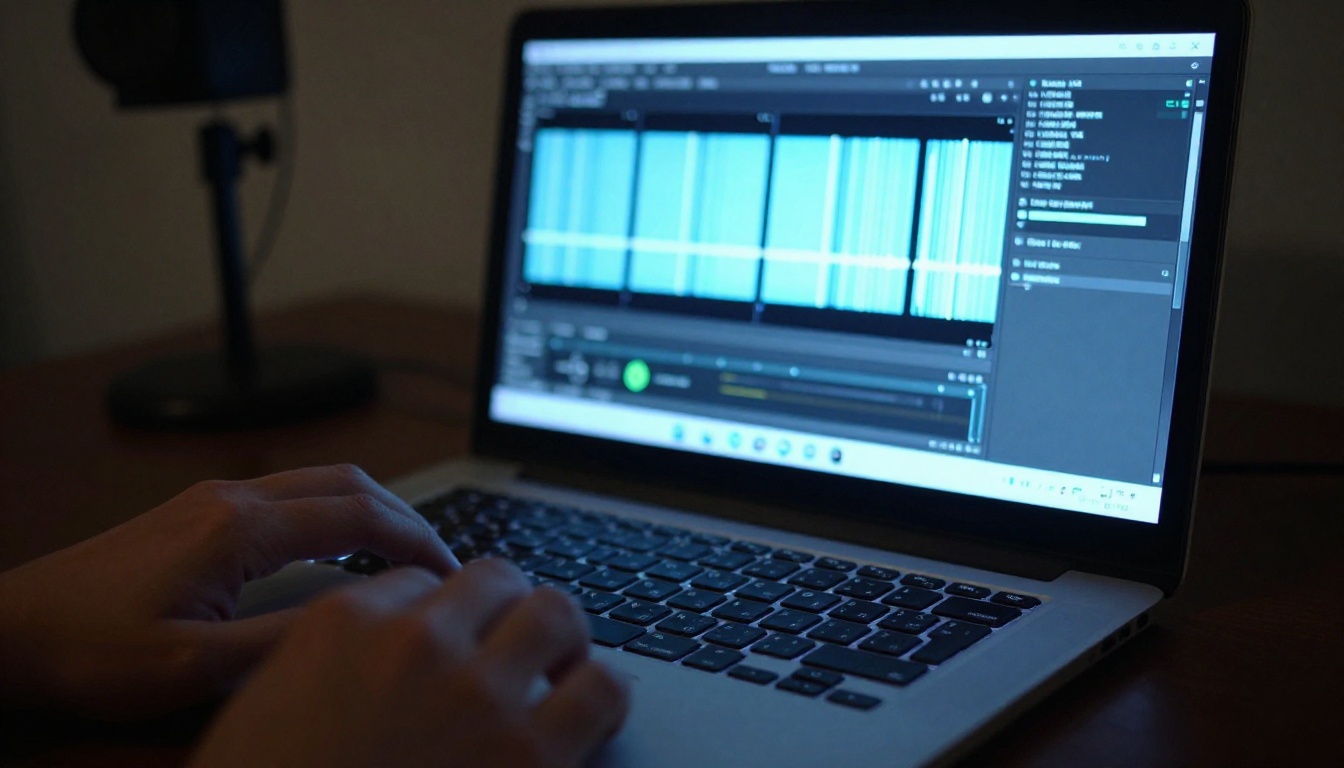
Use free audio software like Audacity to trim the very beginning and end of the file until the waveform starts and ends at a zero crossing. This eliminates the gap entirely.
Most professional stream setups use Option 2, with a 4-minute loop that most viewers never notice is looping at all.
Copyright and AI Music in 2025
This question comes up constantly: is AI-generated music safe to stream?
The short answer is yes, with a caveat.
Music generated by AI models like Music 01 is original output that does not belong to any existing copyright holder. No artist, label, or publisher owns the rights to a track that was generated from your prompt.
However, there are a few things worth knowing:
Platform policies vary: Twitch, YouTube, and TikTok all have different policies around AI-generated content. As of 2025, none of them actively block AI music, but policies can change.
The generation platform's terms matter: Always check the commercial use terms for the AI tool you use. PicassoIA's models allow generated content for personal and commercial use, including streaming.
Training data arguments: Some activists argue that AI music models trained on copyrighted music create derivative works. Courts have not agreed with this in most jurisdictions as of 2025, but it remains a conversation worth following.
The practical reality: thousands of streamers are using AI-generated music daily with no issues. It is significantly safer than using any recognizable licensed track.
💡 Safety move: Keep a copy of the generation prompt and timestamp for any track you use regularly. If a platform ever questions a track, you have proof it was AI-generated on demand rather than ripped from an existing artist.
Matching the Track to Your Stream Moments
The best streamers think of music in layers, not as a single track that runs the whole time. Here is a practical system for building a stream music library with AI:
Layer 1: Main Session Track
Your default vibe for most of the stream. Should be subtle, non-intrusive, and loop well. Lo-fi or ambient works for most content types.
Layer 2: Hype Moments
A higher-energy track you switch to during exciting moments, big plays, or giveaways. Keep it short and punchy. Ask Music 01 for "30-second high energy electronic buildup, no lyrics."
Layer 3: Transition Stingers
Short 3-5 second musical phrases used between segments. Generate these as very short clips with your main track's instrumentation but a clear start and end.
Layer 4: BRB / Loading Screen
A specific track that viewers associate with "streamer will be right back." Different from your main session music. Create something slightly more interesting so people keep the stream open.
Building this library takes a single session with AI. Generate 10-15 variations, pick your favorites, and you have a solid audio identity for your channel.
Volume Mixing: The Number Most Creators Get Wrong
The most common mistake with stream background music is running it too loud. Your voice needs to be clearly dominant. Background music that competes with your voice is worse than no music at all.
The rule of thumb for stream audio mixing:
Source
Target Level
Your microphone (voice)
-6 dB to -3 dB (loud and clear)
Game audio
-12 dB to -9 dB
Background music
-20 dB to -16 dB
Alerts / notifications
-10 dB (brief, punchy)
In OBS or Streamlabs, set your music source to roughly -20 dB and adjust from there. A good check: if you can clearly hear every word of the instrumental, it is probably too loud.
💡 Quick test: Ask a friend to watch 30 seconds of your stream with eyes closed. They should be able to describe your energy level from the music, but should not be able to name instruments or hum along to a melody. That is the sweet spot.
Building Your Stream's Sonic Identity
The channels that build loyal audiences over time have a consistent feel, and music is a bigger part of that than most creators admit.
When you use AI to generate your own tracks, you are creating something no other stream has. Your lo-fi hip hop track does not sound like anyone else's because it was never anyone else's. It was built specifically for your prompt, your vibe, your brand.
Over time, regular viewers start to associate those sounds with your channel. The moment they hear that specific piano chord pattern or that particular ambient texture, they are already in your space mentally before you say a word.
That kind of sonic branding used to require hiring a composer or spending hours curating from music libraries. With Music 01 and tools like it, you can build it in an afternoon.
Consider generating:
A channel intro jingle (10-15 seconds with your style)
A main session loop (3-5 minutes, your core vibe)
A hype moment clip (20-30 seconds, high energy)
An ending track (slightly different from your main loop, signals the stream is wrapping up)
That is a solid audio identity. Four tracks. One afternoon. No licensing fees ever.
Start Making Your Own Stream Tracks
There has never been a better time to take full creative control over how your stream sounds. The tools are accessible, the output is original, and the results are immediate.
Music 01 on PicassoIA is a direct path from "I have an idea for a vibe" to a playable audio file, with no music knowledge required. Pair that with a clear understanding of volume mixing and a few strategic track types, and your stream audio goes from an afterthought to an actual asset.
Start with one track. Write a specific prompt for your main stream vibe. Generate it, preview it, adjust if needed, and drop it into OBS. Then build from there.
Your audio identity is waiting. The prompt is the only thing between you and it.