How to Make Cartoon Filters for Video with AI in Minutes
A detailed breakdown of how AI cartoon filters for video actually work, which tools produce the best toon-style animation results, how to write prompts that stick, and a step-by-step process for converting any footage into anime, flat-vector, watercolor, or comic book style using AI.
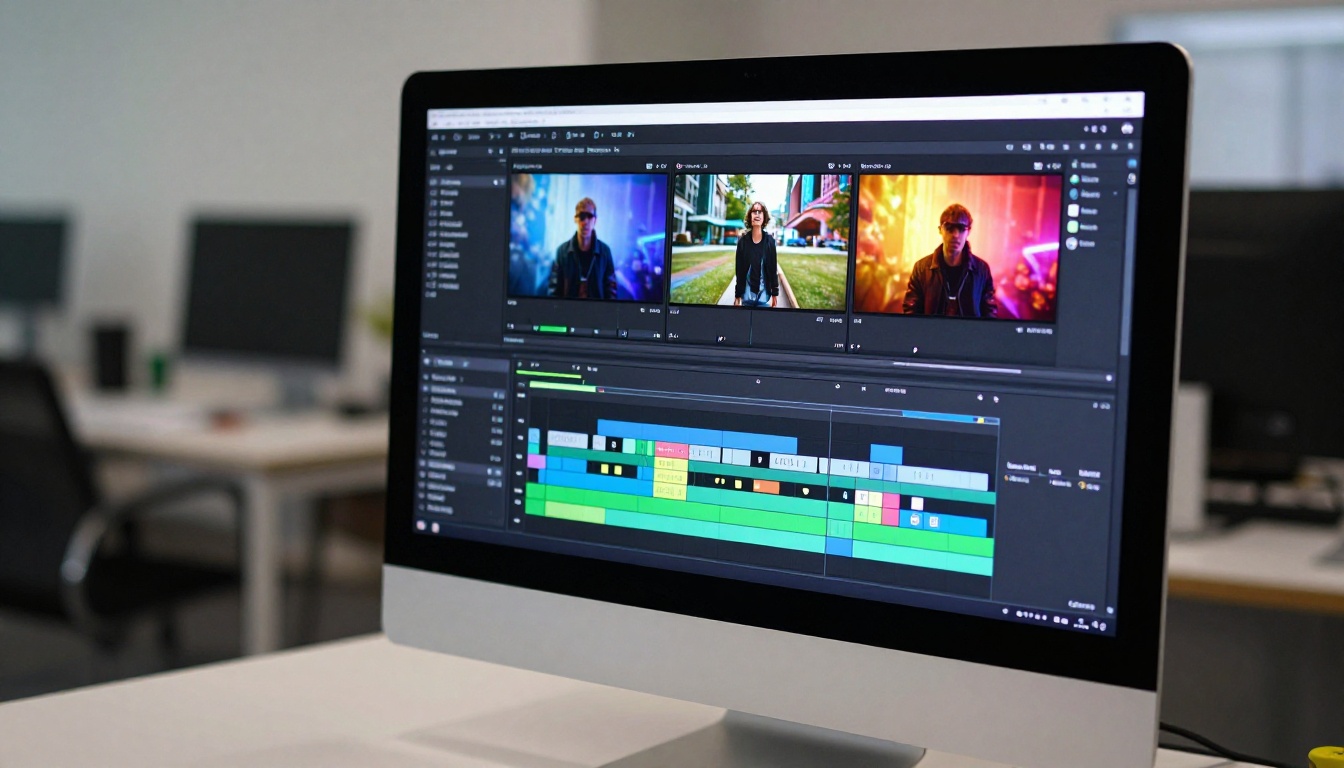
Turning real footage into a cartoon has never been a one-click operation, until now. AI cartoon filters for video have crossed a threshold where the results are actually usable, shareable, and in many cases, stunning. Whether you want an anime-style short for TikTok, a flat-vector look for a brand intro, or a watercolor-painted scene for a music video, the tools that make this possible are more accessible than ever.
This article breaks down exactly how these AI tools work, which ones produce the best results for different cartoon styles, and how to run them yourself without spending hours in post-production.
Why Cartoon Filters Are Trending in Video Right Now
The algorithm rewards visual originality
Short-form platforms reward content that stops a scroll. A cartoon-filtered clip of something ordinary, a street walk, a cooking session, a travel vlog, immediately stands out in a feed full of raw footage. The novelty factor drives replays, and replays drive reach. It is not about the filter for its own sake; it is about creating a visual language that is identifiably yours.
The real gap between mobile apps and AI
Phone apps like Snapchat and TikTok's built-in filters apply simple overlay effects that process frame-by-frame without understanding the scene. They smear colors and flatten detail, but they do not actually restyle the video. The result looks like a filter applied on top, not a stylistic choice baked in.
AI cartoon filters work differently. They analyze the semantic content of each frame, understand what is a face, what is a background, what is motion, and then redraw the scene in a target style while preserving the motion flow. The difference in output quality is significant.
How AI Cartoon Filters Actually Work
Style transfer vs. prompt-driven restyling
There are two main technical approaches in AI cartoon video filters, and understanding them helps you choose the right tool.
Style transfer takes a reference image or a style preset and attempts to apply its visual characteristics to your video frames. It is fast but can produce inconsistent results between frames, causing a flickering effect that breaks immersion.
Prompt-driven restyling is newer and more powerful. You describe the style you want in plain text ("anime style, thick outlines, flat shading, vibrant colors") and the AI regenerates the video with that style applied, guided by the temporal structure of the original clip. This produces much more consistent frame-to-frame results.
💡 The key difference: Style transfer maps textures. Prompt-driven restyling regenerates the scene. If consistency matters, always choose prompt-driven tools.
Frame consistency: the real challenge
The hardest problem in AI cartoon video is keeping characters looking the same from frame to frame. Without temporal consistency mechanisms, the AI treats every frame independently, and a character's face, clothes, or even proportions can shift subtly between frames.
Modern tools solve this with three main strategies:
Optical flow anchoring: Using motion vectors from the original video to guide where pixels move
Attention conditioning: Keeping the AI's internal representation of key features stable across frames
Keyframe locking: Processing select frames first, then interpolating the style across the rest
Knowing this matters because it explains why some AI cartoon outputs look smooth and cinematic while others look like a slideshow of loosely related drawings.
The Best AI Tools for Cartoon Video Filters
Not all tools in this space are equal. Here is a breakdown of the most effective ones available right now, including what makes each worth using for cartoon filter work.
ToonCrafter: Built for Toon Animation
ToonCrafter is specifically designed for the cartoon animation use case. It takes illustration or reference images and generates smooth animated toon-style video between them. Unlike generic video models, it is trained on animated content, which means it understands cartoon aesthetics natively rather than approximating them from a photorealistic training base.
It works especially well for:
Animating hand-drawn or digital illustrations
Creating toon-style transitions between character poses
Generating animated sequences from flat design assets
ControlVideo: Text-Driven Footage Restyling
ControlVideo is one of the most precise tools for converting existing footage into a stylized output. It uses ControlNet-style guidance, specifically structure and depth maps extracted from the source video, to ensure that the layout of each restyled frame matches the original composition. Your text prompt then defines the visual style of the output.
For cartoon filters, prompts like "anime style, clean line art, cel shading, soft pastel palette" consistently produce clean results with ControlVideo.
Kling o1: Full Video Rewrites
Kling o1 goes further than restyling. It can rewrite entire video scenes using text instructions. If you want to transform a realistic clip into a fully reimagined cartoon world, including backgrounds, objects, and character appearances, Kling o1 handles that level of transformation.
Modify Video by Luma
Modify Video from Luma is built for restyling existing footage with AI. The workflow is direct: upload your clip, describe the visual style you want, and the model applies it with strong temporal consistency. It is one of the more reliable options for short clips up to ten seconds.
Gen 4 Aleph by Runway
Gen 4 Aleph from Runway allows you to recut and restyle any video with a high level of creative control. It is particularly effective for stylized effects that stay close to the original composition while shifting the visual tone dramatically.
ToonCrafter is available directly on PicassoIA, and the workflow is simpler than most people expect. Here is the exact process from start to finish.
Step 1: Prepare your source material
ToonCrafter works from illustration-style input images rather than raw video footage. This means your best results come from:
Digital illustrations at 1080p or higher resolution
Character sketches with clearly defined outlines
Flat design assets or concept art images
Anime-style reference art (original or public domain)
If you are starting from real video footage and want to convert it, first run it through ControlVideo to extract a stylized frame set, then feed those frames into ToonCrafter for smooth animation between them.
Step 2: Upload your start and end frames
Navigate to ToonCrafter on PicassoIA. The interface accepts two input images: a start frame and an end frame. The model generates smooth animated motion between them.
Tips for input images:
Keep the character in the same position and scale across both frames
Use consistent line weights and color palettes between images
Avoid extreme angle changes between start and end frames
💡 Pro tip: The closer your two input frames are in terms of pose and composition, the smoother the animation interpolation will be. Large changes between frames produce more creative but less predictable output.
Step 3: Set your motion parameters
ToonCrafter offers control over the number of output frames and motion intensity. For most cartoon filter applications:
Frame count: 16 frames at 8fps gives a classic animation feel. 24 frames at 12fps feels smoother and more modern.
Motion scale: Lower values produce subtle motion. Higher values create more dramatic interpolation.
Step 4: Generate and review
Hit generate and wait for the output. ToonCrafter typically processes in under two minutes on PicassoIA. Review the result for frame consistency, smooth motion arcs, and color palette stability across frames. If the result has inconsistencies, retry with closer input frames or reduce the motion scale parameter.
How to Restyle Footage with ControlVideo
ControlVideo is the most direct path from real footage to cartoon-filtered output. Here is how to get the best results from it.
Writing the right cartoon style prompt
The prompt is the most important variable in ControlVideo. Vague prompts produce vague results. Here are specific prompts that consistently work well for different cartoon aesthetics:
Anime style:
anime style, thick black outlines, cel shading, flat color fills, expressive character design, soft gradient sky, Makoto Shinkai color palette
Disney and Pixar look:
3D animated film style, soft volumetric lighting, smooth rounded shapes, vibrant saturated colors, clean subsurface skin scattering, Pixar aesthetic
hand-painted watercolor animation, visible brushstroke texture, soft color bleeding at edges, warm earthy palette, Studio Ghibli inspired color mood
Comic book filter:
comic book illustration, halftone dot shading, bold ink outlines, primary color scheme, motion blur speed lines, vintage print texture
Getting consistent frames out of ControlVideo
The key to consistent output is the guidance scale parameter. Higher guidance scale values (7-12) keep the output closer to your prompt but can sometimes produce over-stylized results. Lower values (4-7) blend the prompt style more naturally with the original footage structure.
💡 Best practice: Start with guidance scale 7 for your first run. If the style is too aggressive, drop to 5. If the original footage is bleeding through too visibly, increase to 9.
5 Cartoon Styles That Produce Real Results
Anime style
Anime is the most requested cartoon filter style and also the most technically demanding to execute well. The characteristic elements are thick consistent outlines, flat cel-shaded color fills, expressive simplified faces, and dramatic lighting with hard shadow edges.
AI tools handle anime style best on footage with clear foreground subjects against simpler backgrounds. Complex crowd scenes or dense environments often produce noisy outputs.
Disney and Pixar aesthetic
The 3D animated film look requires a model that can simulate subsurface scattering (the soft glow of light through skin) and smooth volumetric lighting. This style works particularly well with Kling o1 because its full scene rewrite capability can reinvent the lighting setup, not just the surface texture.
Flat vector design
Flat vector is the most consistently achievable style because it aggressively simplifies detail. Less information needs to stay consistent between frames, so even imperfect tools produce acceptable results. It is ideal for explainer-style content or brand videos where visual clarity matters more than artistic nuance.
Watercolor animation
Watercolor is the most artistically interesting style to apply to video because of its organic quality. The slight variation in color bleeding between frames actually helps rather than hurts, because slight frame inconsistency reads as natural painterly variation rather than a technical error. It is the most forgiving style for AI cartoon conversion.
Comic book panels
The comic book aesthetic works brilliantly for narrative content. Halftone dot patterns and bold ink outlines survive motion compression well, meaning your output looks sharp even at lower bitrates on social media platforms.
Tips for Better Cartoon Video Results
Source footage conditions that convert best
Not all footage converts equally well. These conditions consistently produce better cartoon filter outputs:
Even lighting: Flat, consistent lighting produces cleaner style transfer than harsh or mixed light sources
Stable camera: Static shots or smooth dolly moves convert better than shaky handheld footage
Clear subject separation: High contrast between subject and background helps the AI understand what to prioritize
Short clips: 3 to 10 second clips almost always produce better results than longer ones. Process in segments if needed.
24fps or higher: Higher frame rates give the model more temporal information to work with for consistency
Prompt modifiers that improve every output
Beyond the style prompts, adding these quality modifiers to any cartoon filter prompt improves results:
Add this
What it does
consistent character design
Reduces face drift between frames
clean linework
Sharpens outline definition
flat color backgrounds
Reduces background noise and flicker
high contrast
Makes the cartoon style read more clearly
no photorealistic elements
Prevents the AI from blending realism back in
The processing order that works
When converting real video to cartoon style, the sequence you use tools in makes a significant difference in final quality. Here is the workflow that consistently produces the best results:
Stabilize first: If your source footage is shaky, stabilize it before applying any AI filter
Remove background if needed: Use Video Remove Background to isolate your subject before restyling
Upscale the output: After stylizing, run Real ESRGAN Video to upscale and sharpen the final result
Add sound: If your cartoon clip needs a fresh audio layer, Thinksound can generate contextually appropriate audio to match the restyled scene
This full pipeline takes 15 to 30 minutes depending on clip length and produces results that look intentional and polished, not like a filter thrown on top.
Lucy Edit 2 for Real-Time Cartoon Transformations
Lucy Edit 2 deserves specific attention for cartoon filter applications because it supports real-time text-driven video editing. Rather than processing and re-rendering a clip in full before you see results, it applies style edits on the fly, which makes iteration significantly faster.
The practical advantage for cartoon filters: you type "make this look like an anime" and see a preview in seconds, then refine the instruction until the style matches what you are after. This dramatically reduces the trial-and-error cycle that eats time in traditional post-production.
It works best on portrait and lifestyle footage where the subject is clearly defined. Dense environments with many moving elements still challenge it, but for talking-head videos, product demonstrations, and simple narrative clips, Lucy Edit 2 is fast and effective.
Wan 2.7 VideoEdit for Precision Style Changes
Wan 2.7 Videoedit handles text-to-video editing with high fidelity to the original footage structure. Where some tools take creative liberties with scene composition during restyling, Wan 2.7 stays closer to the source geometry, which matters when you want a cartoon look applied to specific footage without losing the original framing or action.
For cartoon filter use specifically, it excels at:
Applying consistent line-art overlay to sports or action footage
Converting interview footage to illustrated-character style
Maintaining identifiable background landmarks while transforming visual style
The model is also one of the stronger options when your source footage has fast motion. Because it anchors tightly to the original structure, motion artifacts are less pronounced compared to tools that regenerate more freely.
Start Creating Your Own Cartoon Videos
The technology to make cartoon filters for video with AI is fully accessible right now. You do not need a production studio, a specialized degree, or advanced editing software. What you need is source footage, a clear vision of the cartoon style you are after, and the right tool for the job.
PicassoIA brings all of the tools covered in this article into one place. ToonCrafter for illustration-based animation, ControlVideo for precise footage restyling, Kling o1 for full scene transformation, Modify Video for quick restyle jobs, and the complete pipeline tools for stabilization, background removal, upscaling, and audio generation.
Pick your style, upload your footage, and see what your video looks like reimagined as something entirely different. The first result might change how you think about content creation.