You took 400 photos on your last trip. Most of them sit in a folder, unseen. A handful made it to Instagram. Zero of them show what it actually felt like to stand at that cliff in Bali, watch the sun melt into the Aegean, or drift through rice terraces at dawn.
That gap between a static photo and the feeling of being there is exactly what AI image-to-video tools are closing right now. Not with filters or slideshows. With real motion: clouds drifting, water shimmering, grass bending in the breeze. All from a single photo you already have.
This is what it looks like to make travel videos from photos with AI, and why it has become the fastest-growing workflow among travel content creators in 2027.
Why a Static Photo Misses the Point
Photography is frozen time. That is its power and its limitation. When you look at a great travel photo, your brain fills in the gaps: the sound of the wind, the heat of the sun, the ambient noise of a crowded market. But when someone else looks at the same photo, they see a rectangle of colors. The emotional transfer fails.
Video does what photography cannot. Motion triggers memory. A slow camera drift across a misty mountain view, a gentle ripple across turquoise water, a flag catching the wind above ancient ruins: these details activate the viewer's senses in a way a still frame never can.
The problem until recently was straightforward: creating those video moments required footage. If you did not shoot video in the moment, you had nothing to work with.
AI changes that entirely.

The AI Models Built for This
Not all AI video tools handle travel photos the same way. The ones worth using for this specific purpose are image-to-video models: they take an existing image as input and generate realistic motion output. Here are the ones that perform best on travel content.
Wan 2.7 I2V
Wan 2.7 I2V from Wan Video is one of the most capable image-to-video models available right now. It produces smooth, physically realistic motion that respects the original photo's lighting and depth. For travel photography, that matters: you want the mountains to stay where they are while the clouds above them drift naturally. Wan 2.7 I2V handles that kind of subtlety with precision.
It supports 1080p output and accepts detailed motion prompts, which means you can specify not just that something should move, but how: slowly, dramatically, from left to right, with a slight zoom. That level of control is what separates intentional clips from generic AI video output.
Kling v2.6 Motion Control
Kling v2.6 Motion Control adds something the other models do not: direct camera path control. Instead of writing "slow pan left" in a text prompt and hoping for the best, you can define the exact trajectory of the virtual camera. For travel content, this is significant. You can recreate a cinematic reveal shot from a simple beach photo, a slow push-in toward a distant temple, or a rising movement from a landscape shot.
Ovi I2V
Ovi I2V by Character AI stands out because it generates native audio alongside the video. When you animate a beach photo, you may get the sound of waves. When you animate a mountain scene, wind. For travel reels you plan to post with sound, this reduces the need for additional audio sourcing and gives your clips an immediately immersive quality.
Video 01 Live
Video 01 Live from Minimax focuses specifically on animating still images with high temporal consistency. "Temporal consistency" means the animated output does not flicker, distort, or lose the original photo's structure mid-clip. For portrait-style travel shots, where you want a person to stay recognizably themselves while their surroundings come alive, this model is a reliable choice.
Hailuo 2.3 Fast
Hailuo 2.3 Fast is the speed option. If you are working through a large batch of travel photos and need quick turnaround without a significant quality drop, Hailuo 2.3 Fast delivers solid results in a fraction of the generation time. It is the model for content creators who need volume without sacrificing consistency.
Model Comparison at a Glance
How to Use Wan 2.7 I2V on PicassoIA
PicassoIA gives you direct access to Wan 2.7 I2V without any local installation, GPU setup, or API configuration. Here is the exact process.
Step 1: Choose Your Photo
Not every travel photo works equally well. The best candidates share specific characteristics:
- Sharp, well-exposed originals with clear subject and background separation
- Photos with natural motion potential: water, clouds, foliage, fabric, or hair in frame
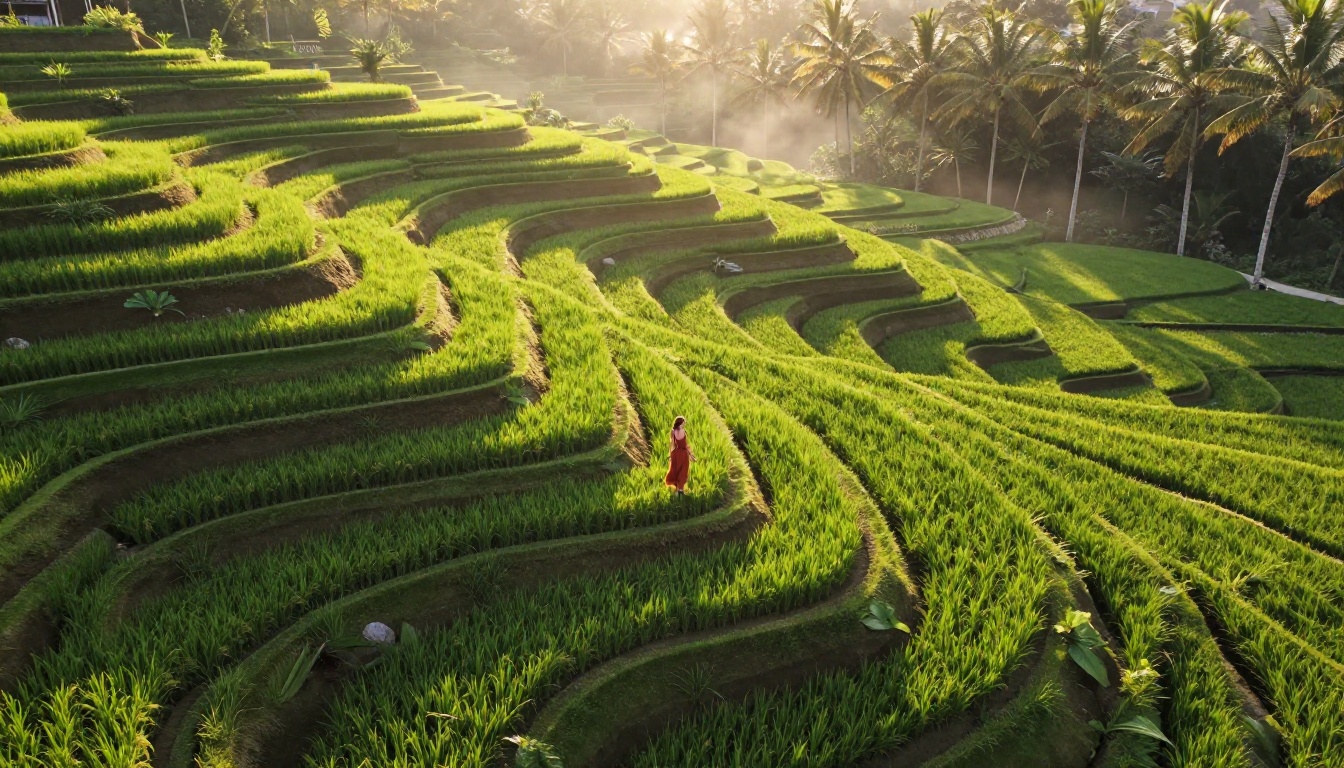
- Wide landscape shots where atmospheric motion such as mist, clouds, or shifting light can be added convincingly
- Portrait shots in natural environments where background animation creates depth while the subject stays grounded
Avoid heavily compressed files, blurry shots, or images with aggressive post-processing filters. The AI works with what it receives. Start with the highest-quality originals in your archive.
Step 2: Write Your Motion Prompt
This is where most people undershoot. A vague prompt like "make it move" produces generic, underwhelming output. A specific motion prompt produces something that looks intentional and cinematic.
Structure your prompt around four elements:
- What moves: clouds, water, leaves, the subject's hair, distant waves, smoke
- How it moves: drifting slowly, rippling gently, swaying softly, building gradually
- Camera behavior: slight push-in, slow pan right, subtle zoom out, gentle tilt upward
- Atmosphere: warm morning mist, golden light intensifying, shadows shifting across the terrain
Example prompt for a mountain sunset photo:
"Clouds drift slowly from left to right above the mountain ridge, the sky deepens from amber to rose, a gentle breeze moves through the foreground grass, slow push-in toward the peak, volumetric light rays intensify and fade"
Tip: Think like a cinematographer, not a photographer. You are describing time passing, not a moment captured.
Step 3: Set Your Parameters
Inside PicassoIA's interface for Wan 2.7 I2V:
- Duration: 4 to 6 seconds works for social content. 8 to 10 seconds works for longer reel segments.
- Resolution: 1080p for Instagram and YouTube. 720p for faster draft previews.
- Motion intensity: Keep it low to medium for realistic travel content. High motion values frequently produce distortion in landscape shots where large static areas like mountain faces or building facades should not move.
Step 4: Generate and Iterate
Generate the clip, watch it once without expectation, then ask one question: does this feel like it could have been filmed? If yes, export it. If the motion is too aggressive, too fast, or visually incorrect in specific areas, reduce the motion intensity and regenerate. Most travel photos need only one or two iterations to land on something usable.
Photos That Actually Work
After testing hundreds of travel photos through AI image-to-video models, clear patterns emerge around what performs well and what does not.
Strong Performers
Landscape and skyscape shots respond exceptionally to animation. Cloud movement, atmospheric haze shifting, and light changes produce natural-looking results because these elements genuinely behave this way. The models have extensive training data on how skies, horizons, and atmospheric conditions move.
Wide coastal shots with water in frame are highly reliable. Water is one of the most convincingly animated natural elements across all image-to-video models.
Forest and canopy shots with layered depth work well when there is clear separation between foreground, mid-ground, and background. The parallax effect the AI generates between these layers adds significant perceived depth to the clip.
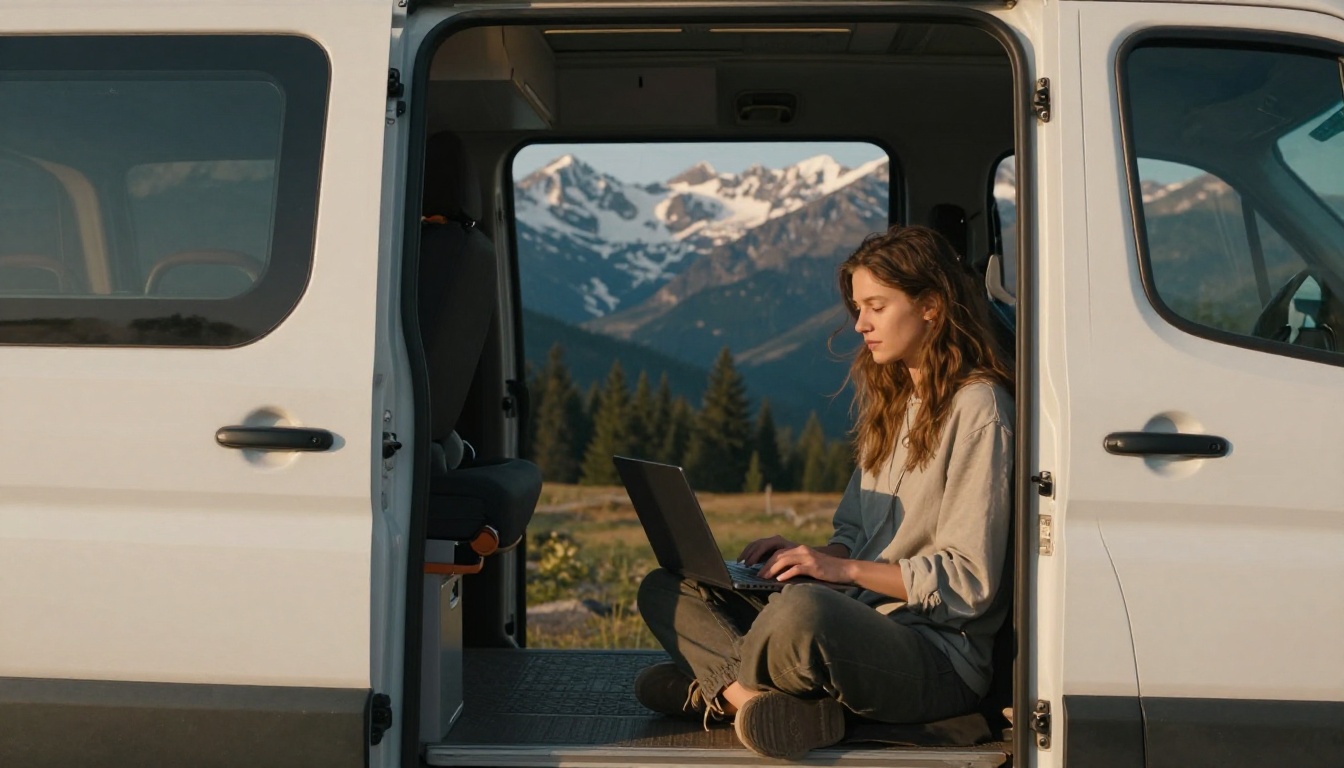
Portraits in natural environments produce striking results. A traveler standing against a stormy sea, static and confident while the waves crash behind them, is dramatically more compelling as a clip than as a photo.
What Struggles
- Indoor market and restaurant shots with no natural elements produce flat, unconvincing motion
- Night photos with high ISO noise confuse the model's motion generation and produce artifact-heavy output
- Heavily edited or filtered images, especially with strong color presets or black-and-white treatment, produce unnatural results
- Close-up food or product detail shots rarely benefit from animation and often look wrong when motion is applied
Writing Motion Prompts That Work
The quality of your prompt determines the quality of your clip. This is the single highest-leverage input in the entire workflow.
What to Include
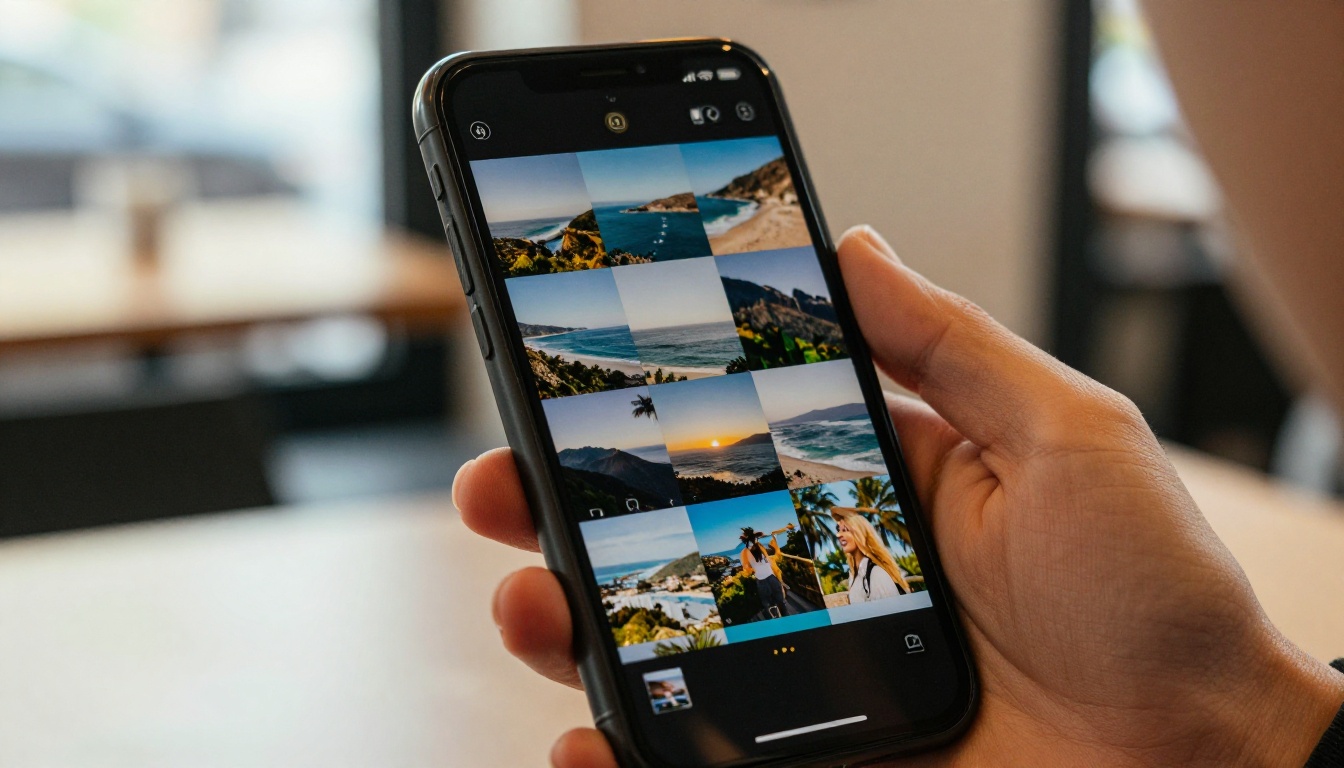
| Prompt Element | Strong Example |
|---|
| Primary motion | "waves rolling gently toward shore with natural rhythm" |
| Secondary motion | "seagrass swaying softly in the current below" |
| Camera behavior | "slow dolly push toward the horizon" |
| Light change | "late afternoon light warming progressively" |
| Atmosphere | "light sea mist rising from the surface" |
Real Prompt Examples
Beach photo:
"Gentle waves lap against the shore with natural rhythm, fine sea spray catching the afternoon light, distant ocean surface shimmering, slight camera push toward the water, warm golden tone, light breeze moving across the foreground sand"
Mountain photo:
"Clouds layer and drift slowly above the ridge line, atmospheric haze thickening and clearing in the valley below, pine tree branches sway slightly in the wind, camera very slowly tilts upward, morning golden light from the left side"
Architecture or street photo:
"Pedestrians and vehicles move naturally in the background with realistic flow, cafe awning fabric ripples slightly, pigeons lift from the square, subtle camera drift to the right, warm afternoon European light"
Tip: Adding the word "gently" or "subtly" to your prompt significantly reduces over-animation. If your first result looks too aggressive or artificial, add one of these qualifiers and retry. You can also compare output between Wan 2.7 I2V and Kling v2.1 on the same prompt to see which handles that specific photo type better.
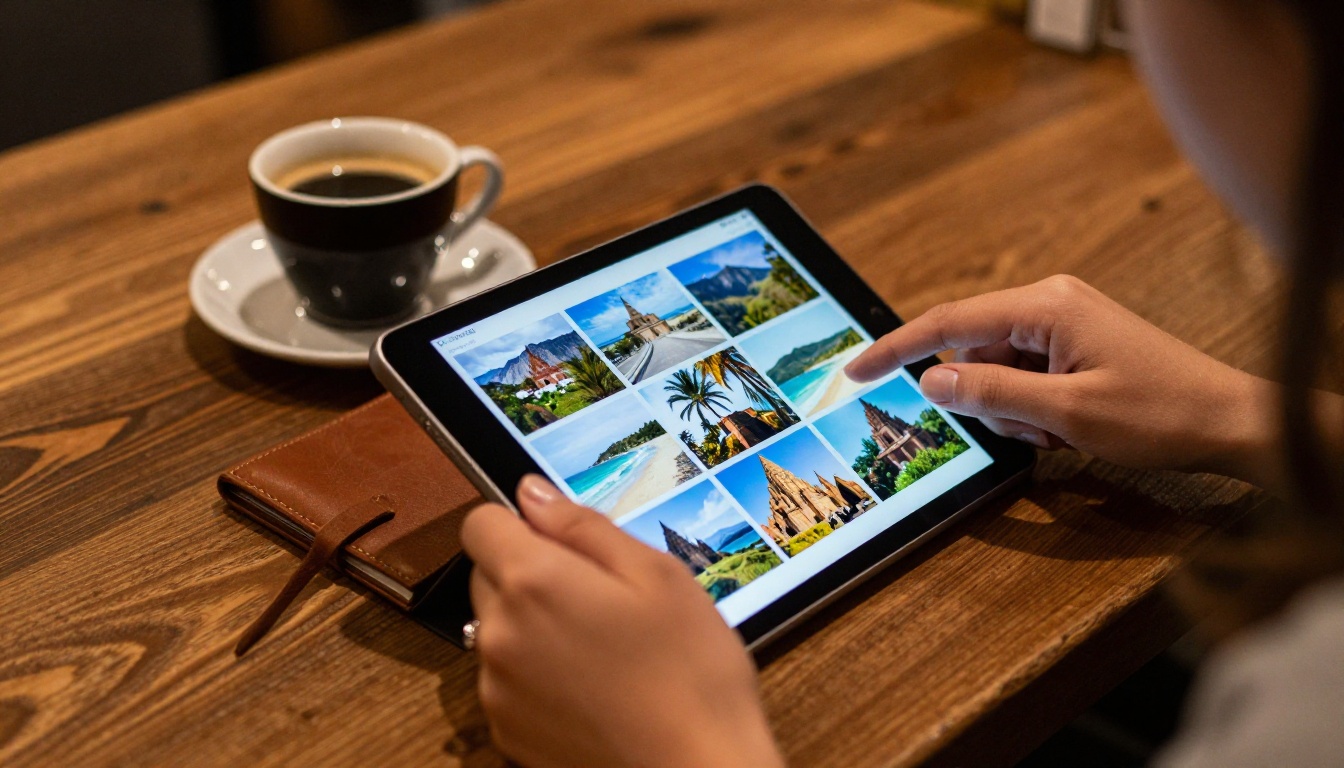
What Makes a Travel Clip Feel Cinematic
There is a real difference between an animated travel photo and a cinematic travel clip. That difference is mostly intentional decision-making, not model quality.
Lighting Direction
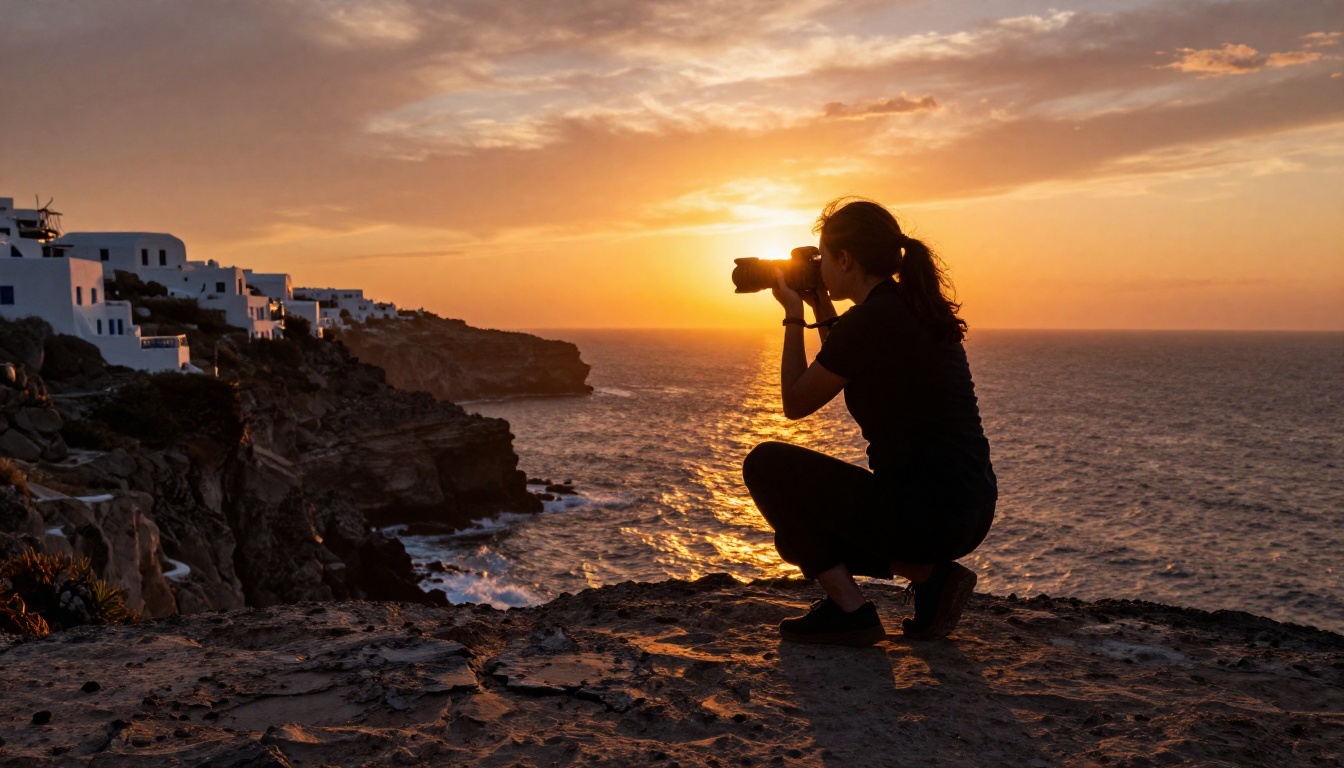
The most cinematic travel footage shares one characteristic: directional, warm light. Side-lit subjects, where light comes from the left or right rather than directly overhead, create depth and shadow play that reads as professional. When choosing which photos to animate, prioritize shots taken during golden hour or blue hour. The AI animation of a photo with strong directional lighting will almost always outperform a flat midday shot regardless of which model you use.
Camera Motion Style
Cinematic camera motion is almost always slow. The instinct is to add dramatic, fast zooms. Resist it. The clips that look most like they were actually filmed share these characteristics:
- Slow push-ins of 2 to 5 percent of frame width over 6 seconds
- Gentle pan movements that follow a natural compositional line
- Subtle zoom-outs that reveal context while the subject stays centered
Fast, aggressive camera motion in AI-generated clips exposes their artificial origin. Slow, deliberate movement conceals it.
Motion Amount Per Element
Different elements in a travel photo should move at different speeds. Clouds move slower than grass. Water ripples faster than tree branches. Distant mountains should not move at all. When your prompt specifies different motion rates for different elements, the result reads as physically real. When everything moves at the same rate, it reads as artificial.
Building a Full Travel Reel
A single animated photo is a moment. A sequence of animated photos is a story. Here is a simple workflow for building a 60 to 90 second travel reel entirely from photos.
1. Select 12 to 15 photos that span your trip chronologically or thematically. Aim for variety in subject matter: landscapes, portraits, architectural details, wide establishing shots.
2. Animate each one with consistent motion intensity. A mix of fast and slow clips makes the final edit feel disjointed. Pick a pace and maintain it across the whole set.
3. Sequence with intent. Open with a wide establishing shot that sets location and mood. Build through experiential moments. End on something emotionally resonant: a final sunset, a solitary figure, a quiet detail.
4. Add sound. If you used Ovi I2V for any clips, you already have ambient audio to work with. For clips without native audio, ambient sound tracks pair naturally with animated travel footage.
5. Export and post. Clips from Wan 2.7 I2V and Kling v2.6 Motion Control export in formats already compatible with Instagram Reels, TikTok, and YouTube Shorts without additional re-encoding.
For Creators with Large Photo Archives
If you have years of travel photos sitting unused on a hard drive, this workflow scales. The same process that works on a single photo works on 200. PicassoIA supports concurrent generation, so you are not waiting through hundreds of photos sequentially.
For high-volume processing, Hailuo 2.3 Fast and Wan 2.5 I2V Fast are the right tools for the bulk of your library. Save the slower, more detailed models like Wan 2.7 I2V and Kling v2.6 Motion Control for the 10 to 15 shots that will become your hero clips: the ones you lead with, the ones that carry the narrative weight, the ones that get shared.
Tip: Build a consistent motion style across your travel reel by using the same model and similar prompt structure throughout. Visual coherence in animation speed and camera behavior makes the final cut feel like it was shot by a single filmmaker rather than assembled from random clips.
There is also a broader capability worth noting: if you want to generate entirely new travel video segments to fill gaps in your archive, tools like Pixverse v5 and Seedance 2.0 can generate short cinematic clips from a text description alone, which can be cut seamlessly into your existing photo-animated content.
Your Photos Are Already Enough
The most common reason people do not make travel videos is always the same: they think they need more footage, better footage, or a more expensive setup. They do not.
Every photo in your archive is a video waiting to happen. The cliff in Thailand, the narrow alley in Marrakech, the ferry crossing in Croatia: each one can become a 6-second clip that carries the weight of the original moment.
The tools are already there. Wan 2.7 I2V, Kling v2.6 Motion Control, Ovi I2V, Video 01 Live, and the full image-to-video collection on PicassoIA are ready to use right now, no subscriptions, no API keys, no local GPU required.
Open a photo from your last trip. Write a motion prompt that describes what should move and how. Press generate. That is where it starts.


