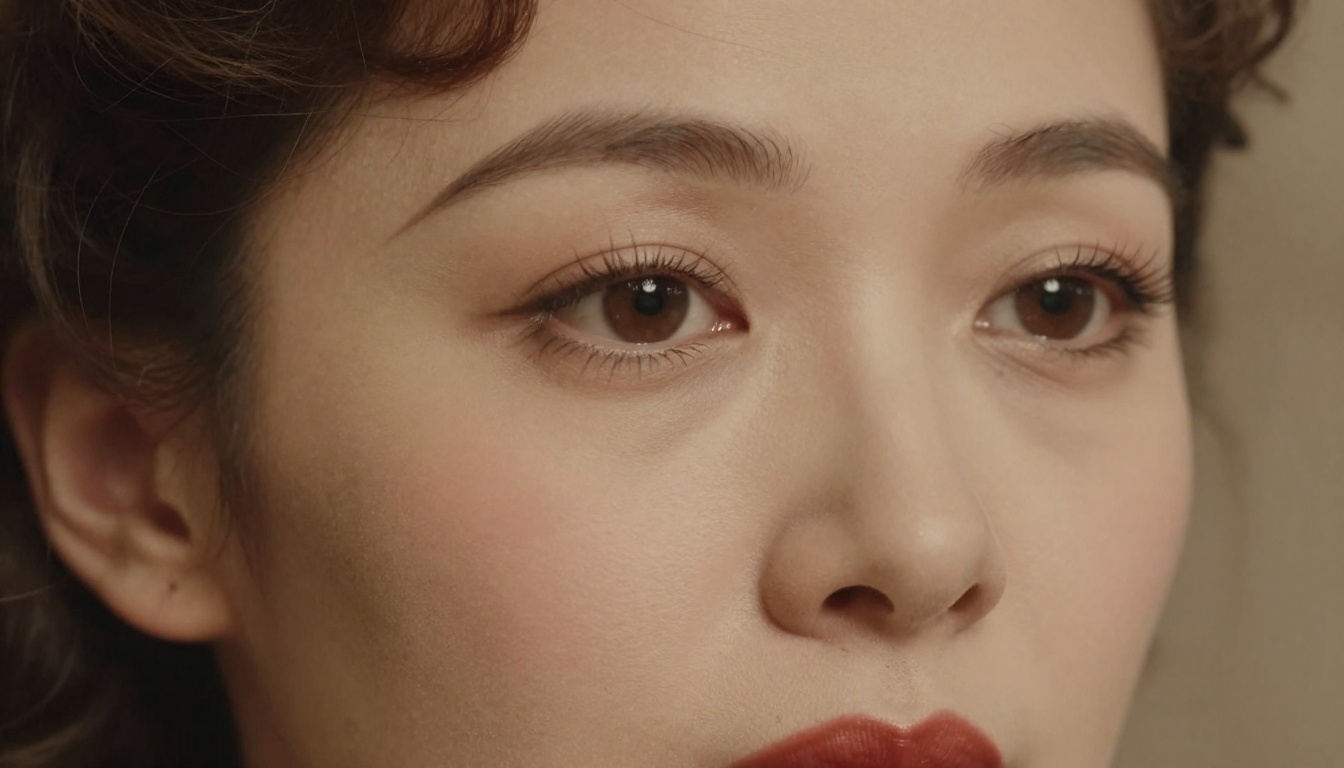
That shoebox in the closet holds more than photographs. It holds your grandmother's wedding day, your father as a toddler, a great-uncle who never made it home from the war. The problem? Those prints are faded, cracked, and so grainy that faces are barely recognizable. AI photo restoration changes that. In 2027, you can make vintage photos HD with AI in minutes, without any editing software or design experience.
Why Vintage Photos Lose Their Quality
Film Chemistry Breaks Down Over Time
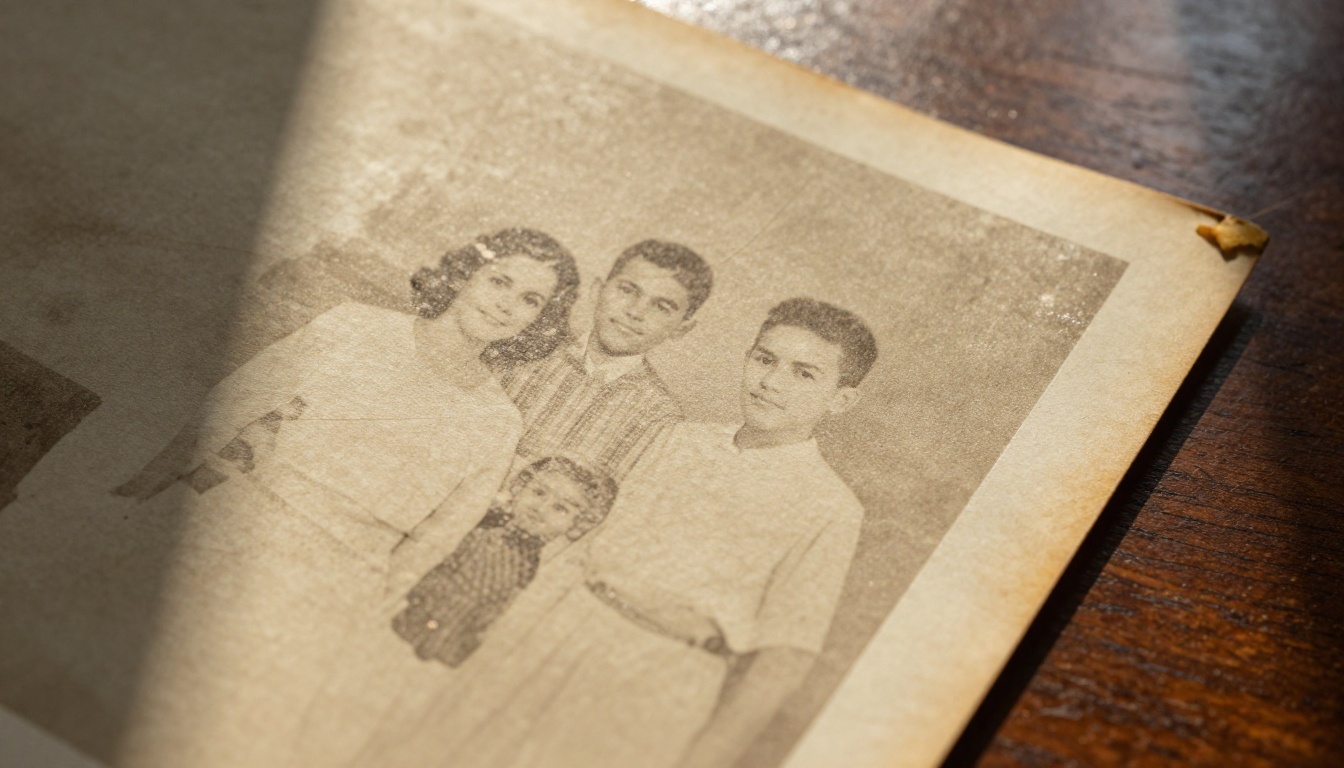
Photographic film and paper rely on silver halide crystals suspended in a gelatin layer. Over decades, those crystals oxidize, the gelatin contracts, and the image literally disappears at the molecular level. Heat, humidity, and light accelerate the process. A photo stored in a warm attic for 60 years can lose 40% of its tonal range, along with the fine details that make faces recognizable.
Scanning Doesn't Fix Anything
A lot of people scan old photos and think the job is done. It isn't. Scanning at 600 DPI captures a high-resolution version of a damaged image. You still have the grain, the scratches, the faded contrast, and the color shift. The scan just means you have a digital copy of a degraded original. What you actually need is AI-powered upscaling and restoration to reconstruct the missing detail.
What AI Actually Does to a Vintage Photo
It Reconstructs, Not Just Scales
Traditional photo editing software scales images by interpolating pixels, producing a bigger but blurrier result. AI upscaling works fundamentally differently. Models trained on millions of photographs learn what real textures, skin tones, fabric weaves, and hair strands look like at the pixel level. When they process your vintage photo, they don't guess based on neighboring pixels. They reference a vast learned dataset of real-world detail and add plausible, realistic information that wasn't visible in the original.
The result is genuinely sharper images. Pores appear where there were none. Hair strands resolve from a gray blur. The stitching on a lapel becomes visible. Individual eyelashes separate.
Noise and Grain Removal
Film grain in old photos isn't random noise in the digital sense. It has a specific texture based on the film stock, exposure settings, and development process. AI models trained on film photography identify grain as a pattern and suppress it while preserving actual edge detail. The difference between AI grain removal and simple blurring is striking: blurring removes grain but also removes sharpness, while AI grain removal suppresses grain and often reveals detail that was hidden underneath.
Color Reconstruction for Black-and-White Photos
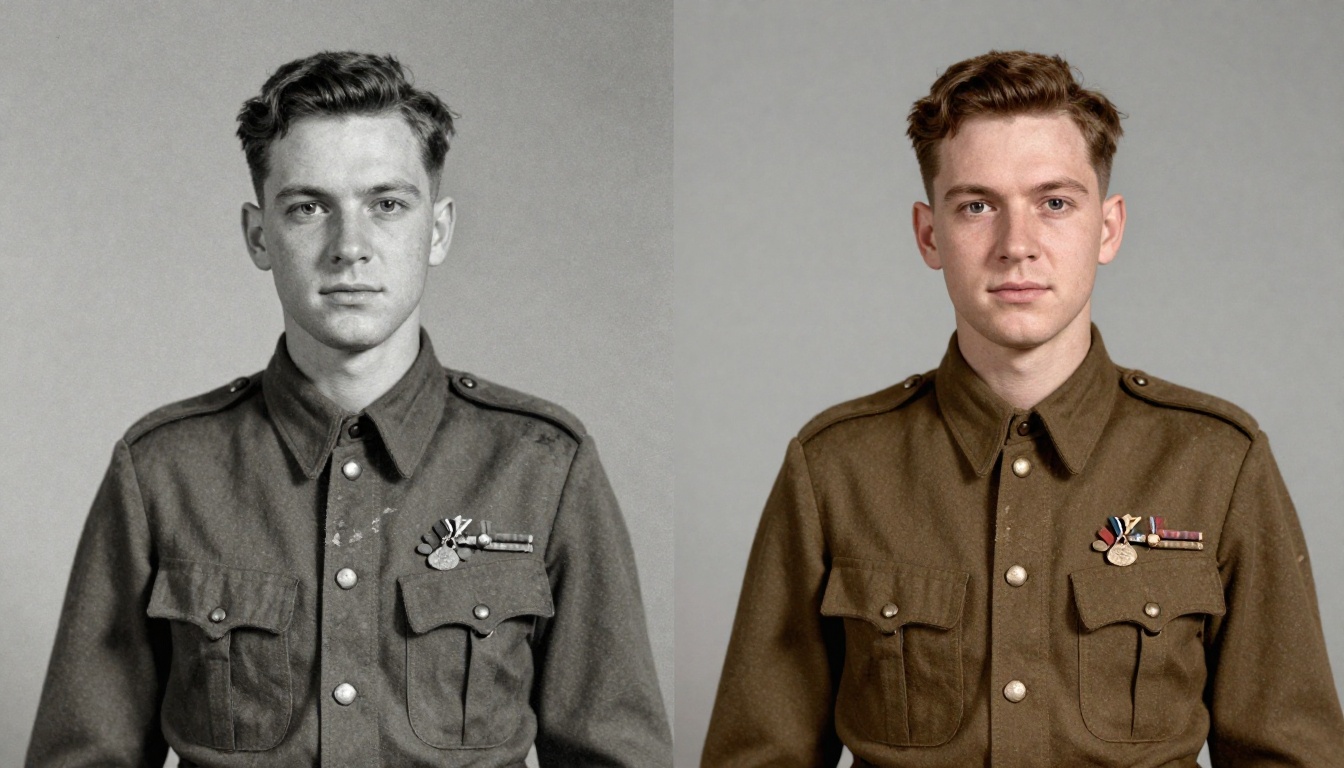
Black-and-white photos from before 1960 present an additional layer of complexity: they contain zero color data. AI colorization analyzes grayscale values, subject matter, and contextual clues, then applies statistically likely colors based on what those objects look like in real life. Grass becomes green. Sky becomes blue. Skin tones warm up naturally. It's often surprisingly accurate, especially for skin, foliage, and sky.
The Best Models for Vintage Photo Restoration
Clarity Pro Upscaler: Fine Detail Recovery
Clarity Pro Upscaler is specifically built for photorealistic upscaling with aggressive fine detail recovery. It performs particularly well on portrait work, where the fine details of faces, hair, and eyes matter most. For vintage portraits from the 1930s through 1960s, this model often produces results that look like the photo was taken on a modern high-resolution camera.
Its texture synthesis approach sets it apart: rather than simply sharpening edges, it injects plausible micro-detail that holds up under close inspection at 200% zoom, which is exactly what you need when printing restored photos at large sizes.
Crystal Upscaler: Built for Portrait Work
Crystal Upscaler takes a portrait-focused approach. The model has been specifically tuned to preserve and reveal facial features, making it the right choice when your vintage photo is primarily a face. Family portraits, graduation photos, and wedding shots all respond well to its ability to bring out natural skin texture and eye detail without over-processing.
Real ESRGAN: The Proven Baseline
Real ESRGAN is one of the most widely tested AI upscalers available. Originally an open-source research model, it has been refined through years of real-world testing. For general-purpose vintage photo restoration where you need reliable results across different photo types, landscapes, group shots, and documents, Real ESRGAN is a solid starting point.
It handles 4x upscaling effectively and its noise suppression is particularly good on the heavy grain common in pre-1960s photography.
P Image Upscale: Speed for Large Collections
P Image Upscale delivers sharp results in approximately one second per image. For workflows where you're processing large collections of family photos, that speed makes the difference between a practical project and an overwhelming one. Quality holds up well across most vintage photo types, making it the right choice when you have 50 to 100 photos to process rather than just one.
Google Upscaler: Structural Awareness at 4x
Google's Upscaler brings structural intelligence to the upscaling process. It analyzes large-scale image structure to preserve architectural lines, horizon alignment, and facial geometry. For vintage group photos or outdoor scenes where geometric accuracy matters as much as texture detail, this model is consistently strong.
Topaz Image Upscale: Maximum Enlargement at 6x
Image Upscale by Topaz Labs offers up to 6x upscaling, the highest in the lineup. It can take a small, grainy scan of a 3x5 inch print and produce a file suitable for printing at 24x30 inches with full photographic quality. For heritage archive projects or large-format printing of restored family photos, nothing else in this category matches its output size.
Recraft Crisp Upscale: Artifact-Free Results
Recraft Crisp Upscale focuses heavily on suppressing the artifacts that less refined upscaling models introduce. Haloing around edges and plastic-looking skin are common failure modes in AI upscaling. This model's training specifically addresses those problems, producing clean, natural-looking results even on difficult vintage photos with heavy damage.
Bria Increase Resolution: Reliable 4x for Mixed Content
Increase Resolution by Bria is a reliable 4x upscaler that handles mixed content particularly well. Vintage photos with people in front of buildings, outdoor family gatherings, and street scenes all respond well to its approach of balancing both organic and geometric detail simultaneously.
How to Make Vintage Photos HD on PicassoIA
Step 1: Start with the Best Scan You Can Get
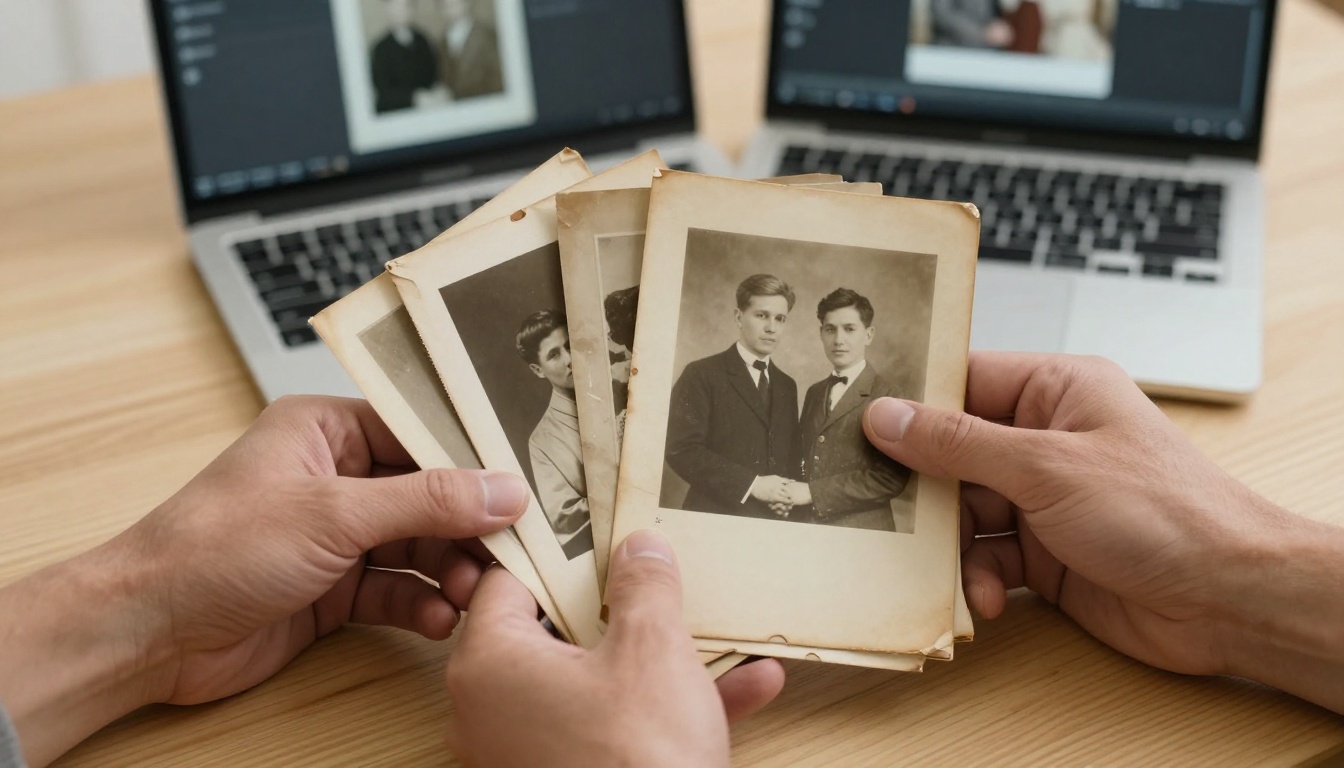
Before AI can work on your photo, you need a good digital version. Scan at a minimum of 600 DPI for standard prints, 1200 DPI for wallet-sized photos or heavily damaged originals. If using a smartphone camera, shoot in bright, even lighting with no shadows across the photo surface. Disable flash to avoid glare on glossy prints.
💡 Scan quality is everything: AI reconstructs missing detail, but it cannot invent information that was never captured. A better scan always produces a better restoration.
Step 2: Pick the Right Model for Your Photo
Step 3: Upload and Download
Upload your scanned image on the model page. Most models return results in under 30 seconds. Download the output and compare it directly against your original.
Step 4: Layer Multiple Models for Heavily Damaged Photos
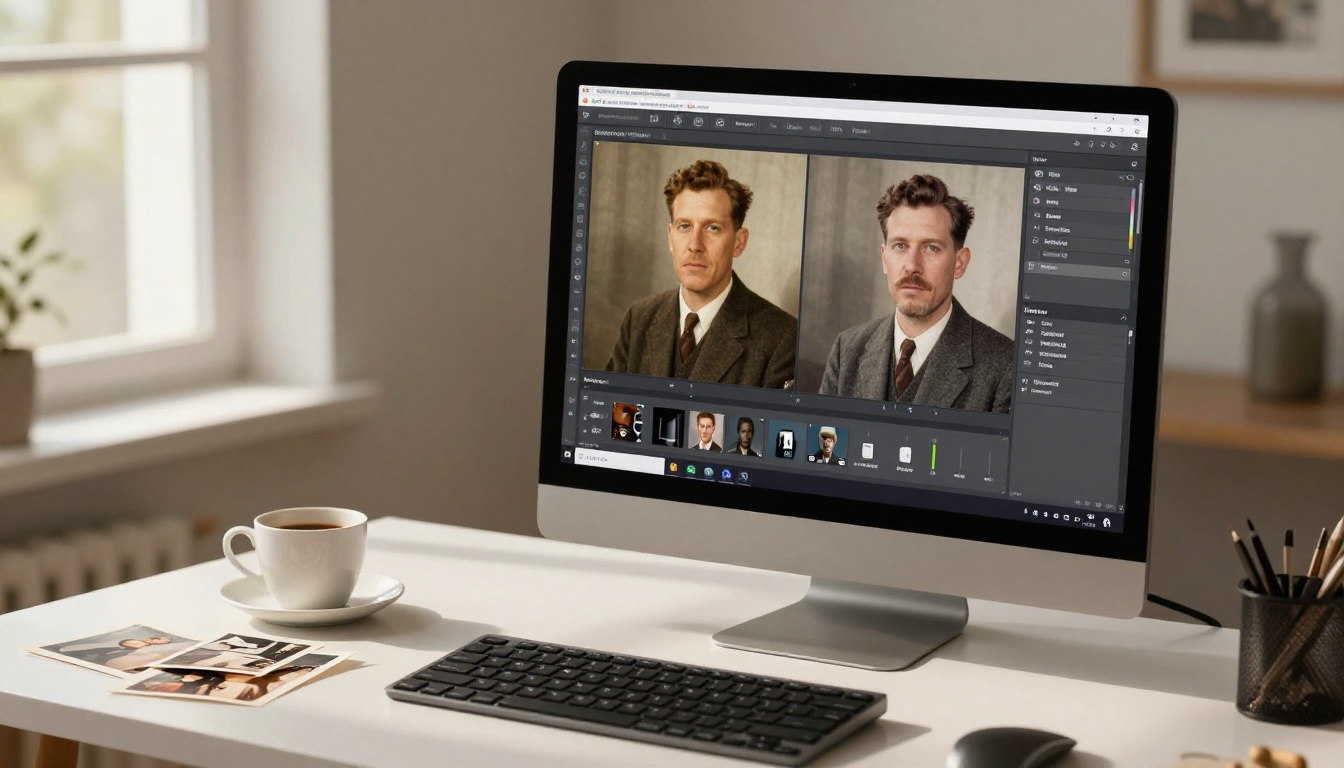
One pass rarely gets everything on photos with serious damage. A common layered workflow: Real ESRGAN for initial grain suppression, then Clarity Pro Upscaler for detail recovery, and finally Recraft Creative Upscale to add depth and visual richness to the final output.
Common Problems and How to Fix Them
The Result Looks Over-Sharpened
An artificial, crunchy look with visible halos around edges usually means your input scan was already sharpened in the scanning software. Disable built-in sharpening in your scanner settings and re-scan. Or switch to Recraft Crisp Upscale, which has the strongest anti-artifact processing available.
Faces Look Slightly Off
AI models occasionally make minor errors on facial reconstruction, especially in areas of heavy damage or unusual lighting. Switching to a portrait-specific model fixes this in most cases. Crystal Upscaler and Clarity Pro Upscaler both have significantly better face awareness than general-purpose models.
The Subject Is Blurry but the Background Is Sharp
This indicates motion blur in the original, which is distinct from resolution loss. AI upscaling can reduce motion blur but won't eliminate it entirely. Accept it as part of the photo's character, or apply selective processing to the subject area only.
Scratches and Tears Are Still Visible
Upscaling models are built for resolution, not physical damage repair. For scratches, tears, and water stains, inpainting models that fill in missing regions are more effective. Repair the damage with inpainting first, then run the repaired result through your upscaler.
Upscaling vs. Restoration: Not the Same Thing
People use these terms interchangeably, but they describe separate processes with different tools:
Upscaling increases pixel count and recovers lost resolution, making small prints suitable for large-format output.
Restoration repairs physical and chemical damage: scratches, tears, color fading, water stains, and age spots.
Colorization adds color data to black-and-white photos based on AI inference from subject matter and context.
A full vintage photo workflow combines all three. Start with restoration to remove physical damage, then upscale for resolution, then colorize if working with black-and-white originals. The order matters: colorizing before upscaling means the AI applies color to low-resolution data. Upscaling first gives the colorization model more pixel information to work with, producing more accurate and natural color placement.
💡 Right order, right results: Repair damage first, upscale second, colorize third. Each step produces better output when it builds on a higher-quality input.

What Results You Can Realistically Expect
AI photo restoration has real limits. It reconstructs plausible detail based on training data, which means highly damaged areas may contain minor inaccuracies. Photos with large sections of missing information, burn damage, or severe water staining across faces produce variable results. Photos with moderate damage, grain, fading, and minor scratches reliably produce excellent restored versions.
| Damage Level | Expected Result |
|---|
| Light grain and fading | Dramatic improvement, near-perfect restoration |
| Moderate scratches and contrast loss | Strong improvement, minor artifacts possible |
| Heavy damage across background | Good improvement, some original detail recovered |
| Severe damage on faces or subjects | Variable, portrait-specific models strongly recommended |
| Missing sections from tears or burns | Requires inpainting repair before upscaling |
Results continue improving as models are updated with more training data. Photos that produced borderline results in 2023 often produce excellent results with current models in 2025.
Practical Uses for Restored Vintage Photos
Large-Format Prints
A vintage photo upscaled to 6x its original resolution with Topaz Image Upscale can be printed at 24x30 inches or larger with full photographic quality. Framed large prints of restored family photos are among the most meaningful gifts for family reunions, anniversaries, and milestone birthdays.
Digital Family Archives
Scan every old photo in the family collection, restore them all, and organize them into a shared digital album. Services like Google Photos and iCloud let you share the entire archive with the extended family instantly. Generations to come won't have to squint at degraded originals or wonder who those barely-visible faces are.
Memorial and Legacy Projects
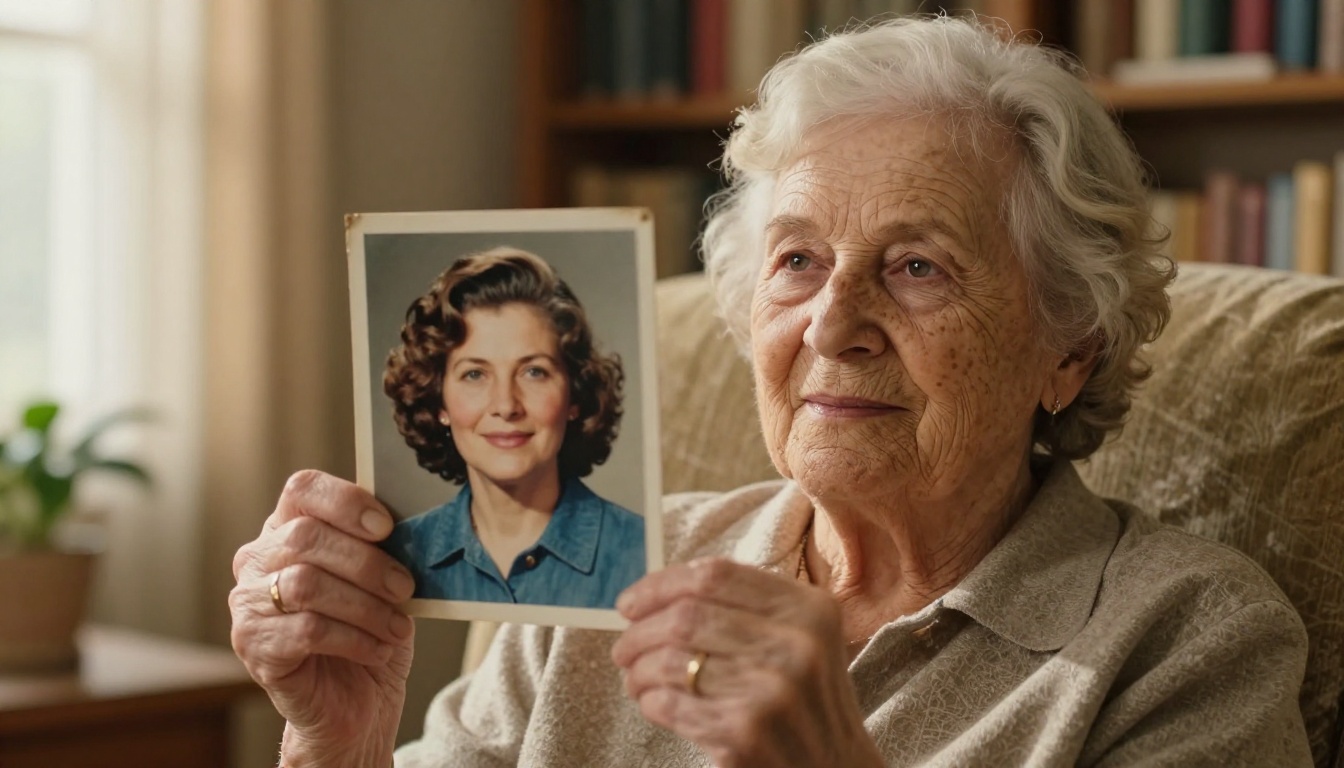
Clear, sharp images of people who have passed are qualitatively different from blurry approximations of them. Memorial books, funeral slideshows, and legacy video projects all produce better results when the underlying photos are at full resolution. A face you can actually see is a face you can actually remember.
Social Media Throwbacks
Throwback posts with genuinely HD vintage family photos perform measurably better than blurry originals. Restored photos look intentional and beautiful rather than just archivally interesting, and they tell a richer story about who came before.
Bring Your Old Photos Back
Take that blurry family photo, the one where you've always wished you could see the faces clearly, and run it through Clarity Pro Upscaler or Crystal Upscaler on PicassoIA. Processing takes under 30 seconds. If the first result isn't quite right, try a different model. The super-resolution collection has nine specialized models, each suited to different photo types and damage levels, and finding the right one takes only a few minutes.
Old photos aren't beyond saving. With the right AI tools, the faces that were disappearing into grain and fading can come back sharper than they've been in decades, and the memories they hold can be shared with everyone who should have them.