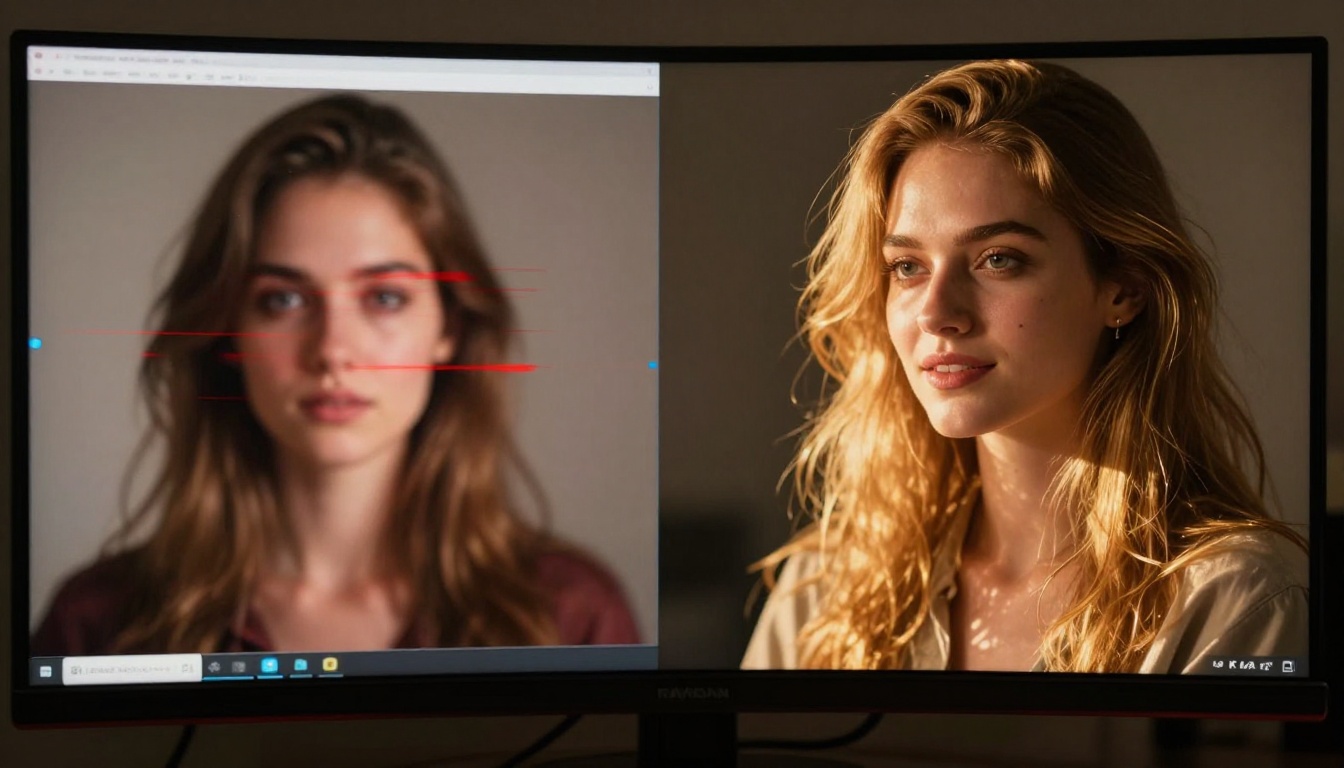
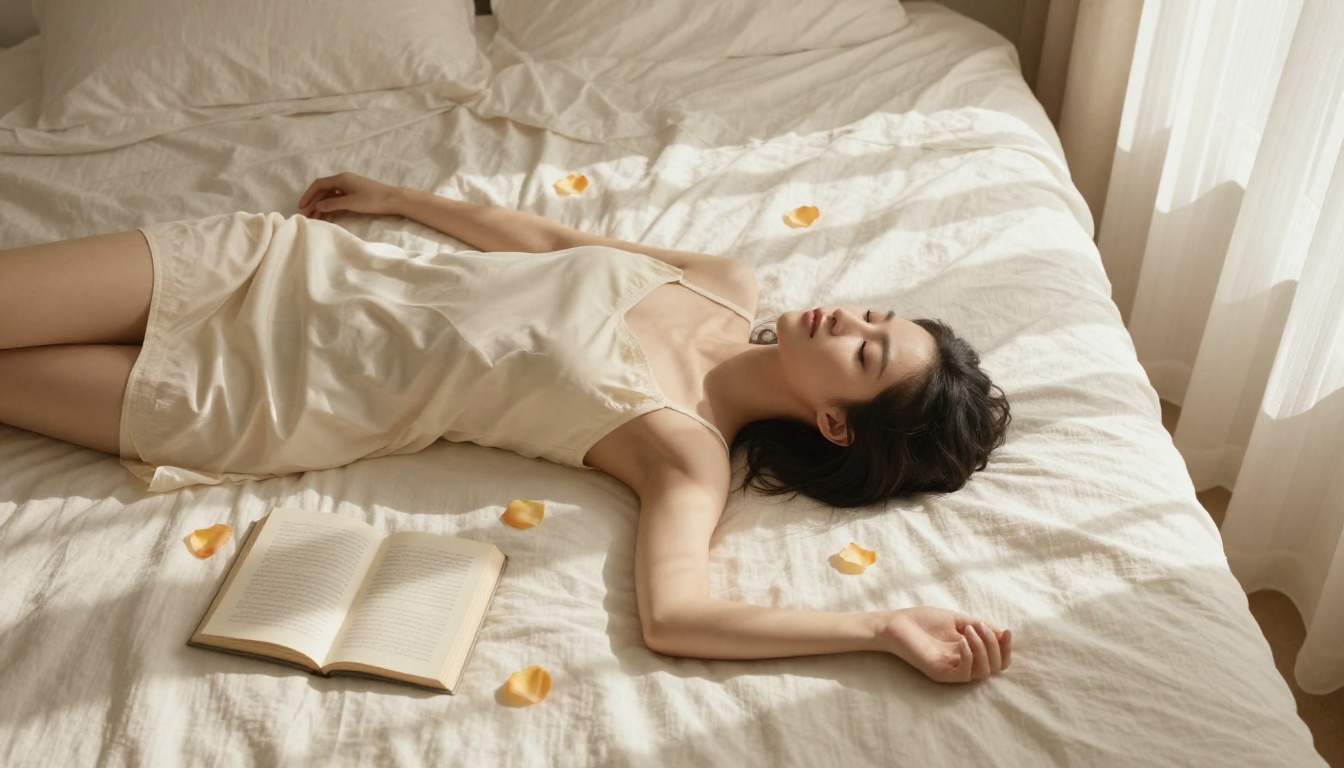
Making Uncensored AI Art That Works: What No One Tells You
Most AI art platforms censor more than they create. This article breaks down every real method for making uncensored AI art that produces results: the right models, prompt strategies, platform settings, and the specific tools that don't block your best ideas at every turn.
Making uncensored AI art isn't about finding loopholes or hacks. It's about knowing which tools are built for creative freedom, how to write prompts that describe what you want precisely, and which platform gives you access to models that don't arbitrarily reject your work.
If you've been stuck watching generation after generation fail because of overly sensitive filters, you're in the right place. This article covers the models that work, the prompt vocabulary that succeeds, and the settings that give you control.
Why AI Art Gets Blocked
Filters Aren't About Art Quality
Every major AI image platform uses safety filters. Some are sensible. Others block anything remotely artistic, expressive, or mature in subject matter. The frustrating reality is that most filters aren't calibrated for art quality, they're calibrated for legal risk minimization.
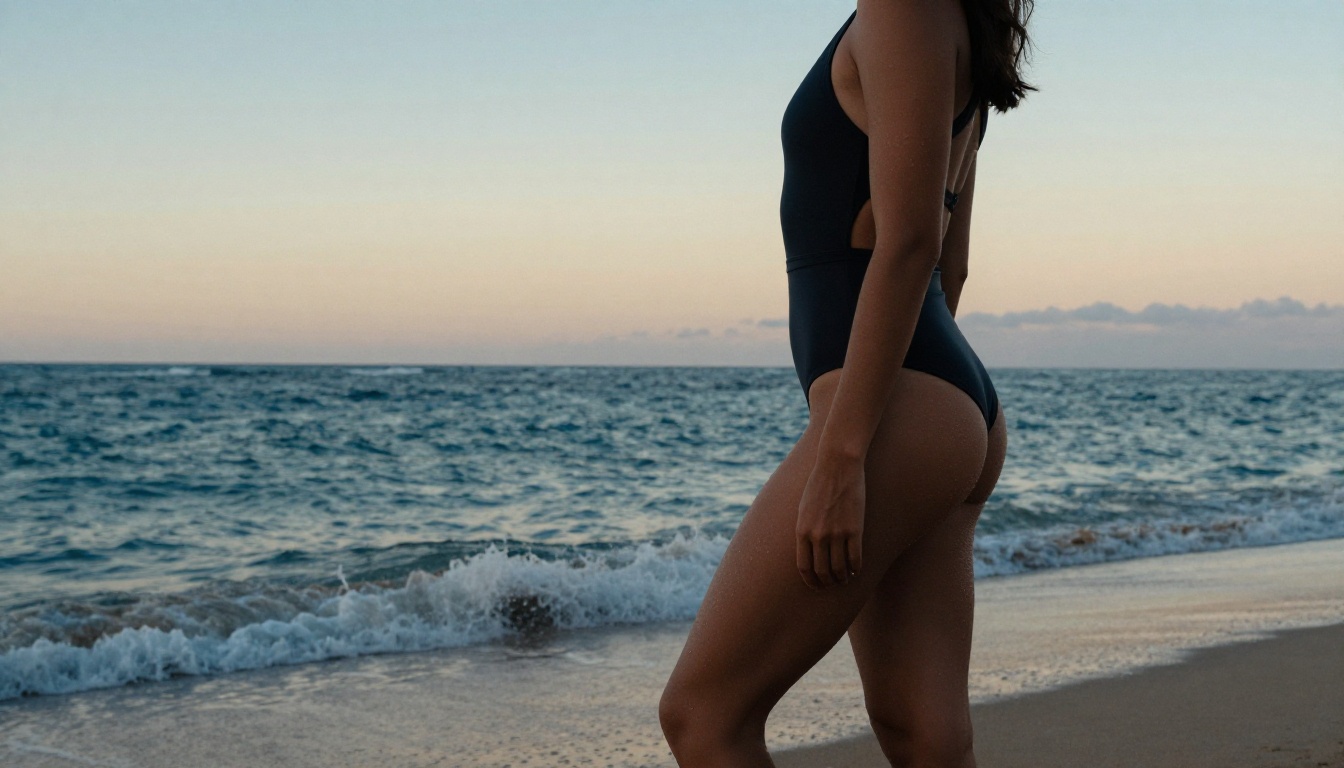
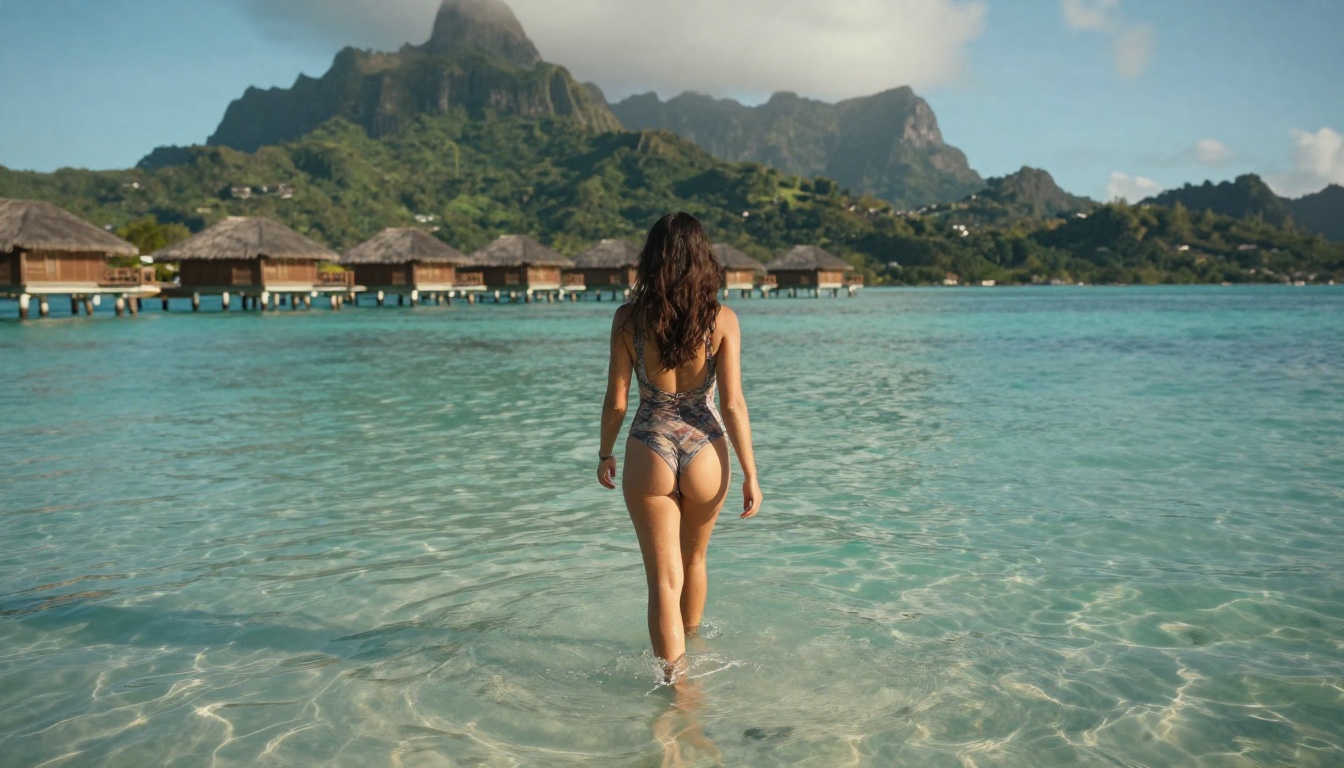
A Renaissance-style figure study gets flagged. A fashion editorial with a swimsuit triggers a refusal. An artistic portrait with natural lighting gets rejected for containing "sensitive content." None of these are problematic images; they're just being processed by an overcautious system.
💡 The real insight: Filters aren't judging your artistic intent. They're matching text patterns and image features against risk categories. Knowing this changes how you approach both prompt writing and model selection.
What "Uncensored" Really Means Here
"Uncensored AI art" doesn't mean explicit or pornographic by default. It means freedom from arbitrary content blocks that prevent you from making the image you envisioned. An uncensored model lets you:
Generate realistic human figures without body-part detection triggering a refusal
Create mature, stylized content without wrestling with word filters
Produce fashion, glamour, and artistic imagery without constant rejections
Work with adult themes tastefully and artistically without the system fighting you at every step
The models and platforms that handle this well share one characteristic: they're built for creative professionals who need reliable output, not for child-proofing a consumer product.
What Actually Triggers a Block
Understanding the trigger points saves you hours of frustration:
Trigger Type
Examples
Fix
Keyword matching
Words like "naked," "nude," "explicit"
Rephrase using artistic or anatomical terms
Body detection
Skin visible in large areas of frame
Adjust composition, add clothing or context
Style tags
"NSFW," "adult," "erotic"
Use aesthetic descriptors instead
Combined signals
Multiple mild triggers stacking
Separate elements across prompts
The Models That Don't Say No
Seedream 4.5 Is Where to Start
Seedream 4.5 from ByteDance is the first model you should try for uncensored AI art. It generates at up to 4K resolution and handles mature, artistic, and suggestive content without blocking at the model level. The output quality is exceptional: detailed skin rendering, accurate anatomy, and natural lighting that photorealistic models often struggle to match.
Why it works for this use case:
No hard content walls at the model architecture level
Exceptional prompt adherence, what you write is what appears
4K output means you can crop, zoom, or print at large sizes
Fast generation even at maximum quality settings
PicassoIA Image Editor Pro: Unlimited Runs
PicassoIA Image Editor Pro is the platform's own unlimited generator, meaning no per-image credits or caps on how many times you run it. For iterative work where you're testing dozens of variations on a concept, this is the practical choice. You're not burning credits hunting for the perfect output.
The model handles editing workflows too: you can generate a base image, then use inpainting to refine specific areas (facial expression, clothing details, background elements) without regenerating the entire frame.
Wan 2.7 Image Pro for 4K Output
Wan 2.7 Image Pro pushes resolution further, generating at native 4K with strong coherence across complex scenes. If you're creating work for print, large-format display, or professional portfolios, this model delivers the file size and detail you need.
It handles complex compositions well: multiple subjects, detailed architectural backgrounds, intricate fabric rendering, and accurate lighting scenarios that many models simplify or distort.
Other Models Worth Your Time
Beyond the top three, these are worth knowing:
Hunyuan Image 2.1 by Tencent produces 2K output with exceptional portrait accuracy and skin tone rendering
Flux Krea Dev from Black Forest Labs specifically targets "without the AI look" results, ideal when you need photographic naturalism
Gen4 Image Turbo by Runway generates with precise prompt adherence and strong anatomical accuracy
Writing Prompts That Actually Work
Describe Rather Than Label
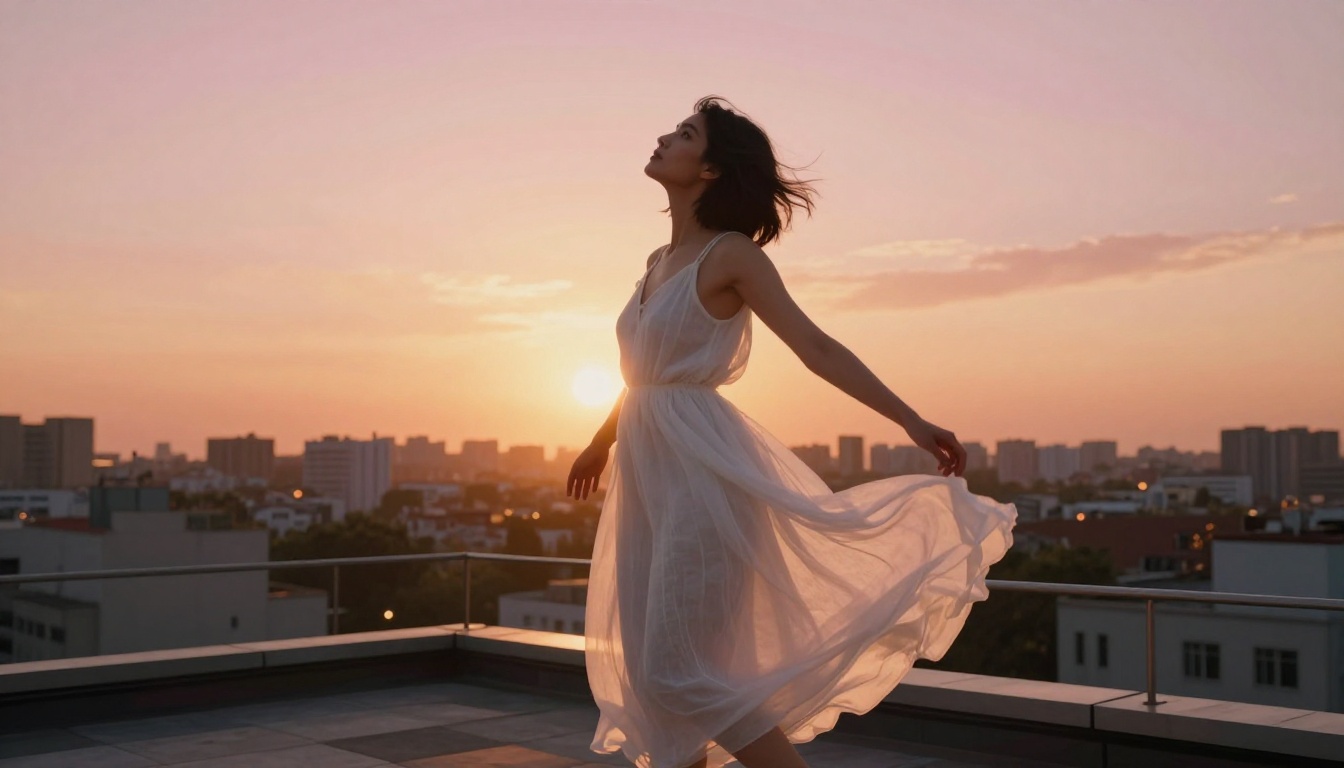
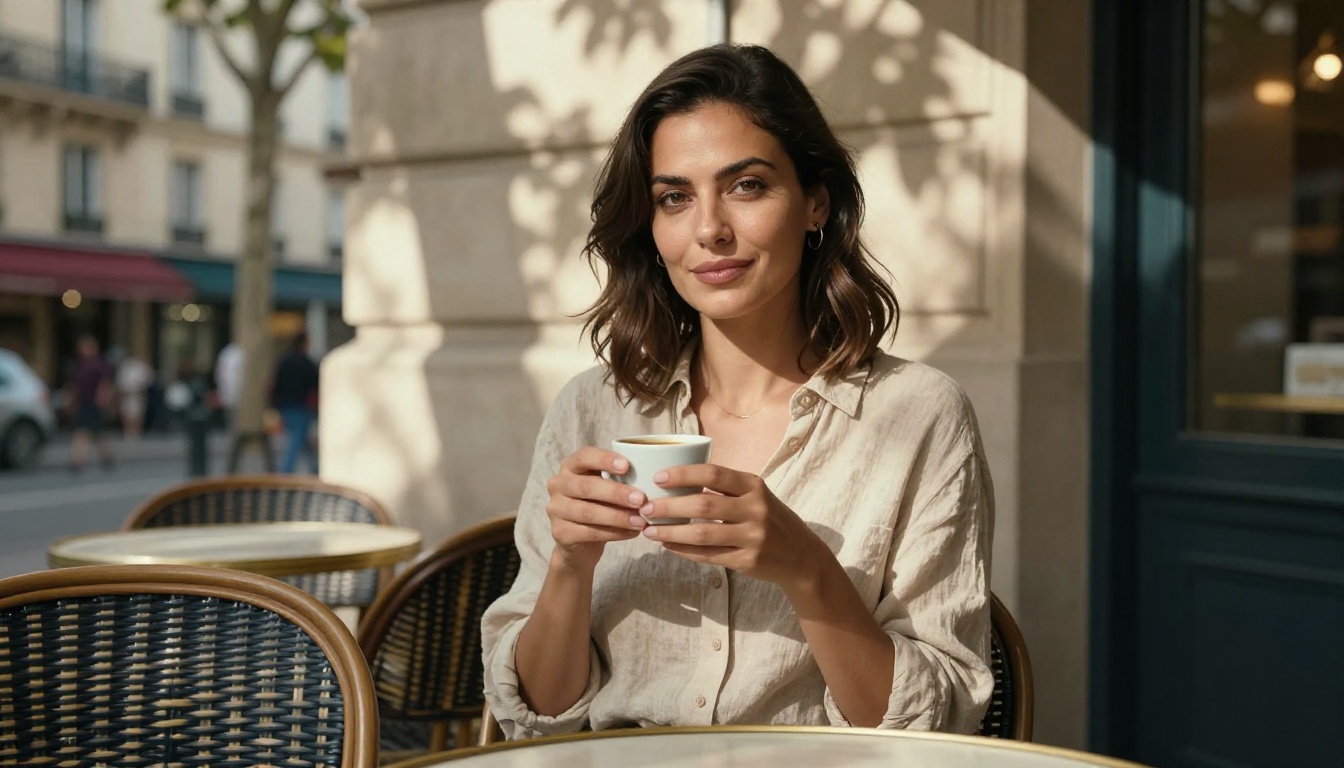
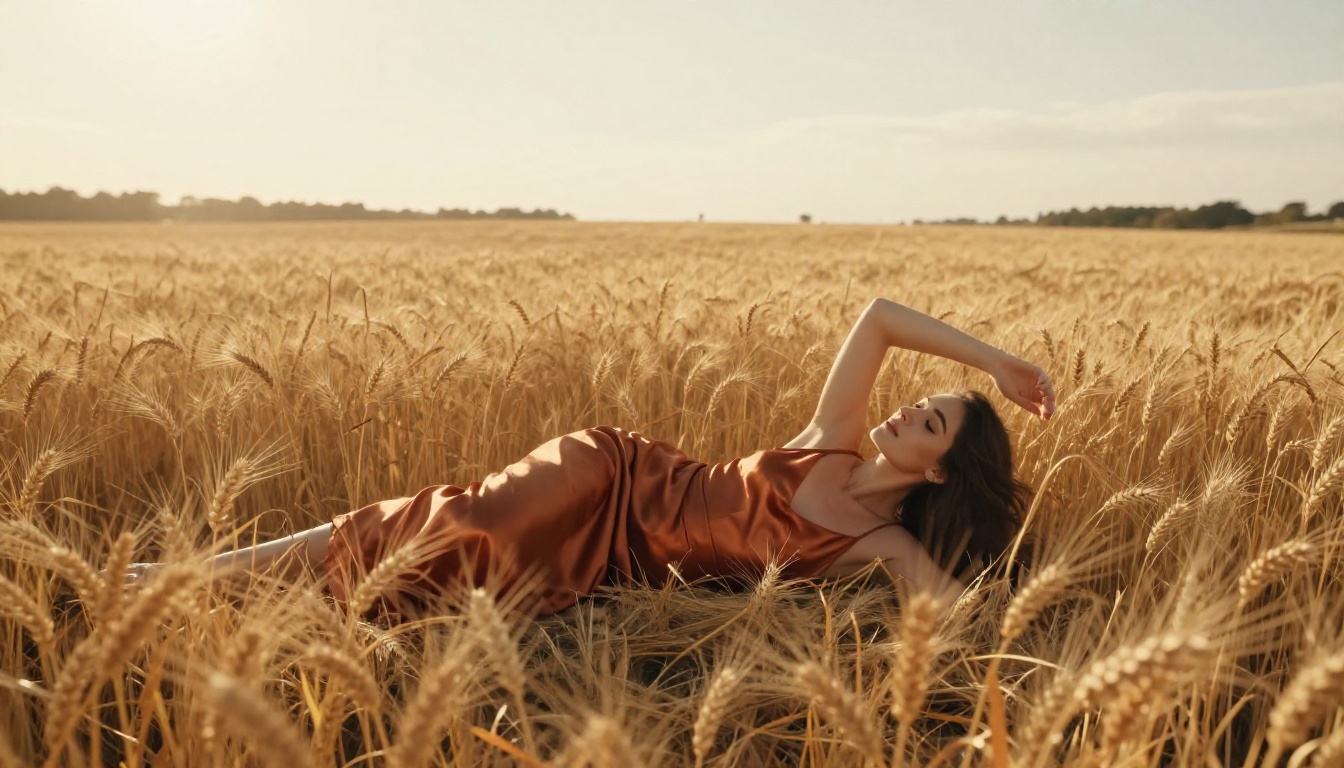
The single biggest prompt mistake people make is using category labels instead of descriptions. "NSFW woman" gets blocked. "A woman in a sheer white linen dress on a sunlit terrace, photographed by a fashion editorial photographer" does not.
Think like a photographer or art director:
Instead of "sexy pose" use "relaxed seated posture, weight on one hip, looking off-camera"
Instead of "nude figure" use "classical figure study, Rembrandt lighting, oil painting style reference"
Instead of "lingerie shoot" use "intimate fashion editorial, silk and lace garments, boudoir photography by Annie Leibovitz"
The Vocabulary of Photorealism
Certain prompt vocabulary consistently produces better results with fewer blocks:
Lighting terms that work well:
"volumetric morning light from the left"
"Rembrandt lighting, single-source tungsten"
"soft diffused north window light"
"golden hour backlight, rim lighting on shoulders"
Camera and lens specifics:
"85mm f/1.4 portrait lens"
"shallow depth of field, subject sharp, background bokeh"
"shot on Hasselblad medium format"
"Kodak Portra 400 film grain"
Style anchors from real photography references:
"Annie Leibovitz editorial style"
"Peter Lindbergh fashion photography"
"Helmut Newton black and white"
"Richard Avedon clean background portrait"
What Triggers Blocks and How to Reframe
Some terms flag content filters regardless of artistic intent. Here's a reframing reference:
Flagged Term
Better Alternative
Naked or nude
"figure study," "classical nude," "natural form"
Sexy or erotic
"sensual," "intimate," "romantic portrait"
Explicit
"suggestive," "implied," "artistic"
NSFW
"mature content," "adult editorial"
Lingerie
"intimate apparel," "silk and lace garments"
How to Use Seedream 4.5 on PicassoIA
Since Seedream 4.5 is the strongest starting point for uncensored AI art, here's the full walkthrough.
Step 1: Open the Model Page
Go directly to the Seedream 4.5 page on PicassoIA. No external account connection required; everything runs within the platform.
Step 2: Write a Detailed Prompt
In the prompt field, write a detailed description using the photorealistic vocabulary above. Aim for 60-100 words. Include:
Subject description: who or what, pose, clothing, expression
Environment: where they are, what's in the background
Lighting setup: direction, quality, color temperature
Camera or lens details: focal length, aperture, film stock
Mood or atmosphere: the feeling you want the image to convey
Step 3: Configure Resolution and Parameters
Set resolution to 4K for maximum output quality
Use aspect ratio 16:9 for landscape scenes or portraits intended for screens
Leave seed empty for first runs, then save the seed number when you get a result you like
Step 4: Use Negative Prompts
Seedream 4.5 supports negative prompts. Use them to eliminate common AI artifacts:
ugly, deformed, extra fingers, blurry, low quality, watermark, text,
cartoon, anime, painting, illustration, CGI, 3D render
Step 5: Iterate and Edit
Once you have a base image you like, go further:
Use inpainting to fix specific problem areas (face, hands, background)
Use Flux Redux Dev to create style variations of a successful result
Settings That Change Everything
Negative Prompts Are Non-Optional
Every experienced AI art creator uses negative prompts. They're not a workaround; they're a core part of prompt engineering. Without them, you're giving the model permission to fill gaps in your description with whatever it finds probable, which often means artifacts, distorted anatomy, or unwanted styles.
Standard negative prompt baseline for photorealistic uncensored art:
low quality, blurry, out of focus, watermark, signature, text overlay,
cartoon, illustration, 3D render, CGI, anime, deformed, extra limbs,
bad anatomy, distorted face
Adjust from there based on what specific issues keep appearing in your outputs.
Aspect Ratio and Composition Control
Different aspect ratios favor different types of work:
Ratio
Best For
1:1
Portrait headshots, social media
16:9
Editorial scenes, landscapes, widescreen
4:3
Environmental portraits, classical compositions
9:16
Mobile-first content, vertical fashion
3:2
Photography-style horizontal compositions
💡 Pro tip: For figure studies and fashion-oriented art, 4:3 or 3:2 gives you natural photography proportions. The 16:9 wide ratio tends to push subjects toward frame edges unless you explicitly anchor them in your prompt.
The Seed Strategy
When you generate an image you genuinely like, write down the seed number immediately. The seed is what reproduces that specific result. From a solid seed you can:
Slightly modify the prompt and maintain the same composition
Change lighting conditions while keeping the subject
Try different clothing or settings on the same base figure
This workflow, starting from a fixed seed, is how professional AI artists build consistent series and collections rather than chasing random luck.
Platform-Level Settings on PicassoIA
Beyond individual model settings, PicassoIA's platform settings affect what content you can generate. Make sure your account settings have content filters configured for your use case. The platform is built for creative professionals, not filtered for general audiences.
Why Photorealism Beats Fantasy Here
The Realism Advantage
Here's something counterintuitive: photorealistic prompts generate less blocked content than fantasy or stylized prompts. The reason is that filters are trained heavily on stylized NSFW content (anime, digital art, fantasy genres) because that's where the volume of flagged content lives in training data.
Describing a scene as "photographed by a professional photographer, shot on film, Kodak Portra" moves the request into a space that registers differently to content filters. It's still the same subject matter, but the framing is editorial photography, not anime NSFW.
What Photorealism Requires in Prompts
To get true photorealistic results consistently:
Always include:
Film stock references (Kodak Portra 400, Fujifilm Provia, Kodak 500T)
Specific camera and lens details (85mm f/1.4, Canon 5D, Hasselblad)
Real photographer names as style references
Natural lighting descriptions with direction and quality
Overly stylized descriptors without photographic grounding
Fantasy or sci-fi context markers
Lighting Tells the Model What Kind of Image This Is
Lighting descriptions are the most powerful single element of a photorealistic prompt. They signal not just how the scene is lit, but what kind of image it's supposed to be. "Studio lighting, primary light at 45 degrees, fill from right" signals a controlled photography session. "Backlit by sunset, rim lighting visible on shoulders" signals outdoor editorial.
Models trained on vast photographic datasets respond to these signals by pulling from matching reference imagery, producing more accurate and higher-quality results.
Recraft 20B for Non-Photo Styles
If you want stylized output rather than photorealism, Recraft 20B handles diverse styles (vector, illustration, real art styles) without the content sensitivity of photorealistic generators. It gives you consistent artistic style control rather than photographic naturalism.
Building a Real Workflow
Start with a Model Stack
Don't rely on a single model. Build a stack:
Generation: Seedream 4.5 for initial high-quality output
Variation: Flux Redux Dev for style variations of successful results
Upscaling: PicassoIA's Super Resolution tools to push output to 4x for print-ready files
Batch Your Variations
Instead of iterating one image at a time, generate 4-8 variations simultaneously. Change one variable between each: lighting direction, clothing color, background. This gives you a visual spread to work from rather than a single result that either works or doesn't.
When you find the winning composition from a batch, that becomes your seed base for deeper iteration.
Prompt Templates Save Time
Once you find a prompt structure that works, save it as a template. A working fashion editorial template might look like:
[Subject description], [clothing], [pose]. Shot on [location].
[Lighting description]. [Camera or lens]. [Film stock or color grade].
[Texture details]. Photorealistic, 8K, --ar [ratio] --style raw
Fill in the variables for each new project. You'll spend more time on creative decisions and less time wrestling with prompt syntax.
Common Problems and How to Fix Them
The Image Is Beautiful but Hands Are Wrong
This is the most common AI art issue. Fix it with a targeted inpainting pass: mask only the hands, add "perfect hands, correct finger count, natural hand anatomy" to the inpaint prompt, and set a lower denoising strength (0.4-0.6) to preserve the rest of the image.
The Face Looks Generic
Generic faces happen when your prompt doesn't give the model enough specific direction. Add lighting direction, emotional expression, and feature descriptors. "Woman with high cheekbones, almond-shaped brown eyes, natural freckles, slight smile" produces more specific results than "beautiful woman."
Background Keeps Changing Between Images
Background inconsistency across a series happens because you're not locking the seed. Fix it by using a fixed seed across variations while changing only subject-related prompt elements.
Generation Keeps Getting Rejected
If a particular prompt keeps failing or being rejected:
Isolate which element is triggering the block by removing elements one at a time
The tools are available. The models work. The prompting methods are learnable. What separates people getting stunning uncensored AI art from those who keep hitting blocks isn't talent or special access, it's knowing which platform to use and which models to start with.
Pick a model, write a detailed photorealistic prompt, and run it. The first results are almost never perfect, and that's fine. The iteration workflow described here gets you to something excellent faster than any other approach.
Your creative vision shouldn't have to negotiate with arbitrary filter systems. Start at picassoia.com/en/all-models and see what's actually possible when the tools get out of your way.