You searched for Max Studio face swap because you want one of three things: a straight answer on what it costs, a way to try it without paying, or a better tool if it falls short. This article gives you all three. It covers what is known about Max Studio, how pricing and limits normally work on face swap platforms, which free and online alternatives actually deliver, and how to get similar results on PicassoIA with models you can open right now.
One honest note before we start. Max Studio is not a model on PicassoIA, and I could not confirm a published price list for its face swap feature. Where I am unsure, I say so. Where a number would be a guess, I leave it out and tell you what to check instead.
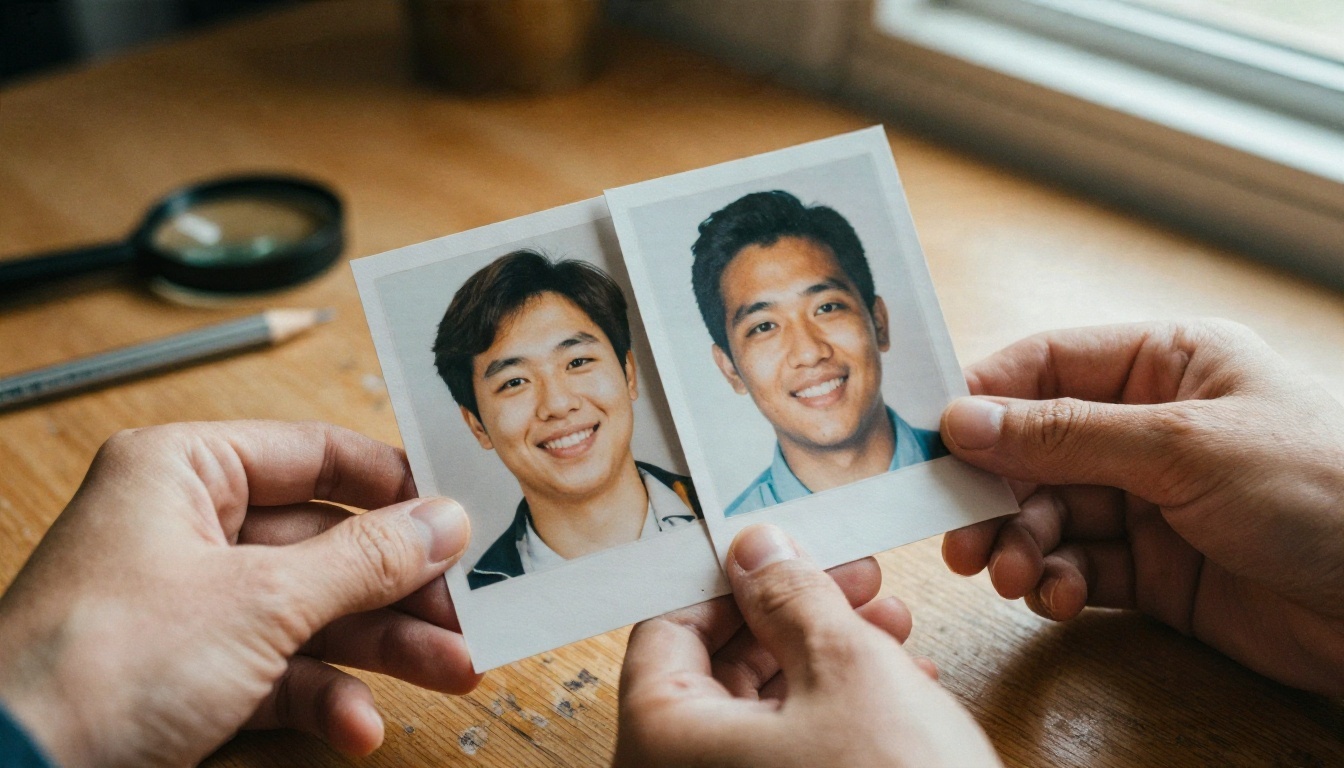
What Max Studio Actually Offers
Max Studio shows up in third party directories as an all in one creative platform that bundles 100+ AI tools under one roof. Virtual try on is one of the features people mention, and face swapping is the tool that brings most searchers here. That is the extent of what independent listings say with any confidence.
What I could confirm
- It is positioned as a broad creative suite, not a single purpose face swap app.
- It is described as having a large collection of integrated tools.
- It runs online, so you do not need to install software.
What stays unclear
- The exact face swap price per image or per video.
- Whether there is a free tier, and how many swaps it allows.
- Watermark rules, resolution caps and video length limits.
- Whether swaps work on groups, side profiles or fast motion.
💡 Tip: Before you pay anyone, run one free test with a difficult photo, not an easy one. A frontal, evenly lit portrait makes every tool look good. A slightly turned head with a shadow across one cheek shows you the real quality.
Because Max Studio is a bundle of many tools, credit systems on this kind of platform tend to be shared. A face swap, a try on and a background change may all draw from the same pool. That makes the effective price per swap harder to predict than on a dedicated tool.

Pricing and Limits to Expect
Since a firm Max Studio price is not available to me, the most useful thing I can give you is a map of how face swap pricing works in general. Almost every online tool uses one of four models.
| Pricing model | How it works | Watch out for |
|---|
| Free tier with daily cap | A few swaps per day at no cost | Watermarks, low resolution, queue times |
| One time free credits | A starter balance that never refills | Credits vanish after a handful of videos |
| Monthly subscription | Fixed fee for a set number of credits | Unused credits often expire monthly |
| Pay per use | You buy credits when needed | Video costs far more than photos |
Free tiers
Free plans on face swap sites are usually generous enough to test and stingy enough to push you toward paying. One tool I came across reportedly gives a one time block of 50 credits and allows around three swaps a day. Treat figures like that as a snapshot, since they change often. The pattern matters more than the number: photos are cheap, video is expensive, and high resolution costs extra.
Credit systems
Credits hide the real price. A photo swap might cost one credit and a ten second video thirty. Always convert credits into a cost per finished result before you compare two platforms.
Hidden costs
- Watermarks on free exports that you must pay to remove.
- Resolution caps at 720p or lower on free plans.
- Failed generations that still consume credits.
- Commercial use restrictions on cheaper plans.
💡 Tip: Keep a simple note of credits spent versus usable results. After ten tries you will know your real cost per keeper, which is the only number that matters.

Free Alternatives That Work
You do not need a subscription to swap a face in a photo or a clip. The trick is to pick a tool built for the type of media you have. Photos and video need different engines.
For photos
For still images, an editor that accepts an uploaded photo and a plain language instruction is the most flexible option. PicassoIA Image Editor Pro is an unlimited AI photo editor, so you can retry as many times as you need without watching a credit counter. You can find it on the PicassoIA Image Editor Pro model page.
If you need to build the target scene first, such as a new background, outfit or setting, Seedream 4.5 produces sharp 4K images from text. You can then bring your face reference into the editor for the final swap.
For video
Video swapping is where most free tiers fall apart. Two models on PicassoIA are built for it:
💡 Not on PicassoIA yet: Max Studio is its own platform and has no page here. For similar results today, try Image Editor Pro for photos, plus P Video Replace or Wan 2.2 Animate Replace for video.

Online Options Compared
Here is a quick side by side of the paths open to you. Prices for outside platforms are left out on purpose, because they change and I could not verify them.
| Option | Best for | Cost model | Where it runs |
|---|
| Max Studio | Users who want many tools in one place | Not confirmed, check its pricing page | Browser |
| PicassoIA Image Editor Pro | Photo swaps and edits with no cap | Unlimited generations | Browser |
| P Video Replace | Putting a person into a video | Per generation | Browser |
| Wan 2.2 Animate Replace | Swapping a character while keeping motion | Per generation | Browser |
| Seedream 4.5 | Creating the target scene | Per generation | Browser |
Which one fits your project
- A single profile photo or social post: start with Image Editor Pro. Unlimited retries are the biggest advantage here.
- A short clip for a creative project: P Video Replace is the more direct route.
- A character swap with full body motion: Wan 2.2 Animate Replace keeps movement intact.
- A brand new scene around a face: build it in Seedream 4.5, then refine.
When a bundled suite makes sense
A platform with 100+ tools can be convenient if you do many unrelated tasks each week. If face swapping is what you need most, a focused workflow tends to give you better control and a lower cost per result.
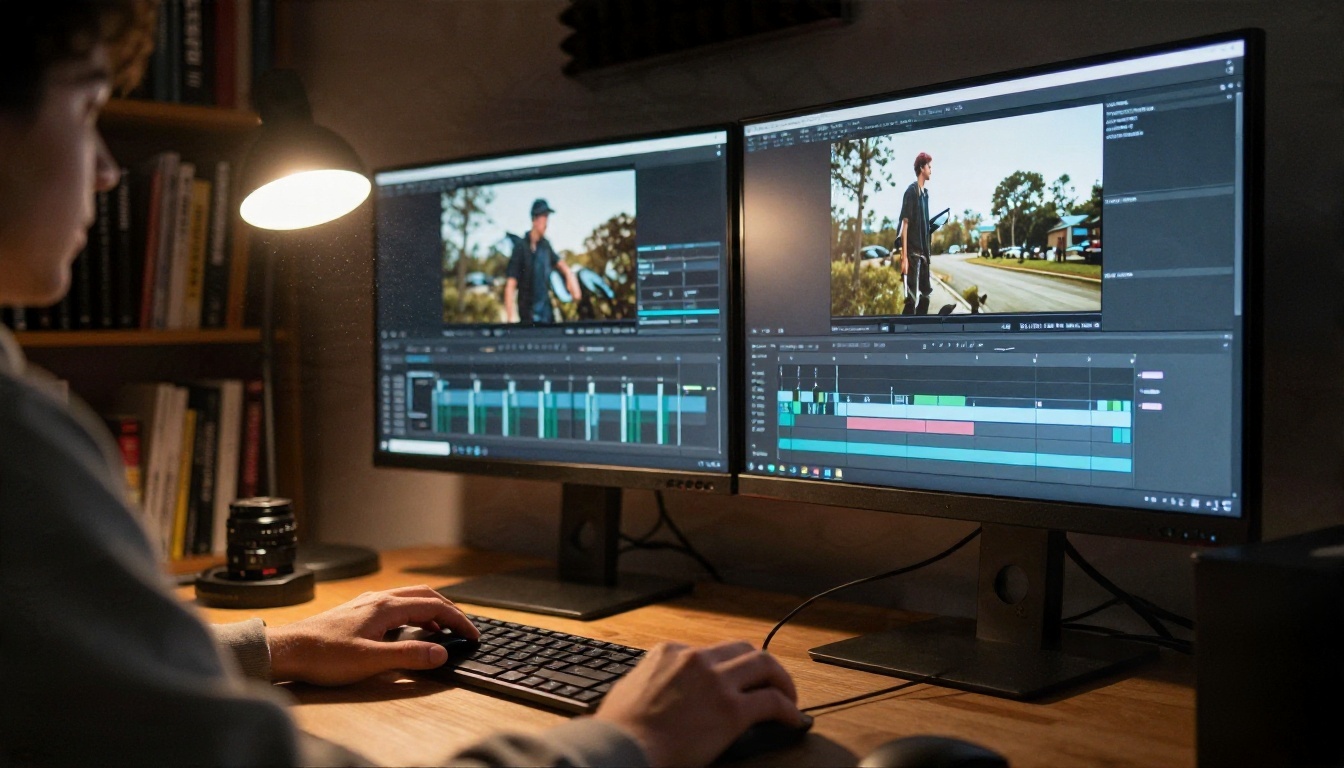
How to Get Similar Results on PicassoIA
The closest all round replacement for a photo face swap on PicassoIA is PicassoIA Image Editor Pro. Here is the workflow I would use.
Step by step
- Open the model page and upload the photo you want to edit. This is your base image, the one whose scene, pose and lighting you want to keep.
- Add your face reference if the editor accepts a second image. Choose a clear, front facing photo with no sunglasses or heavy filters.
- Write a short, specific instruction. Describe the change in plain words, for example that the person in the base photo should look like the person in the reference, with the same expression, lighting and skin tone.
- Generate and compare. Because generations are unlimited, run three or four variations and keep the best one.
- Refine in small steps. If the jawline or eyes look off, edit that one detail instead of starting over.
Parameter and prompt tips
- Keep instructions short and concrete. One clear change beats a paragraph of wishes.
- Mention lighting direction (for example soft window light from the left) so the swapped face matches the scene.
- Ask to preserve expression and head angle to avoid the stiff, pasted look.
- For video, switch to P Video Replace and supply a clean, well lit reference image of the person you want to insert.
💡 Tip: If your final target is a video, swap and perfect a still frame first. It is faster and cheaper to fix a photo than to regenerate a clip.

Source Photos That Swap Cleanly
Most bad swaps come from the inputs, not the tool. Spend two minutes picking better photos and your results improve more than any setting can.
Match the angle
A face turned 45 degrees to the left will not blend well onto a body photographed straight on. Choose a reference whose head angle is close to the target. If the target is a profile shot, a profile reference gives the model far less to invent.
Match the light
Light direction is the biggest giveaway of a fake. Warm golden light from the right on the target and flat office light on the reference produces a face that looks pasted. Pick references with similar color temperature, or describe the target lighting in your instruction.
Resolution and sharpness
- Use references at least 1000 pixels on the short side.
- Avoid motion blur, heavy compression and beauty filters.
- Keep glasses, hats and hair away from the eyes and forehead when possible.
Group shots and crowds
Most tools work best with one clear face. In a group photo, crop to the person you want to edit, swap, then place the result back into the full frame.
Limits You Will Run Into
Every tool, paid or free, has boundaries. Knowing them saves credits and frustration.
| Limit | Typical impact | Workaround |
|---|
| Video length | Short clips only, often a few seconds | Split a scene into several clips |
| Resolution | Free plans often cap at lower output | Upscale afterwards with a super resolution model |
| Extreme angles | Faces warp or lose identity | Choose a closer matching reference |
| Fast motion | Flicker around the face | Use a steadier source clip |
| Multiple faces | Wrong face gets edited | Crop to one subject first |
Fixing low resolution output
If a swap looks soft, PicassoIA has super resolution models that upscale images 2x to 4x. Run the finished image through one as a last step, instead of paying for a higher plan just to remove a size cap.
Keeping identity stable in video
For video, use a steady source clip with a visible face for the full duration. Quick cuts, whip pans and heavy motion blur are what cause identity drift.
Consent and Safe Use
Face swap technology is powerful, which is exactly why rules matter. Use it on your own face, on friends who have said yes, or on people who have given written permission. Never use it to impersonate someone, to mislead an audience or to create content a person would not want to exist.

A simple checklist
- Get clear permission from every person whose face appears.
- Keep a short written note if the work is commercial.
- Label synthetic edits when you publish them, especially in ads or news style content.
- Check the terms of any platform you use, because commercial rights differ between plans.
💡 Tip: A one paragraph release form signed before you start protects everyone and takes less time than a single failed render.
Try Your Own Swaps Today
Max Studio may suit you if you want a big bundle of tools, and it is worth a short test on its own pricing page since I could not verify its face swap costs. If you want unlimited retries and a focused photo and video workflow, you can start right now on PicassoIA.
Open PicassoIA Image Editor Pro for photo swaps, build new scenes with Seedream 4.5, and move to P Video Replace or Wan 2.2 Animate Replace when you want motion. Pick one photo, run four variations, and compare them side by side. You will know within ten minutes whether the results fit your project.
Want to see everything available? Browse the full lineup at picassoia.com/en/all-models and start experimenting with your own images.


