If you have ever spent 20 minutes rewriting the same prompt trying to fix one detail, Nano Banana 2 was built to solve exactly that problem. It does not reset after each generation. It listens, adjusts, and builds on what you already have, making it one of the more practical AI image tools available right now for people who need to produce real work on a real schedule.
What Nano Banana 2 Actually Is
Nano Banana 2 is a fast text-to-image model designed for iterative, conversational workflows. The core difference from standard image generators is the editing loop: instead of generating from scratch every time something is off, you type a follow-up instruction and the image updates accordingly. That single feature changes how the entire tool feels to use.
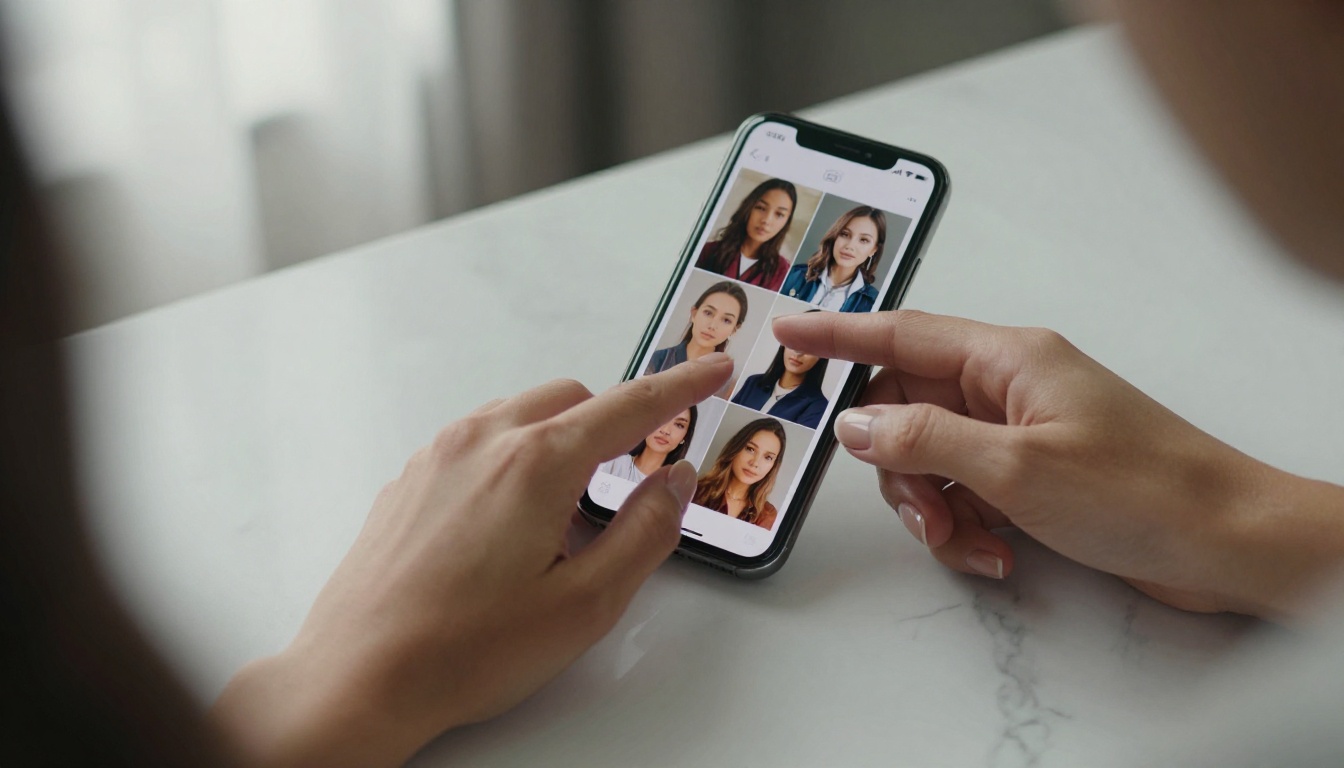
Built for Back-and-Forth Editing
Most image generators treat every prompt as a fresh start. You get a result, notice something wrong, rewrite the full prompt, and hope the next version does not break the parts that were already right. Nano Banana 2 works differently. You generate an image, then type something like "make the background darker and add subtle fog" and only that part changes. The subject, lighting, composition, and everything else you wanted to keep stays intact.
This conversational editing loop is the model's defining strength. For anyone producing images professionally, it removes the biggest friction point in AI workflows: the full prompt rewrite cycle that kills momentum and wastes time.
14 Reference Images at Once
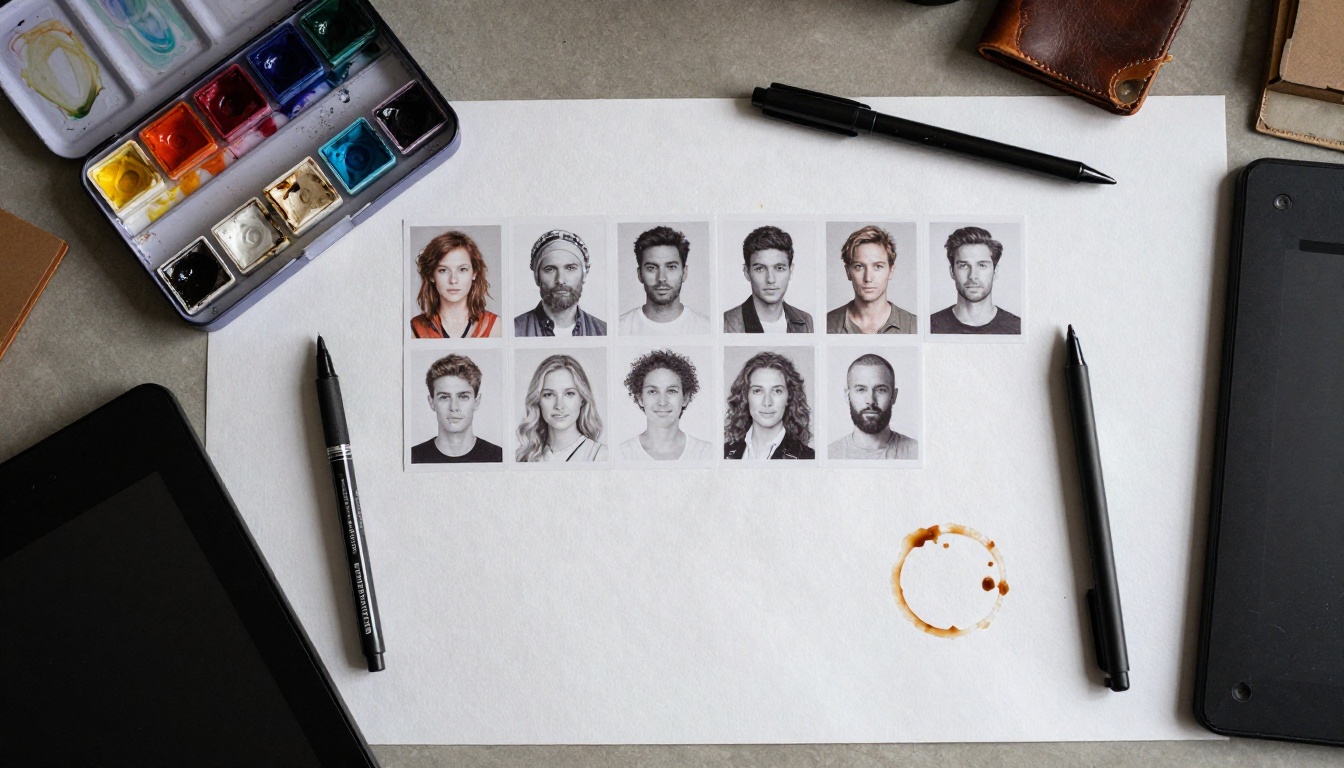
The other standout feature is multi-image input. Nano Banana 2 accepts up to 14 reference images in a single generation request. This is not just a number. In practice, you can:
- Pull a color palette from one photo
- Match a character's face and outfit from a second
- Copy the lighting setup from a third
- Borrow a scene composition from a fourth
- Blend a texture or material from a fifth
That kind of reference stacking used to require complex ControlNet workflows, careful masking, or manual compositing in Photoshop. Here it is a single prompt with uploaded references.
Why It Beats Traditional Editing for Quick Tasks
Traditional image editing tools are precise but slow. You need layers, masks, adjustment sliders, and real time investment to get results. Nano Banana 2 is naturally imprecise at the pixel level, but it is fast, and for a large category of everyday creative tasks, fast wins.
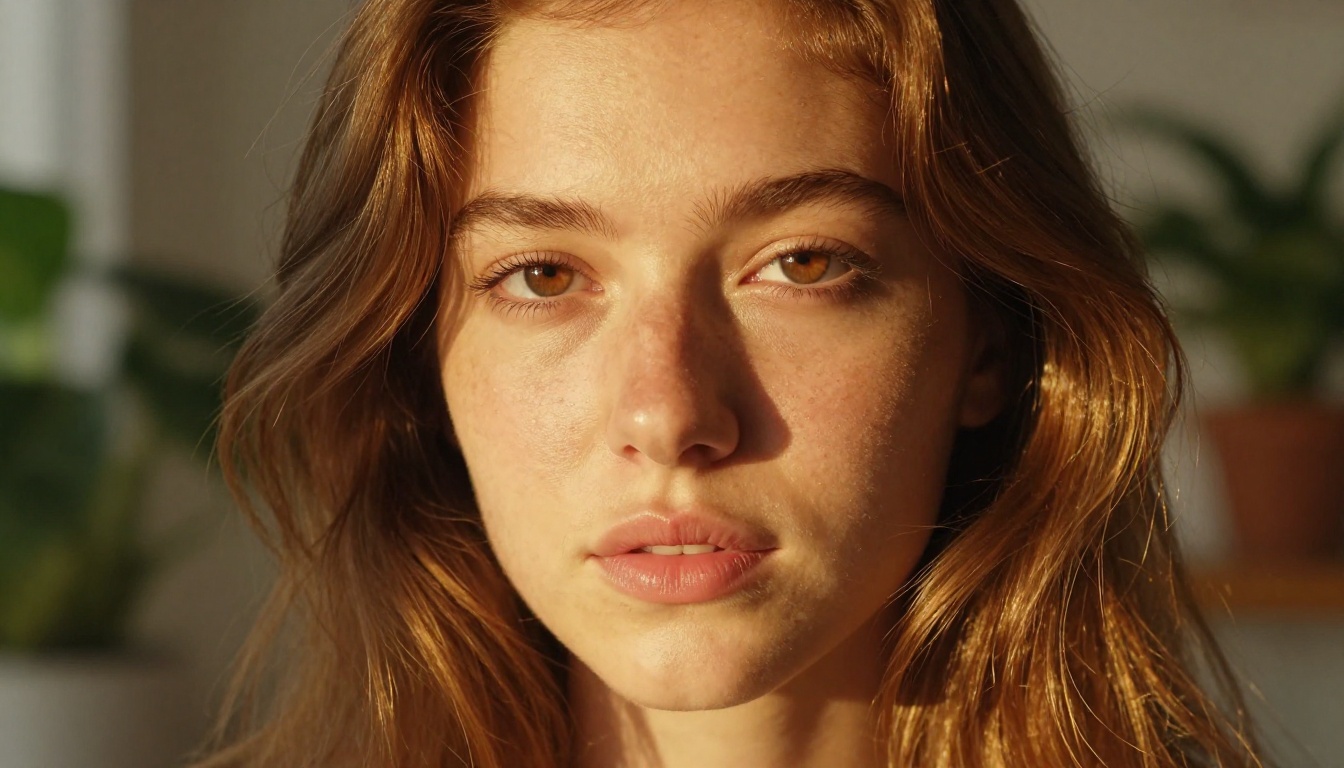
💡 When to use Nano Banana 2 vs traditional editing: If the task is "adjust this image to match this reference" or "generate 30 variations of this concept," Nano Banana 2 is faster by an order of magnitude. If the task is "remove this specific object at pixel level," traditional tools are still more precise.
No Prompt Rewrites From Scratch
The practical gain from conversational editing is time. A typical AI image iteration cycle without it looks like this:
- Write a detailed prompt
- Generate the image
- Get a result that is 80% right
- Rewrite the entire prompt attempting to fix the 20% that is wrong
- Lose the 80% that was right in the process
- Start over
With Nano Banana 2, step 4 becomes a follow-up instruction describing only what needs to change. The 80% you already had stays intact. That is a meaningful workflow improvement with real time savings across a full day of production work.
Web Grounding Changes Everything
The real-time web and image search grounding feature is the most underrated part of this model. You can prompt it to generate images grounded in current events, trending visual styles, seasonal aesthetics, or specific geographic settings without manually describing every nuance of what "current" looks like.
Ask for "a product image in the style of current minimalist beauty editorial photography" and the model pulls live search context to inform the output. For content teams producing trend-relevant visuals at volume, this is a genuinely practical capability rather than a feature-sheet checkbox.
Real Use Cases That Actually Work
These are not hypothetical scenarios. They are the specific tasks where Nano Banana 2 performs well in actual production workflows.
Product Shots in Any Setting
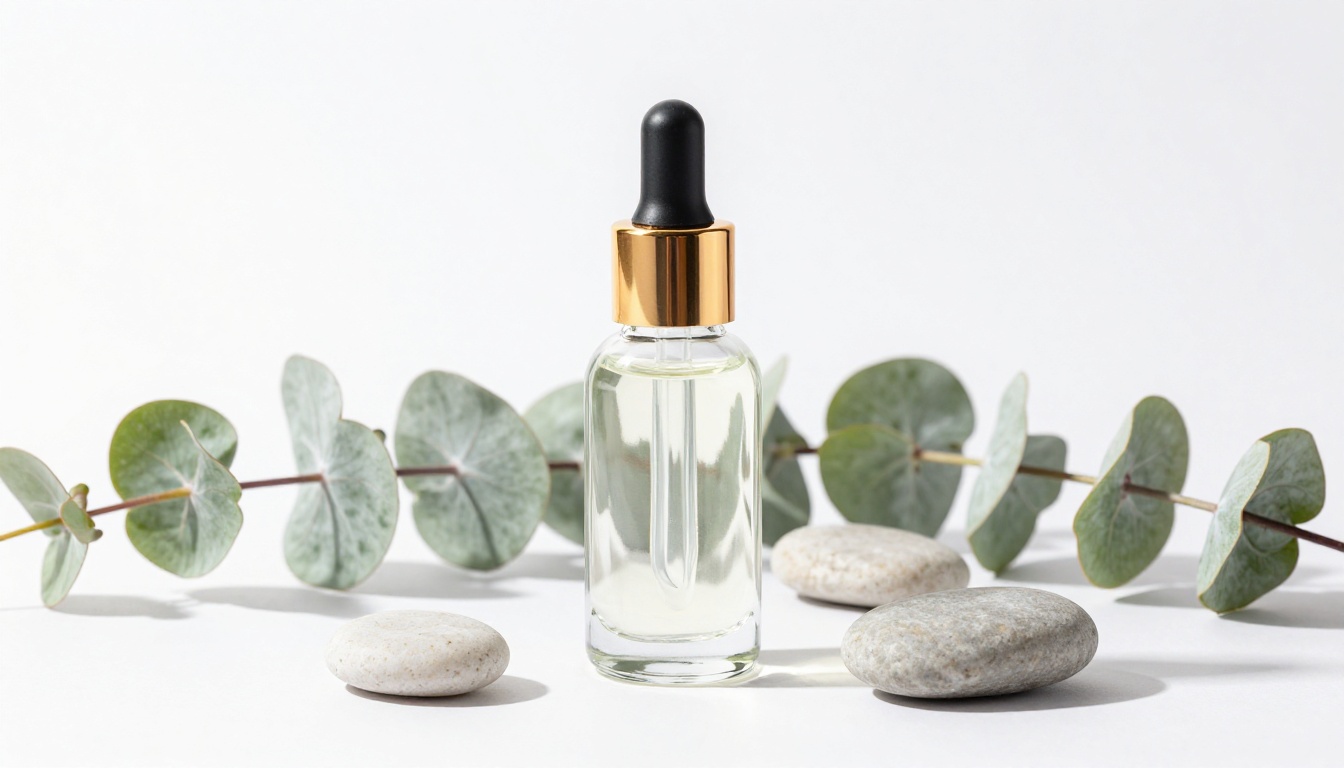
E-commerce and marketing teams regularly need the same product in multiple settings: outdoor lifestyle, clean studio, seasonal holiday, editorial fashion. With Nano Banana 2, you upload a product reference image, describe the target setting, and use conversational edits to adjust lighting, season, or background without losing the product's appearance between iterations.
The output resolution goes up to 4K, which is print-ready for most commercial formats and large-format display advertising.
Keeping Characters Consistent
Maintaining the same character's appearance across multiple generated scenes is one of the hardest challenges in AI image generation. Feed Nano Banana 2 a clear reference image and it maintains face structure, build, outfit details, and hair style across different generated scenes. This is directly useful for:
- Brand mascots across multiple social media formats
- Sequential story illustration projects
- Campaign characters across ad size variants
- Recurring visual personas for content series
Ad Concept Testing at Scale
Ad teams often need 30 to 50 variations of a single concept to test headlines, background settings, color treatments, and model types before committing to a direction. Because Nano Banana 2 has no per-generation credit costs or usage quotas on PicassoIA, you can run as many iterations as the brief requires. The conversational editing loop keeps the process fast enough to generate, evaluate, and refine within a normal working session.
How to Use Nano Banana 2 on PicassoIA
Nano Banana 2 is available directly on PicassoIA with no account credits required. The full workflow runs as follows.
Step 1: Open the Model
Navigate to the Nano Banana 2 page on PicassoIA. The interface shows the prompt field, reference image upload slots, aspect ratio selector, and resolution picker on a single screen. No buried settings menus to configure before you can start.
Step 2: Write Your First Prompt
Write a clear, specific prompt describing what you want to generate. Be direct about the subject, setting, lighting, and output type. Nano Banana 2 responds better to specific, structured prompts than to vague ones.
Effective prompt structure: [Subject description] + [Setting/environment] + [Lighting or mood] + [Style or output format]
Example: "A glass skincare serum bottle centered on a white marble surface with eucalyptus sprigs, soft directional light from the right, commercial product photography style, 4K resolution"
Step 3: Add Reference Images
Use the image input slots to upload reference photos. You can add up to 14. They do not all need to be the same type. Mixing a color reference, a composition reference, and a character reference in one generation is a valid and effective approach.
💡 Tip: Assign each reference a clear role in your prompt text. Tell the model what to take from each one. Vague uploads produce vague blends.
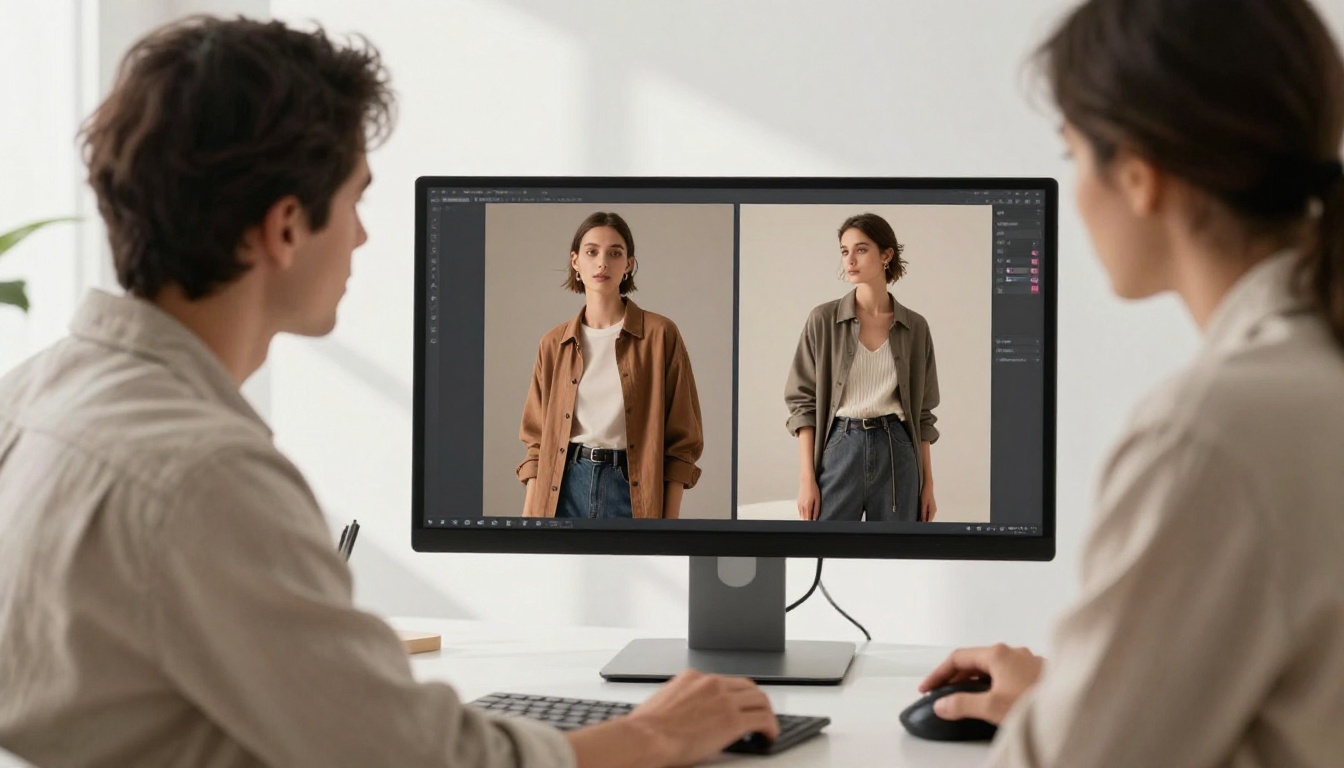
Step 4: Use Conversational Edits
After the first generation, do not start over if something is off. Type a follow-up instruction describing only what you want to change:
- "Make the background slightly warmer and add soft bokeh"
- "Increase shadow contrast and shift the color grade to cooler tones"
- "Change the product bottle to amber glass and keep everything else"
- "Add a second eucalyptus sprig to the left side of the composition"
Each instruction builds on the previous result. You are editing, not regenerating from zero.
Step 5: Set Resolution and Export
Choose 1K, 2K, or 4K before your final generation. Use 1K for concept iteration where speed matters, 2K for digital publishing and web use, and 4K for print or high-resolution display contexts.
Select your aspect ratio from 15 presets. Then export as JPG or PNG directly from the result screen.
Output Quality and Resolution
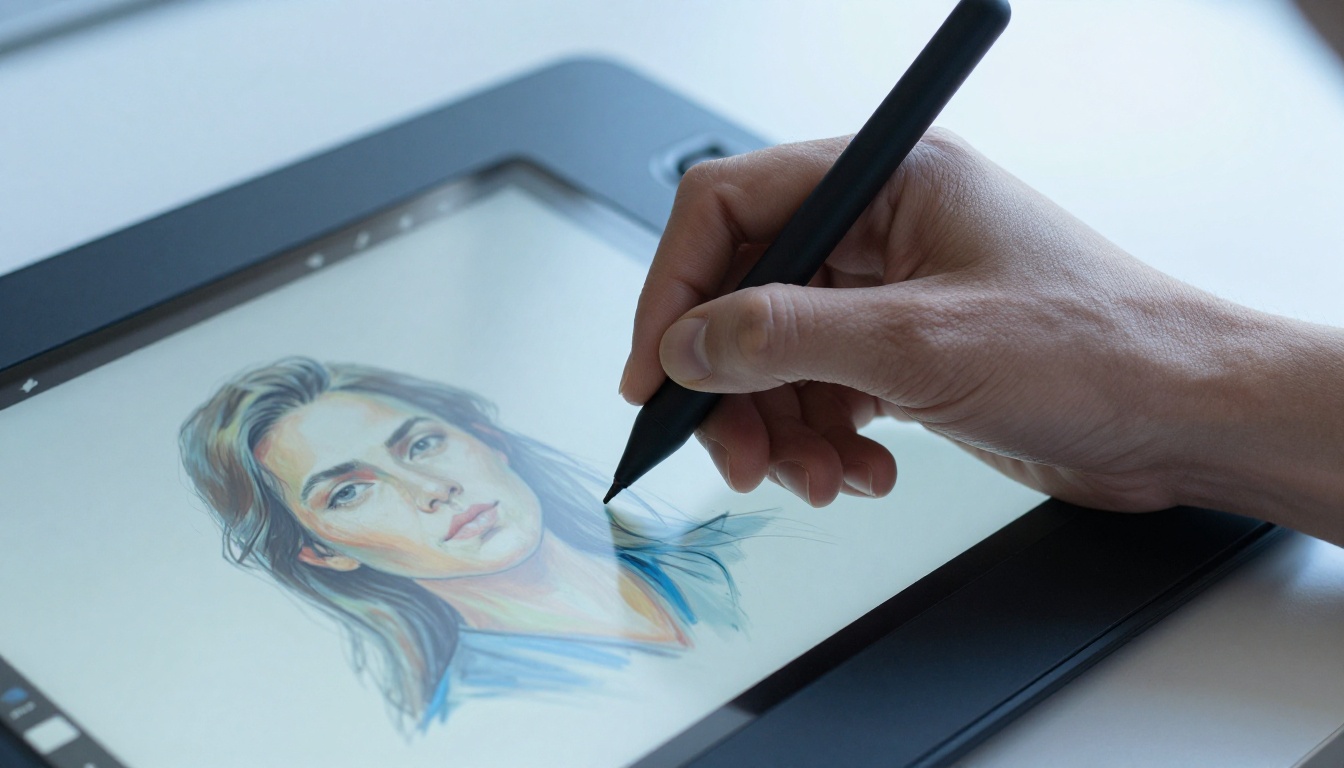
When to Use 1K vs 4K
Higher resolution requires more generation time. Here is a practical breakdown by use case:
| Resolution | Best For | Approximate Time |
|---|
| 1K | Concept iteration, quick previews, internal reviews | ~20 seconds |
| 2K | Social media posts, web banners, email campaigns | ~25 seconds |
| 4K | Print materials, presentations, large-format display | ~35 seconds |
The practical approach is to do all iterative editing at 1K to move quickly, then switch to 4K only for the final approved version before export.
Aspect Ratios That Cover Every Format
Nano Banana 2 supports 15 ratio presets covering every major publishing format:
- 9:16 for Reels, TikTok, Stories
- 16:9 for YouTube thumbnails, presentations, website headers
- 4:5 for Instagram feed posts
- 1:1 for square social posts and profile imagery
- 3:2 for standard photography prints
- 21:9 for ultrawide cinematic crops and banner advertising
The match_input_image preset automatically inherits the aspect ratio of your first uploaded reference, which is particularly useful when editing existing photos rather than generating from scratch.
Nano Banana 2 is a generation model. Once you have an output you are satisfied with, other tools on PicassoIA extend what you can do with it in post-processing.
A clean commercial workflow: generate in Nano Banana 2, upscale with Clarity Pro Upscaler, and remove the background with Remove Background. Three tools, no Photoshop, no subscription software required.
Tips That Actually Save Time
How to Write Better Follow-Up Prompts
The conversational editing feature produces results proportional to the quality of the instructions you give it. Vague follow-ups produce vague changes. Specific instructions produce targeted, accurate edits.
Weak follow-up: "Make it better"
Strong follow-up: "Add warm golden light from the upper right, increase shadow contrast, and soften the background blur"
When writing follow-up instructions, be specific about:
- What element you want to change (background, lighting, subject, color)
- How you want it to change (direction, intensity, tone, amount)
- What should stay the same if you need to protect parts of the existing result
The more precise the instruction, the more surgical the edit.
Blending Multiple References Effectively
When using multiple reference images, assign each one an explicit role inside your prompt text. Do not just upload them and assume the model will figure out how to balance them.
Effective reference prompt: "Use the warm color palette from the first image, the outdoor composition from the second, and the subject's face from the third. Setting: open rooftop at golden hour, soft warm backlight."
Explicit role assignment for each reference produces predictable, controlled blends. Implicit uploads with a vague prompt produce inconsistent results.

💡 Reference image quality matters: Low-resolution or heavily cropped reference images reduce output quality noticeably. Use clear, well-lit references at the highest resolution available. A blurry face reference produces a blurry character output.
The Range of Output It Covers
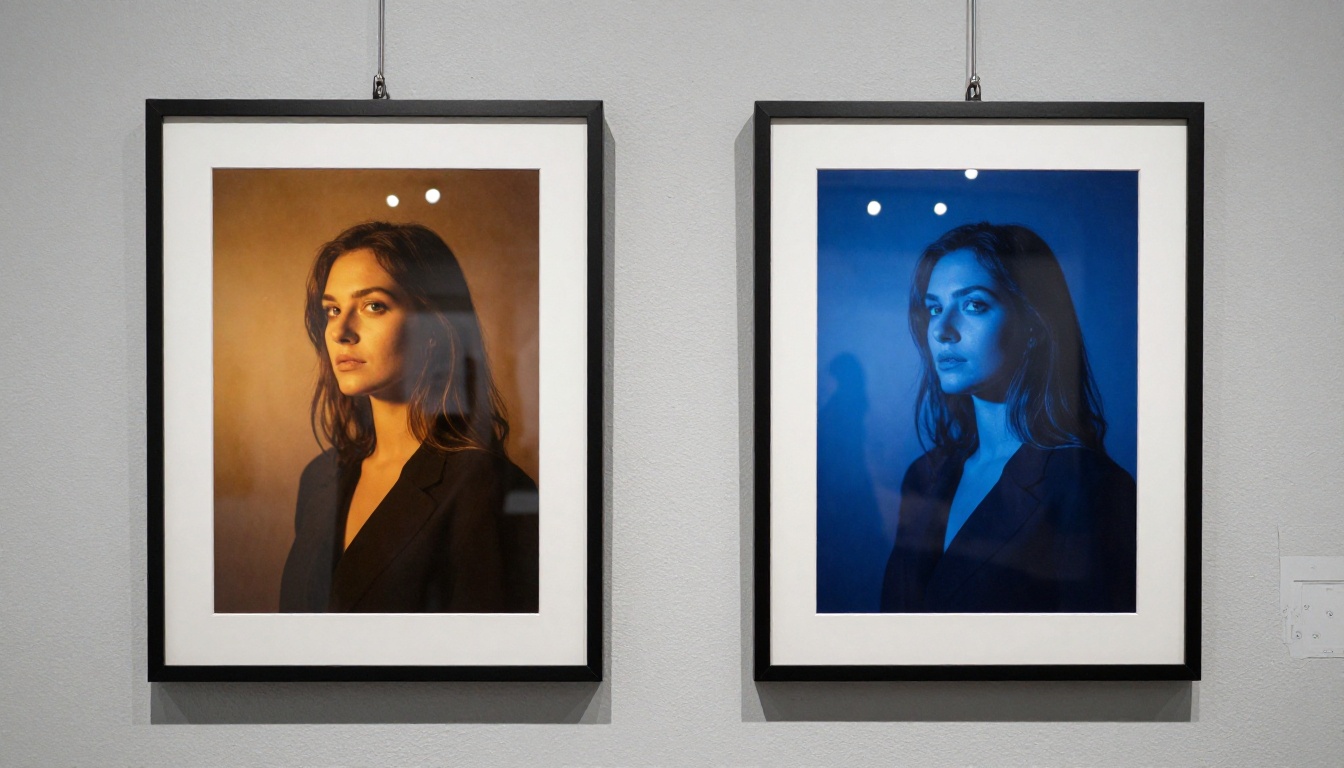
Nano Banana 2 handles a wider range of output types than most text-to-image models. Within a single working session you can produce:
- Photorealistic portraits for marketing campaigns
- Clean minimalist product shots for e-commerce
- Illustrated comic strip panels with character dialogue
- Logo concepts with specified typography
- Scientific or educational infographics with labeled diagrams
- Anime character design sheets
- Cinematic landscape compositions
The quality across these output types remains consistently high, which is unusual. Most models are optimized for one visual style and degrade when pushed outside it. The practical result is that Nano Banana 2 can replace multiple specialized generation tools in a single content production pipeline, without requiring you to switch platforms or learn new interfaces for each output type.
Start Creating With Nano Banana 2
If your everyday image editing work involves generating product photos, building campaign concepts, producing visual assets at scale, or iterating on creative ideas quickly, Nano Banana 2 fits that workflow directly. The conversational editing loop and multi-image reference input make it faster to produce polished results than any other text-to-image model currently available on PicassoIA.
Open the model, write your first prompt, and pay attention to what one follow-up instruction does to the result. That first successful edit is usually when the approach makes practical sense. From there, the workflow builds quickly.
For images that need upscaling after generation, Clarity Pro Upscaler and Image Upscale by Topaz are both on PicassoIA and work directly with exported outputs. The complete workflow, from first prompt to print-ready image, runs on the platform without switching tools or managing external software.


