What Are Negative Prompts and When to Use Them in AI Image Generation
Negative prompts are one of the most powerful yet overlooked tools in AI image generation. They tell the model exactly what to avoid, helping you remove bad anatomy, watermarks, unwanted styles, and visual noise from your outputs. This article breaks down exactly when and how to use them for sharper, cleaner, more controlled results across different AI models.
You spend an hour writing the perfect prompt. The image comes back with six fingers, a watermark stamped across the face, and a background that looks like a fever dream. Sound familiar? That is what negative prompts are for: they do not add anything to your image, they subtract exactly what you do not want. Used correctly, they are the fastest way to go from a frustrating output to something genuinely usable.
This article covers what negative prompts are technically, when using them actually makes a difference, and when they will not help at all. You will also find ready-to-use templates for common scenarios and a step-by-step walkthrough for using them on models available right now.
What a Negative Prompt Actually Does
A negative prompt is a second text input that tells an AI image model which visual concepts to push away from the final output. Instead of describing what to include, you are describing what to avoid.
The mechanics behind this are tied to a process called classifier-free guidance (CFG), which is the same system responsible for how closely the model follows your positive prompt. During generation, the model runs two passes: one guided by your prompt and one that is essentially unguided. The CFG scale controls how strongly it pulls the final result toward the guided version. Negative prompts work by adding a third direction, a vector the output is pulled away from.
💡 The higher your CFG scale, the more aggressively negative prompts are applied. A CFG of 12+ with a long negative prompt can over-constrain the model and produce flat, washed-out results. Stay between 6 and 10 for most use cases.
The model does not read negatives literally
One of the most common misconceptions is that writing no blurry background will prevent a blurry background. The model does not parse negation in plain English. Writing "no extra fingers" in your positive prompt is largely ignored. The negative prompt field is the only place where the model actually learns to suppress a concept through the CFG mechanism.
This is why separating your inputs into a dedicated negative prompt field matters, not just a grammatical choice, but a functional one.
How guidance scale changes everything
The CFG scale slider controls both how strongly your positive prompt is followed and how hard the model pushes against your negative concepts. Here is what happens at different settings:
CFG Scale
Effect on Negative Prompts
3 to 5
Negative prompts have minimal effect; output is loose and creative
Strong suppression. Risk of over-constraining anatomy and color
13+
Very rigid. Artifacts and distortions often appear
For most portrait and product work, CFG 7 to 7.5 is the reliable sweet spot.
When You Actually Need One
Not every generation needs a negative prompt. A fast-draft landscape or a quick concept sketch often generates fine without one. The situations below are where they make a measurable, visible difference.
Bad anatomy and extra limbs
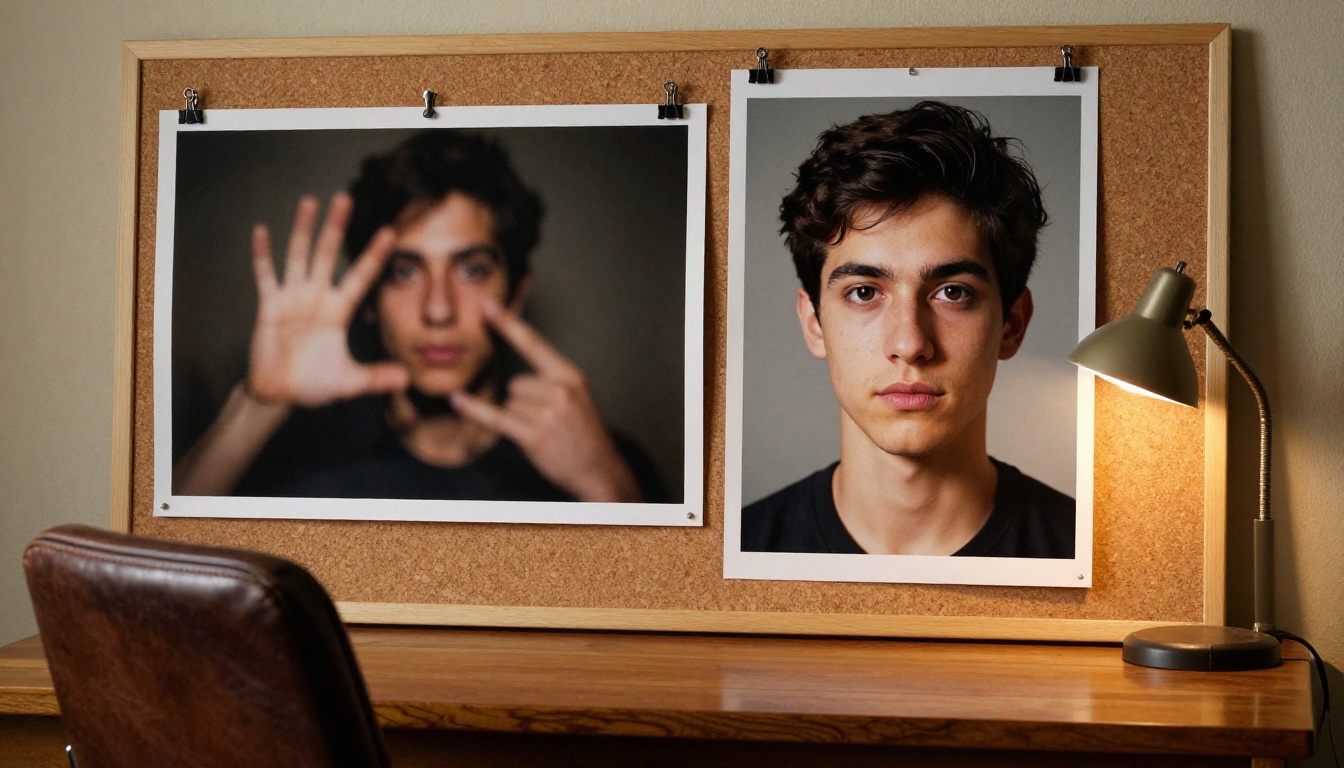
This is the most universal use case. Diffusion models trained on internet image data frequently produce hands with extra fingers, faces with asymmetrical features, and arms that bend at impossible angles. Adding the following to your negative prompt immediately reduces the frequency of these artifacts:
deformed, bad anatomy, extra limbs, extra fingers, mutated hands, poorly drawn hands, malformed limbs, fused fingers, cloned face
This works because the model has seen images labeled with these descriptors. By placing them in the negative, you are shifting the generation away from images associated with those labels.
Watermarks and text artifacts
Models trained on scraped internet data carry a latent tendency to reproduce watermarks, site logos, and random text. If your output contains white text in a corner or a faded watermark across the image, add:
watermark, text, logo, signature, brand, copyright, blurry text, letters, words
For portrait photography specifically, adding username and artist name can clean up some of the more persistent text contamination.
Style contamination
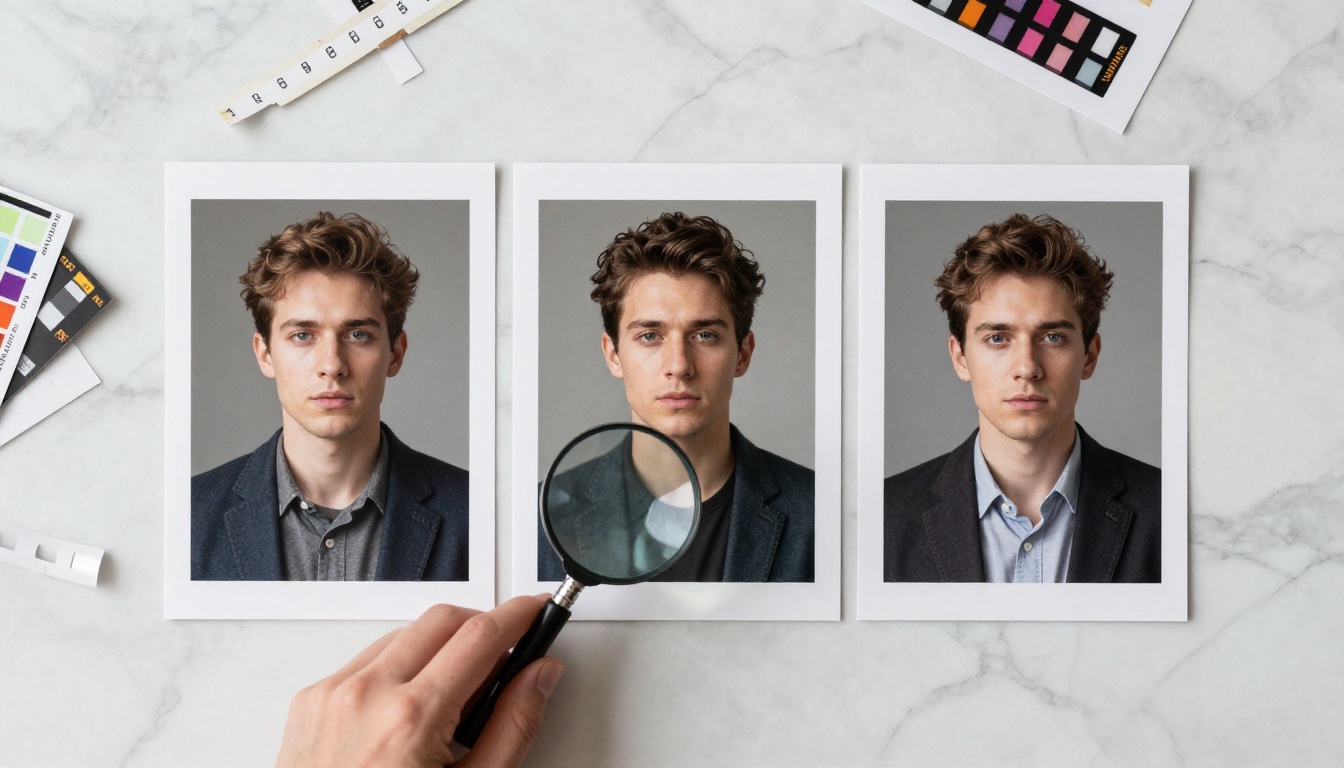
You ask for a photorealistic portrait and get something that looks like a digital painting or an anime character. This happens when the model's training data for your subject matter is dominated by a specific artistic style. Negative prompts can redirect it:
illustration, painting, drawing, cartoon, anime, manga, sketch, 3d render, cgi, digital art, concept art, cel shading
💡 When shooting for photorealism, always pair style negatives with quality modifiers in your positive prompt. Something like: "photorealistic, RAW photograph, 8k, shot on Canon EOS R5, 85mm lens" in positive plus the style exclusions in negative.
Background clutter
AI models love to fill empty space with visual noise: random objects, unnatural textures, or environments that do not match the subject. If you want a clean result:
There is a widely used block of quality-suppressing terms that has become almost universal across the stable diffusion community:
ugly, worst quality, low quality, normal quality, lowres, bad quality, jpeg artifacts, compression artifacts, blurry, oversaturated, overexposed, underexposed
These work because the model has seen images with these tags and learned their visual characteristics. Negating them pushes the sampling toward higher-quality regions of the latent space.
Copy-Paste Negative Prompt Templates
Here are production-ready templates for the three most common generation categories. Drop them in as-is, then customize.
For portrait photography
ugly, deformed, bad anatomy, extra limbs, extra fingers, fused fingers, mutated hands, poorly drawn hands, poorly drawn face, mutation, deformed, blurry, bad proportions, missing arms, missing legs, long neck, watermark, signature, text, logo, jpeg artifacts, low quality, worst quality, overexposed, underexposed, illustration, painting, 3d render, cgi, cartoon, anime
💡 Save your best negative prompt templates somewhere you can paste them quickly. Rebuilding them from scratch every session wastes time that could go toward iterating on your positive prompt.
How to Use Stable Diffusion on PicassoIA
Stable Diffusion on PicassoIA is one of the most direct implementations of negative prompts available. The model exposes the negative prompt field natively, with full CFG scale and scheduler control.
Step 1: Open the model
Go to the Stable Diffusion page and open the generation interface.
Step 2: Write your positive prompt
Fill in the main prompt field with your subject and style description. Be specific: describe the lighting, the angle, and the mood.
Step 3: Add your negative prompt
In the Negative Prompt field, paste your template. Start with the anatomy and quality base, then add anything specific to your scene.
Step 4: Set your CFG scale
Start at 7.5. This is the model's default and handles most use cases well. If the negative prompts feel too aggressive or the output looks flat, drop to 6. If watermarks or anatomy issues persist, try 8 to 9.
Step 5: Choose your scheduler
DPMSolverMultistep is the default and produces sharp results in 30 to 50 steps. K_EULER_ANCESTRAL adds slightly more variance, which can help if your outputs look too uniform.
Step 6: Set inference steps
Use 30 to 50 steps for final outputs. Fewer steps mean faster generation but less detail, particularly in faces and hands.
Step 7: Generate and iterate
Run the first generation. If anatomy or quality issues remain, extend your negative prompt with more specific terms for what went wrong. Negative prompts are iterative: the first version is rarely the final one.
PicassoIA runs Stable Diffusion with no generation limits, so you can iterate as many times as needed without watching a credit counter.
How Dreamshaper XL Turbo Handles Negative Prompts
Dreamshaper XL Turbo runs at SDXL resolution (1024x1024) with a fast inference pipeline, typically producing a result in as few as 6 denoising steps. The shorter step count changes how you should think about negative prompts.
Step 2: Keep the guidance scale low
Dreamshaper XL Turbo is calibrated for a guidance scale of 2. At this scale, negative prompts have a lighter touch than they would at CFG 7. This is intentional: the turbo architecture generates quality results with minimal guidance. Do not raise CFG to 7 or 8, as it will produce artifacts with this model.
Step 3: Use a focused negative prompt
Because the CFG is lower, only use the most critical negative terms. A compact version works better here than a 200-word list:
ugly, deformed, noisy, blurry, low contrast, text, watermark, 3d render, cgi, bad anatomy
Step 4: Run 6 to 8 inference steps
This model produces solid quality in 6 steps. For portrait work, 7 to 8 steps adds refinement to facial detail without significantly increasing generation time.
Step 5: Iterate on style
Dreamshaper handles photorealistic, anime, and painted styles within the same model. If your output drifts into an unintended style, add that style to your negative prompt and re-run.
What Works With Flux Schnell (And What Does Not)
Flux Schnell is architecturally different from Stable Diffusion and Dreamshaper. It uses a rectified flow transformer rather than a UNet backbone, and it does not implement classifier-free guidance in the same way.
The practical implication: Flux Schnell does not have a negative prompt field. The model is designed to interpret positive prompts only, and its training optimizes away from low-quality outputs by default. This means:
You cannot exclude bad anatomy with a negative prompt field, because none exists
Quality is controlled by how precisely you write the positive prompt
Specificity in the positive prompt carries all the weight
For Flux Schnell, use these positive prompt strategies instead:
Instead of a Negative
Use in Positive Prompt
bad anatomy excluded
anatomically correct, precise anatomy
blurry excluded
sharp focus, tack sharp, crisp detail
watermark excluded
Flux avoids these by default
cartoon excluded
photorealistic, photographic, RAW
💡 Flux Schnell is the right choice when you need speed and clean output from a short, precise positive prompt. Stable Diffusion or Dreamshaper XL Turbo are the right choice when you need fine-grained exclusion control through a dedicated negative prompt field.
Balancing Positive and Negative
The most common error is treating the negative prompt as the solution to a problem that actually lives in the positive prompt. If your image looks bad, the issue is often that the positive prompt is vague, not that the negative prompt is short.
The ratio that works:
Spend 80% of your prompt effort on the positive description. Spend 20% on the negative. A vivid, specific positive prompt with a short, focused negative will almost always outperform a vague positive with a 300-word negative.
Do not negate what you did not ask for
If you did not ask for a forest in your prompt, you do not need no trees in the negative. Adding terms for things the model was never going to generate wastes budget that could go toward suppressing actual problems. Every term in your negative prompt competes for the model's attention.
Prompt weighting and attention
Some models and interfaces support attention weighting using parentheses. The format (bad anatomy:1.5) increases the suppression weight on a specific concept. Use this sparingly. Over-weighting suppression on core anatomical terms can cause the model to produce distorted anatomy in a different form rather than fixing it.
3 Common Mistakes
1. Writing negatives in plain English inside the positive prompt
"A portrait without bad anatomy" does not work. The model treats all text in the positive prompt as something to include. Negation in grammar is not the same as negation in latent space. Use the dedicated negative prompt field.
2. Using the same negative prompt for every model
A negative prompt calibrated for Stable Diffusion at CFG 7.5 will behave differently in Dreamshaper XL Turbo at CFG 2. Always scale the length and specificity of your negative prompt to the model's guidance scale.
3. Adding negatives without re-running multiple seeds
A negative prompt that seems to have no effect might actually be working, but the specific seed you are on is stubborn. Run 3 to 5 different seeds with the same prompts before concluding that a negative term is ineffective.
Precision Is the Skill
The models that support negative prompts are not magic filters. They are tools that respond to precision. The more clearly you define both what you want and what you do not want, the more reliably you get outputs that match your intent.
The models covered here are available right now on PicassoIA, with no generation limits or credit caps:
Stable Diffusion: Full CFG control, six schedulers, and a native negative prompt field. The baseline for seeing how negative prompts actually work.
Dreamshaper XL Turbo: SDXL resolution with fast turbo inference. Best for multi-style work where you want quality results fast.
Flux Schnell: No negative prompts, but exceptionally clean outputs from well-written positive prompts. Use when speed matters most.
Open any of these models, paste in one of the templates from this article, and run your first test. Adjust one variable at a time, either the negative terms or the CFG scale, and observe what changes. That feedback loop is where real prompt skill comes from.