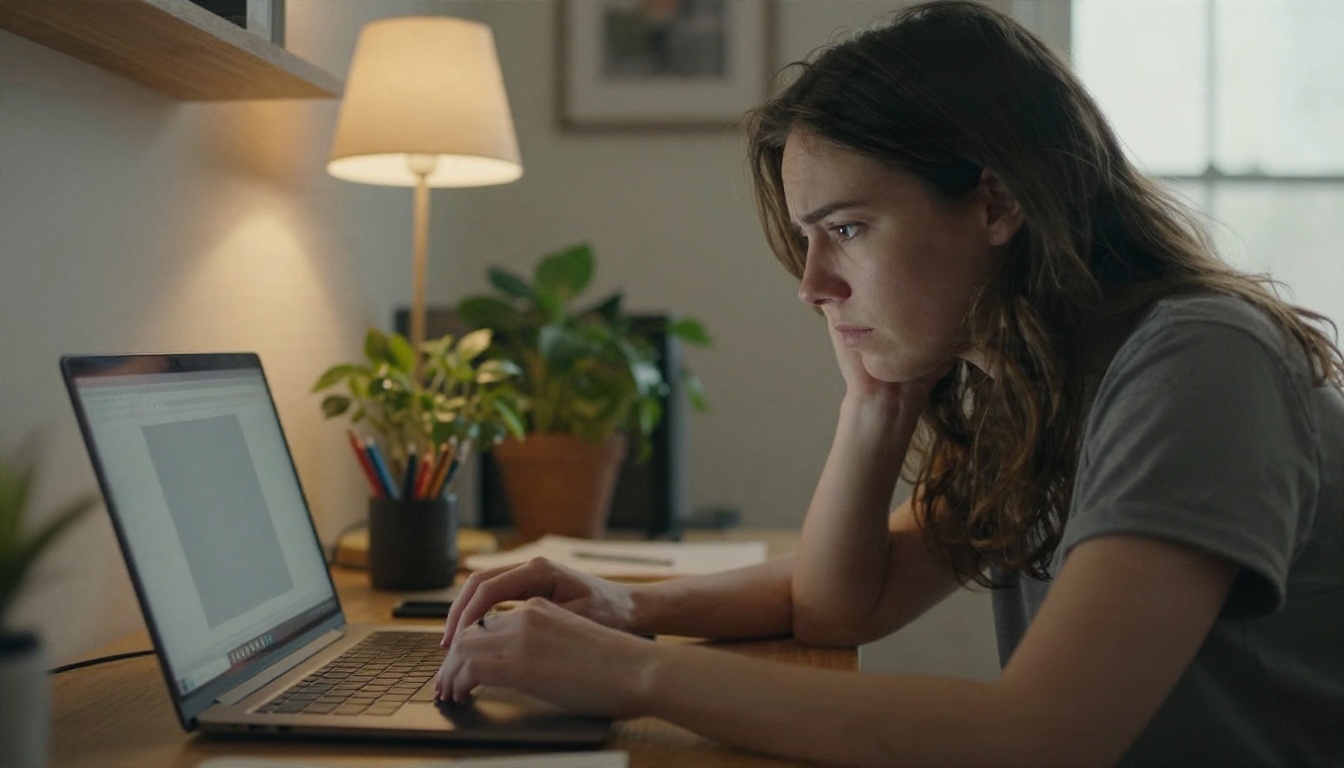
You type a simple prompt for a woman in a white bikini on a beach, press generate, and get a gray blurred tile with a warning icon. Ten minutes later, the same tool lets an oddly framed image through that should have been flagged. If your NSFW AI art filter is not working, you are not imagining it, and you are definitely not alone. These filters are blunt instruments, and they fail in both directions.
This article explains what is happening behind that blur, why harmless photos get flagged, which fixes are worth your time, and which free alternatives let you create tasteful, non-explicit glamour images without fighting the tool every five minutes.
💡 Quick answer: most "broken" filters are working exactly as designed. They are statistical classifiers with a strict threshold, so they guess. Guesses are wrong a lot, especially around skin, swimwear and lighting.
Why Your NSFW Filter Keeps Failing
Before changing anything, it helps to know which of the two failure types you are dealing with. They have different causes and different fixes.
False Positives: Harmless Images Blocked
A false positive is a safe image that gets flagged. Typical examples include:
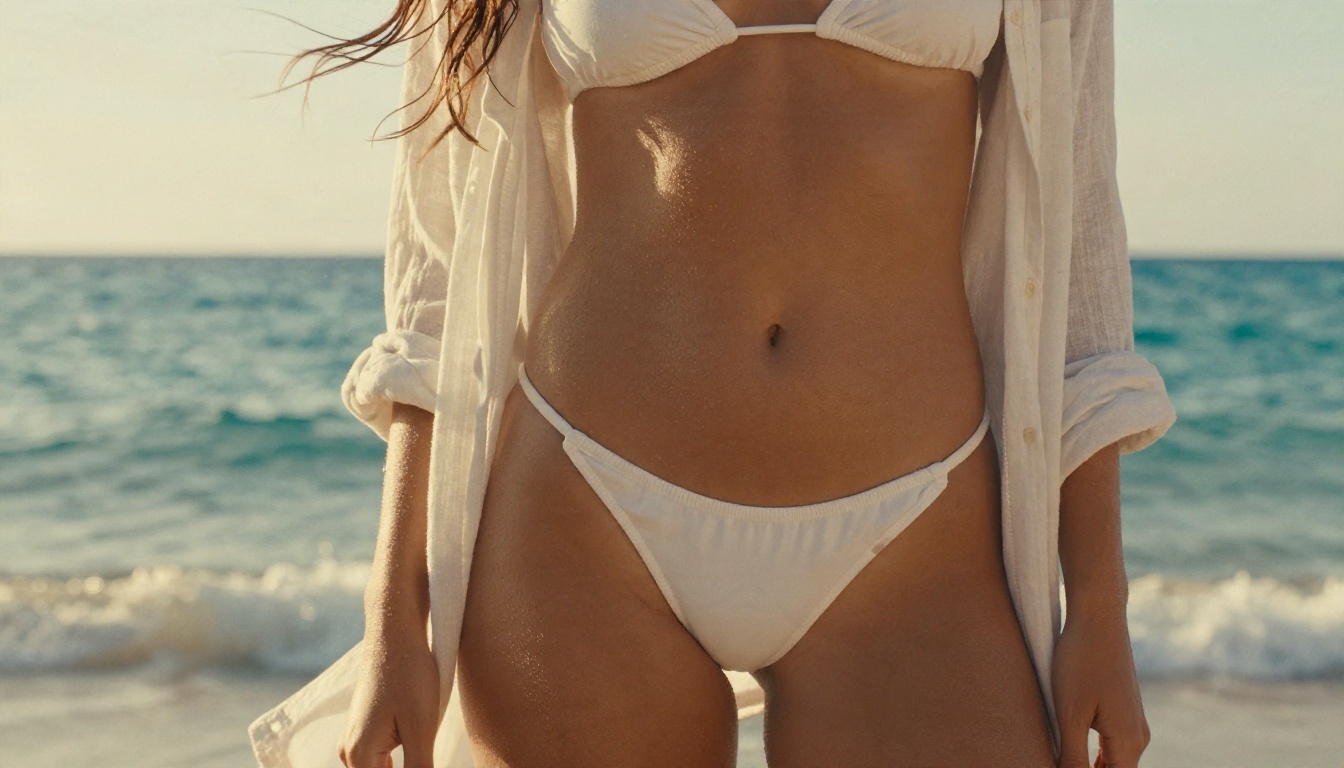
- A bikini photo on a beach flagged as adult content
- A portrait with a lot of bare shoulder and neck
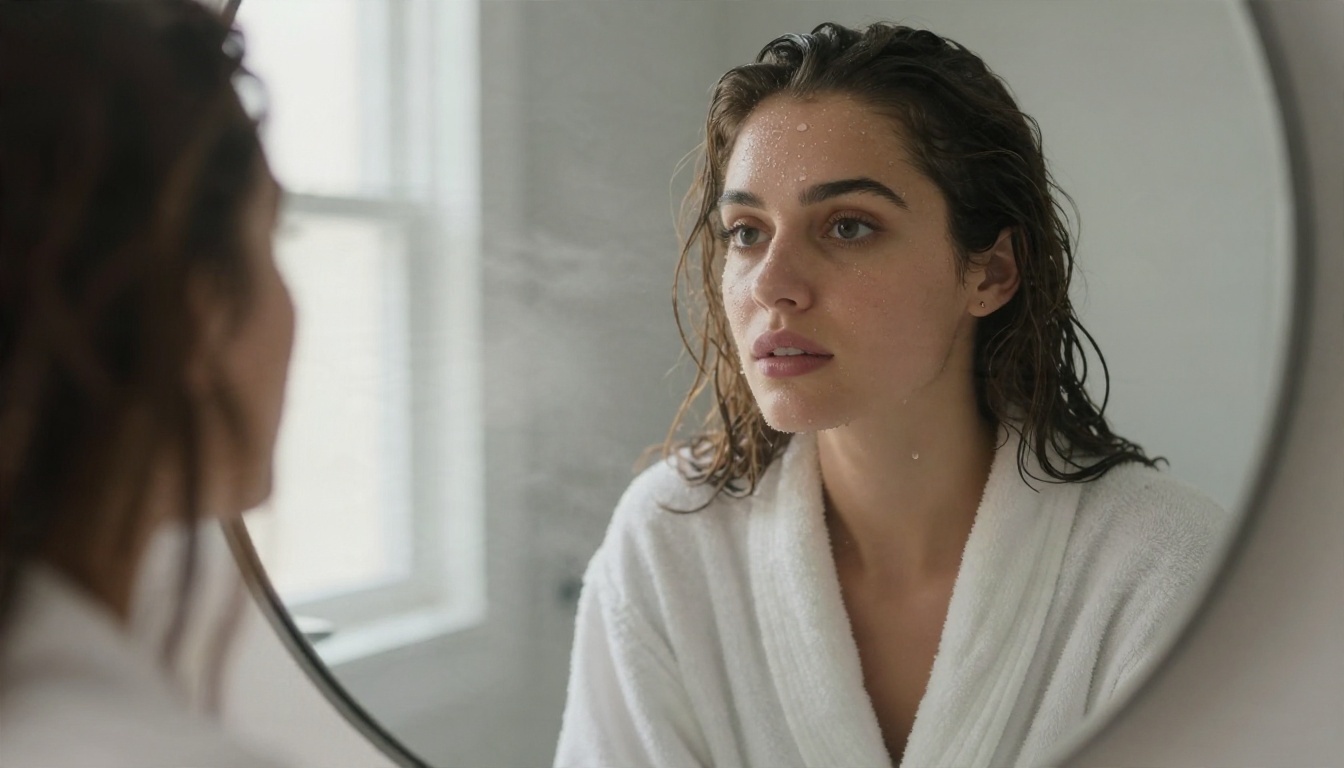
- A woman in a robe or towel at a vanity
- Warm, orange-toned lighting that makes skin fill most of the frame
- Fitness, swimwear and fashion shots with minimal fabric
This is by far the most common complaint. Platforms tune their filters to avoid anything risky, so a stricter threshold means more legitimate images get caught along with the real violations.
False Negatives: Filters That Miss Content
The opposite problem is just as real. Some images that clearly should have been flagged pass through. Classifiers are usually trained on real photographs, so their accuracy on AI-generated images is less predictable. Stylized lighting, unusual compositions and odd anatomy can all confuse them.
That is why a filter can feel random. It is not following rules you can read. It is estimating a probability, then comparing it to a cutoff someone chose.
How NSFW Filters Actually Work
Most AI image platforms stack several checks on top of each other. Knowing the order of operations makes the behavior far less mysterious.

Prompt Checks Before Generation
The first layer reads your text. It looks for flagged words, risky phrases and combinations that suggest explicit output. Some systems use a simple keyword list. Others use a language model that scores the overall intent of your request.
If your prompt is blocked here, you often get an instant refusal with no image at all. That is a prompt problem, not an image problem.
Image Classifiers After Generation
The second layer inspects the finished picture. A classifier, usually a neural network, looks at pixels and outputs a score for categories such as nudity, suggestive content or violence. If the score passes a cutoff, the image is blurred, replaced or deleted.
Important detail: this check only sees the final output. It does not know what you meant, what your prompt said, or that the scene was a family beach holiday. It only sees how much skin, in what pose, under what light.
Layered Systems and Thresholds
Many platforms combine prompt filters, image classifiers, account-level rules and sometimes human review. Every layer can produce its own false positives and false negatives, and the combined result is a stack of small errors.
| Layer | What it checks | Typical failure |
|---|
| Prompt filter | Words and phrases in your text | Blocks innocent words used in a normal context |
| Image classifier | Pixels of the finished image | Flags skin tones, swimwear, warm light |
| Threshold setting | How strict the cutoff is | Stricter means more false positives |
| Account rules | Region, age checks, plan type | Free tiers often get the strictest settings |
Why Harmless Images Get Flagged
Once you know the mechanics, the common triggers are easy to spot.
Skin Tone and Lighting Confusion
Classifiers react to large areas of skin-colored pixels. Golden hour light, warm interiors and tanned skin tones push many frames over the line, even when the subject is fully dressed. Some detection models have also been reported to be oversensitive to certain skin colors, which makes the problem uneven across different subjects.
Beach and Swimwear Photos
Swimwear sits right on the border for most filters. A beach scene is perfectly normal in real life, but the classifier sees a high ratio of exposed skin and a body-focused composition. The result is a blur on an image you would happily post on a travel account.
Vague or Loaded Prompt Wording
Words like "sexy", "nude" or "naked" raise the score before a single pixel is drawn. Even neutral phrasing can drift toward risky output when the prompt is short and leaves the model to fill in the blanks. A vague prompt gives the model more freedom, and more freedom means more chances of tripping the checker.
💡 Tip: describing wardrobe, setting and light in detail usually produces safer, more controlled results than a short prompt full of adjectives.
Quick Fixes Worth Trying
Not every blocked image needs a new platform. A few adjustments solve a surprising share of cases.
Rewrite the Prompt Descriptively
Replace loaded adjectives with concrete detail. Instead of a short, suggestive phrase, describe the outfit fabric, the room, the time of day and the camera lens. Longer prompts tend to land closer to what you want and give the classifier a more ordinary-looking image.
Weak prompt: "sexy woman in lingerie"
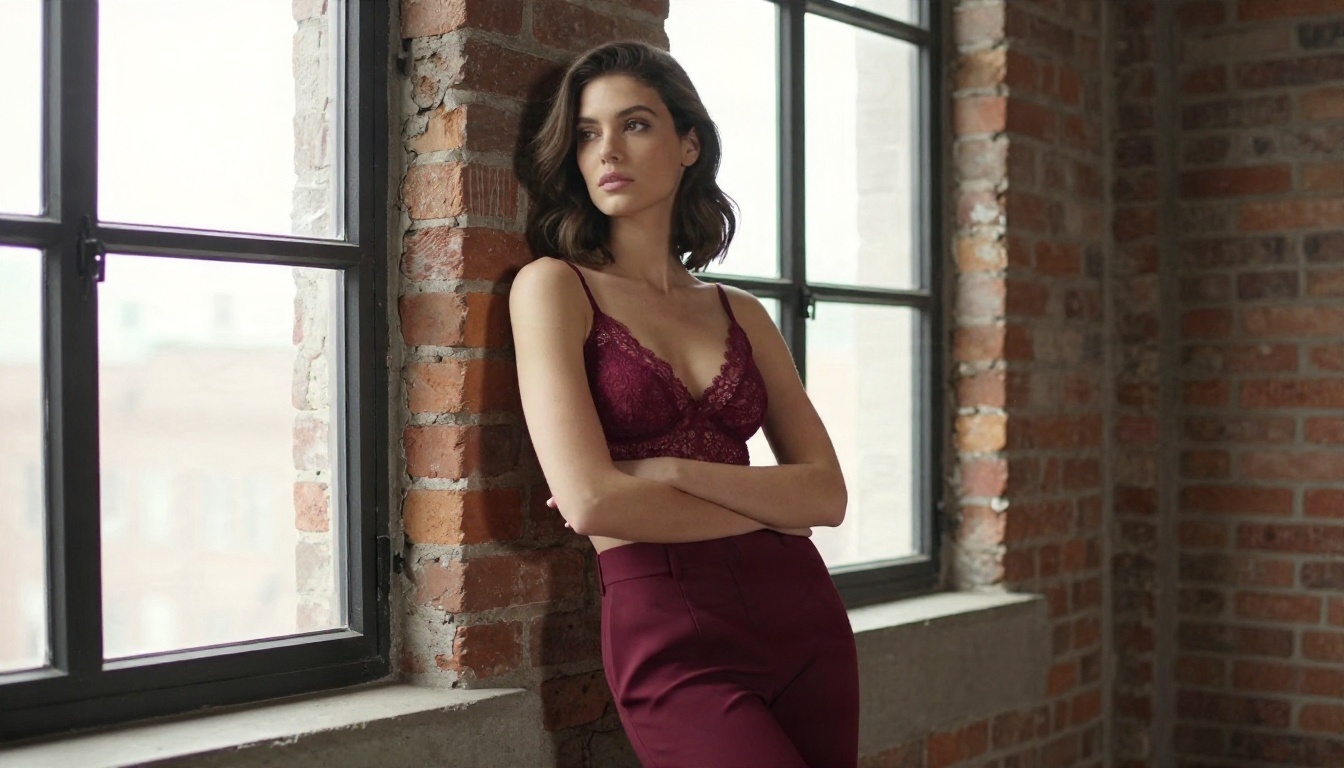
Better prompt: "editorial portrait of a woman in a burgundy lace bralette and tailored trousers, leaning against an exposed brick window, soft overcast daylight, 85mm lens, shallow depth of field, film grain"
The second version is not a trick. It is simply a better prompt, and it produces a more intentional photo.
Change Framing and Wardrobe
If one pose keeps getting blocked, adjust the composition:
- Step back to a medium or wide shot instead of a tight crop on the body
- Add layers such as an open shirt, a coat, a robe or a sarong
- Shift lighting from warm orange to neutral daylight
- Place the subject in a clear environment, so skin is not the main visual content
- Try a different angle, such as side profile or from behind
Reporting a false positive is also worth the thirty seconds on platforms that allow it. Some providers refund credits for confirmed mistakes and use reports to refine their filters.
💡 A word on bypassing: most platforms prohibit attempts to defeat their moderation in their terms of use. Skip the hacks. Choose a tool whose rules match what you actually want to create.
Free Alternatives That Work
When the filter is the bottleneck, the real fix is often a tool with a more sensible policy for non-explicit adult glamour: swimwear, lingerie fashion, boudoir style portraits and editorial photography. PicassoIA hosts a wide range of image models, and several of them handle this kind of content far better than restrictive mainstream generators.

Seedream 4.5: The First Choice
Seedream 4.5 is where I would start. It produces sharp, high-resolution photographic images with convincing skin texture, natural fabric detail and accurate lighting. For glamour, swimwear and boudoir style scenes, it follows long descriptive prompts closely and rarely blurs ordinary fashion content. That prompt fidelity matters, because the more precisely you describe a scene, the fewer surprises you get.
Image Editor Pro: Unlimited Generations
PicassoIA Image Editor Pro is built around unlimited generations, which changes the way you work. When a result is almost right, you simply run it again with a small tweak, instead of counting credits or worrying that a blocked attempt is wasted. It also edits existing photos, so you can adjust outfits, lighting and backgrounds on an image you already have.
Other Models Worth Testing
Different models have different strengths, so it pays to compare. These are all available on PicassoIA:
💡 Tip: keep a short list of two or three favorites. Running the same prompt across models is the fastest way to find which one renders skin, fabric and light the way you like.
How to Use Seedream 4.5 on PicassoIA
Here is a simple workflow that gets a strong first result.
Step by Step Setup
- Open the Seedream 4.5 page on PicassoIA.
- Write your prompt in this order: subject and pose, outfit and fabric, environment, lighting, camera and lens.
- Pick a landscape aspect ratio such as 16:9 for scenery-heavy shots, or portrait for fashion close-ups.
- Generate, then review skin, hands and fabric edges.
- Adjust one thing at a time, such as the lighting or the lens, and generate again.
- When you like a result, send it to Image Editor Pro for small edits.
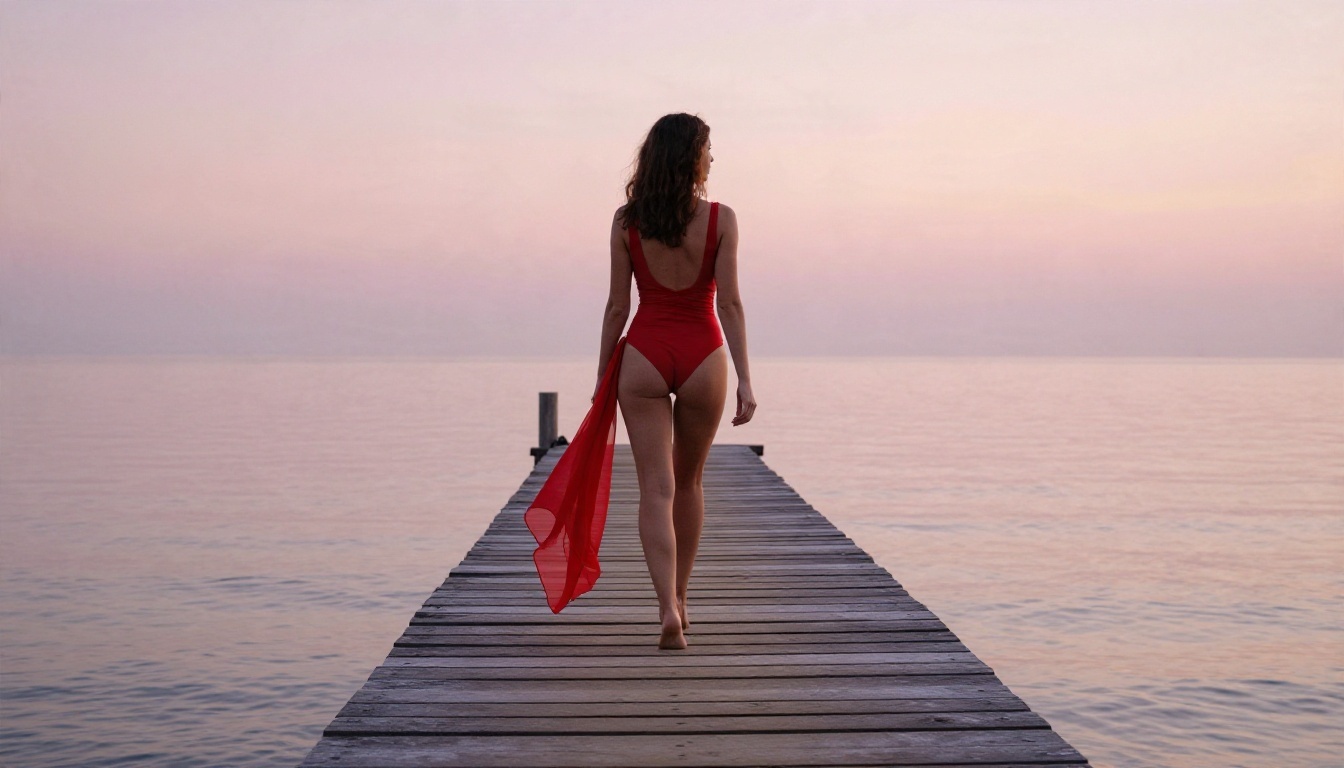
Example prompt to try: "Candid editorial photo of a woman in a red one-piece swimsuit and sheer sarong walking along a weathered wooden pier at sunrise, pink and amber sky, soft sea mist, 70mm lens, shallow depth of field, natural skin texture, fine film grain."
Parameter and Prompt Tips
- Be specific about light. Phrases like "soft overcast daylight from the right" give more believable skin than "good lighting".
- Name the lens. "85mm f/1.8" or "35mm f/2.8" nudges the model toward real photographic perspective.
- Describe fabric. Satin, lace, linen and knit all render differently, and naming them adds realism.
- Keep it tasteful and non-explicit. Suggestive, attractive and stylish works well. Explicit material does not belong in this workflow.
- Avoid contradictions. Asking for "studio flash" and "candlelight" in one prompt creates muddy lighting.
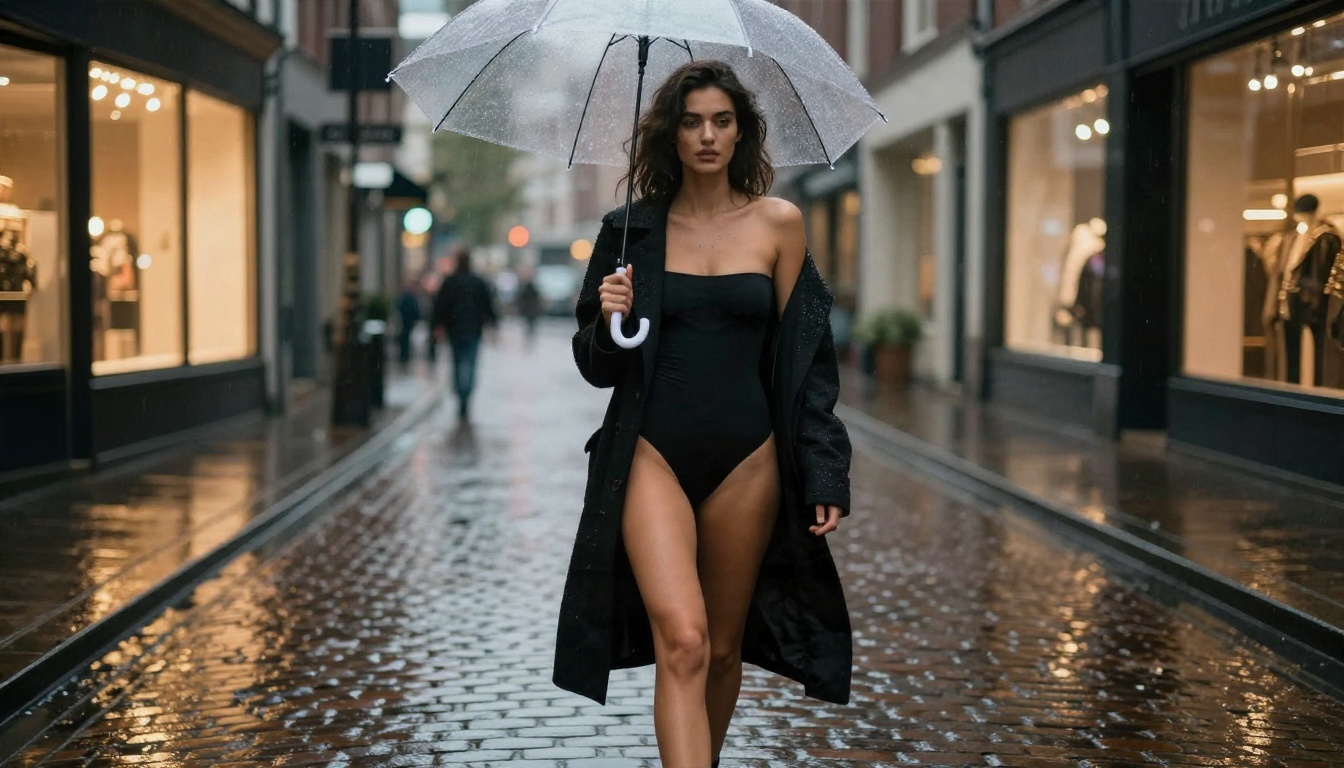
Different goals call for different tools. Use this quick comparison to decide where to spend your time.
| Your goal | Best starting point | Why |
|---|
| Polished glamour or boudoir photography | Seedream 4.5 | Sharp detail and strong prompt following |
| Lots of attempts without limits | Image Editor Pro | Unlimited generations and built-in editing |
| Fast drafts and testing prompts | Z Image Turbo | Quick turnaround |
| Detailed photoreal portraits | Qwen Image 3 | Natural skin and scene detail |
| Precise edits to an existing photo | Nano Banana Pro | Controlled image editing |
A few practical points about privacy and ownership are worth keeping in mind too. Generate only images of fictional people or of yourself, never of a real person without their consent. Keep results private unless you intend to share them, and check the rules of any site where you publish.
Why the Filter Debate Is Not Going Away
AI moderation is a hard problem. Platforms face legal pressure, payment processor rules and real safety concerns, so they lean toward over-blocking. Users, meanwhile, just want to create ordinary fashion, swimwear and portrait images without friction. The two sides will keep colliding, which is why a tool with clear, sensible rules is worth more than any workaround.
If your current generator keeps blurring innocent images, the problem is rarely your prompt alone. Sometimes it is simply the wrong platform for the kind of photography you want to make.
Start Creating Your Own Images
You now know how these filters decide, why they misfire and what to do about it. The fastest way to see the difference is to test it yourself. Open Seedream 4.5 on PicassoIA, paste one of the prompts above, then move your favorite result into Image Editor Pro and keep refining without counting attempts.
Try the same scene across two or three models, compare the skin texture and lighting, and keep the one that feels most like a real photograph. When you want to see every option side by side, browse the full list at picassoia.com/en/all-models and pick the model that fits your style.


