Most people who try NSFW AI image to video quit after two clips. The face melts, the swimsuit changes color halfway through, or the whole frame just wobbles like it was filmed underwater. The generator is rarely the real problem. The problem is the still you feed it, the prompt you write around it, and two or three settings nobody mentions. Fix those and a single glamour photo becomes a clean five second clip with drifting hair, shifting light and a believable camera move.
This article stays on the suggestive side: swimwear, boudoir, evening glamour. Nothing explicit. Everything below applies to that style of content, and the workflow is the same whether you are animating a beach editorial or a soft bedroom portrait.
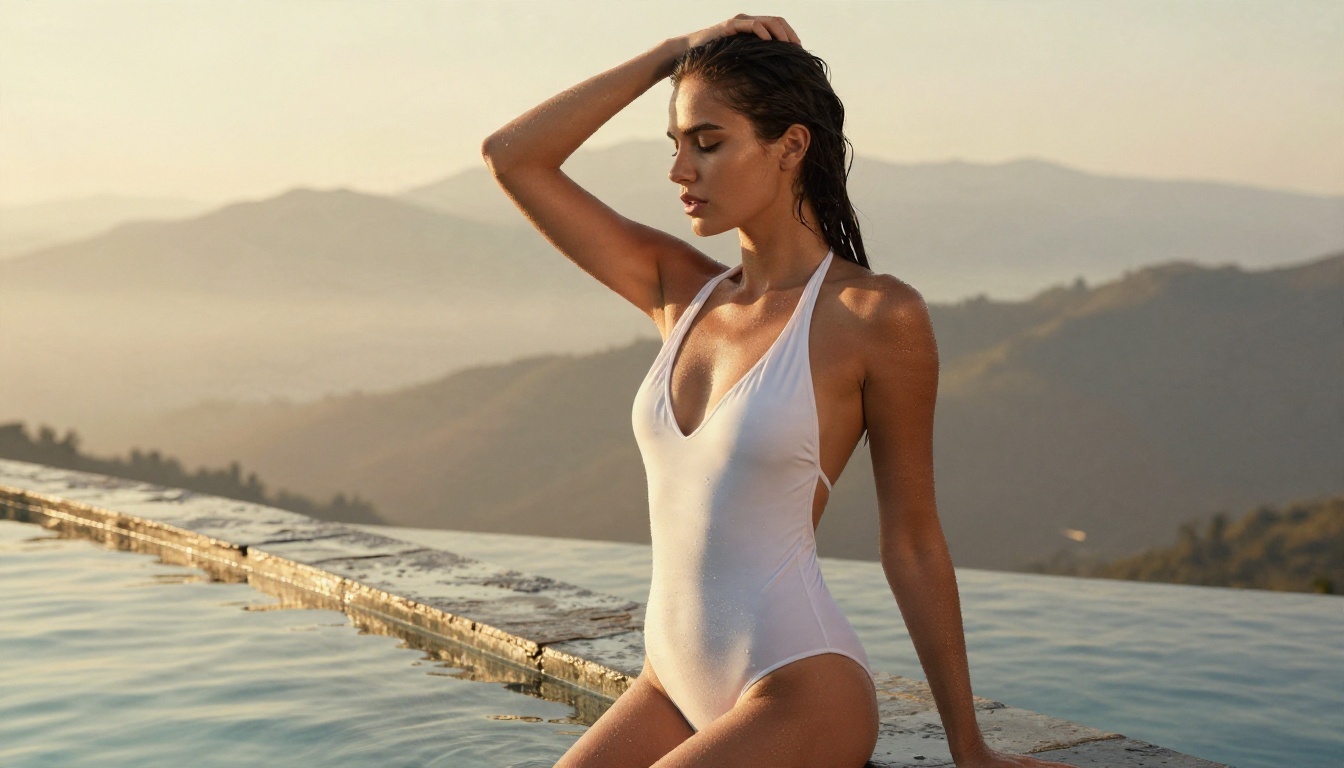
What Image to Video Really Does
An image to video model takes one frame as the opening shot and invents the next 120 frames or so. It predicts how hair, water, fabric and light would behave, then renders that motion while trying to keep the person recognizable. That is why the source image matters more than anything else: the model can only extend what it can see.
Compare that with text to video, where the model invents the subject and the motion at the same time. Image to video gives you control over the subject, the outfit, the pose and the color palette before a single frame moves. For glamour content, where a specific look is the whole point, that control is the reason to choose it.
Why creators prefer it
- Consistency: the same face and outfit across several clips.
- Speed: a short clip renders in a minute or two.
- Cheaper retries: you fix the still once instead of rerolling whole videos.
- Looped content: easy to build a set of 5 second clips from one photoshoot.
💡 Quick rule: if the still looks wrong, the video will look worse. Never try to rescue a bad image with a good prompt.
Build the Source Still First
The best clips start from stills that already look like film frames. Think of the still as a photograph taken one second before something interesting happens.
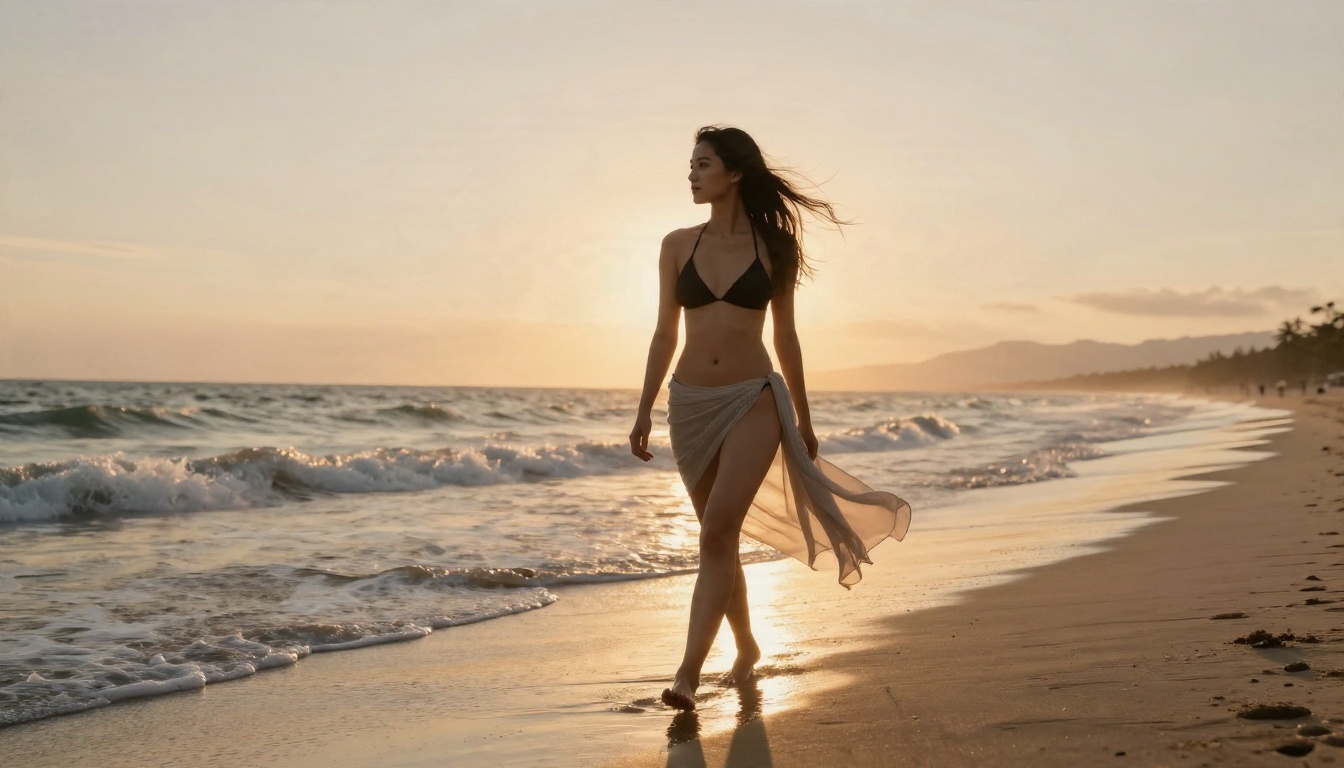
Pick a still that wants to move
Stills with implied motion animate best: hair lifted by wind, waves around the ankles, a curtain caught mid sway, a hand halfway to a strand of hair. A rigid, symmetrical pose gives the model nothing to continue, so it adds a stiff head turn or a strange blink.
Keep hands and faces clean
Hands are the first thing to break in motion. Choose a still where hands are either resting in a simple position or out of frame. Faces should be sharp, evenly lit and not too small. A face that fills less than a tenth of the frame tends to drift.
Use a high quality generator for the still
I generate stills with Seedream 4.5 because it handles skin texture, fabric and suggestive swimwear scenes with very little fuss. For quick edits, like changing an outfit color, fixing a strap or cleaning a background, PicassoIA Image Editor Pro is the better tool because it offers unlimited generations, so you can iterate until the frame is right without watching a counter.
| Still quality factor | Good sign | Warning sign |
|---|
| Lighting | One clear direction, soft shadows | Mixed sources, harsh patches |
| Pose | Relaxed, slightly asymmetrical | Stiff, arms crossed over the body |
| Hands | Resting or hidden | Fingers tangled or overlapping |
| Background | Simple, with depth | Busy patterns, text, signs |
| Resolution | 1080p or higher | Upscaled, soft or noisy |
Free Generators Worth Using
"Free" means different things. Some tools give a few trial credits. Others are truly unlimited for subscribers. Filters also vary a lot, so a model that accepts a bikini portrait today might reject it after an update. Test with a simple swimwear still before you plan a whole project around any single tool.
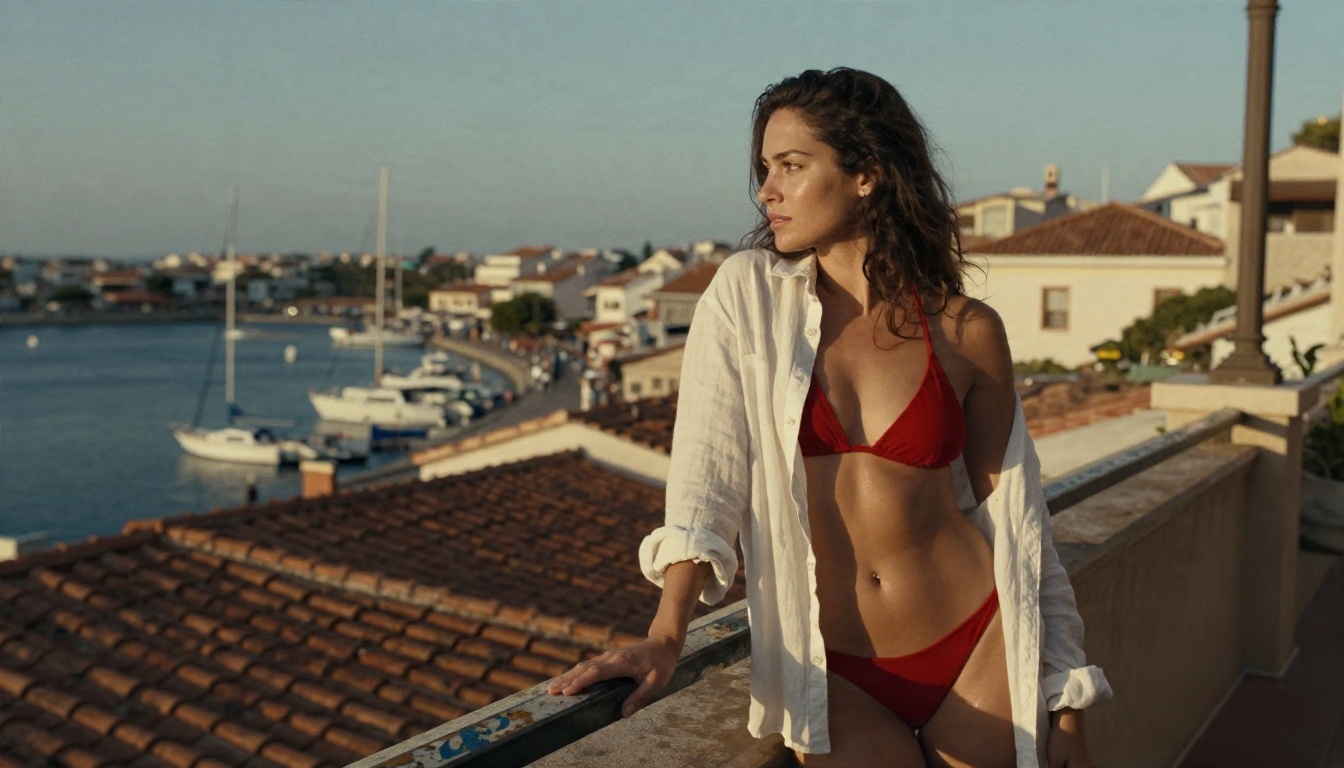
Unlimited options on PicassoIA
Two models are built for high volume work:
- Seedance 2.5 Lite: free and unlimited for Elite and Infinite members, clips up to 10 seconds at 480p or 720p, with synchronized audio you can switch off.
- PicassoIA Video: a free, unlimited generator that accepts text or an image, a solid choice for batch testing.
Other image to video models to compare
When you want a different motion style, these are worth a test run on the same still:
| Model | Best for | Output |
|---|
| Seedance 2.5 Lite | Unlimited testing, longer clips | Up to 10 s, 480p/720p |
| PicassoIA Video | Free batch experiments | Text or image input |
| Wan 2.5 I2V | Natural fabric and hair motion | Image to video |
| Kling v2.5 Turbo Pro | Cinematic camera moves | Image to video |
| Hailuo 02 | Sharp 1080p results | Image to video |
💡 Content rules differ between models, and they change. Run a safe swimwear test first. If a model refuses it, move on instead of fighting the filter.
How to Use Seedance 2.5 Lite on PicassoIA
Seedance 2.5 Lite is my default for glamour clips because unlimited generation removes the fear of wasting a render. Here is the workflow I follow.
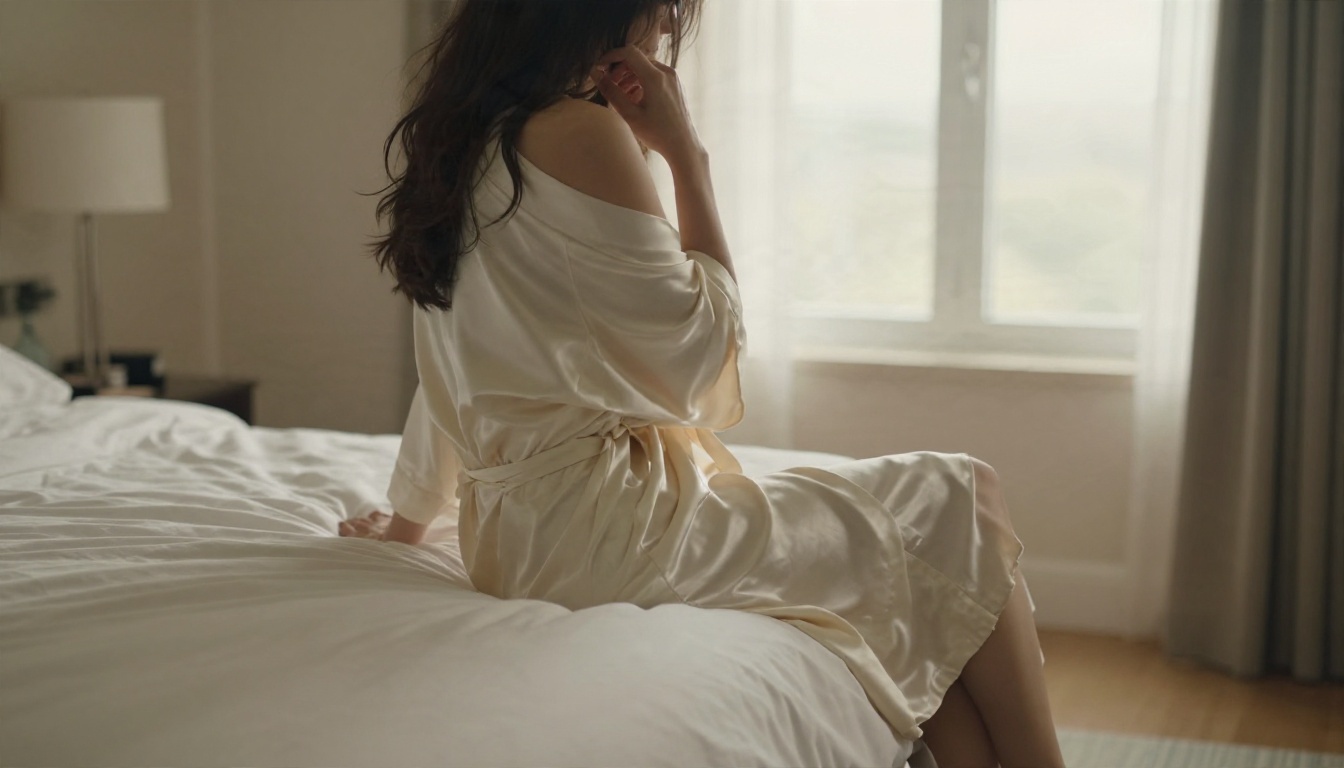
Step by step
- Open the model page and choose the image to video input.
- Upload your still in the Input image field. The clip inherits its aspect ratio, so a 16:9 still gives a 16:9 video.
- Write a chronological prompt (examples below). Describe what moves first, what the camera does, and how the light behaves.
- Set resolution to 720p for the final render. Use 480p while you test, because it renders fastest.
- Pick a duration. 5 seconds is safest for stability. Try 10 seconds only once the shorter version looks good.
- Decide on audio. Leave Save audio on for ambient sound like waves or wind, or switch it off for a silent loop.
- Fix the seed once you like a result, so a small prompt change does not alter the whole clip.
- Optional: add a Last frame image if you want the clip to end on a specific pose.
Settings that matter
| Setting | Recommended | Why |
|---|
| Resolution | 480p to test, 720p to finish | Faster iteration, sharp final |
| Duration | 5 s | Fewer drifting faces |
| Aspect ratio | Match input image | Avoids stretching |
| Seed | Fixed after a good result | Repeatable edits |
| Save audio | On for scenes with ambience | Adds realism |
Prompts That Actually Work
A good motion prompt reads like a tiny script. It has a subject, a motion, a camera move and a lighting note. Keep it to two or three sentences. Long, crowded prompts make the model invent extra movement and the face pays for it.
The formula
[Subject in starting pose] + [one or two small motions] + [camera movement] + [light and atmosphere]
Copy-ready examples
Beach editorial
The woman walks slowly along the shoreline, small waves wash around her ankles, her hair and the sheer sarong lift in the breeze. Slow tracking shot from the side at hip height. Warm backlight from the setting sun, soft sparkle on the wet sand.
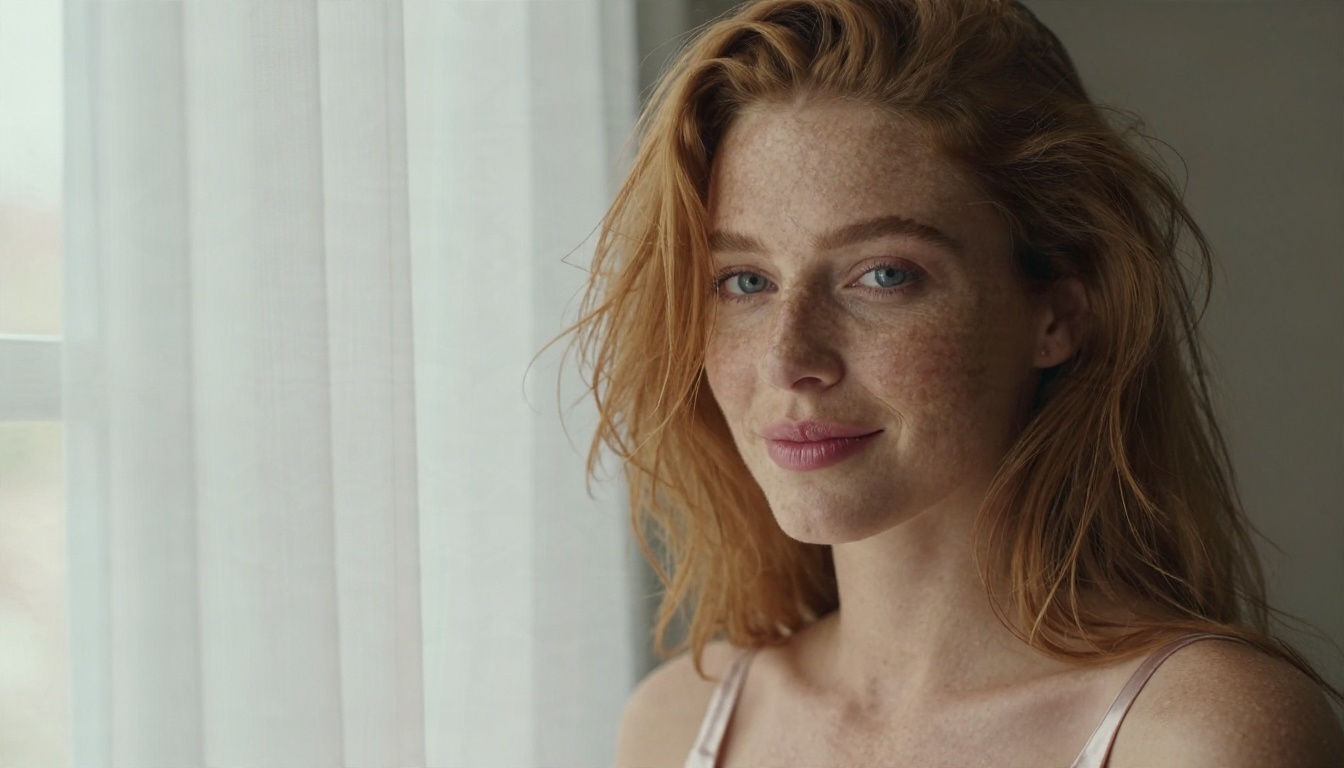
Window portrait
She tilts her head a few degrees, blinks softly and smiles, a strand of hair moves across her cheek. Sheer curtains sway behind her. Very slow push in toward her face. Soft diffused daylight, steady and natural.
Poolside
She lifts one hand to brush wet hair back, water drips from her shoulder into the pool. The water ripples gently. Slow dolly in from a low angle. Golden sunrise light and drifting mist in the valley behind.
Boudoir
She brushes her hair behind her ear and looks toward the window, the silk robe shifts slightly on her shoulder. Gentle handheld feel, very subtle. Warm morning light entering from the right.
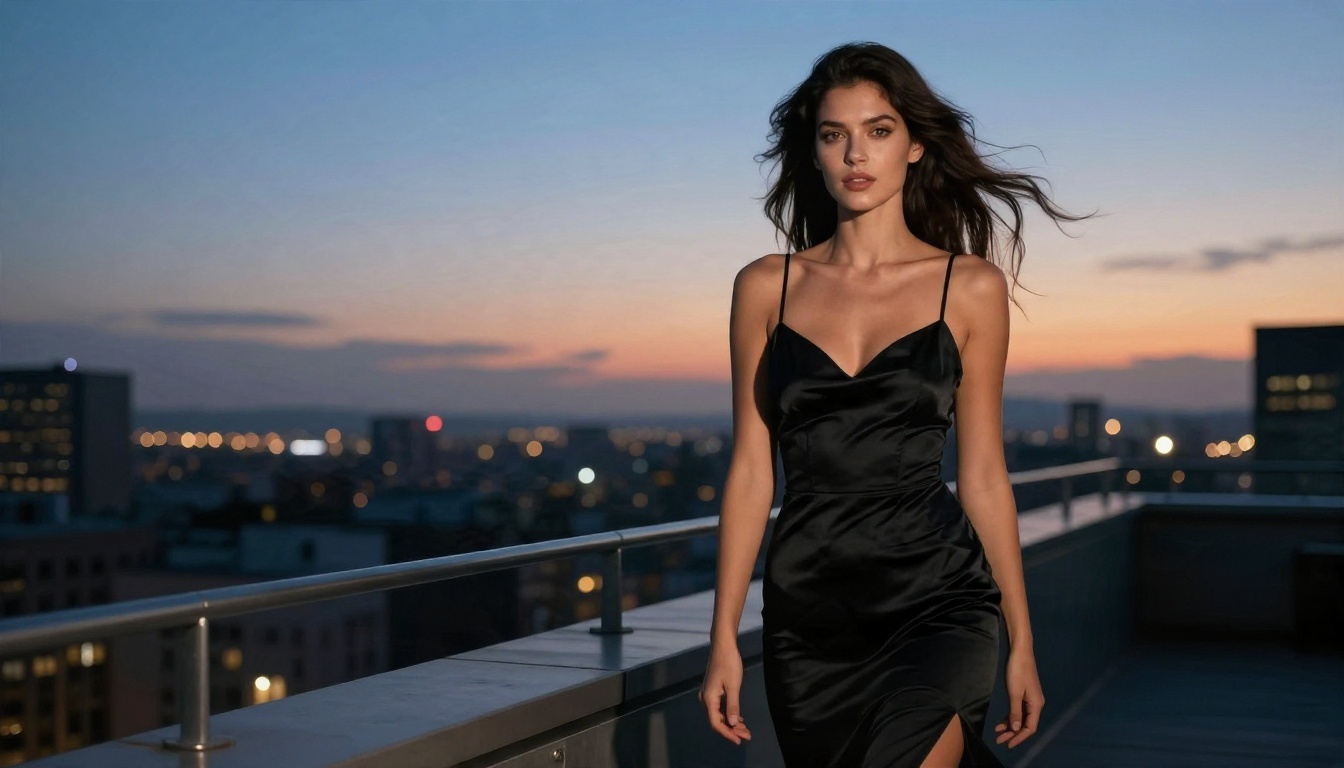
Evening rooftop
Wind moves the hem of her satin dress and her hair, she turns her gaze toward the skyline. Slow orbit around her to the left. City lights glow softly in the background at blue hour.
Words that help and words that hurt
| Helps | Hurts |
|---|
| "slowly", "gently", "softly" | "fast", "dynamic", "intense" |
| "slow dolly in", "gentle pan" | "camera spins", "whip pan" |
| "hair lifts in the breeze" | "dancing wildly" |
| One clear action | Five actions in one sentence |
💡 Start tiny. A small head turn and moving hair look expensive. A big full body spin looks like a glitch.
Settings That Keep Clips Stable
Most instability comes from asking too much from five seconds of video. These habits fix the majority of problems.
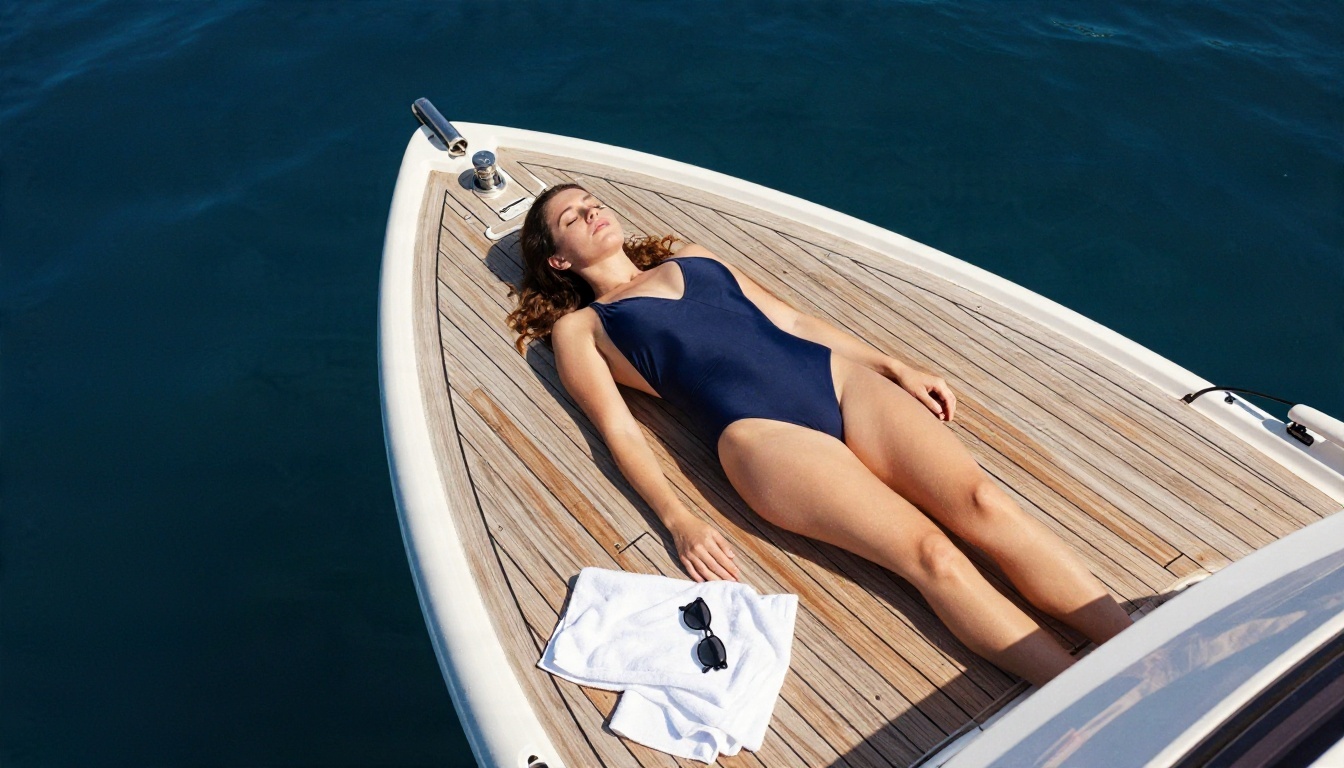
Keep motion budget low
Every model has a limited "motion budget" per clip. Spend it on one or two things: hair and water, or a head turn and a camera push. If you ask for walking, turning, waving and a camera orbit together, faces and hands start to deform.
Match the camera to the pose
- Close portrait: slow push in only.
- Medium shot: gentle pan or slow orbit.
- Wide beach or pool shot: tracking move or locked camera with moving environment.
- Seated or lying pose: subtle drift, nothing dramatic.
Use first and last frames
If a model supports a last frame image, such as Seedance 2.5 Lite, generate two stills of the same scene: one at the start of a motion and one at the end. The model then fills the gap, which gives you far more control than text alone.
Test cheap, finish sharp
Run five or six rough passes at 480p with different seeds. Choose the best motion, lock the seed, then render at 720p. With unlimited models this costs only time.
Mistakes That Ruin Clips
Almost every bad result traces back to a short list of errors.
1. Starting from a low quality still
Soft, noisy or heavily upscaled images produce shimmering skin and swimming textures. Regenerate the still at a higher resolution before animating.
2. Describing the image instead of the motion
The model can already see the photo. A prompt like "beautiful woman in a bikini on a beach" wastes space. Spend your words on what changes.
3. Asking for too much action
One subject action plus one camera move is the sweet spot. Anything more is a gamble.
4. Ignoring the aspect ratio
Forcing a vertical ratio onto a horizontal still crops or stretches the subject. Let the clip match the image, or generate the still in the ratio you need.
5. Skipping the seed
Without a fixed seed, every small prompt tweak creates a different clip, so you cannot tell which change helped.
Quick fix table
| Problem | Likely cause | Fix |
|---|
| Face melts | Too much motion, small face | Reduce action, use a tighter still |
| Outfit color shifts | Vague outfit, long duration | Shorten to 5 s, repeat the color in the prompt |
| Flicker in skin | Low quality source | Regenerate the still at higher quality |
| Camera jitter | Conflicting camera words | Use one camera move only |
| Hands warp | Fingers visible and busy | Pick a still with resting hands |
A Simple Workflow You Can Repeat
Here is the loop I use for a batch of clips from one photoshoot.
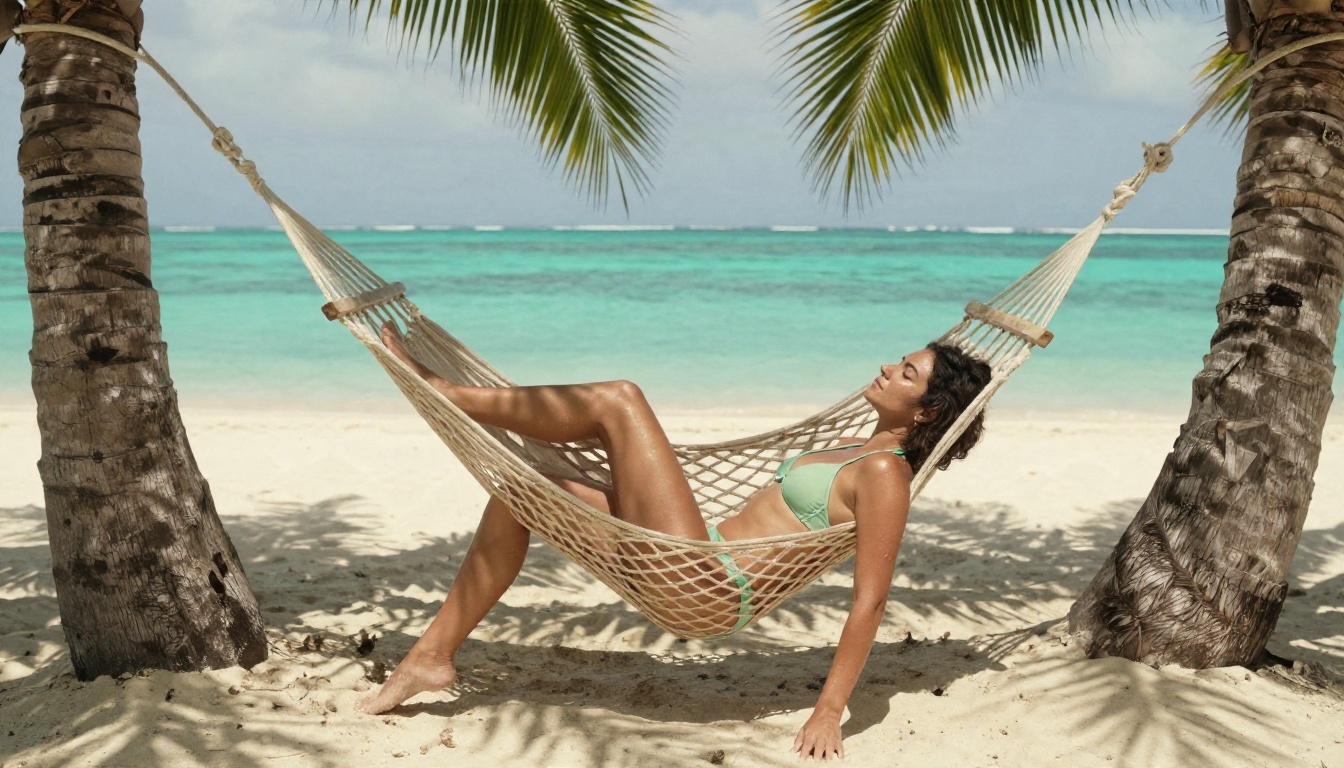
- Generate 8 to 10 stills of one character and one location with Seedream 4.5.
- Fix small flaws (a strap, a color, a background object) in PicassoIA Image Editor Pro.
- Choose the 3 best stills based on the table earlier: clear light, relaxed pose, clean hands.
- Write one short motion prompt per still using the formula.
- Test at 480p in Seedance 2.5 Lite or PicassoIA Video.
- Compare the same still in Wan 2.5 I2V or Kling v2.5 Turbo Pro if the motion looks stiff.
- Lock the seed and render the winner at 720p.
- Stitch the clips into a short sequence or loop them as separate posts.
Extra polish
If a finished clip looks a little soft, run it through a video upscaler or enhancer. PicassoIA also lists super resolution and video enhancement models for exactly that step, so you can keep the whole pipeline in one place.
Keep Content Safe and Legal
A few ground rules keep your work out of trouble.
- Use fictional characters only. Never animate a photo of a real person without their clear permission.
- Keep everyone clearly adult. No exceptions.
- Stay non-explicit if you plan to publish on mainstream platforms, which remove explicit content quickly.
- Check each platform's rules for AI labels before posting.
Make Your First Clip Today
You now have the whole loop: a strong still, a short prompt with one action and one camera move, a low resolution test, and a final 720p render with a locked seed. Pick one swimwear or boudoir photo, run it through Seedance 2.5 Lite, and compare it against one other model from the list. Within an hour you will know which one suits your style.
Start building your own images and clips on PicassoIA. Create a still with Seedream 4.5, polish it in PicassoIA Image Editor Pro with unlimited generations, then bring it to life with fast, uncensored-friendly video models. Browse every option at picassoia.com/en/all-models and see how far one good photo can go.


