Type "NSFW AI model" into a search bar and you get a wall of promises: unlimited, uncensored, free forever. Then you try one, and the first prompt gets blocked, the second one burns your last credit, and the third produces a plastic-looking face that no one would mistake for a photograph. If that sounds familiar, you are not alone, and the problem is rarely your prompt. It is the model behind the interface, and the rules wrapped around it.
This article sorts the noise. You will see which kinds of models actually handle adult-oriented, glamour-style photography, what "free" tends to mean in practice, where the filters usually bite, and which alternatives on PicassoIA are worth your time. Everything here stays on the suggestive, non-explicit side: swimwear, lingerie-style boudoir, evening glamour and artistic portraiture. That is also where photorealistic models perform best.
What "Uncensored" Really Means
The word gets thrown around loosely, so it helps to pin it down. In practice, three different things hide behind it.
Prompt filters
Some platforms scan your text before generation starts. Words related to swimwear, skin or lingerie can trigger a refusal, even when the image you want is perfectly tame. This is the most common reason people feel an AI tool is "censored."
Output filters
Others let the prompt through, generate the picture, and then run a classifier on the result. If the picture scores above a threshold, you get a blurred placeholder or an error. You still pay the credit. This one is the most irritating.
Training bias
Even with no filter at all, a model trained mostly on sanitized data will drift toward stiff poses, flat lighting and odd anatomy whenever you ask for body-focused photography. The model simply has little to draw on.
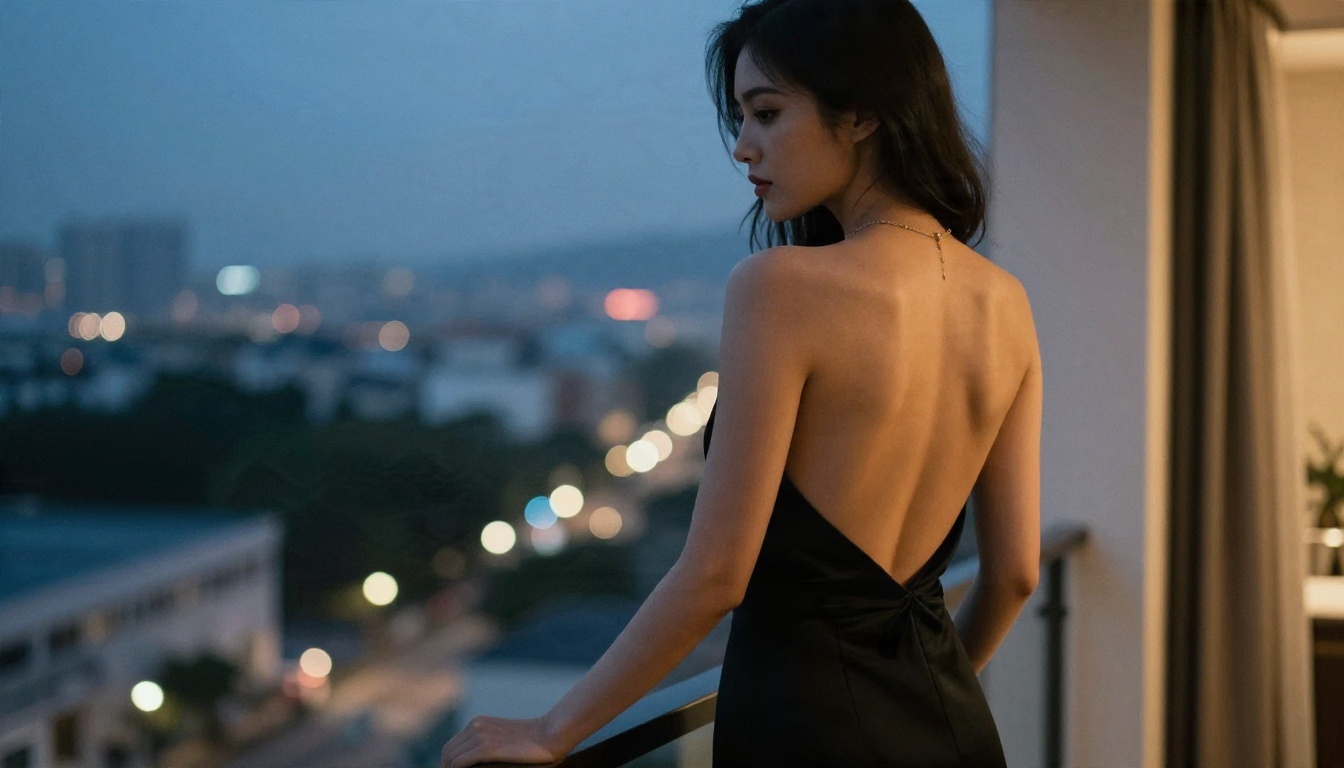
💡 Quick test: before committing to any tool, run the same three prompts: a bikini beach portrait, a silk robe boudoir shot, and an evening gown on a balcony. If all three come back clean and natural, the model is a good fit. If one is blocked or looks off, move on.
A genuinely useful "uncensored" option is one where all three layers behave: the prompt passes, the output arrives, and the anatomy and skin look right.
What Makes a Good NSFW Model
Forget the marketing copy. When you are producing photorealistic glamour work, five traits matter.
| Trait | Why it matters | What to look for |
|---|
| Skin realism | Pores, freckles and subtle sheen separate a photo from a render | Close-ups that hold up at 100% zoom |
| Anatomy accuracy | Hands, shoulders and proportions break easily | Consistent results across several seeds |
| Lighting logic | Shadows must match the light source | Window light that actually falls from one side |
| Fabric rendering | Lace, silk and wet cloth are hard | Visible weave, folds and sheen |
| Filter tolerance | Swimwear and boudoir prompts should pass | No refusals on non-explicit glamour |
Speed counts too. If a model takes two minutes per image, you will iterate less, and iteration is where good results come from. A fast model that gives you ten attempts beats a slow one that gives you two.
The Best Options on PicassoIA
Here is the short list, ordered by how well each one fits adult-oriented glamour photography.
Seedream 4.5: the first one to try
Seedream 4.5 is the model I would reach for first. It produces sharp, high-resolution output with convincing skin and fabric, and it is tolerant of swimwear, boudoir and evening glamour prompts. Lighting direction is respected, which matters when you write things like "soft window light from the left" and expect that to show up.
Where it shines:
- Skin detail: visible pores, freckles and natural sheen rather than airbrushed plastic
- Fabric: lace threads, satin folds and wet cotton read as real materials
- Resolution: output suitable for large prints and 4K displays
- Prompt following: long, structured prompts are followed closely
PicassoIA Image Editor Pro: unlimited and fast
PicassoIA Image Editor Pro is the practical answer to the "free limits" question. Generations are unlimited, which changes how you work: you stop rationing attempts and start testing ideas freely. It is also quick, so a batch of variations takes minutes rather than an afternoon.
It works both as a generator and as an editor. You can start from a photo you own, change outfits, lighting, backgrounds or mood, and keep refining until the frame feels right.
Qwen Image 3 Pro for natural portraits
Qwen Image 3 Pro leans photorealistic, with believable faces and restrained, natural colors. It is a good second opinion when one model keeps giving you the same slightly off expression. Run the same prompt here and compare.
Flux 2 Klein 9B Base LoRA for styled looks
Flux 2 Klein 9B Base LoRA is useful when you want a consistent look across a series, such as a film-style color grade or a specific wardrobe feel. LoRA-style conditioning keeps the aesthetic coherent from frame to frame.
Z Image Turbo for fast drafts
Z Image Turbo is built for speed. Use it to test compositions and poses, then move the best draft to a higher-fidelity model for the final render.
Free Limits: What to Expect
"Free" is the most elastic word in this niche. Here is how it usually plays out.
| Access type | Typical catch | Best for |
|---|
| Free trial credits | A handful of generations, then a paywall | Testing one or two ideas |
| Daily free quota | Small cap, often with long queues | Casual use |
| Free tier with watermark | Branding on every image | Personal drafts only |
| Unlimited generation | Fewer catches, though speed can vary by model | Serious iteration |
A few honest observations.
Credits vanish fast
Photorealistic glamour is rarely a one-shot job. You adjust the pose, the lens, the light, the outfit. A starter allowance that looks generous can disappear in a single session. Count how many attempts you realistically need per finished image, then multiply.
Queues are a hidden cost
A free tier that makes you wait ten minutes per render is not really free; it costs you time. Check the speed before you commit.
Unlimited changes the workflow
With unlimited generations on PicassoIA Image Editor Pro, you can afford to be sloppy at first and precise later. That is how professional photographers shoot too: hundreds of frames, a handful of keepers.
💡 Budget tip: do your rough exploration on a fast model, then spend your higher-cost generations only on the two or three compositions you already know you like.
How to Use Seedream 4.5 on PicassoIA
Since Seedream 4.5 is the strongest starting point, here is a practical routine.
Step 1: Open the model page
Go to the Seedream 4.5 page and open the generator.
Step 2: Write a structured prompt
Use this order: subject and pose, environment, lighting, camera and lens, texture details. For example:
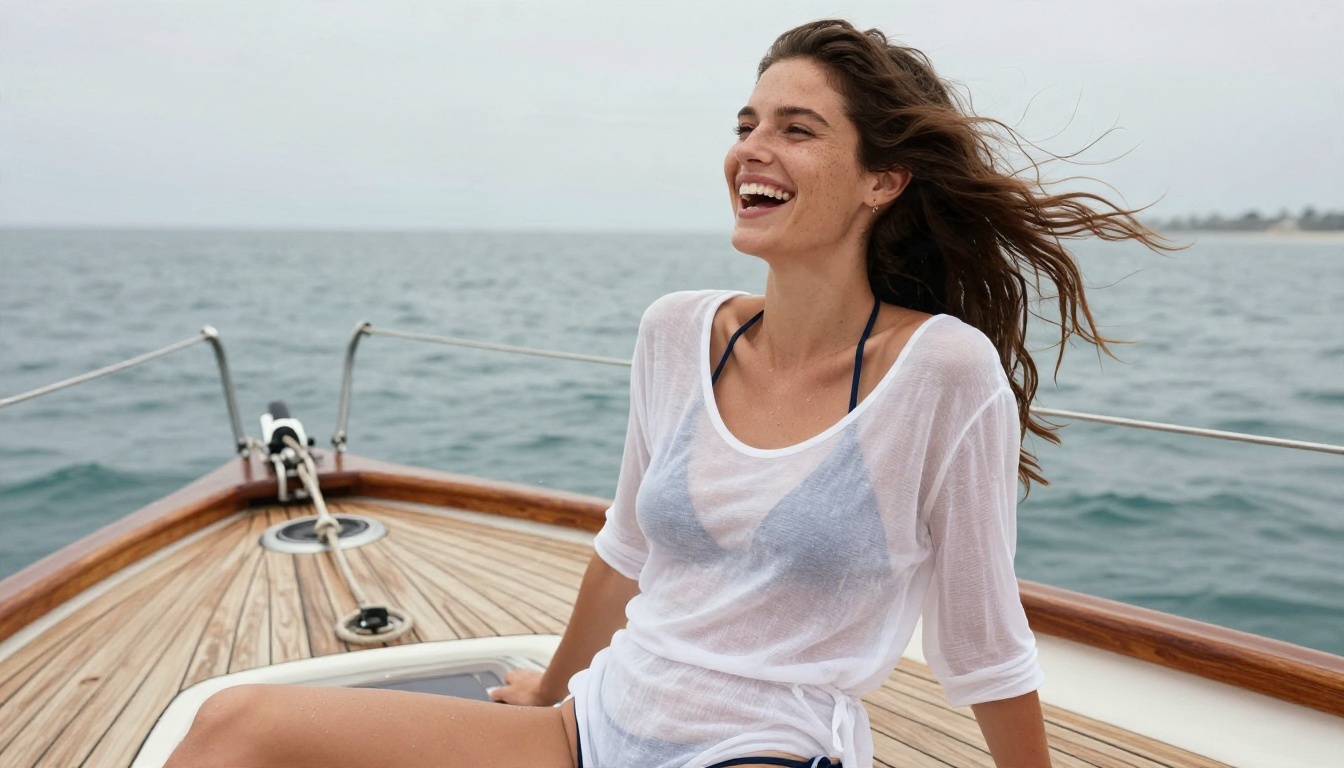
An adult woman in a white linen shirt and bikini bottoms sits on a sailboat deck, laughing, sea breeze in her hair, teak and rope textures, bright diffused overcast light, 50mm f/2.8, freckled skin with salt spray, Kodak Portra 400 film grain.
Step 3: Set the aspect ratio
Choose 16:9 for wide editorial scenes and 3:4 or 2:3 for portraits. Match the ratio to the story you are telling, not the default setting.
Step 4: Run several seeds
Generate four to eight variations. Pick the strongest frame based on face, hands and light, not on the first impression.
Step 5: Refine in the editor
Take your favorite to PicassoIA Image Editor Pro for outfit changes, background swaps or mood adjustments, then upscale if you need a large print.
Parameter tips
- Name a film stock ("Kodak Portra 400") to push color toward analog warmth
- Name a lens ("85mm f/1.8") to control depth of field and compression
- Describe light direction explicitly ("from the left", "backlit from the right")
- Add texture words: pores, freckles, linen weave, satin sheen, lace threads
- Keep prompts between 50 and 120 words; shorter ones get generic results, longer ones start to conflict with themselves
Prompts That Pass and Look Real
Most refusals come from phrasing, not subject matter. A few habits help.
Describe like a photographer
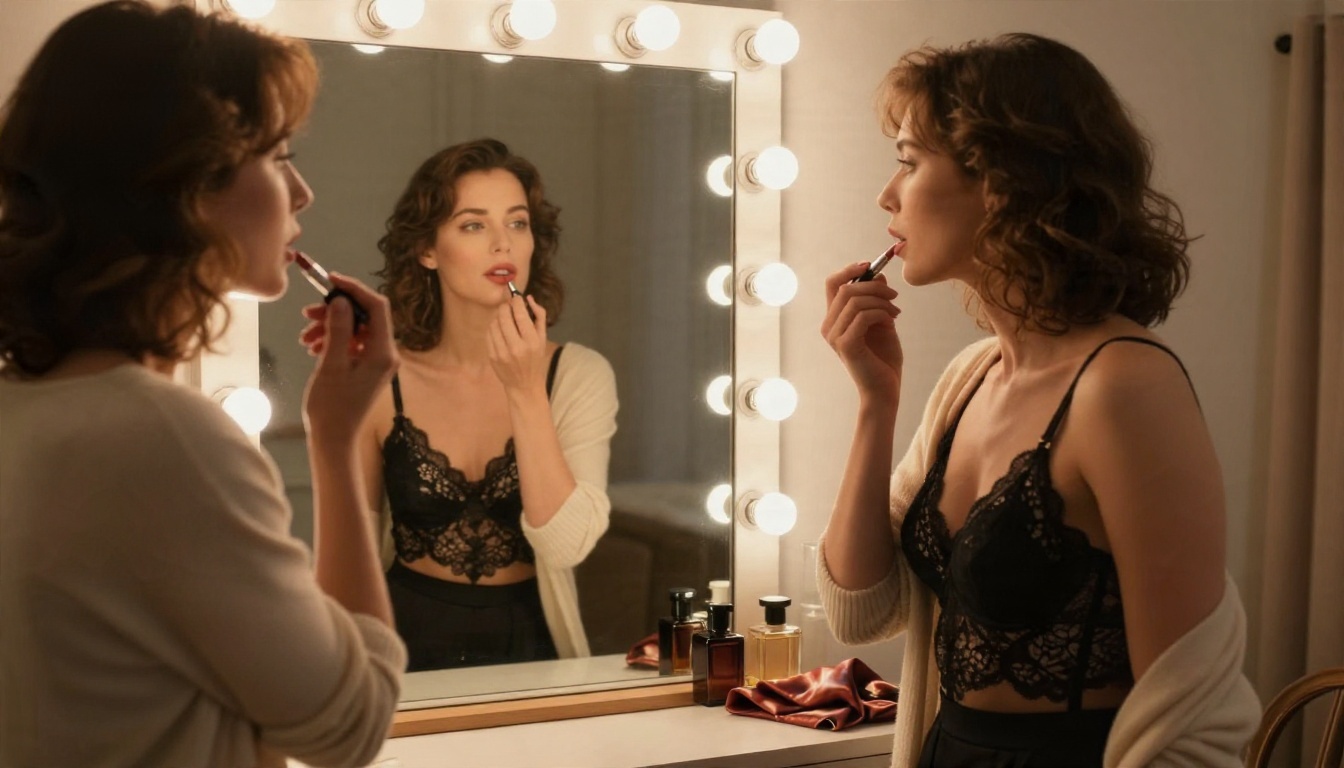
Compare "sexy girl in lingerie" with "an adult woman in black lace lingerie and a cream cardigan at a vintage vanity, warm bulb lights, 35mm f/2, shallow depth of field." The second prompt reads as a photography brief. It produces better images and trips fewer filters.
Lead with the scene
Put the environment and light first. A strong setting, such as a sunlit hotel room or a golden-hour beach, pulls the model toward editorial photography and away from generic imagery.
Avoid the plastic look
Skin that looks airbrushed is the biggest giveaway of AI output. Counter it with specific details: faint freckles, a slight sheen on the collarbone, flyaway hairs, natural shadows under the jaw. Also avoid words like "perfect" or "flawless," which push the model toward a waxy finish.
Keep it adult and consensual
Only depict clearly adult, fictional subjects. Never use a real person's likeness without their permission, and never create content involving minors. Any decent platform blocks this, and you should too.
Alternatives When a Model Fails
Sometimes a prompt simply does not work on one model. Switch rather than fight it.
General-purpose models such as Nano Banana Pro are excellent for lifestyle and fashion photography, though filter behavior on adult-oriented prompts varies between models. Test with your own prompts instead of assuming.
Editing instead of regenerating
If a picture is 90 percent right, do not roll the dice again. Use Qwen Image Edit 2511 or the PicassoIA editor to fix the one thing that is wrong: a hand, a background object, the color of a dress. Editing preserves what already works.
Mistakes That Waste Your Credits
Writing prompts like keyword lists
"Woman, bikini, beach, beautiful, 8k, ultra" gives the model nothing to build a scene from. Write sentences. Describe a moment.
Ignoring lighting
Lighting is what separates a photo from a render. If you do not specify it, the model picks flat, even light. Name the source and the direction.
Chasing one perfect seed
If five seeds in a row look wrong, the prompt is the problem. Rewrite it instead of rolling again.
Skipping the upscale
A beautiful 1K image looks soft on a large screen. Upscale the finalist before you share or print it. PicassoIA offers super-resolution models for this step.
Forgetting the platform rules
Even where generation is flexible, social networks and print services have their own content rules. Check them before you post.
Building a Repeatable Workflow
If you plan to make this a regular habit, a simple pipeline saves hours.
- Concept: write a one-sentence mood and setting
- Draft: generate eight options on a fast model like Z Image Turbo
- Select: pick the strongest composition
- Render: rebuild the prompt on Seedream 4.5 for final quality
- Edit: fix details in PicassoIA Image Editor Pro
- Upscale: export at print size
Keep a text file of prompts that worked. Over time you will build a personal library of lighting setups, lens choices and wardrobe descriptions that you can recombine in seconds.
Pick a Model and Start Shooting
The best NSFW AI model is the one that passes your prompts, renders believable skin, and does not make you count every attempt. For photorealistic, non-explicit glamour, Seedream 4.5 and the unlimited PicassoIA Image Editor Pro make a strong pair: one for polished first renders, the other for endless refinement.
Open one of them today, paste in a structured prompt with a scene, a light direction and a lens, and run a batch of variations. Then compare a few alternatives side by side. You will quickly see which model matches your taste. Browse the full catalog at picassoia.com/en/all-models and build your own set of favorites.


