Most people searching for an NSFW picture maker hit the same wall within five minutes. The app is "free" but caps you at three images. The online tool blocks a simple bikini prompt. The one that does let you through produces plastic skin and extra fingers. This article skips the frustration and shows you what actually works: which kind of tool to pick, which settings matter, which prompts give clean, glamour-style results, and which alternatives to use when your first choice lets you down.
One note before we start. Everything here is about suggestive, non-explicit adult imagery: swimwear, lingerie, boudoir and glamour photography with attractive, magazine-style results. Nothing below involves pornographic content, real people without consent, or anyone under 18.
What an NSFW Picture Maker Does
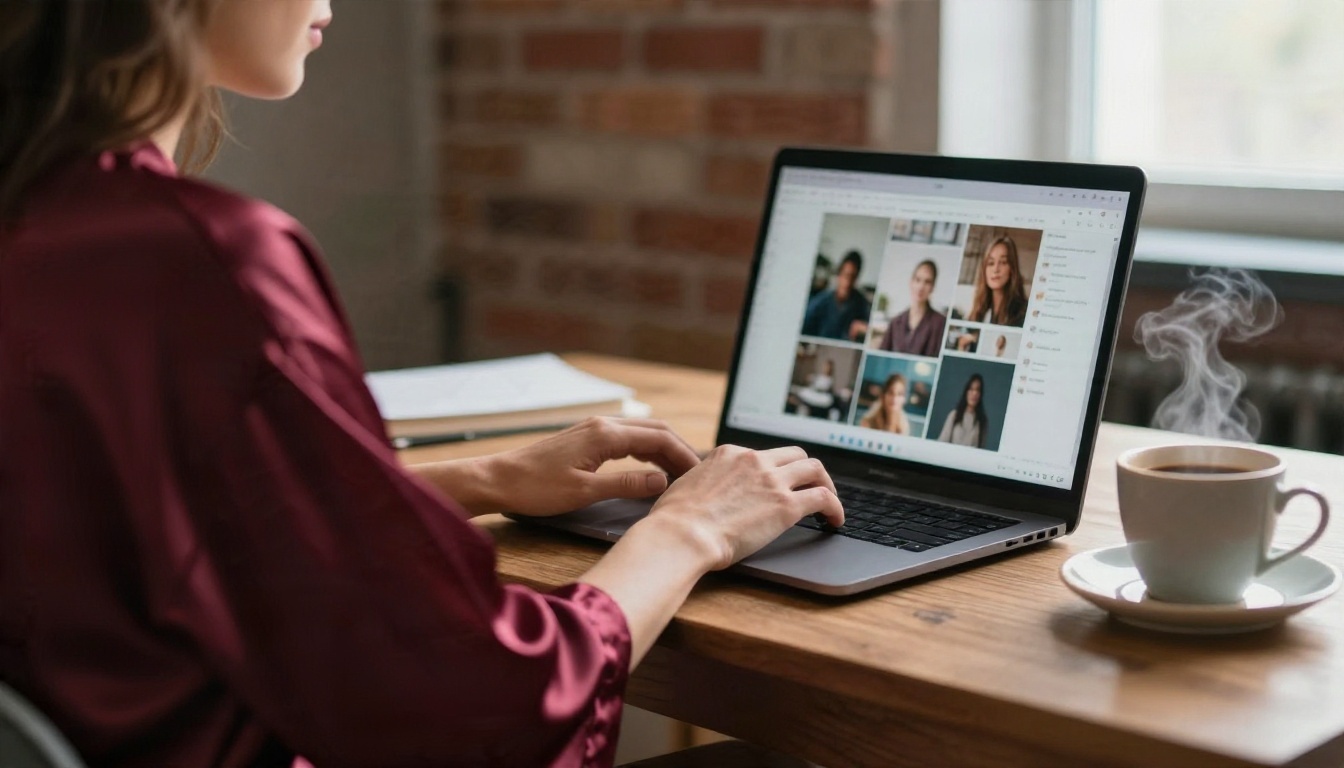
An NSFW picture maker is simply an AI image generator that accepts adult-oriented prompts instead of rejecting them. You type a description, such as "woman in a black bikini on a terrace at golden hour", and the model builds a photo from scratch. Some tools also edit an existing photo: change an outfit, swap a background, fix lighting.
The difference between tools is rarely the technology. It is the filter layer sitting on top. Mainstream chatbots and image apps add heavy moderation, so even a harmless swimsuit request can come back refused. Dedicated adult-friendly generators relax those filters, which is why people go looking for them.
Text to image vs photo editing
Two workflows cover almost everything:
- Text to image: you write a prompt, the model invents a new person, outfit and setting. Best for original glamour shots.
- Image editing: you upload a photo and describe a change. Best for swapping an outfit, changing a location or retouching skin and light.
Pick text to image when you want freedom. Pick editing when you want to keep a specific composition and only adjust details.
What "uncensored" really means
The word gets thrown around loosely. In practice it means the tool does not refuse adult-leaning prompts like lingerie, swimwear or boudoir styling. It does not mean a good tool should produce explicit material, and the best results on this topic come from tasteful, photographic framing anyway. A strong glamour image is about light, pose and fabric, not shock value.
💡 Tip: If a tool refuses your prompt, rewording rarely helps. Switch to a tool with looser filters instead of fighting the moderation layer.
This is the first real decision. Both can work, but they fail in different ways.
Free apps on your phone
Mobile apps are convenient: you open them, type a prompt, and get a picture in a minute. The catch is the business model. Most "free" apps give you a handful of credits, then push a weekly subscription. Many also watermark images, store your uploads, and run on older models with weaker anatomy.
Browser-based online tools
A web tool needs no install, works on any device, and usually runs newer models. The better ones are not locked behind a download, so you can switch models mid-session. The weak point is the same one apps have: credit limits and sudden filter changes.
| Factor | Free mobile app | Online browser tool |
|---|
| Install needed | Yes | No |
| Typical free limit | 3 to 10 images | Varies, some unlimited |
| Model quality | Often older | Often newest models |
| Watermarks | Common | Less common |
| Switching models | Rare | Easy |
| Privacy risk | Higher (stored uploads) | Depends on the site |
For most readers, a browser tool wins on quality and flexibility. That is where the rest of this article focuses.
Seedream 4.5 Comes First
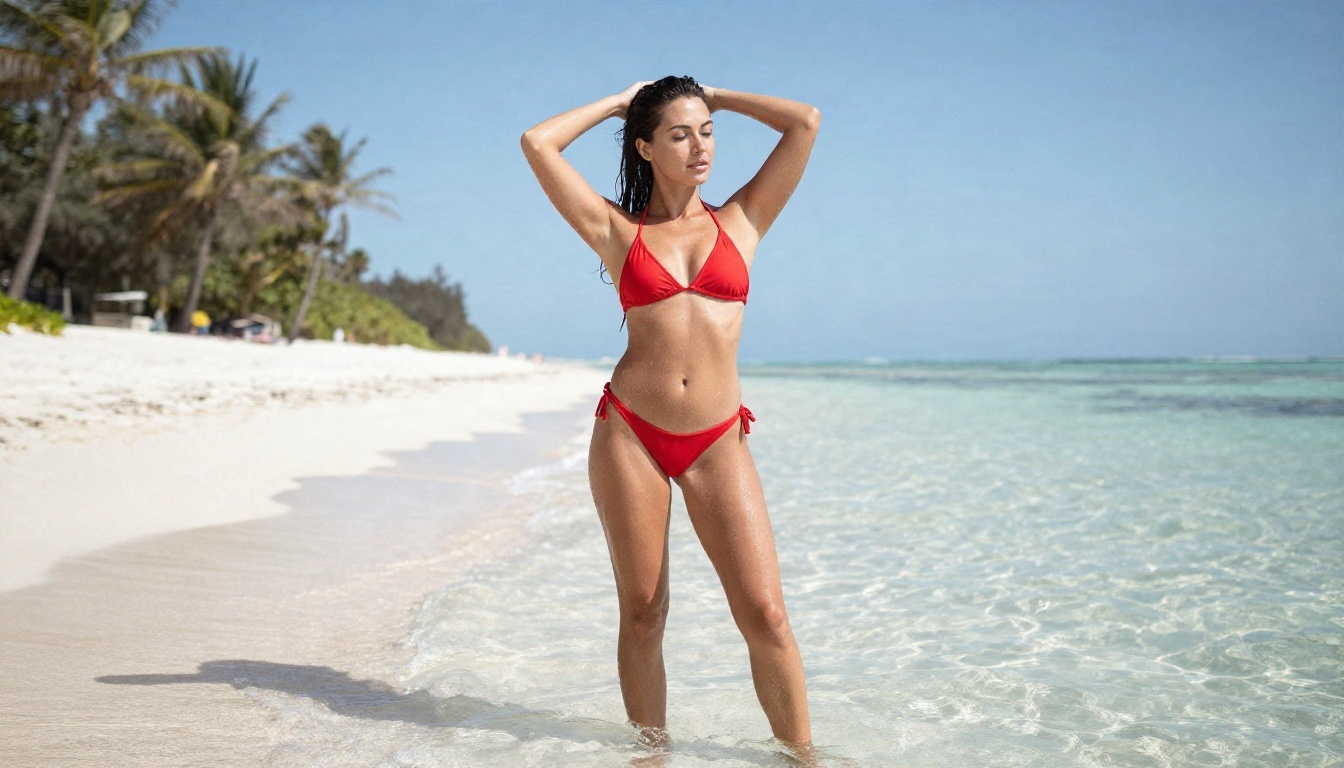
If you want a single starting point, use Seedream 4.5. It handles skin texture, fabric and lighting better than most generators, and it accepts adult-leaning glamour prompts without the constant refusals you get elsewhere. Output reaches up to 4K, which matters when you plan to print or crop.
Why it works so well for this topic:
- Natural skin: pores, fine hair and slight imperfections appear instead of the airbrushed plastic look.
- Fabric detail: lace, satin and wet swimwear keep realistic weave and sheen.
- Prompt obedience: if you ask for "85mm lens, golden hour, left side lighting", it follows.
- Speed: results arrive in seconds, so you can iterate quickly.
How to Use Seedream 4.5 on PicassoIA
- Open the Seedream 4.5 page on PicassoIA.
- Write your prompt in the text box. Start with the subject and outfit, then the place, then the light, then the camera.
- Choose a 16:9 ratio for landscape scenes or 3:4 for portrait glamour.
- Pick the highest resolution offered if you plan to crop or print.
- Press generate, check the hands and eyes first, then adjust one detail at a time and run it again.
Parameter tips:
- Keep prompts between 40 and 90 words. Shorter prompts give random results, longer ones start to contradict themselves.
- Name a real camera setup ("85mm f/1.8, shallow depth of field") rather than vague words like "beautiful".
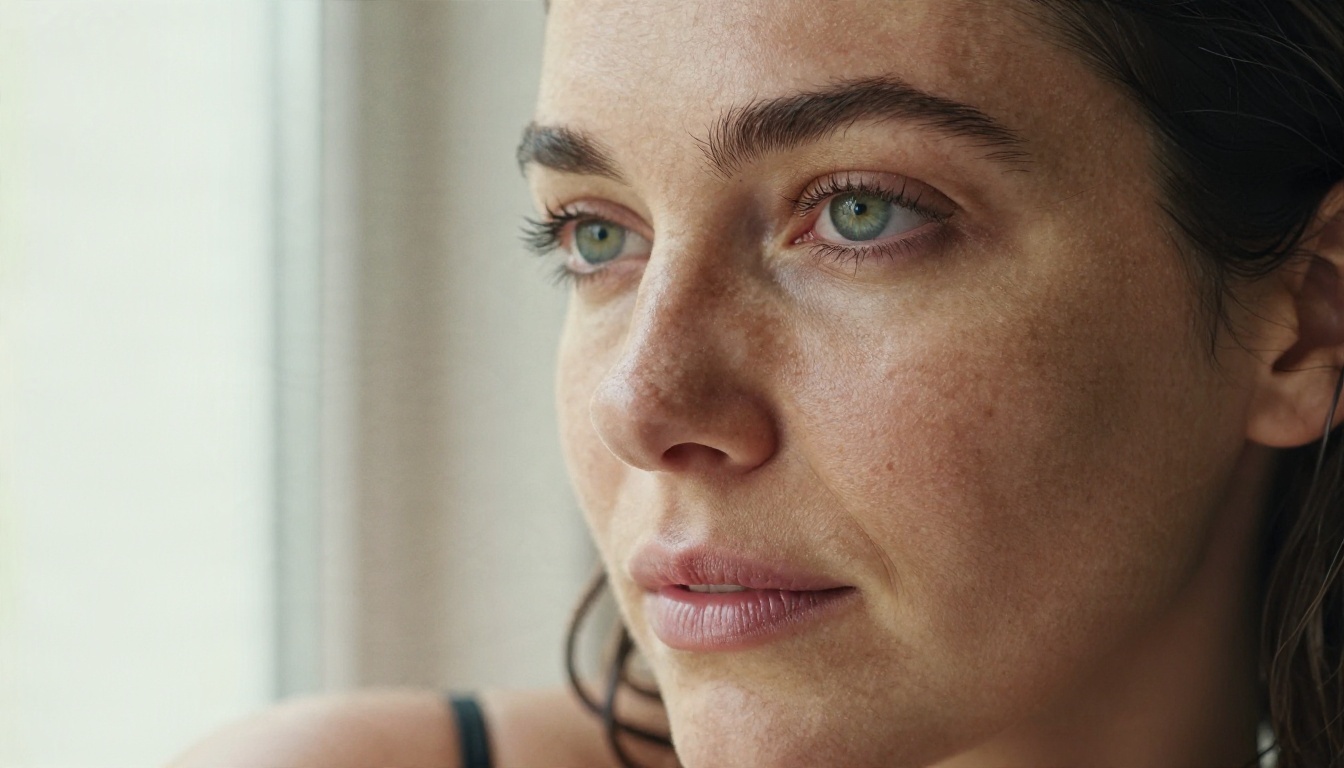
- Add "natural skin texture, visible pores, film grain" to avoid the glossy AI look.
- Change only one variable per run so you know what caused the improvement.
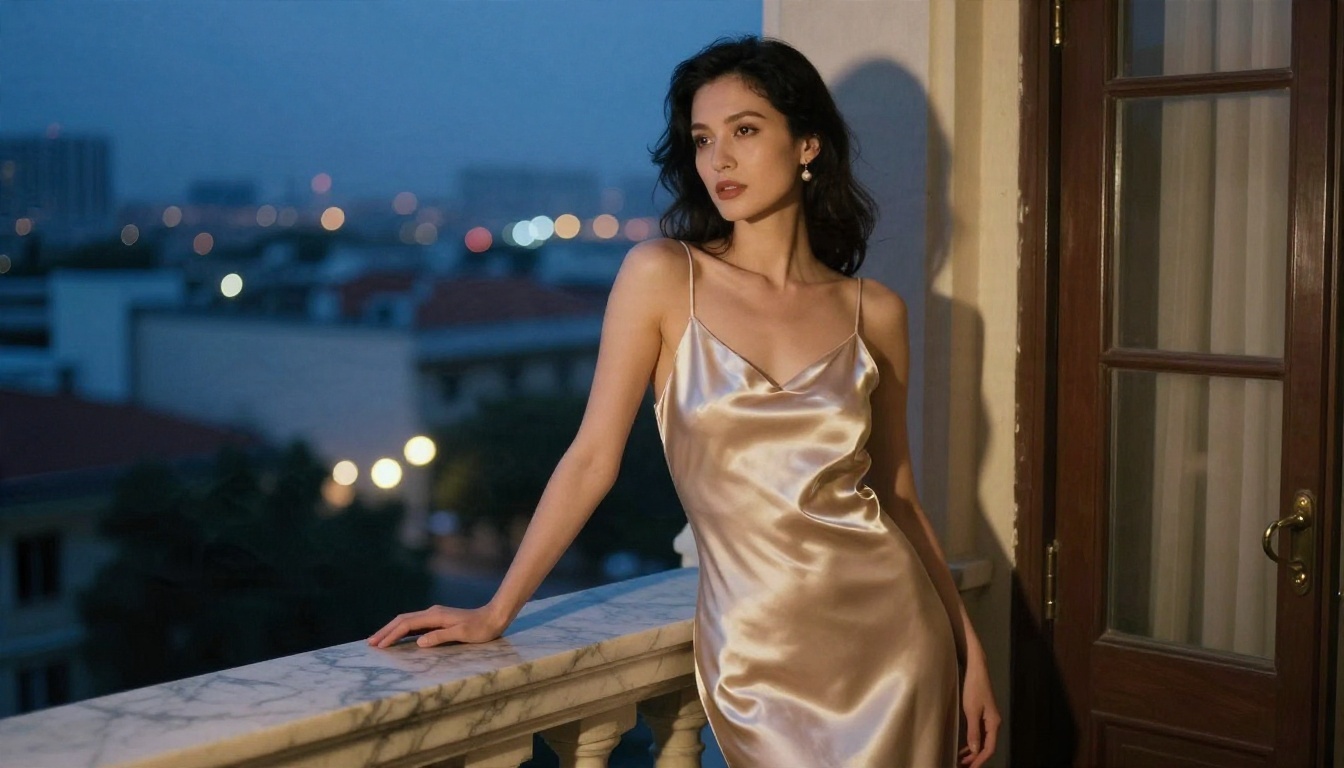
Image Editor Pro for Unlimited Runs
The biggest annoyance with any NSFW picture maker is running out of credits halfway through a good idea. PicassoIA Image Editor Pro removes that problem: it offers unlimited generations, so you can try thirty variations of the same outfit without watching a counter.
It is the right choice when you:
- Need to refine one image through many small edits.
- Want to swap an outfit, change a background or adjust lighting on an existing photo.
- Are testing prompts and do not want to burn credits on failures.
A simple editing routine
- Generate your base image with Seedream 4.5.
- Open it in Image Editor Pro.
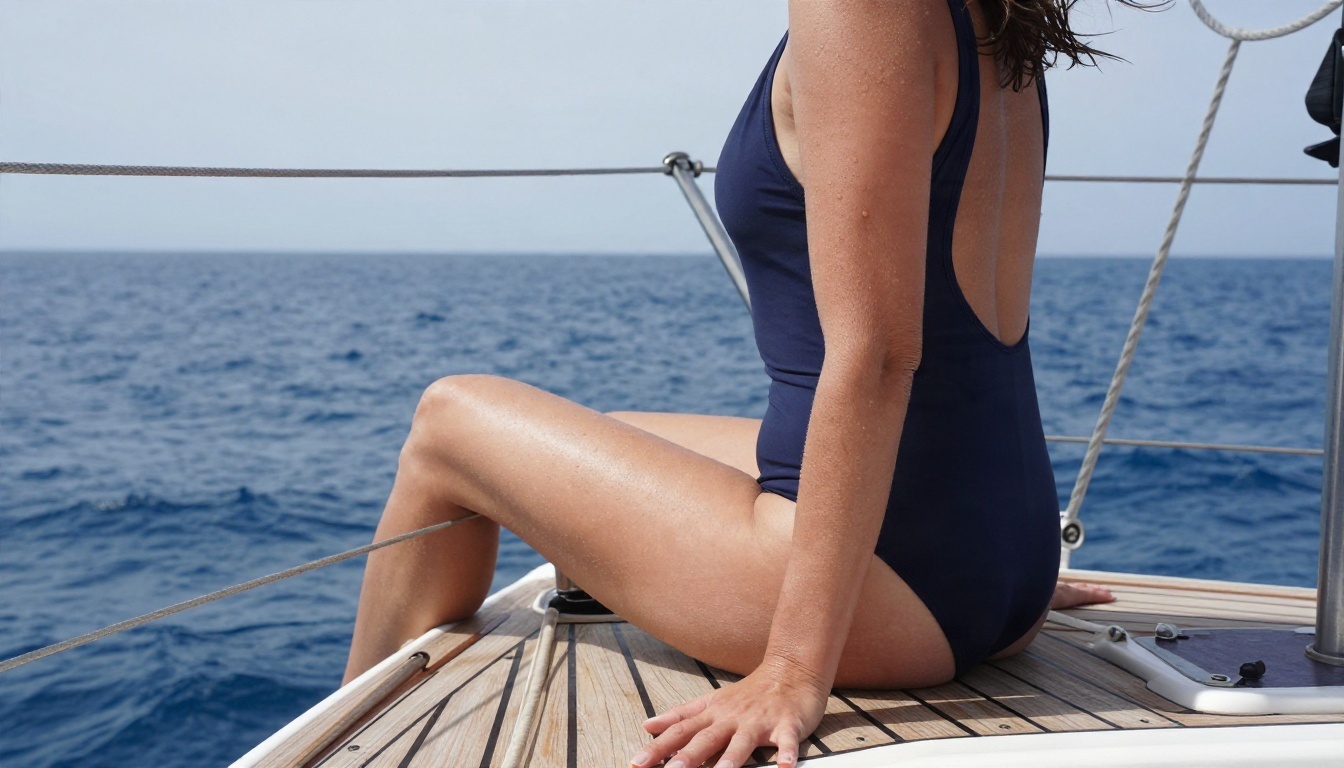
- Ask for one change at a time: "change the swimsuit to navy blue", then "make the light warmer", then "add a sailboat deck background".
- Stop when the image looks natural. Over-editing makes skin look smeared.
💡 Tip: Edit instructions work best as short, direct sentences. "Make the bikini yellow" beats a paragraph of description.
Settings That Change the Result
Most poor results come from settings, not from the tool. These are the ones worth touching.
Aspect ratio
Pick the ratio before you generate, not after. A 16:9 frame suits beach and terrace scenes with space around the subject. A 3:4 or 2:3 frame suits portraits and full-length fashion poses. Cropping a landscape image into a portrait later wastes resolution.
Resolution and upscaling
Generate at the highest native size, then upscale only if you need more. A tool such as Clarity Pro Upscaler adds fine detail for large prints, while P Image Upscale is a fast option when you just want a sharper copy in a second or so.
Seeds and variations
A seed fixes the random starting point. Lock it when you like a composition and only want to adjust the outfit or color. Leave it random when you want fresh ideas.
Quick settings reference
| Setting | Recommended value | Why |
|---|
| Aspect ratio | 16:9 or 3:4 | Matches the scene type |
| Prompt length | 40 to 90 words | Balanced detail |
| Lens in prompt | 50mm to 105mm | Flattering proportions |
| Lighting | Golden hour or window light | Soft, natural skin |
| Style words | "film grain, natural skin" | Avoids plastic finish |
| Variations per idea | 4 to 8 | Enough to pick the best |
Prompts That Actually Work
A good prompt reads like a photographer's shot list. Follow this order and you will get consistent results.
The five part formula
- Subject and pose: "adult woman in her late twenties, sitting on the edge of a daybed, one knee raised".
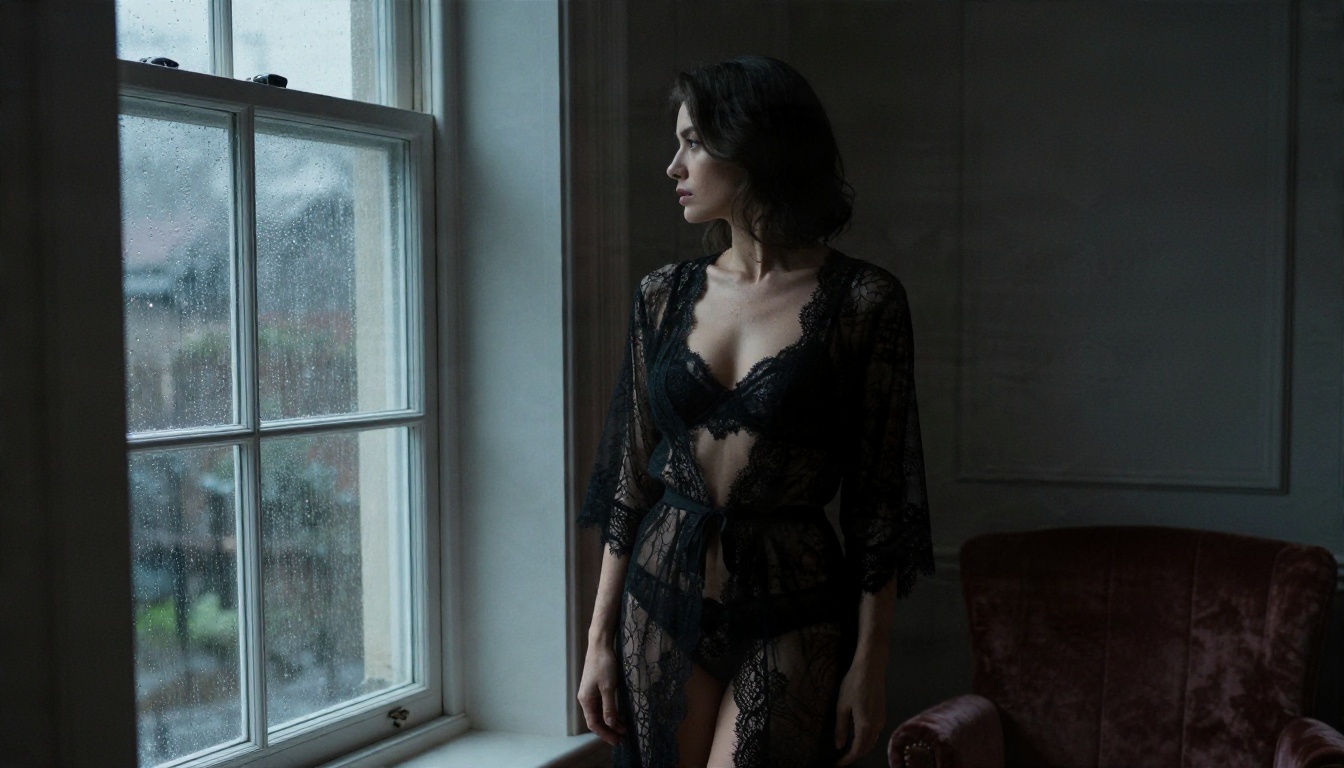
- Outfit: "black two piece swimsuit", "white lace bodysuit", "champagne silk slip dress".
- Setting: "private villa terrace overlooking a calm bay", "bright hotel suite with white linen".
- Light: "warm low sunlight from the left", "soft diffused window light".
- Camera: "85mm f/1.8, shallow depth of field, Kodak Portra 400 film grain".
Three example prompts
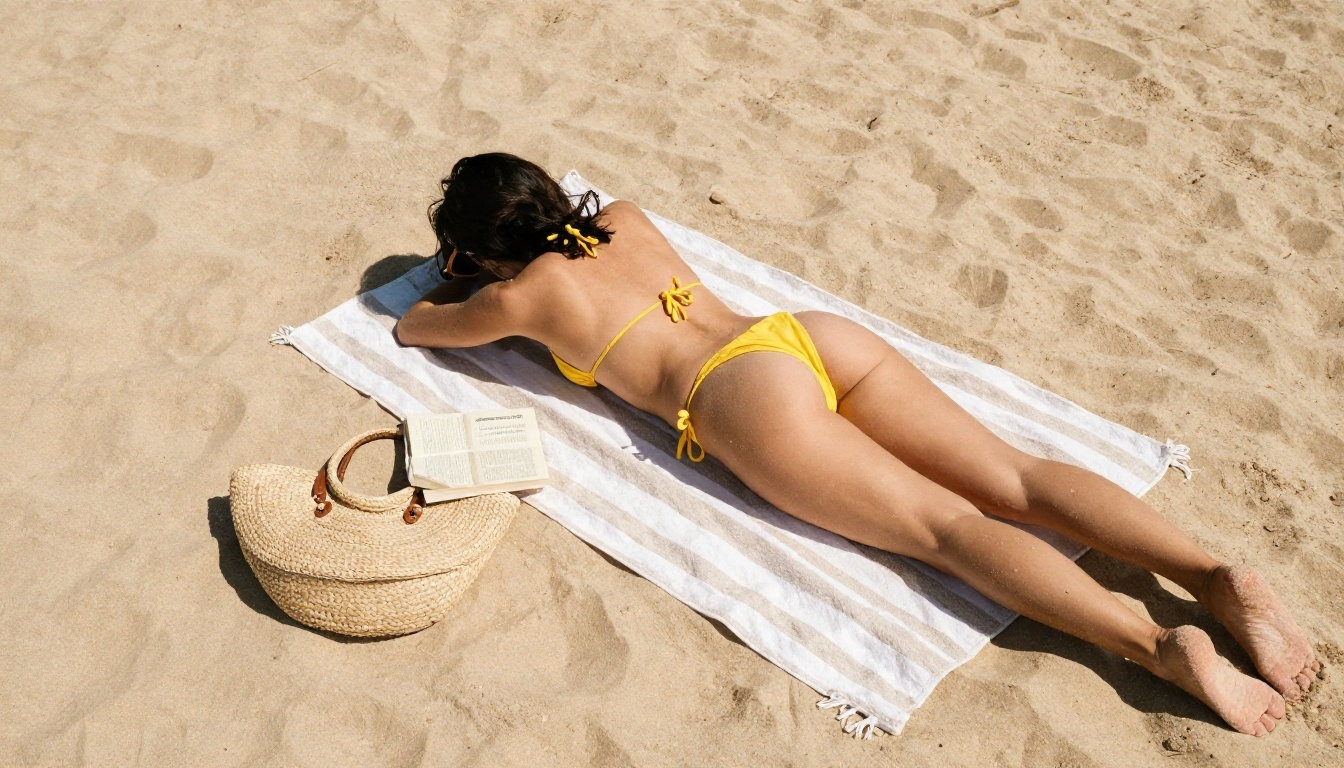
- Beach glamour: "Adult woman in a red bikini standing ankle deep in clear water on white sand, hands lifting wet hair, midday sun from above right, water droplets on tanned skin, 35mm f/2, film grain."
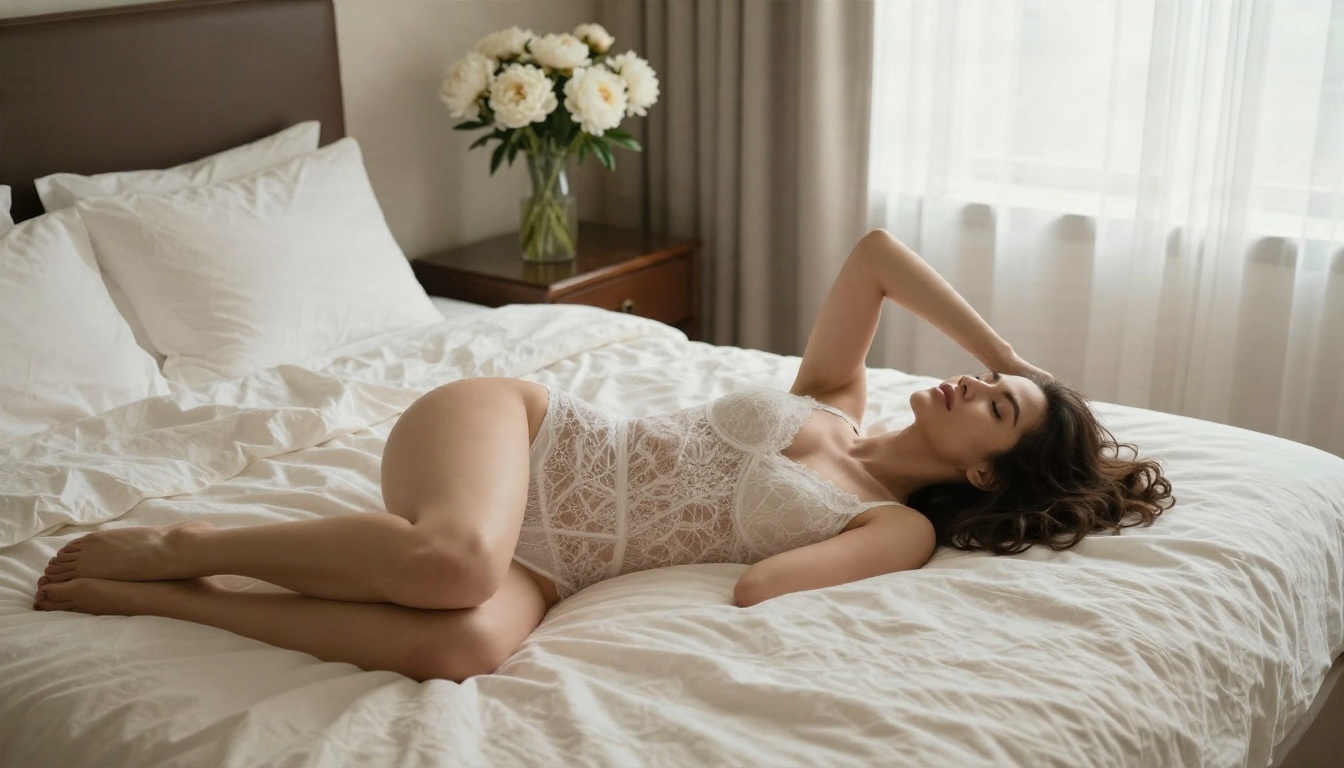
- Boudoir morning: "Adult woman in a white lace bodysuit on rumpled cream sheets, soft window light from the right, vase of peonies on the nightstand, 35mm f/2.8, high angle."
- Evening portrait: "Adult woman in a champagne silk slip dress on a marble balcony at dusk, warm light from the doorway, city lights blurred behind, 70mm f/2."
Mistakes that ruin images
- Stacking ten adjectives like "gorgeous stunning perfect flawless". The model gets confused, and the face turns generic.
- Forgetting the camera. Without a lens, results drift toward a cartoonish look.
- Asking for crowds. Hands and faces degrade fast with more than two people.
- Skipping negatives for flaws. Add "no extra fingers, no warped hands, no text" when a model struggles.
Alternatives Worth Trying
No single model wins every scene. When Seedream 4.5 and Image Editor Pro do not fit, these options on PicassoIA are worth a run.
Z Image Turbo for quick drafts
Z Image Turbo is the model to open when you want ten rough ideas in a minute. Use it to test a prompt's composition, then move the winning prompt to Seedream 4.5 for the final high detail version.
Flux 2 Klein for consistent styling
Flux 2 Klein 9B Base LoRA suits projects where you want a recognizable look across a series, such as a set of beach photos with matching color grading.
Qwen Image Edit Plus for changes
Qwen Image Edit Plus handles direct photo edits. Upload an image, describe the change, and compare the result with what Image Editor Pro gives you. Two editors give you two chances to get it right.
💡 Tip: Keep a short list of your three best prompts. When a model disappoints, paste the same prompt into the next one and compare. You learn quickly which model suits which scene.
Fixing Common Problems
Plastic skin and glossy faces
Add "natural skin texture, visible pores, fine peach fuzz, film grain" and avoid words like "flawless" or "perfect". Lower any "beauty" or "smoothing" setting if the tool has one. Then finish with a light pass through an upscaler rather than a heavy retouch.
Warped hands and extra fingers
Hands remain the weakest spot of every generator. Place them in simple positions: lifting hair, resting on a knee, holding a glass. Complicated finger poses fail more often. If a hand still looks wrong, edit only that area with an image editor and regenerate it once or twice.
The tool blocks a harmless prompt
Some filters trip on a single word. Rewrite the outfit in neutral terms ("two piece swimsuit" instead of a slang term), or move the prompt to a model with looser moderation. Do not keep retrying the same sentence, since that only wastes credits.
Inconsistent faces across a series
Generating several images of the same woman is hard. Use one strong base image, then change the outfit and setting through editing instead of writing a new prompt each time. Editing preserves the face far better than starting over.
Safety Rules You Should Follow
Using an NSFW picture maker comes with real responsibilities, and ignoring them is how people end up in trouble.
- Adults only. Every generated subject must be an adult. Never prompt for anyone who looks under 18. No exceptions.
- No real people without consent. Do not upload photos of someone else, an ex, a coworker or a celebrity, to create suggestive images. That is harassment, and in many places it is illegal.
- Keep it non-explicit. Glamour, swimwear and boudoir are one thing. Explicit content is another, and good results on this topic do not need it.
- Protect your uploads. Before you give a photo to any app, check what it stores. Free apps with vague privacy policies are the riskiest.
- Label AI images. If you share them publicly, say they are AI generated so nobody mistakes them for photos of a real person.
Privacy habits worth keeping
Avoid including your face or home in reference photos, strip metadata before uploading, and keep generated images off public cloud folders unless you want them public.
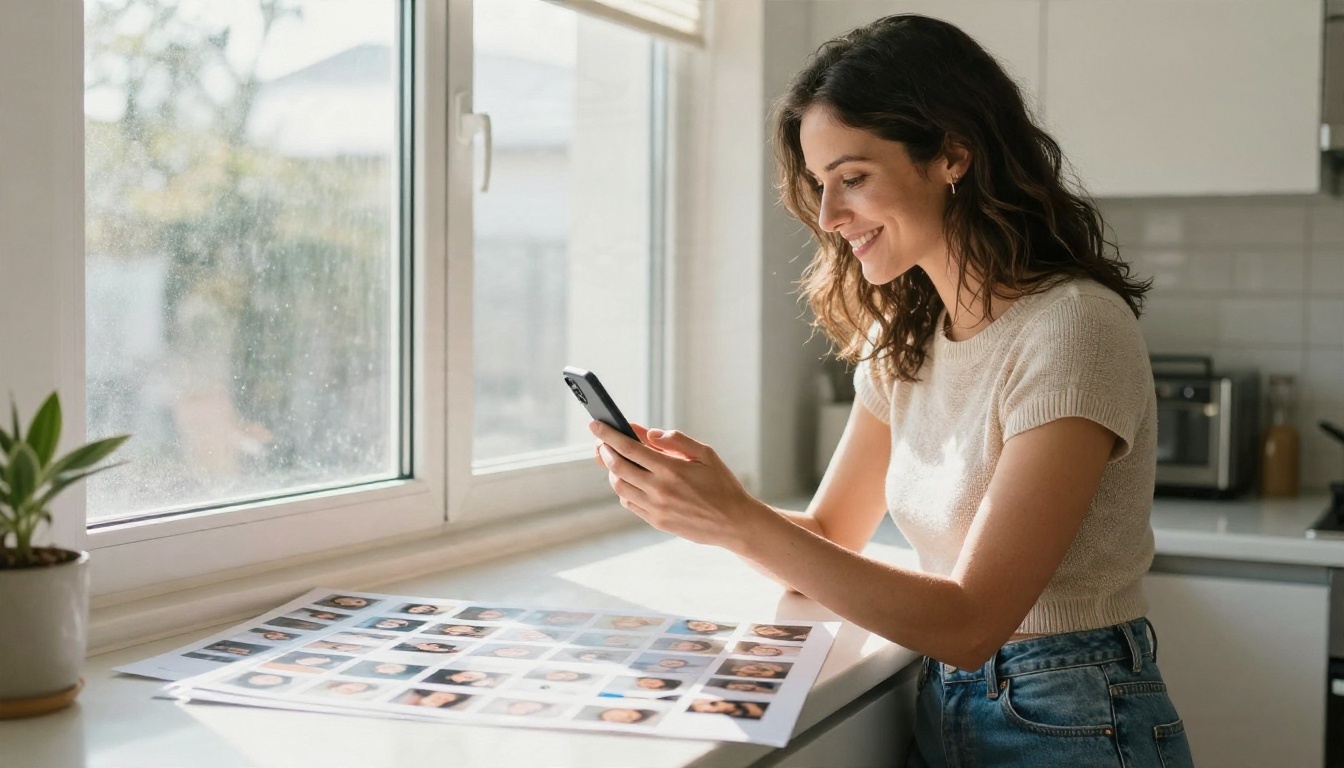
Still unsure where to start? Match your situation to a pick:
A sensible workflow for most people: draft in Z Image Turbo, finalize in Seedream 4.5, adjust in Image Editor Pro, then upscale. Each step takes under a minute.
Make Your First Image Today
You do not need a paid subscription, a watermark or a lecture from a filter to get good results. Open Picasso IA, pick Seedream 4.5, paste one of the prompts above, and see what comes back. Then take the best result into PicassoIA Image Editor Pro and push it further with unlimited edits.
Change the outfit, shift the light from golden hour to window glow, try a different lens, and compare. The more you experiment, the faster you build a prompt style that is yours. When you want to try something different, browse every model at picassoia.com/en/all-models and run the same prompt through a new one. Your next favorite image is probably one prompt away.


