You have a photo you love. A lake at dawn, a grandmother's portrait, a mug of coffee you styled just right. You want it to move, and you want it now, without handing over an email address, a phone number or a credit card. That is the promise behind every photo to video AI without login search, and it is also where most people lose twenty minutes clicking through pop-ups that end in a locked export button.
This article sorts the real from the marketing. You will see what "no login, no sign up, no watermark" actually delivers, where the catch usually hides, which kinds of photos animate well, and how to get a clean clip from a still image with a few sentences of prompt. I also include a short walkthrough for animating a photo on PicassoIA, with the models that suit quick, repeatable results.
What "No Login" Really Means

Three phrases get bundled together, and they are not the same promise. Separating them saves you time.
The Three Promises
No login means you can reach the generator and press a button without signing in. No sign up usually means the same thing, but some tools let you try one clip and then ask for an account before you can save it. No watermark is about the output: the exported video has no logo burned into a corner or across the frame.
A tool can honor one of these and break the other two. A site might let you upload a photo anonymously, render the clip, and then show a blurred preview until you register. Another might give you a clean file but only after a login. Read the export step before you invest effort in a prompt.
Where the Catch Usually Hides
Video generation is expensive to run. Every five second clip uses real GPU time, so someone pays for it. When a tool charges nothing and asks for nothing, the cost is recovered somewhere else. Common patterns look like this:
- Watermarks that advertise the tool on every export.
- Low resolution, often 480p or below, with higher quality behind a paywall.
- Queues that put anonymous users behind paying ones, sometimes for many minutes.
- Daily caps of one or two clips per device.
- Data collection, where your uploads or usage are stored to train models or sell ads.
None of these are scandals. They are trade-offs, and knowing them lets you pick which one you can live with.
💡 Quick test: before writing a long prompt, upload a throwaway image and push it all the way to the download step. If the final file has a logo or a login wall, you have your answer in under a minute.
Free, No Sign Up, No Watermark: Pick Two

In practice, the three promises pull against each other. Here is how the typical trade-offs shake out across the kinds of tools you will meet.
| Tool type | Login needed | Watermark | Resolution | Best for |
|---|
| Anonymous web demo | No | Usually yes | Low | A quick test clip |
| Free tier with account | Yes | Often removable | Medium | Regular hobby use |
| Paid subscription | Yes | No | High | Client work and campaigns |
| Open weights on your own PC | No | No | Depends on hardware | Technical users with a strong GPU |
| Platform with free or unlimited models | Check the model page | Check the model page | Up to 720p or higher | Creators who iterate a lot |
The honest takeaway: if you truly want zero friction, expect a watermark or a resolution cap. If you want a clean, high quality file, expect to create an account at some point. The sweet spot for many people is a platform that offers free or unlimited models, so the account step is a one-time cost and the clips stay clean.
Why Watermarks Exist
A watermark is the cheapest form of advertising a free tool can run. Every clip you post becomes a small billboard. It also discourages commercial reuse without a paid plan. If you only want a clip for a private memory, a watermark may not bother you. If you plan to post it or use it in a product page, it will.
Free Tiers and Daily Caps
Many tools limit how many clips you can render per day. That sounds fine until you realize that good results often take three or four tries. A cap of two clips means you are budgeting attempts rather than improving prompts. Models marked as unlimited remove that pressure, which is why they matter for anyone who iterates.
Which Photos Animate Best
Not every photo turns into a good clip. Image to video models guess what happens next based on the frame you give them. The clearer the subject and the lighting, the better the guess. These are the categories that work most reliably.
Portraits and Family Prints
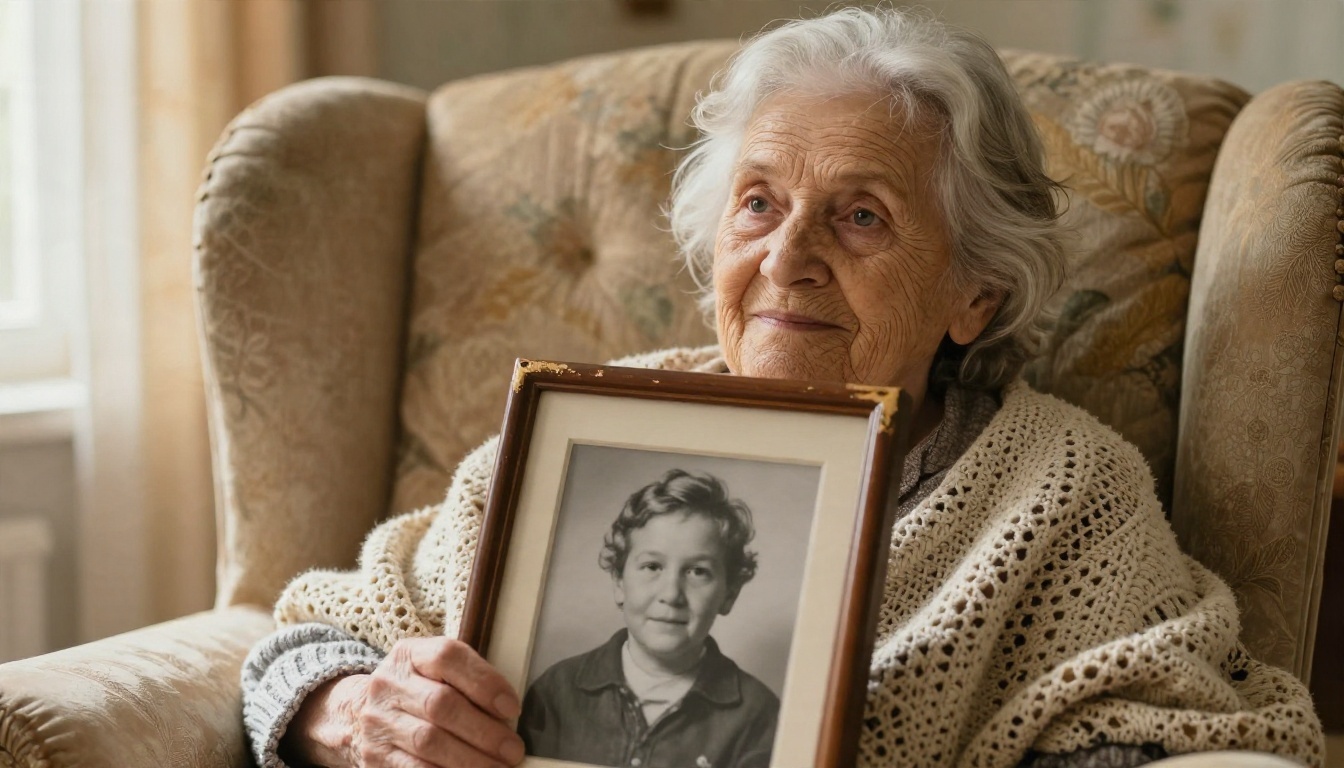
Portraits are the most emotional use case. A scanned print of a relative can come alive with a slow blink, a small smile or a gentle head turn. Keep the motion subtle. Large gestures on old, low resolution scans often produce warped faces. Scan or photograph the print in even light, crop out the border, and ask for something small: "slow blink, soft smile, slight head tilt."
💡 Tip: if a scan is grainy, run it through a super resolution model first. A sharper first frame gives the video model more detail to hold onto.
Landscapes and Water
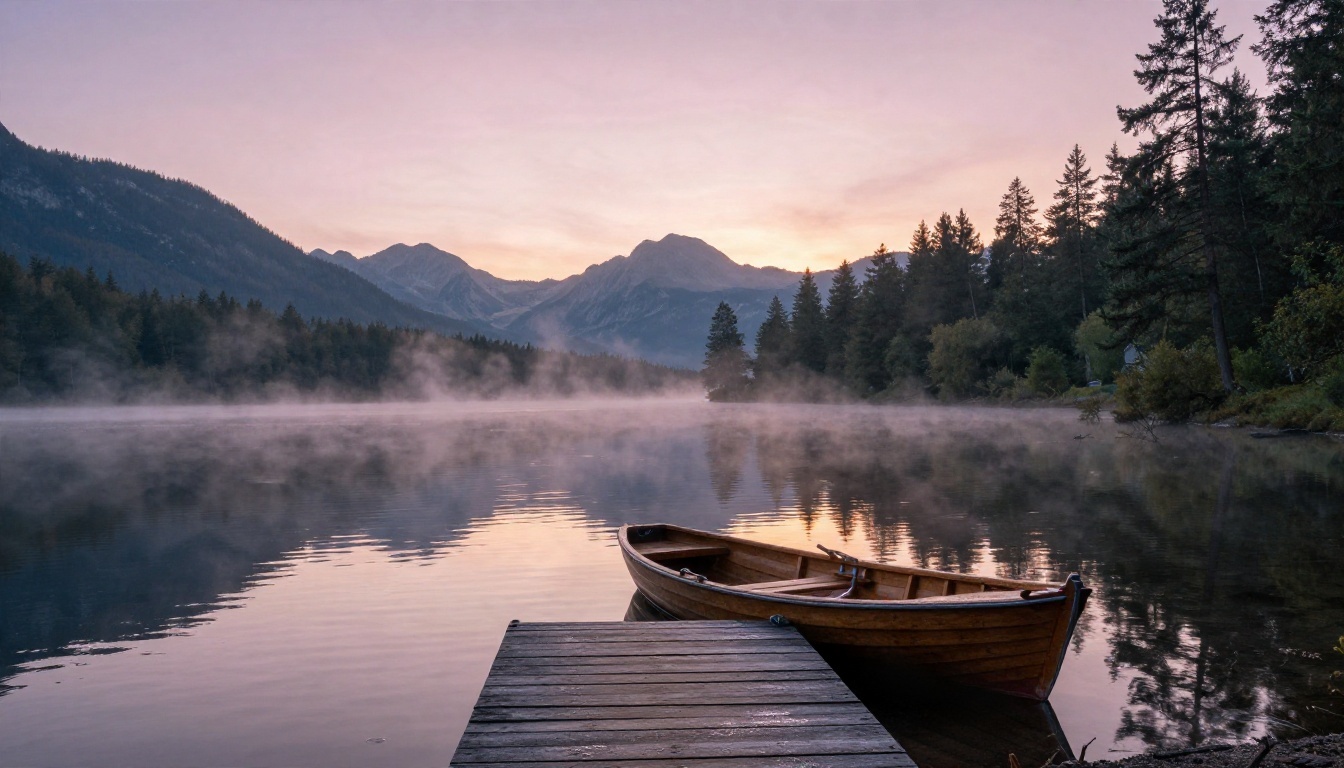
Landscapes are forgiving. Mist drifts, water ripples, clouds slide and leaves sway, and viewers accept all of it as natural. There is no face to distort and no hand to count. This is the best category to test a new tool because failures are easy to spot and easy to fix. A prompt like "mist drifts slowly across the lake, boat bobs gently, slow push-in" will usually land on the first or second try.
Products and Pets

Product shots work well when the motion is small and physical: steam rising, a slow camera orbit, light shifting across a glaze. Keep the product itself rigid so the shape does not wobble. Anything with printed text on the packaging is risky, because the model may rewrite the letters mid clip.
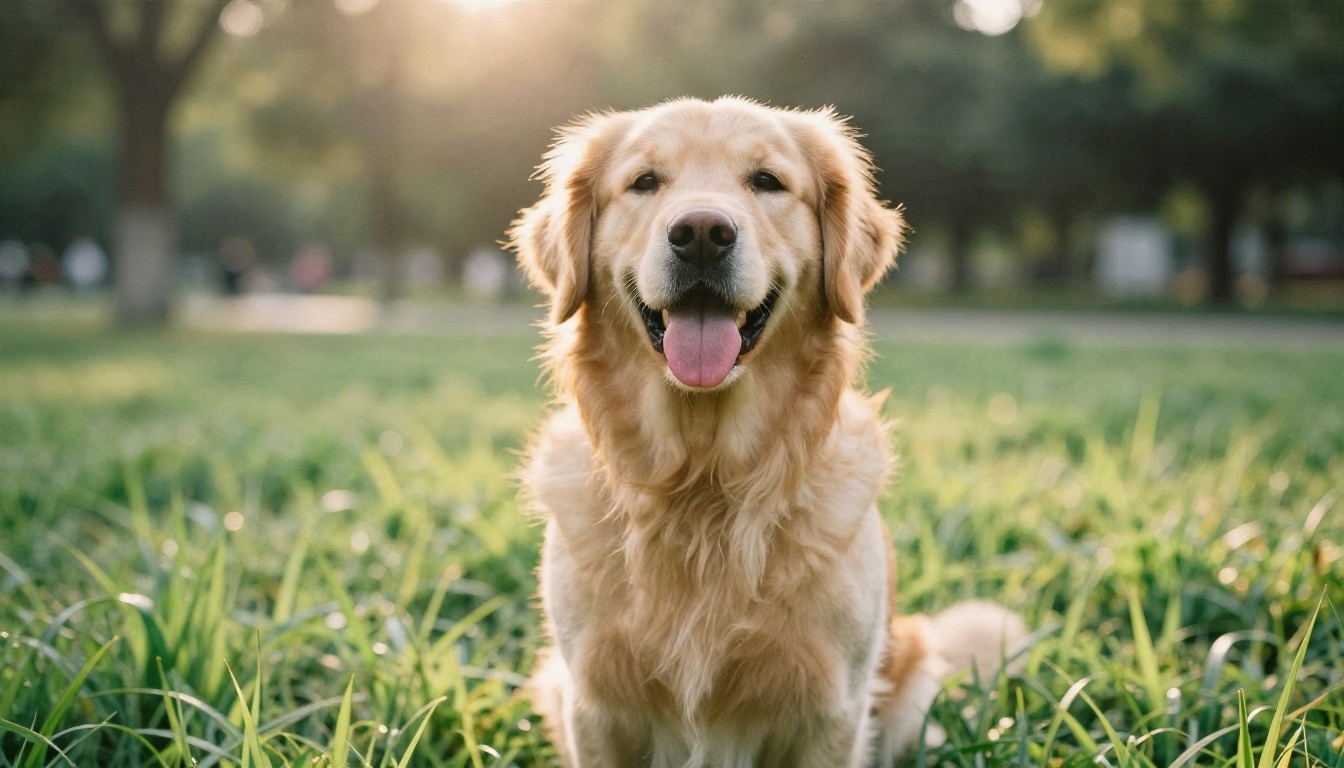
Pets are a joy to animate. Fur catching wind, ears twitching and a tongue lolling out read as natural movement. Ask for breeze, a head tilt or a slow blink rather than running or jumping, which demands more physics than a five second clip can usually sell.
| Photo type | Difficulty | Safe motion to ask for | Watch out for |
|---|
| Landscape | Easy | Mist, clouds, water, slow push-in | Over-fast camera moves |
| Portrait | Medium | Blink, smile, small head turn | Warped faces on low resolution scans |
| Product | Medium | Steam, light shift, slow orbit | Printed text changing shape |
| Pet | Medium | Breeze, ear twitch, head tilt | Fast limb movement |
| Group photo | Hard | Subtle shared motion, light shift | Faces merging or drifting |
Models Worth Trying
If you want to compare several models on the same photo, PicassoIA hosts a long list of image to video options. These are the ones that fit the "quick, free or low friction" brief best, grouped by what they do well.
Fast and Free Picks
Picasso IA Video is the native model, listed as free and unlimited, and it takes either a text prompt or an input image as the opening frame. Every clip runs 5 seconds at 24 frames per second with synchronized audio, which makes results predictable across runs.
Seedance 2.5 Lite is the lightweight version of Seedance 2.5, tuned for 480p and 720p, with clips of 5 or 10 seconds. According to its model page, Elite and Infinite members can run it without a per-clip cost or a daily counter, which suits anyone who iterates heavily.
Wan 2.5 I2V Fast and Hailuo 2.3 Fast are both built around animating photos quickly, which helps when you want to test five prompts in the time one slower model would finish a single render.
Higher Quality Picks
When the clip matters more than the speed, step up to a heavier model:
- Wan 2.7 I2V animates any still image and handles detailed scenes well.
- Kling v3 Video is aimed at cinematic output with smooth camera movement.
- Veo 3.1 Fast produces 1080p video and pairs it with native audio.
- LTX 2.5 Fast targets high resolution output at speed.
- Gen4 Turbo turns images into video quickly and is a good second opinion on motion.
- Grok Imagine Video 1.5 takes an image and returns a clip with audio.
💡 Note on logins: whether a given model needs an account, and how it handles watermarks, is set on its own page. Check the model page before you plan a workflow around "no login."
How to Animate a Photo on PicassoIA

Picasso IA Video is a good place to start because it is free and unlimited, takes an image as the opening frame, and keeps the output format fixed, so you can compare prompts fairly. Here is the process from photo to finished clip.
Step by Step
- Open the model page. Go to Picasso IA Video.
- Upload your photo. Pick a sharp image with a clear subject. The photo becomes the first frame of the clip.
- Write a motion prompt. Describe what moves and how the camera behaves. Two or three sentences are enough.
- Choose an aspect ratio. Pick 16:9 for landscape, 9:16 for vertical stories and Reels, or 1:1 for squares. Matching your source photo avoids awkward crops.
- Set the resolution that fits your platform. Higher resolutions look better but take longer.
- Lock a seed if you like the result. Leave the seed empty for a fresh take each time, or fix it to reproduce a clip you liked.
- Generate and review. Watch the five seconds twice. The first time for the overall feel, the second for glitches in faces, hands and edges.
- Iterate. Change one thing per run: the prompt, the camera move or the seed. That way you know what caused each difference.
If you want a longer shot, switch to Seedance 2.5 Lite and choose 10 seconds. If you want to compare how a different model reads the same photo, run the same prompt through Wan 2.7 I2V.
Prompt and Parameter Tips
- Describe motion, not the photo. The model already sees the image. Tell it what changes.
- Name one camera move. "Slow push-in," "gentle pan left" or "static camera" are clear. Stacking three moves creates chaos.
- Mention sound. Models with synchronized audio respond to cues like "soft wind, distant birds."
- Keep the seed when something works. Then adjust only the prompt.
- Match the aspect ratio to the source. A mismatch forces the model to invent edges.
Prompts That Work
A good motion prompt follows a simple order: what the subject does, what the camera does, what the light and air do. Short and specific beats long and poetic.
The Motion Prompt Formula
Subject action + camera movement + atmosphere. A few examples you can copy and adapt:
- Landscape: "Mist drifts slowly across the lake, the rowboat bobs gently, slow push-in, soft morning light, quiet ambient sound."
- Portrait: "She blinks slowly and gives a small warm smile, slight head tilt, static camera, soft window light."
- Product: "Steam rises from the cup in a thin curl, slow orbit to the right, warm side light."
- Pet: "A light breeze moves the fur and ears, the dog tilts its head, slow push-in, golden hour glow."
For a vertical clip aimed at social platforms, add the aspect ratio in the settings rather than in the prompt, and keep the subject centered so cropping does not cut it off.
Common Mistakes
| Mistake | What happens | Fix |
|---|
| Asking for big action from a still portrait | Faces warp or melt | Request small, natural motion |
| Stacking several camera moves | Jittery, confusing clip | Use a single move |
| Uploading a tiny or blurry image | Soft, smeared video | Upscale first with a super resolution model |
| Prompting for text on screen | Letters change or garble | Leave text out |
| Changing everything between runs | You cannot tell what helped | Change one variable per run |
💡 Tip: if the first frame is slightly off, fix the photo first. An image editor or a quick background clean-up before animation often saves several wasted renders.
Privacy Checks Before Uploading
"No login" sounds private, but anonymous does not always mean safe. Photos of family members, children or documents deserve a moment of thought before you upload them anywhere.
What to Check
- Terms of use. Look for a line about whether uploads are stored or used to improve models.
- Retention. Some tools delete files after a short period. Others keep them indefinitely.
- Rights. Only animate photos you own or have permission to use, especially portraits of other people.
- Sensitive images. Avoid uploading IDs, medical documents or anything you would not want stored.
A Safe Habit
Keep an original copy of every photo on your own device, and treat any cloud upload as potentially stored. If a photo is private, crop out identifying details like street signs or house numbers before you upload. When a tool is vague about what it does with your files, assume the worst and pick another.
Animate Your First Photo Today
The "no login, no sign up, no watermark, free" combination is rarely all four at once, and now you know which trade-off each tool is making. Pick the one you can live with: a watermark for a quick test, a one-time account for clean exports, or an unlimited model for serious iteration.
The fastest way to see the difference is to take one photo and run it through two or three models side by side. Start with Picasso IA Video for a free, unlimited baseline, try Seedance 2.5 Lite when you want a longer shot, and bring in Wan 2.7 I2V or Kling v3 Video when the clip has to look its best. Use a landscape or a coffee cup for your first test, because they are the most forgiving subjects.
Ready to see your own photo move? Open Picasso IA, upload a favorite still, write two sentences of motion, and watch five seconds come to life. Browse every video, image and audio model at picassoia.com/en/all-models and build your own routine from there.


