You typed "Picasso AI generator" into a search bar and got a pile of tools that all claim the same name. Some are free, some are watermarked, one mobile app has reportedly disappeared, and the pricing pages disagree with each other. That's confusing, and it wastes your time when all you want is a picture that looks right.
This page sorts it out. You'll see what the name actually points to, what a free online tool can and can't do, how the app experience works on a phone, which prompts produce photorealistic results, and what pricing looks like before you commit a cent.
💡 Quick answer: PicassoIA is a platform that puts dozens of image models in one place, so you can generate photos from text without juggling subscriptions. You can start free and pick the model that fits the job.
What Picasso AI Actually Means
One Name, Many Tools
Search for "Picasso" plus "AI" and you'll find at least four unrelated products. There's a text-to-image site that advertises unlimited free generations, a tool with a free tier and a paid Pro upgrade, an art generator with watermarked free exports, and a mobile app listed in several directories. They have no shared company, no shared model, and no shared pricing.
Directory sites also contradict each other. One lists a monthly plan under five dollars, another lists nearly ten. Some entries were last updated months ago. Treat any number you see on a third-party listing as a rough hint, not a quote.

Where PicassoIA Fits
PicassoIA is different in one important way: it isn't a single generator. It's a hub with 91 text-to-image models, plus video, audio, upscaling and background removal under the same roof. Instead of betting on one engine, you choose from several families, including Seedream 4.5, Imagen 4 and Flux Schnell.
That matters because no single model wins every task. One is great at skin texture, another at readable lettering, another at speed. A hub lets you switch without opening a new account.
| What you want | What to look for |
|---|
| One engine, fixed style | A single-purpose Picasso tool |
| Many engines, one login | A model hub like PicassoIA |
| Phone-first quick edits | A native app or a mobile browser workflow |
| Predictable monthly cost | A plan with clear credits or unlimited generation |
What Free Gets You
On PicassoIA you can open a model page, type a prompt, and generate without building a project first. Several models are marked as free to try, such as Nano Banana Pro and Ideogram v4 Quality. There's no software to install, and results come back in seconds for the faster models.
Free access is ideal for three jobs:
- Testing a concept before you spend time polishing it
- Comparing models on the same prompt to see which one suits your subject
- Making social posts, thumbnails and mood boards that don't need print resolution
Where the Limits Show Up
Free tiers on any generator tend to hit the same walls. Resolution caps, queue speed, watermarks and daily generation counts are the usual ones. Commercial licensing is another one that people forget to check.
💡 Tip: Before you build a client project on a free tool, read the usage terms for that specific model. Rights can differ from one engine to the next, and a quick check now saves an awkward email later.
If a tool asks for a credit card before your first image, or hides the price until after you sign up, treat that as a signal to compare alternatives.

Using It as an App
On Your Phone Browser
You don't need a download to work from a phone. PicassoIA runs in a mobile browser, so you can open it, pick a model, type a prompt and save the result straight to your camera roll. Add the page to your home screen and it opens like an app.
A phone workflow works best when you keep things short:
- Open a fast model such as Imagen 4 Fast.
- Type one clear sentence describing the subject and the light.
- Generate three variations and keep the best one.
- Send it to an editing step if it needs a fix.
On Your Desktop
A laptop is better when you're producing a batch. You can keep several model tabs open, paste the same prompt into each, and compare the results side by side. Designers I've seen do this tend to settle on two or three favorite models within a week and stop switching.
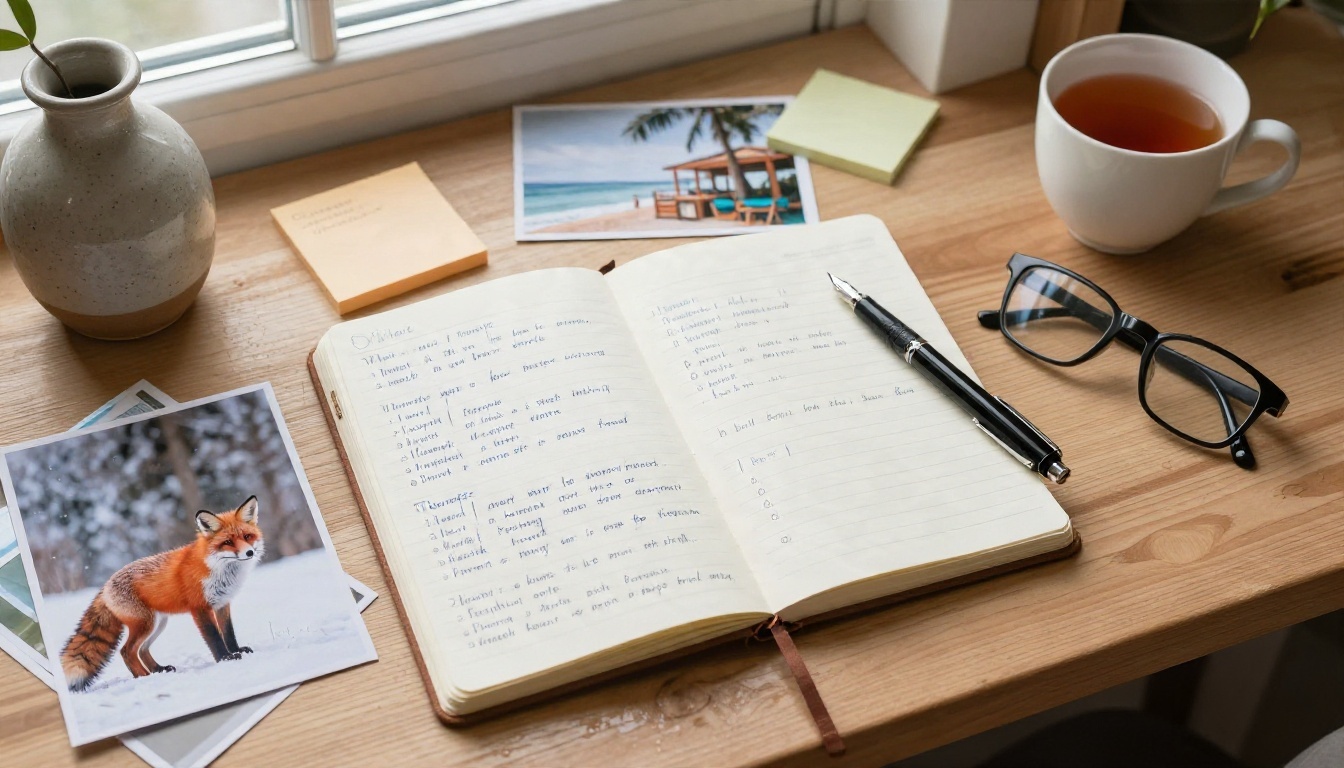
A desktop also makes it easier to keep a prompt notebook, which brings us to the part that matters most.
Prompts That Produce Real Photos
The Five Part Formula
Every strong photographic prompt answers the same five questions. Write them in this order and your results become far more consistent:
| Part | What to write | Example |
|---|
| Subject | Who or what, doing what | "A baker dusting flour over a wooden board" |
| Setting | Where it happens | "in a small village bakery at dawn" |
| Light | Direction and quality | "soft window light from the left" |
| Lens | Camera and aperture | "35mm lens, f/2, shallow depth of field" |
| Texture | Surface and film feel | "visible flour dust, fine film grain" |
Camera language works because models learned from millions of captioned photographs. When you write "85mm f/1.8", you're steering toward the look of portraits shot with that lens.
Prompts You Can Copy
Paste these into any photorealistic model and adjust the nouns:
- Portrait: "Close-up portrait of an elderly fisherman mending a net on a wooden pier, overcast morning light, 85mm f/1.8, visible skin pores, fine film grain."
- Product: "A glass bottle of olive oil on a rustic oak table, soft side light from a window, 100mm macro, shallow depth of field, realistic glass reflections."
- Landscape: "A winding gravel road through autumn hills at sunrise, low golden light, 24mm wide angle, light mist in the valley, natural color."
- Food: "Overhead shot of a bowl of ramen with soft-boiled egg and scallions, steam rising, diffused daylight, 50mm lens, wooden table texture."
- Interior: "A sunlit reading nook with a linen armchair and stacked books, afternoon light through sheer curtains, 28mm lens, soft shadows."
- Street: "A cyclist crossing a cobblestone square in the rain, umbrellas and reflections on wet stone, 35mm lens, muted color, documentary mood."
Change one variable at a time. If the lighting is wrong, edit only the lighting phrase and regenerate. That's how you learn what each word actually does.
Mistakes That Waste Credits
- Stacking style words. "Cinematic, epic, ultra detailed, masterpiece" tells the model very little. Replace them with a lens and a light source.
- Describing too many subjects. Three people, two animals and a car will confuse any engine. Start with one subject.
- Ignoring negative space. If you need room for a headline, say "empty sky in the upper third."
- Forcing long text. Most models still struggle with paragraphs of lettering. Keep any text to one or two words, or pick Ideogram v4 Balanced, which handles lettering better.
Which Model Fits Which Job
Matching Engines to Tasks
Because PicassoIA hosts many models, you can match the engine to the assignment. This table reflects how each family tends to behave in practice:
| Model | Best for | Speed | Link |
|---|
| Seedream 4.5 | Sharp 4K photographic scenes | Medium | Open model |
| Imagen 4 | Natural, photorealistic portraits | Medium | Open model |
| Imagen 4 Ultra | High detail where textures matter | Slower | Open model |
| Flux Schnell | Rapid drafts and variations | Very fast | Open model |
| Nano Banana | Editing and generating in one tool | Fast | Open model |
| Stable Diffusion 3.5 Large | Flexible, art-directed looks | Medium | Open model |
| Ideogram v4 Quality | Images with short, readable text | Medium | Open model |
A sensible routine is to draft with Flux Schnell, pick the composition you like, then re-run the final prompt on Seedream 4.5 or Imagen 4 Ultra for the finished image. You spend the least time on the weakest ideas.
If you want more variety, the full catalog is at picassoia.com/en/all-models. It also includes tools for upscaling, background removal, inpainting, outpainting, face swap, lip sync and music, so one finished picture can turn into a short clip or a product visual without leaving the platform.
Pricing Without the Guesswork
What Other Picasso Tools Charge
Here's what third-party directories reported at the time of writing, paraphrased and rounded. Check each vendor's own page before you rely on any figure.
| Product type | Free plan | Paid plans (reported) |
|---|
| Text-to-image site with unlimited claim | Yes, no account | Not required, per the vendor |
| Tool with Pro upgrade | Yes, limited | Roughly four to five dollars monthly |
| Art generator | Yes, watermarked | From about nine dollars monthly |
| Pix style app | Yes, watermarked | Seven to ten dollars monthly, credit based |
The pattern is familiar: free for a taste, paid for resolution, speed and no watermark.
How to Keep Costs Low
Whatever platform you choose, a few habits keep the bill small:
- Draft on fast models. A quick model costs less per image and tells you if the idea works.
- Write one good prompt instead of ten bad ones. The five part formula above pays for itself.
- Generate at the size you need. A social post doesn't need 4K.
- Upscale only the winner. Run super resolution on the single image you'll actually publish.
- Compare the cost per usable image. A cheap tool that needs ten tries can cost more than a pricier one that nails it in two.
PicassoIA keeps its own pricing and credit details inside the platform, so check the current numbers there instead of trusting an article, including this one.
Who Gets the Most Out of It
Small Business Owners
A bakery, a candle shop or a plumber doesn't need a photo studio. A product on a clean wooden counter, a lifestyle scene for a menu, a banner for a seasonal sale: all of it can be generated and then checked against your real product so customers aren't misled.
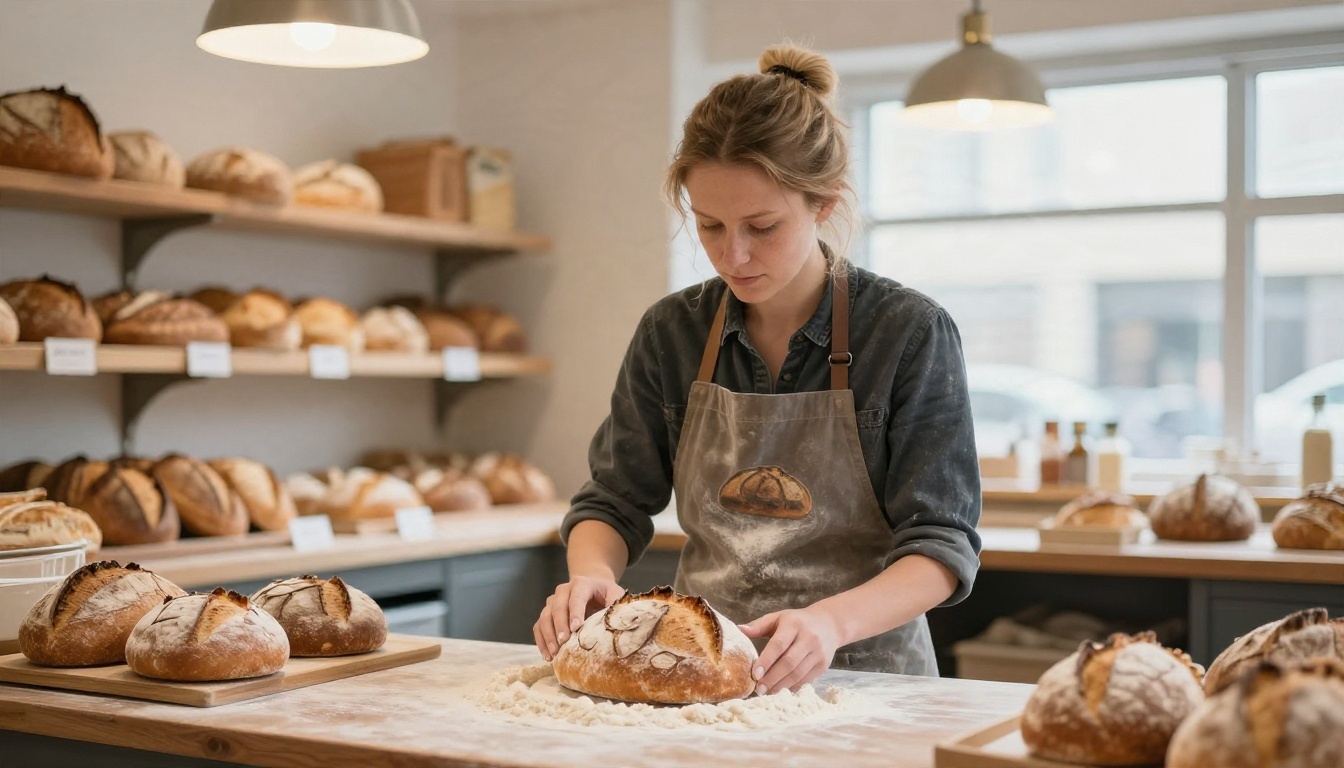
💡 Honesty check: If an image shows a product, make sure the real item looks like it. Generated imagery works best for backgrounds, mood and concept shots, not for promising features you don't deliver.
Creative Teams
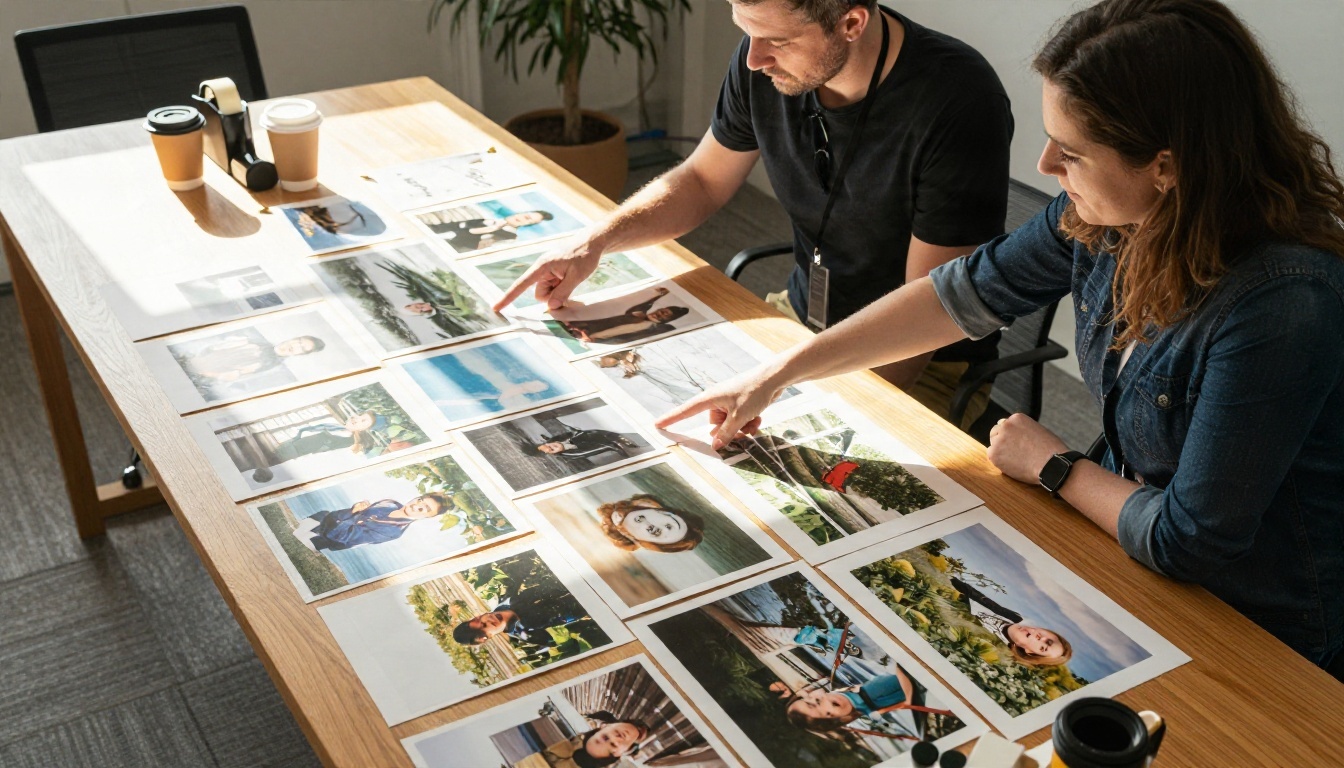
Agencies use generators for mood boards, pitch visuals and quick storyboards. A team can print twenty options, pin them to a table, and agree on a direction in a single meeting, instead of waiting a week for sample shoots.
Students and Hobbyists
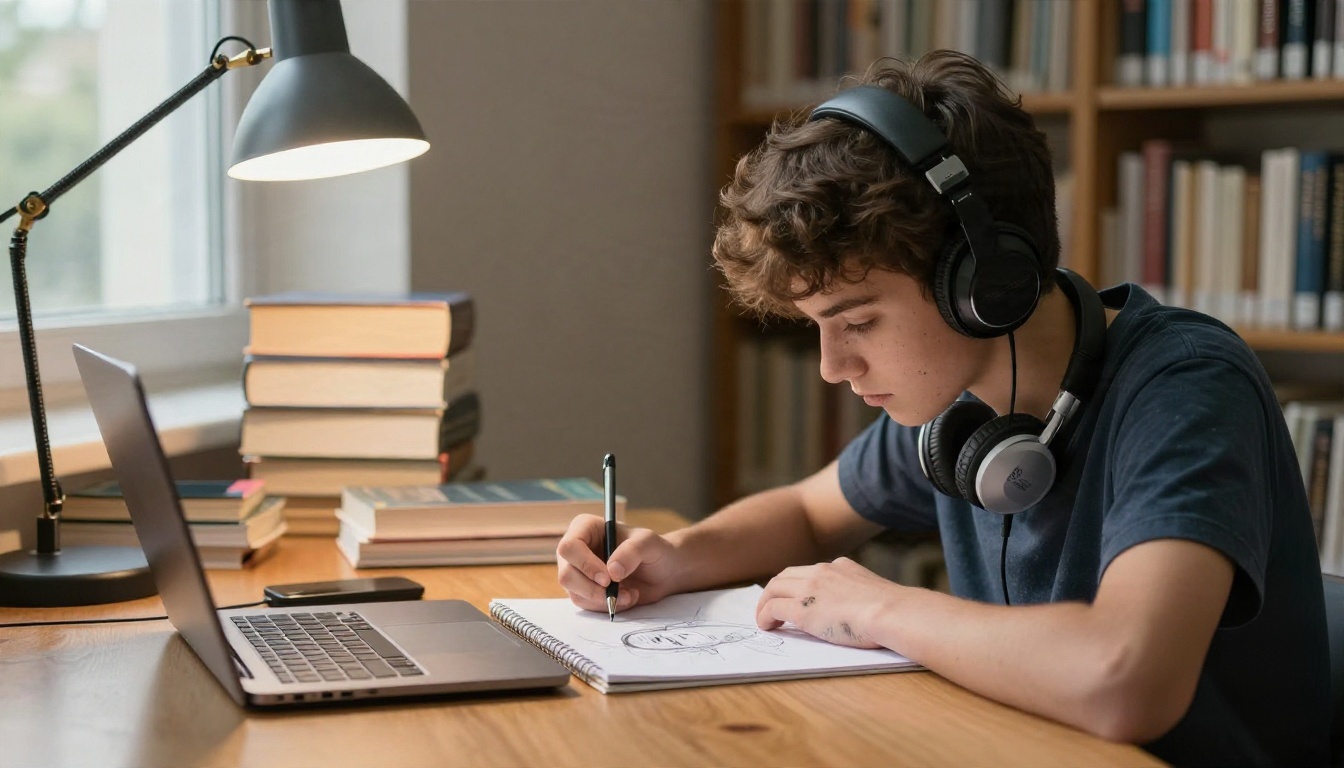
Students use a generator as a sparring partner for sketching: generate a pose or a lighting setup, then draw it by hand. It's cheap reference material, and it trains the eye to notice how light falls on a face.
Make Your First Image Today
You don't need to compare every Picasso tool on the internet. Pick a single idea, write it using the five part formula, and run it on two models at PicassoIA. Look at the skin, the light and the textures, and keep the version that feels like a photograph someone actually took.
A simple plan for the next ten minutes:
- Choose one subject you care about, such as your product, your pet or your street.
- Draft it on Flux Schnell.
- Re-run your favorite on Seedream 4.5.
- Save the best one and note the prompt in your notebook.
Do that three times and you'll have a personal prompt library, a clear idea of which model suits you, and a real sense of what a Picasso AI generator can do for your work. Open the platform, type your first sentence, and see what comes back.