You type one sentence. Ten seconds later, a picture exists that did not exist before. That is the whole promise behind every Picasso art app search, and it is the reason millions of people who have never held a brush now make images they are proud to print, post or frame. The real question is not whether it works. It is which tool to open, what to type, and how to avoid the muddy, plastic-looking results that put beginners off.
This article answers all three. You will see how a free online AI image maker turns words into pictures, which models on PicassoIA suit which jobs, a repeatable prompt formula, and ready-to-copy examples for portraits, landscapes, product shots and street scenes. Everything here is written for people who want results, not theory.
What a Picasso Art App Does
The name nods to Pablo Picasso, the painter who broke faces into planes and made a career out of seeing differently. Most people who search for a "Picasso art app" are not after cubism, though. They want a free online AI image maker that lets them describe an idea and get a usable picture back without installing software or learning a complicated interface.
From Sentence to Image
A text-to-image model has been trained on enormous numbers of pictures paired with descriptions. When you write a prompt, the model builds an image that statistically matches those words: subject, setting, light, lens, mood. The more specific your words, the less the model has to guess, and the less your result looks like everyone else's.
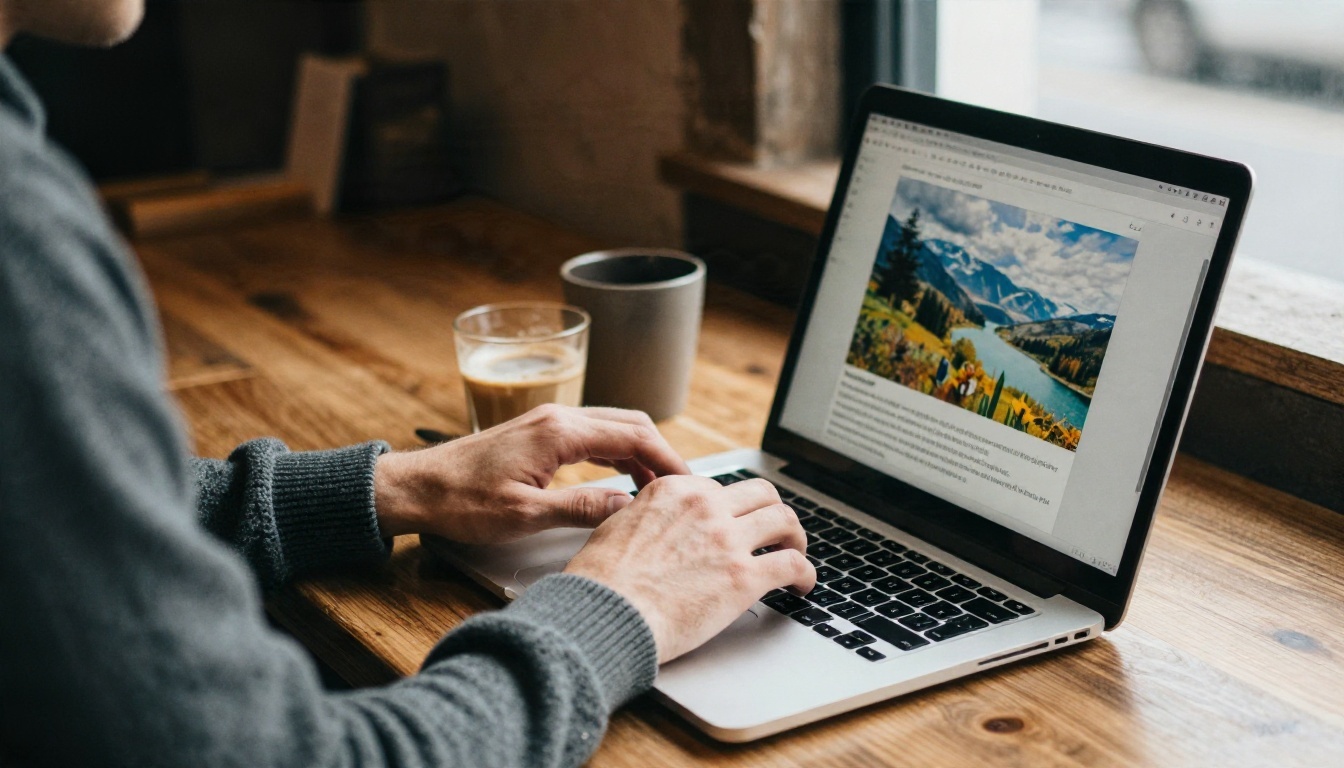
The process on PicassoIA is short: pick a model, type your prompt, choose an aspect ratio, generate. There is nothing to download, and you can run the same prompt through several models to see which one reads your idea best.
Who Uses It
The audience is wider than you might expect:
- Hobbyists who want wall art, phone wallpapers or birthday cards that look personal.
- Small business owners who need product mockups and social posts without hiring a photographer for every campaign.
- Writers and game masters who want a face for a character or a map-like landscape for a story.
- Designers who use generated frames as mood boards before a real shoot.
- Traditional painters who sketch compositions with words before touching canvas.
💡 Tip: Treat the first result as a draft. Professionals rarely keep the first image. They adjust one detail in the prompt, regenerate, and compare.
Free Online Models Worth Trying
Not every model is built for the same task. Some are fast and light, some produce sharp 4K detail, and some are strongest at text inside images. Here are the ones that come up most often for photorealistic work.
Fast Drafts and Quick Ideas
When you are still testing an idea, speed matters more than polish. Flux Schnell is built to return images in seconds, which makes it a good scratchpad. Imagen 4 Fast plays a similar role in Google's family, and Nano Banana 2 Lite is another quick option when you want to cycle through variations.
High Detail for Final Images
Once a prompt looks right, switch to a heavier model for the keeper. Seedream 4.5 produces sharp 4K images with strong skin and fabric texture. Imagen 4 Ultra and Imagen 4 lean toward clean photographic realism, and Nano Banana Pro handles detailed scenes at high resolution.
Text, Posters and Precision
If your image needs a short word on a sign, a label or a poster, Ideogram v4 Quality is built for that kind of precision. Its lighter sibling, Ideogram v4 Balanced, trades a little detail for speed.
Most disappointing images come from vague prompts. "A beautiful woman in a field" leaves the model to decide everything, and it will pick the most average version of each choice. A better prompt works like a brief you would hand to a photographer.
Five Building Blocks
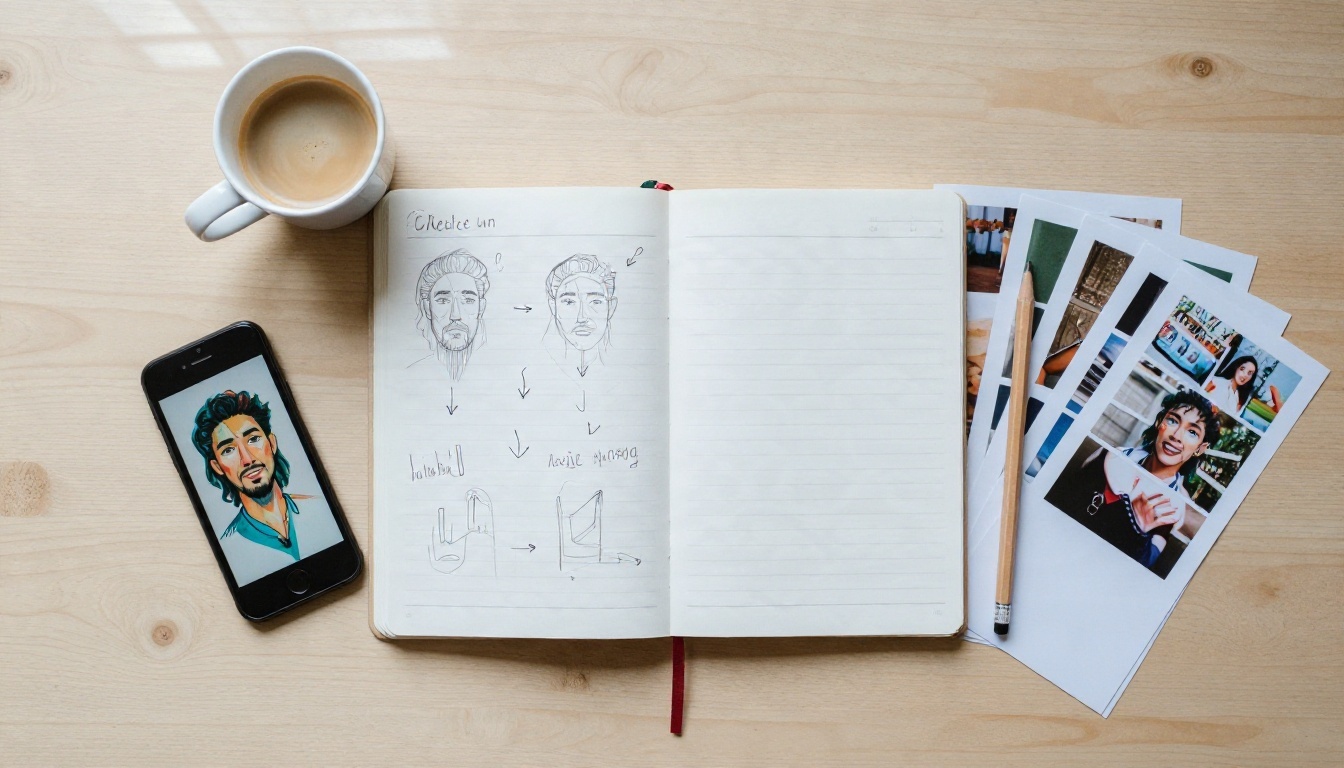
Write your prompt in this order. You do not need every block every time, but the more you include, the more control you keep.
- Subject and action. Who or what is in the frame, and what are they doing? "An elderly fisherman coiling rope" beats "an old man".
- Setting. Where and when? "On a misty harbor dock at dawn" gives the model atmosphere to work with.
- Light. The single biggest lever for realism. Try "soft golden light from the left", "overcast diffused daylight" or "warm lamp light from the right".
- Camera and lens. "85mm f/1.8, shallow depth of field" tells the model to blur the background. "24mm wide angle" widens the view.
- Texture and finish. Words like "visible pores", "film grain", "worn wood grain" or "matte ceramic" push the output away from the glossy, airbrushed look.
Weak Versus Strong Prompts
| Weak prompt | Strong prompt |
|---|
| A mountain lake | Aerial view of a turquoise mountain lake at sunrise, mist over the water, dark pines, warm low sun from the right, 24mm lens, film grain |
| A perfume bottle | Matte cream ceramic perfume bottle with a brass cap on gray travertine, eucalyptus sprigs, soft window light from the left, 100mm macro |
| A street in the rain | Narrow Lisbon alley after rain, pastel buildings, glistening cobblestones, woman in a mustard raincoat with a red umbrella, 35mm f/2 |
💡 Tip: Name the light before anything else you want to polish. "Soft window light from the left" does more for realism than ten adjectives about the subject.
Prompt Examples With Real Results
Theory only goes so far. Below are four examples, each with the prompt idea and the kind of image it produces. Copy them, swap the subject, and run them on a model from the table above.
Weathered Portrait
Portraits reward specificity about skin and light. The prompt: close-up of an elderly fisherman with deeply weathered skin and white stubble, navy wool cap, misty harbor dock at dawn, soft golden light from the left catching droplets on his jacket, blurred wooden boats behind, 85mm f/1.8, visible pores and wrinkles, Kodak Portra 400, film grain.
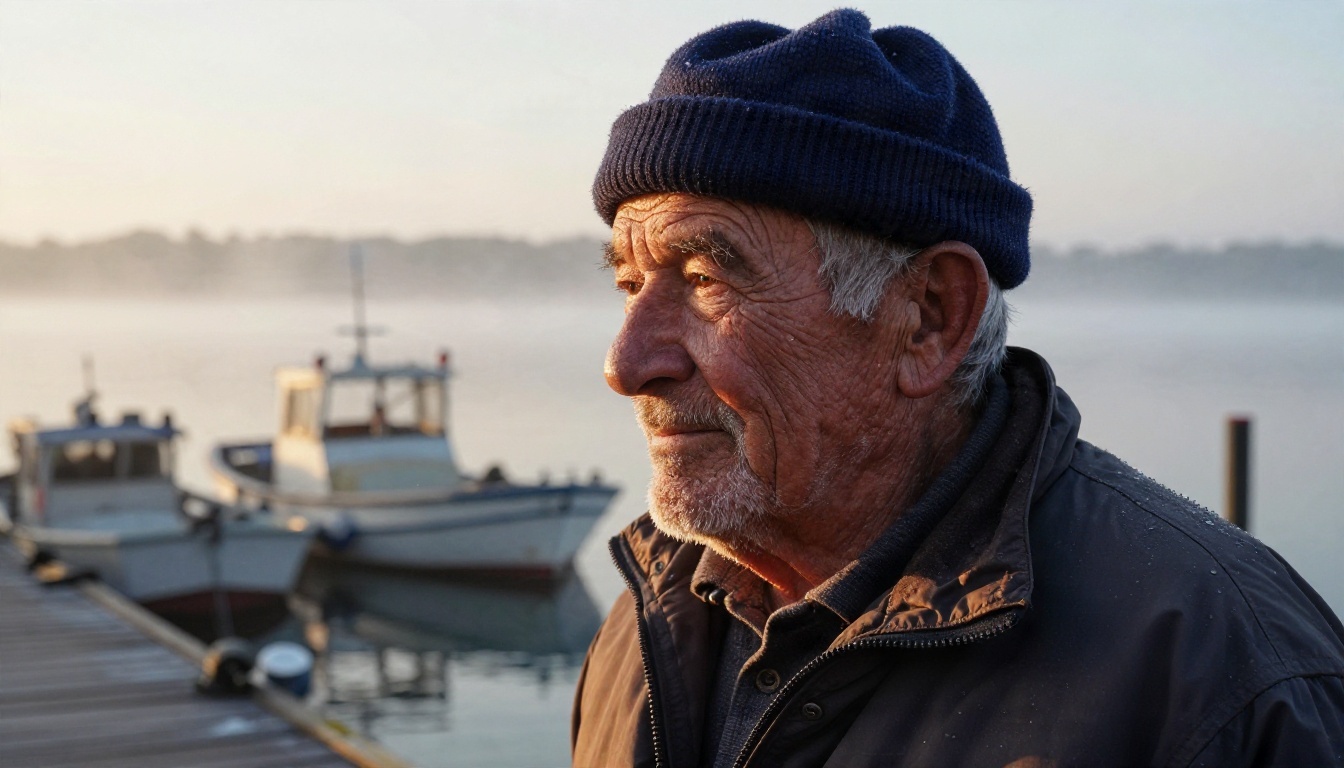
Notice the three phrases that carry the realism: "visible pores", "droplets on his jacket" and "film grain". Remove them and the face turns smooth and waxy. Seedream 4.5 tends to respond well to this kind of texture language.
Mountain Landscape
Landscapes depend on scale cues and atmosphere. The prompt: aerial wide shot of a turquoise mountain lake surrounded by dark pine forest and snow-dusted granite peaks at sunrise, thin mist over the water, warm low sun from the right painting the ridgelines gold, small red wooden cabin on the shore, 24mm lens.
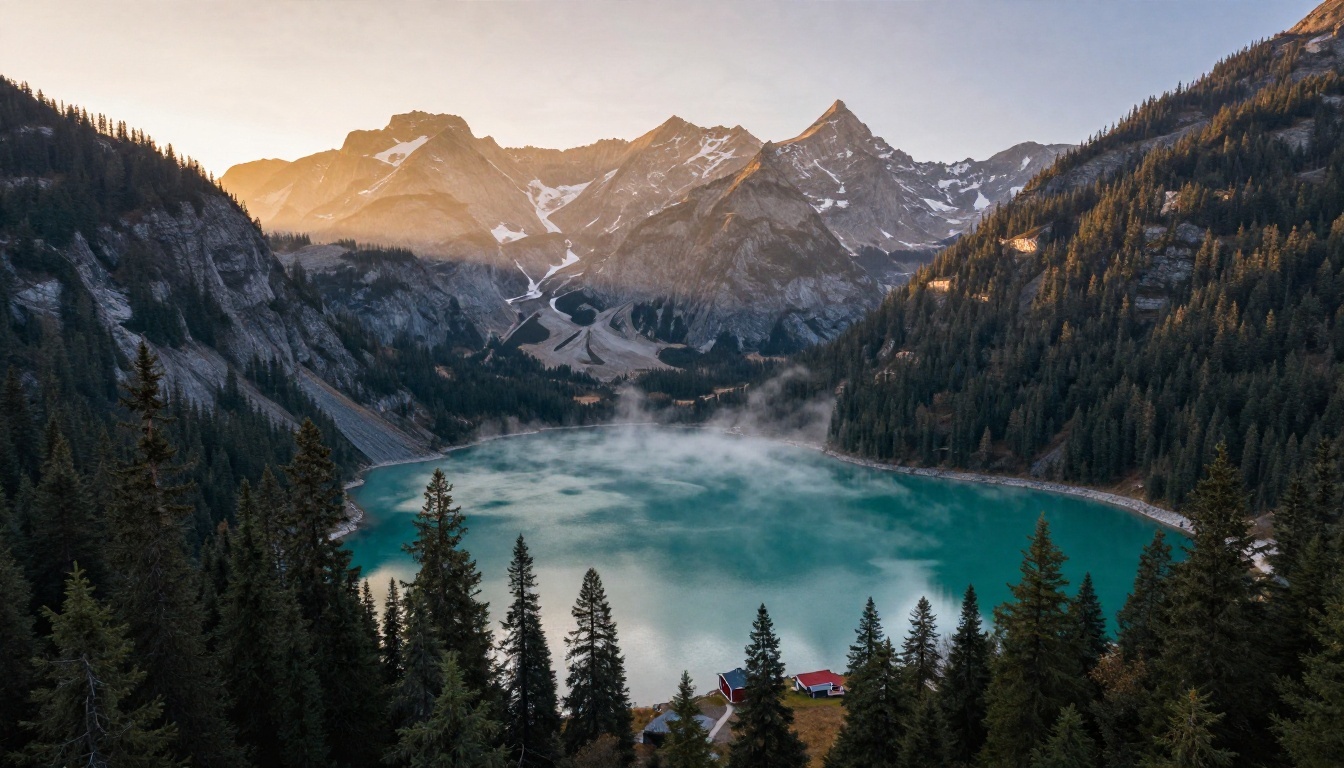
The small red cabin is a trick worth stealing. A tiny human-made object gives the eye a scale reference, and the red pops against the green and blue. Imagen 4 is a solid pick for this kind of natural scene.
Product Shot
Small shops use this style constantly. The prompt: tabletop photograph of a handmade ceramic perfume bottle with a matte cream glaze and a brass cap on a slab of gray travertine, eucalyptus sprigs beside it, soft window light from the left, 100mm macro lens f/2.8, tactile ceramic and stone textures.
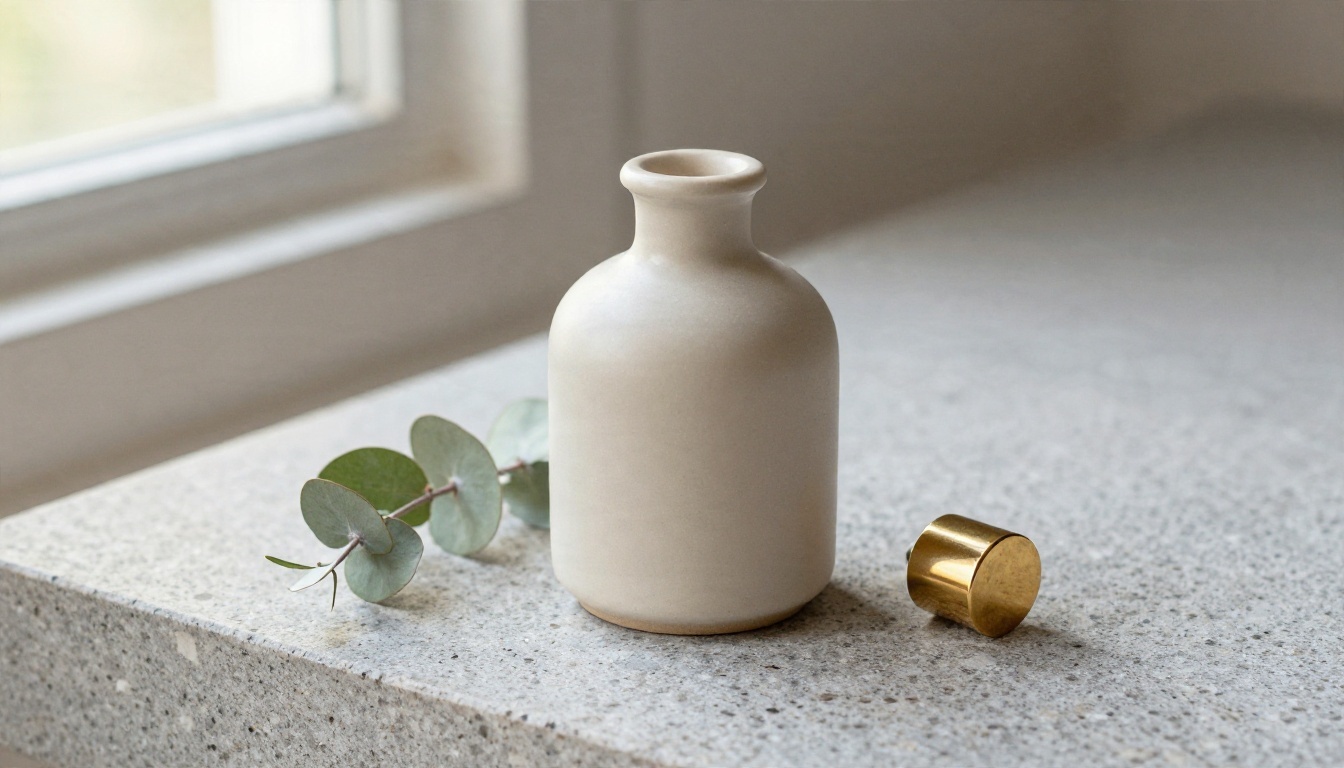
Materials do the heavy lifting here. Naming "matte", "brass" and "travertine" gives the model three distinct surfaces to render, which is what makes a product image feel photographed rather than generated. Imagen 4 Ultra is a strong fit.
Street Scene
Street images live on mood. The prompt: street-level photograph of a narrow Lisbon alley in late afternoon, pastel buildings, hanging laundry, cobblestones glistening after rain, a woman in a mustard raincoat walking away with a red umbrella, warm low sun from behind, 35mm f/2.
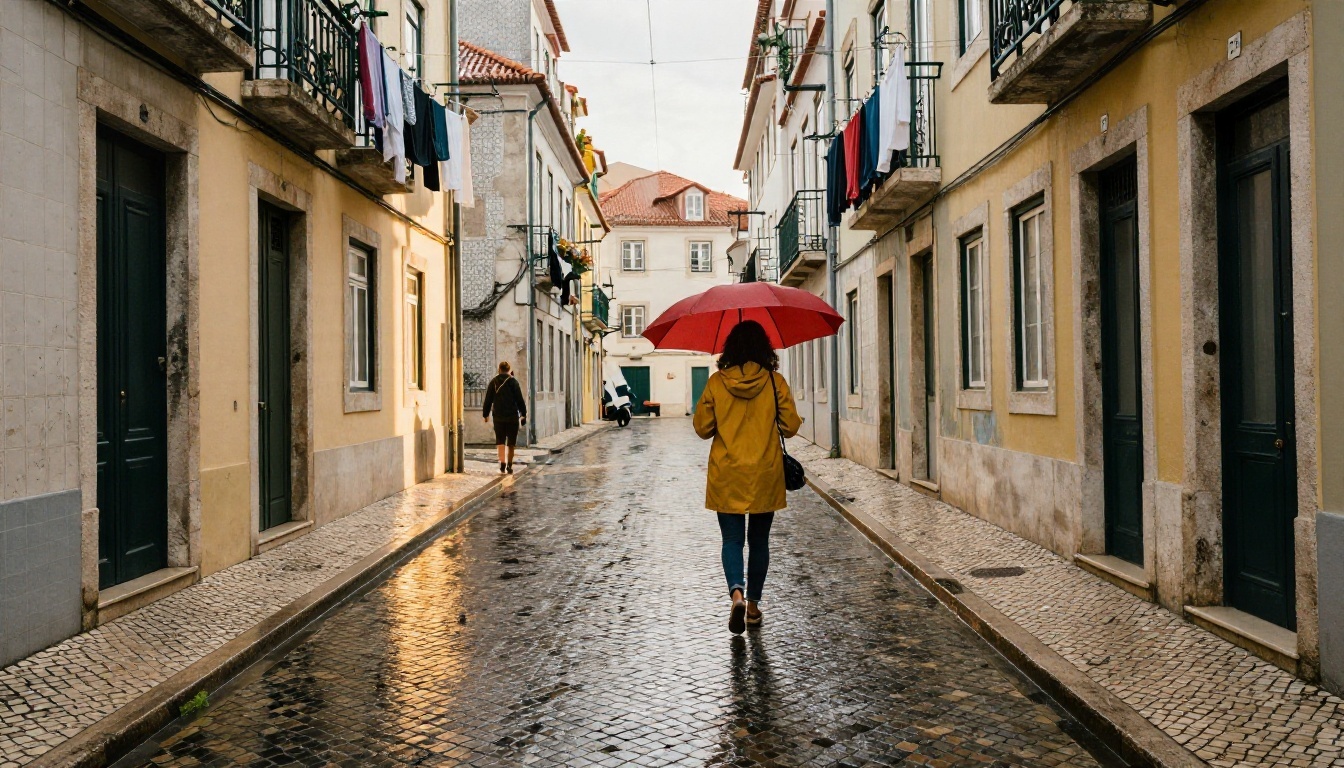
"Glistening after rain" is a small phrase with a big effect: it adds reflections, contrast and a sense that the photographer waited for the right moment. Try the same prompt in Nano Banana Pro and compare how each model handles the wet stone.
Mistakes That Ruin Good Ideas
After the first few images, most people hit the same walls. Here are the ones that cost the most time.
Cramming Too Much In
A prompt with fourteen subjects, three locations and five moods produces a confused picture. Pick one subject, one setting, one light. If you need a busy scene, build it in layers: generate the background first, then edit in the extra elements.
Forgetting the Light
Without a light instruction, models default to flat, even illumination, the visual equivalent of a fluorescent office. Add direction ("from the left"), quality ("soft", "harsh") and time ("golden hour", "overcast noon") and the picture gains depth immediately.
Using the Wrong Model for the Job
A fast model is perfect for testing ideas and poor for final prints. A text-focused model is wonderful for posters and unnecessary for a landscape. Match the tool to the task using the table earlier in this article.
Chasing Perfection in One Pass
Change one thing at a time. If the face is right but the background is busy, keep the subject words and rewrite only the setting. Changing everything at once makes it impossible to know what helped.
💡 Tip: Keep a note file of prompts that worked. A personal library of ten reliable prompts saves more time than any shortcut.
Editing, Upscaling and Sharing
An image rarely needs to stay exactly as it first appeared. PicassoIA is more than text-to-image: you can also fix details, expand canvases, remove backgrounds and upscale a finished result to a larger size.

Fix and Refine Details
Nano Banana accepts an existing picture along with instructions, so you can change a jacket color, remove a stray object or adjust the background without starting over. This is the fastest way to rescue an image that is 90 percent right.
Compare With Friends
Generating is more fun with company. Run the same prompt through two or three models and put the results side by side. People often disagree about which one looks best, which is a sign each model has a distinct personality: one warmer, one sharper, one more painterly even when you ask for realism.
Print It
A good generated image can hold up on paper if you start with a high-resolution model and a clean composition. Look at the print under the lighting where it will hang, not just on screen. Warm lamp light and cool daylight can change how a skin tone or a sky reads.
From Screen to Wall
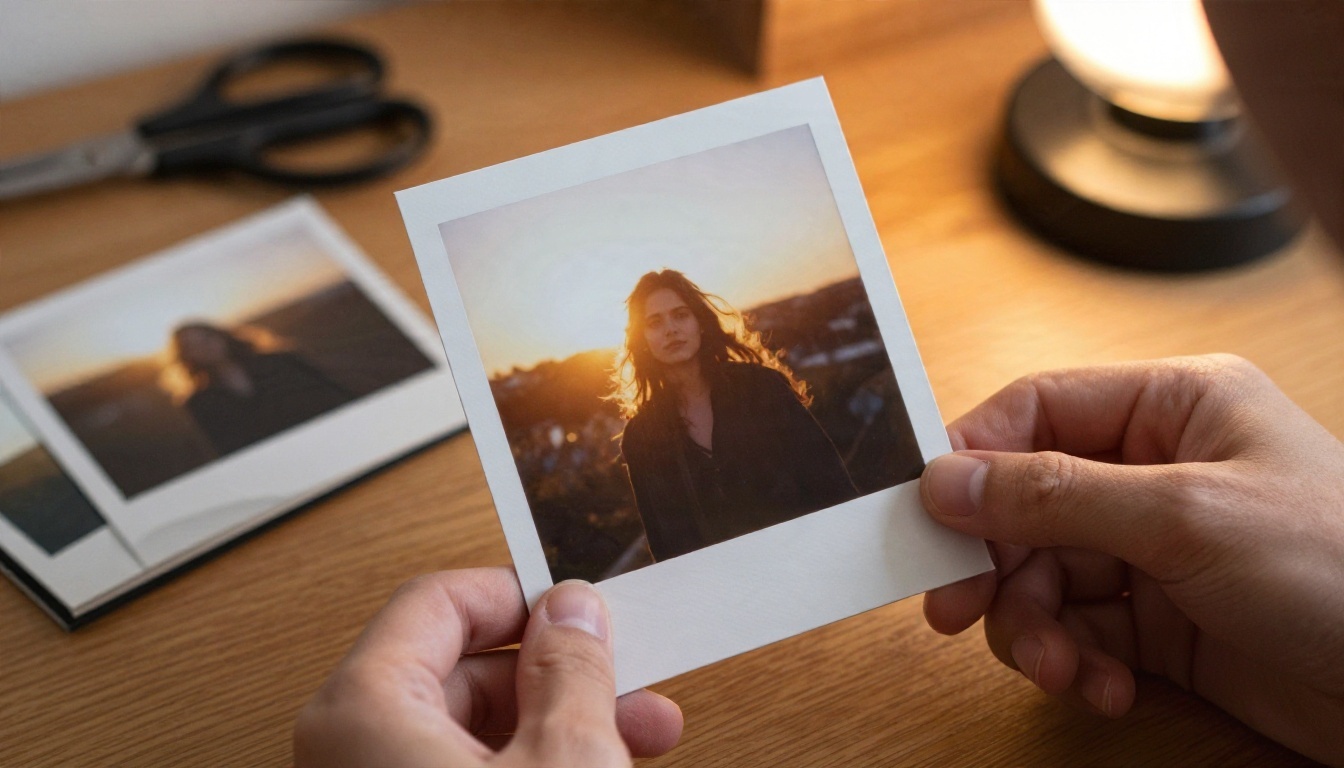
The most satisfying moment in AI image making happens away from the screen, when a picture you described in a sentence is standing on a wall. Many people start by making one image for a friend, a gift or a room that feels empty, and end up with a habit.
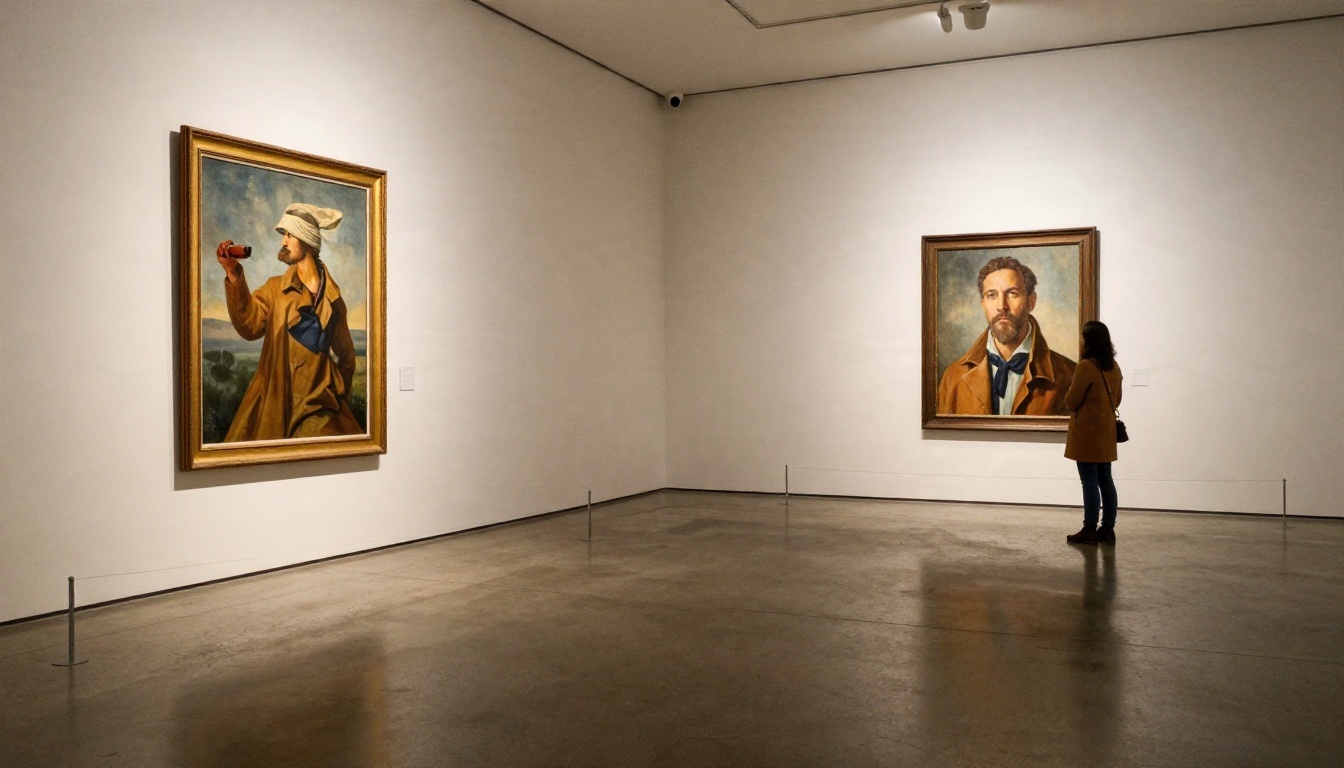
Where Generated Images Fit
Some practical uses that people return to again and again:
- Home decor: large landscape prints for a hallway or a bedroom.
- Gifts: a portrait of a pet in the style of a golden-hour photograph.
- Small business: product backdrops, menu photos, social posts and banners.
- Creative projects: book characters, tabletop game scenes, mood boards for a short film.
- Learning composition: studying how light and framing change a picture by editing one word at a time.
A Note on Honest Use
Generated images are best presented as what they are. If you share them online or sell prints, say they were made with AI, and avoid prompting for the likeness of real private individuals without their consent. Good habits keep the medium credible for everyone using it.
Picking Your First Model
If you only try one thing today, run a single portrait prompt through two models and compare. It teaches you more about prompting in ten minutes than an hour of reading.
Make Your First Image Today
You now have a formula, four prompts to borrow and a short list of models matched to real tasks. What remains is the part no article can do for you: typing the sentence and pressing generate.
Open PicassoIA, pick a model from the table, and paste one of the prompts above. Then change one detail: swap the fisherman for your grandmother's garden, trade the Lisbon alley for the street you live on, put your own product on the travertine. Run it twice, compare, adjust the light, and run it again.
That loop of describing, looking, adjusting and trying again is the entire craft. The tools handle the pixels. You bring the eye, the taste and the idea worth making. Start with one prompt, and see what your next picture looks like.


